Getting Started with Desktops
Overview
The Desktops page in the HYPR AgentPass™ console is where you connect your organization's desktops and decide what Endpoint Guard does on them. It opens on the Get started tab, a checklist of the setup steps in order.
To open it, click Desktops in the console's sidebar. The page has these tabs:
| Tab | What you do there |
|---|---|
| Get started | Follow the setup checklist |
| Installation | Create enrollment tokens, deploy the desktop client and revoke desktops. See Enrolling Desktops |
| Desktop configuration | Choose the AI agents to watch, under Observation, and change their settings, under Configuration. See Agents Observation and Agent Configuration |
| SaaS based AI | Choose which AI apps in the browser are allowed or blocked. See SaaS Based AI |
What the desktops report appears on Activity → Desktop activity. See Desktop Activity.
Opening the Desktops page needs permission to view settings, and changing anything on it needs permission to edit settings. The SaaS based AI tab also needs permission to view agents.
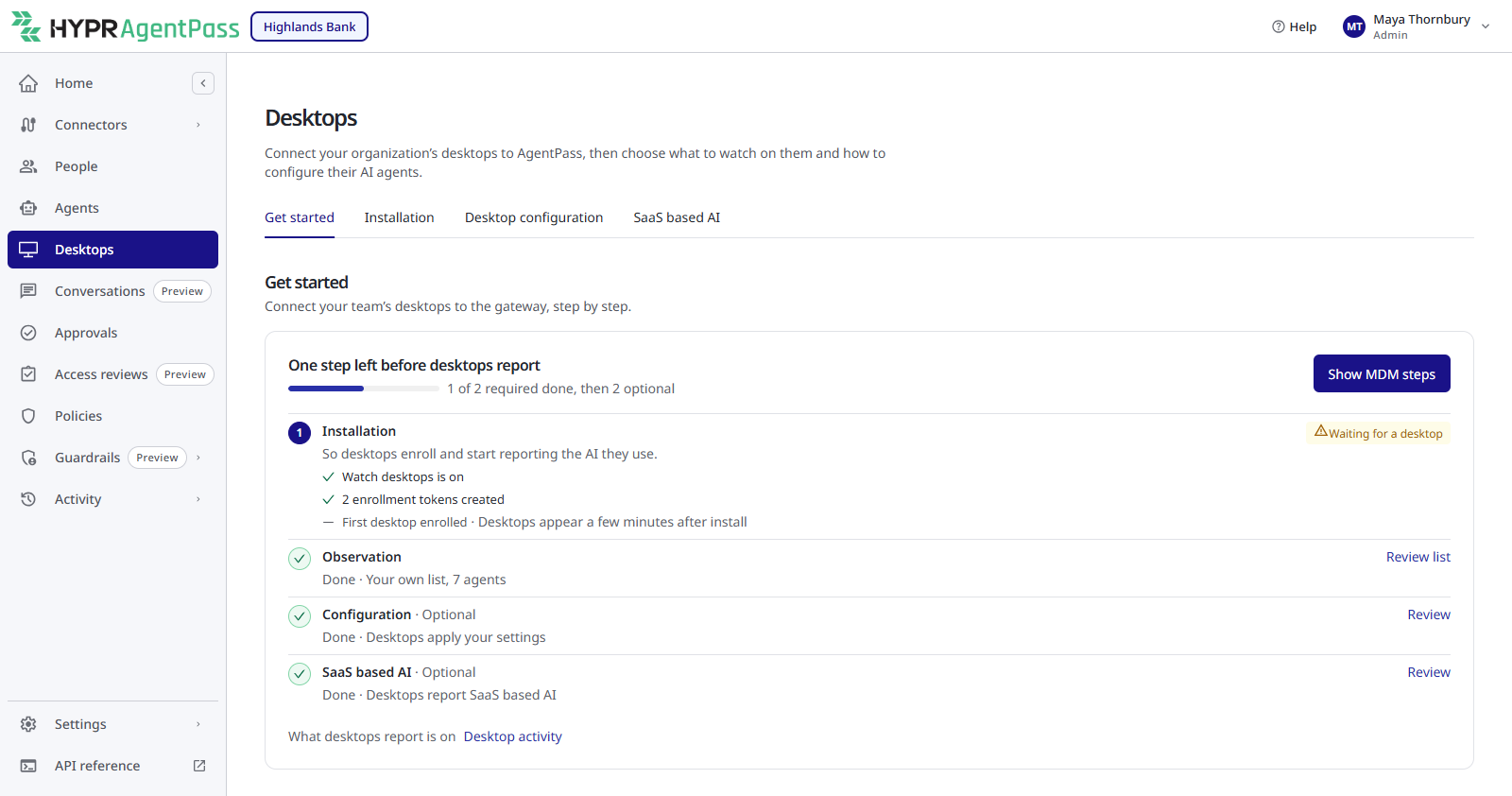
Follow the Checklist
The checklist has two required steps, then two optional ones. Its heading counts the required steps left, such as Two steps left before desktops report, with a progress line beneath. Each open step says what it is for, and links to the tab where you complete it.
| Step | Required | What it gives you |
|---|---|---|
| Installation | Yes | Desktops enroll and start reporting the AI they use |
| Observation | Yes | You see which AI agents people run |
| Configuration | Optional | Agents send model traffic through AgentPass and get your MCP servers |
| SaaS based AI | Optional | You choose which AI apps in the browser are allowed or blocked |
Beside the heading, one button suggests the next action, such as Create an enrollment token, Show MDM steps or Choose agents to watch.
The Installation step lists what it still needs:
- Watch desktops is on
- An enrollment token created
- First desktop enrolled. Desktops appear a few minutes after install.
While a token exists and Watch desktops is on, but no desktop has enrolled yet, the step shows Waiting for a desktop.
When Setup Is Done
Once both required steps are done, the checklist folds to one line. It reads Setup done, with how many desktops are enrolled and a link to Open Desktop activity. Links to any optional step still open follow.
The checklist opens again by itself if a required step stops being true. For example, it reopens when you turn off Watch desktops, or when no desktop is enrolled.
Related
- Endpoint Guard — what the desktop client does, and what it reports
- Enrolling Desktops — enrollment tokens, the Watch desktops switch and revoking desktops
- See and Govern the AI Tools Already on Your Workstations — the full rollout, step by step