Microsoft 365 Copilot
Overview
The Microsoft 365 Copilot connector lets your agents and users reach Microsoft 365 Copilot through HYPR AgentPass™. Copilot traffic then picks up the same identity, policy, approval and audit controls as every other connector. The connector forwards requests to the Microsoft Graph Copilot APIs (/copilot), and returns Copilot's response through the gateway. In the console, it is listed under the Cloud Agents connector kind.
To govern developer tools that call your own model deployments in Microsoft Foundry or Azure OpenAI, such as GitHub Copilot or Claude Code, use the Microsoft Foundry connector instead.
Access follows a bring-your-own-license (BYOL) model. Each signed-in user calls Copilot on their own Microsoft 365 Copilot license. The gateway does not use a single shared service credential. For each request, it obtains a per-user delegated token and forwards the call as that user.
Creating a Microsoft 365 Copilot connector needs Connectors: Edit, which Admin has, and Microsoft Entra app registrations in your tenant. See Microsoft Entra Setup for Microsoft 365 Copilot.
How Access Works
When a signed-in user makes a Copilot request through the gateway:
- AgentPass identifies the user from their gateway session.
- The gateway exchanges the user's sign-in for a per-user delegated Microsoft Graph token, using the Microsoft OAuth2 On-Behalf-Of (OBO) flow. It caches the token for reuse.
- The gateway forwards the request to Microsoft Graph with that user's token, so Copilot responds against the user's own license.
Only the gateway holds the delegated token. It is never returned to the browser or the calling client. Each call is made as the individual user, so Copilot applies that user's license and access. There is no application-only or shared-service path.
This backend-for-frontend design uses two Microsoft Entra app registrations:
- A confidential middle-tier app that performs the On-Behalf-Of exchange
- A public app that signs users in to the Agent Portal
Microsoft Entra Setup for Microsoft 365 Copilot covers both, step by step.
A user without an active Microsoft 365 Copilot license cannot reach Copilot through the connector. See Troubleshooting.
Before You Begin
The connector authenticates to Microsoft as a confidential client. You need Microsoft Entra app registrations in the same tenant as your Microsoft 365 Copilot licenses. Complete the registrations first, then return here to create the connector.
Microsoft Entra Setup for Microsoft 365 Copilot walks through both app registrations, the delegated Microsoft Graph permissions and admin consent, the exposed API scope, and the client secret. When you finish, you have the values the connector form asks for.
The connector supports GCC High, and everything on this page still applies. The app registrations, admin consent and Microsoft hosts differ, though. Start at Microsoft 365 Copilot on GCC High.
Create the Connector
- In the AgentPass administration console, open Connectors.
- Click Add connector.
- Under Cloud Agents, choose Microsoft 365 Copilot.
- Complete the configuration fields described in the following table.
- Click Create Connector. The client secret is stored encrypted, and never displayed again.
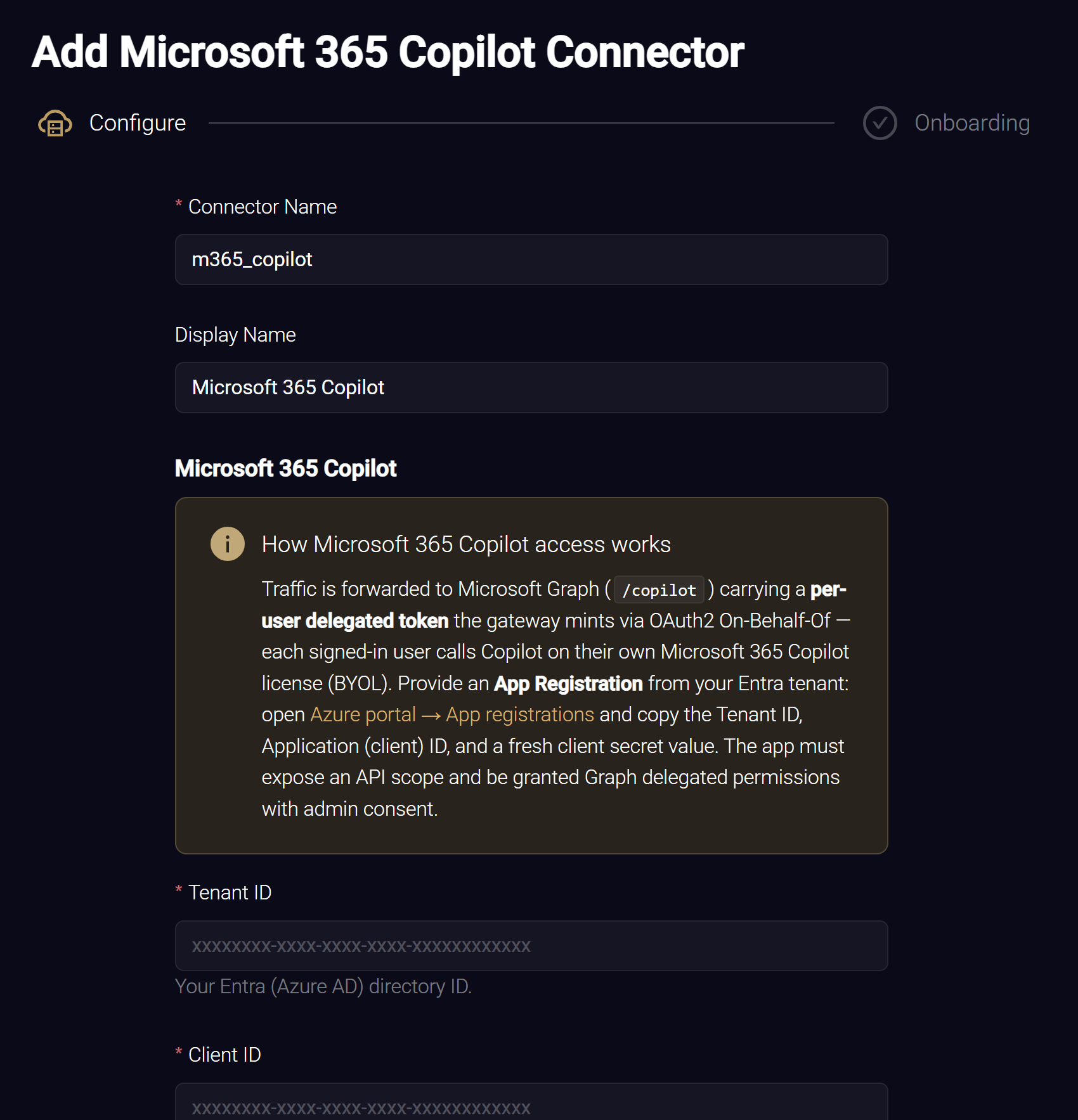
The form's How Microsoft 365 Copilot access works panel summarizes what to provide. It links directly to Azure portal → App registrations, where you copy the tenant ID, the application (client) ID and a fresh client secret value. Microsoft Entra Setup for Microsoft 365 Copilot has the full walkthrough.
| Field | What to enter |
|---|---|
| Connector Name | An identifier for the connector, such as m365_copilot |
| Display Name | A friendly name shown in the console, such as Microsoft 365 Copilot |
| Microsoft cloud | The Microsoft cloud your tenant lives in: Commercial (worldwide), the default, or US Government — GCC High. See Microsoft 365 Copilot on GCC High |
| Tenant ID | Your Microsoft Entra directory (tenant) ID |
| Client ID | The application (client) ID of the middle-tier app registration |
| Client Secret | The Value of a client secret, from the app's Certificates & secrets. Write-only. When editing, leave it blank to keep the stored secret |
| Graph scopes | The On-Behalf-Of downstream scope requested from Microsoft Graph. Leave it blank to use the default for the connector's Microsoft cloud: https://graph.microsoft.com/.default on the commercial cloud, and the corresponding US Government scope on GCC High |
Set Up the Agent Portal
The connector also powers the Agent Portal, a web page where a signed-in user chats with Copilot and with the Copilot Studio agents you register. To let users sign in, enter the Agent Portal sign-in details you registered in Entra.
| Field | What to enter |
|---|---|
| Portal app (client) ID | The application (client) ID of the public (SPA) app registration that signs users in to the portal |
| Exposed API scope | The name of the scope the middle-tier app exposes, such as access_as_user. The gateway adds the middle-tier app's api://<client-id>/ prefix, and the portal requests that scope at sign-in. When left blank, it is access_as_user |
Both values come from the same Entra setup. Once both are set, the connector's Overview tab shows a Portal URL row, with a link that opens the portal and Copy. Share that URL with your users. See Register the Agent Portal app. The portal's redirect URI, which is your gateway's public origin plus /portal/, must match the one registered on the public app.
You enter these sign-in details on the connector yourself, with no coordination with HYPR. Only the user's Microsoft sign-in gates the portal. A user with Microsoft 365 Copilot access but no HYPR console access can still use it.
Edit the Connector Later
Every connection and Agent Portal sign-in field stays editable after the connector is created. Open the connector, and click Edit.
The client secret is write-only. When you edit the connector, leave Client Secret blank to keep the stored value, or enter a new value to replace it.
You edit the connector's Agent Portal branding separately, on the connector detail page. See Brand the Agent Portal.
Registering Copilot Studio Agents for the Agent Portal
Besides Microsoft 365 Copilot, you can register custom agents your organization builds in Microsoft Copilot Studio. Agent Portal users can then chat with them directly. Each registered agent is addressed on behalf of the signed-in user, so it runs with that user's own identity and access.
You register each Copilot Studio agent on the connector once. Every enabled agent becomes available to the connector's portal users. When a user chats with one, Microsoft applies that user's own access to the agent.
Grant the Power Platform Permission in Microsoft Entra
Chatting with a Copilot Studio agent uses a delegated permission separate from the Microsoft Graph permissions. Add it to the middle-tier app registration you created for the connector. The steps are in Grant the Power Platform permission (Copilot Studio agents).
Grant the delegated CopilotStudio.Copilots.Invoke permission, and complete admin consent. Without it, registered Copilot Studio agents cannot be reached, and the Agent Portal shows a consent notice instead of a reply.
Build a Minimal Agent in Copilot Studio
If you do not have an agent to register yet, you can build a usable one in Copilot Studio in a few minutes. All of this happens in Microsoft Copilot Studio, not in the gateway console.
This sample produces the smallest agent the connector can use. It is not a limit on what you can register. A registered agent can use the full range of Copilot Studio capabilities: topics, tools and actions, connected agents, triggers, and any knowledge source Copilot Studio supports.
-
In Microsoft Copilot Studio, select Agents → + New agent.
-
Open the new agent's Overview tab.
-
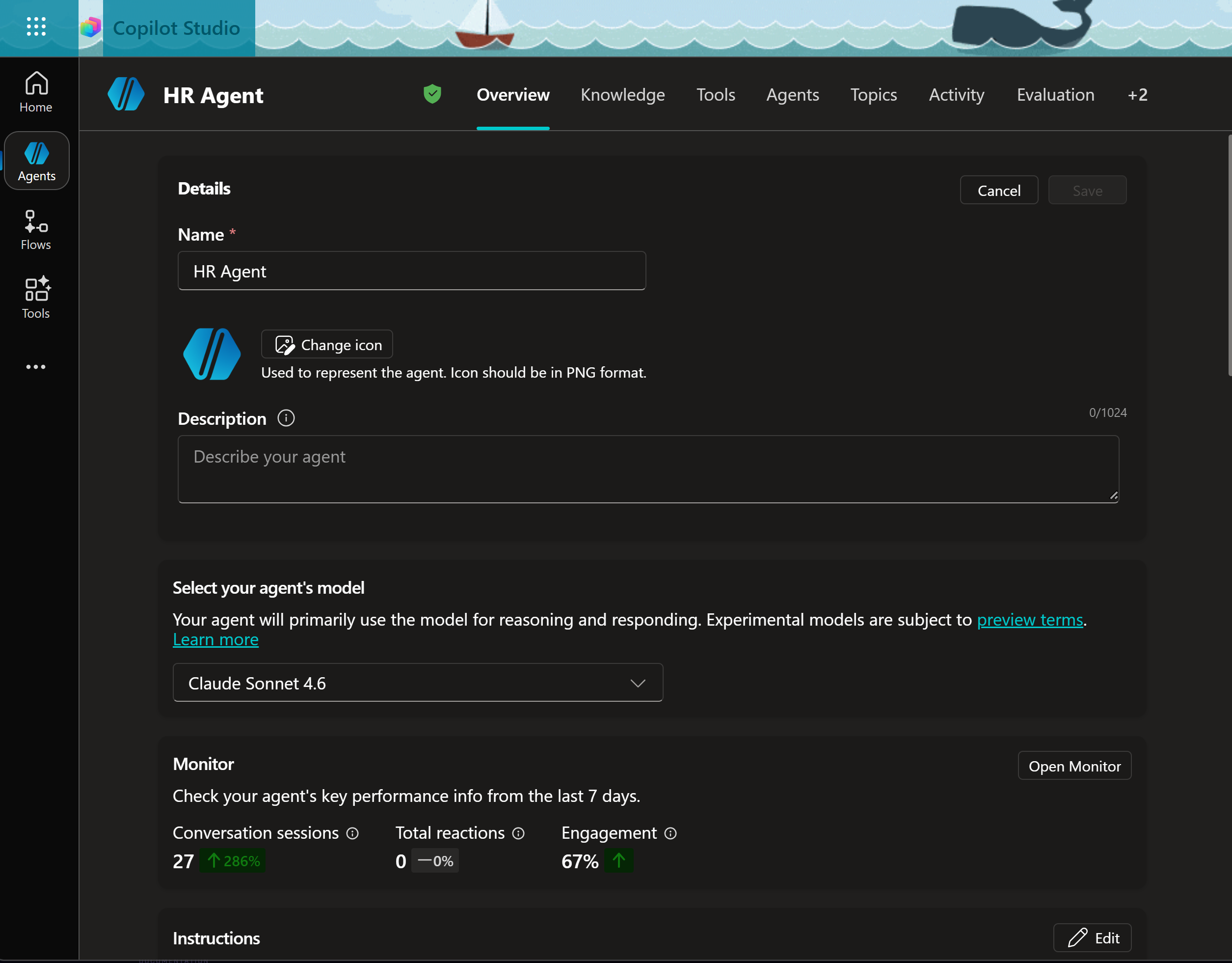
Under Details, give the agent a Name you will recognize later. Optionally, add a Description and an icon. Click Save.
-
Under Select your agent's model, choose the model the agent uses for reasoning and responding.
-
Under Instructions, describe what the agent should do and how it should answer. Copilot Studio uses these instructions to shape every response.
-
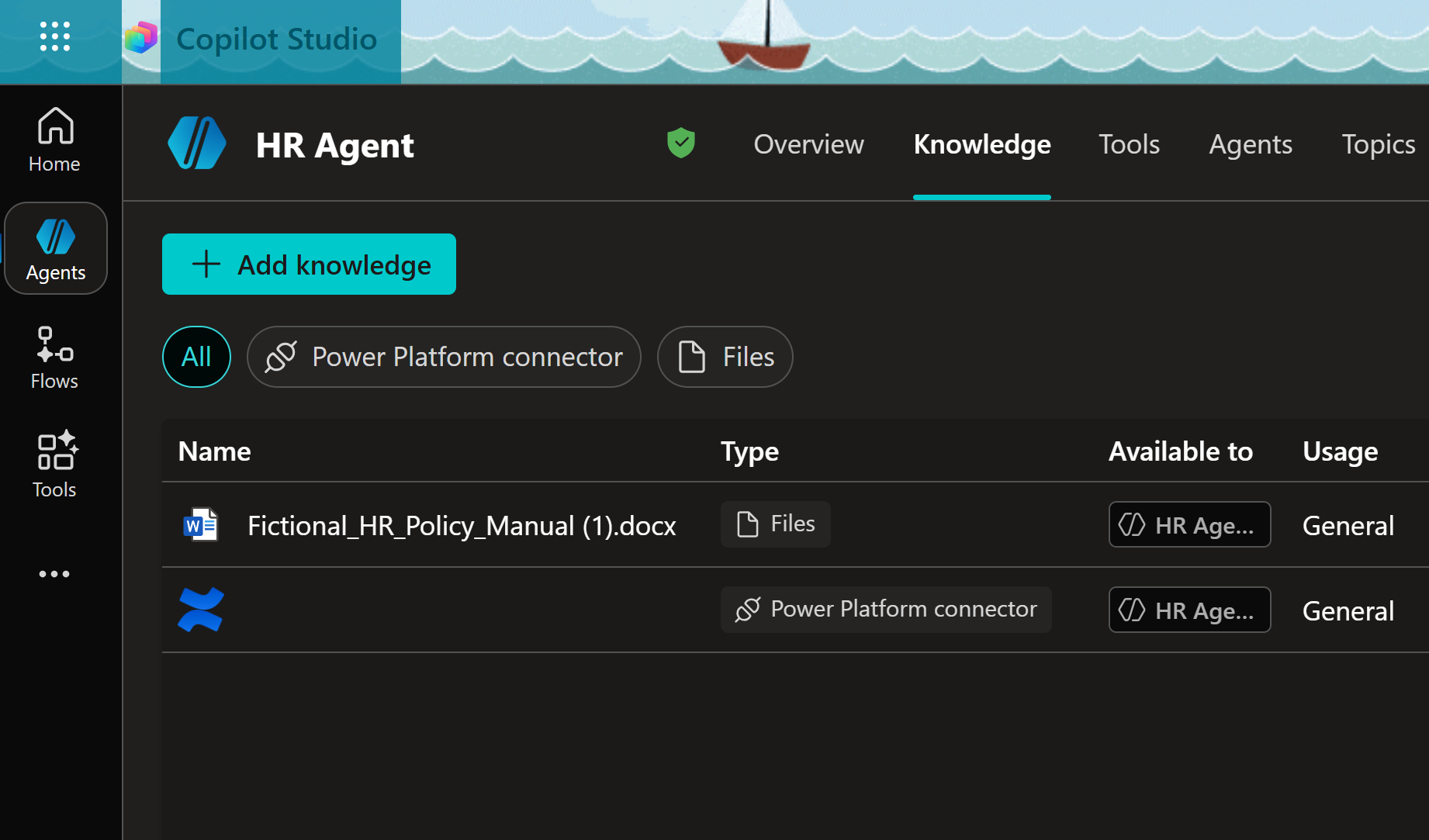
Open the Knowledge tab, and click + Add knowledge. Add something to ground the agent's answers in: uploaded files, or a Power Platform connector to a system your organization already runs. Each source you add is listed with its type and the agents it is available to.
-
Publish the agent. An unpublished agent cannot be reached from outside Copilot Studio, so the Agent Portal cannot chat with it. See Microsoft's Publish your agent for the current steps.
Knowledge sources stay under Microsoft's access controls. When a portal user chats with the agent, the call is made on that user's behalf, so the agent returns only what the user is already allowed to see.
Find Each Agent's Values in Copilot Studio
For each agent you want to register, collect its identifying values from Microsoft Copilot Studio.
- In Microsoft Copilot Studio, open the agent.
- Go to Settings → Advanced → Metadata.
- Copy the values listed in the following table.
| Value | Where it comes from |
|---|---|
| Environment ID | The Copilot Studio environment that hosts the agent |
| Tenant ID | Your Microsoft Entra directory |
| Agent app ID | The agent's stable identifier |
| Schema name | The agent's schema name |
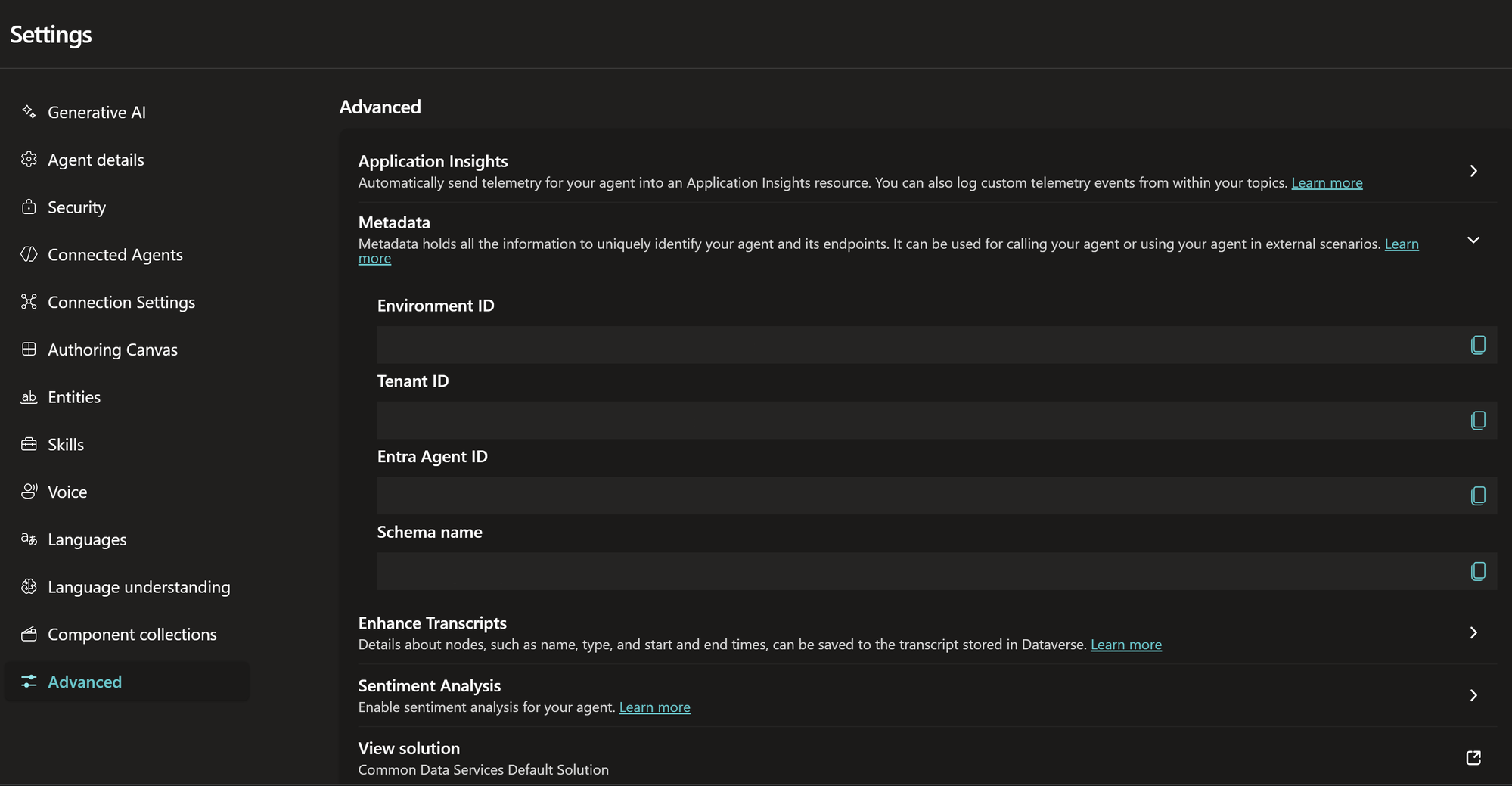
For more detail on these values, see Microsoft's guide, Integrate with web or native apps using the Microsoft 365 Agents SDK.
Add the Agents to the Connector
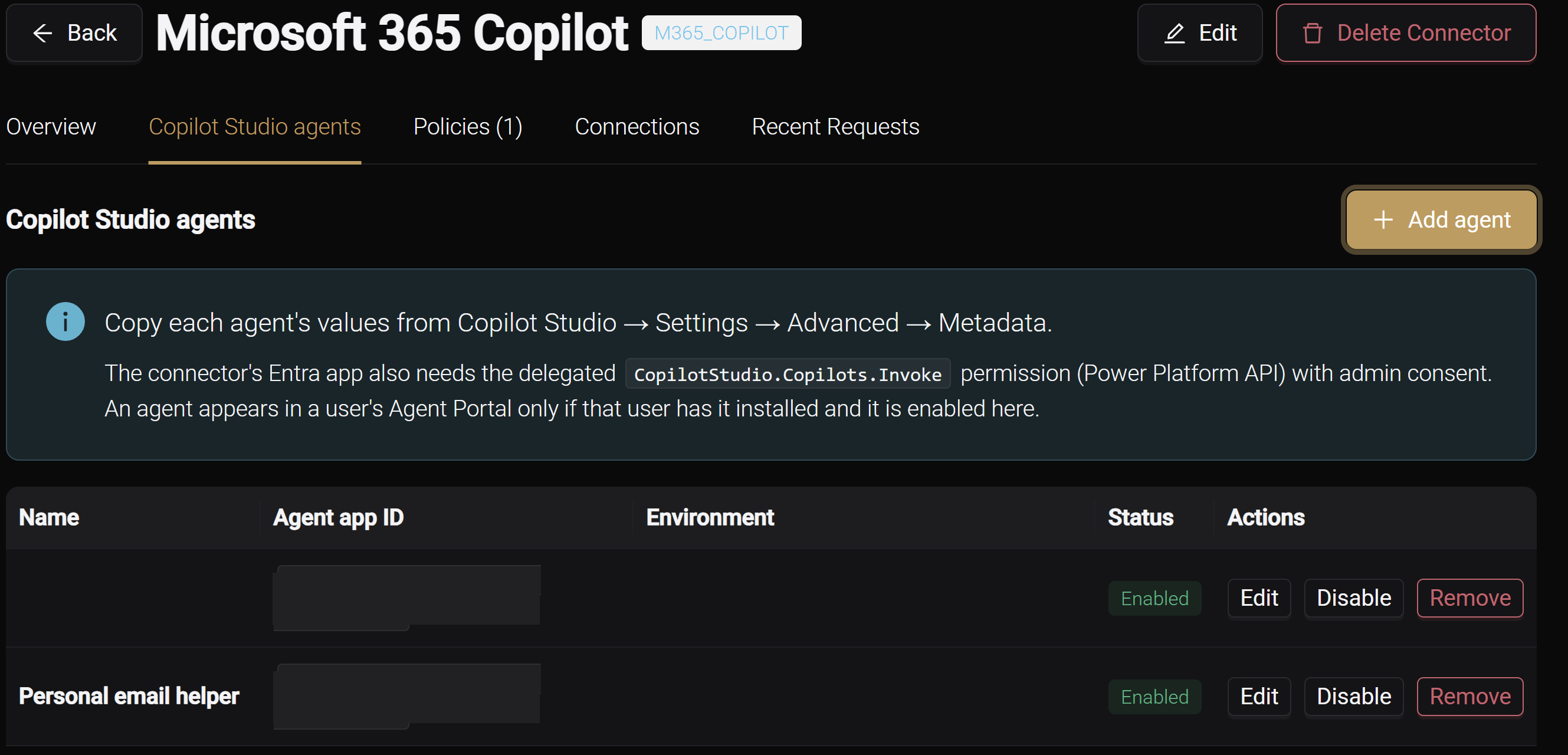
- On the connector's detail page, click the Copilot Studio agents tab.
- Click Add agent.
- Complete the fields described in the following table.
- Click Add.
- Repeat for each agent.
The Add Copilot Studio agent form has these fields.
| Field | What to enter |
|---|---|
| Name | A display name for the agent, shown to users in the Agent Portal |
| Description | Optional. A short description of what the agent does |
| Environment ID | The Environment ID from the agent's metadata |
| Tenant ID | Optional. The Tenant ID from the agent's metadata |
| Agent app ID | The Agent app ID from the agent's metadata. It cannot be changed after you add the agent |
| Schema name | The Schema name from the agent's metadata |
Each row has Edit, Enable or Disable, and Remove. Every enabled agent is available in the Agent Portal, and disabling an agent removes it. This tab follows the cloud agents permissions, not the connector permissions. At Own scope, it lists only the agents you added, and you can edit and remove only those. Enable and Disable follow the rule for every agent switch. See Who Can Turn an Agent Off and On. A button you cannot use is unavailable. For what the chat looks like to your users, see Chatting in the Agent Portal.
Brand the Agent Portal
The Agent Portal this connector powers can carry your organization's branding instead of the default look. On the connector's detail page, open the Portal branding tab. There you can:
- Pick a theme from your tenant's theme registry, or follow the tenant default
- Set the product name the portal presents
- Add a portal-specific logo
A live preview shows the result, including the sign-in page your users see before they log in.
You manage the themes themselves, with their colors, logos and the tenant default, on the console's Settings → Theme page. See Themes.
Governance
Microsoft 365 Copilot traffic flows through the same gateway pipeline as your other connectors. Your existing controls apply with no extra configuration:
- Request Log. Copilot calls appear in the Request Log alongside your other agent activity, attributed to the user who made them.
- Policies. Your policies evaluate requests before forwarding and responses after, so you can allow, block or require approval for Copilot traffic. A policy can also name the Copilot details behind a request: which part of the portal it came from, the signed-in person, the Copilot Studio agent it targets and any attached files. See Microsoft 365 Copilot Policies.
- Approvals and audit. Actions that require a supervisor's approval follow the standard human-in-the-loop flow. The audit trail records every request.
Response Policies and Streaming in the Agent Portal
By default, replies stream into the Agent Portal live, so users start reading as the answer is written.
When an enabled policy that evaluates responses applies to this connector, the gateway holds each reply until the check completes. The complete answer then appears at once, or a blocked notice if the policy blocks it. This applies to every conversation on the connector, not only those a rule matches, so scope such a policy to the connector you mean to govern.
Checking What Copilot Replies covers what a reply-side rule can read, and what users experience while one is enabled.
Troubleshooting
Users may see these messages.
| Message | What it means | What to do |
|---|---|---|
| Microsoft 365 Copilot license required | Microsoft rejected the request, because the signed-in user has no active Microsoft 365 Copilot license or lacks access to Copilot | Confirm the user is assigned an active Microsoft 365 Copilot license and has access, then try again |
| Sign-in required / session expired | The user's session has expired or is no longer valid, so the gateway cannot obtain a token on their behalf | Have the user sign in again. The next request obtains a fresh token |
| Consent required | The required Microsoft Graph permissions have not been consented for the user or the tenant | Confirm the delegated Microsoft Graph permissions are on the app registration, and admin consent is granted. See Microsoft Entra Setup |
| Consent required (Copilot Studio agent) | The delegated Power Platform permission for Copilot Studio has not been consented | Confirm CopilotStudio.Copilots.Invoke is on the app registration, and admin consent is granted. See Grant the Power Platform permission |
| Agent not available | A registered Copilot Studio agent could not be reached for the signed-in user | Confirm the agent is enabled on the connector, and that the user has access to it in Microsoft |
Related
- Microsoft Entra Setup for Microsoft 365 Copilot — the app registrations the connector requires
- Microsoft 365 Copilot on GCC High — what changes when the tenant is in Microsoft GCC High
- Chatting in the Agent Portal — the user experience this connector powers
- Themes — brand the console and Agent Portals with your organization's themes
- Connectors — how connectors fit into AgentPass
- Policies — govern Copilot traffic with rules
- Microsoft 365 Copilot Policies — the Copilot attributes a rule can read, and the file and reply rules they support
- Viewing the Request Log — review Copilot activity as it flows through the gateway
- HYPR AgentPass: How It Works — the path Copilot traffic takes through the gateway
- HYPR AgentPass: Overview — where connectors fit in the product