Claude and Codex Channels
Channels are a preview feature.
A channel connects a developer's local Claude Code or Codex session to HYPR AgentPass™. It carries supervisor messages to the session, and returns the agent's replies, conversation list and history. The Endpoint Guard manages the channel on enrolled Macs.
Supervisor app or console
          ↕
  HYPR AgentPass gateway
          ↕ secure channel
      Endpoint Guard
          ↕
 Claude Code or Codex session
A channel complements inference routing. Routing sends model requests through the gateway for policy and audit. The channel carries the live supervisor conversation. Enable both through Managed Desktop Tools.
Claude and Codex channels use the Anthropic and OpenAI connectors, which carry a channel session route for this purpose. A Slack workspace is connected differently, through a Slack Agent connector.
Supported Tools
Channels support two tools.
| Tool | What the channel provides | Conversation behavior |
|---|---|---|
| Claude Code | Live messages, replies, conversation list and history | A supervisor can continue an existing conversation or start a new one |
| Codex | Live messages, replies, thread list and history | A supervisor can continue a thread that already exists on the workstation |
Both channels use the developer's existing provider sign-in to establish a short-lived gateway session. The developer never enters a gateway API key, or puts one on the command line.
Endpoint Guard manages Claude and Codex channels on macOS only. See Supported Platforms and Components.
Before You Begin
You need:
- An enrolled Mac running Endpoint Guard for macOS
- Configure agents from AgentPass turned on, with Claude Code, Codex, or both configured
- The selected tool installed and signed in by the developer
- Outbound HTTPS and secure WebSocket access from the Mac to your gateway
- An enabled Anthropic connector for routed Claude Code traffic, and an enabled OpenAI connector for routed Codex traffic
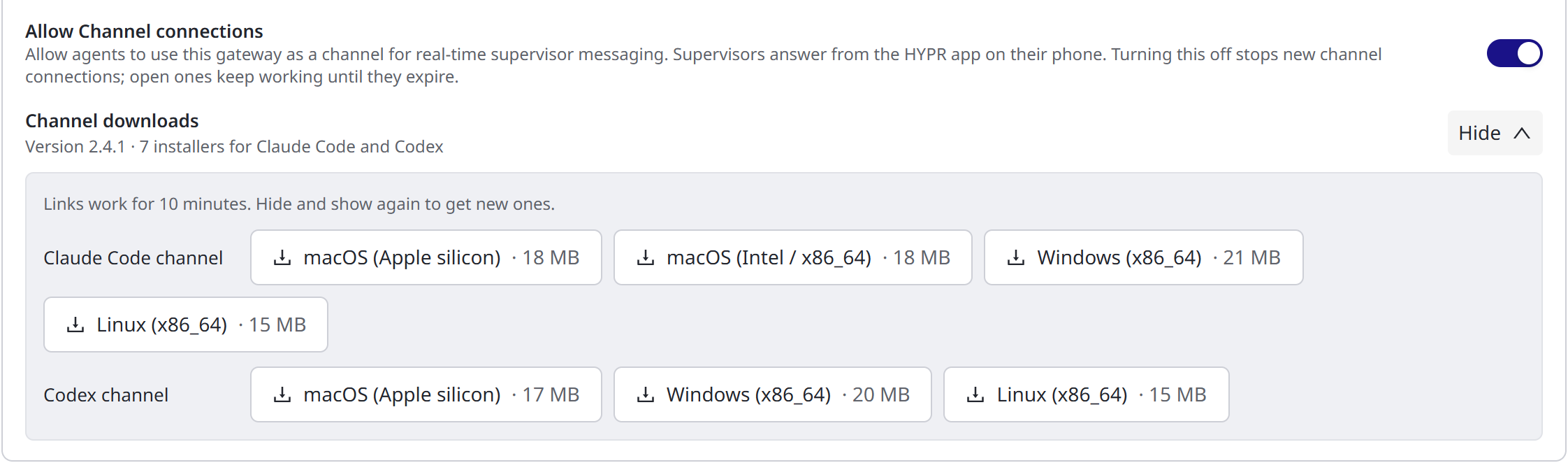
- Allow Channel connections turned on in the provider connector's Overview tab. It is on by default. While it is off, the gateway refuses new channel sessions. Sessions already open keep working until they expire
Channel Downloads
Endpoint Guard installs and updates the channels on the Macs it manages. To install a channel yourself, download it from the provider connector.
- Open Connectors, and choose the Anthropic or OpenAI connector.
- On the Overview tab, under Allow Channel connections, find Channel downloads. The section appears while Allow Channel connections is on. It shows the version and how many installers there are.
- Click Show. Each channel has a row, with a button for each platform.
- Click the button for your platform.
The links work for 10 minutes. To get new ones, click Hide, then Show. If no installers are available, the section says so, with no Show button. Contact HYPR Support.
Enable the Channels
- Open Desktops → Desktop configuration, and choose Configuration.
- Turn on Configure agents from AgentPass, if it is off, and click Turn on to confirm.
- Turn on Configure Claude Code, Configure Codex or both.
- Keep Route model traffic through AgentPass ticked, and choose the provider connector beside it.
- Click Save.
Endpoint Guard receives the configuration on its next check-in. It configures the selected tool and starts its channel, and reconnects the channel when the user signs in again. Turning the tool off in Configuration stops the managed channel, and returns the tool to its previous configuration.
The developer uses Claude Code or Codex as usual. Before the first managed connection, they complete the provider's sign-in:
claude
codex login
If a tool is not signed in, Endpoint Guard waits, and tries again after a later check-in. This keeps the tool's normal provider sign-in flow intact.
Use a Channel
A supervisor opens Conversations, selects the agent, and chooses a conversation. Messages sent there arrive in the local session with the supervisor's identity attached. Agent replies return to the same conversation.
Claude Code can start a new conversation from the supervisor surface. For Codex, start the thread on the workstation first, then select it from the conversation list.
The channel does not move the tool's local permission prompts to the supervisor. Those prompts stay on the workstation. AgentPass policies and approvals still govern the inference and MCP calls that pass through the gateway.
Confirm the Connection
- Open the managed agent in AgentPass, and check that its channel shows as connected. A channel you run yourself prints Connected. Open the HYPR AgentPass mobile app to get connected to a session.
- Send a short message from Conversations.
Confirm that:
- The message appears in the selected local session.
- The agent's reply returns to AgentPass.
- The conversation history remains available after the page is refreshed.
If the channel is offline, check that:
- Endpoint Guard is running.
- The tool is installed and signed in.
- The Mac can reach the gateway over HTTPS and secure WebSockets.
- For Codex, a local thread exists for the supervisor to continue.
- The agent's first connection is not waiting for approval.
When the connector's onboarding mode holds new agents for approval, the channel waits until a supervisor approves the agent. A channel you run yourself says so, names the request to approve under Approvals in the console, and waits: it connects as soon as the request is approved. Press Ctrl+C to stop waiting. If the request is declined or expires, the channel stops; run it again to ask again. With --no-wait, it stops at once with exit status 3. Meanwhile, ap-cli status and the AgentPass menu show Waiting for a supervisor's approval, with the request ID. The channel connects once the request is approved. See Approvals in the Console.
Related
- Managed Desktop Tools — manage routing, MCP tools, channels and egress controls
- Having Conversations with Your Agent — send and receive supervisor messages
- Endpoint Guard for macOS — install and enroll the endpoint component