Microsoft Foundry
Overview
A Microsoft Foundry connector routes your developers' requests through HYPR AgentPass™ to the Microsoft Foundry or Azure OpenAI resource in your own Azure subscription. Every request is subject to your policies and recorded in the Request Log.
The connector works with these developer tools:
- GitHub Copilot CLI
- The GitHub Copilot desktop app
- GitHub Copilot in Visual Studio
- Claude Code
- Codex
Microsoft Foundry is for developer tools that call your own model deployments. To govern Microsoft 365 Copilot, use the Microsoft 365 Copilot connector instead.
This page explains how the connector works and prepares Foundry for it. Microsoft Foundry Setup creates the connector and connects each tool.
How It Works
AgentPass sits between your developers' tools and your Foundry resource. Developers keep their own credential. AgentPass stores no Azure key and adds none.
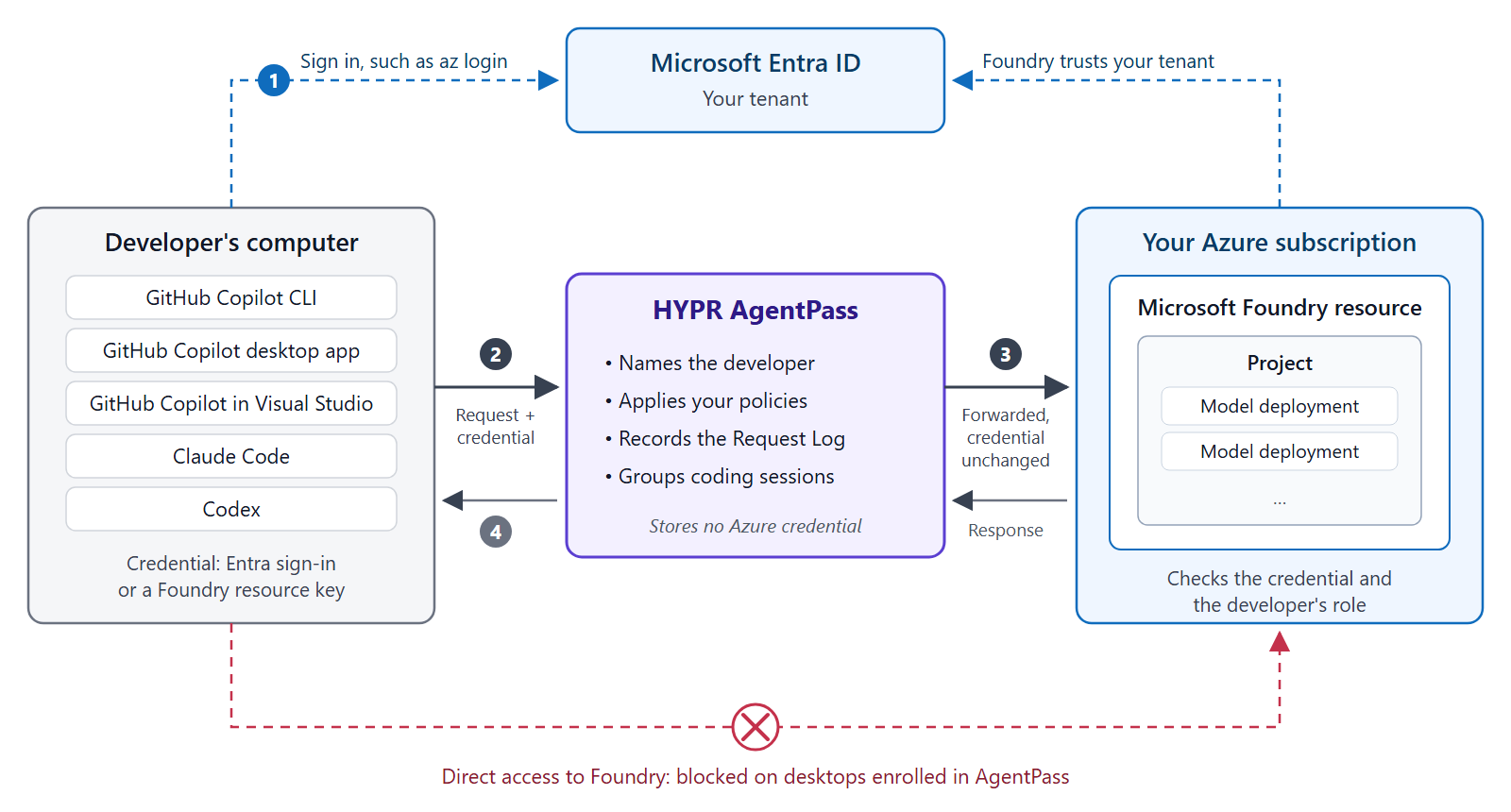
- The developer signs in to your Entra tenant, such as with
az login, or holds a Foundry resource key. - Their tool sends each request to AgentPass, with that credential.
- AgentPass names the developer, applies your policies and records the request. It then forwards the request to your Foundry resource with the credential unchanged.
- Foundry checks the credential and the developer's role, as it does for a direct call. The response returns the same way.
Azure authenticates and authorizes every call, so a developer reaches only what their Azure roles allow. To keep developers from going around AgentPass, block Foundry's own hostnames on enrolled desktops. See Block Direct Access to Foundry.
How Developers Are Identified
The credential a developer's tool sends decides how AgentPass names them in the Request Log.
| Credential | Who AgentPass records |
|---|---|
Microsoft Entra sign-in, such as az login | The named person, from their sign-in. The agent is named _grace.hopper@hb.com's Foundry Agent_ |
| Microsoft Entra sign-in by an application or managed identity | The application |
| Foundry resource key | One shared identity for everyone who uses that key, named Shared Foundry key |
| Foundry resource key, plus an AgentPass agent token | The agent the token names |
Prefer Entra sign-in wherever the tool supports it: it names each developer, and it is the only route that Require Approval can hold. Copilot CLI, Claude Code and Codex sign in with Entra ID. The Copilot desktop app and Visual Studio reach AgentPass with a resource key only.
Foundry in Brief
Microsoft Foundry is Azure's service for hosting AI models in your own subscription. These are the parts the connector relies on.
| Term | What it is |
|---|---|
| Foundry resource | The Azure resource that hosts your models, in a subscription, resource group and region you choose. It has its own hostnames, such as contoso-ai.services.ai.azure.com. An Azure OpenAI resource works the same way for OpenAI models |
| Project | A workspace inside a resource. The Foundry portal opens on a project, and shows its details and endpoint |
| Model deployment | A model made available on the resource, under a name you choose. Tools ask for the deployment name, not the model name |
| Project endpoint | The project's address, shown on its Project details page. You paste it into the connector |
| Resource key | A secret shared by the whole resource. Anyone who holds it can call every deployment on the resource |
| Role | An Azure role assignment on the resource. It lets an Entra user, group or application call the models |
Prerequisites: Set Up Foundry
Work through these steps in the Microsoft Foundry portal and the Azure portal. If your organization already uses Foundry, check each step against your existing resource.
You need permission to create resources in the subscription, and to assign roles on them.
Create a Resource and Project
In the Foundry portal, create a project. Foundry creates a resource for it, in the subscription, resource group and region you pick. Choose a region that offers the models your developers need.
The connector serves resources in Azure commercial regions. A resource that accepts connections only through Private Link cannot be reached.
Deploy Models
A tool can call only the models deployed on your resource.
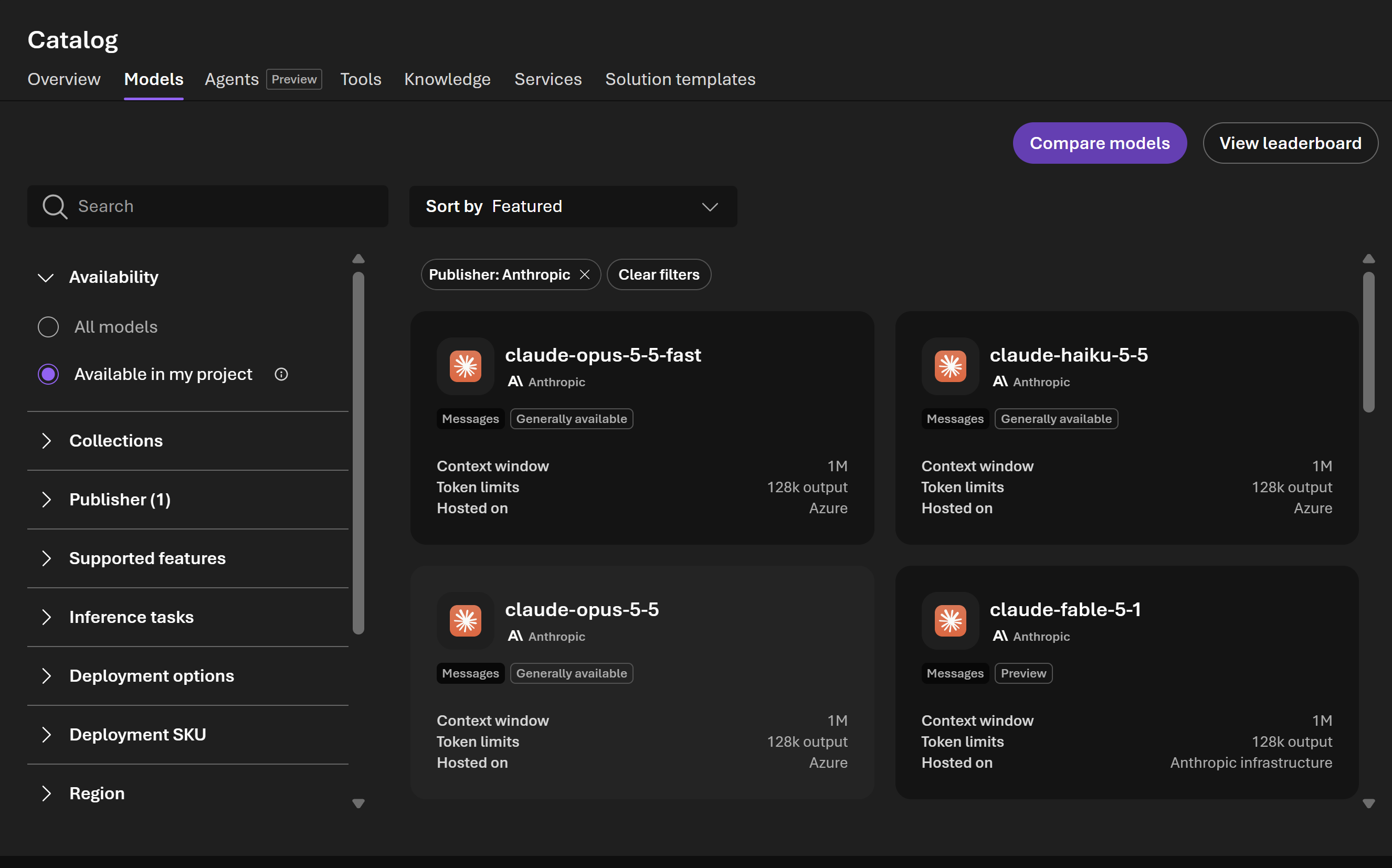
To see which models your project can use, open Catalog, then the Models tab, and choose Available in my project. Filter by Publisher, such as Anthropic for the Claude models that Claude Code calls.
To deploy a model:
- In the Foundry portal, open Build, then Models, and the Deployments tab.
- Click Deploy a base model, and choose a model.
- Keep the suggested deployment name, or enter your own, and deploy.
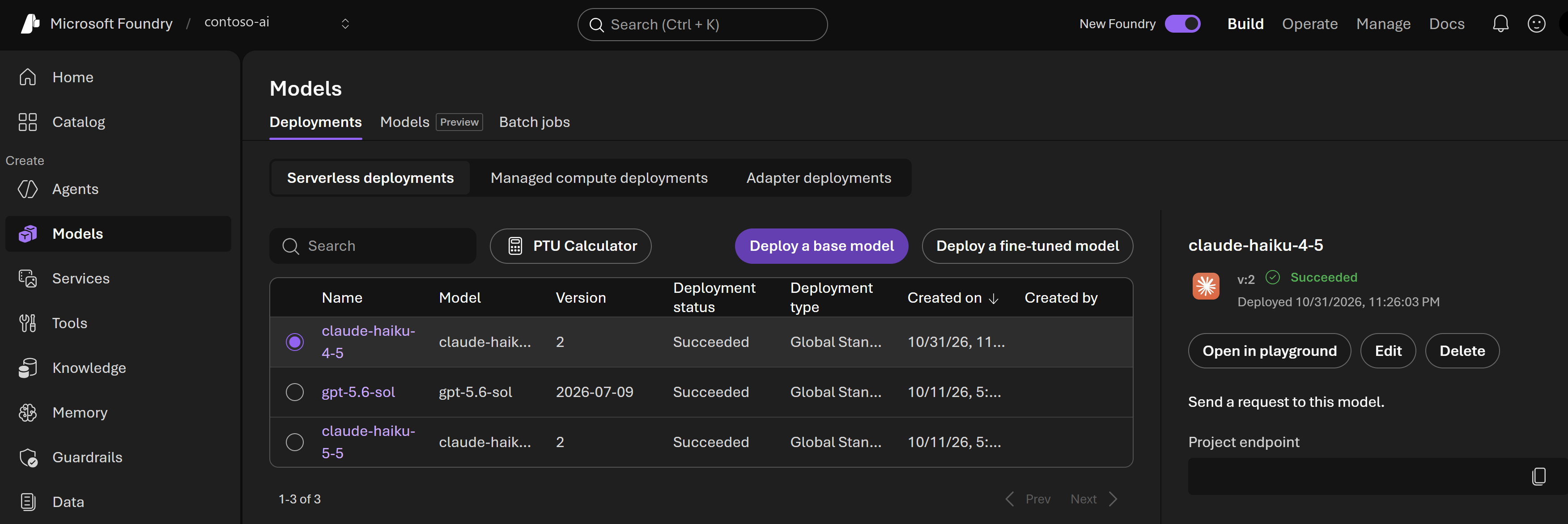
The Name column is the deployment name your developers enter in their tools. Deploy the models that suit each tool:
| Tool | Models it calls |
|---|---|
| Claude Code | Anthropic Claude models |
| GitHub Copilot CLI, the Copilot desktop app and Codex | OpenAI models, such as GPT |
| GitHub Copilot in Visual Studio | The deployments the developer picks in Visual Studio |
Copy the Project Endpoint and Tenant ID
- In the Foundry portal, open Manage, then Project details.
- Copy the Project endpoint and the Tenant ID.
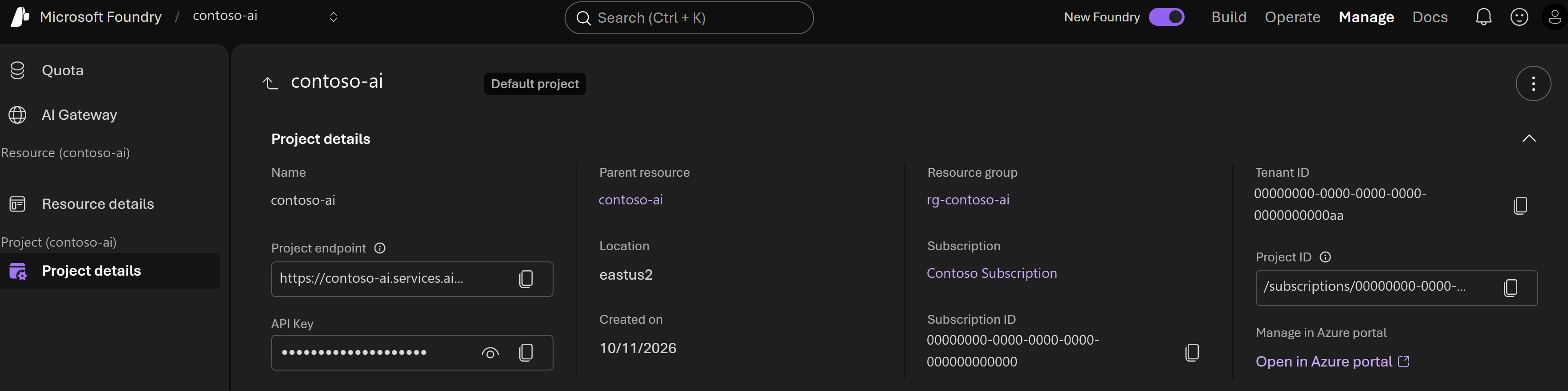
You paste both into the connector. AgentPass uses only the resource part of the project endpoint. The Tenant ID is the Entra tenant your developers sign in to, the same ID Microsoft Entra ID → Overview shows.
Give Developers a Role
Developers who sign in with Entra ID need the Foundry User role on the Foundry resource. Without it, Foundry refuses their requests, even though AgentPass accepts their sign-in. Assign it to an Entra group of your developers, as Microsoft Foundry RBAC describes.
Decide on Resource Keys
The Copilot desktop app and Visual Studio reach AgentPass with the resource key. Everyone who uses the same key is recorded under one shared identity. The key appears as API Key on Project details. Visual Studio reads it through the developer's own account.
To name key users one by one, give each developer an AgentPass agent token to send alongside the key. See How Developers Are Identified.
If you turn off key access on the resource, only Entra sign-in works. The Copilot desktop app and Visual Studio then cannot connect through AgentPass.
Microsoft Foundry RBAC
Azure role-based access control (RBAC) decides which developers can call your Foundry models. Give each developer who signs in with Entra ID the Foundry User role on the Foundry resource.
Azure checks the role on every request AgentPass forwards. A developer without it gets 403 from Foundry, with the code PermissionDenied. The message reads Principal does not have access to API/Operation. Resource-key callers need no role.
When someone with permission to assign roles creates the resource in the Azure portal or the Foundry portal, Azure gives them Foundry User automatically. Requests then work for the resource's creator and fail for everyone else until you assign the role.
Choose the Role
Foundry User is the role to assign. The following table lists every role that lets a developer use Foundry through AgentPass.
| Role | Assign it when |
|---|---|
| Foundry User | A developer signs in with Entra ID. It lets them call every model deployed on the resource. It was formerly named Azure AI User |
| Cognitive Services OpenAI User | A developer calls only OpenAI models, such as on an Azure OpenAI resource |
| Cognitive Services User | A developer uses GitHub Copilot in Visual Studio, which reads the resource key through the developer's account |
Some roles sound broader, yet don't let a developer call models:
- Owner and Contributor manage the resource and deploy models, but grant no access to call them.
- Azure AI Developer applies to Azure Machine Learning workspaces and Foundry hubs, not to Foundry resources.
- Microsoft Entra ID directory roles, such as Global Administrator, manage the directory, not Azure resources.
AgentPass sends requests to the Foundry resource's own endpoint, so the role must apply at the resource. Assign it on the resource, or on its resource group or subscription. A role assigned only on a project doesn't apply.
Assign the Role to a Group
Assign Foundry User once, to a Microsoft Entra security group, then manage access through group membership. Adding or removing a group member takes effect immediately. A new role assignment can take up to five minutes to take effect.
To create the group:
- In the Azure portal, open Microsoft Entra ID, then Groups, and click New group.
- Set Group type to Security, and enter a name, such as Foundry Developers.
- Under Members, add your developers, and click Create.
To assign roles, you need the Owner or User Access Administrator role on the resource, its resource group or its subscription.
Assign the Role in the Azure Portal
-
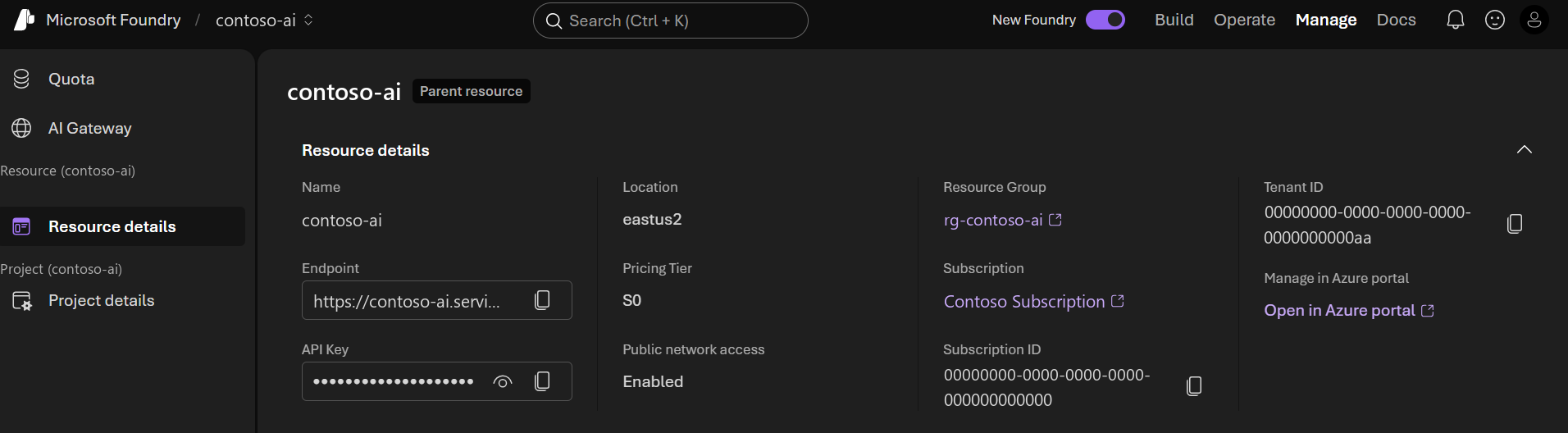
In the Foundry portal, open Manage, then Resource details.
-
Click Open in Azure portal. The Foundry resource opens in the Azure portal.
-
Open Access control (IAM), click Add, and choose Add role assignment.

-
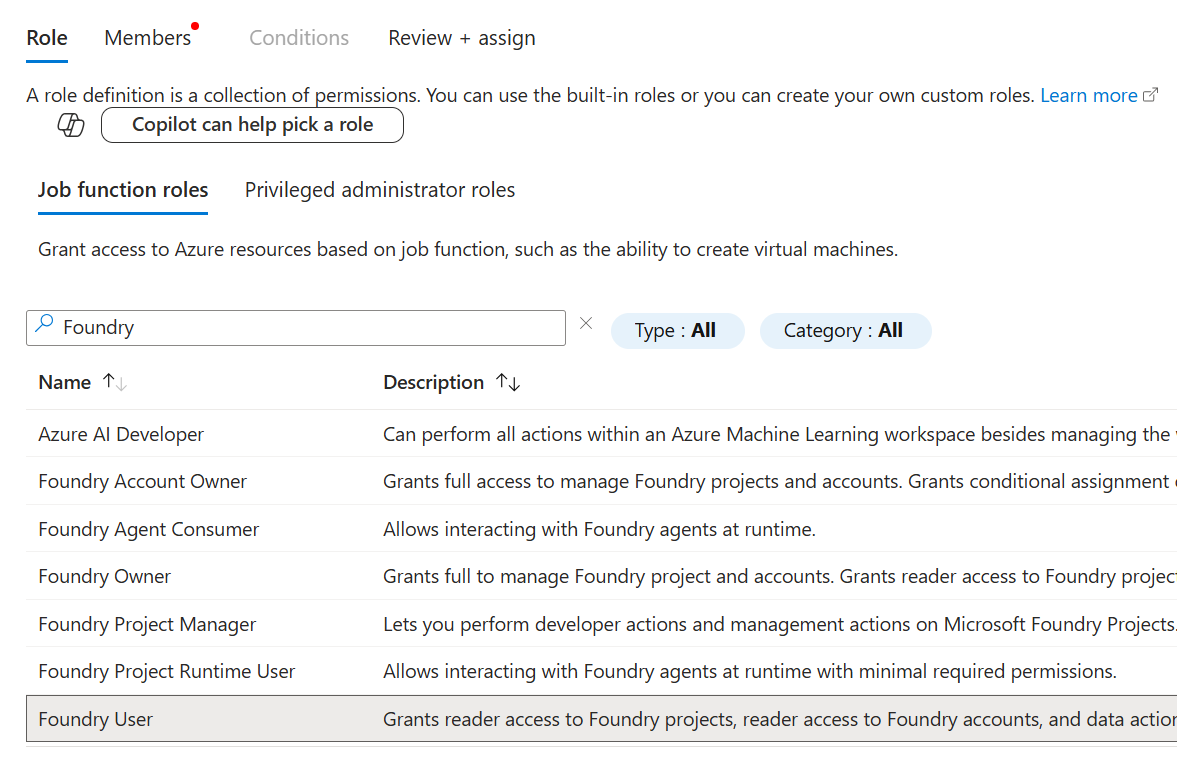
On the Role tab, under Job function roles, search for
Foundry. -
Choose Foundry User, and click Next. If the list shows the role's former name, choose Azure AI User.
-
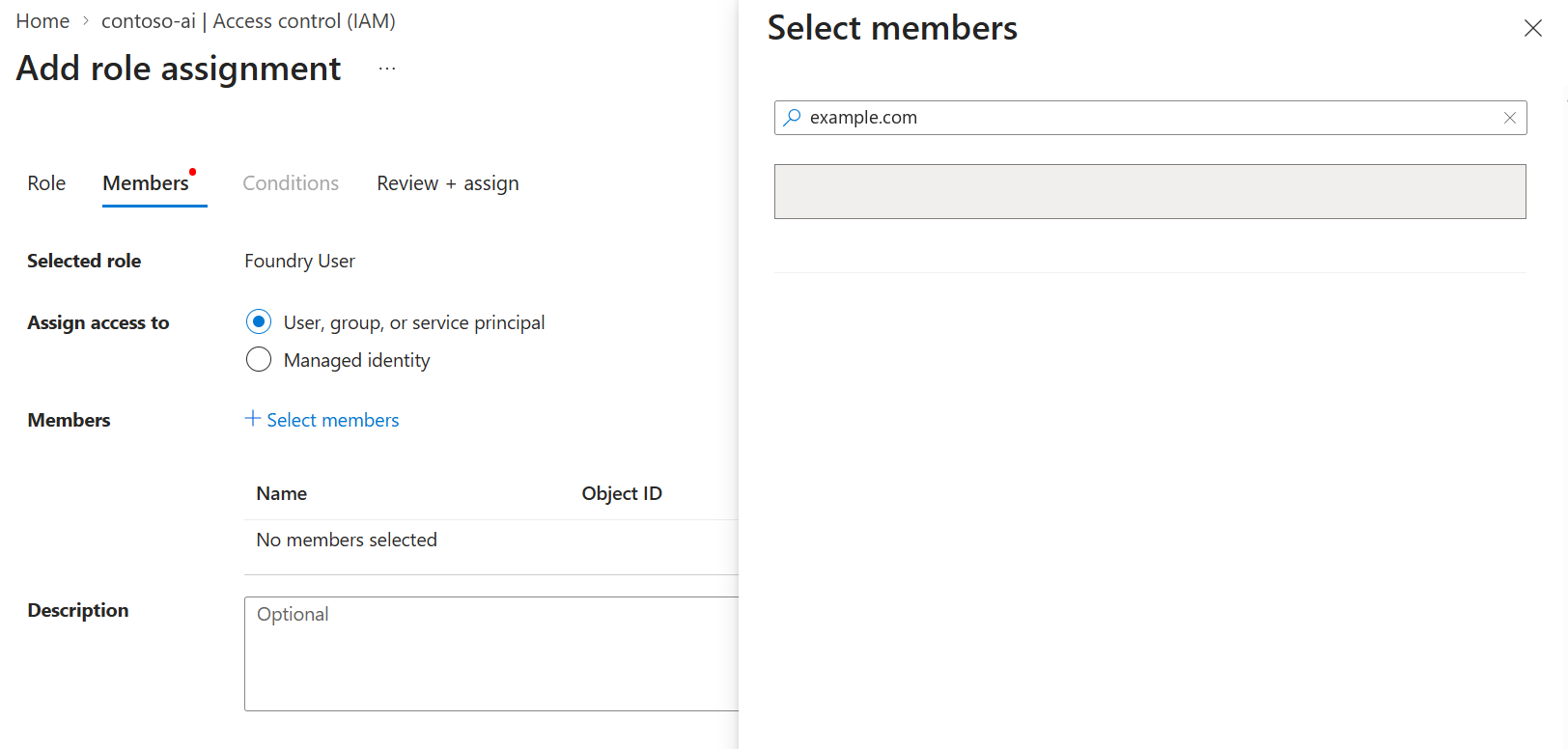
On the Members tab, keep User, group, or service principal, and click Select members.
-
Search for your developer group, or for individual developers. Choose them, and click Select.
-
Click Review + assign. Check that Scope ends with
/accounts/and your resource name, with no/projects/part.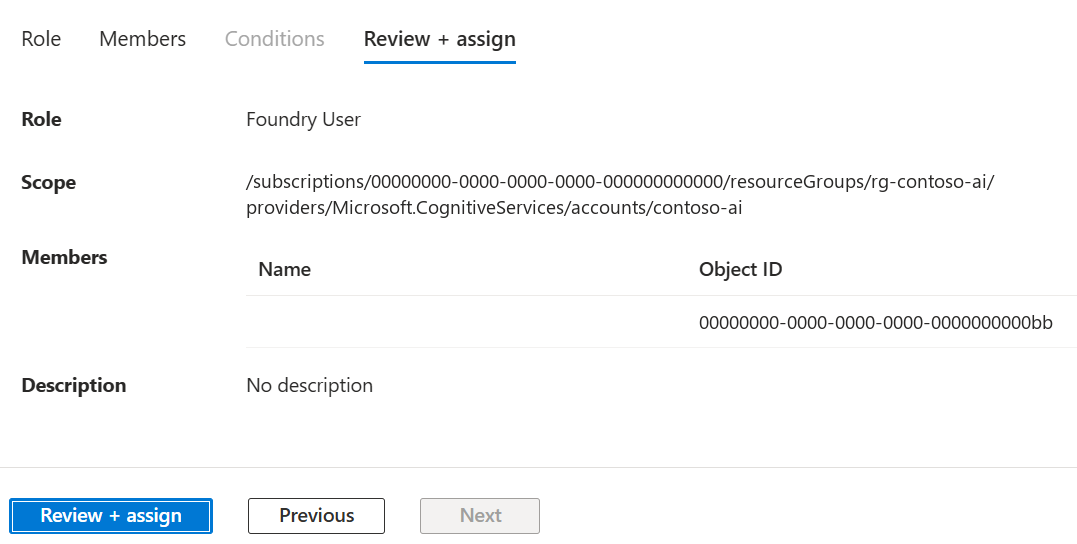
-
Click Review + assign again to save the assignment.
Assign the Role in the Foundry Portal
The Foundry portal can assign the role to one developer at a time. Use it for a quick change. Use a group for your developer population.
- In the Foundry portal, open Manage, then Resource details.
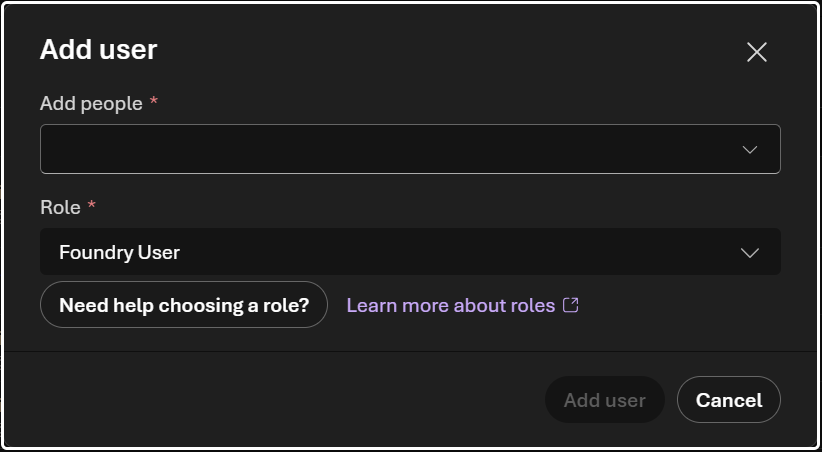
- Open the Users tab, and click Add user. The button appears only for people who can assign roles.
- Under Add people, choose the developer.
- Under Role, choose Foundry User, and click Add user.
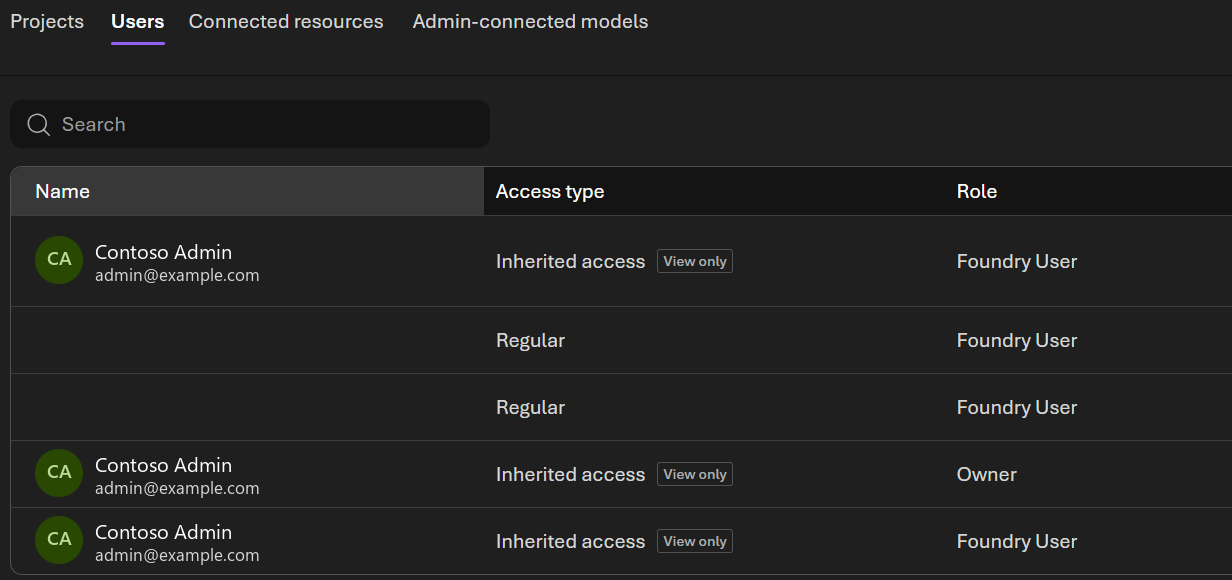
The Users tab lists everyone with a role on the resource. Regular marks a role assigned on the resource itself. Inherited access marks one assigned on its resource group or subscription, which you change in the Azure portal.
Assign the Role with the Azure CLI
The Azure CLI assigns the role by its ID, which stays the same whichever name the portal shows. Replace the placeholders with your own values.
RESOURCE_ID=$(az cognitiveservices account show --name <your resource> --resource-group <your resource group> --query id -o tsv)
GROUP_ID=$(az ad group show --group "Foundry Developers" --query id -o tsv)

az role assignment create \
  --role "53ca6127-db72-4b80-b1b0-d745d6d5456d" \
  --assignee-object-id "$GROUP_ID" \
  --assignee-principal-type Group \
  --scope "$RESOURCE_ID"
To check a developer's roles on the resource, including those they hold through a group:
az role assignment list --scope "$RESOURCE_ID" --assignee <developer's sign-in name> --include-groups --include-inherited -o table
Check a Developer Can Connect
Ask the developer to sign in with az login and choose a subscription in your Entra tenant, the one set on the connector.
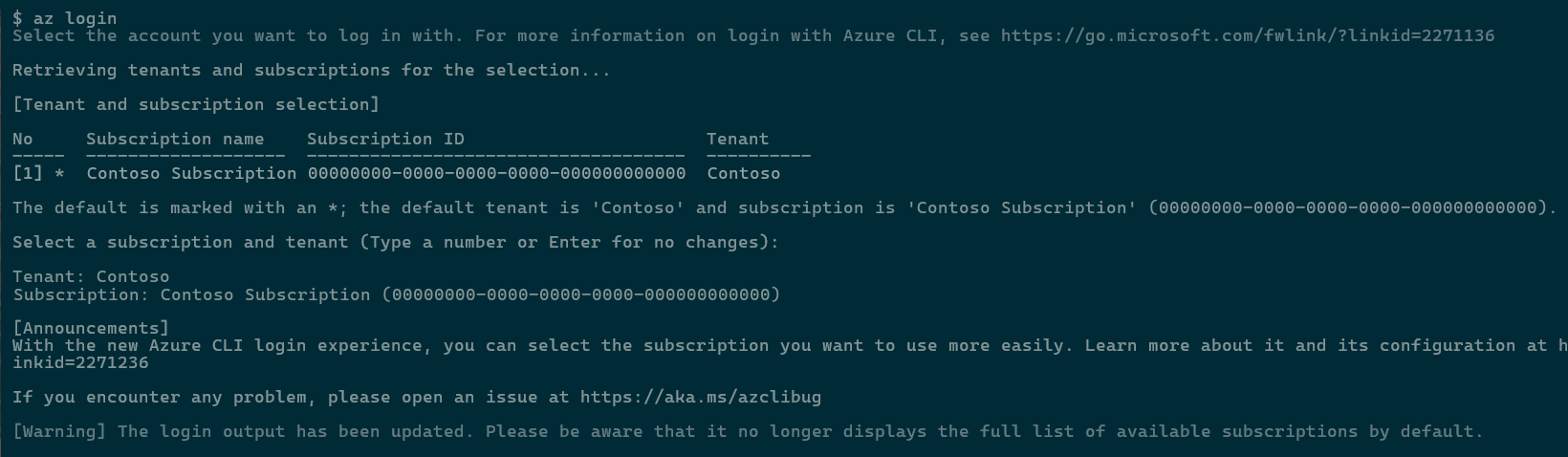
If their account belongs to several tenants, they run az login --tenant <your tenant ID> instead. They then retry their tool. If it still fails, see Troubleshooting.
Next Steps
Microsoft Foundry Setup creates the connector and connects each tool, then covers onboarding, the Request Log, policies and troubleshooting.