Microsoft Foundry Setup
Create the connector, then point each developer's tool at your gateway.
Before You Begin
Finish the Foundry prerequisites first. Have these ready, both from the Foundry project's Project details page:
- The Project endpoint
- The Tenant ID
Create the Connector
- In the console, open Connectors, and click Add connector.
- Under AI Providers, choose Microsoft Foundry.
- Paste the Project endpoint into Resource endpoint, and the Tenant ID into Entra tenant ID.
- Click Test connection. AgentPass checks that the endpoint answers and that Microsoft Entra knows the tenant. Microsoft Foundry is reachable confirms both.
- Click Next.
- Choose the onboarding mode. See Onboarding New Developers.
- Click Create Connector.
The form has these fields.
| Field | Description |
|---|---|
| Resource endpoint | Your Foundry or Azure OpenAI resource. Paste the project endpoint, or any of the resource's own endpoints. AgentPass uses only the resource part, and always forwards to the resource's services.ai.azure.com endpoint, which serves both the OpenAI and the Anthropic models |
| Entra tenant ID | The tenant your developers sign in to. AgentPass uses it to name developers who sign in with Entra ID. Sign-ins from any other tenant are refused |
There is no key field. The connector accepts the credential each developer brings. An organization has one Microsoft Foundry connector. To point it at a different resource, edit the existing connector.
Connect Your Developers
Once the connector exists, its Overview tab shows a Connect AI tools card. It has one tab per tool, with the settings filled in for your gateway. Each tab shows only the steps the tool needs. Alternatives and help open from the questions underneath, such as Can I use a resource key instead? and Where are the logs?
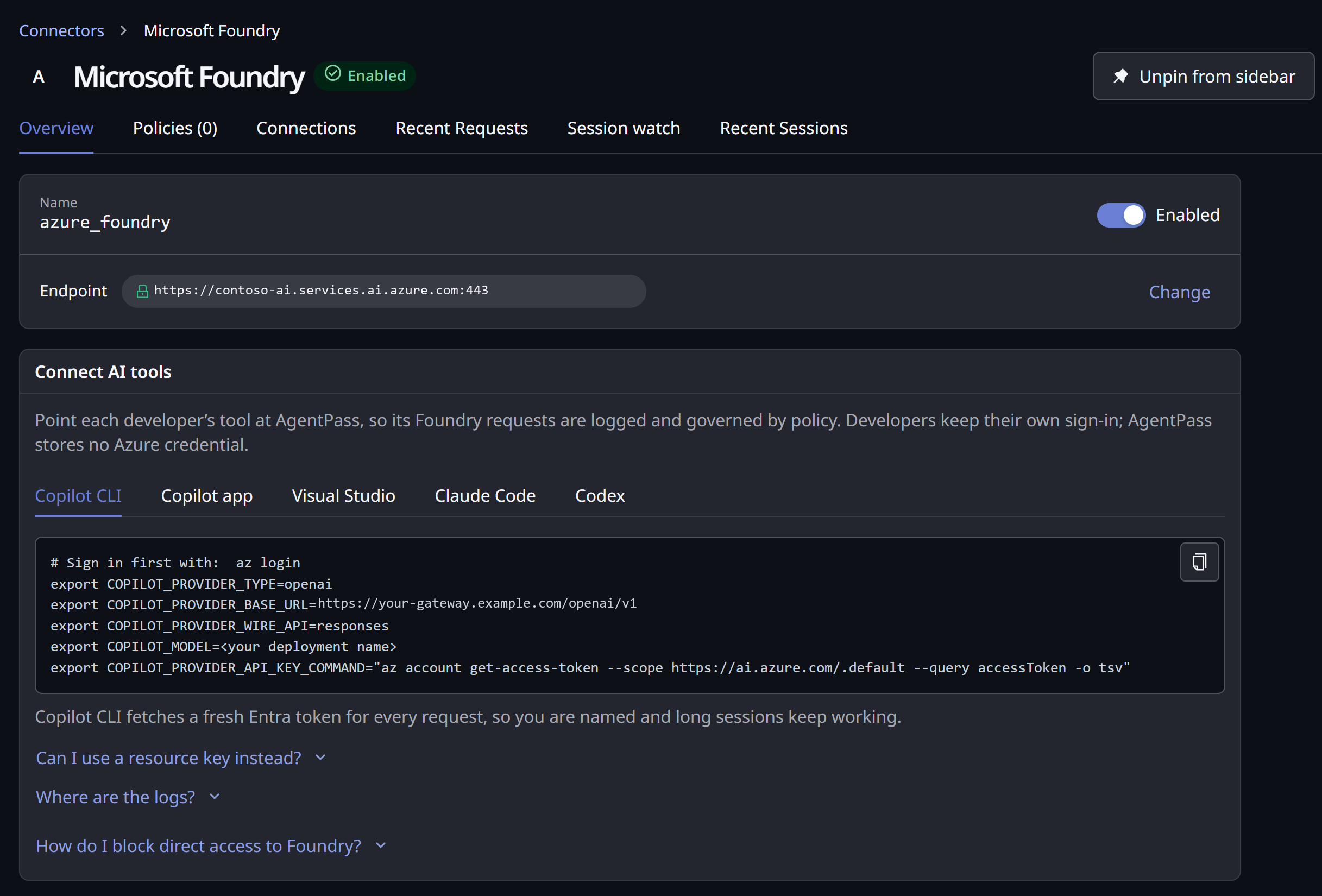
In every tool, the model is the name of your Foundry deployment, not the name of the underlying model.
GitHub Copilot CLI
The developer signs in with az login, then sets these environment variables:
export COPILOT_PROVIDER_TYPE=openai
export COPILOT_PROVIDER_BASE_URL=<your gateway URL>/openai/v1
export COPILOT_PROVIDER_WIRE_API=responses
export COPILOT_MODEL=<your deployment name>
export COPILOT_PROVIDER_API_KEY_COMMAND="az account get-access-token --scope https://ai.azure.com/.default --query accessToken -o tsv"
Copilot CLI fetches a fresh Entra token for every request, so the developer is named and long sessions keep working.
To use a resource key instead, the developer sets COPILOT_PROVIDER_API_KEY to the key, in place of COPILOT_PROVIDER_API_KEY_COMMAND. Their requests are then shared, unless they also send their AgentPass agent token:
export COPILOT_PROVIDER_HEADERS="Hypr-Authorization: Bearer <your AgentPass agent token>"
Copilot CLI writes its logs to ~/.copilot/logs, or %USERPROFILE%\.copilot\logs on Windows.
GitHub Copilot Desktop App
The Copilot desktop app reaches AgentPass with a resource key. Its Azure CLI sign-in works only when the app connects to Foundry directly, not through AgentPass.
- In the Copilot app, open Settings → Model providers, and click Add provider.
- Choose Microsoft Foundry, and complete the fields described in the following table.
- Save the provider, and add your deployment under Models.
| Field | Value |
|---|---|
| Display name | Any name, such as Microsoft Foundry |
| Base URL | <your gateway URL>/openai/v1 |
| Wire API | responses |
| Authentication | API key |
| API key | Your Foundry resource key |
| Custom headers (JSON) | Optional. { "Hypr-Authorization": "Bearer <your AgentPass agent token>" }, to be named rather than shared |
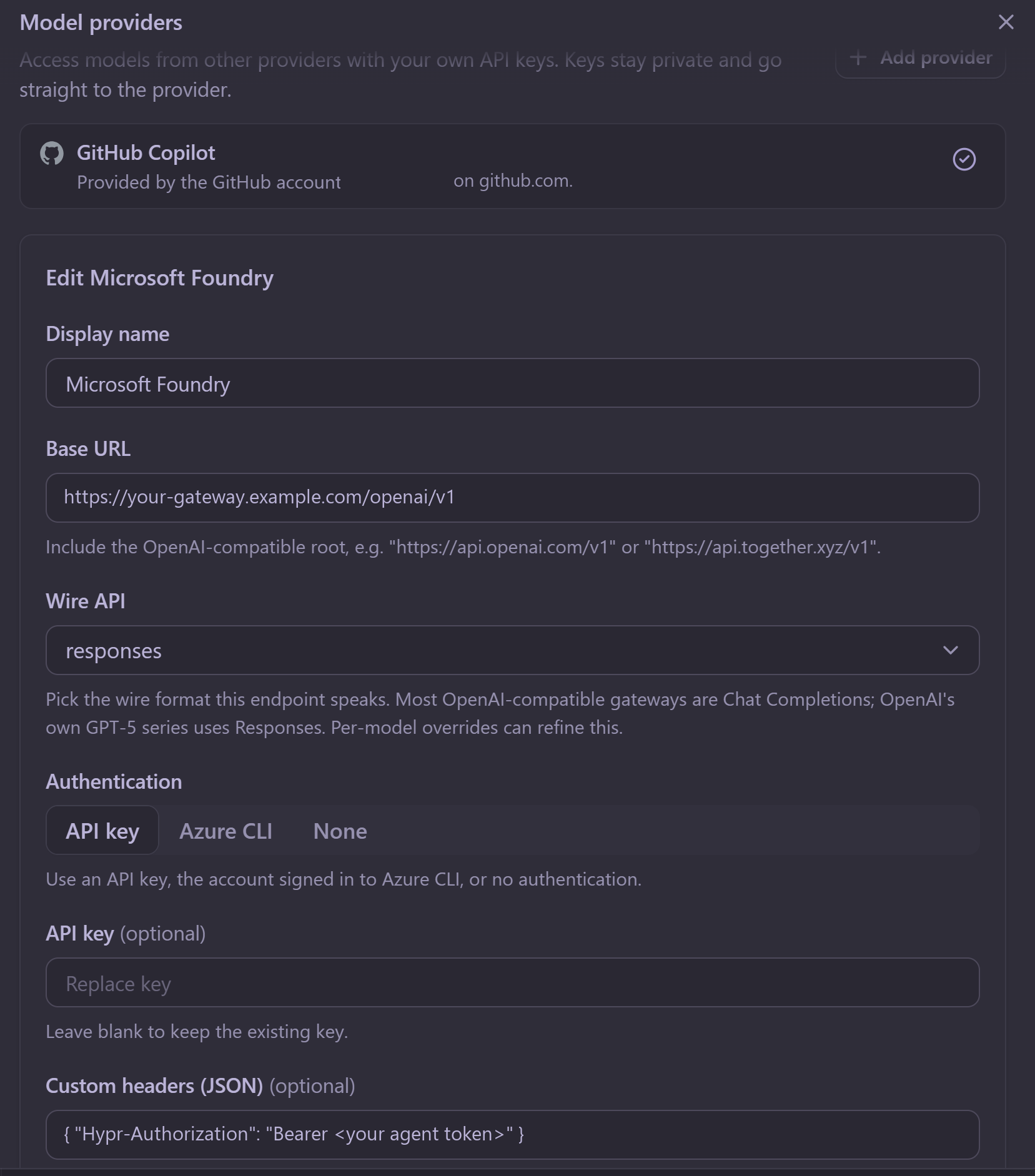
Once saved, the provider appears under Configured providers with its models. Choose the model in a Copilot chat to send requests through AgentPass.
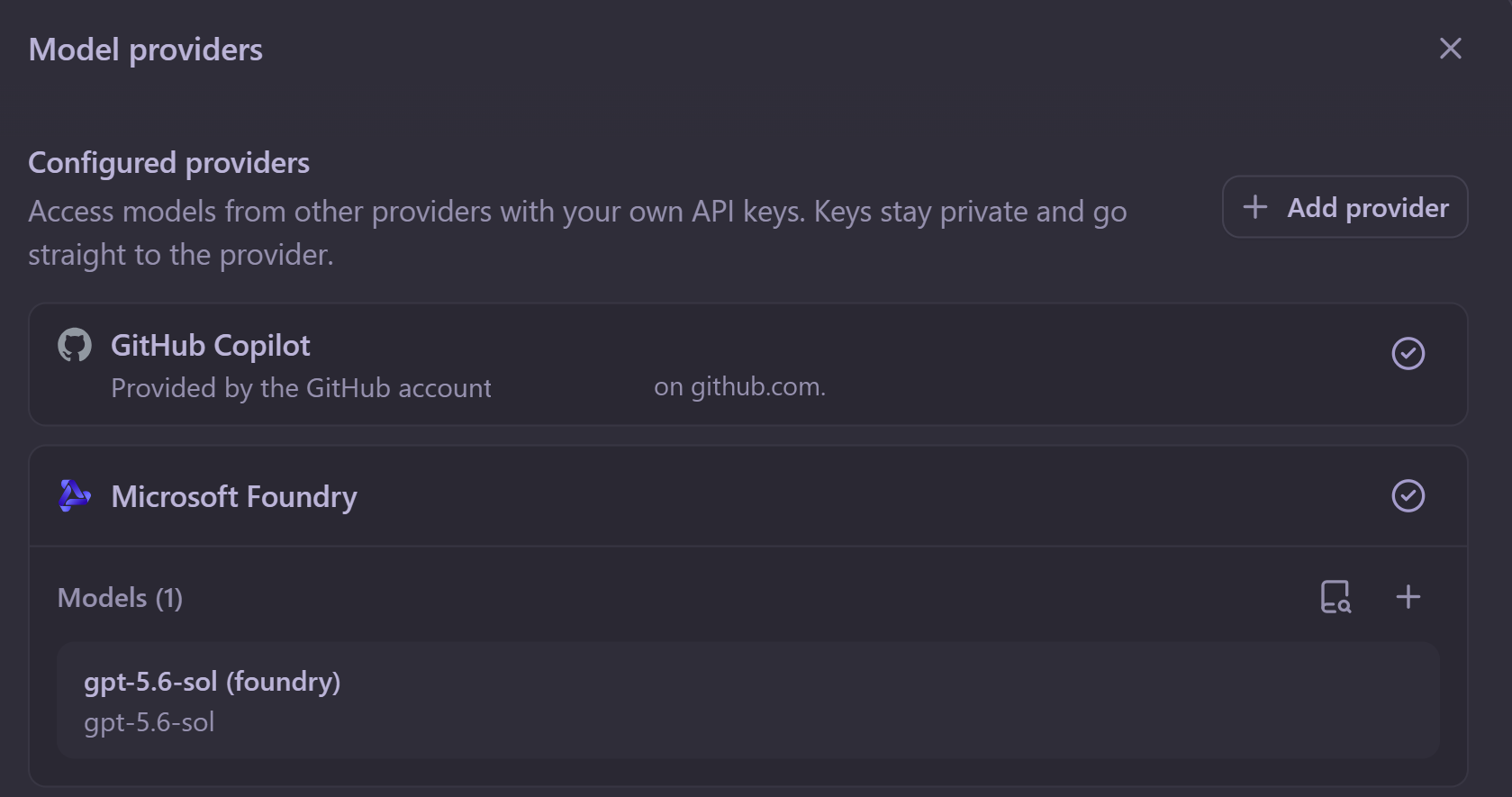
Without the custom header, every request from the app is recorded under the key's shared identity.
GitHub Copilot in Visual Studio
Visual Studio adds Microsoft Foundry as a model provider through the developer's Microsoft account, then needs its models pointed at AgentPass. Its requests use the resource key, so they are recorded under the key's shared identity.
Step 1: Add Microsoft Foundry as the model provider.
- In Copilot Chat, open Manage models, and click Add model provider.
- Under Choose an available provider, choose Microsoft Foundry.
- Pick the Entra account, then the Subscription, the Microsoft Foundry resource and the Project.
- Click Add, and choose the deployments to use.
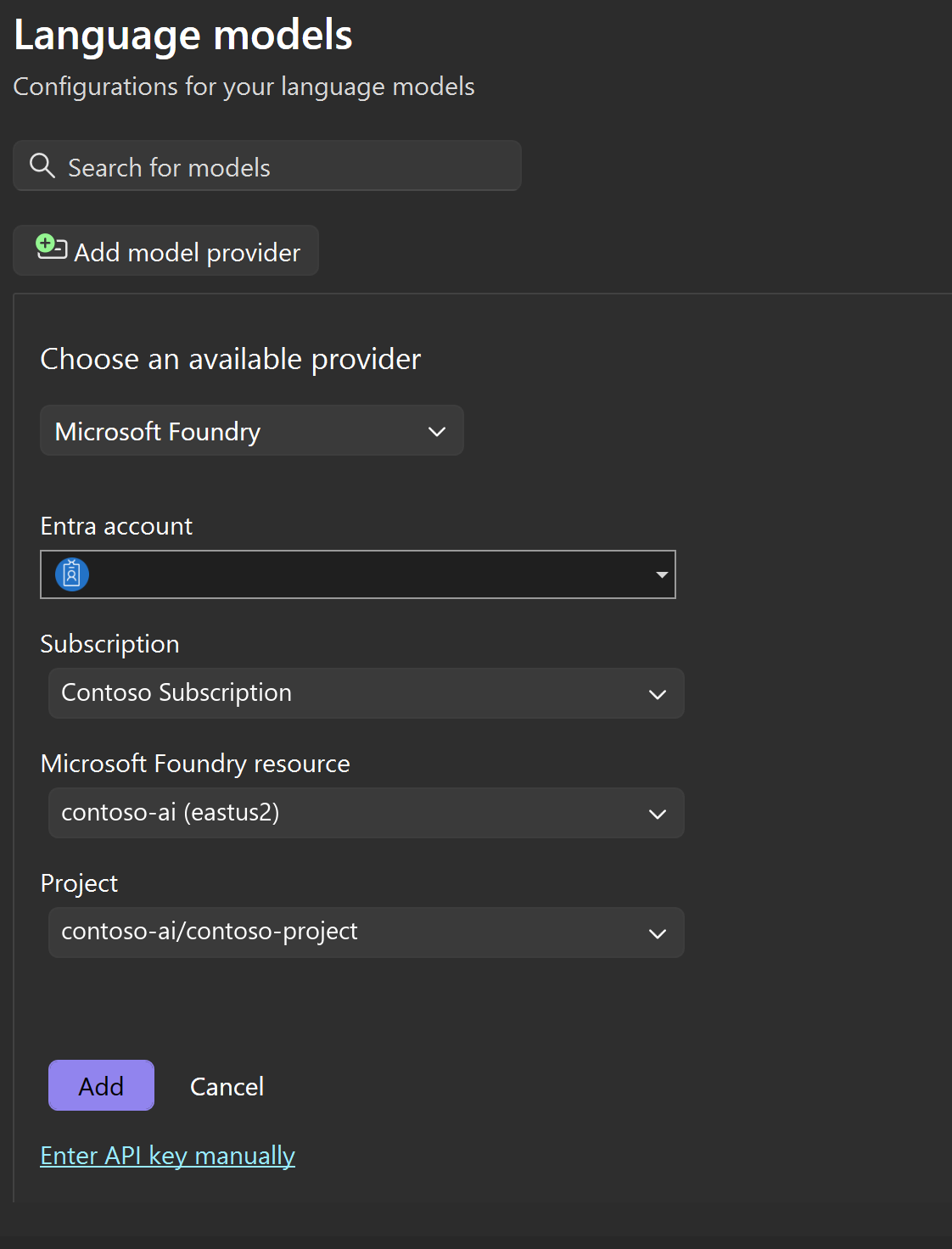
Visual Studio reads the resource key through the developer's account, so the developer needs a role that can list the resource's keys. See Microsoft Foundry RBAC.
Step 2: Point its models at AgentPass.
-
Close Visual Studio. It overwrites the file below when it is open.
-
Open
%LOCALAPPDATA%\Microsoft\VisualStudio\Copilot\BringYourOwnModel\ConfiguredBringYourOwnModel_v2.jsonin a text editor. -
In every model of the Microsoft Foundry provider, set
CustomURLto your gateway's address, with no path:"CustomURL": "<your gateway URL>/", -
Save the file, reopen Visual Studio, and choose the model in Copilot Chat.
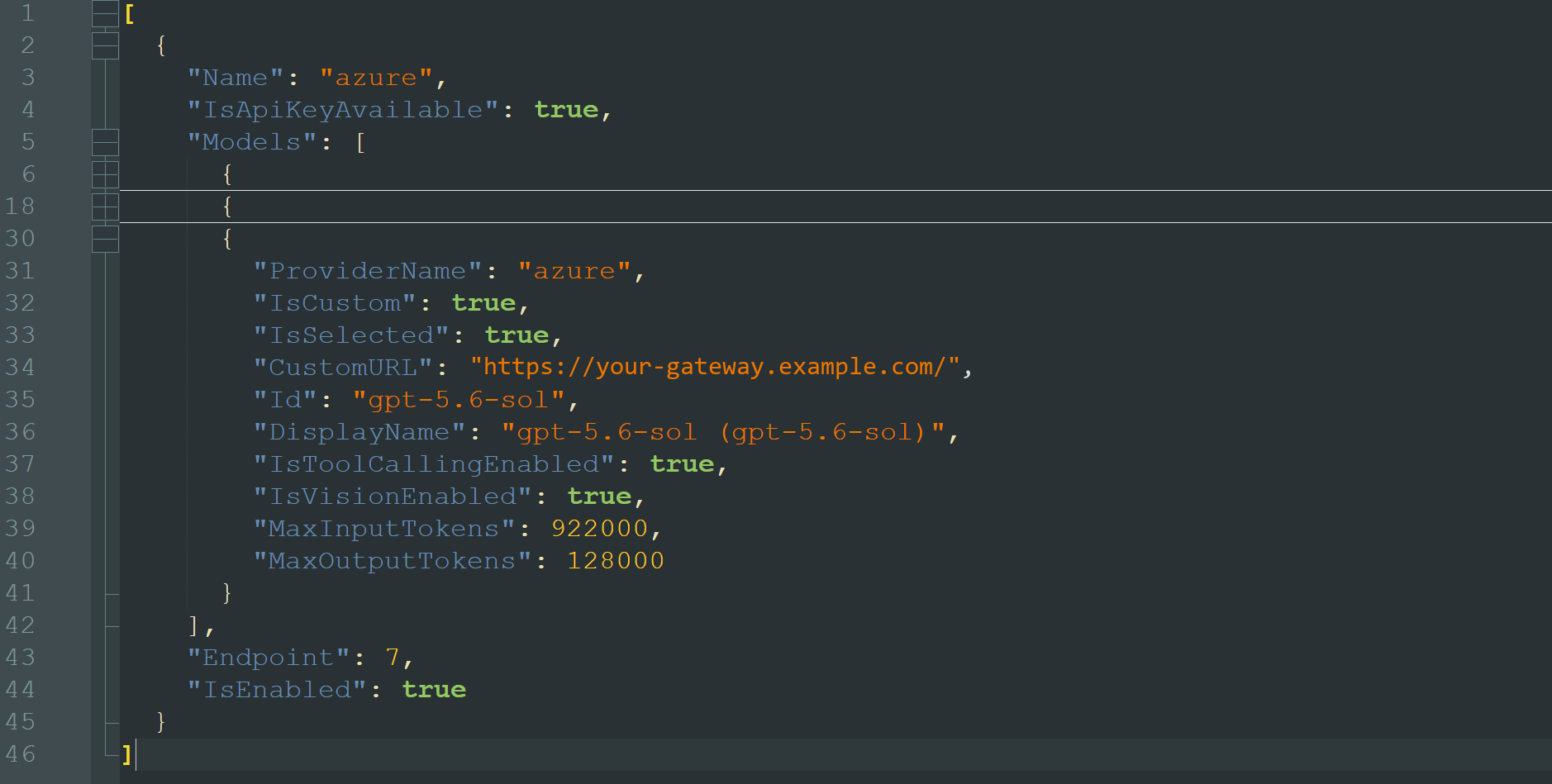
Visual Studio adds the rest of the path itself. Adding the provider again resets CustomURL, so repeat step 2 afterwards.
Visual Studio writes its Copilot logs to %TEMP%\VSGitHubCopilotLogs.
Claude Code
The developer signs in with az login, then sets these environment variables:
export CLAUDE_CODE_USE_FOUNDRY=1
export ANTHROPIC_FOUNDRY_BASE_URL=<your gateway URL>/anthropic
export ANTHROPIC_MODEL=<your deployment name>
With ANTHROPIC_FOUNDRY_API_KEY unset, Claude Code gets and renews an Entra token from the developer's az login, so they are named. To use a resource key instead, set ANTHROPIC_FOUNDRY_API_KEY to the key. Requests are then shared.
Codex
The developer signs in with az login, then adds this to ~/.codex/config.toml:
model_provider = "foundry"
model = "<your deployment name>"

[model_providers.foundry]
name = "Microsoft Foundry via AgentPass"
base_url = "<your gateway URL>/openai/v1"
wire_api = "responses"

[model_providers.foundry.auth]
command = "az"
args = ["account", "get-access-token", "--scope", "https://ai.azure.com/.default", "--query", "accessToken", "-o", "tsv"]
On Windows, set command = "az.cmd". Codex runs the command itself, and finds the Azure CLI on Windows only by its full name. Codex fetches a fresh Entra token with the command, so the developer is named.
Block Direct Access to Foundry
A developer whose tool calls Foundry directly bypasses AgentPass. To stop that on enrolled desktops, block the resource's own hostnames on Desktops → SaaS based AI:
<your resource>.services.ai.azure.com<your resource>.openai.azure.com<your resource>.cognitiveservices.azure.com
Add each hostname as an app of your own, then block it. See Adding an App of Your Own and Block an App. The Connect AI tools card lists the same hostnames under How do I block direct access to Foundry?
AgentPass reaches Foundry from its own servers, so the block does not affect traffic through the gateway. It applies only on desktops enrolled in AgentPass, with Watch SaaS based AI turned on.
Onboarding New Developers
The connector's onboarding mode decides what happens the first time a developer reaches Foundry through the gateway. You choose it on the create form's last step, and can change it later on the connector page's Onboarding Mode card. See Onboarding Mode.
| Mode | What happens on a developer's first request |
|---|---|
| Observe only (the default) | The request is forwarded, and the caller is recorded |
| Require Approval | A developer who signs in with Entra ID is held until their supervisor approves them. Once approved, their traffic flows normally |
| Disabled | Self-service onboarding is off |
Require Approval uses the same supervisor handshake as your other connectors. See Onboarding Your Agent for the supervisor's side.
Resource-key callers are recorded under one shared identity, and are never held. Application and managed-identity callers are recorded, and are never held. Use Entra sign-in for every developer you want approved one by one.
Attribution and the Request Log
Foundry traffic appears in the Request Log alongside your other connectors, with the model and token counts. Open a request to see its Microsoft Foundry caller section.
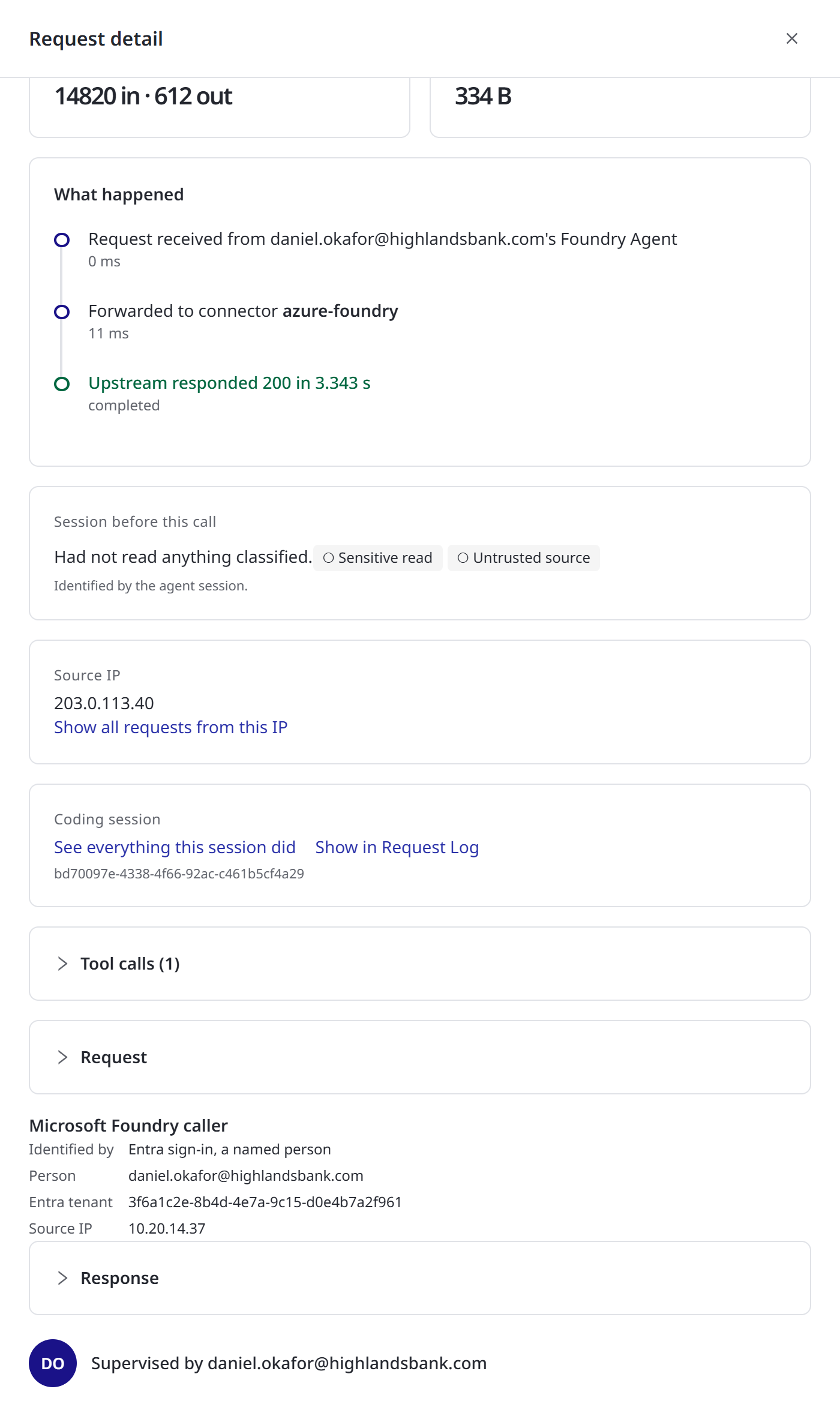
The section shows these rows, when they apply.
| Row | What it shows |
|---|---|
| Identified by | How the caller was identified: Entra sign-in, a named person, Entra sign-in, an application, Resource key, shared by everyone who uses it, Entra token that could not be verified or No credential |
| Person | The developer's sign-in name, for an Entra sign-in |
| Application | The application, for an application or managed identity |
| Entra tenant | The tenant the sign-in came from |
| Key | A short fingerprint of the resource key. The key itself is never stored |
| Named by AgentPass token | Yes when the request carried an AgentPass agent token |
| Refused | Why AgentPass refused the request's Entra token. See Troubleshooting |
| Deployment | The deployment, when the request named one in its path |
| API version | The API version the tool asked for |
| Source IP | The client address the request reports for itself. A client can set it, so treat it as a hint |
A developer who signs in with Entra ID is one agent, whichever tool they use. Everyone who uses the same resource key shares one agent. Turning that shared agent off on Agents stops every request made with that key through AgentPass.
Coding Sessions
Requests from GitHub Copilot (the CLI, the desktop app and Visual Studio), Claude Code and Codex carry a session identifier. AgentPass groups them into coding sessions, so a request's Coding session field links to everything that session did. The connector page's Recent Sessions and Session watch tabs work on Microsoft Foundry as they do on your other AI providers. See Agent Session Forensics.
Policies on Foundry Traffic
Your AgentPass policies apply to every Foundry request, whichever credential the developer brought. Inference rules apply to the OpenAI and the Anthropic models alike. Lead a Foundry-specific rule with a template guard:
connector.template == "AZURE_FOUNDRY"
These attributes describe the caller behind a Foundry request.
| Attribute | Type | Description |
|---|---|---|
connector.azure.foundry.credential_type | String | resource_key, entra_user, entra_app, entra_unverified or none. Always present, so guard your rule on it |
connector.azure.foundry.surface | String | openai_v1, openai_deployments, anthropic or other |
connector.azure.foundry.hypr_agent_named | Bool | The request carried an AgentPass agent token |
connector.azure.foundry.deployment | String | The deployment name, on deployment-style paths only |
connector.azure.foundry.api_version | String | The API version the tool asked for, when it sent one |
connector.azure.foundry.tenant_id | String | Entra sign-ins only: the tenant |
connector.azure.foundry.object_id | String | Entra user sign-ins only: the person's object ID |
connector.azure.foundry.upn | String | Entra user sign-ins only: the person's sign-in name, when the token has one |
connector.azure.foundry.app_id | String | Entra sign-ins only: the application the token was issued to |
connector.azure.foundry.source_ip | String | The client address the request reports for itself. See the caution below |
For example, this rule matches any request made with a shared resource key:
connector.template == "AZURE_FOUNDRY" && connector.azure.foundry.credential_type == "resource_key"
source_ip is the address the request reports for itself, and a client can set it. Use it to inform a decision, never as the only check.
Troubleshooting
Start with the symptom you see.
| What you see | What to check |
|---|---|
| Test connection reports Not working yet | Check the endpoint is your resource's own endpoint, in Azure commercial, and the tenant ID is the Tenant ID from the project's Project details page |
| AgentPass refused this Microsoft Entra token: it was issued by a different Entra tenant than this connector's. | The developer signed in to another tenant. They run az login --tenant <your tenant ID>. If your developers sign in to a different tenant, correct the connector's Entra tenant ID |
| AgentPass refused this Microsoft Entra token: it has expired. Sign in again. | The developer runs az login again. A tool configured with the token command fetches a fresh token on every request |
| AgentPass refused this Microsoft Entra token: it is not valid yet. Check this computer's clock. | The developer's clock is wrong. Set it to synchronize automatically |
401 from Azure | The tool sent no credential, or Azure refused it. Check the developer is signed in, or that the resource key is current |
403 from Azure, with PermissionDenied and Principal does not have access to API/Operation. | The sign-in is valid, but the developer has no role that can call models. Assign Foundry User on the Foundry resource, not on a project. See Microsoft Foundry RBAC |
| Copilot CLI reports Authentication failed with provider … (HTTP 403) | Copilot CLI doesn't show the reason. Open the request in the Request Log. A Refused row means AgentPass refused the token; the rows in this table that quote its message explain each reason. Otherwise Azure refused it: see Microsoft Foundry RBAC |
| Requests work for the person who created the Foundry resource, and fail for other developers | The creator was given Foundry User automatically. Assign it to your other developers |
404 naming the deployment | The model setting doesn't match a deployment on the resource. Use the name from the Foundry portal's Deployments list |
400 mentioning max_tokens | The tool uses the Chat Completions API with a model that refuses it. Set the wire API to responses |
| Copilot app requests are recorded as Shared Foundry key | Expected without the custom header. Add the Hypr-Authorization custom header to name each developer |
| Visual Studio requests do not appear in the Request Log | Check CustomURL is set on every Foundry model, with Visual Studio closed while you edit. Adding the provider again resets it |
Codex on Windows fails to run az | Set command = "az.cmd" |
| A developer is not held under Require Approval | Only Entra sign-ins are held. Resource-key, application and managed-identity callers are recorded, not held |
| Requests reach Foundry without appearing in the Request Log | The tool is calling Foundry directly. Block direct access on enrolled desktops |
Related
- Microsoft Foundry — how the connector works, and preparing Foundry for it
- Microsoft Foundry RBAC — the Azure role developers need to call your models
- Onboarding Mode — what each mode does on every connector
- Connectors — the other kinds of connectors you can add
- Inference Policies — govern what models are asked and what they reply
- Agent Session Forensics — follow a coding session across its requests
- SaaS Based AI — block AI domains on enrolled desktops
- Viewing the Request Log — read the traffic this connector produces