REST APIs
A REST API connector turns API operations into Model Context Protocol (MCP) tools. Agents call the connector through HYPR AgentPass™. The gateway authenticates the caller, evaluates policy and records the request. It then sends the corresponding REST request, with the credentials you configure.
Before You Begin
Prepare one of these API descriptions:
- OpenAPI 3.x document
- Swagger 2.0 document
- Postman collection
You can paste the description, or provide a URL that AgentPass can refresh. Check that each operation has a clear summary and stable parameter names. They become the tool description and input schema an agent sees.
The description must be self-contained. AgentPass refuses an OpenAPI or Swagger description with a $ref that points outside the document, such as to another file or a URL. Bundle referenced files into one document first.
Create the Connector
- Open Connectors → Add connector → REST APIs → REST API (MCP). The Add API connector page opens.
- Enter a Connector name and, optionally, a Display name. Connector names use lowercase letters, digits, hyphens and underscores, start with a letter or digit, and are up to 64 characters long.
restapiis reserved. - Under Spec source, choose Paste or URL.
- Paste the API description, or enter its URL.
- Enter a Base URL override if the description does not contain an absolute server URL. When it is blank, the gateway uses the description's first server.
- Optional: Turn on Allow private network addresses, only for a trusted internal API you control. It is off by default. See Allow a Private Network Address.
- Choose the Downstream authentication, described in the following section.
- Complete the method's fields.
- Click Register. The result lists the generated tools, and shows the connector's Gateway MCP URL.
- Click Open connector.
- On the Tools tab, review the generated tools, and turn on default access for the ones agents need. See Choose Which Tools Agents Can Use.
- Before you assign the connector to agents, test representative read and write operations on its Test tab.
Each API operation becomes one MCP tool. AgentPass uses the operation ID as the tool name when one is available. Otherwise, it generates a stable name from the method and path.
When the API has more than 50 operations, the result warns that many MCP clients cap the tool list. For such an API, use a smaller, curated description.
To register another API, click Add another on the result.
Choose Downstream Authentication
Downstream authentication is how the gateway authenticates to the API.
| Method | Use it when |
|---|---|
| None | The API does not require credentials |
| Bearer token | Every approved caller uses one token stored by the gateway |
| API key (custom header) | The API expects one stored key in a header you name |
| OAuth — service (client credentials) | The gateway obtains one client-credentials token for the connector |
| OAuth — per-user (3-legged) | Each person authorizes their own account through an OAuth consent flow |
Secrets are write-only after saving. For OAuth — per-user (3-legged), register the redirect URI the form shows with your OAuth provider.
To connect a person's account from the console, click Connect… on the registration result, or Connect a user… on the connector's Connection tab. Enter the person's email, and complete the authorization in the window that opens. AgentPass refreshes the person's token when the provider supports refresh tokens.
The gateway can perform every operation the configured credential permits. Limit the credential to the operations agents need. Use AgentPass policies to require approval for consequential tools.
Choose Which Tools Agents Can Use
A new REST API connector's tools start with default access off. Until you turn a tool on, only Admin and roles that permit the tool explicitly can see and call it.
Default access applies to every role without an explicit setting for that tool. A role's explicit permit or deny, set on the Roles tab of People, always takes precedence. Admin is not affected. See Controlling MCP Tool Access by Role.
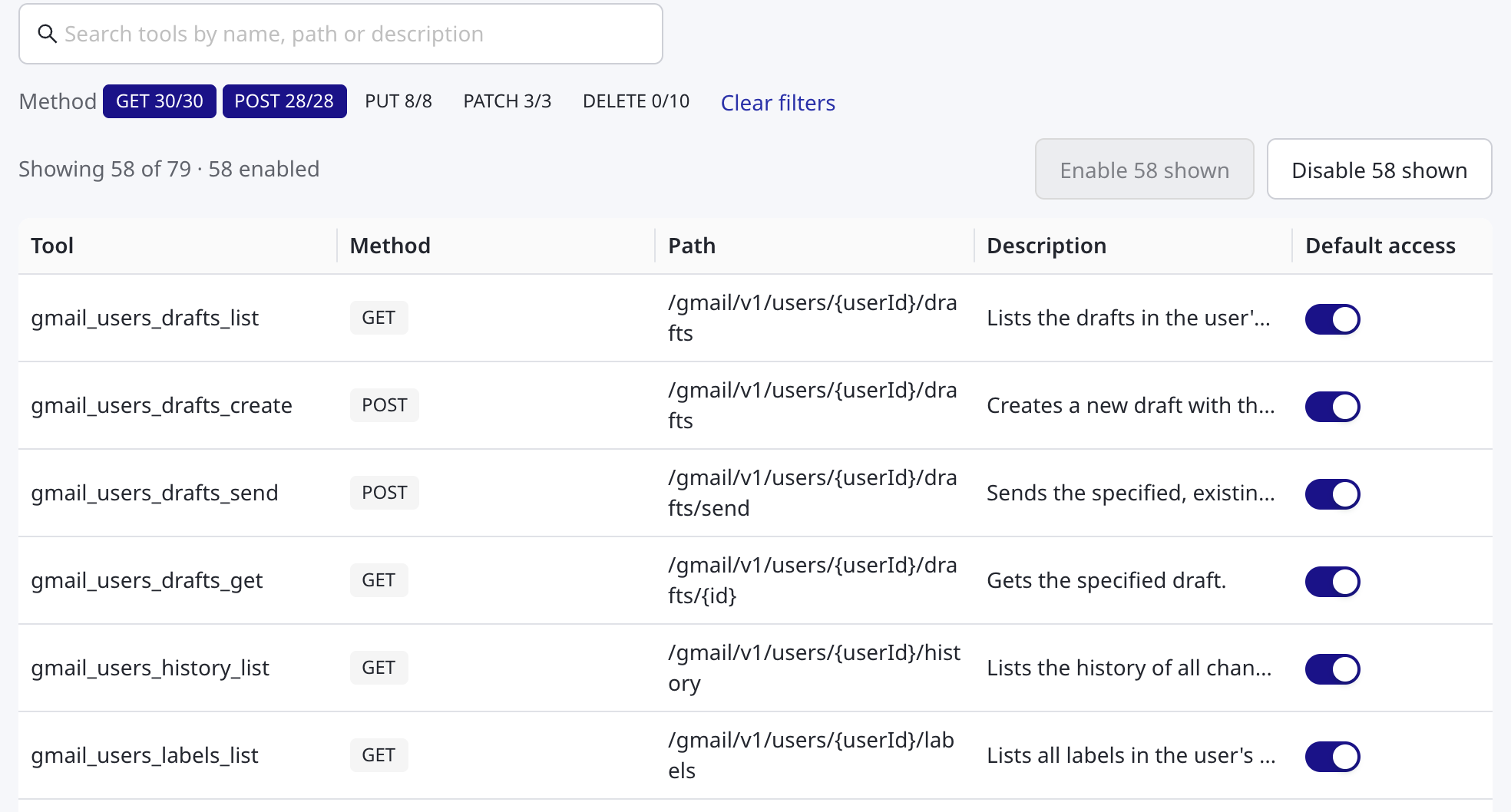
The connector's Tools tab lists each tool with its method, path and description, and a Default access switch. Use the switch to turn one tool on or off. To change many tools at once, filter the list, then act on the tools it shows.
Filter the Tools
- Search — Enter text in Search tools by name, path or description. The match ignores case.
- Method — Click a method, such as GET or POST, to show only its tools. Select several methods to show all of them. With none selected, every method is shown. Each method shows how many of its tools have default access on, out of its total. For example, GET 3/41 means 3 of 41 GET tools are on.
- Clear filters — Removes the search text and the method selection.
The summary above the table shows what the filters match, such as Showing 63 of 79 · 9 enabled.
Turn Default Access On or Off for the Tools Shown
- Filter the list to the tools you want to change. With no filters, the list shows every tool.
- Click Enable N shown or Disable N shown. N is the number of tools the list shows.
- Review the confirmation. It states how many tools change, how many of each method, and how many shown tools are already in that state.
- Click Turn on N tools or Turn off N tools.
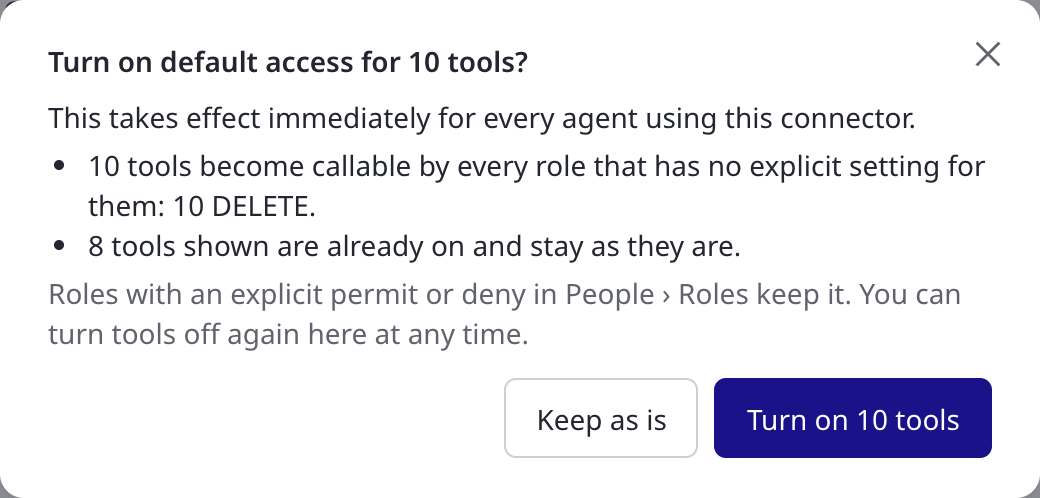
The change takes effect immediately for every agent that uses the connector. It applies only to the tools shown that are not already in that state. Explicit permits and denies in People › Roles are kept. Policies and approval rules still apply to every call.
For example, to give every role read-only access to an API, select GET, click Enable N shown, and confirm. Then turn on individual write tools, or permit them only for the roles that need them.
Filtering is available to everyone who can view the connector. Enable N shown, Disable N shown and the Default access switches require permission to edit connectors.
Connect an Agent
The connector is available at:
https://<your-gateway-url>/mcp/restapi/<connector-name>
The connector's Overview tab shows the same address.
Add that gateway URL to the agent, not the REST API's own URL. See Connecting to a Gateway MCP Connector for a manual Jira example. Managed cloud agents and Managed Desktop Tools can receive the connector directly from the AgentPass console.
Example
Suppose an issue-tracking API defines GET /issues/{key} and POST /issues. AgentPass exposes them as tools such as getIssue and createIssue. When an agent calls one:
- The agent supplies the path, query and body fields defined by the API description.
- AgentPass adds the configured API credential.
- A policy can allow reads, and require approval for
createIssue. - The Request Log records the agent, person, tool and outcome.
The agent works with MCP tools. It never constructs HTTP requests or holds the API credential.
The Connection and Test Tabs
A REST API connector has two tabs of its own, besides Tool calls and Tools.
| Tab | What you do there |
|---|---|
| Connection | Change the Base URL, Allow private network addresses and the Authentication mode with its credentials. Leave a secret blank to keep it. Click Save credentials to save, Validate connection to check the connection, or Connect a user… to connect a person's account |
| Test | Pick a tool, enter its Arguments (JSON) and click Invoke to see the response, its status and latency. For per-user OAuth, enter the person whose token to use under Run as supervisor (USER_OAUTH) |
A call from the Test tab goes straight to the API. Policy and approval rules do not apply to it. Real agent traffic still goes through them.
Changing the client ID or secret of a per-user OAuth connection invalidates the connected accounts. Each person then connects their account again.
Maintain the Connector
For a URL-based description, AgentPass refreshes the tool catalog, and keeps the last valid version if a refresh fails, including when the new version references something outside the document. Review the Tools tab after the API description changes, especially when operation IDs, required parameters or response shapes change. Operations a refresh adds start with default access off, like those of a new connector.
Related
- MCP Servers — proxy an existing MCP server
- Policies — allow, deny or require approval for tool calls
- Request Log — inspect connector activity