Connectors
A connector is how HYPR AgentPass™ reaches a target on behalf of your agents. Every request to that target picks up the same identity, policy, approval and audit controls as the rest of your agent traffic.
Give a Team Governed Coding Agents walks through the connectors a coding-agent rollout needs.
The Five Kinds
Connectors come in five kinds, one for each type of target.
| Kind | What it brings under the gateway | Guide |
|---|---|---|
| AI providers | LLM traffic from desktop and cloud agents, with policy and visibility | Anthropic · OpenAI · AWS Bedrock · AWS Bedrock Mantle · Microsoft Foundry · Custom AI Provider |
| MCP servers | An MCP server proxied through the gateway, with identity and governance | MCP Servers · One-Click MCP Servers |
| REST APIs | REST endpoints, exposed to agents as MCP tools | REST APIs |
| Cloud agents | Cloud-hosted agents, made accessible through the Agent Portal | Cloud Agent Connectors |
| Channels | Chat surfaces that route conversations to one of your agents, such as a Slack workspace | Slack Agent |
You create every kind from Add connector.
Claude Code and Codex channels use your Anthropic and OpenAI connectors, and you enable them in the agent configuration on Desktops. See Claude and Codex Channels.
Find Your Connectors
In the navigation, the Connectors menu lists every connector, in order of kind, followed by All connectors and, if you can edit connectors, Add connector. To keep a connector in view, click the pin beside it. A pinned connector appears under Connectors in the navigation. You can pin up to seven. On a connector's own page, Pin to sidebar does the same.
All connectors opens the Connectors page. It shows your connector count, a search box that matches a connector's name, template or URL, and one section per kind. Each section lists its connectors in these columns.
| Column | What it shows |
|---|---|
| Status | Whether the connector is Enabled or Disabled |
| Connector | The connector's display name. Click it to open the connector |
| Usage | An agent count, for AI provider and cloud agent connectors |
| Onboarding | The connector's onboarding mode |
A kind with no connectors shows an Add one → link.
Add a Connector
- In the navigation, open Connectors, and click Add connector. The catalog lists the five kinds as collapsed rows.
- Click a kind to expand it, or type in Search all connectors to find a target by name or description.
- Click the target's card, such as Anthropic under AI Providers or Microsoft 365 Copilot under Cloud Agents. Its form opens.
- Complete the form. Each guide lists the fields its target needs, and what to prepare on the provider side first.
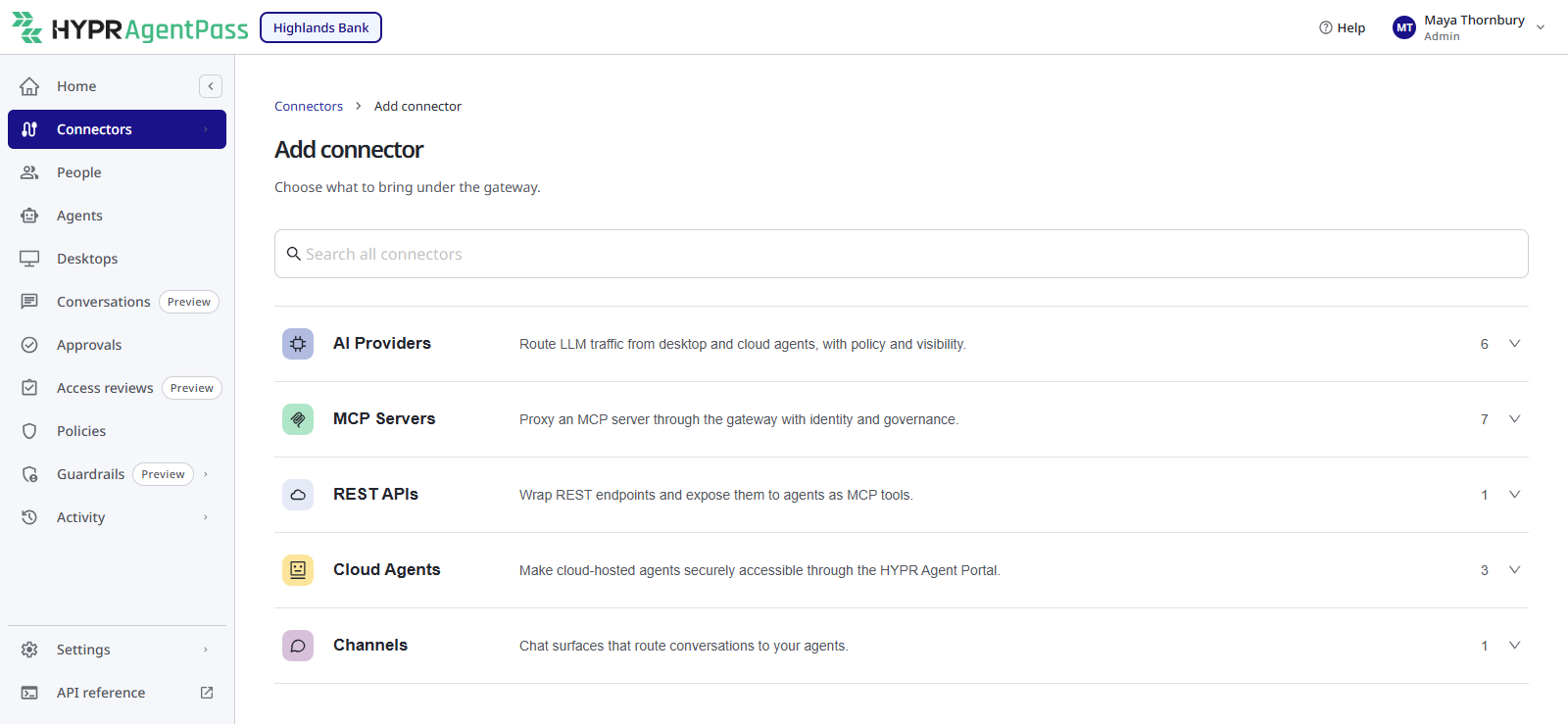
Hover over a card to read what the connector does. Click Cancel in a form to return to the catalog.
A connector's onboarding mode decides what happens to an agent's first request through it, such as holding it for a supervisor or only recording it. On an AI provider form, you choose the mode on the last step, before you click Create Connector.
Reading a Connector
Click a connector in the navigation to open its detail page. Every connector has these tabs.
| Tab | What it shows | Covered in |
|---|---|---|
| Overview | Name, Enabled, endpoint, the target's credentials, Onboarding Mode, and the routes the gateway forwards | The guide for that kind |
| Policies (N) | Every policy that governs this connector, scoped or global, and the recent decisions on its traffic. New policy starts a policy for this connector | Policy |
| Connections | Active sessions, requests and errors over 24 hours, authentication status, recent events and connected clients | The Connections Tab |
| Recent Requests | Stored request and response samples, redacted, and capped per tool or model | The Recent Requests Tab |
Other tabs depend on the connector.
| Tab | Connectors that show it | Covered in |
|---|---|---|
| Agents (N) | Anthropic, OpenAI, AWS Bedrock AgentCore, Anthropic Managed Agents | Agent identity |
| Session watch | Anthropic, OpenAI, AWS Bedrock, AWS Bedrock Mantle, Microsoft Foundry, for people with Session watch: View | Session Watch |
| Recent Sessions | Anthropic, OpenAI, AWS Bedrock, AWS Bedrock Mantle, Microsoft Foundry | Agent Session Forensics |
| Tool calls, Tools | MCP server and REST API connectors | MCP Servers · REST APIs |
| Connection, Test | REST API connectors | REST APIs |
| Copilot Studio agents, Portal branding | Microsoft 365 Copilot | Microsoft 365 Copilot |
Custom AI provider and Slack Agent connectors have only the shared tabs.
The Connections Tab
The Connections tab shows how the connector is being used right now. It refreshes on its own. Click Refresh to update it now.
- Summary. Active sessions, Requests · 24h, Errors · 24h and Auth status.
- OAuth Authentication. On MCP server and REST API connectors where the gateway holds each person's token, one row per supervisor, with the token's status and expiry.
- Pending authentications. Sign-ins that are waiting for a supervisor.
- Events. Recent events on the connector's traffic, such as policy decisions. Click one to open it.
- Connected Clients. The agent sessions the connector tracks. Revoking a session makes that agent onboard again on its next request.
- Recent Activity. The latest requests. Click Older → to page back.
The Recent Requests Tab
The Recent Requests tab keeps real example payloads for the connector, grouped by MCP tool or by model. AgentPass redacts authorization headers, cookies, and password, token, secret and API key fields before storage. Filter by a tool or model name, and expand a row to see its request and response. The number of samples kept per tool is set on Gateway Settings.
Manage a Connector
A connector's detail page has Pin to sidebar, Edit and Delete connector beside its name, and an Enabled switch on its Overview tab.
Edit a Connector
- Open the connector.
- Click Edit. A drawer opens with the fields that connector's kind uses.
- Change the fields you need. Secrets are write-only. Leave a secret field blank to keep the stored value.
- Click Save.
The Change link on the Overview tab's Endpoint row opens the same drawer. A REST API connector's credentials are edited on its Connection tab instead. See REST APIs.
Allow a Private Network Address
A connector refuses an upstream on a private network address by default. To reach an internal API or MCP server you control:
- Open the connector, and click Edit.
- Turn on Allow private network addresses.
- Click Save.
Cloud metadata addresses stay blocked, even with the switch on. A connector with the switch on carries a Private network tag in the connectors list, and Private network access only filters the list to those connectors.
The switch takes effect only when private network access is enabled for your organization. Otherwise the switch is unavailable, or reads On, but not in effect. On HYPR-hosted AgentPass, ask HYPR support to enable it.
The console's identity provider, the SMTP relay and the HYPR tenant each have the same switch on their settings. When the gateway refuses an outbound call because of its destination, it records an enforcement event that names the destination host and the connector.
Turn a Connector On or Off
The Enabled switch on the connector's Overview tab turns it on or off, with no confirmation. A disabled connector receives no traffic: the gateway skips it when it routes a request, and a disabled Slack Agent connector does not answer. The connector grays out in the navigation and on the Connectors page.
Delete a Connector
- Open the connector.
- Click Delete connector.
- In Delete this connector?, click Yes, delete connector. The connector list opens.
Deleting a connector also removes:
- The OAuth tokens it stored for supervisors
- The agents it imported, such as AgentCore runtimes, and their links to supervisors
- The Slack conversation threads a Slack Agent connector was carrying
Cloud agents imported from an Anthropic Managed Agents connector are archived. They still exist on your Anthropic account. To pause a connector without losing any of this, turn it off instead.
Who Can Do What
Connector tasks need these permissions. Admin holds all of them. Operator, Security analyst and Auditor can view connectors, and Operator can also sync agents. See Permissions by Role.
| Task | Permission |
|---|---|
| See connectors and their detail pages, download setup scripts and manifests, and run Test connection | connectors:view |
| Add, edit, turn on or off, change the onboarding mode, and reset or revoke connections | connectors:edit |
| Delete a connector | connectors:delete |
| Sync agents from the provider | agents:sync |
| Start a policy with New policy | policies:add |
| Open the Session watch tab, or change its rules | session-watch:view, session-watch:manage |
| Manage the Copilot Studio agents tab | cloud-agents:view, cloud-agents:manage |
| Delete a pending authentication | approvals:delete |
Related
- Onboarding Mode — what a connector does with an agent it has not seen before
- Policy — allow, block or hold a connector's traffic
- Workload Agents — give an unattended caller a bounded set of connectors