Managing Workload Agent Credentials
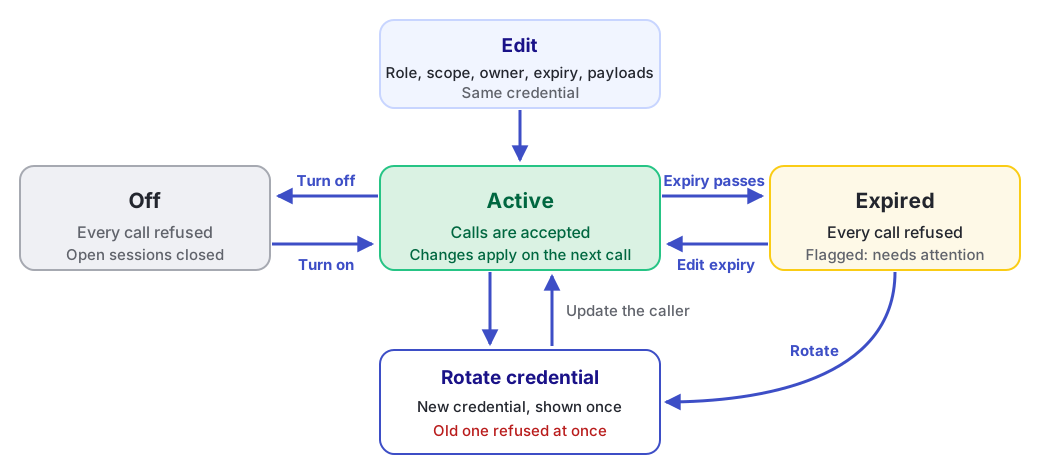
A workload agent credential lives in the systems you configured it into, so you need to change or stop it quickly. In HYPR AgentPass™, every change on this page takes effect on the workload agent's next request.
There is nothing to restart and no cache to wait out. You touch the calling system only when you replace the credential itself.
Managing workload agents needs Workload agents: Manage, which Admin has out of the box. Turning one off and on needs Agents: Toggle. See Workload Agents.
The Credential Tab
The Credential tab shows what a workload agent can do, and is where you stop it. To open it:
- Open Agents.
- On the workload agent's row, click ⋮, then click Manage. The agent's page opens.
- Click the Credential tab.
The tab shows these fields.
| Field | What it shows |
|---|---|
| Accountable owner | The person accountable for the credential |
| Acts with role | The ID of the role that governs the credential's calls |
| Connectors in scope | Everywhere the credential is accepted |
| May act as the owner on | Connectors where it may use the owner's connected account |
| Credential expires | The expiry, or Never |
| Retains request payloads | Whether AgentPass keeps request and response bodies for this workload agent |
The tab also holds Edit, for changing any of these, and Rotate credential.
Change What a Workload Agent May Reach
Click Edit to change any of these:
-
The role
-
The connectors in scope
-
The owner
-
The expiry
-
The act-as-owner opt-in
-
Payload retention
Editing does not change the credential itself, so the calling system keeps working with no update.
Narrowing takes effect immediately:
-
Remove a connector from the scope. The next call to it is refused.
-
Change the role. The next request sees a different set of offered and permitted tools.
Rotate a Credential
Rotating issues a new credential and stops the old one at once. Rotate when:
-
The credential may have been exposed, or was copied somewhere you did not intend
-
The person who configured it leaves
-
Your organization's schedule for secrets calls for it
To rotate:
- On the Credential tab, click Rotate credential.
- Click Yes, rotate credential. The current credential stops working immediately.
- Copy the replacement from the dialog. As at creation, AgentPass shows it only once.
- Update the calling system with the new credential.
The moment you rotate, calls with the old credential are refused. The calling system stops working until you configure the new one.
Before you start, have somewhere to paste it and access to update the caller. Or plan the rotation for a window where a gap is acceptable.
Turn Off a Workload Agent
Turning a workload agent off is the fast stop. Use either of these:
-
On the Agents page, click ⋮ on the workload agent's row, then click Turn off.
-
Turn off the Enabled switch on its detail page.
AgentPass asks you to confirm, with an optional reason, as for any agent. See Turning Off an Agent.
Once it is off:
-
Its next call is refused, immediately, from every caller holding the credential.
-
Any session it holds open is closed.
Turning it off keeps the workload agent, its configuration and its activity history. Use it when calls must stop while you investigate. Turn the workload agent back on, and the same credential works again.
Let a Credential Expire
A credential with an expiry stops working when that time passes. The Agents page then shows the workload agent as Credential expired, under Needs attention, and its Credential tab shows the expiry has passed. An integration that stopped quietly is therefore visible.
From there, you can either:
- Extend the expiry with Edit. The same credential works again.
- Click Rotate credential to issue a fresh credential with a new expiry. The Details drawer on the Agents page offers the same Rotate credential button.
Reviewing Your Workload Agents
A workload agent keeps working without anyone signing in, so review your workload agents deliberately:
-
On a schedule. Confirm each one is still in use, still owned by the right person, and still scoped to the connectors it calls.
-
When someone leaves. A workload agent keeps working after its accountable owner leaves your organization. Reassign the owner as part of offboarding. Check carefully any workload agent permitted to act as that person on a connector.
-
When you add a connector. New tools arrive without access. Check whether the roles your workload agents carry should reach them. See Controlling MCP Tool Access by Role.
Related
- Workload Agents — what a workload agent is and what governs it
- Creating a Workload Agent — issue a credential and set its boundary
- Connecting a Workload Agent — configure the credential and read a refusal