Portal Branding
A portal takes its look from the connector that serves it. You set it on the Microsoft 365 Copilot connector's Portal branding tab. A connector that does not choose a theme uses the tenant's default theme.
Brand a Connector's Portal
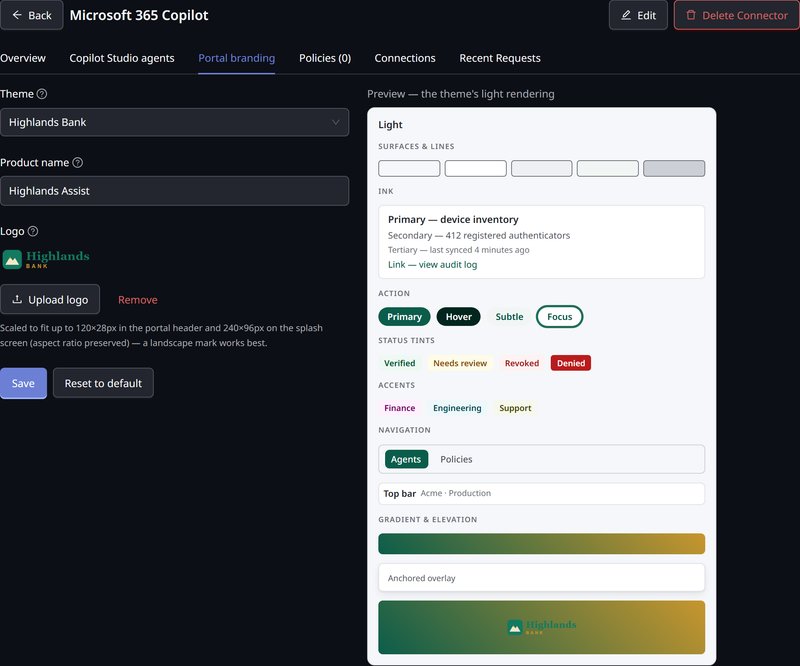
- Open the Microsoft 365 Copilot connector, and click the Portal branding tab.
- Choose a Theme from the themes defined for your tenant. Leave it empty to follow the tenant default theme.
- Enter the Product name, up to 128 characters. It shows on the sign-in page, in the portal header and in the browser tab. Left blank, the portal is called Agent Portal.
- Under Logo, click Upload logo, and choose a PNG, JPEG or WebP image of 256 KB or less. It is scaled to fit 120 × 28 px in the header, and 240 × 96 px on the splash screen. Without a logo, the portal uses the theme's logo.
- Click Save.
The preview beside the form shows how the portal will look. Changing the branding needs permission to edit connectors.
To return the portal to the tenant default theme, click Reset to default, then Yes, reset branding. This also clears the product name and logo.
Where Themes Come From
You create themes once for the tenant, under Settings → Theme. The default theme applies to the console, and to every portal that does not pick its own. See Console Themes.