Local Agents
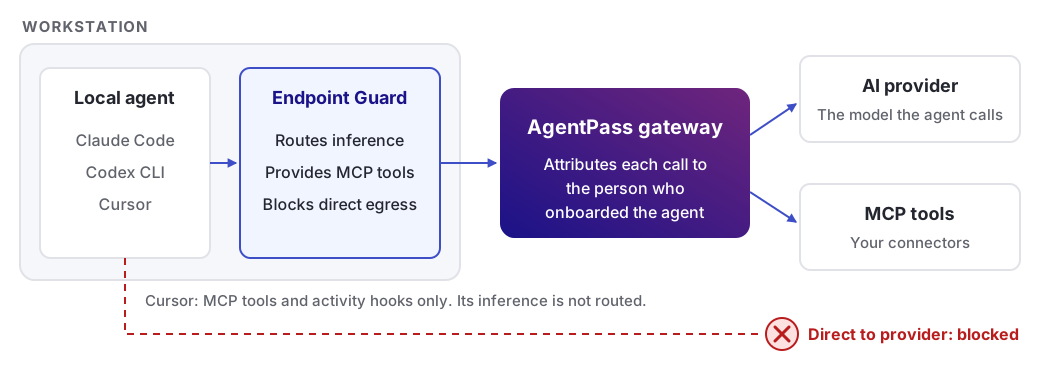
A local agent is a harness installed on a person's workstation that calls a cloud-hosted model. HYPR AgentPass™ governs it in two ways:
-
The person onboards the agent, so its traffic is attributed to them.
-
The Endpoint Guard on the workstation keeps that traffic on the gateway.
Give a Team Governed Coding Agents sequences the full rollout: connectors, roles, tools and mobile approvals.
Set Up a Local Agent
A local agent reaches the Agents page in one of two ways. An administrator imports it from an AI provider, or the gateway creates it when a person signs in and sends their first request.
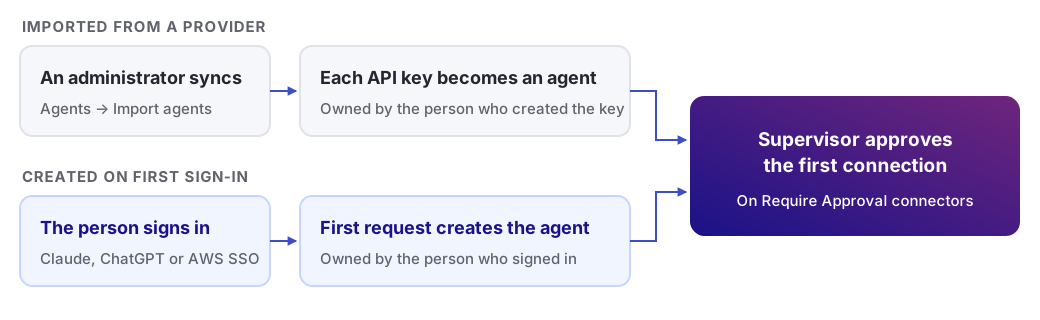
The two ways differ in who starts them and what identifies the agent.
| Imported from a provider | Created on first sign-in | |
|---|---|---|
| Who starts it | An administrator, by syncing the connector | The person, by sending a first request through the gateway |
| What identifies the agent | A provider API key | The person's own sign-in: a Claude account, a ChatGPT account or an AWS single sign-on (SSO) session |
| Who owns it | The person who created the key at the provider | The person who signed in, by the email address on that account |
| Providers | Anthropic and OpenAI | Anthropic, OpenAI and AWS Bedrock |
| Approval on a Require Approval connector | Yes, for the first connection | Yes, for the first connection |
Import Agents from a Provider
Import agents when people call Anthropic or OpenAI with API keys that your organization issues.
-
Create the Anthropic or OpenAI connector with the provider's Admin API key. An OpenAI connector also needs the project ID.
-
In the console, open Agents.
-
Click Import agents.
-
Click the sync button on the connector's row.
A message reports how many agents were imported, conflicted and skipped.
-
Ask each person to point their tool at the gateway URL, and keep using their own API key. See Claude Code or Codex CLI.
-
On a Require Approval connector, the supervisor approves each agent's first connection. See Onboarding Your Agent.
Each sync does the following:
-
Each active API key becomes an agent, named after the key in lowercase letters, digits and hyphens.
-
The person who created the key owns the agent. A key whose creator is not a user of the provider account is skipped.
-
Each user of the provider account is added as a supervisor.
-
A key that an earlier sync imported is skipped.
-
When the key's name matches an agent already on the list, the new agent is named
<name>-importedand marked Import conflict. It stays off and needs attention. See Why It Needs Attention.
On a Require Approval connector, the gateway refuses an API key it has not imported. On an Observe only connector, an imported key's traffic is attributed to its agent, and nothing is held.
To stop an imported key, revoke it at the provider, which then refuses it. A sync does not remove the agent from the list. To refuse the key at the gateway as well, switch the agent off.
Create Agents on First Sign-In
Nobody creates these agents in advance. When a person signs in to their tool with their own account and sends a request through the gateway, that first request creates the agent.
The sign-in decides how many agents a person gets.
| Sign-in | One agent per | Owner |
|---|---|---|
| A Claude account, in Claude Code | Device | The email address on the Claude account |
| A Claude account, in Claude Desktop that Endpoint Guard routes | Claude account, named "Name's Claude Desktop" | The email address on the Claude account |
| A ChatGPT account, in Codex CLI | ChatGPT account, named "Codex" | The email address on the ChatGPT account |
| AWS SSO, in a tool that calls AWS Bedrock | Developer | The developer's email address, from AWS's record of their sign-in |
To set it up:
-
Create the connector for the provider: Anthropic, OpenAI or AWS Bedrock.
-
Set the connector's onboarding mode to Require Approval.
On AWS Bedrock, Require Approval needs identity enrichment.
-
Optional: On an Anthropic connector, accept only your company's Claude organizations, so nobody signs in with a personal account.
-
Ask each person to point their tool at the gateway, and sign in with their own account. See Claude Code, Codex CLI or the Bedrock connector's Connect Your Developers.
On the person's first request:
-
The gateway checks the sign-in with the provider, and creates the agent. The person who signed in becomes its supervisor.
-
The request is held. An onboarding approval reaches the supervisor under Approvals in the console, and on the HYPR mobile app when they have a passkey. See Onboarding Your Agent.
-
With the HYPR MCP server added, the agent waits, and continues by itself once approved.
-
Without the HYPR MCP server, the agent replies that an approval request has been raised for it. Once the request is approved, the person sends their message again. If the request expires first, asking again raises a new one.
The approval grants access for a limited time, 24 hours by default. When it lapses, the agent's next request is held again, and a new approval is raised. Administrators set the period under Onboarding access validity in Gateway Settings.
Some sign-ins work differently:
-
AWS Bedrock API keys are never held for approval. A key belongs to an AWS account, not a person.
-
A new AWS SSO session waits a few minutes before its first approval. See The First Request After Signing In.
-
On an Observe only connector, nothing is held. Claude and ChatGPT sign-ins are recorded on Desktop Activity, not added to the Agents page. AWS Bedrock callers are still added.
Controls by Tool
The Endpoint Guard applies different controls to each supported tool.
| Tool | Routes inference through the gateway | Provisions your MCP connectors | Blocks direct provider egress |
|---|---|---|---|
| Claude Code | Yes | Yes | Yes |
| Codex CLI | Yes | Yes | Yes |
| Cursor | No | Yes | Yes |
| Claude Desktop | Yes | Yes | Yes |
For Cursor, the Endpoint Guard also observes the agent's actions through Cursor's own hooks.
Choose the Managed Tools
You choose the managed tools, their inference routing and egress enforcement in the console. Open Desktops, click the Desktop configuration tab, and choose Configuration.
-
For each setting, see Managed Desktop Tools.
-
A tool that is not managed can still be pointed at the gateway by hand. See Onboarding Your Agent.
When Endpoint Guard routes a tool through AgentPass, it sets the gateway address for you. Don't set ANTHROPIC_BASE_URL or run a connector script by hand. Keep signing in as usual: with Claude Code, your Claude account works, as does an Anthropic API key. After Endpoint Guard applies the configuration, restart the tool.
Switch a Local Agent Off
Turn the agent off from the Agents page.
- In the console, open Agents.
- Set Runs to Local, and find the agent.
- On the agent's row, click ⋮, then click Turn off.
- Click Turn off to confirm.
See Turning Off an Agent.
Two other actions have the same effect:
-
Switching the agent off from the HYPR mobile app.
-
Removing its access in an access review.
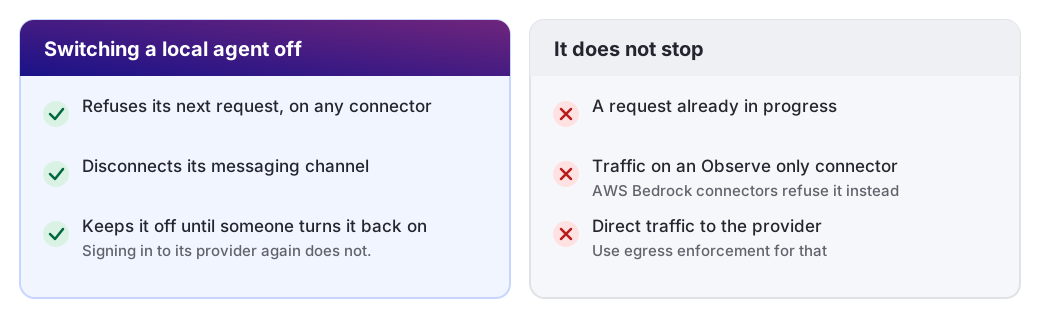
Once the agent is off:
-
The gateway refuses the agent's next request, whichever connector it calls.
-
The agent's messaging channel is disconnected.
-
The agent stays off until someone turns it back on. Signing in to its AI provider again does not turn it back on. See Who Can Turn an Agent Off and On.
-
A request already in progress finishes.
-
Traffic on a connector whose onboarding mode is Observe only is recorded and forwarded, not stopped. AWS Bedrock connectors are the exception: there, a switched-off developer's requests are refused.
-
Direct traffic to the provider is not stopped. To keep a tool from reaching its provider directly, use egress enforcement.