Anthropic Cloud Agents
An Anthropic cloud agent is an agent HYPR AgentPass™ creates and hosts for you on Anthropic's Managed Agents platform. You choose its name, model, system prompt and tools in the AgentPass console.
AgentPass provisions the agent on Anthropic and keeps the two in step from then on.
The agent runs at Anthropic, but its tools live at your gateway. Every Model Context Protocol (MCP) tool you give it is a gateway connector.
Each tool call therefore comes back to AgentPass. There it is policy-checked, approved where required and logged before anything happens.
Set Up an Anthropic Cloud Agent
You can create a new agent in AgentPass, or import agents already built in the Anthropic console. Both start from the same connector.
-
Connect the Anthropic account. Create an Anthropic Managed Agents connector. See Set Up the Anthropic Account and API Token.
-
Add the agent. Choose one path:
-
Create a new agent. In Agents, click New agent → New cloud agent. See Create an Agent.
-
Import existing agents. In Agents, click Import agents, then the sync button beside your Anthropic Managed Agents connector. A message reports how many agents were imported, conflicted or skipped. The connector's owner owns each imported agent. See Keeping AgentPass and Anthropic in Step.
-
-
Find it on the Agents page. Set Runs to Cloud. See Where They Live in the Console.
-
Test it. On the agent's Chat tab, send a message. See Talking to an Agent.
-
Assign people. On the Assignments tab, add the users and groups who may use it. See Assigning an Agent to People.
-
Check that it is on. The Enabled switch in the agent's header must be on. See Turning Off an Agent.
-
Optional: Schedule it. Add an automation. See Automating Cloud Agents.
Before You Begin
Creating an agent needs Cloud Agents: Manage. Admin has it for every agent, and Operator and Supervisor for the agents they create. Creating the connector needs Connectors: Edit, which Admin has.
You need two things before you can create an agent:
-
An Anthropic Managed Agents connector. It holds the account and API token that AgentPass authors and runs agents on. Setup follows.
-
A gateway address Anthropic can reach. The agent's tools are URLs on your gateway, called from Anthropic's infrastructure. Your AgentPass deployment must therefore be reachable at its public URL. If you are unsure, confirm with your HYPR representative.
Give the agent at least one MCP tool connector: an MCP server or a REST API connector. An agent with no tools can converse but cannot act. See Connectors.
Set Up the Anthropic Account and API Token
The connector holds the account credentials. Every agent is pinned to the connector it was created on.
- In the console, open Connectors.
- Click Add connector.
- Under Cloud Agents, choose Anthropic Managed Agents.
- Complete the fields described in the following table.
- Click Create Connector.
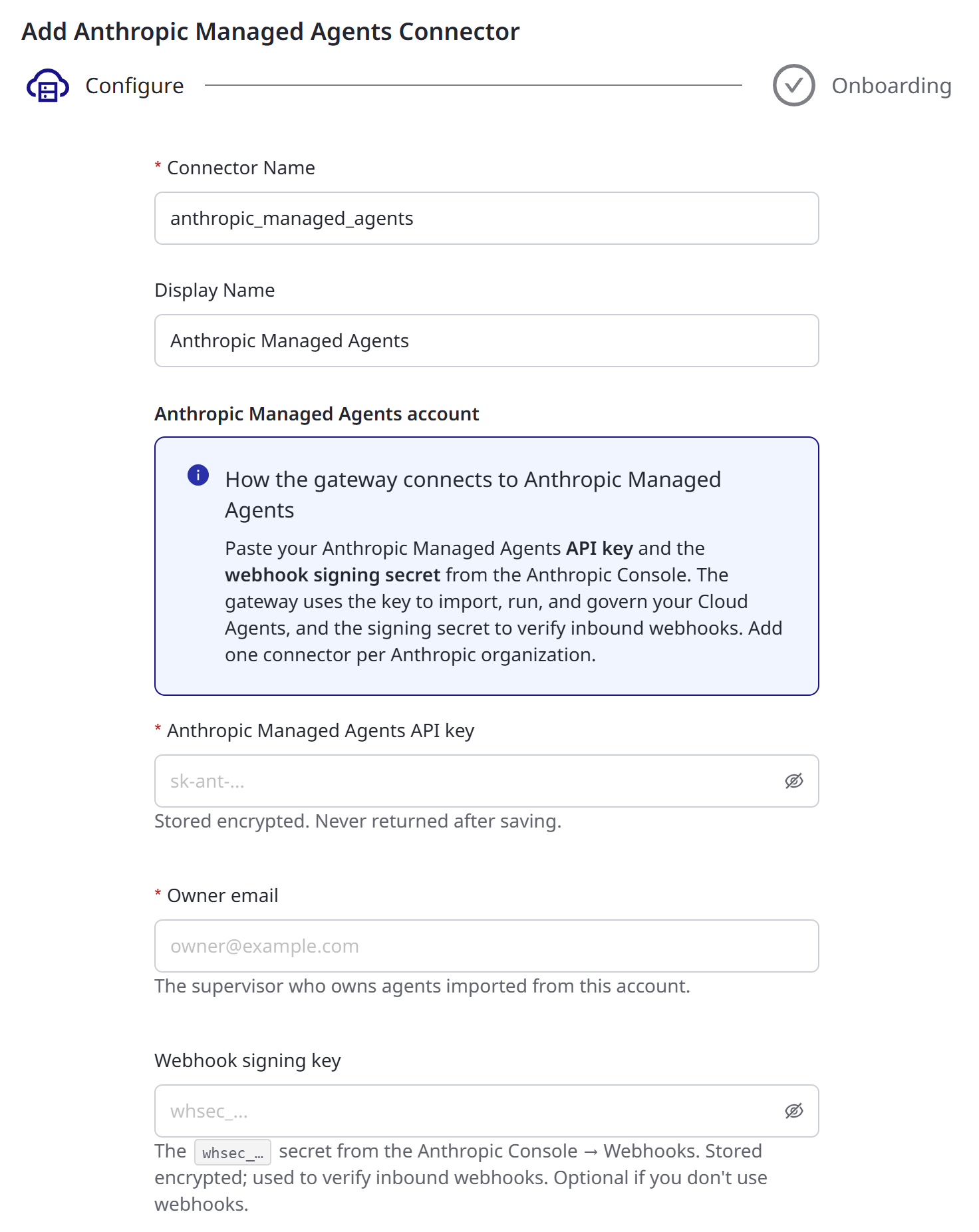
The connector form has these fields.
| Field | What to enter |
|---|---|
| Anthropic Managed Agents API key | The account's API key (sk-ant-…). Stored encrypted, and never shown again after saving |
| Owner email | The supervisor who owns agents imported from this account |
| Webhook signing key | The whsec_… secret from the Anthropic Console's Webhooks page. It lets AgentPass verify the session updates Anthropic sends back. Set it up unless you have a reason not to |
| API base URL | Leave the default, unless you route through a proxy |
| Environment ID | Leave blank. AgentPass resolves the execution environment automatically on first use |
This one token authors, runs and archives every agent on the account. Create it on a dedicated Anthropic account for AgentPass.
To rotate it, save a new value on the connector. The field is write-only, so the new value replaces the old one.
Create an Agent
-
In Agents, open the New agent menu.
-
Choose New cloud agent.
-
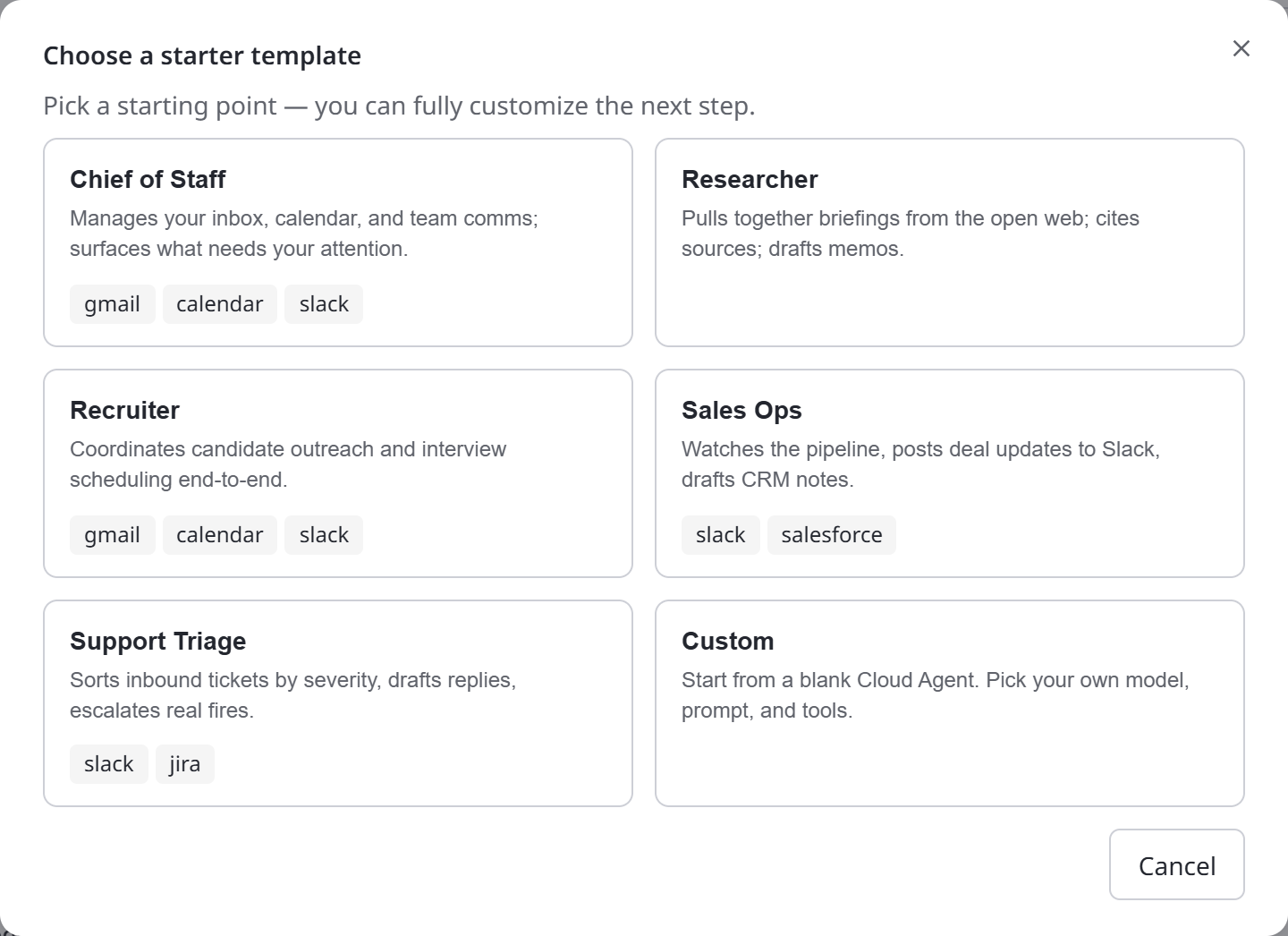
Choose a starter template. Templates prefill the prompt and a tool list for common jobs: Chief of Staff, Researcher, Recruiter, Sales Ops and Support Triage. Choose Custom to start blank. A template suggests only tools that exist as connectors on your deployment.
-
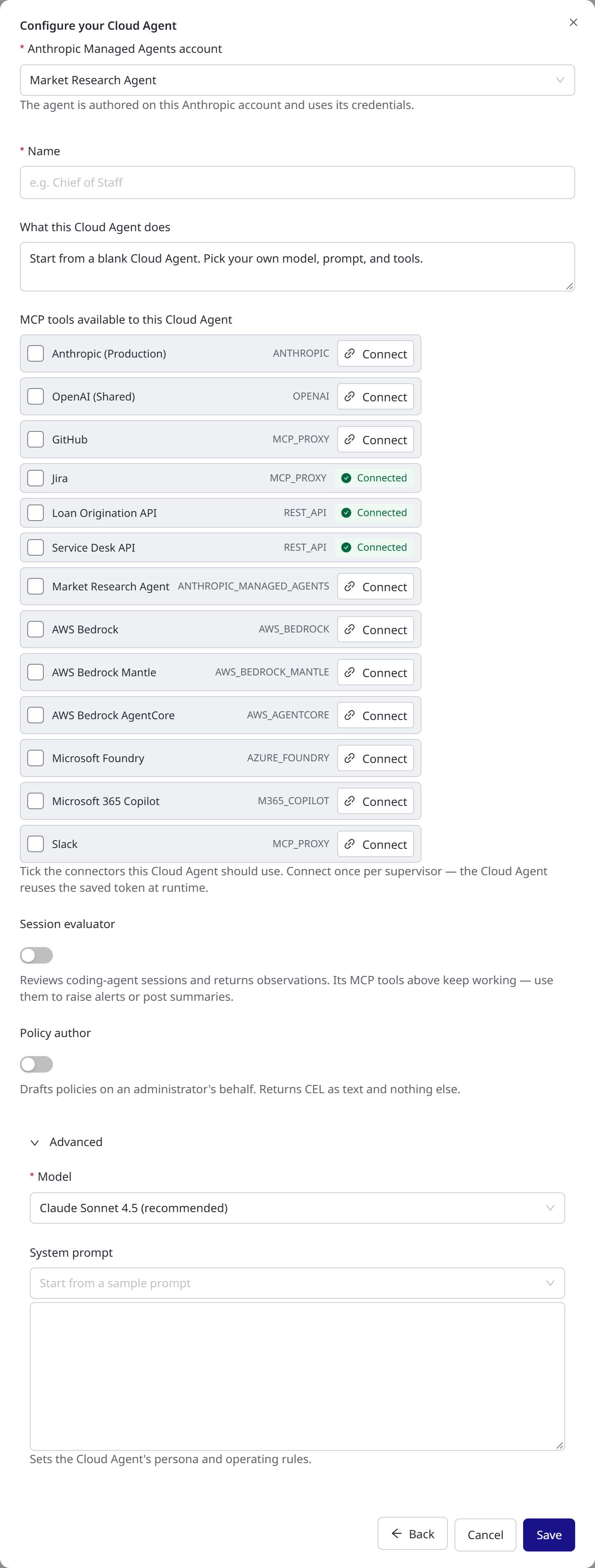
Configure the agent. The fields are described in the following table.
-
Click Save. AgentPass creates the agent on Anthropic and lists it on the Agents page in one step. If the Anthropic call fails, nothing is created on either side.
The configuration form has these fields.
| Field | What it does |
|---|---|
| Anthropic Managed Agents account | The connector the agent is authored on. Fixed once created |
| Name | The agent's display name |
| What this Cloud Agent does | A description shown wherever the agent is listed |
| MCP tools available to this Cloud Agent | The connectors the agent may call. Each row shows whether you have connected that tool yet |
| Session evaluator | Tags the agent for Session Watch duty. This removes the provider sandbox tools |
| Policy author | Tags the agent to draft policies on an administrator's behalf. The form warns This removes every tool from this agent: a policy author gets no sandbox, connector or gateway tools |
| Model (under Advanced) | The Claude model the agent runs on |
| System prompt (under Advanced) | The agent's persona and operating rules. To start from a sample, choose one from Start from a sample prompt above the box. If the box already has text, AgentPass asks before it replaces it |
Tools that authenticate per person, such as OAuth-managed Slack or Google Workspace connectors, show a Connect button until you link your account. You connect once, and the agent reuses your saved connection at runtime.
Each person the agent is assigned to connects their own accounts the same way. The agent then acts with that person's access, not yours.
How Tools Are Wired
The tool list is part of the agent's definition. When you save, AgentPass pushes the agent's configuration to Anthropic. The configuration includes:
-
One MCP server entry per selected connector, each a URL on your gateway.
-
HYPR's own built-in tool server, which is how the agent requests approval when a policy asks for it.
The following diagram shows where each kind of tool call goes.
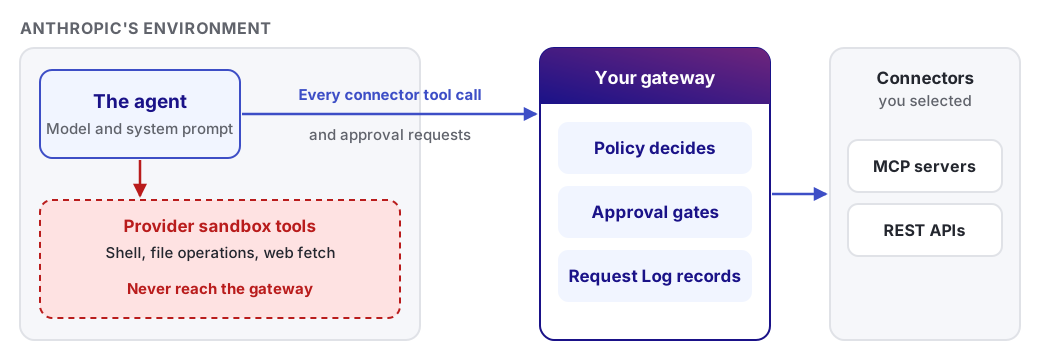
Every one of those tool calls lands back at the gateway, so the gateway is the single place approval decisions are made.
There is nothing to configure on the Anthropic side, and no second permission system to keep in step. Your policies decide each call, and the Request Log records it.
To change an agent's tools later, click Edit configuration on the agent's detail page. Saving updates the live Anthropic agent immediately.
The Provider Sandbox
Besides your connectors, an Anthropic cloud agent normally carries Anthropic's built-in sandbox tools: shell, file operations and web fetch. They run inside Anthropic's environment.
Sandbox tool use runs at the provider and never reaches AgentPass. No policy evaluates it, no approval gates it, and no audit row records it.
Keep that in mind before you give an agent sensitive material. For this reason, agents tagged as session evaluators do not get the sandbox.
Talking to an Agent
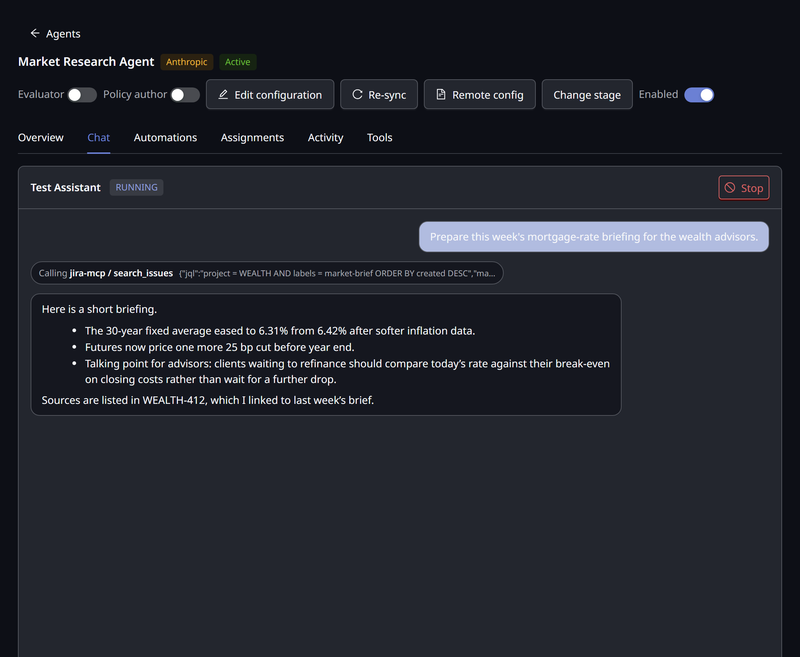
Open the agent, and click the Chat tab. A conversation with an Anthropic agent is a session.
-
Replies stream in. The agent works asynchronously and streams its replies, tool calls and status back as events.
-
You stay in control. You can send follow-up messages, and interrupt a session that has gone off track.
-
Approvals pause the work. When a tool call is held for approval, the agent is told and waits. It picks the task back up once a supervisor approves. The approval itself follows the standard AgentPass flow on the supervisor's phone.
Keeping AgentPass and Anthropic in Step
Three actions keep the two sides consistent, as described in the following table.
| Action | What it does |
|---|---|
| Sync | Reconciles the whole Anthropic workspace into AgentPass. It imports agents created directly in the Anthropic console, and picks up remote edits. On Agents, click Import agents, then the sync button on the Anthropic Managed Agents row. The connector's Agents tab has the same action as Sync agents from Anthropic. Needs Agents: Sync (Admin and Operator) |
| Re-sync (per agent) | Pushes the agent's stored configuration back to Anthropic unchanged. Use it when the agent's tool URLs have gone stale, for example after your gateway's public address changes |
| Remote config (per agent) | Shows the agent's record as Anthropic holds it, so you can compare it with the AgentPass side |
Turning an Agent Off
To stop an agent, use either control:
-
On the Agents page, click ⋮ on the agent's row, then click Turn off.
-
Turn off the Enabled switch in the agent's header.
Turning it off is reversible and immediate. The gateway refuses the agent's tool calls until you turn it back on. See Turning Off an Agent.
Turning an Anthropic agent off also ends its sessions at Anthropic. Each running session is interrupted, and then archived, which makes it read-only.
An archived session cannot be continued, even after you turn the agent back on, so people start a new chat instead. The agent's definition at Anthropic is untouched.
Example: A Chief of Staff Agent
This example builds an agent from the Chief of Staff template.
-
Create the agent. On Agents, click New agent, then New cloud agent, and choose Chief of Staff. Its suggested tools are your mail, calendar and Slack connectors. Select the ones you have, and click Connect on any that ask for your account.
-
Test it. On the agent's Chat tab, ask "What's on my calendar today?" When the reply arrives, check the agent's Activity tab. Each call is attributed and policy-checked.
-
Govern it. To keep a human in the loop for outbound actions, add a policy that requires approval for the mail connector's send tool. The agent requests approval and continues once it is granted. See Policies.
-
Assign it. On the Assignments tab, assign the colleagues who should use it. Each person connects their own tool accounts on first use.
-
Schedule it. Add a weekday-morning automation, such as "Summarize my unread mail and today's meetings," so the briefing is waiting before anyone asks. See Automating Cloud Agents.
Related
- Cloud Agents: Overview — the agent page, assignments and governance
- Automating Cloud Agents — schedules and run history
- AWS Bedrock AgentCore Agents — the sibling provider, for agents built in AWS