AWS Bedrock AgentCore Agents
Amazon Bedrock AgentCore is where teams run their own agents. An agent runs either as containerized agent code on the AgentCore Runtime, or as a managed harness.
An AgentCore connector brings those agents into HYPR AgentPass™. The gateway then:
-
Imports them
-
Lets your people chat with them
-
Runs them on schedules
-
Hands them governed gateway tools
Their actions are then subject to your policies and audit trail.
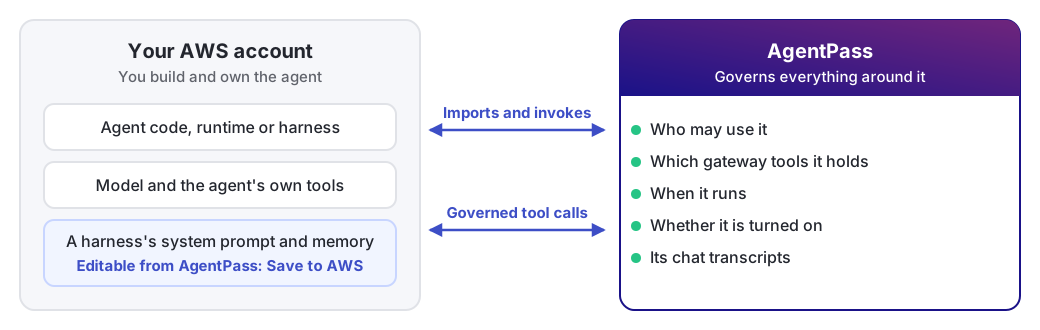
AgentPass never deploys or modifies your agent's code. The agents stay yours, in your AWS account. AgentPass invokes and governs them.
The following diagram shows which side owns what.
Set Up an AWS Bedrock AgentCore Agent
AgentCore agents arrive by import. You build them in AWS, and AgentPass imports them through a connector.
-
Prepare AWS. Choose how the connector authenticates, and attach the permission policy. See Before You Begin.
-
Create the connector. Creating it imports the account's agents straight away. See Create the Connector and Import Your Agents.
-
Set up the role. In IAM role mode only. See Set Up the IAM Role.
-
Test the connection. See Test the Connection.
-
Import the agents. If the first import did not complete, open Agents, click Import agents, and click the sync button beside the connector. A message reports how many agents were imported, conflicted or skipped.
-
Find them on the Agents page. Set Runs to Cloud. Each agent appears once, named from AWS, with Synced from provider on its Overview tab. The connector's owner owns it.
-
Give it gateway tools. Optional, and decide on per-user isolation while you are there. See Hooking In Gateway Tools and Per-User Credential Isolation.
-
Test it. On the agent's Chat tab, send a message. See Talking to an AgentCore Agent.
-
Assign people. On the Assignments tab, add the users and groups who may use it. See Assigning an Agent to People.
-
Check that it is on. The Enabled switch in the agent's header must be on. See Turning Off an Agent.
Before You Begin
Creating the connector needs Connectors: Edit, which Admin has. Syncing its agents later needs Agents: Sync (Admin and Operator).
Choose how the connector authenticates to AWS:
-
IAM role (recommended). Create an AWS Identity and Access Management (IAM) role in the AWS account that hosts your agents. The role trusts AgentPass together with an external ID that AgentPass generates for the connector. The gateway assumes the role with its deployment identity, so AgentPass stores no long-lived credential. See Set Up the IAM Role.
-
This deployment's AWS identity. Use this option when AgentCore and the gateway run in the same AWS account. Grant the gateway's deployment identity the baseline policy. No connector credential is stored.
-
Access key (advanced). Create an IAM user in the AWS account that hosts your agents, and store its access key in the connector. AgentPass encrypts the secret and never shows it again after saving.
Attach this baseline policy to the role, deployment identity or IAM user that the connector uses:
{
  "Version": "2012-10-17",
  "Statement": [
    {
      "Sid": "HyprAgentCoreIngestAndInvoke",
      "Effect": "Allow",
      "Action": [
        "bedrock-agentcore:ListAgentRuntimes",
        "bedrock-agentcore:GetAgentRuntime",
        "bedrock-agentcore:ListAgentRuntimeEndpoints",
        "bedrock-agentcore:InvokeAgentRuntime",
        "bedrock-agentcore:StopRuntimeSession",
        "bedrock-agentcore:ListHarnesses",
        "bedrock-agentcore:GetHarness",
        "bedrock-agentcore:UpdateHarness",
        "bedrock-agentcore:InvokeHarness"
      ],
      "Resource": "*"
    }
  ]
}
Two actions are worth a closer look:
-
UpdateHarnesslets AgentPass attach and rotate gateway-tool credentials on a harness. If you do not use direct harness attachment, you can omit it. -
StopRuntimeSessionlets AgentPass stop an agent's running sessions in AWS when you turn the agent off. Without it, the agent is still turned off and the gateway refuses its calls. Sessions already running in AWS continue until AWS ends them. A harness has no session to stop this way, so for a harness agent the gateway's refusal is what stops it.
On the connector form, each mode has a Set up … in AWS link. It opens this policy, ready to copy, with the rest of the setup for that mode.
Create the Connector and Import Your Agents
- In the console, open Connectors.
- Click Add connector.
- Under Cloud Agents, choose AWS Bedrock AgentCore.
- Under How should the gateway authenticate to AWS?, choose a mode.
- Complete the connector details described in the following table.
- Optional: Under Connection, click Test connection. The test uses the selected mode and what is in the form, so you do not need to save first. In IAM role mode, save first: the role's trust policy needs the external ID that AgentPass generates on save.
- Click Create Connector. AgentPass lists the account's agent runtimes and harnesses right away, imports each as an agent on the Agents page, and opens the connector's Agents tab. A message reports how many agents were imported.
The connector is created even when the first import does not complete. In that case, import the agents from the Agents page: open Agents, click Import agents, and click the sync button beside the connector. Sync agents from AWS on the connector does the same.
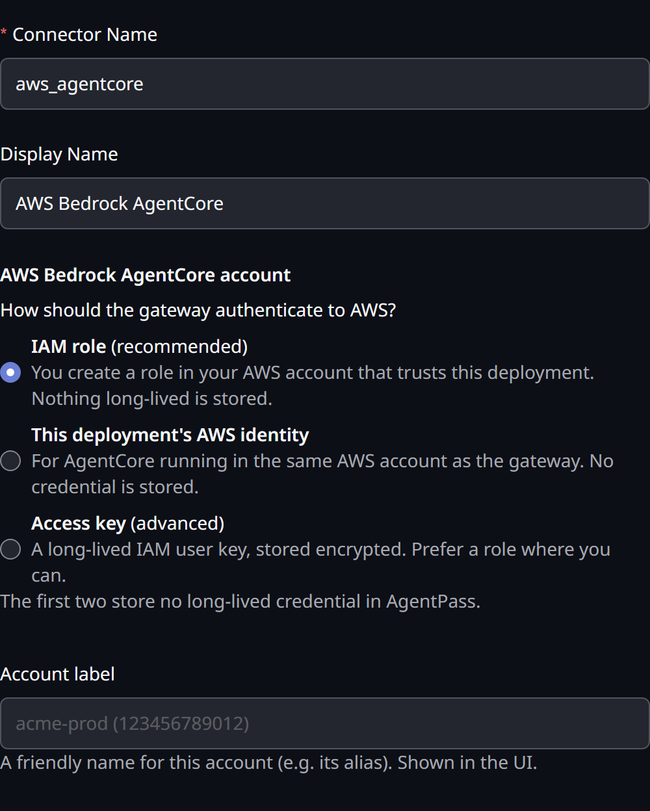
The connector form has these fields.
| Field | What to enter |
|---|---|
| Account label | A friendly name for the AWS account, shown in the console |
| How should the gateway authenticate to AWS? | IAM role (the default) for a cross-account role, This deployment's AWS identity for same-account AgentCore, or Access key for an IAM-user key. The first two are unavailable when the deployment has no AWS identity to assume from |
| Role ARN | For IAM role, the Amazon Resource Name (ARN) of the role in your AWS account that trusts the gateway. Click Set up role in AWS for its trust policy |
| AWS Access Key ID and AWS Secret Access Key | For Access key, the IAM user's key. The secret is stored encrypted and never shown again after saving |
| Region | The region your AgentCore runtimes live in |
| Owner email | The supervisor who owns agents imported from this account. This person approves until agents are assigned to people |
Set Up the IAM Role
In IAM role mode, the role's trust policy allows AgentPass to assume it only together with an external ID.
AgentPass generates the external ID for each connector when the connector is saved in IAM role mode. You cannot choose it.
- Save the connector with IAM role selected and the ARN of the role.
- On the connector, click Edit, then Set up role in AWS.
- In your AWS account, create the role with the custom trust policy shown, and attach the permission policy shown.
- Click Test connection, then Sync agents from AWS on the connector.
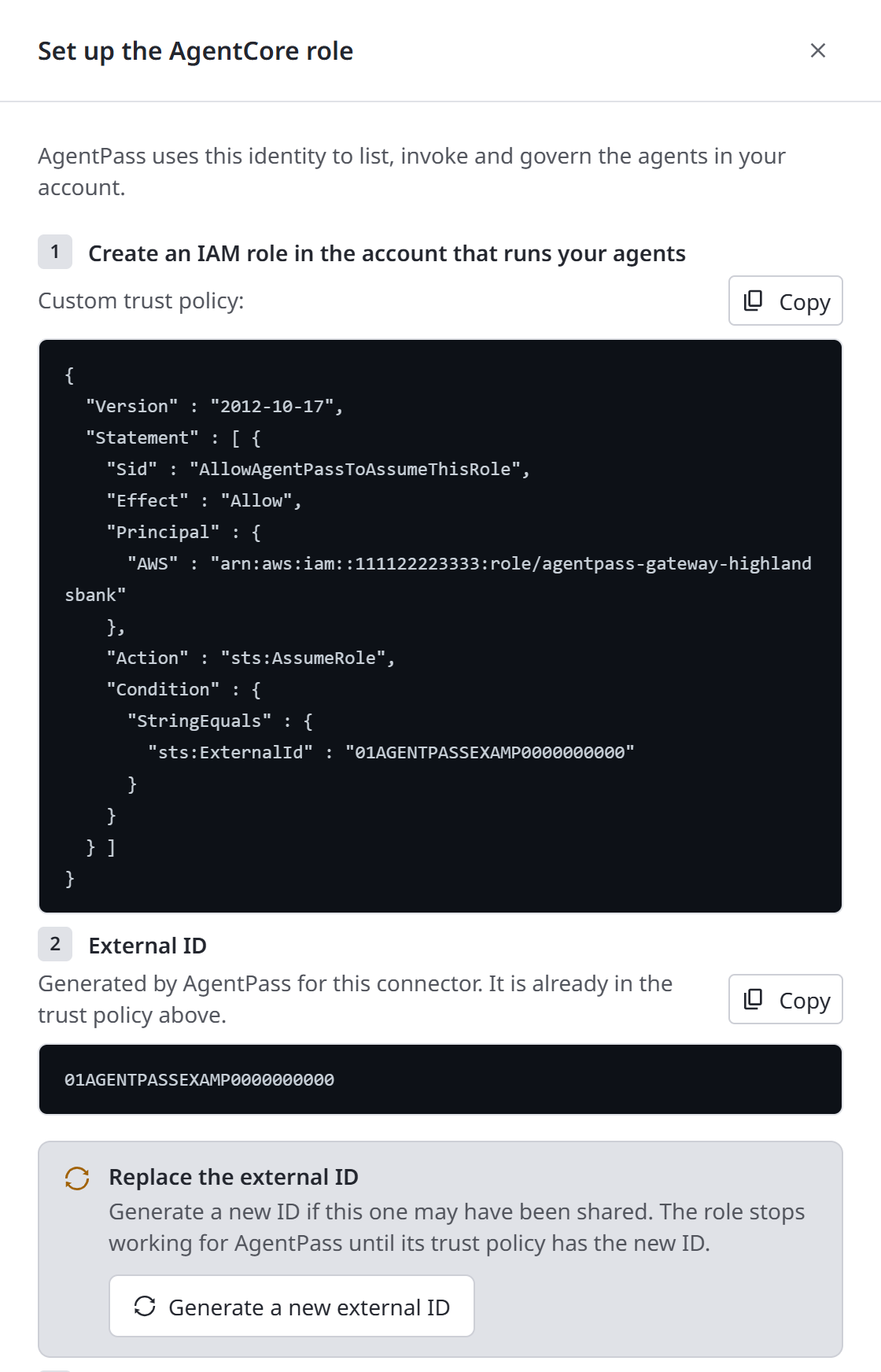
Changing the connector's role ARN generates a new external ID, so set up the new role's trust policy from Set up role in AWS.
Replace the External ID
Replace the external ID when it may have been shared outside your organization.
The slide-in also asks you to replace an external ID that an administrator chose rather than AgentPass generated, and highlights the button.
AgentPass cannot assume the role until the role's trust policy carries the new external ID. The connector's agents stop working until you update it.
- On the connector, click Edit, then Set up role in AWS.
- Under Replace the external ID, click Generate a new external ID, then Generate.
- The slide-in shows New external ID generated and a trust policy with the new ID. Copy the trust policy into the role's trust relationship in AWS.
- Click Test connection to confirm AgentPass can assume the role.
If a role's trust policy differs from the one Set up role in AWS shows, replace it with the one shown.
Test the Connection
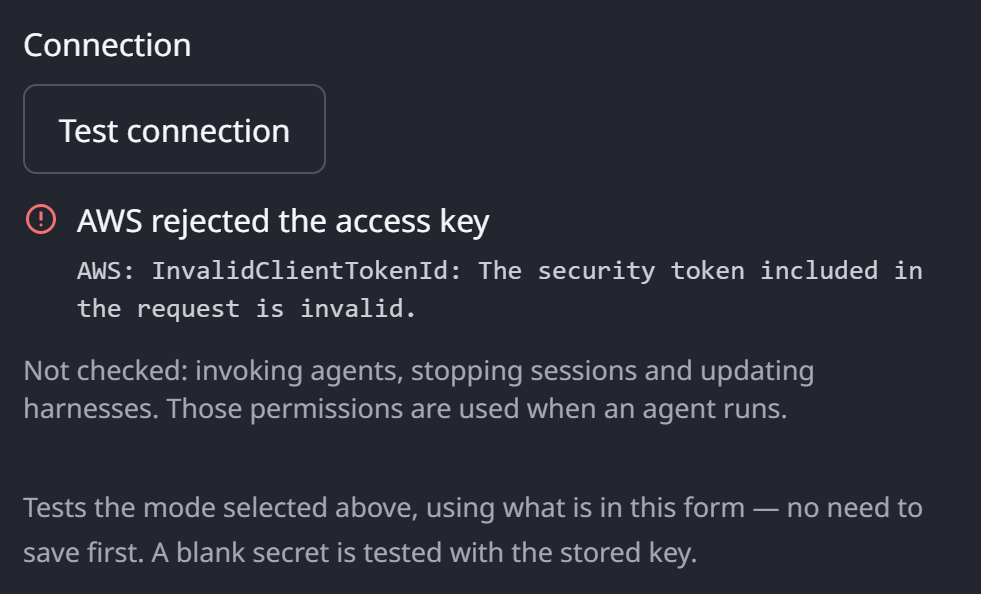
Test connection runs every check it can and reports a checklist, one row per check.
-
It continues past a failure, so one test shows every missing permission.
-
It quotes AWS. When a check fails, the error AWS returned appears under the row, word for word.
The checklist can show these rows.
| Row | Meaning |
|---|---|
| AgentPass AWS identity found | The gateway has an AWS identity to assume the role from, shown under the row |
| This deployment has no AWS identity | The gateway has no AWS identity to use. IAM role and deployment-identity modes cannot work here; use an access key |
| Save the connector to generate its external ID | IAM role mode needs a saved connector, because the trust policy carries the external ID generated on save |
| Role assumed | AgentPass assumed the role |
| Can't assume the role | AWS refused. Compare the role's trust policy with Set up role in AWS |
| Signed in to account account | The AWS account and identity that AWS answered for |
| The role ARN names account a, AWS answered for b | The role belongs to a different account than its ARN names |
| AWS rejected the access key | The access key or its secret is wrong, or the key is inactive |
| Can list runtimes in region (n found) | The identity can list agent runtimes in the region |
| Can list harnesses in region (n found) | The identity can list harnesses in the region |
| Can't list runtimes in region, Can't list harnesses in region | The permission policy lacks that action. Attach the policy from the mode's Set up … in AWS link |
| No runtimes or harnesses in region | Both lists are empty. Check the region is where your agents run |
| Couldn't … | AWS did not answer the check, for example because it was busy. Run the test again |
A failed row carries a Fix in AWS setup link, which opens the setup for the selected mode.
The test does not exercise invoking agents, stopping sessions or updating harnesses, because doing so would change something in your account. Those permissions are used when an agent runs.
Each imported agent appears once, named from AWS, with Synced from provider on its Overview tab.
-
Sync again from Agents → Import agents whenever you add agents in AWS. The menu shows when it last synced, or that the last sync failed.
-
Removing the connector removes its imported agents from AgentPass.
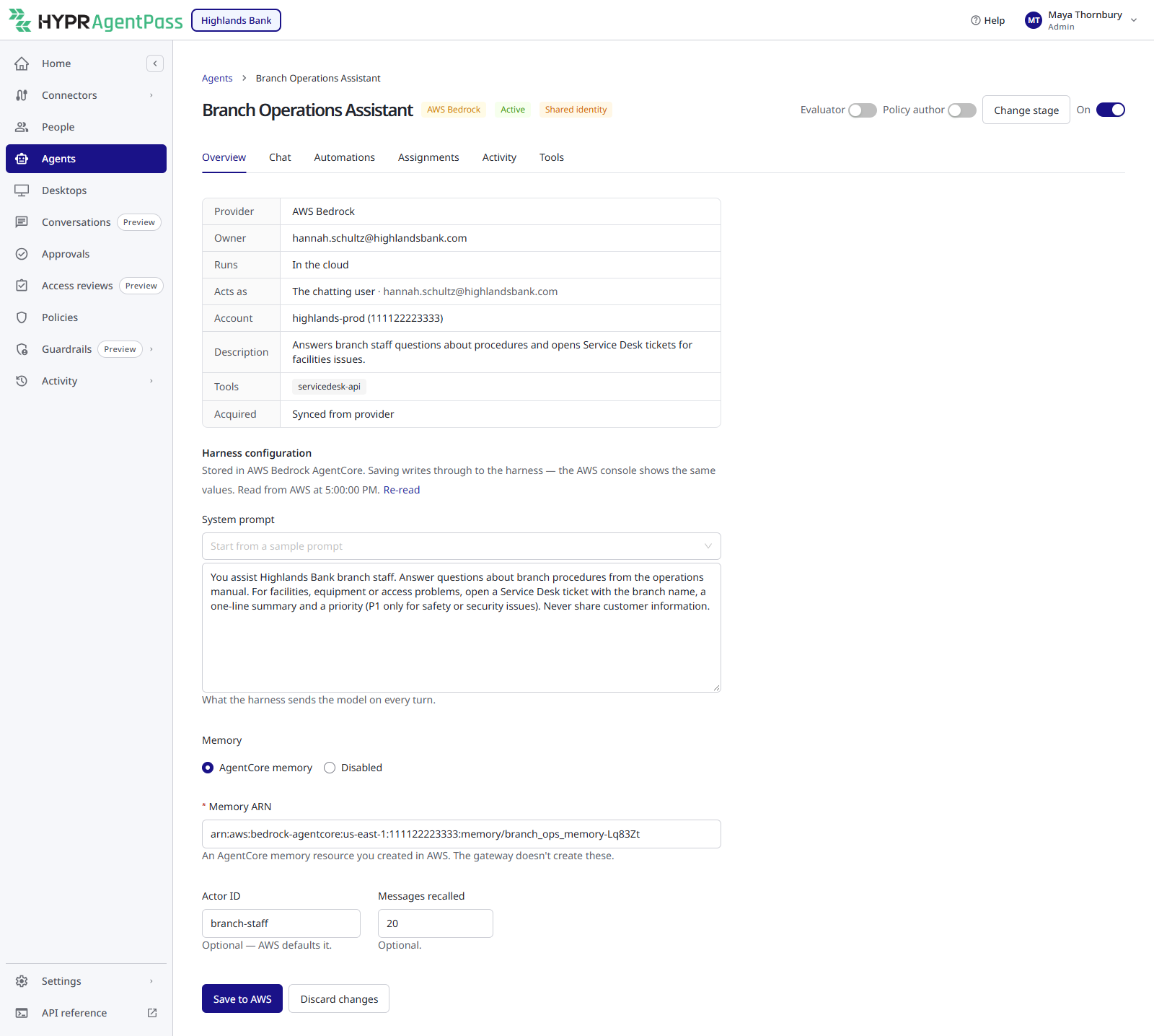
The header controls, Evaluator, Policy author, Change stage and the On switch, work as they do for any cloud agent. See The Agent Detail Page.
The Harness configuration section is particular to AgentCore. It is stored in AgentCore itself, so a change saved here writes through to AWS. The AWS console shows the same values.
The agent is built and owned in your AWS account, so AgentPass does not edit its model or code. There is no Edit configuration for an AgentCore agent.
The one exception is a harness's System prompt and Memory in the Harness configuration section, which Save to AWS writes through to AWS. To start the system prompt from a sample, choose one from Start from a sample prompt above the box. Saving needs Agents: Sync.
AgentPass manages everything around it: who may use it, which gateway tools it holds, when it runs and whether it is on.
Talking to an AgentCore Agent
Open the agent, and click the Chat tab. AgentPass accepts your message immediately, and the agent's reply appears in the transcript when its turn completes.
AgentCore turns can take a while for complex work. A spinner shows in the transcript while the agent works, and the conversation view updates itself when the reply arrives.
AgentPass stores the transcript. The conversation history is in your governance domain and visible in the console, even though the agent ran in AWS.
Hooking In Gateway Tools
An AgentCore agent's own tools are built into its code in AWS. AgentPass adds governed Model Context Protocol (MCP) tools: gateway connectors the agent calls with a credential AgentPass mints for it. Every call is then policy-checked, approvable and audited.
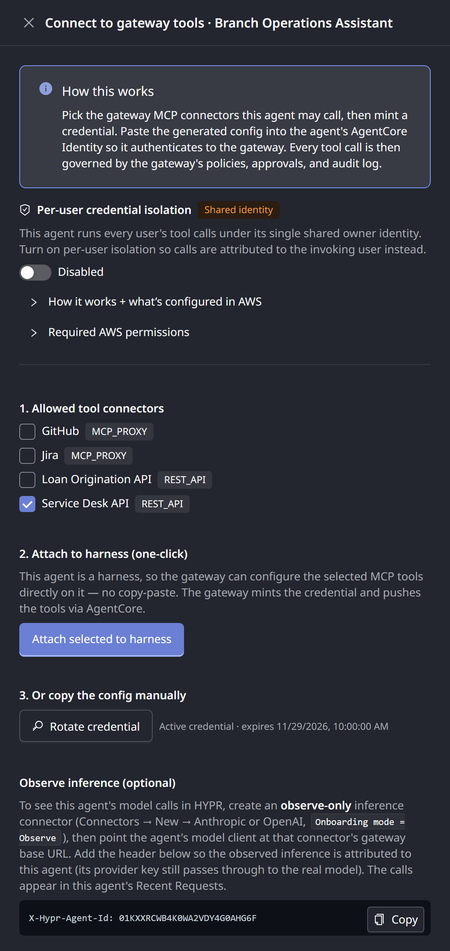
- Open the agent's Tools tab.
- Click Configure tools. The Connect to gateway tools drawer opens.
- Select the MCP server and REST API connectors this agent may call. Your selection bounds the credential, so the agent can never call a connector outside it.
- Mint the credential. AgentPass issues the agent a token for those connectors and shows it once, so copy it immediately. You can rotate it here at any time, which invalidates the old one.
- Give the tools to the agent. How depends on the kind of agent, as described in the following table.
| Agent kind | How the tools are wired |
|---|---|
| Harness | Click Attach selected to harness. AgentPass configures the selected gateway tools directly on the harness in AWS, with no copy and paste |
| Runtime | Copy the generated configuration into the agent's AgentCore Identity in AWS, so your agent code picks up the tools |
The generated configuration has one entry per allowed connector:
{
  "mcpServers": {
    "your-connector": {
      "url": "https://<your-gateway-url>/mcp/your-connector",
      "headers": { "Authorization": "Bearer <the minted token>" }
    }
  }
}
From then on, the agent's calls to those tools go through the gateway like any other governed traffic.
Per-User Credential Isolation
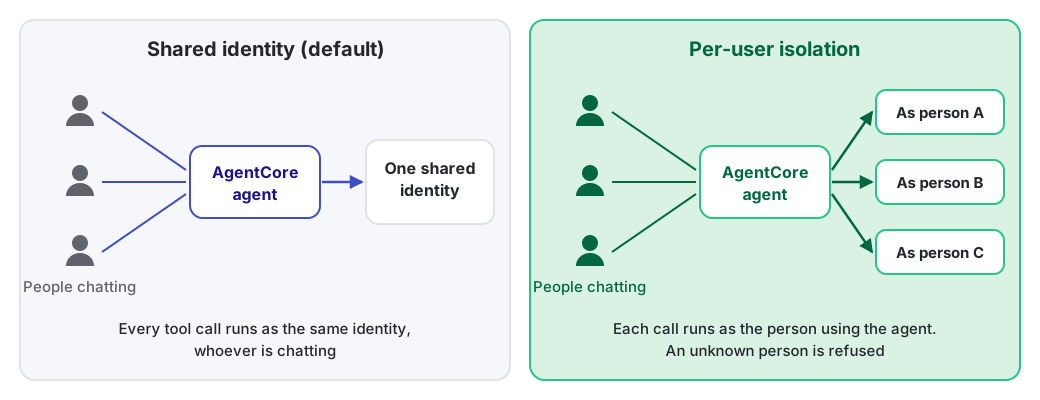
An AgentCore agent is one shared runtime that many people may invoke. By default, all its tool calls run as a single shared identity, whoever is chatting with it.
Per-user credential isolation changes that. With it on, each tool call runs as the person using the agent, with their connected accounts, consents and approvals.
Nothing changes inside your agent's code, and you create no per-user resources in AWS.
-
The header shows the mode. The agent's header carries a Per-user isolation or Shared identity tag.
-
You choose it per agent. Turn isolation on or off in the Tools drawer. If the toggle is unavailable in your deployment, confirm with your HYPR representative.
-
An unknown person is refused. With isolation on, the gateway refuses a call whose user it cannot determine, instead of running it as anyone else.
When you assign a shared-identity agent to a group or to several people, AgentPass asks you to acknowledge that. Its tool calls are not isolated per user. The audit trail records the acknowledgement.
Watching the Agent's Model Usage
The agent's tool calls are governed through the gateway. You can also make its model inference visible in the Request Log:
- Create an AI provider connector in Observe only onboarding mode for the model provider the agent uses.
- Have your agent send its inference through that connector, with its AgentPass agent identifier in a request header. The Tools drawer shows the exact header value to copy.
The Request Log attributes inference observed this way to the agent. While the agent is turned off, the gateway refuses the inference it attributes to the agent.
Unlike Anthropic's platform, AgentCore enforces no spend limit of its own. The gateway's limits are the only ceiling on what an AgentCore agent can consume.
Keep that in mind before you schedule one aggressively or tag one as a Session Watch evaluator.
Example: Governing a Support Harness
Suppose your team runs a support-triage harness on AgentCore. You want it to file tickets under governance, instead of only drafting answers.
-
Import it. Add the AgentCore connector for the AWS account, and sync. The harness appears on the Agents page.
-
Give it a tool. In its Tools drawer, select your ticketing REST API connector, and mint the credential. It is a harness, so click Attach selected to harness. No code change is needed.
-
Add a guardrail. Create a policy that requires approval for the ticket-creation tool, so a supervisor confirms each ticket the agent wants to file.
-
Try it. On the Chat tab, paste a support email and ask the agent to triage it. When it calls the ticketing tool, the approval request reaches the supervisor's phone. Approve it, and the call completes. The whole exchange then appears on the Activity tab and in the Request Log.
-
Schedule it. Add an automation that runs it every hour against the unassigned queue. See Automating Cloud Agents.
Related
- Cloud Agents: Overview — the agent page, assignments and governance
- Automating Cloud Agents — schedules and run history
- AWS Bedrock — the separate connector for routing model inference to Bedrock