How AgentPass Organizes Agents
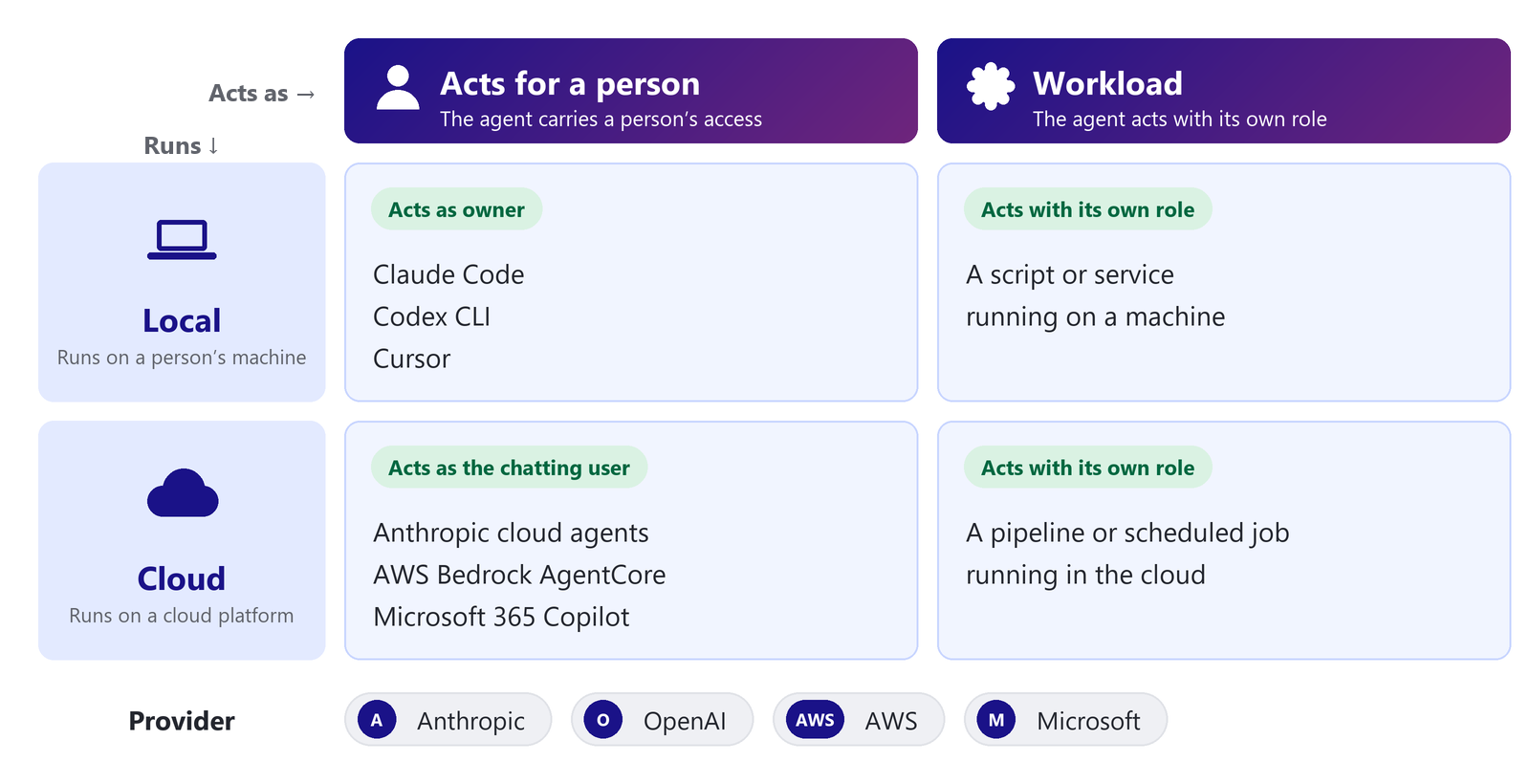
HYPR AgentPass™ places every agent it governs with two questions: where does it run, and whose access does it act with? The answers decide how its traffic reaches the gateway, and whose permissions apply to each call.
Where an Agent Runs
Every agent runs in one of two places. The console calls this Runs.
- Local. The agent runs on a person's workstation and calls a cloud-hosted large language model (LLM). Endpoint Guard keeps its traffic on the gateway. See Local Agents.
- Cloud. The agent runs on a provider's platform or in your own cloud. The gateway reaches it through a connector, and people chat with it in the Agent Portal. See Provider-Managed Cloud Agents.
Whose Access an Agent Uses
Every agent acts either for a person or with a role of its own. The console calls this Acts as.
- A person. The agent carries a person's access: their connected accounts, their permissions and their approvals. A local agent acts as its owner, the person who onboarded it. A cloud agent acts as whoever is chatting with it.
- Workload. The agent runs with nobody at the keyboard, such as a scheduled job or a pipeline. It acts with a role of its own, limited to the connectors named on its credential. See Workload Agents.
A workload agent does not use its owner's connected accounts unless an administrator allows it.
What Every Agent Has
Whatever its kind, every agent carries the same properties.
| Property | What it means |
|---|---|
| Provider | The platform behind the agent: Anthropic, OpenAI, AWS or Microsoft |
| Owner | The person accountable for the agent. A workload agent's owner must be a supervisor with a role |
| Status | Enabled or disabled. A disabled agent's next call is refused at the gateway |
| Lifecycle stage | Production, Retain data only or Retired. Only a Production agent can be enabled. See Lifecycle Stages |
| Roles | Optional jobs an agent can hold, such as Evaluator or Policy author |
Once traffic arrives, the gateway applies the same four controls to every agent: identity, policy, record and tools governance. Identity explains how the identities differ.
How an Agent Joins the List
An agent joins in one of three ways.
-
It connects. A local agent appears the first time it calls the gateway, and its supervisor approves that first connection.
-
It is imported. A connector brings in agents you already run at a provider, such as AWS Bedrock AgentCore agents.
-
It is created. You create Anthropic cloud agents and workload agents in AgentPass.
The following table links to the setup steps for each kind of agent.
| Agent | How it joins | Setup |
|---|---|---|
| Local agent, signed in with a person's own account | Connects | Create Agents on First Sign-In |
| Local agent, using an Anthropic or OpenAI key | Imported | Import Agents from a Provider |
| Anthropic cloud agent | Created or imported | Set Up an Anthropic Cloud Agent |
| AWS Bedrock AgentCore agent | Imported | Set Up an AWS Bedrock AgentCore Agent |
| Microsoft 365 Copilot agent | Connects through its connector | Set Up Microsoft 365 Copilot |
| Workload agent | Created | Set Up a Workload Agent |
Find an Agent
Open Agents in the sidebar of the administration console. One list holds every agent AgentPass governs: local and cloud, acting for a person or with its own role.
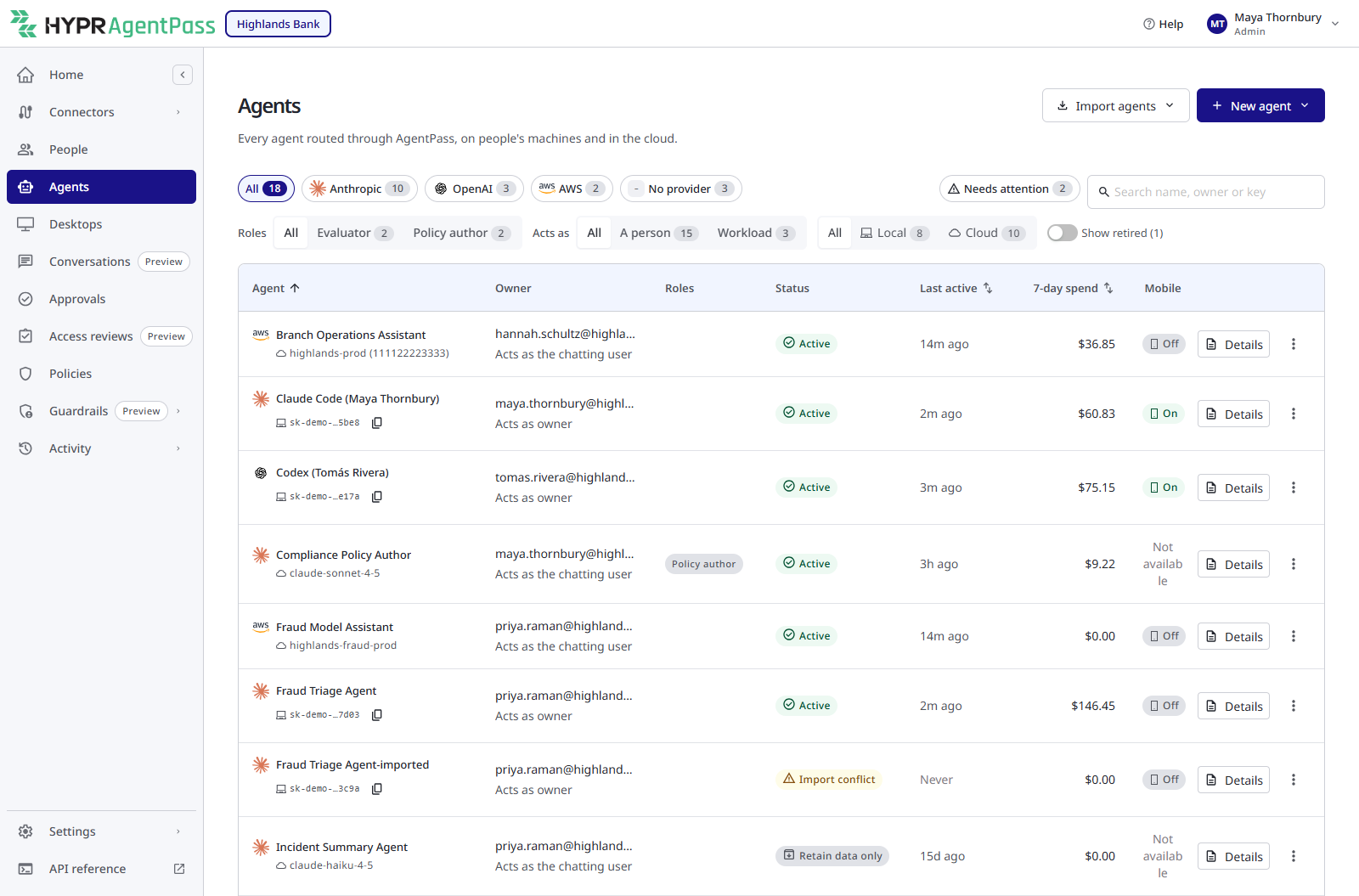
If your role reaches only your own agents, as AgentPassSupervisor does, the list shows the agents you own and the agents assigned to you. Every count on the page covers only those agents.
Filter the List
The filters sit above the table. Each one shows how many agents it would leave, given the other filters you have set.
| Filter | What it shows |
|---|---|
| Provider | All, or one provider: Anthropic, OpenAI, AWS, Microsoft or No provider. A provider with no agents is hidden. Click the selected provider again to clear it |
| Needs attention | Only agents with an import conflict or an expired credential. It appears when at least one agent needs attention |
| Acts as | All, A person or Workload. A workload agent acts with its own role |
| Runs | All, Local or Cloud |
| Show retired | Includes agents in the Retired stage, which the list otherwise leaves out. See Lifecycle Stages |

The filters, the search and the sort are kept in the page address. Copy the address to share the same view with a colleague, or bookmark it.
Links to the earlier Local agents and Agent identities pages open Agents, filtered to Local.
Search by Name, Owner or Key
Type in Search name, owner or key. The list shows agents whose name or owner email starts with what you typed, and agents whose key ends with it.
- Name and owner match from their start. To find claude-jsmith, type
claude, notjsmith. - Key matches on its last 4 to 16 characters, with or without the start of the key.
zAAAandsk-ant-…zAAAfind the same key.
Type at least two characters. When nothing matches, the hint under the box repeats these rules.
To find a person's agents, type the start of their email address.
Sort and Load More
Click the Agent column heading to sort by name, or the Last active heading to show the most recently used agents first. With Request log: View for all records, click the 7-day spend heading to show the agents that spent the most first.
The footer says how many of the matching agents are showing. Click Load more to show more.
Read the List
Each row is one agent, with these columns.
| Column | What it shows |
|---|---|
| Agent | The agent's name and provider. The second line shows where it runs, and its key ending or its model |
| Owner | The person accountable for the agent. The second line says whose access it uses: Acts as owner, Acts as the chatting user or Acts with its own role |
| Roles | Evaluator, Policy author, and a workload agent's assigned role |
| Status | The agent's status. See the following table |
| Last active | When the agent last made a call. A dash means AgentPass has no recorded activity for it |
| 7-day spend | What the agent's model requests cost over the last 7 days, at your model prices. With Request log: View for your own records only, it shows for the agents you own. See Daily Spend Limits |
| Mobile | Whether the agent has mobile access, for an agent reached through the HYPR mobile app |
The row ends with Details, which opens the agent's details, and a ⋮ menu. See Act on an Agent.
The Status column shows one of these badges.
| Status | Meaning |
|---|---|
| Active | The agent can send traffic |
| Import conflict | An imported agent clashes with an agent that already exists. It needs attention |
| Credential expired | A workload agent's credential has expired, and its calls are refused. It needs attention |
| Retired, Retain data only | The agent is outside the Production stage, and is switched off |
| Off | Someone turned the agent off. Under the badge, the list says who and when |
Act on an Agent
Click ⋮ on a row to act on that agent. The menu shows only the actions your role permits, always in this order.
| Action | What it does | Offered for |
|---|---|---|
| Set a spend limit | Opens the New spend limit form, with the groups of the agent's owner filled in. It comes first, before a separator. See Daily Spend Limits | Every agent, when you may create spend limits |
| Manage | Opens the agent's full page, with its chat, automations, tools and assignments | Every agent except assistants on people's machines, which have no full page |
| Turn off mobile access, Turn on mobile access | Turns the agent's mobile access off or on | Agents reached through the HYPR mobile app |
| Approvals | Shows the agent's tool approvals. Revoke withdraws a standing one, and needs Approvals: Revoke | Local agents and workload agents |
| Turn off, Turn on | Turns the agent off or on. It comes last, after a separator | Every agent |
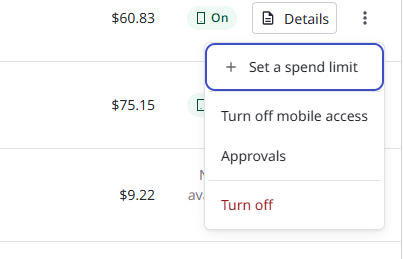
An action that cannot run right now stays in the menu, unavailable. Hover over it to see why. For example, Turn on for a retired agent says Move it to Production before turning it on.
Turn an Agent Off
Turn off stops the agent at the gateway straight away, and keeps its settings and history. AgentPass asks you to confirm, with an optional reason. Turn on needs no confirmation.
See Turning Off an Agent for the steps, what stops for each kind of agent, and who can turn an agent off and on.
Agent Details
Click Details on a row to read everything about one agent without leaving the list. The details open in a panel beside the list. The panel's heading shows the agent's name, its provider, where it runs and its status.
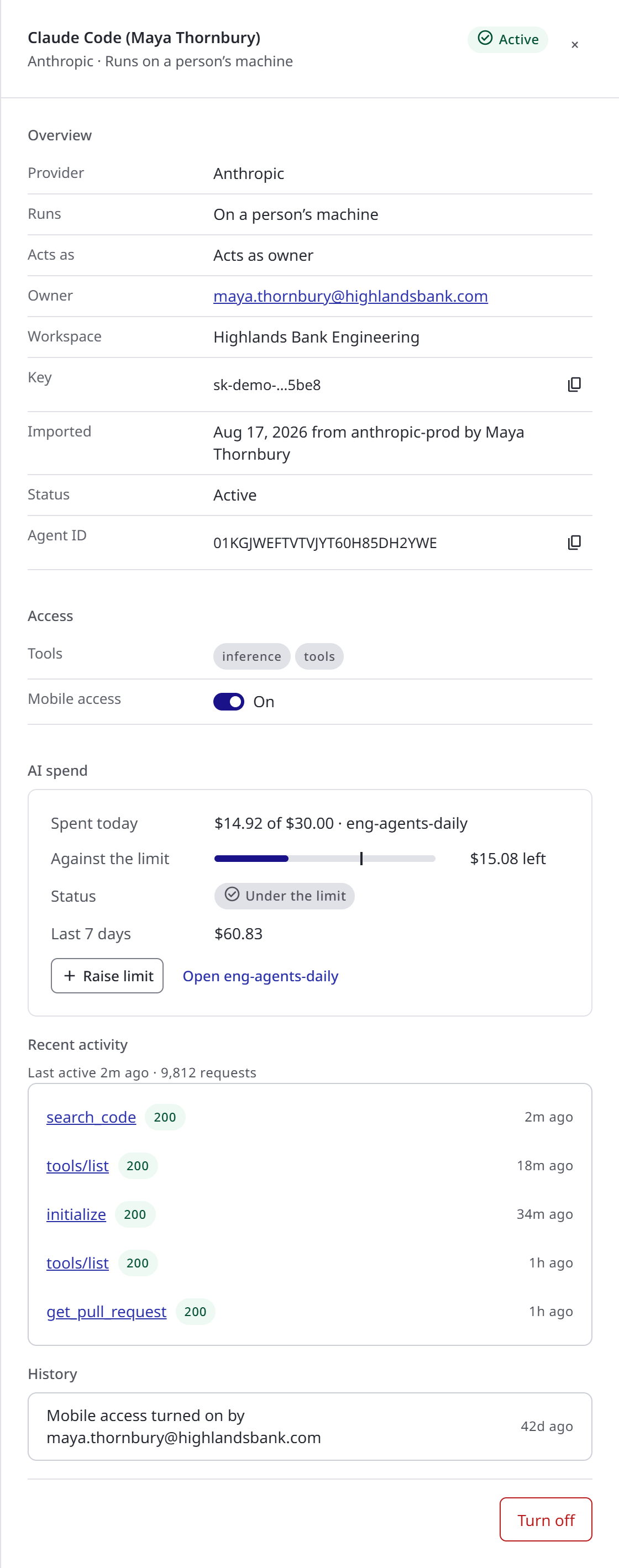
The open panel is part of the page address, so a link you share opens on the same agent.
Why It Needs Attention
When an agent needs attention, the panel opens with the reason and the action that fixes it.
- Import conflict. The panel names the existing agent that the imported one clashes with. Click the Show button with that agent's name to search the list for it.
- Credential expired. The workload agent's calls are refused. Click Rotate credential to issue a new credential, which AgentPass shows once. See Rotate a Credential.
What the Panel Shows
The panel has these sections. A row with nothing to show is left out.
| Section | What it shows |
|---|---|
| Overview | The provider, where the agent runs, whom it acts as, its owner, model, key ending and IDs. When it was imported and from which connector, or when it was created. Its stage, when it is outside Production. Its status, with who changed it, when and the reason they gave |
| Access | The tools the agent may call, its automations, a workload agent's role, and a switch for mobile access |
| AI spend | What the agent spent today against the spend limit that covers it, its status, and its spend over the last 7 days. See AI Spend on a Person or an Agent |
| Recent activity | When the agent was last active, how many requests it has made, and its last five requests from the past seven days. Each request links to its entry in the Request Log |
| Assignments | Who the agent is assigned to, for an agent people can be assigned to |
| History | Recent changes to the agent, newest first: status, stage, mobile access, assignments and roles, each with who made it |
At the foot of the panel, Manage opens the agent's full page, and Turn off or Turn on turns the agent off or on. An agent with no full page shows only Turn off or Turn on.
Import and Create Agents
Two menus at the top of the page bring agents in.
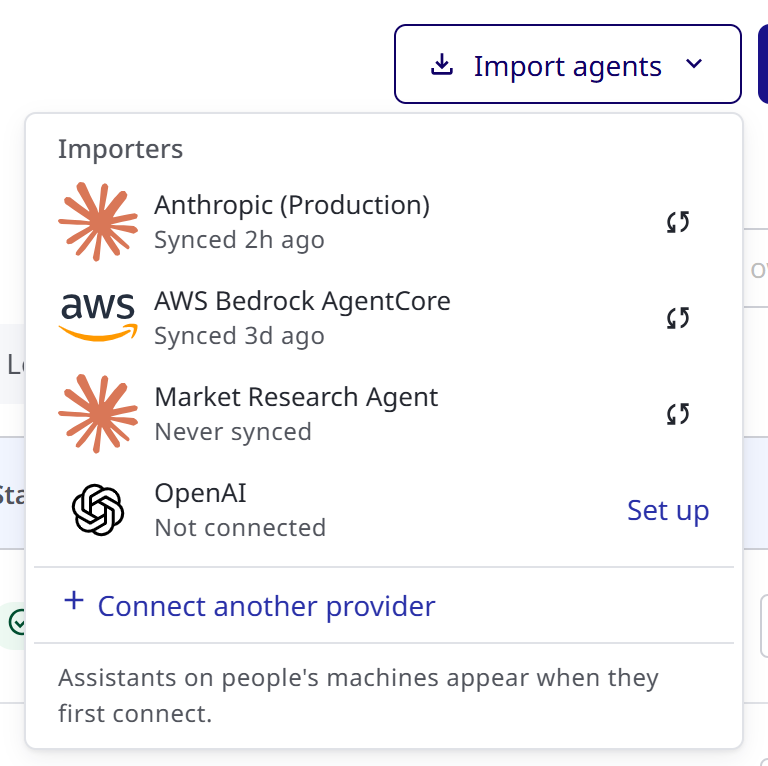
Import agents lists each importer, the connector that brings in agents from a provider. Each importer shows when it last synced, or that its last sync failed. Hover over a failed sync to see the error.
- To import from one provider, click the sync button on its row. When the sync finishes, a message says how many agents were imported, conflicted and skipped.
- An importer you have not set up shows Set up, which opens the connector setup.
- Connect another provider adds a connector.
Assistants that people sign in to with their own account, such as Claude Code, are not imported. They appear in the list when they first connect. Keys imported from Anthropic or OpenAI appear as local agents. See Set Up a Local Agent.
New agent creates an agent in AgentPass:
- New cloud agent defines an Anthropic cloud agent in AgentPass. See Anthropic Cloud Agents.
- New workload agent creates an agent that acts with its own role. See Creating a Workload Agent.
Each menu appears only when your role can import or create agents.
Related
- Agent Identity — what AgentPass recognizes a request by
- Turning Off an Agent — stop any agent straight away, and turn it back on
- Provider-Managed Cloud Agents — the full page and lifecycle stages
- Workload Agents — agents that act with their own role