Users
The Users tab of People lists everyone HYPR AgentPass™ knows. From it, you find a person, see the agents they supervise, invite them to enroll a passkey, change their roles and offboard them. A user who is responsible for an agent is that agent's supervisor: AgentPass attributes the agent's traffic to them.
Before You Begin
You need Supervisors: View to open the tab. Admin, Operator, Security analyst and Auditor see everyone, and Supervisor sees only their own record. Changing roles, sending invitations and offboarding need Supervisors: Assign role, which Admin has.
Where People Come From
The gateway discovers people automatically, from sign-ins and syncs:
- Console sign-in. Anyone who signs in through SSO becomes a user, with the roles their token's values are mapped to, or the default role. See Signing In to the Console.
- Directory provisioning. Users and groups pushed over SCIM appear before their first sign-in. See Provisioning With SCIM.
- Provider syncs. Syncing an AI provider connector's keys creates the owner of each key. See Agent Identity.
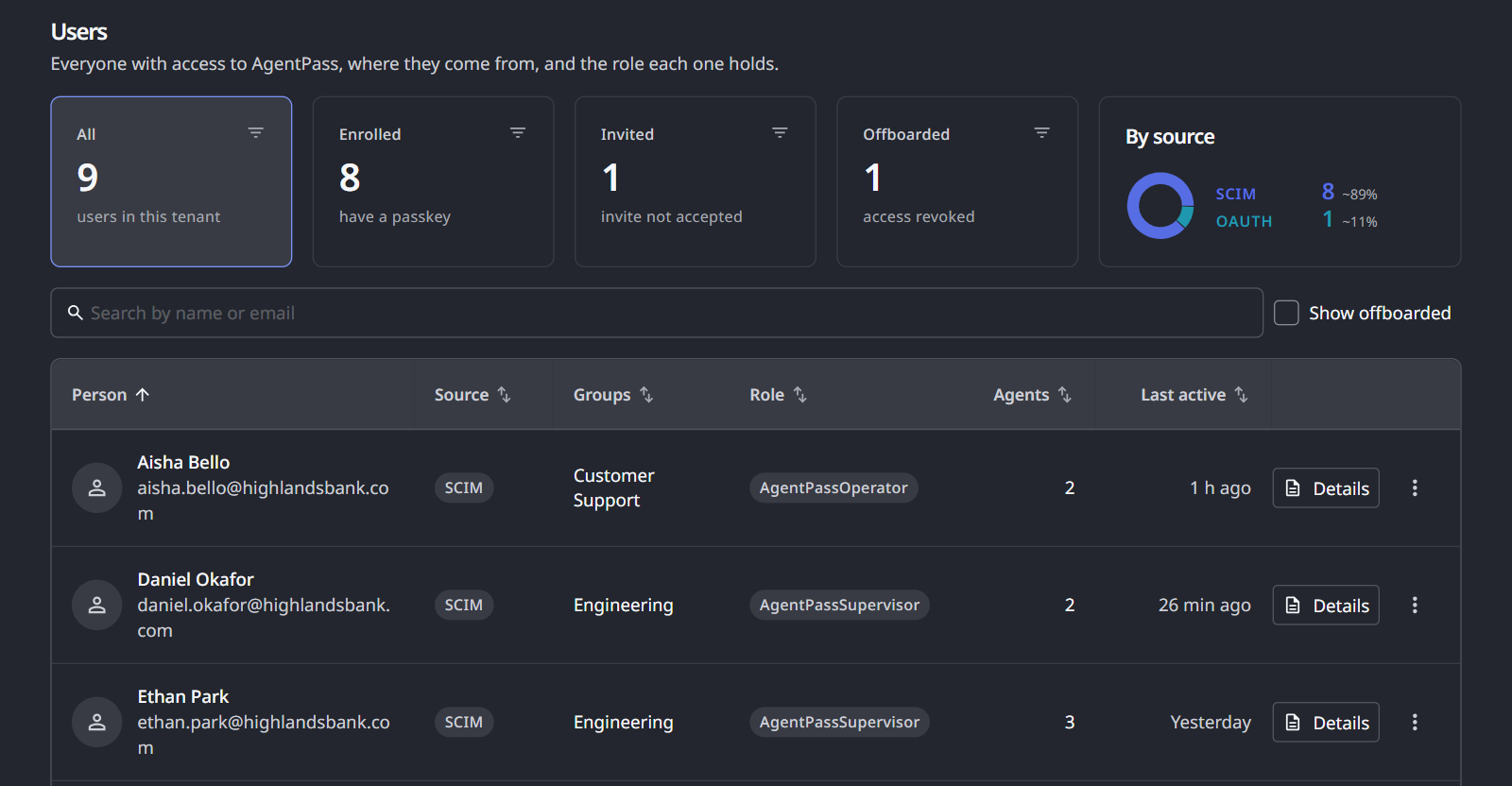
Each row shows the Person, their Source, Groups and Role, how many Agents they own, and when they were Last active. Tiles above the list count people, and each one filters the list when you click it:
| Tile | Counts |
|---|---|
| All | Everyone in the tenant |
| Enrolled | People who have a passkey |
| Invited | People who have not accepted their invitation |
| Offboarded | People whose access was revoked |
When the tenant has no users yet, the tab shows No users yet. People appear as they sign in and as your directory provisions them.
When the identity provider does not carry a person's roles, assign or change them here. Roles assigned in the console are not overwritten at the next sign-in. See Roles and Permissions.
What a Supervisor Carries
Each supervisor brings three things to their agents:
- Their roles, which decide what they see in the console and which tools their agents may call.
- A passkey, used to approve agent actions from the HYPR mobile app. See Setting Up Your Approval Passkey.
- Their agents. A supervisor's sign-in can open a real-time messaging channel for an agent they own. The channel uses the supervisor's identity, and remains subject to the agent's Mobile access setting.
Find a Person
On the Users tab, type a name or email address, or part of one, in the Search by name or email field. The list narrows to the people who match. When nobody matches, the tab says so. Click Clear search to list everyone again.
To find people by where they came from, use the By source tile beside the counts. It shows the active people in the tenant by source, such as SCIM or an AI provider. Click a slice to list only those people. A chip above the list names the source. Close the chip, or click the slice again, to list everyone.
Open a Person's Details
Click Details on a person's row. A drawer shows these details.
| Field | What it shows |
|---|---|
| The address the person is known by | |
| Gateway roles | The person's AgentPass roles. When an administrator assigned them, Use identity provider roles hands the person back to their identity provider. See Roles and Permissions |
| AI provider role | The person's role in the AI provider that surfaced them, when there is one |
| AI provider ID | The person's user ID in that AI provider |
| Source | Where the gateway learned about the person, such as SCIM, OAuth, Anthropic, OpenAI or Manual |
| Discovered | When the gateway first learned about the person |
| Last seen | When the person was last active |
Below the details, AI spend shows what the person's agents spent today against the spend limit that covers them, and over the last 7 days. See AI Spend on a Person or an Agent. Agents then lists each agent the person supervises. A person with no agents shows This person has no agents. With Supervisors: Assign role, the drawer also has Change role beside Gateway roles, and Offboard at the bottom.
An offboarded person's drawer shows their Email, the Gateway role they had, their Source, when they were Last active and when they were Offboarded, with Invite again.
Invite a Person to Enroll a Passkey
A supervisor needs a passkey to approve agent actions from the HYPR mobile app. With Supervisors: Assign role, you can send the person an activation link from their row.
- On the Users tab, open the person's actions menu (⋮).
- Choose how to deliver the activation link:
- Send invite emails the link to the person.
- Copy invite link copies the link to your clipboard, so you can share it with the person yourself.
The menu follows the person's invitation:
| Invitation | Menu offers |
|---|---|
| None sent | Send invite and Copy invite link |
| Outstanding | Send reminder and Copy invite link |
| Lapsed, after the last reminder | Send invite again and Copy invite link |
| Accepted, with a passkey enrolled | No invitation items |
The link stays valid for the Invite link lifetime (hours) set on the Invitations card in Settings → Gateway settings, seven days by default. See Gateway Settings → Email / Invitations.
Offboard a Person
Offboard a person when they leave your organization or must lose access now. You need Supervisors: Assign role.
- On the Users tab, open the person's actions menu (⋮), and choose Offboard.
- Review what the dialog says will be affected: the person's agents, credentials, group memberships and pending approvals.
- Click Yes, offboard user to confirm.
Offboarding takes effect immediately. It:
- Revokes the person's access to every agent assigned to them
- Ends any agent sessions they have in progress
- Disconnects all their tool connections, such as mail or chat accounts
- Removes them from every group and every agent assignment
The person's past activity and audit trail are kept, and AgentPass records which administrator offboarded them. Deactivating or deleting the person in your directory over SCIM offboards them the same way.
Offboarded people leave the list. Select Show offboarded to see them. Invite again in an offboarded person's actions menu brings them back, but their agents and credentials do not return. For a person your identity provider manages, re-enable them there instead.
Offboarding does not stop the workload agents a person owns. A workload agent authenticates with its own credential, so it keeps working after its owner is offboarded. Review the workload agents the person owns, and reassign or disable each one. See Reviewing Your Workload Agents.
Related
- Roles and Permissions — what each role grants
- Groups — give a set of people access to a shared agent
- Provisioning With SCIM — bring people and groups in from your directory
- Acting on Behalf of a Supervisor — how an agent reaches tools as its supervisor