Roles and Permissions
HYPR AgentPass™ uses role-based access control. Every person who signs in holds at least one role, and works in one of them at a time. That role decides what they see in the console, and what they may change. Agents work differently: an agent's tool access is the union of every role its supervisor holds, whichever role the supervisor is working in. See Controlling MCP Tool Access by Role.
AgentPass ships with roles that cover the common ways people work with the gateway. You can create your own when your organization divides responsibility differently.
A role can also be assigned to a workload agent, an agent that runs with nobody at the keyboard. A workload agent carries its own role instead of borrowing its owner's, so the role you give it decides its access. See Workload Agents.
Before You Begin
- To see roles, you need Roles: View. Admin, Operator and Auditor have it.
- To create, edit, reset or delete a role, or to map identity provider values to it, you need Roles: Manage. Admin has it.
- To assign roles to a person, you need Supervisors: Assign role. Admin has it.
Roles Available Out of the Box
Open People, and click the Roles tab to see the roles on your gateway. Each row shows the role's name and description, and its Type: System for a role that AgentPass provides, or Custom for a role someone in your organization created. The type filter calls system roles Built-in. Each row also shows the identity provider values the role is Mapped from, its Capabilities, which count the permissions it grants out of the total, and how many People hold it.
AgentPass provides six built-in roles. Admin, Operator and Supervisor run the gateway day to day. Security analyst, Auditor and Model governance owner are seeded for security, audit and model-risk work, and hold mostly read access. The account menu shows each role by its short name. The Roles tab shows the stored name.
| Role | Stored name | What it is for |
|---|---|---|
| Admin | AgentPassAdmin | Full access to the console. Locked, so its name and permissions cannot change. It is the role that always keeps the ability to administer the gateway |
| Operator | AgentPassOperator | Reads everything, and changes operational state: turning any agent off and on, and deciding approvals. It also creates and edits its own policies. It does not edit settings, connectors or roles, and it does not assign roles to people |
| Supervisor | AgentPassSupervisor | Manages the person's own agents, approvals, conversations and policies. Sees every policy, and changes only their own. Most people who supervise an agent need this role. It is the default role for anyone with no mapped value |
| Security analyst | AgentPassSecurityAnalyst | Triages guardrail alerts and contains agents and sessions. Reads broadly. Does not change policies, settings, connectors or credentials |
| Auditor | AgentPassAuditor | Reads across the gateway, and exports guardrail evidence. Changes nothing |
| Model governance owner | AgentPassModelGovernanceOwner | Registers and calibrates the judge providers your organization brings, and reads guardrail posture. Does not change policies, connectors, settings or credentials |
For each role's permissions, area by area, see Permissions by Role.
For what each role covers day to day, see its start guide: Get Started as an Administrator, Get Started as an Operator, Get Started as a Supervisor, Get Started as a Security Analyst, Get Started as an Auditor and Get Started as a Model Governance Owner.
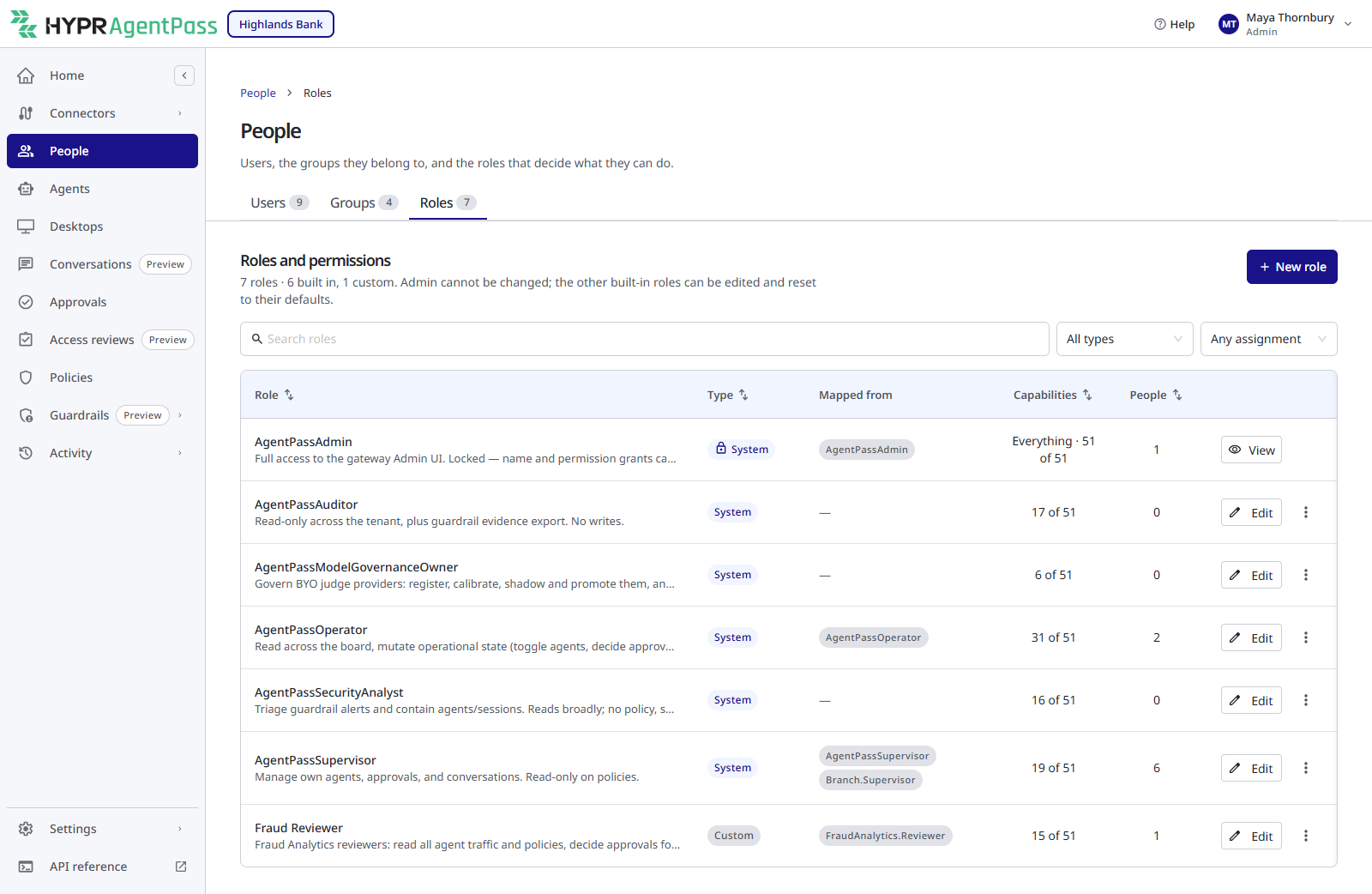
Admin carries a lock icon, because its permissions are fixed. You can edit the other built-in roles to fit your organization. To return Operator or Supervisor to the permissions AgentPass shipped it with, choose Reset to defaults from the role's menu, and click Yes, reset role.
How a Permission Works
A permission is a single thing a role may do, expressed as an action on an area of the product, such as viewing agents, editing connectors, granting approvals or managing roles. Each permission a role holds also carries a scope, which decides how much of that area the role reaches.
| Scope | What the role reaches |
|---|---|
| All | Every record, whoever it belongs to |
| Own | Only records belonging to the signed-in person: the agents they supervise, the approvals raised for them and their own conversations |
| No access | Nothing. This applies when the role has not been granted the permission at all |
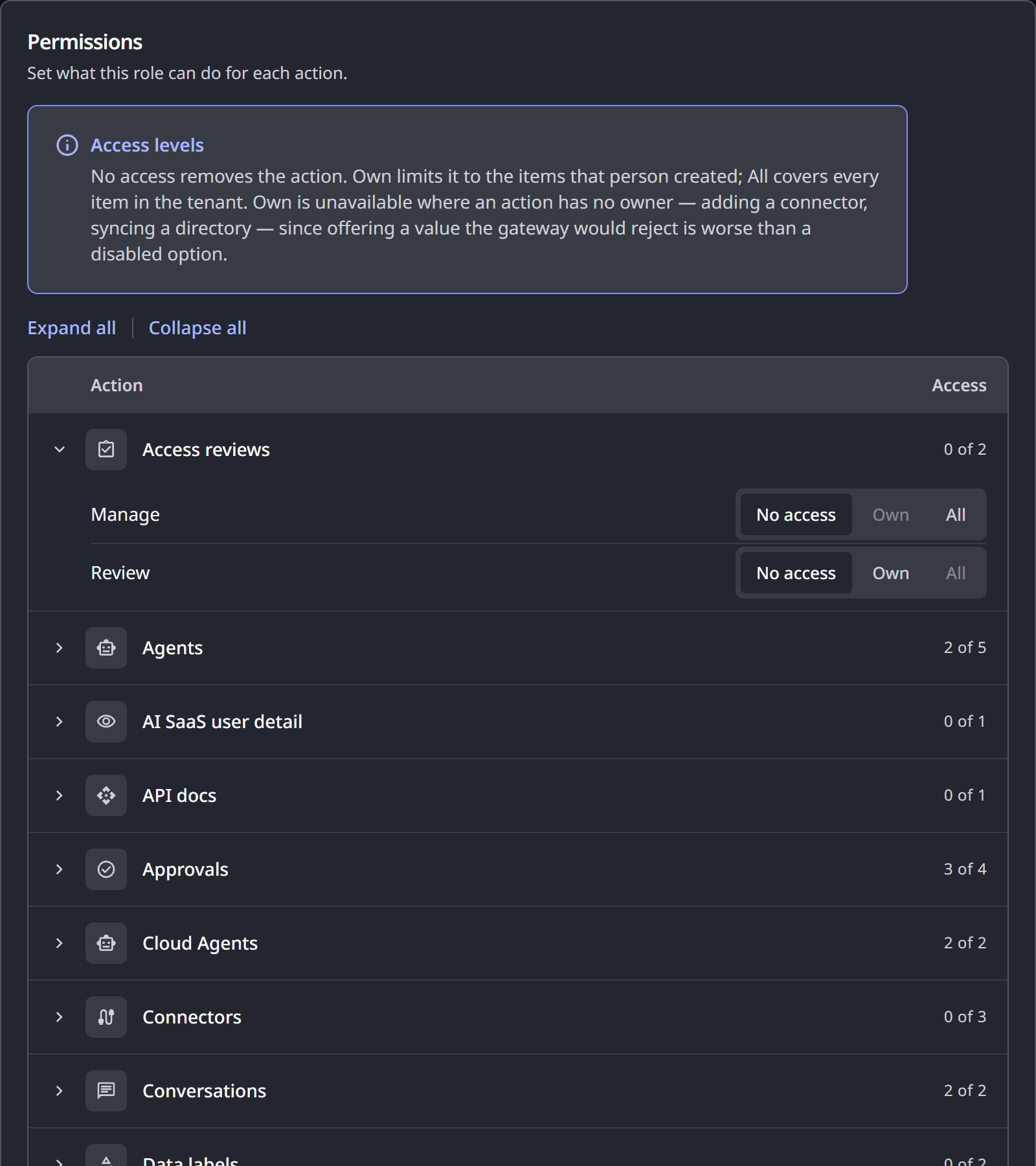
Scope lets one role serve a whole organization. A supervisor granted Own on agents manages their own agents and sees nobody else's. An operator granted All sees the whole fleet. Not every permission makes sense at every scope. A person's own conversations, for example, are only ever personal. The editor shows every scope on each row and disables the scopes that do not apply.
Access is closed by default. A role reaches only what it has been granted. A custom role reaches a new area of the product only when you grant it. An upgrade can add permissions for a new area to the system roles, so review them after an upgrade.
Look at What a Role Grants
To open a role, click Edit on it. The button reads View when your own role does not permit changes, and on the locked Admin role. The editor has four sections:
- Details: the role's name, the description shown in the roles list, and its precedence. See When Values Map to Several Roles
- Permissions: the full grid of permissions, each with its scope
- Agent tools permission: which MCP tools agents supervised by this role may call. See Controlling MCP Tool Access by Role
- Identity provider: the sign-in values that grant this role. See Map Identity Provider Values to a Role
The Permissions section groups permissions by the product area they govern, so you can read a role top to bottom and see exactly what it reaches. Each permission is a row. You set its scope by choosing No access, Own or All.
Create a Custom Role
Create your own role when none of the supplied roles matches how your organization divides responsibility.
- On the Roles tab of People, click New role.
- Optional: Under Start from, choose an existing role to copy its permissions.
- Enter a name and a description.
- Optional: Change the Precedence.
- Under Permissions, grant permissions and set their scopes.
- Click Create role.
- Optional: Under Agent tools permission, set which tools the role's agents may call, and under Identity provider, add the values that grant the role. Both become available once the role exists.
From then on, a custom role behaves exactly like a system role. You can assign it to people, or map identity provider values to it so assignment happens automatically. It governs agent tool access the same way.
Check the built-in roles first. Auditor already reads everything and changes nothing, and Security analyst already triages guardrail alerts. When none fits, build from what a person actually needs to do, rather than from a copy of a broader role with permissions removed.
Map Identity Provider Values to a Role
At each sign-in, AgentPass reads the role claim in the person's token and gives them every role that one of its values is mapped to. You choose the claim on the console's sign-in settings. See Populate Roles From Your Identity Provider.
- On the Roles tab of People, click Edit on the role. On Admin, the button reads View, and its Identity provider section stays editable.
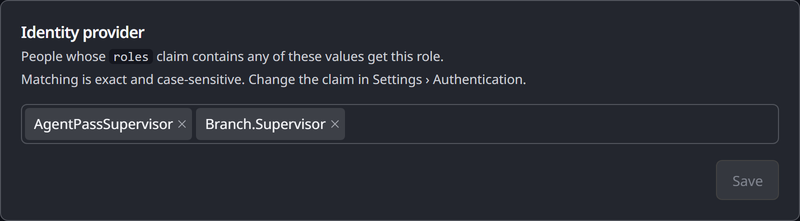
- Under Identity provider, add each value that should grant the role, such as the name of a directory group.
- Click Save in that section.
Mapping follows these rules:
- Matching is exact and case-sensitive.
Fraud.Reviewersandfraud.reviewersare different values. - A value grants one role. If the value is already mapped to another role, AgentPass names that role instead of saving.
- Only a mapped value grants a role. A value that matches a role's name grants nothing unless it is mapped.
- Someone with no mapped value gets the default role, Supervisor, so a new person can sign in and start working while their access is arranged.
Until you map a value to Admin, everyone who signs in with SSO gets Supervisor, administrators included. Map your administrators' value to Admin before you turn on SSO. See Connect the Console to Your Identity Provider.
On upgrade, AgentPass maps each existing role to its own name, exactly as written. If your identity provider sends a role name in different capitalization, such as agentpassoperator, those people get the default role until you add that value to the role.
When Values Map to Several Roles
A person whose values map to several roles holds all of them. Each role's Precedence orders them. Admin is 100, Operator 50 and Supervisor 10. The other built-in roles, and a new custom role, start at 25. You can set any role except Admin to a value from 1 to 99.
Until the person chooses otherwise, the console works in the role they hold with the lowest precedence, so they start with the least access. See Work in More Than One Role.
Assign a Role to Someone
A person gets their roles in one of two ways:
- From your identity provider. AgentPass assigns roles from the values mapped to them. Use this path at scale. See Map Identity Provider Values to a Role.
- In the console. Use this path for a deliberate exception.
To assign roles in the console:
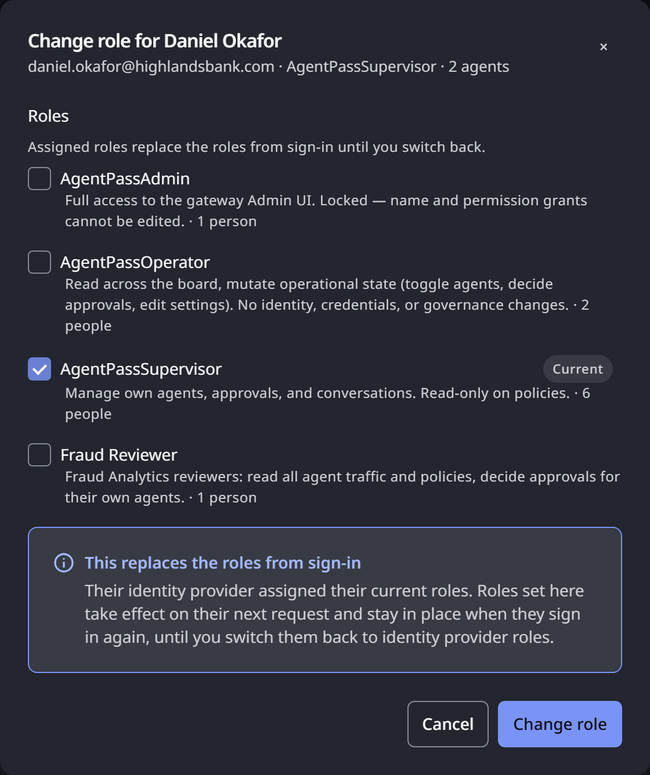
- On the Users tab of People, open the person's actions menu (⋮), and choose Change role.
- Select one or more roles.
- Click Change role.
The roles you set replace the roles from sign-in. They take effect on the person's next request, and later sign-ins do not change them.
To hand the person back to your identity provider, click Details on their row, click Use identity provider roles, and then click Yes, use identity provider roles. Their next sign-in sets their roles from their token again.
Work in More Than One Role
A person who holds several roles works in one of them at a time. The console grants only that role's permissions.
To switch, click your name at the top right of the console, and under Role, choose a role. A system role is shown without its AgentPass prefix, for example Supervisor for AgentPassSupervisor. AgentPass remembers your choice for later sign-ins, for as long as you hold the role.
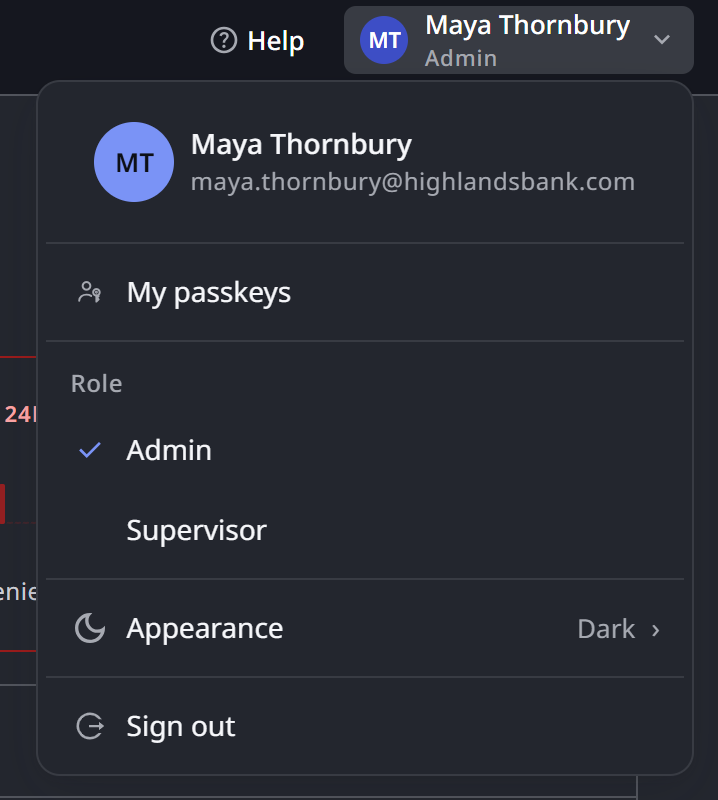
The role you work in does not limit your agents. An agent's tool access is the union of every role its supervisor holds: it may use a tool when any of those roles allows it.
Mapping changes and role switches are recorded in the audit trail.
Editing Roles Safely
Know these behaviors before you reorganize your roles:
- A role in use cannot be deleted. Reassign the people who hold it first. AgentPass tells you when a role still has assignees, instead of removing their access.
- Admin cannot be edited or deleted. It is fixed so your gateway always keeps a role that can administer it.
- Changes take effect on the next request. A person whose role or grants you change does not need to sign out and back in.
- Operator and Supervisor can be reset. Reset to defaults restores the permissions AgentPass shipped them with, so experimenting with them is reversible.
Related
- Signing In to the Console — connect the console to your identity provider and map roles from a claim
- Controlling MCP Tool Access by Role — decide which MCP tools each role may use
- Workload Agents — give a machine caller its own role and credential