Themes
Overview
HYPR AgentPass™ themes brand its web pages with your organization's identity. A theme is a set of brand colors, a logo, and a light or dark color scheme. It applies across the AgentPass console and the Agent Portals in your tenant.
AgentPass ships with built-in themes, and you can create your own. Themes are managed per tenant. Creating and changing them needs Settings: Edit.
Manage Themes
Open Settings → Theme in the administration console. The page lists the built-in themes, HYPR and Midnight, alongside any custom themes you created.
To create a theme:
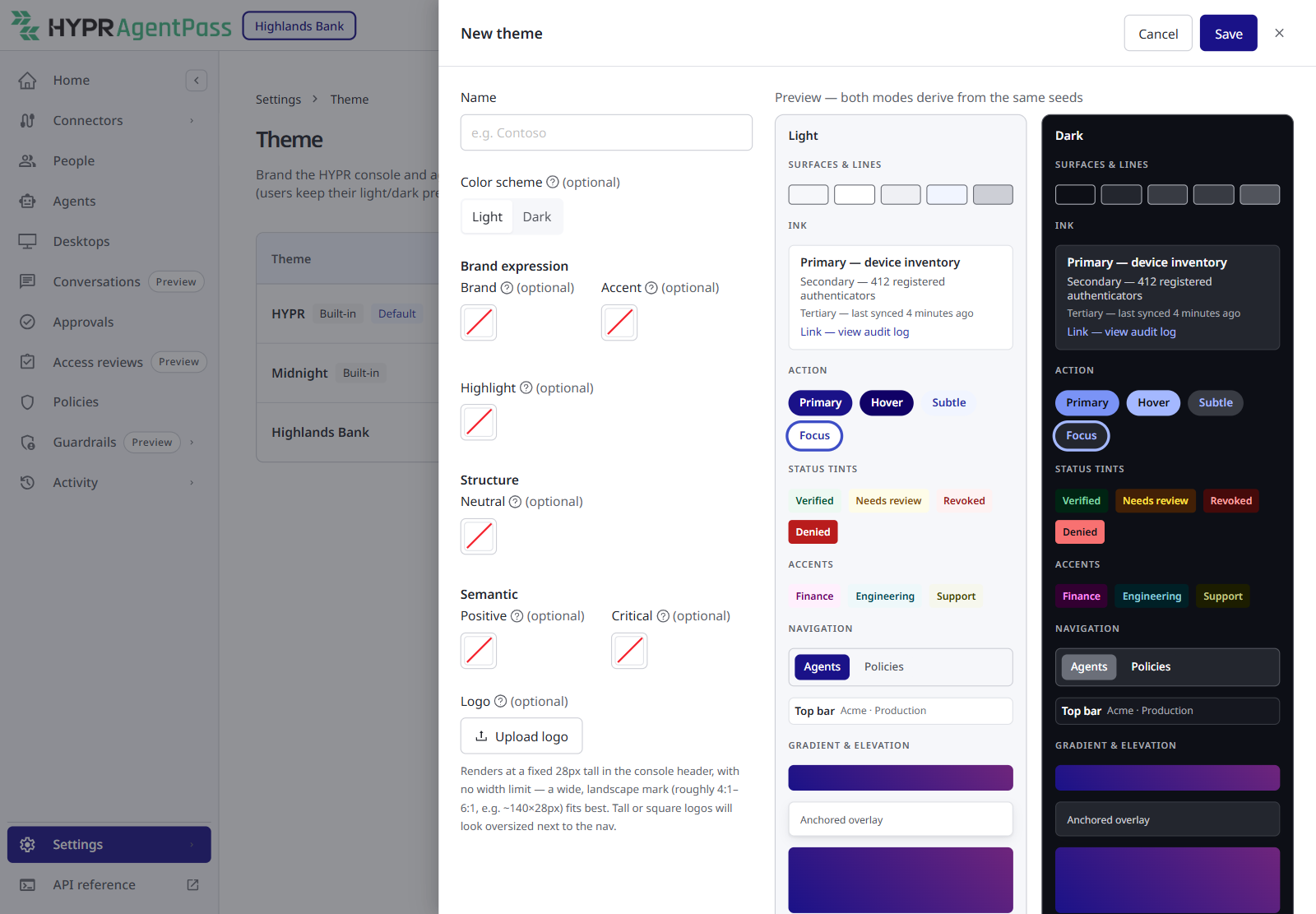
- Click New theme.
- Give it a name.
- Set any of the six base colors, and a logo, described in the following table. Every color is optional, and falls back to the HYPR palette when unset.
- Check the live preview, which shows the theme in both light and dark.
- Click Save.
| Setting | What it controls |
|---|---|
| Brand, Accent, Highlight | Your brand expression: buttons, links, accents and highlights |
| Neutral | The structural grays for surfaces, borders and text |
| Positive, Critical | Semantic status colors for success and error states |
| Color scheme | The mode, Light or Dark, used where people have no choice of their own, such as Agent Portals |
| Logo | Your logo, shown in the console header and on sign-in pages. PNG, JPEG or WebP, up to 256 KB. Keep it under 100 KB so pages load quickly |
Save becomes available once the theme passes a contrast check in both light and dark. Until then, hover over Save to see which color pairs fall short, and by how much.
Set the Default Theme
Click Set default on any theme, built-in or custom, to brand your tenant with it. The default applies across the console, including the sign-in page, and to Agent Portals. If you delete the theme that is currently the default, AgentPass falls back to a built-in theme.
Choose Your Own Theme and Mode
Anyone using the console can choose their own mode and theme:
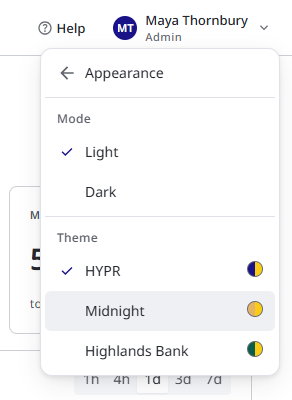
- Click your name at the top right, then Appearance.
- Under Mode, choose Light or Dark.
- Under Theme, choose a theme. Each theme shows its two main colors. The Theme group appears only when the tenant has more than one theme.
The menu stays open, so you can see the change and undo it. To return to the main menu, click Appearance at the top, or press Left Arrow.
Both choices are personal and stored in this browser, not on the account. They change only that person's view, not the tenant default. Until someone picks Light or Dark, the console uses the theme's color scheme, or the device's setting when the theme sets none.
Related
- Portal Branding — a connector's Agent Portal can pick its own theme, name and logo
- Signing In to the Console — the sign-in page follows the default theme