Finding Your Way Around the Console
The HYPR AgentPass™ administration console has a top bar, which stays the same on every page, and a sidebar that lists the pages you can open. The sidebar shows only the pages your role permits, so two people can see different navigation in the same tenant.
The Top Bar
The top bar holds these controls:
- The logo, which returns you to the console's home page.
- The tenant name, which shows the tenant you are working in. Hover over it, or move focus to it, to see the tenant's Name and ID. You can copy either one.
- Help, which opens the AgentPass documentation and shows the build your tenant runs. See Help and Update Notices.
- Your account, with your name and the role you work in. Click it to open the account menu.
The Account Menu
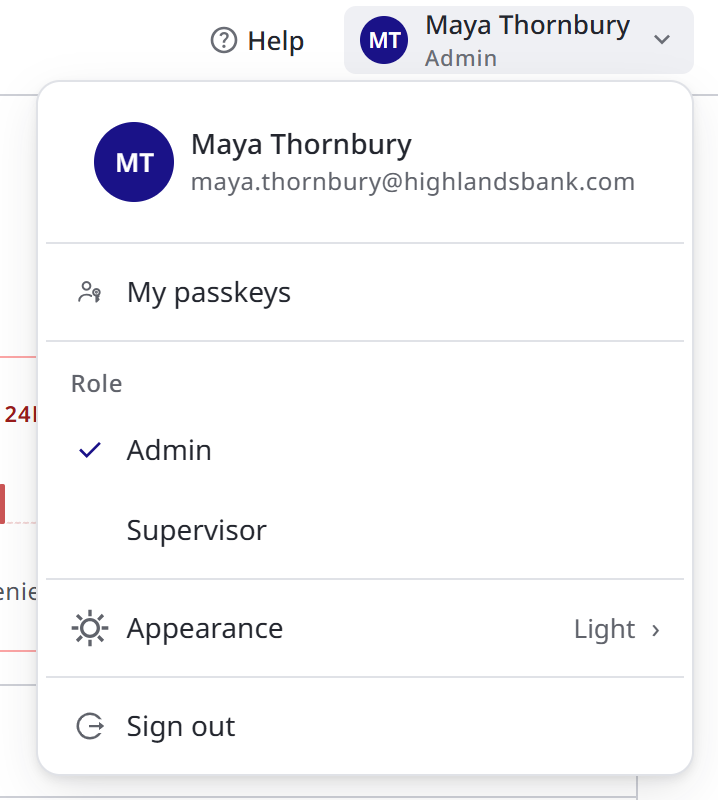
Click your name at the top right to open the account menu. From the top, it holds:
- Your identity: your initials, name and email address.
- My passkeys, which opens the page where you enroll and manage your passkeys. It appears when your role can view passkeys. A badge flags a passkey setup that needs attention: Not set up until HYPR is connected, or Add one when you have no passkey yet. See Setting Up Your Approval Passkey.
- Role, which switches the role the console uses for you. It appears only when you hold two or more roles. A system role is shown without its AgentPass prefix, for example Admin for AgentPassAdmin. See Roles and Permissions.
- Appearance, which shows your current mode, and opens the Light and Dark choice and the tenant's themes. See Themes.
- Sign out, which ends your console session and returns you to the sign-in page. See Signing In to the Console.
The Sidebar
The sidebar is one list of pages, with Settings and API reference at the bottom. Home, at the top, opens the console's home page. To give the page more room, click the collapse button at the top of the sidebar. The console remembers that choice in this browser.
Some rows open a submenu: Connectors, Guardrails, Activity and Settings. Hover over the row to open its submenu. Clicking the row itself opens the page you used last from that submenu. On a touch screen, the first tap opens the submenu. When your role can open only one page in a submenu, that page shows as a plain row instead.
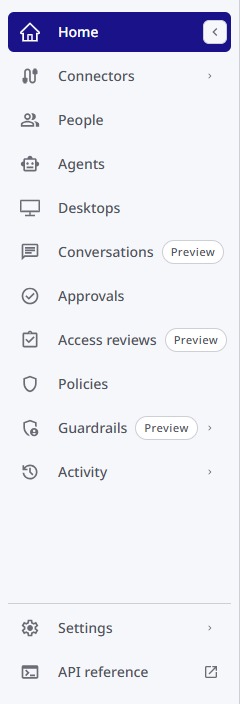
Guardrails, Conversations and Access reviews carry a Preview tag in the sidebar and on their page titles. Every page under Guardrails carries it too.
A page appears only when your role holds the permission it needs, and a submenu with no pages is not shown. The scope of the permission decides how much of the page you see: with Own scope, a page lists only your own records. The following tables name each page and the permission, as the role editor shows it, that puts the page in your sidebar. See Roles and Permissions.
The Main List
The following table lists the rows of the main list, in sidebar order.
| Row | What it opens | Shown with |
|---|---|---|
| Home | The console's home page. See Home | Request log: View |
| Connectors | A submenu with each connector in the tenant, then All connectors and, if you can add connectors, Add connector | Connectors: View. Add connector needs Connectors: Edit |
| People | The Users, Groups and Roles tabs | Any of the tabs' permissions: Supervisors: View shows Users, Agents: View shows Groups, and Roles: View shows Roles |
| Agents | Every agent in the tenant, on one page. Filters narrow it to where an agent runs and whom it acts for. See Find an Agent | Agents: View |
| Desktops | The setup of the desktops that report to AgentPass | Settings: View |
| Conversations | Your conversations with agents | Conversations: View |
| Approvals | Requests waiting for a decision. See Approvals in the Console | Approvals: View |
| Access reviews | Agents waiting for an access decision | Access reviews: Review, to decide agents assigned to you, or Access reviews: Manage, to run the program |
| Policies | The tenant's policies | Policies: View |
| Guardrails | A submenu with Posture, Alerts, History, Proving ground, Session investigator, Judges and Settings | Guardrails: View. Judges needs Model governance: View, and Settings needs Guardrails: Manage |
| Activity | A submenu with Request log, Desktop activity, Session watch and Policy decisions | Each page has its own permission: Request log: View, Agents: View, Session watch: View and Policies: View |
Access reviews shows how many agents are waiting for your decision. See Reviewing Agent Access.
Pinning Connectors
To keep a connector one click away, open the Connectors submenu and click the pin beside the connector. A pinned connector also appears as its own row under Connectors. You can pin up to seven connectors, and the submenu shows how many you have pinned. Your pins are kept in this browser.
Settings and API Reference
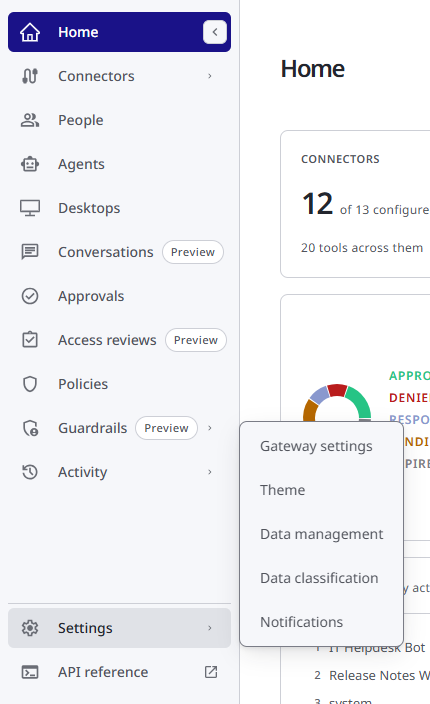
The bottom of the sidebar holds Settings and API reference.
| Page | Shown with |
|---|---|
| Settings → Gateway settings, and Settings → Theme | Settings: View |
| Settings → Data management | Data retention: View |
| Settings → Data classification | Data labels: View |
| Settings → Notifications | Notifications: Manage |
| API reference | API docs: View. It opens the API reference in a new tab |
When your role cannot open Home, the console opens on the first page your role can reach.
Platform Pages
A platform administrator, who manages tenants across the platform, sees the platform pages below Home: Tenants, Platform: Observation, Platform: Configuration, Platform AI Catalog and Platform Data. They need view access to tenants. Platform Email needs manage access to tenants. See Platform: Observation and Platform: Configuration.
What Each Role Sees
The following table shows the sidebar each built-in role gets with the permissions it ships with. If your organization has changed a role's permissions, its sidebar follows the change. See Permissions by Role.
| Role | Sidebar |
|---|---|
| Admin | Every row and every page, including Add connector, all seven Guardrails pages, all five Settings pages and API reference |
| Operator | Home, Connectors, People (Users, Groups, Roles), Agents, Desktops, Conversations, Approvals, Access reviews, Policies, Guardrails without Judges and Settings, all of Activity, Settings without Notifications, and API reference |
| Supervisor | Home, People (Users, Groups), Agents, Conversations, Approvals, Policies, and Activity with Request log, Desktop activity and Policy decisions. Most pages list only the supervisor's own records |
| Security analyst | Home, Connectors, People (Users, Groups), Agents, Approvals, Policies, all of Guardrails, all of Activity, and Data classification at the bottom |
| Auditor | Home, Connectors, People (Users, Groups, Roles), Agents, Desktops, Approvals, Policies, Guardrails without Settings, all of Activity, Settings without Notifications, and API reference |
| Model governance owner | Home, Guardrails without Settings, and Request log |
Page Headers
Each page opens with its title, which matches the page's name in the sidebar. A page in a submenu, or one you open from a list, shows a breadcrumb above the title, such as Connectors › Anthropic (Production). Click a linked part of the breadcrumb to go back to it. When you scroll, the title, the page's actions and its tabs stay pinned under the top bar.
Using the Keyboard
You can use the sidebar from the keyboard:
| Key | What it does |
|---|---|
| Up Arrow and Down Arrow | Move between rows |
| Right Arrow | Opens a row's submenu. On a connector row, moves to its pin |
| Left Arrow or Escape | Closes the submenu, and returns to its row |
| Enter or Space | Opens the focused page. On a row with a submenu, opens the page you used last from it |
Related
- Permissions by Role — what each system role holds, by area
- Roles and Permissions — assign a role, or build a custom one
- Get Started as an Administrator — where to start with the Admin role
- Get Started as an Operator — what the Operator role does day to day
- Signing In to the Console — how people reach the console
- Help and Update Notices — the Help menu, and the notice after an update
- Policy Decisions — every allow, block and approval decision under Activity