Connecting to Your HYPR Tenant
Supervisors approve agent actions with a passkey from the HYPR mobile app. That path runs through your HYPR Authenticate tenant, so you connect the HYPR AgentPass™ gateway to it once. When you finish this page, a held request reaches a supervisor's phone, and comes back approved or denied.
Before You Begin
In HYPR Control Center, you need:
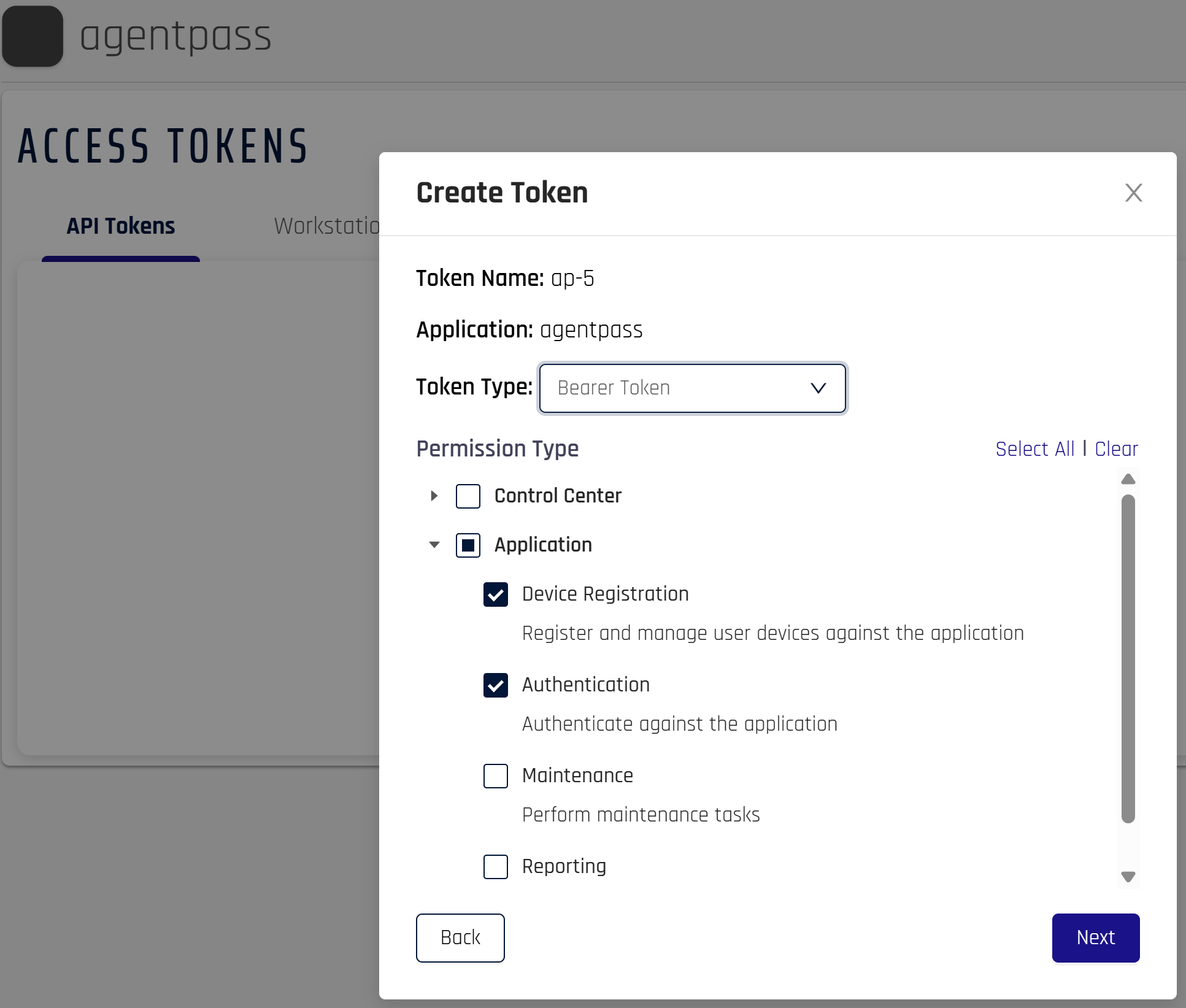
- An application for the gateway, with an API access token scoped to it. Create a Bearer Token with the Device Registration and Authentication permissions. Control Center shows the token once, when you generate it. See Access Tokens.
- FIDO2 enabled on that application, with User Verification set to Required. List the gateway public origin first in Client Origin URL. See FIDO2 Settings.
- The HYPR mobile app on each supervisor's device, signed in as that supervisor.
In the gateway, you need a role that permits changing settings.
Connect the Tenant
- Open Settings → Gateway settings, and click the Passkeys (FIDO2) tab.
- In HYPR FIDO2 Integration, enter the values described in the following table.
- Click Save beside each field. The card reports Ready once the tenant base URL, the RP API access token and the RP Application ID are set. Set the gateway public origin too: passkey approvals fail until it matches the Client Origin URL in HYPR.
- Click Check connection to confirm the gateway reaches your HYPR tenant.
| Field | Value |
|---|---|
| HYPR tenant base URL | The address of your HYPR tenant. If it is on your internal network, also turn on Allow private network addresses. See Allow a Private Network Address |
| RP API access token | The application's API access token, from Control Center |
| RP Application ID | The application you created for the gateway |
| Gateway public origin | The public origin of the gateway: the address supervisors' phones reach |
| HYPR mobile APK key-hashes | Optional. The key-hashes of the HYPR Android app |
Associate the Mobile Apps
In Mobile App Associations, enter the identifiers of the HYPR mobile apps your supervisors use:
- For iOS, the App IDs
- For Android, the Package name and Signing-cert SHA-256 fingerprints
Confirm the values with your HYPR representative. The card reports Ready once both platforms are set.
Connect the Sign-In Address
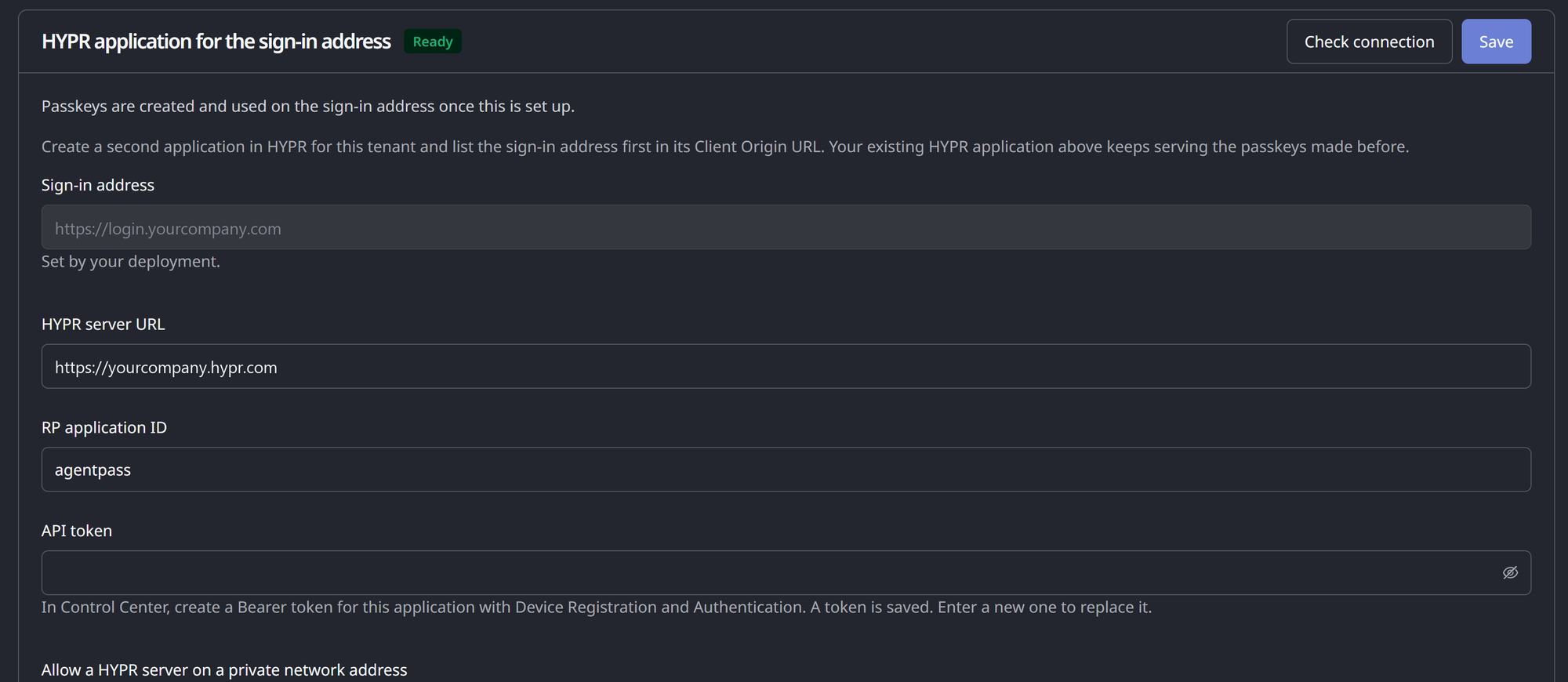
If your deployment uses a sign-in address for passkeys, the tab also shows HYPR application for the sign-in address. Passkeys made after you set it up are created and used on the sign-in address. Passkeys made before keep working through the application above.
- In Control Center, create a second application for the gateway. Enable FIDO2, and list the sign-in address shown on the card first in Client Origin URL.
- Create a Bearer Token for it with the Device Registration and Authentication permissions.
- On the card, enter the HYPR server URL, the RP application ID and the API token, then click Save.
- Click Check connection. The card reports Connected, or names what to fix.
Decide Which Passkeys Count
Passkey approval policy decides which passkeys may approve an agent action.
| Policy | Accepts |
|---|---|
| Strict (HYPR Mobile only) | Passkeys enrolled from the HYPR mobile app |
| Any passkey | Any passkey the supervisor has enrolled |
| Custom allowlist | Passkeys whose authenticator is on your own list |
Under Strict (HYPR Mobile only), enter the HYPR Mobile AAGUIDs in HYPR Mobile AAGUIDs. Your HYPR representative provides them. Until the list has an entry, no passkey can approve.
Require signed approvals decides whether an approval must carry the supervisor's passkey signature:
- Optional (soak), while you roll the app out
- Required (production), once every supervisor is enrolled
Each choice asks you to confirm, and takes effect when you do.
Deliver Approval Requests
Held requests reach the phone as push notifications. Configure the push channel, and the events that must never be muted, on Notifications.
Enroll the Supervisors
Each supervisor enrolls a passkey from My passkeys, in the account menu at the top right of the console. Until HYPR is connected, they see Passkeys aren't set up there instead. A role that can change settings also sees Connect HYPR in Settings, which opens this tab. Point them at Setting Up Your Approval Passkey. Nothing else is needed on their side.
Validate
- Point one agent at a connector whose onboarding mode is Require Approval, and send a request.
- Check that the request appears under Needs your attention in Approvals.
- Check that the supervisor's phone receives it.
- Have the supervisor choose Approve or Deny on the phone. The decision closes the request in the console. See Approvals in the Console.
Related
- How the Supervisor App Works — sign-in lifetimes, notification contents and ending access
- Notifications — push delivery and the events that reach supervisors
- Setting Up Your Approval Passkey — what each supervisor does on their phone
- Approving and Denying Agent Actions — what arrives on the phone and what each answer does