Gateway Settings
Settings → Gateway settings holds the cross-cutting settings of HYPR AgentPass™. They cover how the gateway:
- Validates inbound requests
- Decides which MCP clients may register
- Signs people in
- Times out approvals
- Drafts policies
- Reaches your HYPR tenant
- Receives directory changes, and sends email
The page has a tab for each group. Each card saves on its own, and some controls save as soon as you choose them. You need Settings: View to open the page, and Settings: Edit to change it. A role with only Settings: View sees every control as read-only. Each table on this page names a tab's cards and fields, and links to the page that explains them.
Gateway
A card that still holds its default value shows a Default tag.
The Gateway tab has three cards. Beside them, Where this shows up names the console pages these settings change.
| Card | Fields | What it decides |
|---|---|---|
| Model prices | A table of models with their prices, Add model, and Set price or Edit on each row | What each model costs, in US dollars per 1M tokens. Spend limits and Home count spend at these prices. See Model Prices |
| MCP Session Validation | Strict, Lenient or Strict with grace | How the gateway treats an inbound gateway-issued MCP token it does not recognize. Strict, the default, rejects it. Lenient logs and accepts it, while you validate a deployment. Strict with grace rejects unknown tokens, except that it promotes them on first sight after a deploy, so existing clients keep working until their access tokens expire |
| Connector Request Samples | Samples kept per tool | How many recent request samples each connector keeps per tool, for its Recent Requests tab. From 1 to 50. The default is 10. A new sample replaces the oldest. Credentials and secret fields are redacted before a sample is stored |
Model Prices
Model prices lists the models your agents used in the last 30 days, and the models you added. Each row shows the price per 1M tokens for Input, Output, Cached input and Cache write, and a Source.
| Source | What it means |
|---|---|
| Default | The price that comes with AgentPass |
| Custom | A price you set. HYPR price updates never overwrite it |
| No price | The model has no price, so its spend is not counted. The card opens with a note that names these models and their requests in the last 7 days |
Default prices cover Anthropic and OpenAI models. For a model on AWS Bedrock or Microsoft Foundry, set the price yourself.
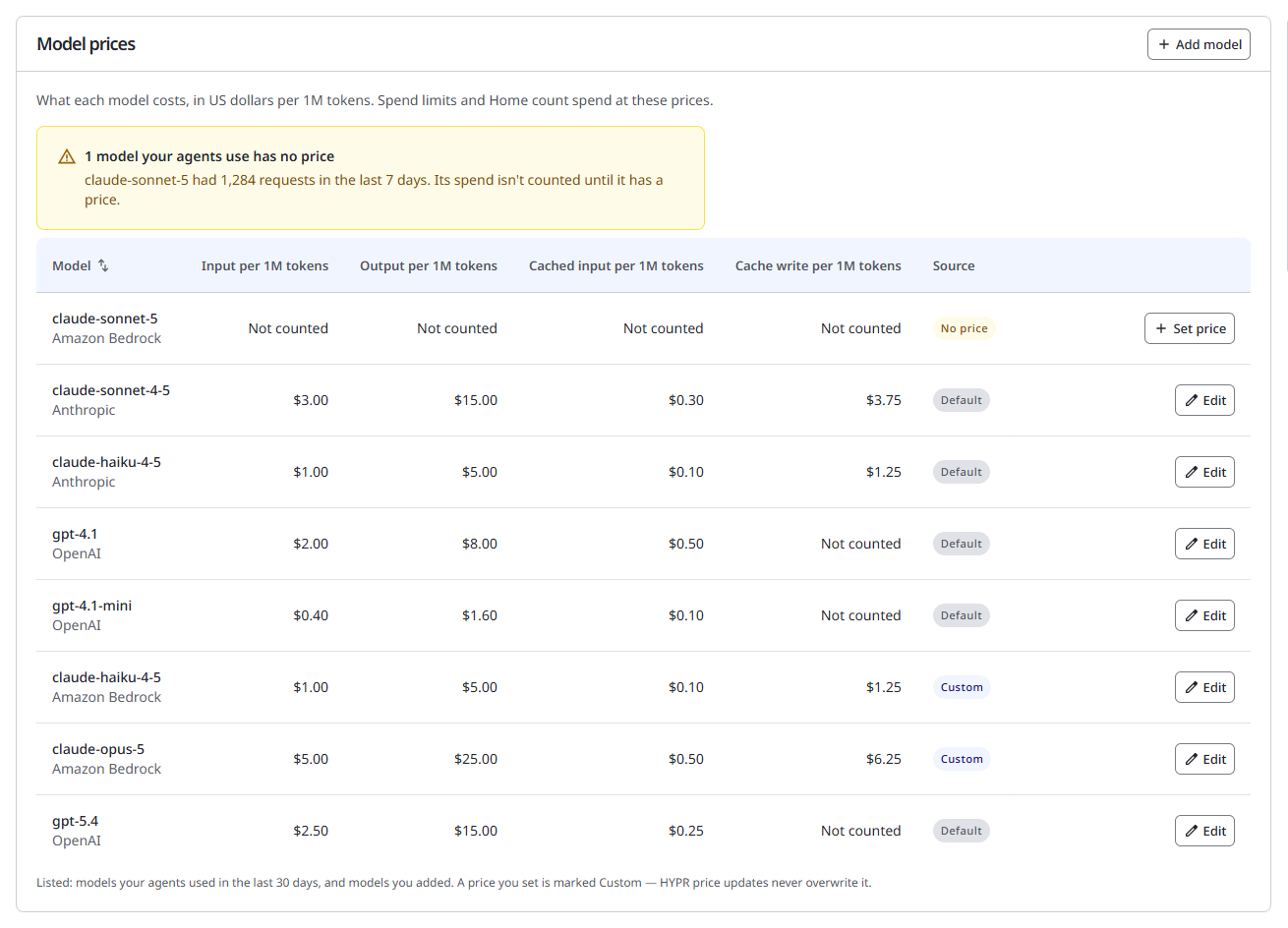
To set a price:
- Click Set price on a row with no price, or Edit on any other row. To price a model before its first request, click Add model, choose the Provider, and enter the Model ID as it appears in requests. Dates, regions and version suffixes are ignored when a request is matched to a price.
- Enter the price of Input tokens and Output tokens in US dollars per 1M tokens. Cached input and Cache write are optional. Leave them empty if the model has no cache.
- Click Save price.
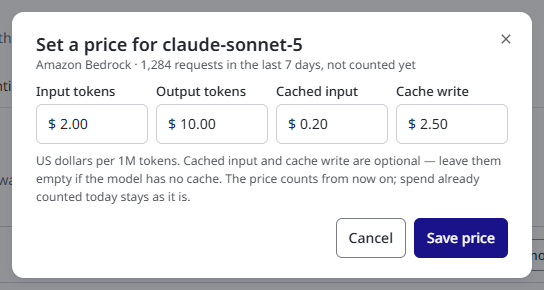
The row becomes Custom. The price counts from then on. Spend already counted today stays as it is.
See Daily Spend Limits.
OAuth / DCR
| Card | Fields | Where it is explained |
|---|---|---|
| Redirect hosts | Approved https:// hosts, exact or wildcard, and Add host | MCP Client Registration |
| Custom URL schemes | Approved custom schemes for desktop and command-line clients, and Add scheme | MCP Client Registration |
| DCR registration controls | Registrations accepted over a number of seconds, maximum active clients, days before an inactive client is removed, and Save DCR controls | MCP Client Registration |
| Registered clients | A read-only list of the MCP clients that registered in the last 24 hours: client ID, redirect addresses and last used | MCP Client Registration |
Registration is open, and both lists are deny-unless-listed. The lists, not registration, therefore decide which MCP clients the gateway trusts. Redirects to localhost and the loopback addresses are always allowed, and are not configurable.
Authentication
| Card | Fields | Where it is explained |
|---|---|---|
| Console SSO (OIDC) | Issuer or auth-server URL; authorization, token, userinfo, JWKS, end-session and revocation endpoints; client ID; client secret; PKCE required; scopes; principal claim; display name claims; email claim; role claim path; maximum session length, from 5 to 1440 minutes, with a default of 480; and an Advanced section for client authentication method, token audience, extra authorization parameters, token issuer override and logging of login request and response bodies | Signing In to the Console |
Approvals
| Card | Fields | What it decides |
|---|---|---|
| Approval Timeouts | Onboarding approval timeout and Policy-triggered approval timeout | How long a held request waits for a supervisor before it expires. An expired request is not an approval. The onboarding timeout covers a new agent's first request. The policy-triggered timeout covers a request held by a policy that requires approval. Each is from 1 to 1440 minutes. The default is 30 |
| Approved Onboarding Validity | Onboarding access validity | How long an approved onboarding grants access before the agent must be approved again. From 1 to 8760 hours. The default is 24 |
A changed value applies to new approvals only. Pending approvals keep their deadline, and approved onboardings keep the validity they were granted with.
Both work with a connector's onboarding mode. See Onboarding Mode.
Policies
| Card | Fields | Where it is explained |
|---|---|---|
| Policy authoring (LLM) | Anthropic API key and Author model | Setting Up AI Authoring |
| AI policy spend | Input and output tokens, draft requests and LLM errors, and Refresh | Setting Up AI Authoring |
| Who drafts your policies | A routes table of When drafting, Policy author and Give up after, and Add a route | Choosing Who Drafts Your Policies |
| Inference Stream Inspection | Maximum hold time, from 5000 to 300000 ms, with a default of 30000; and Maximum held size, from 4096 to 4194304 bytes, with a default of 262144 | Governing Inference Traffic |
| Policy MCP clients | Register a client | Policy MCP Server |
To check a streamed tool call before the agent runs it, the gateway holds the call until it has fully arrived. The two stream inspection bounds cap that hold. Maximum hold time is how long the gateway waits for one tool call to finish arriving. Maximum held size is how much of one tool call it holds. Where an inference policy in Enforce mode applies, a call that exceeds either bound is cut, and the user sees a block notice that names the bound. In Observe mode, the overflow is recorded and the call is released.
Passkeys (FIDO2)
| Card | Fields | Where it is explained |
|---|---|---|
| HYPR FIDO2 Integration | HYPR tenant base URL, RP API access token, RP Application ID and Gateway public origin, the optional HYPR mobile APK key-hashes, and Check connection | Connecting to Your HYPR Tenant |
| Mobile App Associations | For iOS, App IDs. For Android, Package name and Signing-cert SHA-256 fingerprints | Connecting to Your HYPR Tenant |
| Passkey approval policy | Policy: Strict (HYPR Mobile only), Any passkey or Custom allowlist; Require signed approvals: Optional (soak) or Required (production); HYPR Mobile AAGUIDs; custom allowlist; display labels | Connecting to Your HYPR Tenant |
Directory / SCIM
The Directory / SCIM Provisioning card connects your identity provider over SCIM 2.0. It holds the SCIM Base URL, the write-only Bearer token, the Identity provider choice and Enable SCIM provisioning. While provisioning is off, the SCIM base URL answers that it was not found.
The card's status reads Receiving once a request from your identity provider has succeeded in the last 24 hours. Before that it reads Waiting for first request, or Not connected until provisioning is set up.
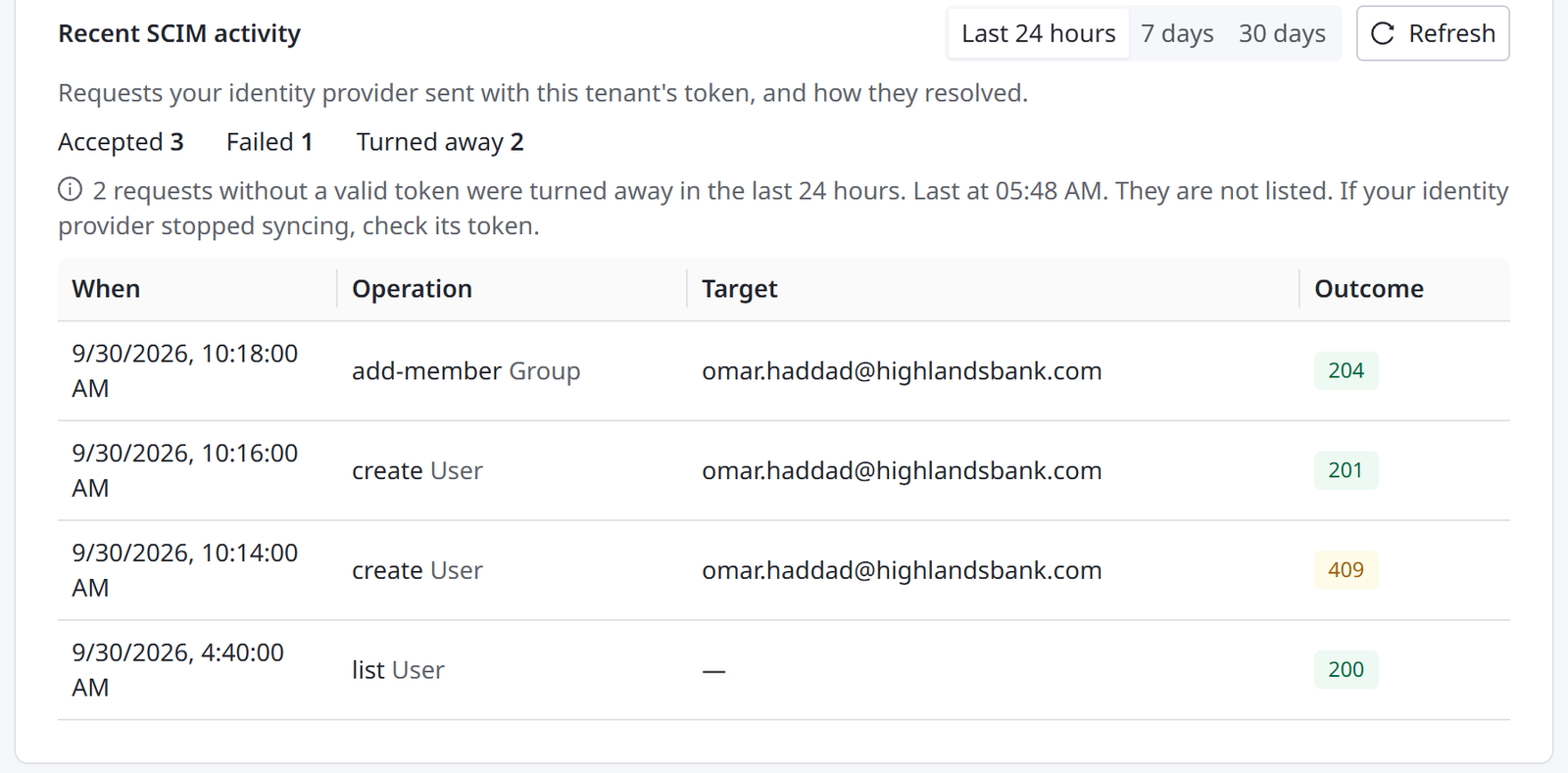
Recent SCIM activity shows the requests your identity provider sent with this tenant's token, and how they ended:
- Activity period chooses the time covered: Last 24 hours, 7 days or 30 days. Refresh reloads it.
- Accepted, Failed and Turned away count the requests in that period.
- The list shows each request's When, Operation, Target and Outcome. When there are older requests, click Load more to see them.
- Requests without a valid token are turned away. They are not listed, and one line says how many there were. If your identity provider stopped syncing, check its token.
Failed sign-in limit protects the SCIM endpoint from repeated guessing. Set the number of failed Attempts allowed within a Window. A caller that reaches the limit is blocked until the window clears. Click Save to apply it.
Only successful directory changes are recorded in the audit trail.
Provisioned people appear on the Users tab of People, and provisioned groups on its Groups tab. See Provisioning With SCIM.
Email / Invitations
This tab decides how the gateway emails each person an invitation to enroll a passkey, and how it reminds them.
| Card | Fields | What it decides |
|---|---|---|
| Email delivery | Sending provider: Platform default, Own AWS SES or Own SMTP, with the fields each provider needs, and an optional From name and Reply-to | How this tenant sends invitation and reminder email: through the shared platform sender, or through your own |
| Invitations | Auto-invite on provision; Invite link lifetime (hours), from 1 to 8760, with a default of 168; Automatic reminders; Reminder interval (hours), from 1 to 8760, with a default of 48; Max reminders, from 0 to 50, with a default of 3 | How people are invited, and how pending invitations are reminded. See Invite a Person to Enroll a Passkey |
The Email delivery card shows Email: Ready with the provider once email can be delivered. Until then, invitations wait in a queue, and Copy invite link on the Users tab still works.
On the Invitations card, Auto-invite on provision sends an invitation as soon as a person is provisioned, through SCIM or by hand. Automatic reminders resends the invitation to people who have not enrolled. After Max reminders, a person still pending is marked Lapsed.
Related
- Signing In to the Console — the Authentication tab, field by field
- MCP Client Registration — the OAuth / DCR tab, and the redirect targets it approves
- Connecting to Your HYPR Tenant — the Passkeys (FIDO2) tab, end to end
- Users — invite people, and see who has enrolled
- Notifications — push delivery, configured on its own page under Settings