Reviewing Agent Access
When an access review opens with agents assigned to you, HYPR AgentPass™ emails you. The agents wait in your inbox under Access reviews. For each one, confirm that it still needs the access it has, or remove what it no longer needs. Removals take effect straight away.
In the console, Access reviews carries a Preview tag. Deciding needs Access reviews: Review, which Admin and Operator hold.
You are never asked to review an agent you own. How reviews are scheduled and assigned is in Running Agent Access Reviews.
Your Inbox
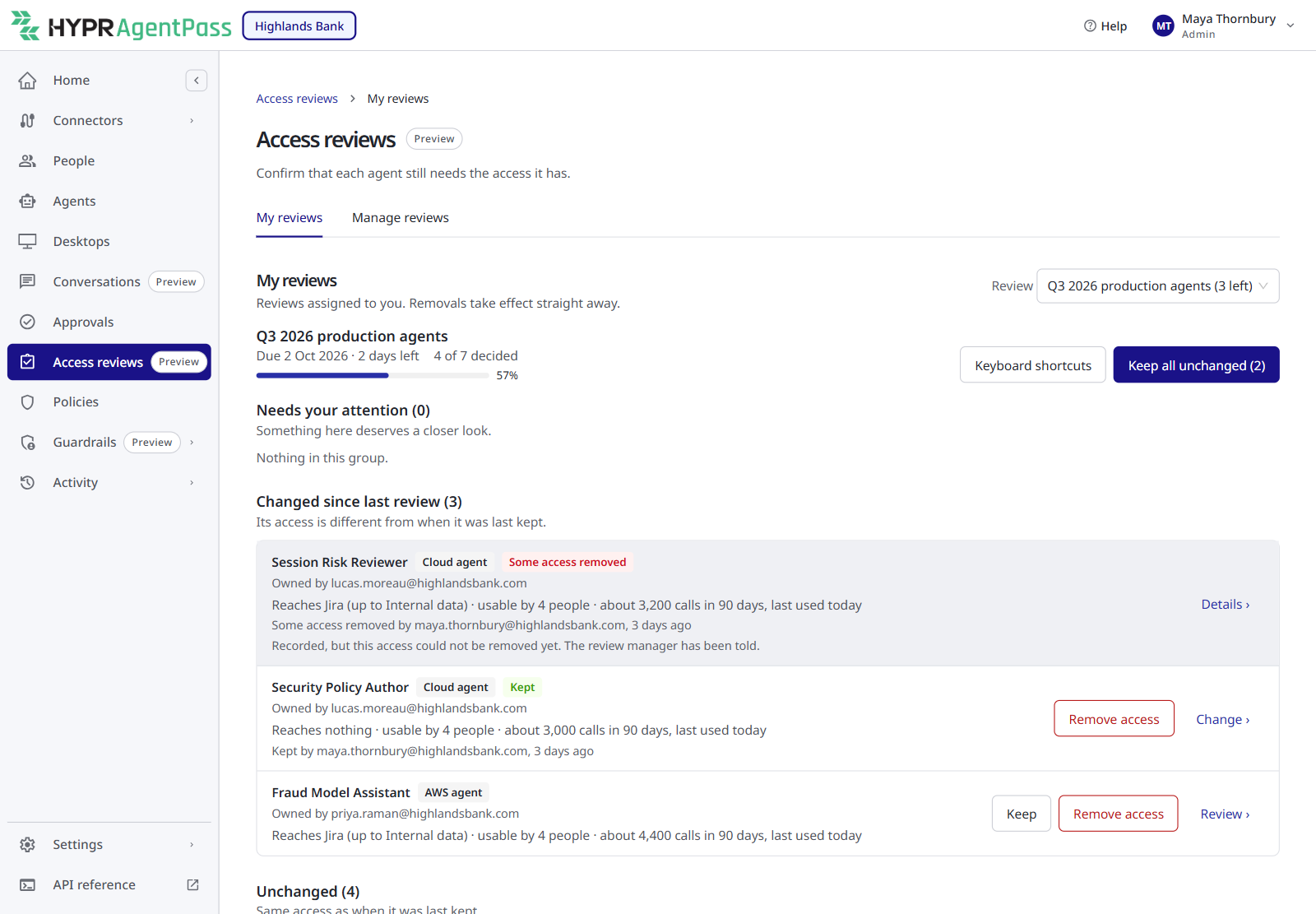
The header shows the review's due date, how many days are left and how many agents you have decided. When more than one review has agents for you, choose one from Review. The Access reviews entry in the navigation shows how many agents are waiting for you. When nothing is waiting, the inbox reads Nothing to review right now.
Your agents are sorted into three groups, so you can spend your time where it matters:
| Group | What it holds |
|---|---|
| Needs your attention | Agents with at least one warning. Something here deserves a closer look |
| Changed since last review | Agents whose access is different from when they were last kept |
| Unchanged | Agents with the same access as when they were last kept |
Each row names the agent, its kind — Cloud agent, AWS agent, Workload agent or Desktop AI — and its owner. For Desktop AI, the row covers every desktop AI app one person uses, and reads Used by that person. Below the name is one line of evidence, followed by any warnings:
| Warning | What it means |
|---|---|
| Owner has left the organisation | The person who owns the agent is no longer active in your directory |
| Not used in 90 days | The agent has made no requests in the last 90 days |
| New since the last review | The agent was never kept in an earlier review |
| Reaches the most sensitive data | The agent can reach a connector carrying your most sensitive data tier |
| Can act with its owner's connected accounts | A workload agent may use its owner's connected accounts |
| Credential never expires | The agent's credential has no expiry date |
| Everyone using it acts as one identity | People who use the agent all act through one shared identity, not their own accounts |
Read the Evidence
Click Review on a row to open the agent's details.
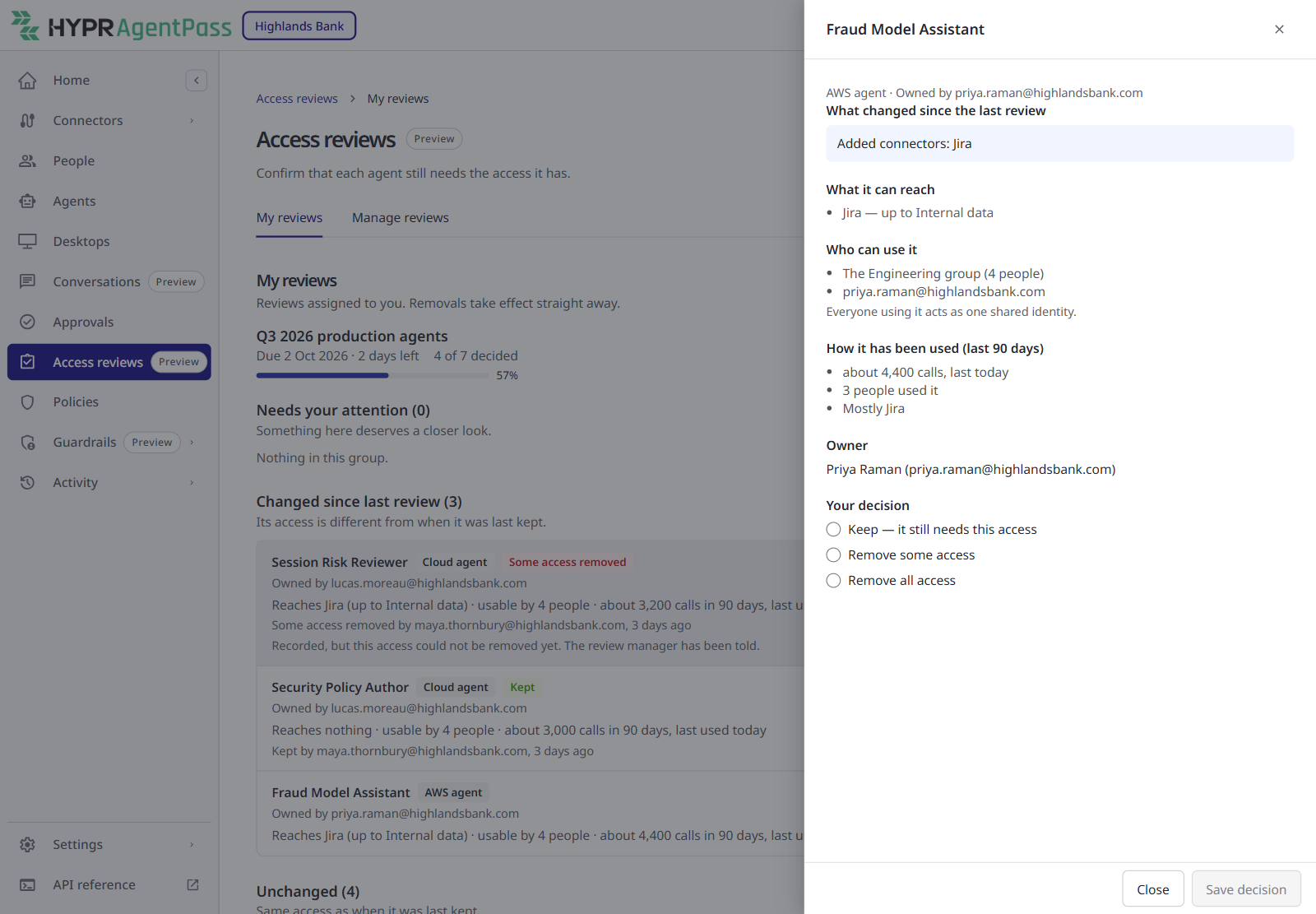
- What changed since the last review — access added or removed since the agent was last kept. A first review says This is its first review.
- What it can reach — each connector the agent can use, with the most sensitive data tier it carries.
- Who can use it — the people and groups assigned to it, with the number of people in each group. It also says whether everyone using it acts as one shared identity or each person uses their own accounts, and how many automations run it. A workload agent has no people: it runs with its own credential.
- Desktop apps — for Desktop AI, each desktop app the person uses.
- How it has been used (last 90 days) — how many calls it made and when it was last used, how many people used it, and the connectors it used most.
- Owner — who owns the agent, and whether they have left the organization.
- Credential — for a workload agent, when its credential expires and which of its owner's connected accounts it can act with.
The evidence is a snapshot taken when the review opened. Everyone who reviews this agent, and everyone who reads the export later, sees the same facts.
Decide
Under Your decision, choose one of three options, and click Save decision:
| Decision | What happens |
|---|---|
| Keep — it still needs this access | Nothing changes. The agent is recorded as kept |
| Remove some access | You tick what to remove under Choose what to remove. The rest stays |
| Remove all access | The agent is switched off |
For speed, a row also has Keep and Remove access buttons, so you can decide without opening the details. Remove access from a row removes all access. Its dialog shows what the removal does for that kind of agent, and asks for a reason. Click Yes, remove all access to confirm.
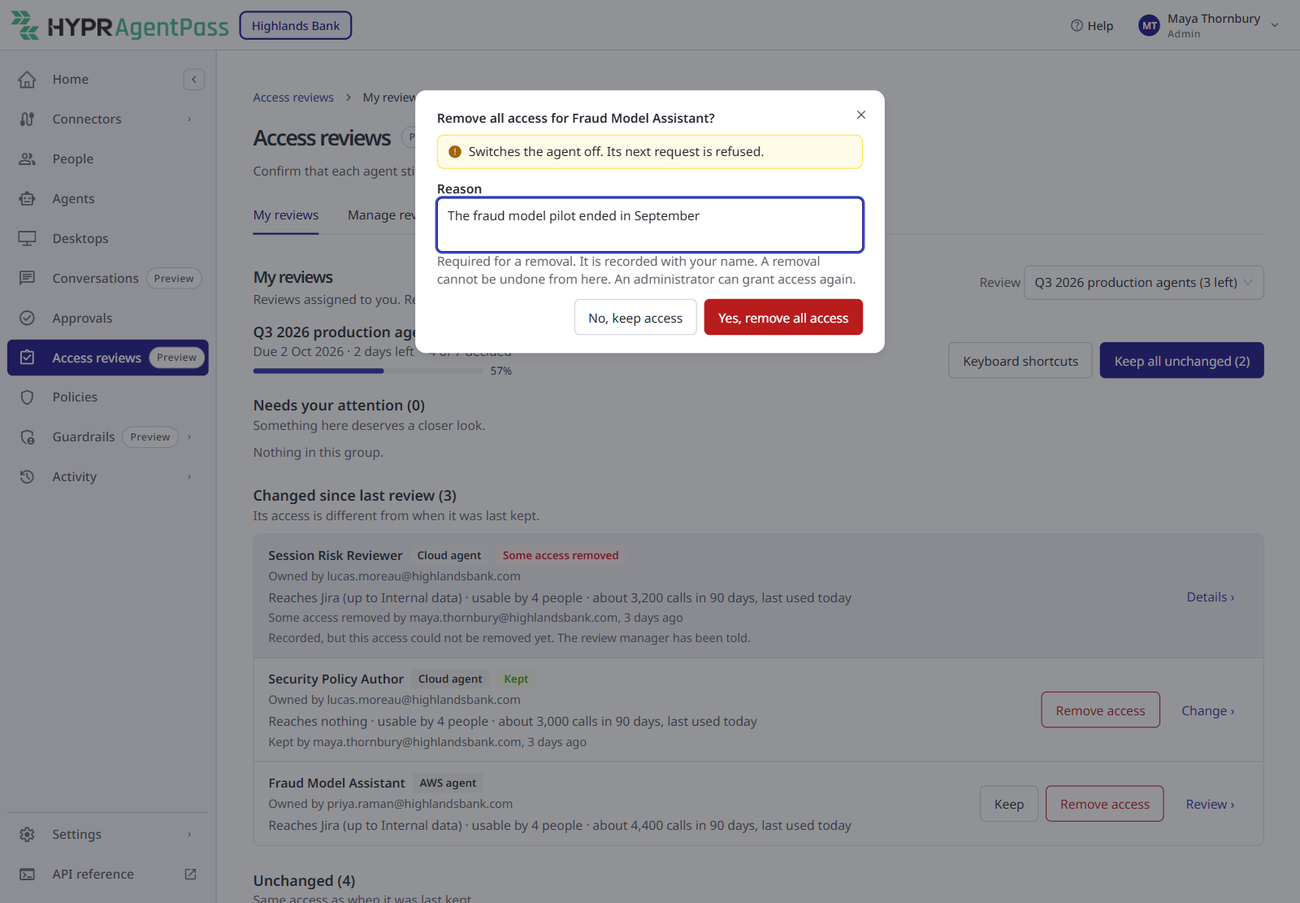
A removal needs a Reason of 10 to 1,000 characters. The reason is recorded with your name, and the agent's owner receives it.
A removal cannot be undone from the review. You can change a Keep into a removal while the review is open, but you cannot change a removal back. An administrator can grant the access again.
What You Can Remove
Remove some access lists only what can be removed on its own for that kind of agent:
| Kind | What you can remove one by one |
|---|---|
| Cloud agent | A connector, a person, or a group |
| AWS agent | A person or a group. Its connectors are shown as evidence but cannot be removed one by one |
| Workload agent | A connector, or its use of the owner's connected accounts |
| Desktop AI | One desktop app, leaving the person's other apps on |
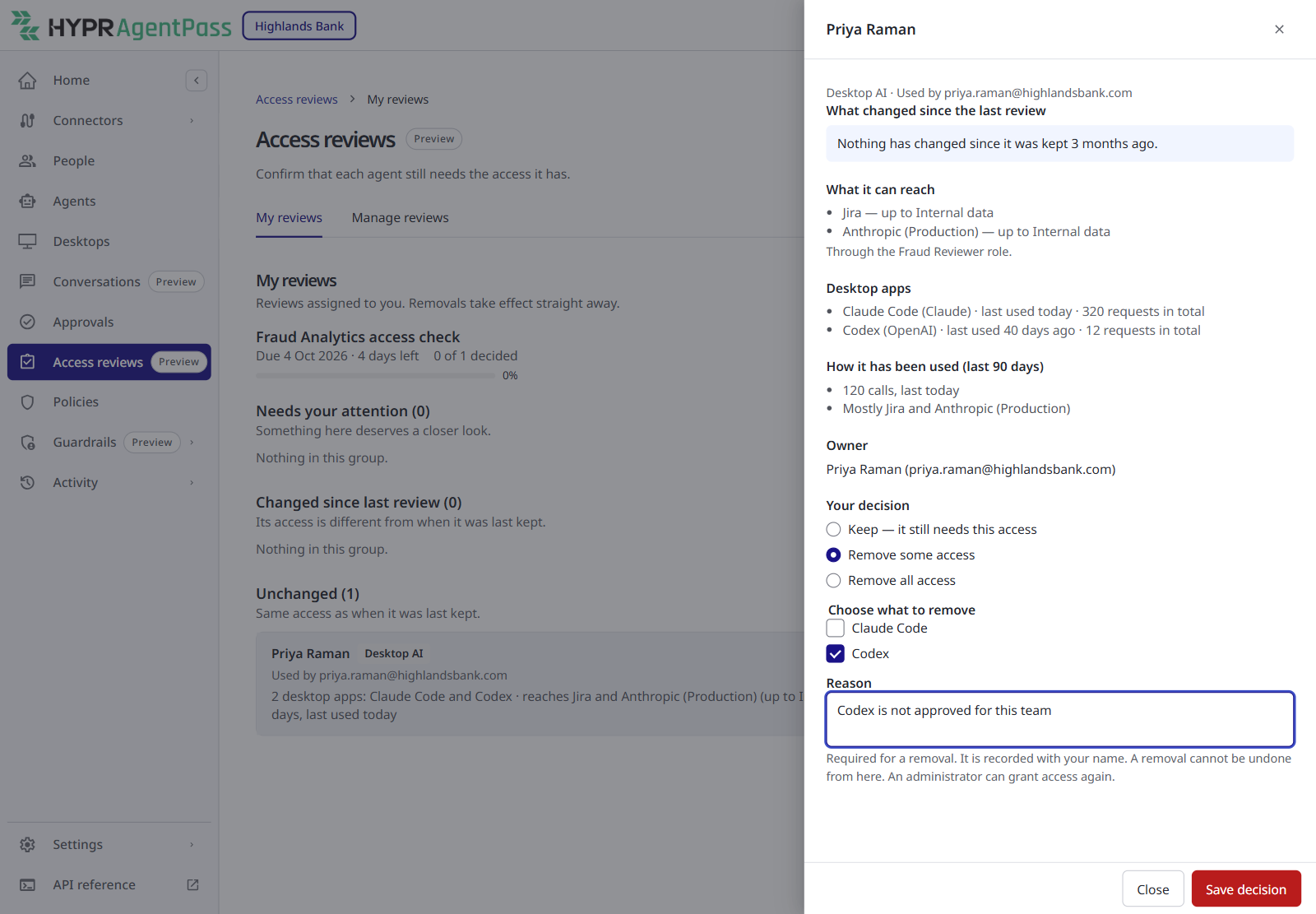
When nothing can be removed on its own, the drawer says so; use Remove all access instead.
Remove all access switches the agent off. It does not retire the agent or change its lifecycle stage. What it stops depends on the kind:
| Kind | Effect of Remove all access |
|---|---|
| Cloud agent | Switches the agent off. Conversations in progress stop |
| AWS agent | Switches the agent off. Its next request is refused |
| Workload agent | Switches the agent off. Its credential is refused on the next call |
| Desktop AI | Switches off every desktop app for this person |
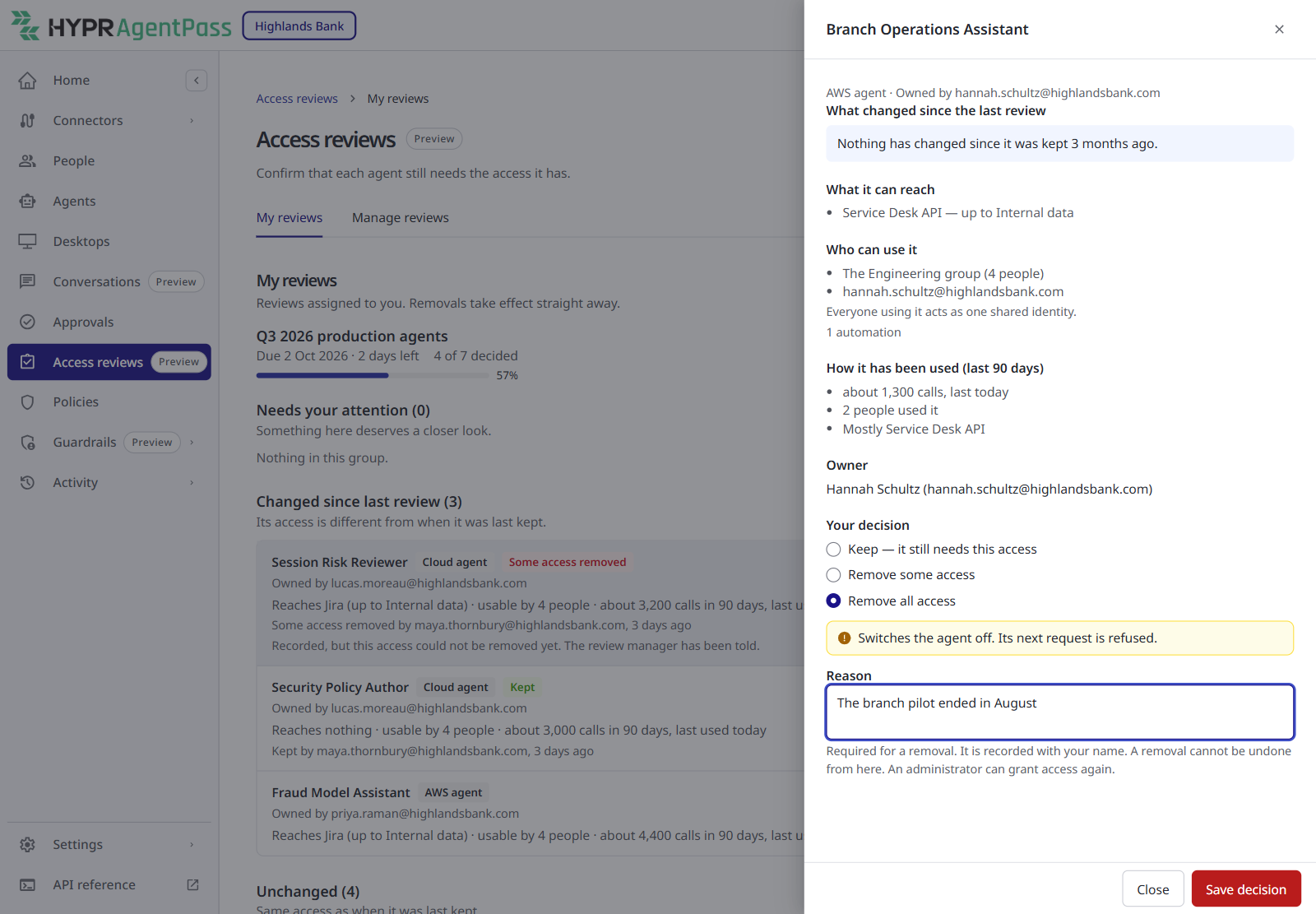
If a removal cannot be applied straight away, the row reads Recorded, but … could not be removed yet. Your decision stands. The review's managers are told, and they apply it once the cause is fixed.
If someone else decided the agent while you had it open — for example in another browser tab — AgentPass shows who decided it and when, instead of saving a second decision.
Keep All Unchanged
Keep all unchanged keeps, in one step, every agent assigned to you in the Unchanged group that has been used recently. These agents have the same access as when they were last kept and no warnings.
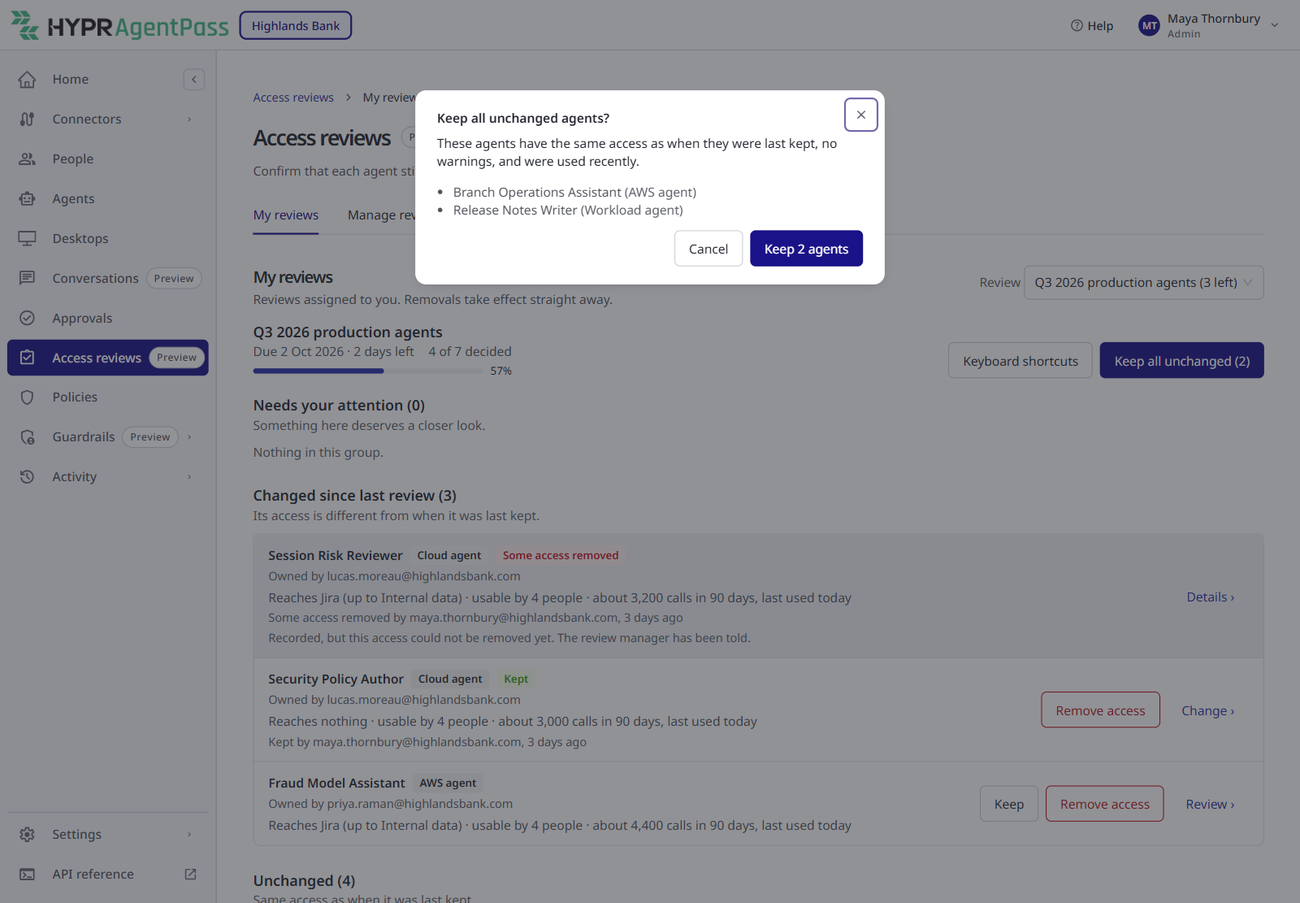
The dialog lists exactly the agents it will keep. Click Keep N agents to confirm. Each agent is recorded as its own decision, marked as kept with Keep all unchanged. If an agent changed after the dialog opened, it is left for you to decide. A message names it after you confirm.
In an agent's first review, it carries New since the last review, so it sits in Needs your attention. Keep all unchanged leaves it for you to decide.
Keyboard Shortcuts
Click Keyboard shortcuts in the inbox header to see them. The shortcuts work while the list of agents has focus, so click the list or press Tab to reach it first.
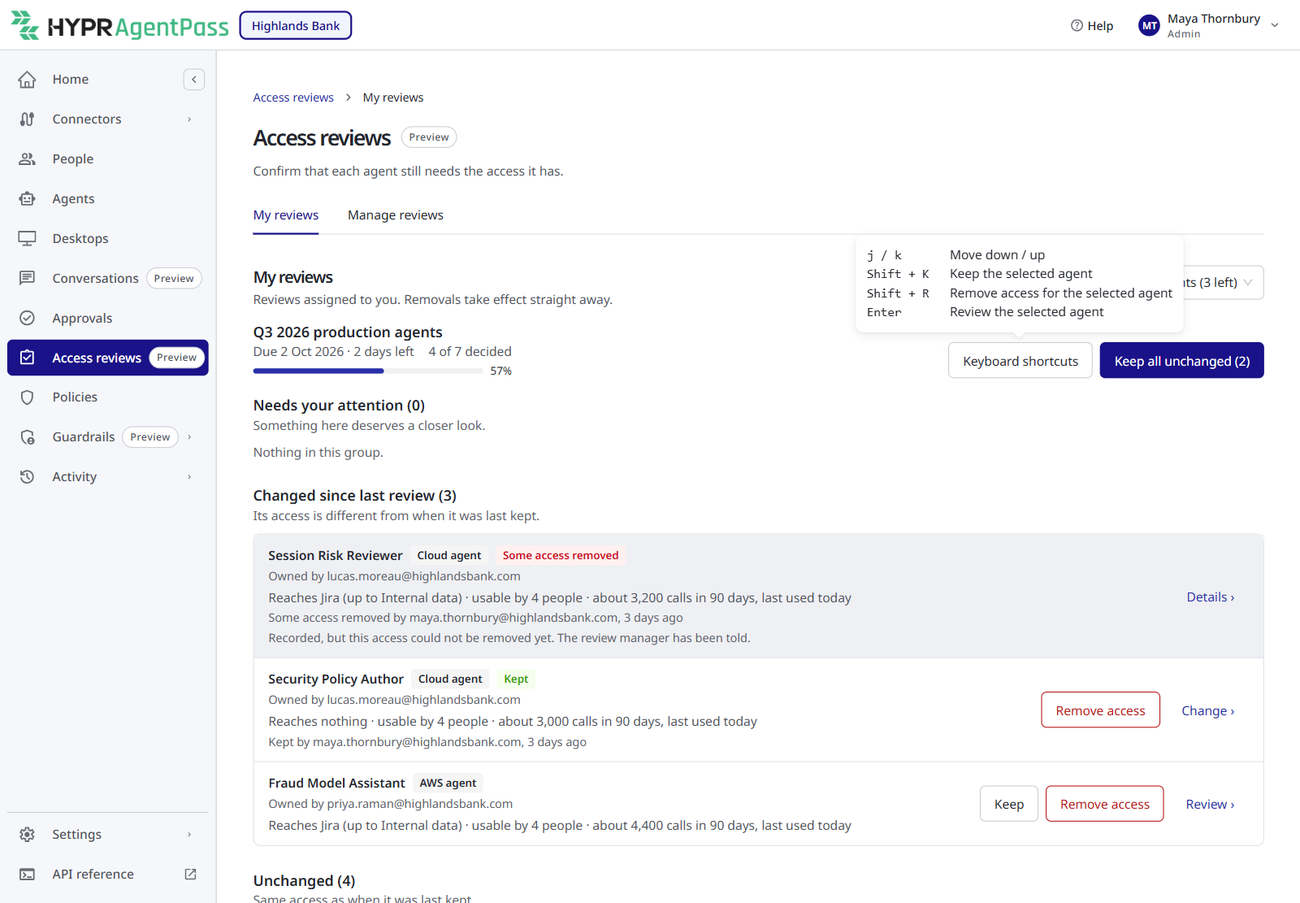
| Keys | Action |
|---|---|
| j / k | Move down / up |
| Shift + K | Keep the selected agent |
| Shift + R | Remove access for the selected agent |
| Enter | Review the selected agent |
When You Have Finished
When every agent has a decision, the header reads All decided. Thank you. Each row shows what you decided and when.
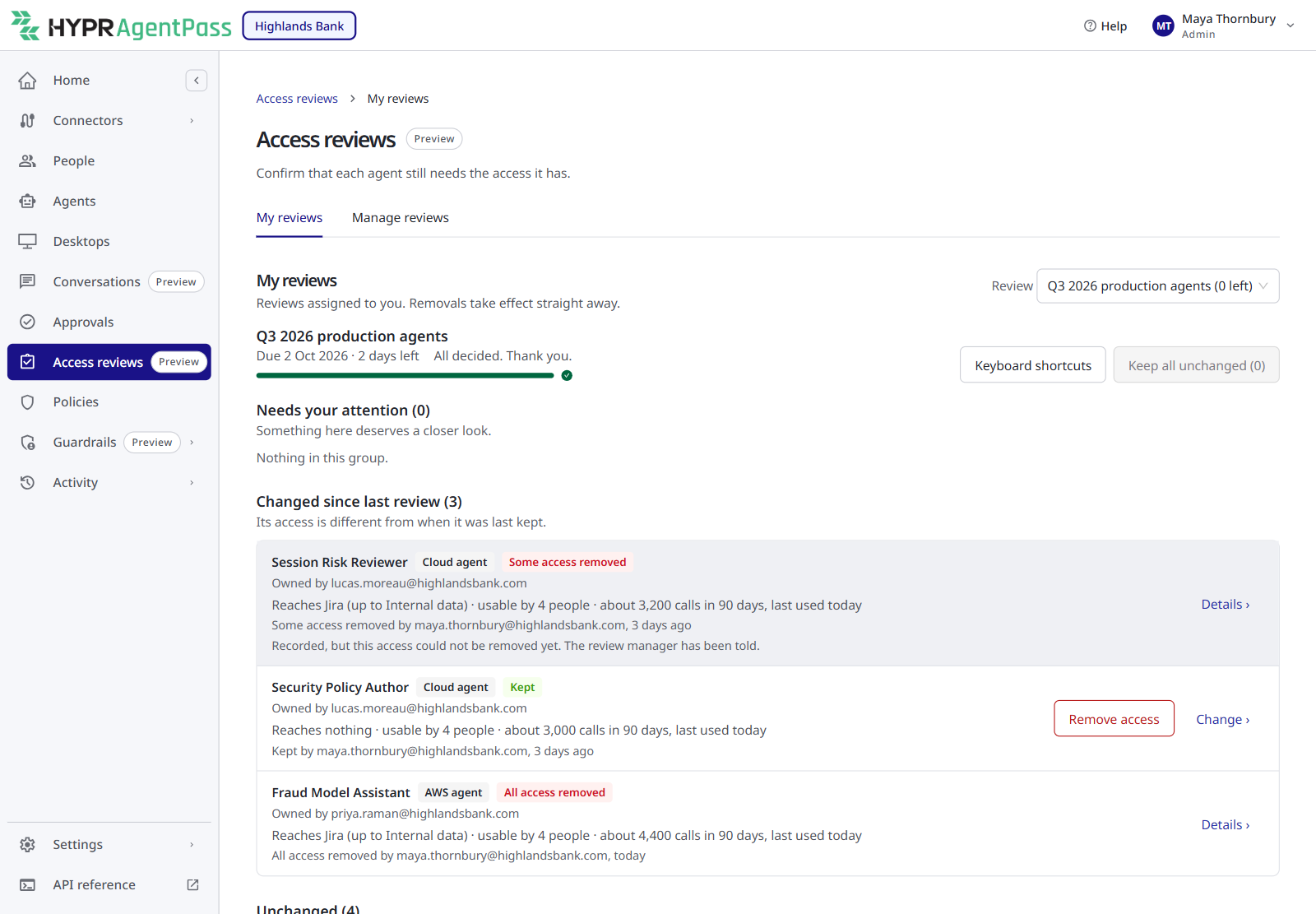
While the review is open, you can click Change on a kept agent to remove access instead, or Details to read its evidence again. When the review closes, any agent you did not decide is recorded as Not reviewed.
When a Review Is Overdue
After the due date, the inbox shows a banner with the number of agents still waiting for your decision, and the due date turns red. You can still decide until the review is closed.
Notifications
AgentPass sends these by email:
| When | Who receives it | What it says |
|---|---|---|
| A review opens with agents for you | You | How many agents are waiting, and the due date |
| An agent is assigned to you later | You | The same notice, for the review you were added to |
| 3 days before the due date | You, if agents are still waiting | How many agents still need your decision |
| The day after the due date, then every 7 days until the review closes | You, if agents are still waiting | That the review is overdue, and how many agents are left |
| A removal takes effect | The agent's owner | What was removed, from which agent, by whom, and the reason, and that they can ask an administrator if the agent still needs the access |
Each email has a button to your inbox when your organization's console address is known to AgentPass. What the review's managers receive is in Running Agent Access Reviews.
Related
- Running Agent Access Reviews — schedules, assignment, export and closing
- Lifecycle Stages — why a switched-off agent can still be reviewed
- Turning Off an Agent — what switching an agent off does