SaaS Based AI
Overview
SaaS based AI in HYPR AgentPass™ shows which AI software-as-a-service (SaaS) apps your workforce reaches, a common form of shadow AI. Desktops report the apps reached in the browser, and Windows desktops report desktop apps too. You set your rules on Desktops › SaaS based AI, and read the usage on Activity › Desktop activity.
Enrolled desktops watch outbound connections against a HYPR-curated catalog of AI apps, and report what they see. From that, you can allow the apps your organization sanctions, block the ones it does not, and stop watching the ones that were never shadow AI.
Desktop Activity also lists the AI clients desktops run, and the clients seen at the gateway. SaaS based AI observes the app domains people reach. Both are shadow AI, and both appear on Desktop activity, side by side.
Before You Start
These must be true before any data appears:
- Desktops are enrolled, with Watch desktops on. Desktops receive the list of domains to watch over the same signed channel they use for everything else, so nothing reaches them while Watch desktops is off. See Endpoint Guard setup.
- Desktops run a client that supports SaaS AI observation. On Windows, browsers also need the policy the installer sets. See Browser Settings for SaaS Based AI.
- Watch SaaS based AI is on. It stays off until you turn it on. See Turn On Watching.
Until then, the figures are zeros and a warning says why. That is deliberate, so a screen of zeros is never mistaken for "nobody is using AI."
Who Can See and Act
Permissions decide who can read the tab and who can change it.
| Permission | What it allows | Built-in roles |
|---|---|---|
| Settings: View and Agents: View | Open Desktops, and read the SaaS based AI tab | Admin, Operator and Auditor |
| Settings: Edit | Every change on the tab: adding a rule, adding an app, and switching watching on or off | Admin |
| AI SaaS user detail: View | See who used which app. See Attribution and Privacy | Admin |
Security analyst and Supervisor do not hold Settings: View. They read SaaS AI usage on Activity › Desktop activity, as far as their Agents: View scope allows. See Who Sees What.
Turn On Watching
- Open Desktops, and click the SaaS based AI tab.
- Turn on Watch SaaS based AI. The Watch SaaS based AI? dialog lists what enrolled desktops do on their next check.
- Click Start watching.
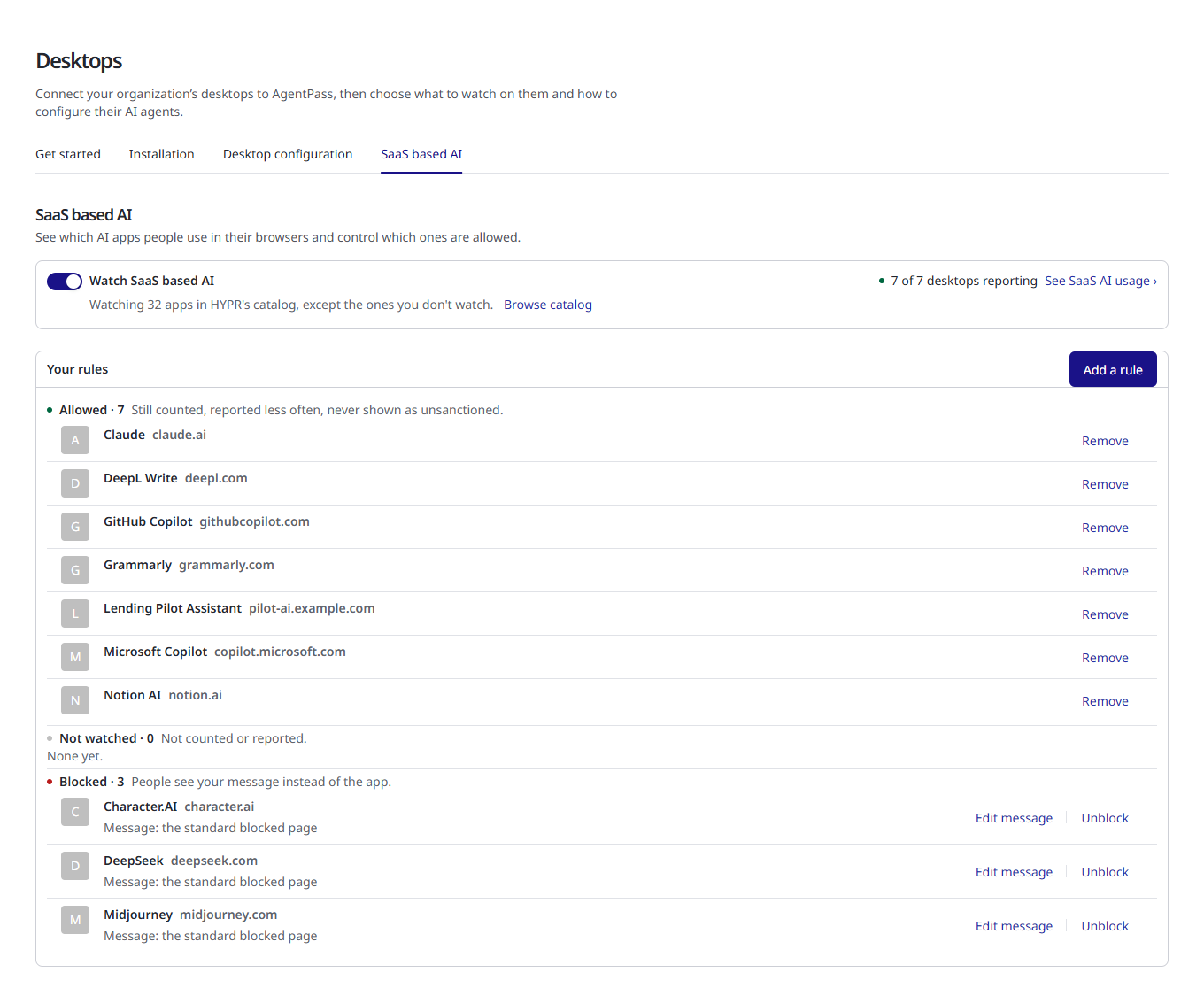
The card beside the switch shows how many apps from HYPR's catalog your desktops watch, and how many of your enrolled desktops are reporting, such as 40 of 52 desktops reporting. When some are behind, See desktops opens them on Desktop activity. See SaaS AI usage › opens Desktop activity on the By tool tab with SaaS AI chosen, so you see every SaaS AI app in use across your organization. A desktop counts as reporting when it has reported in the last 7 days.
To stop, turn the switch off, and click Stop watching. Desktops stop looking for SaaS AI apps, and stop applying your blocks. Your rules and the figures already reported are kept.
Reading the Usage
Usage is on Activity › Desktop activity, for the last 24 hours (the default), 7 days or 30 days. Choose SaaS AI on the By tool tab to list only SaaS apps. See Desktop Activity.
Every count is only as complete as the fleet reporting it, so Desktops reporting leads the figures. If a third of your desktops are not reporting, every number understates reality by roughly a third.
The figures that matter for SaaS apps:
| Figure | What it means |
|---|---|
| SaaS based AI in use | How many distinct catalog apps were actually reached |
| Accesses | Every observed access, sanctioned or not |
| Unsanctioned | Accesses to apps you have not allowed |
| Blocked | Accesses your rules stopped |
On a Windows desktop, an access is counted each time a program on it looks up the app's address. One visit can count more than once, and a desktop app that reaches the same service counts too. Accesses close together in time are reported as one record, with their count.
Allowed apps still count toward total accesses. Both numbers matter, because the total gives the unsanctioned figure its context. On the By person tab, people are ordered by unsanctioned use, not total. Somebody who uses an app you allowed heavily is not shadow AI, and does not top that list.
Your Rules
The Your rules card on the SaaS based AI tab groups every app you made a decision about:
| Group | What it means |
|---|---|
| Allowed | Still counted, reported less often, never shown as unsanctioned |
| Not watched | Not counted or reported |
| Blocked | People see your message instead of the app |
| Your own apps | Apps you added, with no rule. Watched like any other app in the catalog |
An app with no rule is Watched: it is counted and reported, and its accesses count as unsanctioned.
Add a Rule
- On the Your rules card, click Add a rule.
- Search by name or domain, and type at least two letters.
- Click the app, and choose what to do with it:
- Allow: still counted, never shown as unsanctioned.
- Don't watch: not counted or reported.
- Block…: people see your message. You see who is affected first. See Block an App.
Desktops apply a rule on their next check. An app that already has a rule offers only Back to watched. To change one rule into another, set the app back to watched first.
You can also set a rule from the catalog. See The SaaS AI Catalog.
Allow
"We sanction this."
Allowed apps are excluded from the unsanctioned figure. They are still observed, but reported at a coarser resolution. You keep the totals, and your desktops send far less traffic, since nobody needs a minute-by-minute breakdown of an app they allowed.
Block an App
"We forbid this."
Blocking stops the connection on enrolled desktops, and counts the refusals. Before it commits, AgentPass shows you what the block affects:
- Which domains it covers
- How many desktops it affects
- Recent access volume
- Whether any other app claims the same domain
The last point is why blocking is never a simple toggle. Dozens of entries in an AI directory can claim a single domain. github.com, for example, is listed as the home of 82 different AI tools.
To block an app:
- Choose Block… for the app, from Add a rule or from the catalog's Change menu.
- Review the confirmation dialog. It shows the Desktops affected and the Accesses (30 days), lists each domain under Domains this covers and warns about anything the block also touches.
- Click Yes, block tool. Desktops apply the block on their next poll.
Each domain in the dialog carries a tag that says what the block does to it:
| Tag | Meaning |
|---|---|
| will be blocked | The block covers this domain |
| also claimed by N | Other apps claim the same domain, and blocking it affects them too |
| protected — will not be blocked | The domain is shared infrastructure, and stays unblocked |
| not blockable — still under review | The domain is still under review, and stays unblocked |
When an app cannot be blocked, the button reads Cannot block, and the dialog says why: for example, the app has no registered domain or none of its domains can be blocked.
Endpoint Guard for Windows reports SaaS AI use, and does not block it. On a Windows desktop, a blocked app stays reachable, and people do not see your message. Its accesses are still counted as unsanctioned, and the Blocked figure does not include them.
Shared infrastructure, such as cloud, CDN and hosting domains, is protected, and cannot be blocked by any route. Blocking one would break unrelated services across your whole organization, not only the AI app that happens to sit on it. The dialog tags the domain as protected, and the block covers the app's other domains. When none of an app's domains can be blocked, the dialog refuses.
Set the Blocked Message
Each blocked app shows the message people see in its place: your own, or the standard blocked page. To write one:
- In the Blocked group, click Edit message on the app.
- Write what someone sees when a desktop blocks the app, up to 500 characters. Point them at what to use instead, for example Use Firefly for image generation.
- Click Save.
Don't Watch
"This was never shadow AI."
Use it for a corporate app that happens to sit in an AI directory, or a false positive on a shared domain.
Not watching is stronger than hiding a row. The app is dropped from what your desktops watch for, so they stop matching and reporting it entirely, with no traffic and no stored rows. History already collected is hidden, not deleted. If you watch the app again, it comes back.
Allowing a noisy row makes it go away, but misstates your figures. Allowed usage counts as sanctioned AI, so allowing something that is not really an AI app overstates how much sanctioned AI your organization uses. Don't watch is the accurate control.
Reverse a Rule
Reverse a rule from its row on the Your rules card:
- Remove, on an allowed app.
- Watch again, on an app you don't watch.
- Unblock, on a blocked app.
You can also choose Back to watched from the catalog's Change menu. Desktops pick up the change on their next check.
The SaaS AI Catalog
Click Browse catalog, beside the Watch SaaS based AI switch, to open the SaaS AI catalog. It lists every app your enrolled desktops can watch for, whether or not anyone used it, 25 to a page.
Use these controls to narrow the list:
- Search name or domain: find an app by its name or one of its domains
- All categories: show one category only, such as Assistant, Code or Writing
- Any risk: show only High risk, Medium or Low apps
- Show apps you don't watch: include the apps you stopped watching
| Column | What it shows |
|---|---|
| App | The app's name and its domains. Yours marks an app you added |
| Category · risk | The app's category and risk rating |
| Status | Watched, Allowed, Not watched or Blocked |
Users who can edit settings also see a Change menu on each row, with the same choices as Add a rule. A status you set applies to your organization only.
Adding an App of Your Own
The HYPR catalog cannot know about your internal apps, and no directory is complete. To add an app:
- Click Add an app by its domain, from the catalog or from the Add a rule dialog. The Add an app by its domain dialog opens.
- Enter a Name, which is what administrators will read.
- Enter the Web address. AgentPass takes the hostname from it, and fetches and stores the app's favicon as its logo. The logo is never loaded from the third-party site when the page is viewed.
- Under What is it?, write a sentence for whoever looks at this next.
- Click Add app.
Desktops start watching its domain on their next check, and the app appears in the catalog marked Yours. It matches the domain and every subdomain of it. Until you give it a rule, it is listed under Your own apps on the Your rules card. To remove it, click Delete on its row, and confirm. Desktops stop looking for it.
Expect two deliberate refusals:
- The domain is already in the catalog. A domain identifies exactly one app. AgentPass names the existing app, so you can set a rule on that instead.
- The domain is shared infrastructure. This is the same protection as for blocking, for the same reason.
If no logo is found, the app is still added, and the message says so. The address may not publish a favicon.
Attribution and Privacy
Per-person usage is governed separately from the aggregate figures:
- Attribution mode. In aggregate-only mode, no SaaS app use is ever attributed to an individual, and none is stored. The By person tab on Desktop activity then says Per-user attribution is switched off, and lists only desktop-agent logins. To turn on aggregate-only mode for your organization, contact HYPR support.
- A separate permission. Seeing who used which app requires AI SaaS user detail: View, granted separately from the aggregate figures. Of the built-in roles, only Admin holds it. Users without it see the apps and the desktops, but not who used each app.
Detailed access records are kept for a short window. The aggregated figures behind the dashboard and its trend are kept far longer.
Where the Catalog Comes From
AgentPass ships with a curated catalog of several thousand AI apps, so discovery works on day one with no configuration and no internet access.
HYPR curates that catalog centrally. An app's domain is delivered to every customer's desktops, so entries are reviewed before they become active. The decision is yours, per tenant: allowed, blocked or not watched. Your decisions are never visible to another customer, and theirs are never visible to you.
On-premises and air-gapped installations can load an updated catalog from a signed bundle. Your own gateway always serves the logos, which are never fetched from third-party sites when a page is viewed. Loading them from external URLs would tell whoever hosts those images which AI apps your workforce uses.
Troubleshooting
Start with what you see.
| What you see | What it means |
|---|---|
| "Watch SaaS based AI is off, so these figures are historical." | Watching is off, and the figures shown are historical. Turn on Watch SaaS based AI |
| "No desktops are enrolled yet, so nothing is being observed." | Enroll desktops. See Endpoint Guard setup |
| "Only N of M enrolled desktops have reported in the last 7 days." or "None of the enrolled desktops have reported in the last 7 days." | Fewer than half of your desktops are reporting. Check enrollment, and that the desktop client supports SaaS AI observation |
| "Aggregate-only mode is on, so usage is not attributed to individual people." | Your organization runs in aggregate-only mode. See Attribution and Privacy |
| An app you expect is missing from the catalog | Only active catalog entries are watched. Entries HYPR is still reviewing are not delivered. You can add the app yourself |
| A blocked app still shows accesses | Blocks apply on each desktop's next poll, not instantly. Accesses before then are already recorded |
| The By person tab names nobody for SaaS apps | Either attribution is aggregate-only, or your role does not hold AI SaaS user detail: View |