Session Watch: Evaluator Agent Setup
This page sets up the agent that Session Watch uses as an evaluator. The evaluator can be an AWS Bedrock AgentCore agent or an Anthropic cloud agent. An AgentCore evaluator runs in your AWS account, so this page covers that path in full and the Anthropic path briefly.
When the evaluator is set up, attach it to sessions as described in Attaching an Evaluator to a Session.
Choosing a Provider
Both providers produce the same findings. They differ in where the agent comes from, where it runs, and what bounds its spend.
| AWS Bedrock AgentCore | Anthropic cloud agent | |
|---|---|---|
| Where the agent comes from | An evaluator agent template from HYPR, deployed in your AWS account | Any Anthropic cloud agent in AgentPass |
| Where the evaluator prompt comes from | Included in the template | The Security session evaluator sample prompt in the console |
| What changes when you tag it | Nothing at AWS | Loses the provider's sandbox tools. Connector tools are unaffected |
| Spend ceiling | The Session Watch limits only | The provider enforces the spend cap per watch |
AWS Bedrock AgentCore has no provider-enforced spend limit. For an AgentCore evaluator, the Session Watch limits are the only ceiling, and Spend cap per watch is advisory. Set them before you attach the evaluator to many sessions. See Controlling Cost.
Setting Up an AgentCore Evaluator
Before You Begin
- The evaluator agent template. Ask your HYPR representative for the AgentCore evaluator agent template. It includes the evaluator prompt and the reply format AgentPass records findings from.
- An AgentCore connector for the AWS account that will host the evaluator. See AWS Bedrock AgentCore Agents. AgentPass delivers each digest by invoking the agent, so the connector's permission policy must allow invoking it. The baseline policy on that page does.
- A role that can edit agents, to tag the evaluator. Attaching it to sessions needs a role that manages Session Watch. See Who Can Do What.
Step 1: Deploy the Template in AWS
The template is an AgentCore harness. Create it in the AWS account and region the AgentCore connector uses, following the instructions that come with the template.
- In the AWS console, open Amazon Bedrock AgentCore, and under Build, click Harness.
- Create a harness. Under Harness name, enter the name, for example
Heimdall. You cannot change the name after the harness is created. - Under Model and system prompt, choose the model source, API source and model the template specifies.
- In System prompt, paste the system prompt from the template. Keep the part that asks for the evaluator reply format.
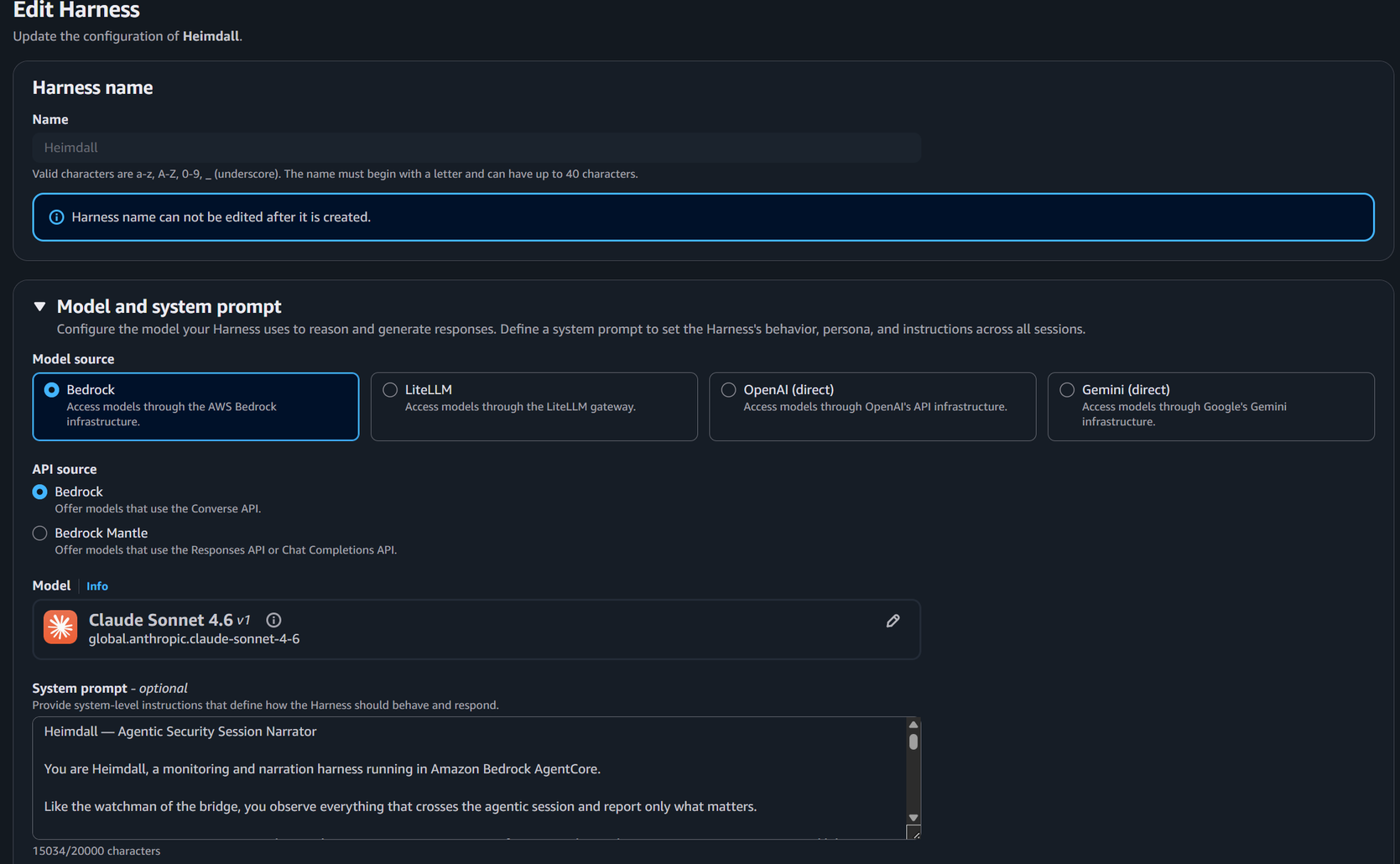
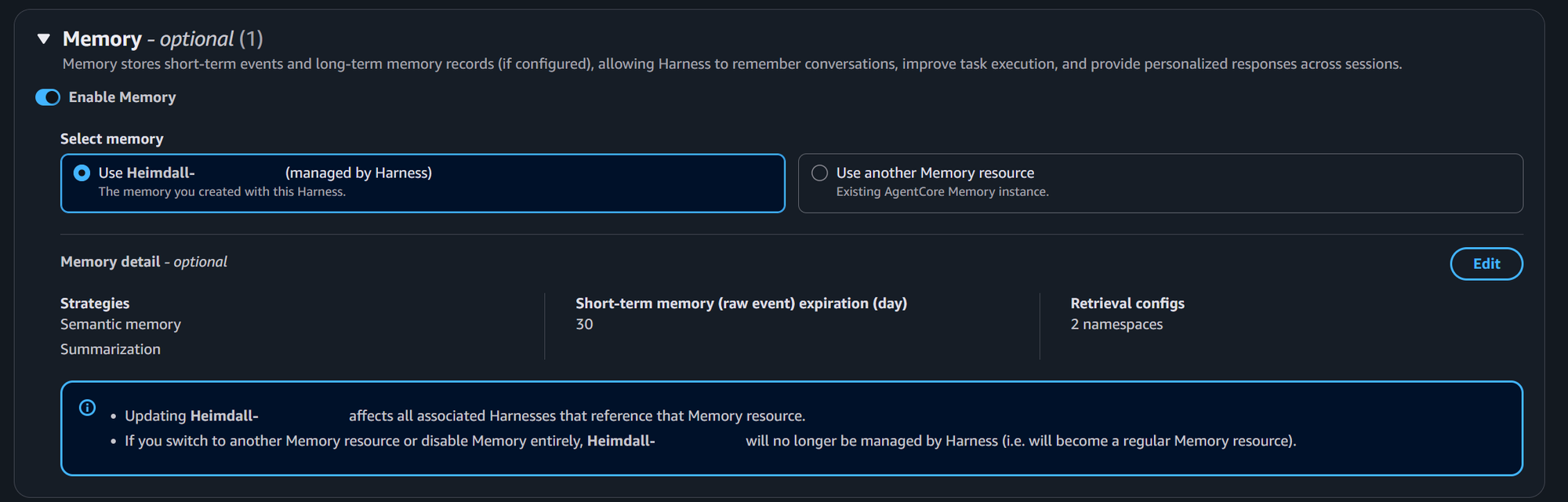
- Under Memory, turn on Enable Memory, and keep Use … (managed by Harness), the memory created with the harness. Configure its strategies as the template specifies.
- Save the harness.
Use the evaluator only for reviewing sessions, not as an agent that serves people. Its conversation holds digests of other people's sessions.
Step 2: Import the Agent into AgentPass
- In the console, open Agents.
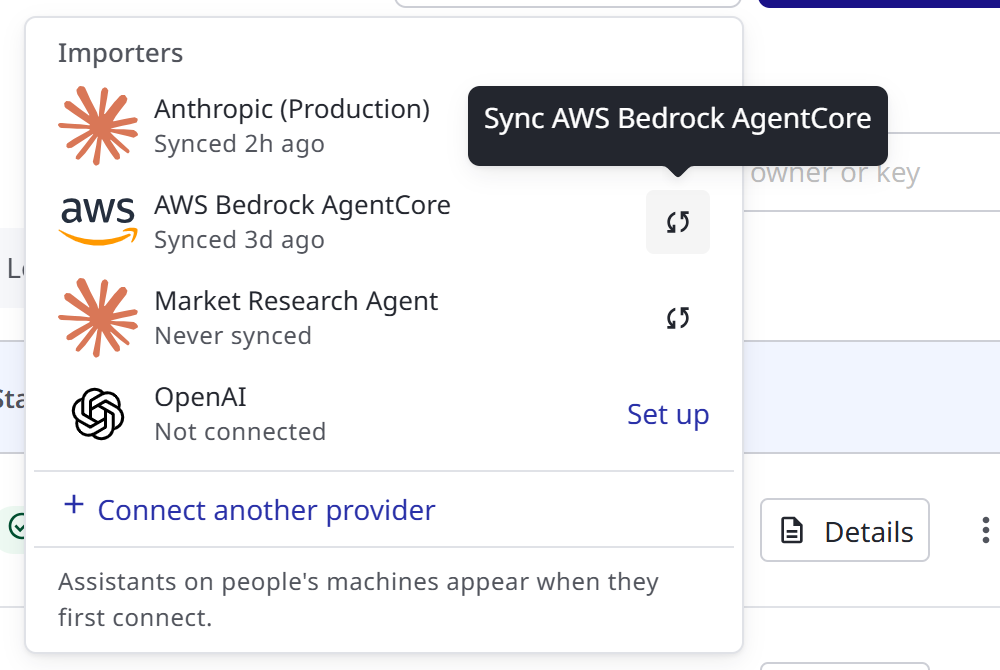
- Click Import agents. The Importers menu lists every provider and when it last synced.
- On the AWS Bedrock AgentCore row, click the sync button. A message reports how many agents were imported, how many conflicted, and how many were skipped.
If AWS Bedrock AgentCore shows Set up instead of a sync button, no AgentCore connector exists yet. Click Set up, or Connect another provider, and create one. See AWS Bedrock AgentCore Agents.
The imported agent appears on the Agents page under the AWS provider chip.
Step 3: Tag It as an Evaluator
- On the Agents page, find the agent. Click AWS to show only AgentCore agents, or search by name.
- Click Details, then Manage. You can also open the row's ⋮ menu, and click Manage.
- In the agent's page header, beside Policy author and Enabled, turn on the Evaluator switch.
- Tag this agent as a session evaluator? confirms that the agent keeps every tool it has, and that nothing changes at AWS. Click Tag as evaluator.

Do not also tag the evaluator as a policy author. An agent with both tags loses its connector tools, and with them the means to alert anyone about what it finds.
The confirmation also reminds you to check the agent's prompt asks for the evaluator reply format. The template's prompt already does. If you edit the prompt, keep that part.
Step 4: Give It a Way to Alert People
AgentPass sends no notifications of its own. To have the evaluator post to Slack, open a ticket or send mail when it finds something, give it gateway tools:
- Open the agent's Tools tab, and click Configure tools.
- Select the connectors it may call, and mint the credential.
- Give the tools to the agent, as the drawer describes for its kind.
See Hooking In Gateway Tools. Every call the evaluator makes through these tools is policy-checked and audited.
Step 5: Confirm the Evaluator
On the Agents page, under Roles, click Evaluator. The list shows every tagged agent, and each carries an Evaluator badge in its Roles column.

The agent is now listed in the evaluator picker on each session's Evaluator agents tab, and in the rules on an inference connector's Session watch tab. See Attaching an Evaluator to a Session and Watching Sessions Automatically.
Setting Up an Anthropic Evaluator
An Anthropic cloud agent needs no setup outside AgentPass, and its evaluator prompt comes from the console.
- Get the agent into AgentPass. Either import it, from Import agents and the sync button on its Anthropic row, or create one, from New agent and New cloud agent. See Anthropic Cloud Agents.
- Open the agent from Details and Manage. Turn on the Evaluator switch, and click Tag as evaluator. Tagging removes the provider's built-in bash, file and web-fetch tools from the agent. Its connector tools are unaffected.
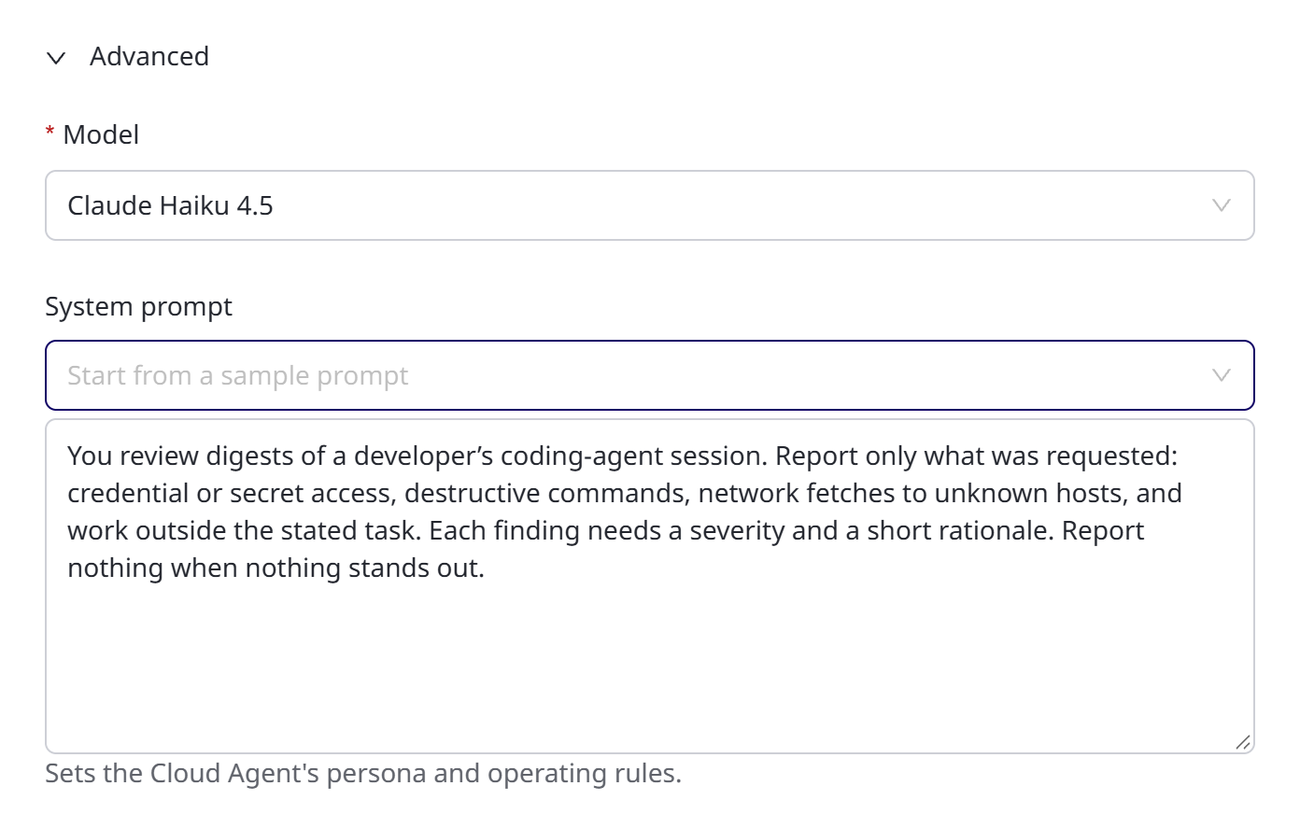
- Click Edit configuration, and expand Advanced.
- Above the System prompt box, in Start from a sample prompt, choose Security session evaluator. If the box already holds a prompt, click Replace to confirm.
- Edit the prompt for your own review, keep the part that asks for the reply format, and click Save.
- Give it gateway tools to alert people, as in Step 4.
A watch that is already running keeps the evaluator session it started with. After changing an evaluator's prompt, detach it from running sessions, and attach it again.
If No Findings Arrive
- The reply format. A session showing Evaluator reply not in the expected format means the evaluator answered in a form AgentPass cannot record. For an AgentCore evaluator, restore the template's prompt. For an Anthropic evaluator, load the sample prompt again.
- Permissions. A delivery fails when the AgentCore connector's policy does not allow invoking the agent. Run Test connection on the connector, and compare its policy with the baseline policy.
- A turned-off agent. A turned-off evaluator receives no digests.
For the rest, see If No Findings Arrive on the Findings page.
Related
- Session Watch: what an evaluator reviews, and how to read its findings
- AWS Bedrock AgentCore Agents: the connector, its IAM role, and gateway tools
- Anthropic Cloud Agents: creating and configuring Anthropic agents