Desktop Activity
The Desktop activity page in HYPR AgentPass™ shows the AI tools your organization uses that you have not onboarded, often called shadow AI. It shows what enrolled desktops report, and the AI clients the gateway saw with no enrolled desktop behind them. You can see what is running before you decide how to govern it. Nothing listed here has been onboarded, granted access or blocked.
The page is read-only. To change rules, settings or enrollment, use Desktops. This page replaces the earlier Discovered view.
See and Govern the AI Tools Already on Your Workstations takes you from this list to routed, enforced tools.
Where the Activity Comes From
AgentPass collects activity from two sources:
- Desktops. Enrolled desktops report the AI tools they run, including tools that never route through the gateway, and the SaaS based AI apps people reach in their browsers. Desktop activity is signed by the desktop, and attributed to the user signed in at the time. To enroll desktops, see Endpoint Guard setup.
- Gateway. When an unmanaged client sends traffic through the gateway, AgentPass records the activity. Where it can, it attributes the activity to a user and desktop, and to the provider account the traffic used.
You see clients that were never explicitly connected, whether they pass through the gateway, run only on the desktop, or both. For how the desktop client recognizes an AI agent among other software, see Endpoint Guard.
Open Desktop Activity
Open Activity › Desktop activity. The page opens on the By tool tab.
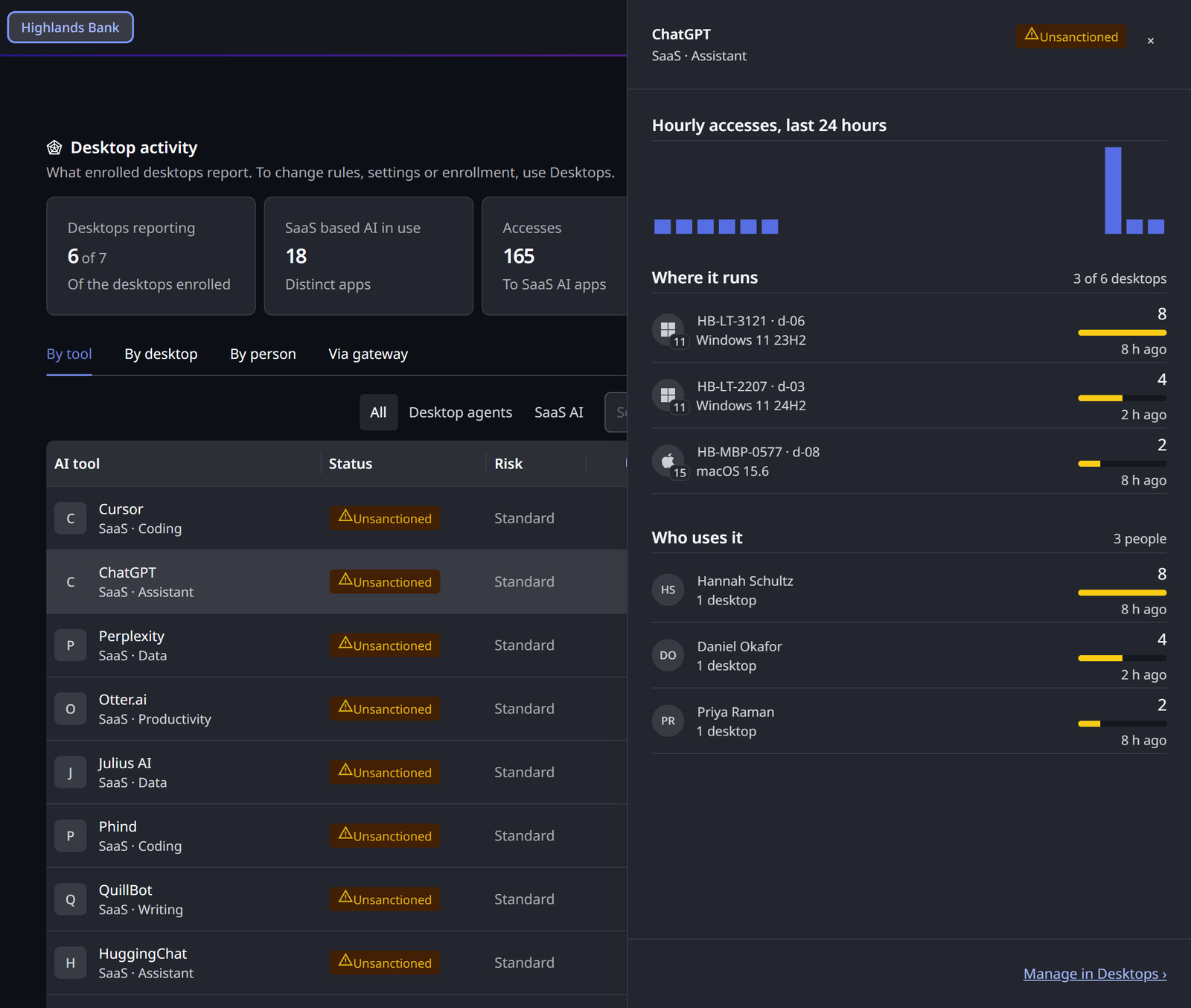
Across the top, five figures summarize the selected window:
| Figure | What it means |
|---|---|
| Desktops reporting | Desktops that reported, of the desktops enrolled |
| SaaS based AI in use | Distinct SaaS AI apps used |
| Accesses | Accesses to SaaS AI apps |
| Unsanctioned | Accesses to apps you have not approved |
| Blocked | Accesses your rules stopped |
Warnings appear below the figures when they could mislead, for example when fewer than half of the enrolled desktops reported in the last 7 days. See SaaS Based AI.
Use the time-range selector to choose Last 24 hours (the default), Last 7 days or Last 30 days. Every tab uses the same window, so the tabs agree. What desktops report is kept for the window of the Discovery category on Data Management.
The Tabs
Click a row on the first three tabs to open its details in a side panel. In a desktop's or a person's panel, click a tool's name to see that tool across all desktops on By tool, or click See all desktops › beside the tool list to see every tool in use across your organization.
By Tool
Every AI tool used in the window, desktop agents and SaaS AI apps together. Filter by All, Desktop configuration or SaaS AI.
| Column | What it shows |
|---|---|
| AI tool | The tool, and whether it is a desktop agent or a SaaS app |
| Status | Unsanctioned, Blocked or Approved for a SaaS app. A desktop agent shows Per desktop, because you configure desktop agents per desktop, not with an approval rule |
| Risk | High or Standard |
| Use | Accesses for a SaaS app. Runs for a desktop agent |
| Desktops | Desktops that used it, of the desktops reporting |
| People | People who used it, of everyone seen in the window |
| Last used | When it was last used |
The list puts unsanctioned tools first, then blocked tools, desktop agents and approved tools, and then sorts by risk and use. A tool's panel shows its use over the window, Where it runs and Who uses it.
By Desktop
Every desktop that reported AI use, with its State (Reporting, Silent for 7 days or more, or Revoked), its people, its AI tools, its website use and its last check-in, under Heartbeat. Desktops that checked in but reported no AI use are counted below the list. Click Show to list them.
A desktop's panel shows its hardware, desktop client, enrollment token, enrollment date and website reporting, the AI tools on it and its people. For a role that holds Settings: View, it also shows the desktop's Managed configuration and a Manage in Desktops › link.
By Person
Everyone who used AI in the window, ordered by unsanctioned use, then total use. System accounts are listed, but never ranked. A person's panel lists the tools they used and their desktops, with an Open in People › link.
AgentPass joins a desktop-agent login with the website login seen on the same desktop when the names match. A joined person carries a note that says so. Check it before acting on that person.
Via Gateway
Unmanaged clients the gateway saw with no enrolled desktop behind them.
| Column | What it shows |
|---|---|
| Owner | The user the activity is attributed to: their name, with their login beneath. A client with no reported identity is tagged Unattributed |
| Desktop | The desktop the client ran on, where the gateway could tell |
| Tool | The AI client observed, such as Claude Code or Codex |
| Provider account | The provider account the traffic used, where the gateway could read one |
| Requests | The requests proxied through the gateway |
| Errors | The requests that failed |
| Last seen | When the client was last seen |
Who Sees What
You need Agents: View to open the page. Its scope, and two more permissions, decide what you see.
| Permission | What it shows | Built-in roles |
|---|---|---|
| Agents: View at All scope | Every tab in full, for your whole organization | Admin, Operator, Security analyst and Auditor |
| Agents: View at Own scope | The gateway activity of the agents you supervise, on Via gateway. Activity that desktops report is not shown, and a warning says Activity reported by desktops is shown to administrators only. | Supervisor |
| AI SaaS user detail: View | Who used which SaaS app. Without it, the panels leave out who used each app | Admin |
| Settings: View | A desktop's Managed configuration and the Manage in Desktops › link | Admin, Operator and Auditor |
Model governance owner does not hold Agents: View, so the page is not in its navigation. For how permissions and scope work, see Roles and Permissions.
Act on What You Find
Use Desktop activity to:
- Understand your exposure. See which AI tools are active, who runs them, and on which desktops.
- Prioritize onboarding. Bring the clients that matter under management. A client stays on this page until it is onboarded, which is a separate, approved step.
- Set rules for SaaS AI apps. Allow, stop watching or block an app from Desktops › SaaS based AI. See SaaS Based AI.
- Drive desktop tools from the gateway. For the desktop coding tools you see here, Managed Desktop Tools can route their inference through the gateway, and block their direct provider traffic. In the console, this is Desktops › Desktop configuration › Configuration.
- Inform your policies. Write policies that target the patterns you observe.
Related
- Endpoint Guard — how desktops discover, identify and route AI agents
- Endpoint Guard setup — enroll desktops so they report the AI tools they run
- SaaS Based AI — the rules for the AI apps people use in their browsers
- Managed Desktop Tools — route and enforce the desktop tools you discover