HYPR Affirm: Overview
HYPR Affirm is the workforce identity verification component of the HYPR platform. It gives security and IT teams an automated way to confirm that the person behind an action — a new hire being onboarded, an employee recovering account access, a caller asking the help desk for a password reset, a workforce user requesting step-up access to a sensitive system — is actually who they claim to be.
Affirm runs configurable verification flows that combine government-ID document checks, biometric liveness capture, directory data validation, and policy controls into a single audit-ready decision. Where HYPR Authenticate handles ongoing passwordless authentication and HYPR Adapt handles risk-signal-driven adaptation, Affirm is the high-assurance identity proof layer that establishes trust at moments of elevated risk: onboarding new identities, recovering compromised or lost ones, and validating who is on the other end of a support conversation.
HYPR Affirm is not available in certain restricted territories, and additional data-sovereignty rules apply in some regions. See Supported Documents by Location for the full list.
Where to start
| If you want to… | Go here |
|---|---|
| Run your first verification flow | Get Started |
| Configure workflows and outcomes | Configuring HYPR Affirm |
| See what end users experience | User Experience |
| Review audit logs and verification activity | Analytics |
| Look up supported documents, status enum, or test cases | Reference |
The verification model
A verification flow in HYPR Affirm is a configurable sequence of identity checks that produces a single, recorded outcome. It's the unit an administrator designs and the unit a requester goes through. A flow has three structural pieces:
- A flow type — Onboarding (a new identity establishing themselves), Recovery (an existing identity regaining access), or CC Admin (Control Center administrator self-attestation). Only one CC Admin flow can exist per tenant.
- A sequence of verification steps — each step gathers evidence (a phone OTP, a live photo, a document, an Entra Verified Credential) and either passes or fails. Steps can be ordered, made required or optional, and assigned per-step retry limits and failure outcomes.
- An outcome — what happens on completion: redirect to a destination (Device Manager, an external URL, an Okta password reset), issue a credential (Entra Temporary Access Pass, Entra Verified ID), or simply approve/deny with a recorded decision.
The flow is configured once by an admin and then executed many times — once per requester. A flow's overall outcome is computed from per-step results: a single step failure may or may not fail the flow, depending on the configured per-step failure outcomes and on the verification flow's risk-signal escalation policy (see below).
Verification flows produce a point-in-time decision: at this moment, this requester proved they hold this evidence. They do not produce ongoing assurance — for continuous re-checking of risk signals over time, HYPR Adapt is the complementary product, and Affirm and Adapt can be combined.
See Create and Manage Verification Flows for the admin walkthrough and Configure Verification Steps for each step type and its options.
Key capabilities
Document and biometric verification
The headline assurance mechanism: the requester presents a government-issued ID (passport, driver's license, national ID, residence permit) and a live selfie. HYPR's verification provider authenticates the document, runs a liveness check against the selfie, and matches the selfie's face against the document photograph. Optional Motion Detection hardens the liveness check against digital spoofs by requiring a head-turn pattern during capture.
See Configure Verification Steps → Document and Biometric Verification.
Dual Document Verification
For workflows that require two identity documents per requester (for example, government-issued ID plus proof of residence), Dual Document Verification verifies both documents against a single live biometric capture. The requester completes one live capture and is then prompted at the end of the flow for the second document — no need to repeat the live capture.
See Dual Document Verification.
Liveness-Only (Anchor Image)
For workforce scenarios where the requester is already a known internal user — a workstation account, an HR record with a photo on file — Affirm can run a liveness-only verification: a live selfie compared against an existing anchor image pulled from a configured directory. This avoids asking known employees to upload personal documents for routine re-verification.
See Liveness-Only Verification.
How Affirm resists spoofing and deepfakes
Affirm's biometric steps build assurance in layers — each layer adds a defense against a different class of impersonation attempt. Administrators pick the combination that matches the workflow's threat model.
| Step | What's captured | Compared against | What it adds vs. the lighter option |
|---|---|---|---|
| Photo ID and Liveness Capture | Photo ID + live selfie | The face on the ID | Liveness defeats static-photo and pre-recorded-video replay — the selfie must be captured in real time. |
| Document and Biometric Verification | Government-issued ID + live selfie | Document photo + name + optional compliance lists | Adds document-authenticity checks (forgery, tampering) and optional KYC/AML/OFAC overlays on top of the liveness check. |
| + Motion Detection (optional, beta) | Above, plus a head-turn pattern during capture | Same | Hardens the liveness check against higher-fidelity digital spoofs — pre-recorded video and face-swap deepfakes can't satisfy a live, prompted head-turn that the attacker cannot pre-render. |
| Liveness-Only (Anchor Image) | Live selfie | Directory-sourced anchor image | Same liveness defense, but the comparison target is a pre-vetted directory image rather than a freshly captured document — appropriate when the requester is already a known internal user. |
These layers are independent: a workflow can use Photo ID and Liveness without Motion Detection if the threat model doesn't require it, and Motion Detection can be enabled per workflow without affecting other flows. Each layer also produces its own risk signals — liveness pass/fail, motion-detection result, document-authenticity findings, name-match confidence — which the Risk Policy Builder can evaluate independently. For example, a workflow can deny on any liveness failure but allow a low-confidence document match through with manual approval.
For per-step configuration, see Document and Biometric Verification, Photo ID and Liveness Capture, and Liveness-Only (Anchor Image).
Workflow outcomes and integration handoffs
A successful verification fires a configurable outcome. Affirm can hand off to Microsoft Entra ID (issue a Temporary Access Pass, issue an Entra Verified ID credential), to Okta (trigger a password reset), to HYPR's own Device Manager (register a new login method), or to any custom URL with optional dynamic parameters. The outcome ties the verification result into the broader identity infrastructure rather than leaving it as a standalone decision.
Per-step retry and outcome controls
Each verification step can carry its own retry limit, retry-window timing, and failure outcome (deny verification, continue without escalation, escalate to live chat, redirect to a different URL). Administrators tune these per step to balance assurance against user friction — a high-security workflow can deny on any document failure, while a recovery workflow can allow the requester to retry document capture several times before escalating.
See Injectable Outcomes & Retry Limits.
Network and location policy
Affirm enforces where verifications can originate from. Administrators define IP allow / block lists, sanctioned-country lists (with hard blocks before any step executes), and multi-headquarters proximity thresholds (validation succeeds only when the requester is within a configurable distance of one of the organization's defined locations).
See Network and Location Policy.
Escalation
Affirm uses escalation in two independent mechanisms that can be active in the same flow:
- Approver chain escalation routes a verification decision from one human approver to the next when the active approver fails to respond within their configured timeout. Typical patterns include manager → manager's manager → designated escalation contact, or help-desk agent → senior agent → HYPR automated approval as a fallback.
- Risk-signal escalation routes a verification flow into a higher-friction path (manual review, additional steps, automatic denial) when a risk signal fires during step execution.
When both are active, risk-signal policy decides first: as a step completes, the assigned Policy Evaluation Kit walks its predicate-driven Pass/Fail rules; a Fail rule with the Deny action terminates the flow, while Escalate immediately or Continue on failure (escalate) routes into the human-review phase, where the approver chain's timeouts and ordering then apply.
Risk signals include Medium Verified for Phone/Email Verification, Country Block List / IP Allowed / Distance Threshold for Location, and 81 signals available on the IDV Outcome action across the First and Second Biometric Check groups. Administrators build Policy Evaluation Kits that read those signals through predicate-driven Pass/Fail rules in the Affirm Risk Policy Builder. A kit is assigned to a verification flow; the runtime engine walks the kit's rules per action and the first matching rule decides the action's outcome. Kits also support introducing additional verification steps based on prior-step signals — adding friction only when signals warrant it.
See Approvers and Escalation Approvers for approver-chain configuration and Risk-Signal Escalation Policy for the policy model.
KYC compliance screening
For regulated identity-verification programs, Affirm runs sanctions, watchlist, and OFAC checks against the requester's profile in addition to the standard document and biometric checks. The screening results flow into the same outcome and observability surfaces as the rest of the verification.
Affirm Studio (end-user screen customization)
Affirm Studio is the visual screen-management interface that lets administrators customize content (titles, descriptions, button labels, error messages) and styling (typography, colors, logo) on every end-user verification screen. Customizations are organized into reusable "kits" applied per workflow, with desktop and mobile previews available before publish.
Customizable consent screen
Per-workflow Terms and Conditions content replaces the default HYPR consent text. The required Entrust consent language is preserved automatically alongside any organization-specific content, so the consent screen can match corporate communication standards without compromising the underlying verification provider's required disclosures.
See Customizable Consent Screen.
Code customizations and custom verification steps
For organizations that need to override default Affirm behavior — pull user identity from a non-standard source, send SMS or email through a corporate gateway instead of HYPR's, run a proprietary fraud check as a verification step — Affirm exposes a Code Customization API. Customizations cover User Directory lookup, SMS sending and verification, email delivery, outcome handling, and image writeback. Organizations can also register entire custom verification steps as pluggable SPAs alongside HYPR's built-in steps.
See Affirm Customizations and Custom Verification Steps.
Directory image writeback
After a successful verification, Affirm can push the captured images (selfie, document scans) directly to an enterprise directory or HR system — Entra ID, Okta, Ping Identity, or a custom endpoint — without retaining the images in HYPR. This supports privacy-by-design and data-minimization requirements where the verification provider should not be the system of record for biometric or identity-document data.
See Directory Image Writeback.
How Affirm moves images between HYPR and your directory
HYPR is the verifier; the customer's directory is the system of record for identity images. Affirm provides two complementary mechanisms that move images between those two sides — in opposite directions — without HYPR ever becoming the long-term store.
| Anchor Image (directory → HYPR) | Directory Image Writeback (HYPR → directory) | |
|---|---|---|
| Direction | Customer directory provides an image to HYPR for a single verification | HYPR sends captured images to the customer directory after a successful verification |
| When it happens | At the start of a Liveness-Only verification flow | After the verification outcome satisfies the configured outcome gate (PASS only / PASS + no escalation / PASS + manual approval) |
| Which step uses it | Liveness-Only (Anchor Image) — selfie compared against the anchor | Document and Biometric and Photo ID and Liveness — selfie + document captures are written back |
| What HYPR does with the image | Reads it into memory for the comparison; does not persist | Transmits it to the destination per the configured mapping; does not persist |
| Customer purpose | Verify a known internal user without asking them to upload a fresh document | Keep the directory's stored identity image current; satisfy data-minimization rules that require the verifier not to be the system of record |
| Implementation hook | Custom Image Repository via the User Directory customization | USER_DIRECTORY_IMAGE_WRITEBACK code customization |
The two mechanisms compose. A common pattern: use Anchor Image lookups for routine re-verifications of known employees, and use Image Writeback (after a fresh Document and Biometric verification, e.g., during periodic re-onboarding) to refresh the anchor image in the directory on a configured rotation. The anchor a workflow reads today can be the image a prior verification wrote back yesterday — keeping the directory's reference image current without giving HYPR ongoing custody of it.
Both mechanisms are fully audited via the Audit Trail, so administrators can reconstruct which image was read or written for any verification.
Helpdesk operations
The Affirm Helpdesk portal is the agent-facing surface for support teams that need to confirm a caller's identity before completing a sensitive action — a password reset, a step-up access grant, an account unlock. HYPR Affirm supports two operating models for triggering a verification flow:
- Self-service — the requester starts the flow themselves (via a tenant URL, email magic link, or QR code) and walks through the verification steps without operator involvement. This is the default for onboarding and most recovery scenarios.
- Helpdesk-initiated — a support agent in the Affirm Helpdesk portal starts the flow on the requester's behalf. The requester still completes the verification steps, but the agent is the initiator and remains in the loop to coordinate, monitor outcome, and (in escalation paths) join a chat with the requester.
Both models use the same underlying verification flows; only the initiator differs. Use Helpdesk-initiated when a support agent needs to confirm a caller's identity before performing an action, when the caller has lost access and cannot self-start, when onboarding involves a human handoff, or when audit or compliance requirements mandate a recorded agent-initiated identity check.
The portal supports role-based access controlled at the identity provider: a Helpdesk viewer can browse verification activity, see flow status, and review past records (read-only); a Helpdesk administrator (initiator) can initialize verification flows on behalf of a caller, send invitation links, and participate in escalations. Roles are conveyed in the OIDC token returned by the IdP when the agent signs in. To prevent a user from accessing the portal at all, remove the Helpdesk application assignment for that user in the IdP rather than relying on the absence of roles.
When a caller completes a verification, the final outcome screen can display a Verification Confirmation ID — a short code the caller reads to the agent. The agent searches for and validates this code from the Helpdesk activity view, confirming the caller's most recent verification without exchanging additional personal data over the phone.
See Affirm Helpdesk for the operations guide and Affirm Helpdesk via Okta OIDC for the OIDC integration setup.
Data residency and retention
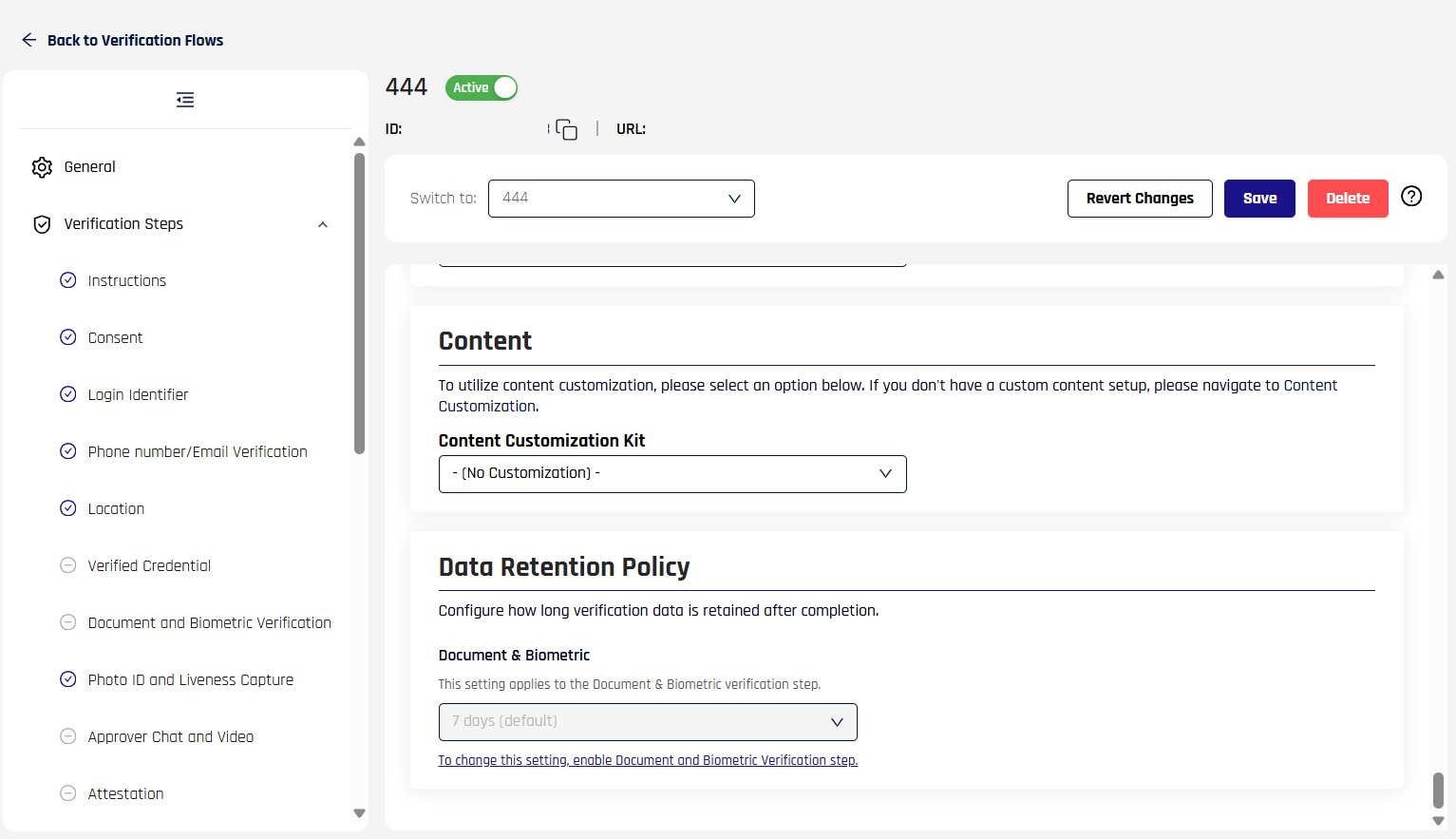
HYPR Affirm retains verification data — including identity documents and biometric captures — for a configurable retention window, set per workflow during workflow design. Two retention modes are available:
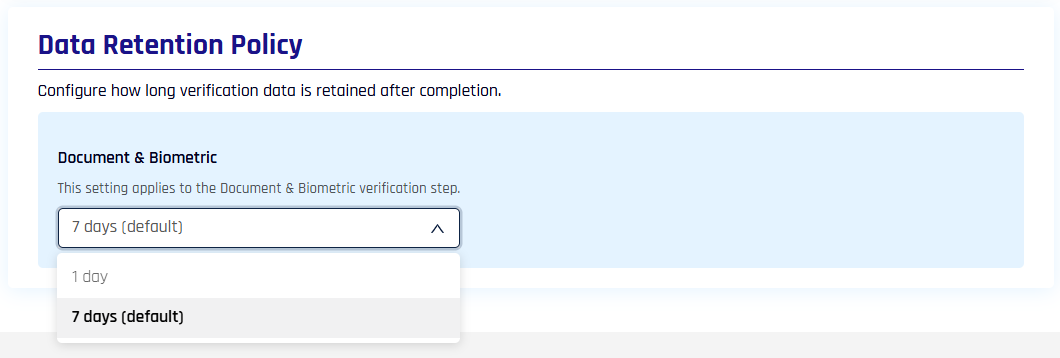
- 7-day retention (default) — verification data is retained for 7 days after the outcome. Appropriate for flows that may require dispute resolution, audit, or re-review windows.
- 1-day retention — verification data is deleted within one day of the outcome. Appropriate for deployments subject to strict data-residency or data-minimization requirements (EU jurisdictions, internal privacy policies that mandate short retention).
The 1-day option requires a separately-provisioned short-retention configuration on the HYPR side; coordinate with your HYPR representative to confirm 1-day retention is enabled for your tenant before publishing workflows that select it. Evaluate the setting during workflow design rather than after rollout — switching modes after a workflow has been used in production may require coordination with HYPR Support.
The Data Retention Policy dropdown applies to the Document and Biometric verification step and is editable only when that step is enabled in the workflow.
See Pre-Deploy Checklist for deployment preparation context.
Observability
Every verification flow produces records on four observability surfaces tied together by a single correlation key — the Verification Flow ID — that is assigned the moment a flow starts and propagates to every log entry, event, scorecard row, and API response for that single attempt:
- Activity Log — one record per requester attempt, showing the decision, the approver, per-step outcomes, and the evidence collected. Available in Control Center and the Helpdesk portal.
- Audit Trail — events about administrative actions on Affirm itself (workflow created, customization saved, role assignment changed), distinct from per-requester verification activity.
- Scorecards — the per-verification review surface that approvers, Helpdesk agents, and CC admins see. The Scorecard summarizes per-step results — Document type/authenticity, face detection/match, liveness, spoofing, AML/OFAC, address and DOB verification — and renders only the steps the workflow actually executed.
- Events / API — every meaningful state change emits an event; the same data is also reachable via the Affirm API for SIEM, BI, or custom dashboards.
Outcomes use a canonical status enum across all four surfaces: VERIFIED, UNVERIFIED, ABANDONED, SKIPPED, ERROR, TIMED_OUT. Retry counters at both the flow level and per-step level are recorded explicitly, distinguishing first-attempt outcomes from later retries. For records from before HYPR 11.3, legacy entries lacking a Flow ID display as "Not Collected (legacy record)" rather than being silently merged with new records.
Each step that gathers evidence (documents, biometric captures, location data, OTP exchanges) produces an evidence package — the raw inputs and the system's evaluation of them. Packages can be embedded directly in the Activity Log detail view (for image-light steps) or referenced by pointer (for image-heavy steps); subject to the data retention policy above. Log and Scorecard surfaces only show the steps and attributes the workflow actually uses — a flow without a Location step won't render a Location column.
See Activity Log, Audit Trail, and the Status Enum Reference.
How it works at a high level
A HYPR administrator creates a verification flow in Control Center by selecting and ordering verification steps (phone OTP, document check, liveness, etc.), assigning approvers (or HYPR automated approval), and defining the outcome that fires when the flow completes successfully. HYPR generates a URL for the flow, which can be given directly to a requester or invoked by an integration (Okta, Entra, Keycloak, Ping).
When a requester opens the URL, they walk through the configured steps. Each step either passes or fails, and the flow records both the verification result and an evidence package (the inputs the system used to make its decision). The final outcome is recorded with a unique Verification Flow ID that ties together every log entry, audit event, scorecard row, and API response for that single verification attempt.
Tenant enablement
Some Affirm capabilities are enabled per-tenant by HYPR rather than self-served from Control Center. If a feature mentioned in this section is not visible in your tenant, contact your HYPR representative to confirm enablement for your environment.
For administrators who need the canonical list of feature flag identifiers (used for support, deployment requests, and internal audit), see Affirm Feature Flags.
HYPR Affirm API
HYPR Affirm provides an API for advanced integration and automation. The API allows you to perform CRUD operations on verification flows and configurations, trigger flows programmatically, assign customizations and OIDC overrides, and query verification outcomes for downstream systems.
For complete API documentation, see the HYPR Passwordless API collection.
Validation and testing
When validating an Affirm deployment, include both functional and non-functional checks:
- End-to-end verification outcomes across your active workflow types
- Retry-limit and failure-outcome behavior, including escalation paths
- Data-quality and policy scenarios (missing attributes, location/policy mismatches, compliance screening failures)
- Performance and reliability checks for your target user journeys
For a baseline test-case checklist, see Affirm Deployment Test Cases.