Creating and Managing Verification Flows
Verification Flows
Affirm verification flows define what happens when a requester is asked to prove their identity — the sequence of verification steps, which applications the flow applies to, and how outcomes are handled. This guide walks through creating a workflow, managing existing workflows, assigning applications, and configuring workflow-level retry limits.
Creating a Workflow
-
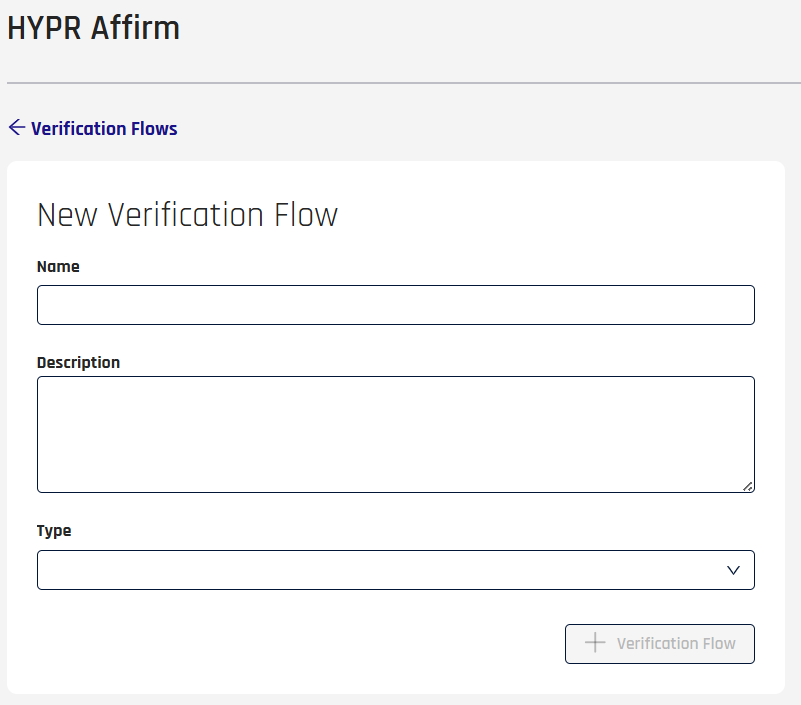
Click the + Verification Flow button at the top right. The New Verification Flow dialog opens.
-
Give the workflow a Name and add a Description (optional).
Not Too DescriptiveThe Description field accepts alphanumeric characters and the following special characters: `~!@#$-_+.,
-
Select a workflow Type. A type is required to save the flow.

- Onboarding — new employee verification
- Recovery Flow — verify existing employees who have a new device
- CC Admin: verifies HYPR Control Center administrators and ends by sending them to Device Manager to register a login method. A tenant has at most one CC Admin flow, and its outcome is fixed. See Control Center Administrator Flows below.
- Custom — for flows that don't fit the three standard types; allows free choice of outcome and assigned application
-
Click + Verification Flow to save. Control Center returns to the Affirm Verification Flows tab with the new flow listed.
Managing Workflows
The Verification Flows tab lists every workflow configured for the tenant. From here you open individual flows, copy the flow URL given to requesters, and see active vs inactive status at a glance.
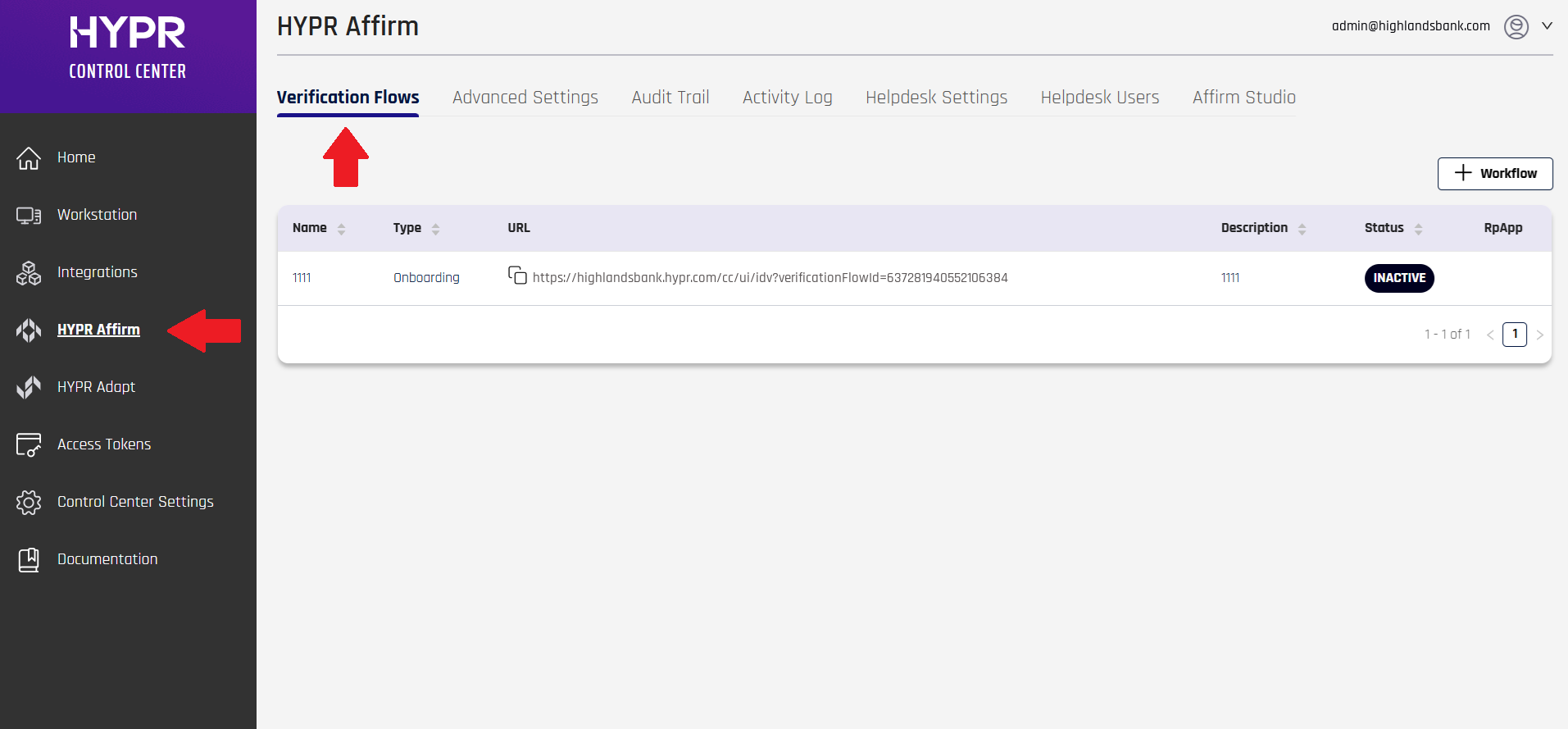
The columns shown in the list:
| Field | Description |
|---|---|
| Name | The name of the workflow. |
| Type | The type of workflow. [ Onboarding | Recovery | CC Admin | Custom ] A CC Admin workflow always uses Redirect to Device Manager to register a new login method as its outcome; see Control Center Administrator Flows. |
| URL | The link to be given to requesters; typically it is <tenant_URL>/ui/idv/?verificationFlowId=<verificationFlowId>.A handy copy icon helps you grab this URL for distribution. |
| Description | The Description field as entered when the workflow was created. |
| Status | An icon indicating the current status. [ Enabled | Disabled ] |
| RpApp | The HYPR Relying Party Application associated with this policy; typically this is the RP App associated with the integration being used. Only one RP Application can be associated to a policy. |
To manage a workflow's configuration, click the row where it is listed. The workflow editor opens with the General tab in view and a left sidebar listing every configurable section.
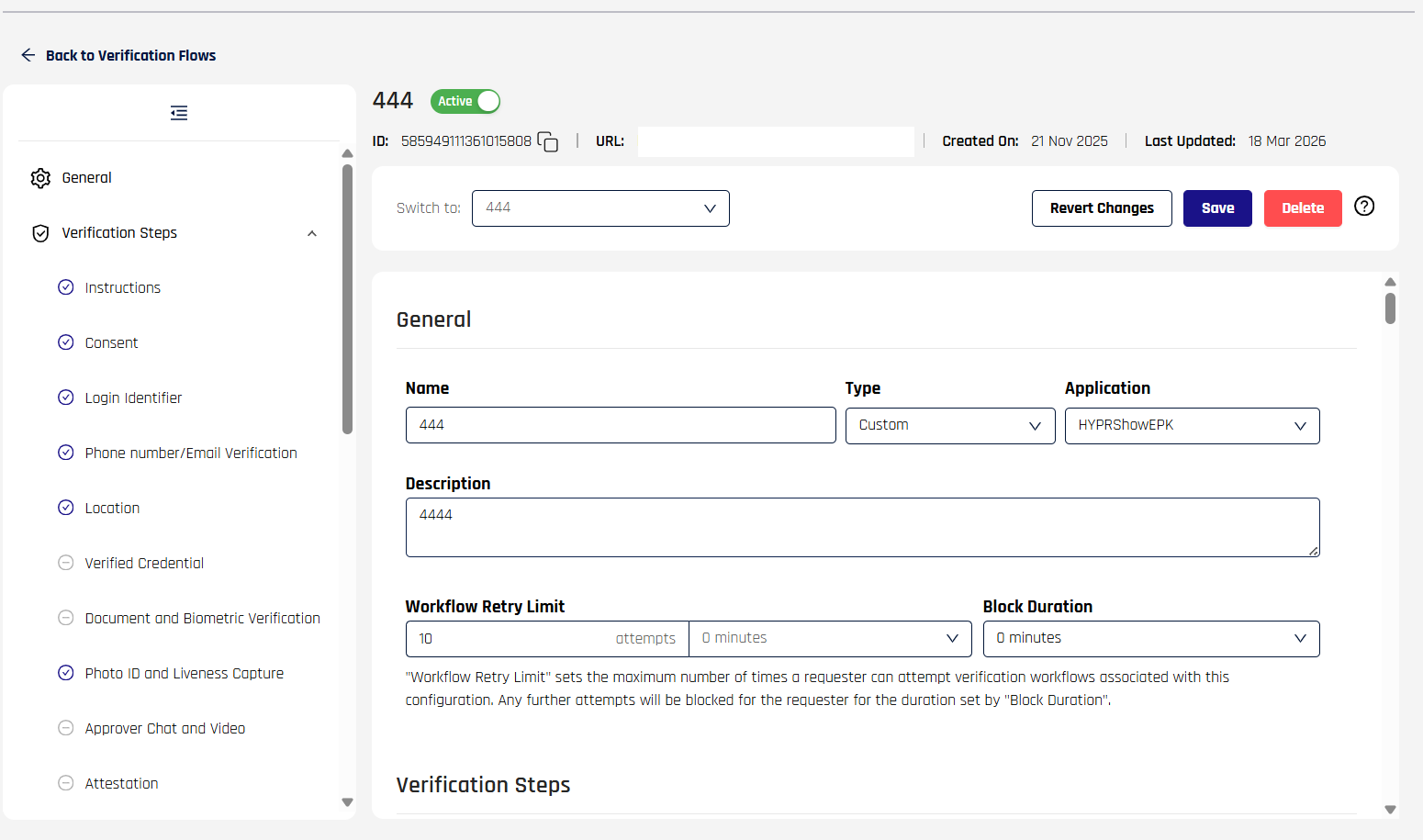
The General tab shows the workflow's unique identifier, the URL used by requesters, creation and last-updated timestamps, and the mutable fields — Name, Type, Application, Description, Workflow Retry Limit, and Block Duration. Use the top-right buttons to Save, Revert Changes, or Delete the workflow.
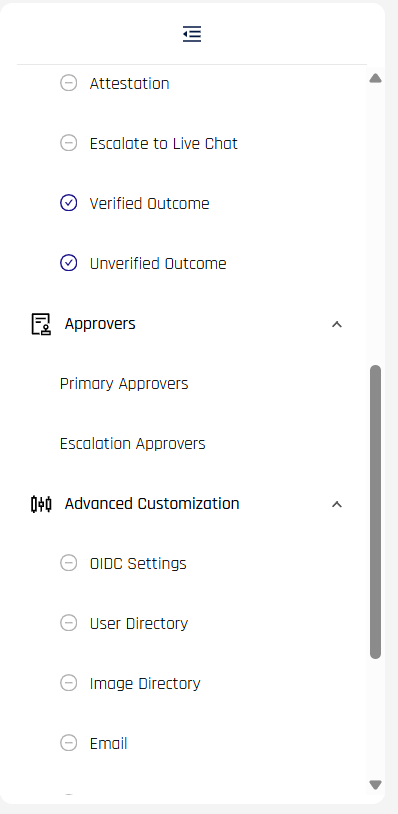
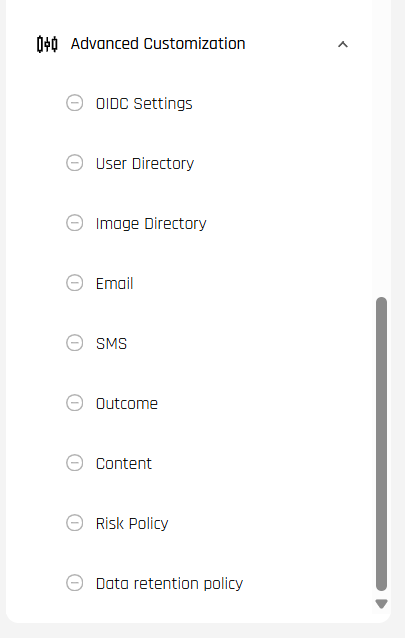
The left sidebar groups the workflow's configuration into three collapsible sections: General, Verification Steps, and Approvers, plus the Advanced Customization group at the bottom. Click any item to scroll directly to that section in the editor.
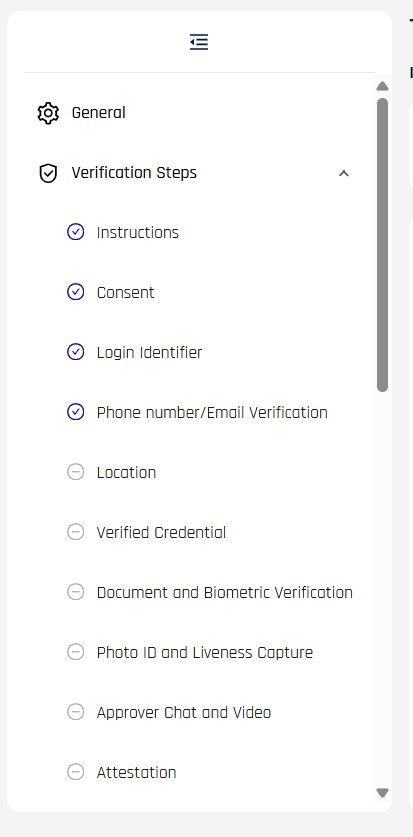
Click Save at the top right when you are satisfied with the settings, or Revert Changes to discard unsaved edits.
Applications
In the General tab, the Application field assigns this workflow to a specific HYPR Relying Party Application. Use the dropdown to pick from applications available on the tenant.

Selecting No Application leaves the workflow unassigned (useful for testing or for flows invoked exclusively via API).
Workflow Retry Limits
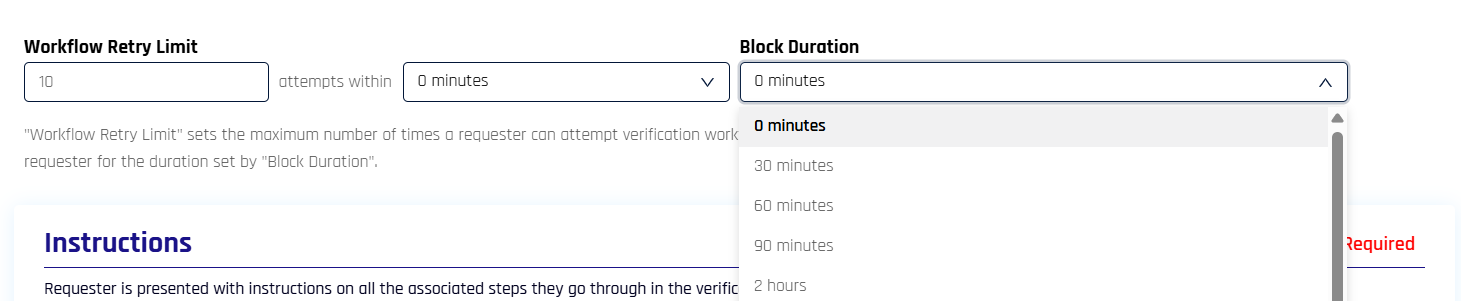
Configure overall workflow attempt limits and blocking duration to prevent abuse and protect against repeated failed verification attempts.
-
Workflow Retry Limit: Set the maximum number of verification attempts a requester can make within a specified time window. Enter the number of attempts and select the time window (in minutes) from the dropdown.
-
Block Duration: Configure how long requesters are blocked from attempting verification after exceeding the retry limit. Select the duration from the dropdown (options include 0 minutes, 30 minutes, 60 minutes, 90 minutes, 2 hours, and longer intervals).
When a requester exceeds the workflow retry limit, they are blocked for the configured block duration and receive a message indicating when they can try again.
For per-step retry limits and step-level outcomes, see Injectable Outcomes & Retry Limits.
Advanced Customization
The Advanced Customization section at the bottom of the workflow editor lets you assign customizations that override default Affirm behavior for this specific workflow. The customizations themselves are defined in Affirm Customizations (Code Customization API); the workflow editor is where you pick which existing customization applies.
The panel groups the assignment slots into the following areas:
OIDC Settings and User Directory
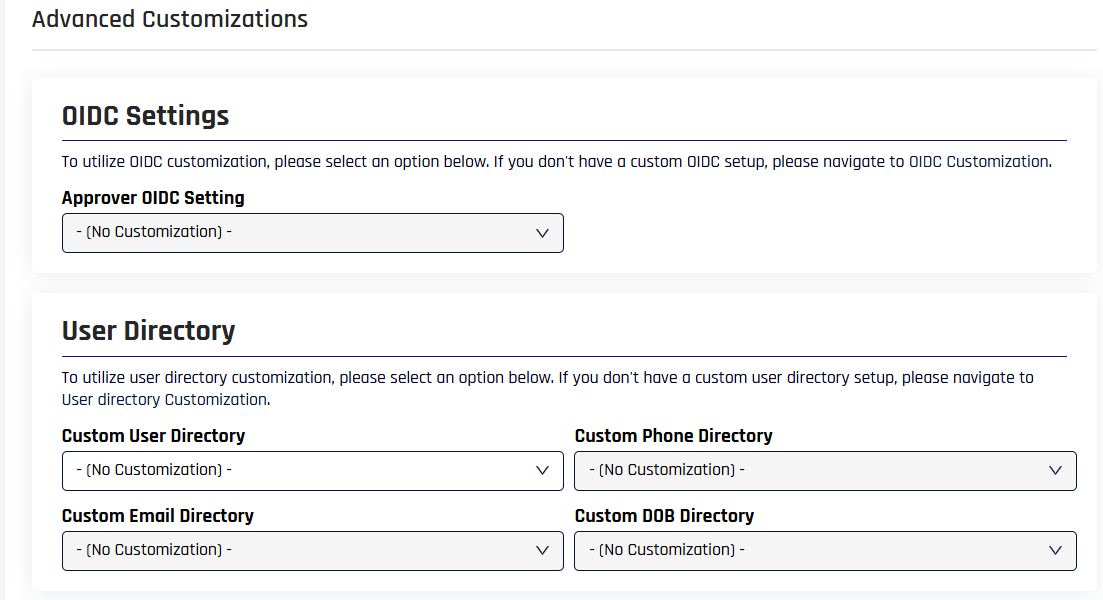
- Approver OIDC Setting — override the OIDC client used for approver invitations
- Custom User Directory, Custom Phone Directory, Custom Email Directory, Custom DOB Directory — fetch the corresponding requester attribute from a custom source instead of the default integration
Image Directory (anchor image and writeback)
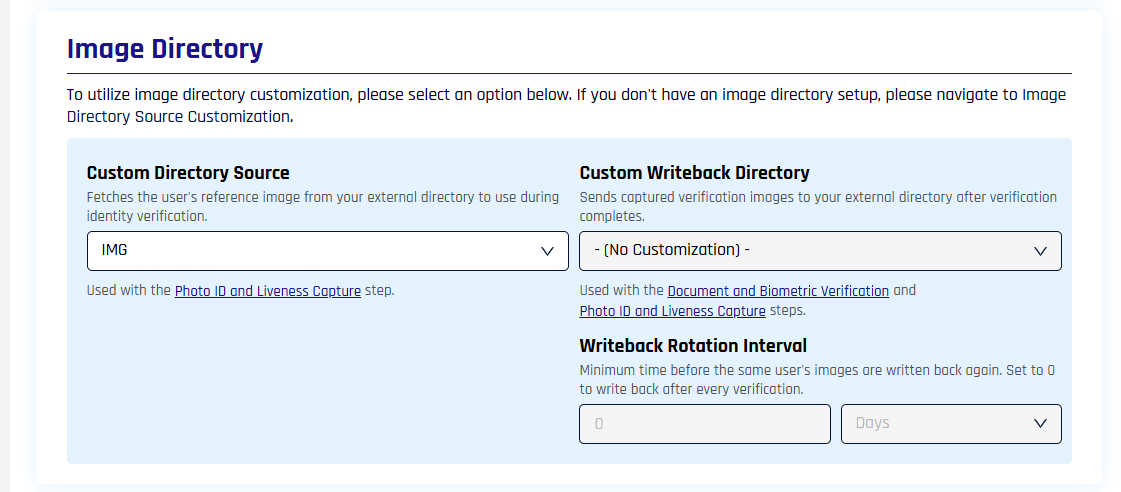
- Custom Directory Source — fetches the requester's reference image from an external directory for use during identity verification (used by the Photo ID and Liveness Capture step)
- Custom Writeback Directory — sends captured verification images to an external directory after verification completes (used by the Document and Biometric Verification and Photo ID and Liveness Capture steps)
- Writeback Rotation Interval — minimum time before the same user's images are written back again; set to
0to write back after every verification
For full Directory Image Writeback details, see Directory Image Writeback.
Email, SMS, and Outcome
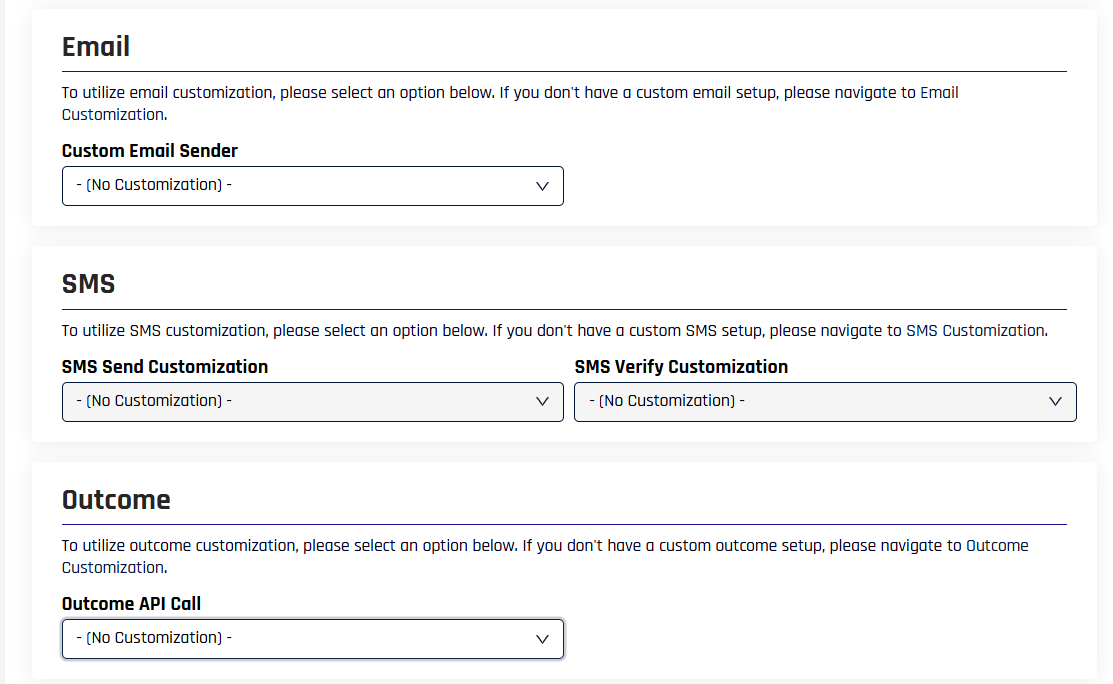
- Custom Email Sender — send Affirm emails via a custom SMTP service instead of HYPR's default
- SMS Send Customization / SMS Verify Customization — send and verify SMS via a custom transport
- Outcome API Call — execute a custom API call before the configured outcome fires
Content and Risk Policy
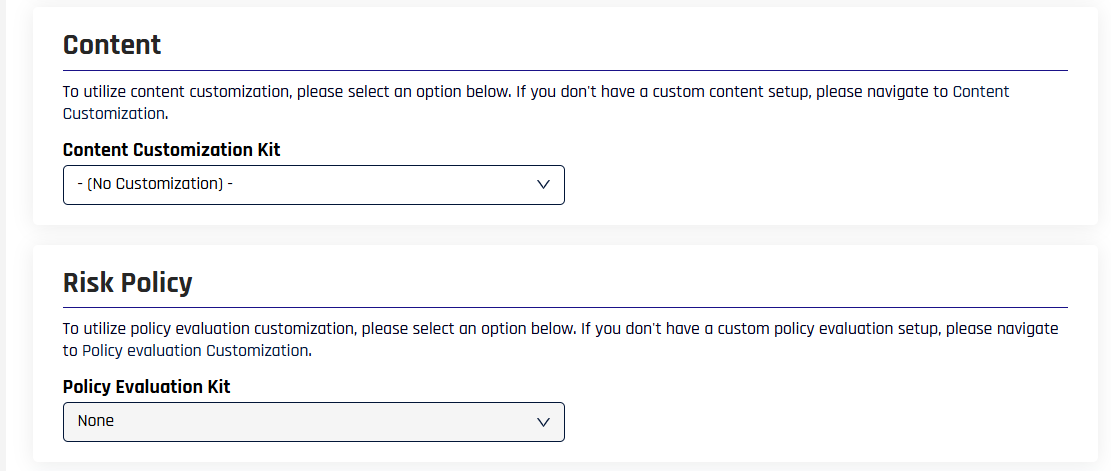
- Content Customization Kit — apply a per-screen content customization to this workflow (see Affirm Studio)
- Policy Evaluation Kit — apply a kit built in the Affirm Risk Policy Builder that drives per-action Pass/Fail decisions based on risk signals. If the flow uses ID verification, the kit needs your own Fail rules for document checks; see Reading the IDV Outcome action.
Control Center Administrator Flows
A Control Center administrator flow verifies an administrator of HYPR Control Center itself. Where an Onboarding or Recovery flow verifies an employee, this flow verifies the administrator and ends by sending them to HYPR Device Manager to register a login method. In the Type list it appears as CC Admin.
A tenant has at most one. That single-flow rule is the source of the error most administrators meet first, so it is covered before creation below.
Before You Begin
- The Control Center administrator flow type must be enabled for your tenant. If CC Admin does not appear in the Type list when you create a verification flow, contact your HYPR representative to have the CC Admin verification flow type enabled. See Affirm Feature Flags Reference.
- You need permission to edit Affirm workflows. Sign in to Control Center as an administrator whose role allows Affirm workflow configuration.
- HYPR Affirm must be enabled on the tenant.
Only One Control Center Administrator Flow per Tenant
Control Center allows a single Control Center administrator flow. Attempting to create a second is refused with:
A verification flow with type 'CC_ADMIN' already exists. There can only be one flow of this type.
The message appears in the New Verification Flow dialog, and a Verification Flow Creation Failure notification appears at the same time.
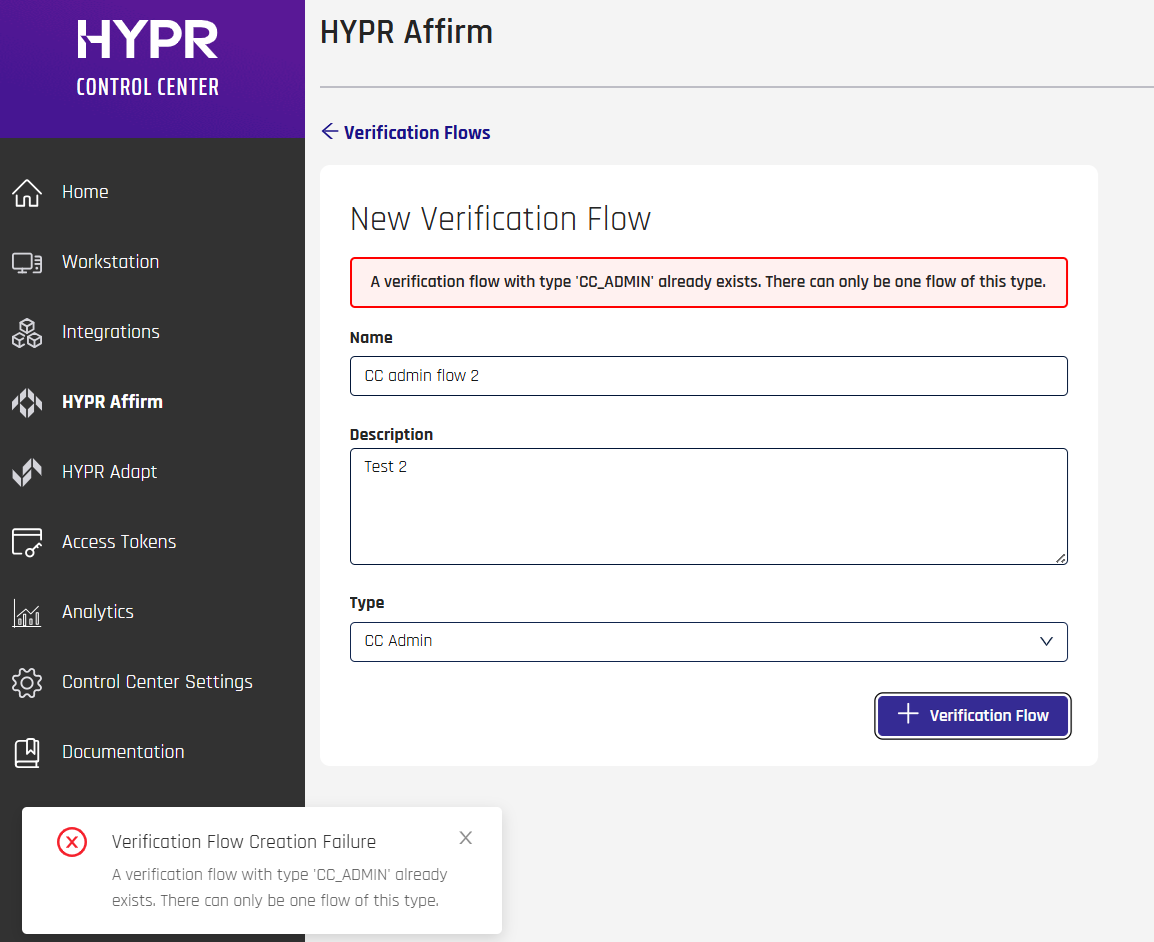
Two things about this rule are easy to miss:
The check does not consider status. A Control Center administrator flow that is inactive still occupies the single slot and still blocks creation. If you meet the error and cannot see a Control Center administrator flow in use, look for a disabled one in the Verification Flows list.
An inactive flow is the worst of both worlds: it prevents you creating another, and it never runs. See When the Flow Runs.

Editing the flow you already have is unaffected. The rule only blocks creating an additional flow, so you can open the existing Control Center administrator flow and change its name, steps, or configuration freely.
If you want a fresh flow rather than an edit, delete the existing one first. Open it, select Delete, and confirm. Deleting the flow removes its configuration, so recreate it before adding Control Center administrators who need to be verified.
Creating the Flow
-
Go to HYPR Affirm > Verification Flows and click + Verification Flow.
-
Enter a Name and, optionally, a Description. The name accepts up to 30 characters and the description up to 255; neither accepts HTML tags.
-
Set Type to CC Admin.
-
Click + Verification Flow to save.
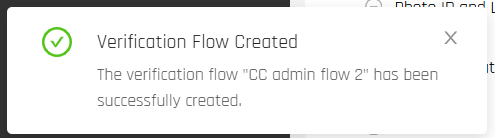
Control Center returns to the Verification Flows list with the new flow present.
The Application field is optional
A Control Center administrator flow does not need an Application. Control Center has its own relying-party application for administrator verification, so the flow works with the Application field left unset, and the RpApp column stays empty in the flows list.
At least one verification step is required
A flow cannot be saved without a verification step, and not every step satisfies the requirement. These do:
Custom, Phone number/Email Verification, Location, Photo ID and Liveness Capture, Document and Biometric Verification, Verified Credential, and Approver Chat and Video.
Instructions, Consent, Login Identifier, and Attestation do not satisfy it on their own. A flow built only from those is refused with "At least one verification step is required". See Configuring Verification Steps.
When the Flow Runs
A Control Center administrator flow is not a flow requesters visit by link. It runs when a Control Center administrator follows a Device Manager magic link for the Control Center administration application, and all of the following are true:
- The CC Admin verification flow type is enabled for the tenant.
- Exactly one Control Center administrator flow exists, and it is active.
- The link was not issued to skip verification.
When they all hold, Control Center creates a verification request against the Control Center administrator flow for that administrator and sends them into it. The verification runs before they reach Device Manager, and the Verified Outcome then hands them on to register a login method.
If any condition fails, the administrator goes straight to Device Manager and no verification takes place. That is the usual explanation for a Control Center administrator flow appearing to do nothing: most often the flow exists but is inactive.
Outcomes
A Control Center administrator flow has the same two terminal outcomes as any other flow, but only one of them is fixed.
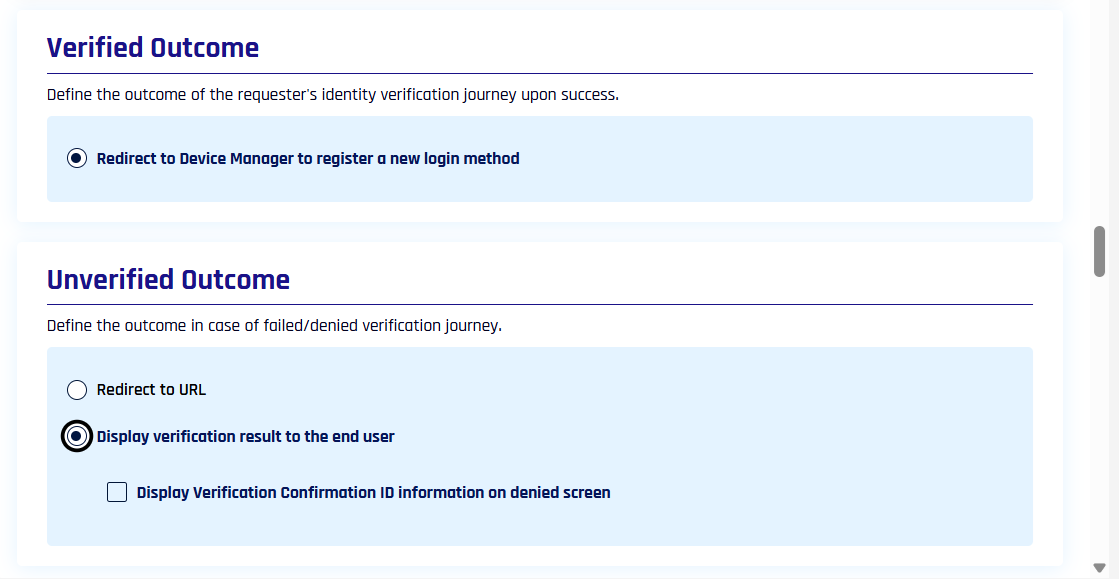
Verified Outcome is fixed. A Control Center administrator flow always ends a successful verification with Redirect to Device Manager to register a new login method. Control Center selects it when the flow is created, it is the only option offered, and it has no customization fields. This differs from every other flow type, which chooses from the full outcome list; for those, see Outcomes.
Unverified Outcome is yours to set. Failed or denied verifications behave as they do in any other flow. Choose either:
- Redirect to URL: sends the requester to a URL you supply.
- Display verification result to the end user: shows the denial in the flow. Select Display Verification Confirmation ID information on denied screen to include the identifier that support needs to trace the attempt.
Related
- Injectable Outcomes & Retry Limits — per-step retry and outcome configuration
- Configure Verification Steps — per-step configuration and outcomes
- Approvers and Escalation Approvers — approver assignment, chains, and escalation
- Advanced Setup — integration prerequisites and IdP attribute requirements
- Activity Log — review verification attempts and decisions