Document and Biometric Verification
The Document and Biometric Verification step is HYPR Affirm's headline verification step. It captures a government-issued photo ID, performs a live selfie comparison against the document image, and optionally adds compliance screening on top.
Disabled by default; enable it for any verification flow that needs document-and-face proof.
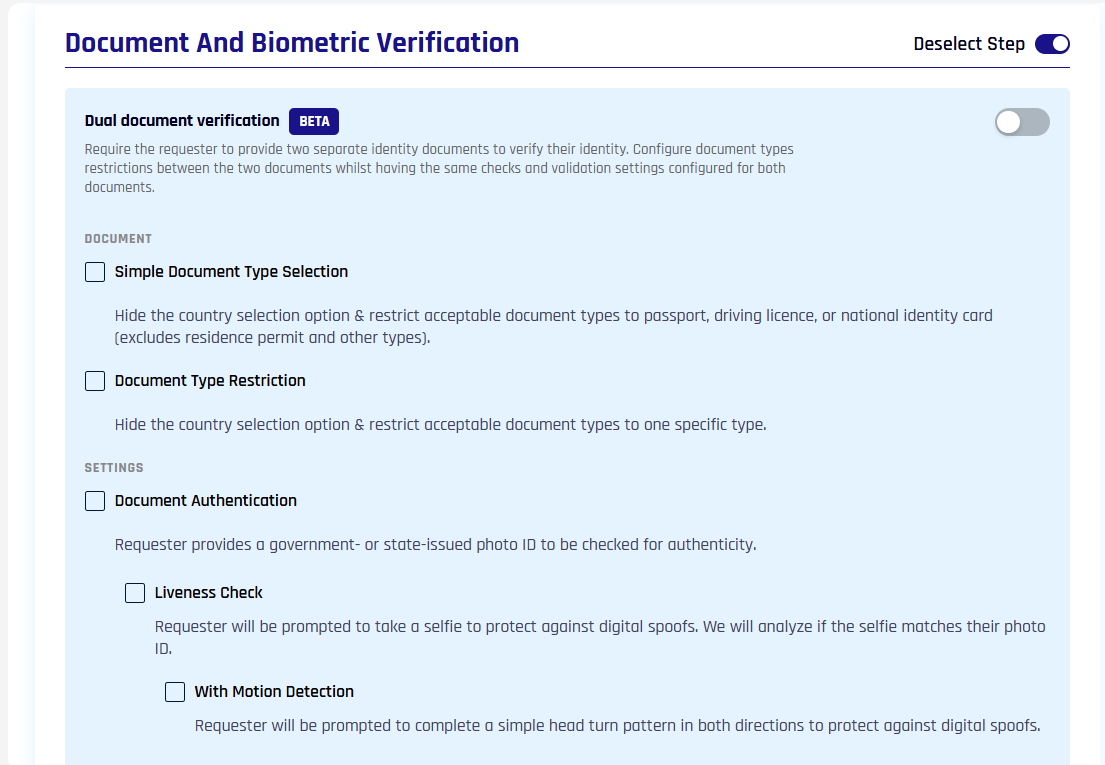
The step exposes four control groups: Dual document verification (BETA), Document type restrictions, Settings (authentication + liveness + motion detection), and Checks (AML / OFAC / Identity Verification with Document Issuer (BETA)).
Document Authentication and Liveness
- Document Authentication — requester provides a government- or state-issued photo ID to be checked for authenticity. Mimics the toggle state of Document and Biometric Verification.
- Liveness Check — requester takes a selfie in real time; the selfie is compared to the provided photo ID. Mimics the toggle state of Document and Biometric Verification.
- Name Checking — compares the name on the document to the requester's directory record.
Motion Detection (BETA)
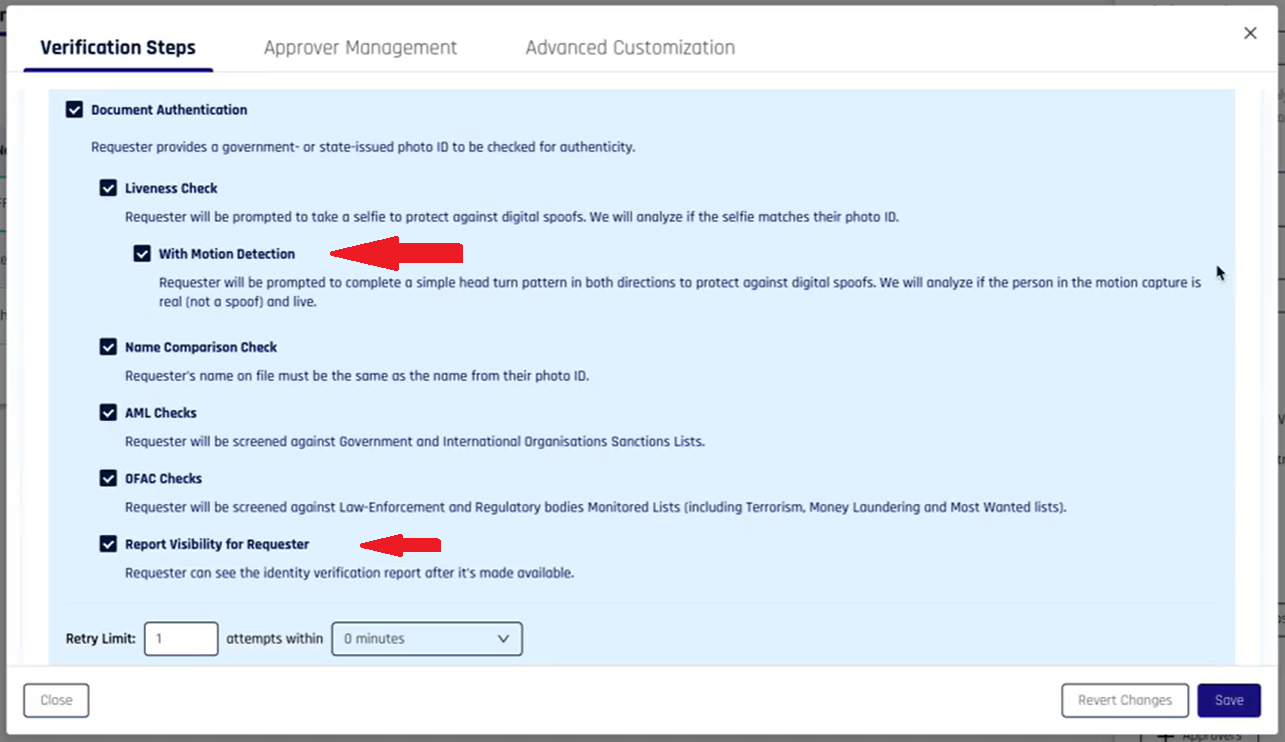
Motion Detection adds a head-turn pattern during selfie capture to harden liveness checks against digital spoofs. Available only when Motion Detection is enabled on the tenant — see Affirm Feature Availability.
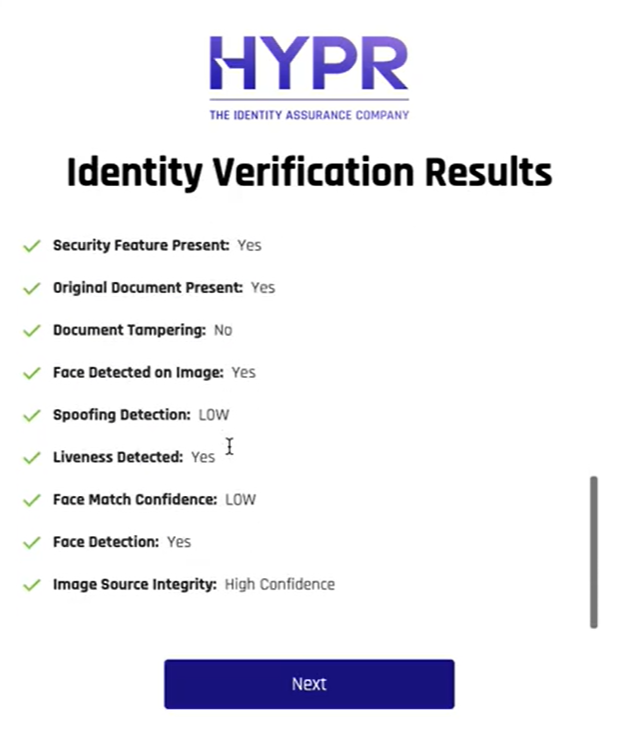
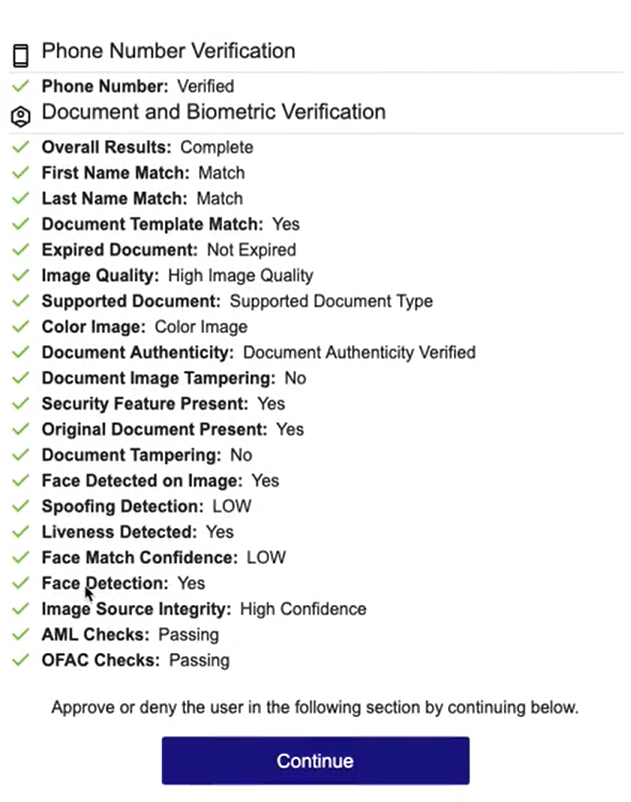
Enable under Verification Steps → Document and Biometric Verification → Liveness Check → With Motion Detection. Motion/liveness results can be surfaced to approvers and optionally to requesters via Report Visibility.
Document Type Restriction
Restricts the acceptable document types to a curated subset of high-security government-issued documents and uses the configurable list of supported ID-issuing countries to determine which options are presented.
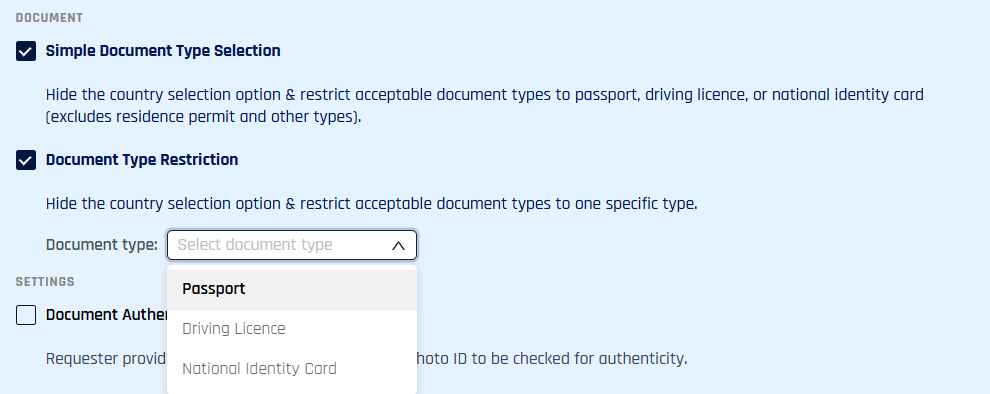
With Simple Document Type Selection enabled, the requester sees only Passport, Driving Licence, and National Identity Card. With Document Type Restriction further enabled, the workflow can be locked to a single document type via the dropdown.
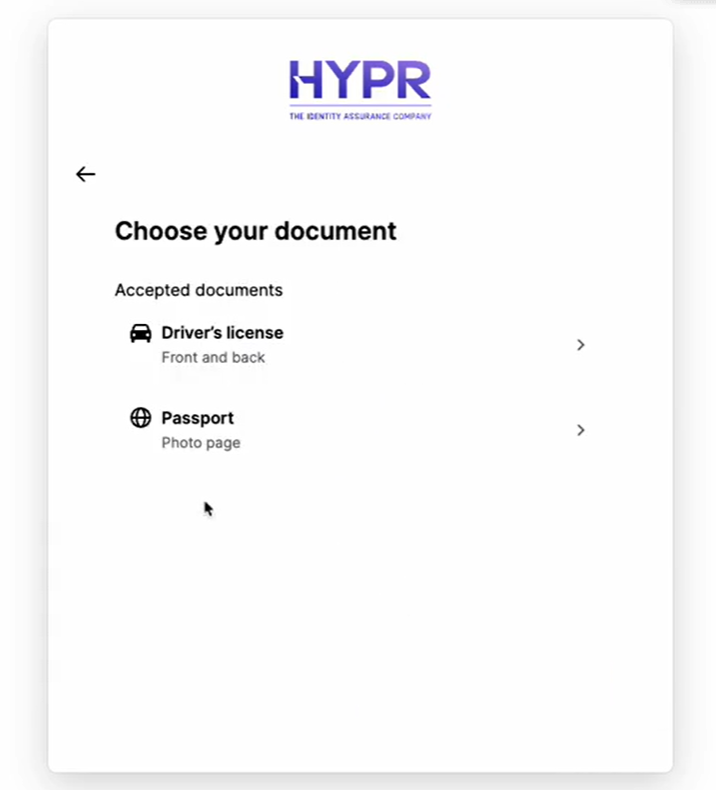
See Supported Documents by Location for the list of accepted documents per country.
Dual Document Verification
The Dual document verification toggle appears at the top of the step. When enabled, the step verifies two documents against a single live biometric capture in one continuous flow.
Dual Document Verification is available in HYPR 11.3 and later. Coordinate with your HYPR representative to enable Dual Document on your tenant. See Affirm Feature Availability.
For workflows that require two identity documents per requester (for example, government-issued ID plus proof of residence), Dual Document Verification verifies two documents against a single live biometric capture in one continuous flow.
Affirm's dual-document pattern captures both documents in sequence at the start of the flow, then performs a single live selfie or video capture. Both document checks reuse that one live capture — the requester does not repeat the selfie for the second document. Two correlated checks (Check#1 = Doc#1 + face; Check#2 = Doc#2 + same face) are submitted under a single Affirm verification session ID.
Optional second-document type restriction uses the same Document Type Restriction control — administrators can configure required document types for Document #2 independently of Document #1. National ID Document is supported as a configurable document type.
Error handling: If Check#2 fails after Check#1 succeeds, the live capture and Document #1 state are preserved and Document #2 upload can be retried without restarting the verification from scratch.
End-user flow: Doc#1 prompt → Doc#2 prompt → live capture → outcome. Both document prompts appear in sequence at the start of the flow; the single selfie/video capture follows. The opening instruction screen informs the requester that two documents will be needed, so the second-document prompt is not unexpected.
Activity Log correlation: Both document results are correlated under the same verification flow ID with a shared biometric reference. The Activity Log detail view shows Document #1 and Document #2 as separate sections in the expandable dropdown — each with its own per-check outcome and report — alongside the single live capture session. See Activity Log for the detail-view fields.
API response fields: The verification flow API response includes a dual_document_mode flag plus per-check outcomes for Document #1 and Document #2. See the HYPR Affirm API for full payload.
Helpdesk visibility: Auditors and Helpdesk agents see dual-document outcomes via the same Helpdesk activity log used for standard verification — the dual-document mode is surfaced as a flag on the verification record.
Risk policy scoping: When Dual Document is on, the Risk Policy Builder predicate fields surface per document — rules can target Document #1 and Document #2 independently. See the Risk Policy Builder for the editor.
Optional compliance checks (AML / OFAC / Identity Verification with Document Issuer)
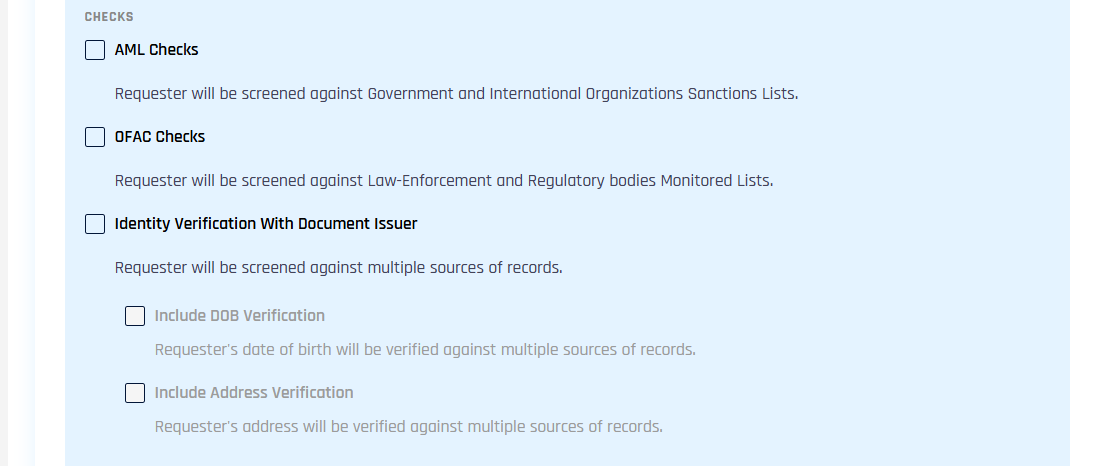
- AML Checks — requester is screened against government and international organization sanctions lists. If the requester's date of birth is missing, the requester is asked for it, along with optional address details
- OFAC Checks — requester is screened against law-enforcement and regulatory monitored lists. If the requester's date of birth is missing, the requester is asked for it, along with optional address details
- Identity Verification With Document Issuer (BETA) — requester is screened against multiple sources of records, and is asked for date of birth and address when they are missing. By default, the check passes when the requester is found in those records, or when the requester's date of birth and address were already in their profile when the verification started
For configuration details, see KYC Compliance Checks (AML/OFAC/Watchlists).
Report Visibility / Retry / Failure Outcome
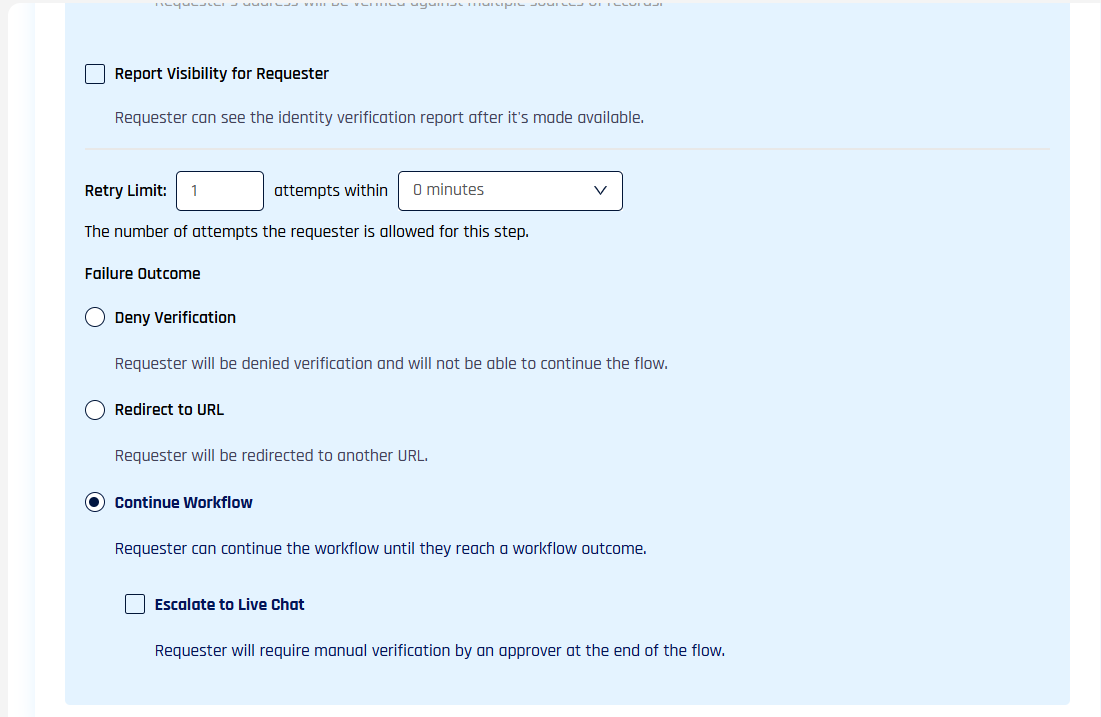
Report Visibility for Requester lets the requester see the identity verification report after it is made available. Retry Limit and Failure Outcome behave the same as for other steps — see Injectable Outcomes and Retry Limits.
Checks Held for Manual Review
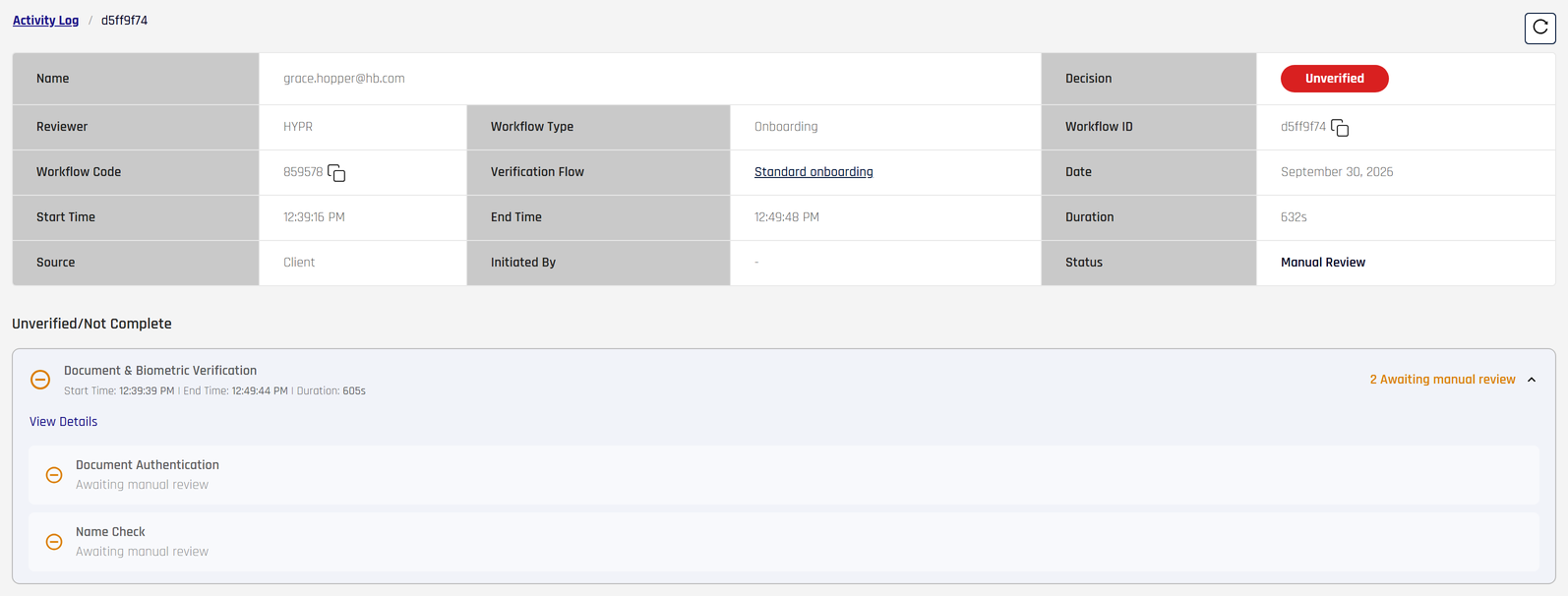
The identity verification provider can hold a document and biometric check for its own manual review. Affirm waits up to 10 minutes for a decision. If the check is still held for review when that time runs out, the step fails and its Failure Outcome applies. To handle these checks differently, for example by escalating them to a reviewer, change the action of the IDV Outcome Fail — Awaiting Manual Review rule in a policy kit. See Reading the IDV Outcome Action.
The verification's overall result is Unverified, and the Activity Log shows the held checks as Awaiting manual review. A hold is not a rejection: once the provider completes its review, the requester can start a new verification, which can then pass.
Related
- KYC Compliance Checks — deep-dive on AML/OFAC and identity-source-of-truth screening
- Photo ID and Liveness Capture — lighter alternative without document authentication
- Liveness-Only (Anchor Image) — liveness against an existing reference image, no fresh document capture
- Supported Documents by Location — accepted documents per country
- Configure Verification Steps — table of all verification steps