Version: 11.3.0

Attestation

Attestation is the final human review before HYPR Affirm issues the outcome of a successful verification. An approver from the configured chain reviews the evidence for the verification and approves or declines it before Affirm proceeds to the configured outcome.

The step card reads An approver's attestation of the requester's results is required for the requester to be issued an outcome. The card has an on/off switch, and the step is off in a new flow. When Attestation or Approver Chat and Video is on, the flow needs at least one human approver, and HYPR (automated approval) cannot be assigned. When both are off, the only approver is HYPR (automated approval), which approves the requester only when every step in the flow passed, including custom steps.

You configure the approvers, their order and their timeouts at the workflow level, in Approvers and Escalation Approvers. An approver's timeout sets when Affirm invites the next approver in the chain. It does not change how long the requester waits for a decision, which is fixed at 10 minutes; see What the Requester Sees.

What the Approver Sees​

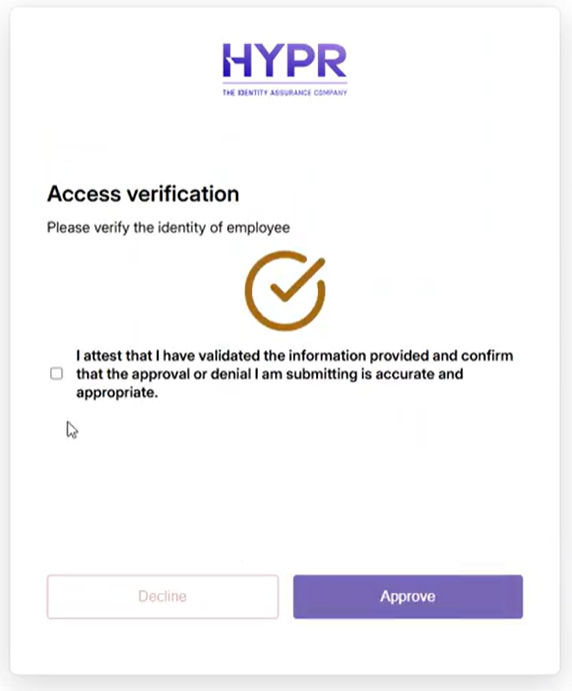
Affirm invites the first approver in the chain by email, and also by SMS when the approver has a phone number. After reviewing the Scorecard, the approver reaches the Access verification screen. The approver must select the attestation checkbox before the Approve and Decline buttons activate.

Access verification screen with the attestation checkbox and the Approve and Decline buttons

The Access verification screen. Approve and Decline stay disabled until the approver attests to having validated the information.

The following table lists the default text on this screen. Administrators can change it in Affirm Studio.

ElementDefault text
Heading"Please verify the identity of" followed by the requester's name
Attestation checkbox"I attest that I have validated the information provided and confirm that the approval or denial I am submitting is accurate and appropriate."
Approve dialog"Approval is audited and can not be reversed. Are you sure you would like to proceed?" with an optional Notes field
Decline dialog"Denying is audited and can not be reversed. Are you sure you would like to proceed?" with a required Decline Reason field
ButtonsApprove, Decline; after an approval, Resend link

For the full approver flow (email invitation, Scorecard review, confirmation modal and success screen), see What the Approver Sees.

What the Requester Sees​

While the approver reviews, the requester waits on the Almost done! screen: "Verifying your information takes a few minutes. Avoid closing or refreshing your browser. We will notify you as soon as the process is complete. Thank you for your patience." When the approver decides, the requester receives the configured Verified Outcome or Unverified Outcome.

If no approver approves or declines within 10 minutes of the requester reaching the Almost done! screen, the requester sees "Your assigned approver did not take action within the required time. Please restart the flow." The verification then ends as expired, without a decision. The 10-minute limit is fixed and applies however many approvers the chain holds and whatever their timeouts add up to.

What Data Is Collected​

Attestation collects nothing from the requester. The activity log shows the approver's decision and the approver's notes or decline reason.