Configuring Network and Location-Based Policy Controls
This guide provides administrators with instructions for setting up and configuring Network and Location-Based Policy Controls for HYPR Affirm identity verification workflows.
Network and Location-Based Policy Controls is currently in Beta status. This feature enables enterprises to make contextual, risk-informed decisions using both IP and location-based rules to address location spoofing, network impersonation, and insider fraud threats.
Overview
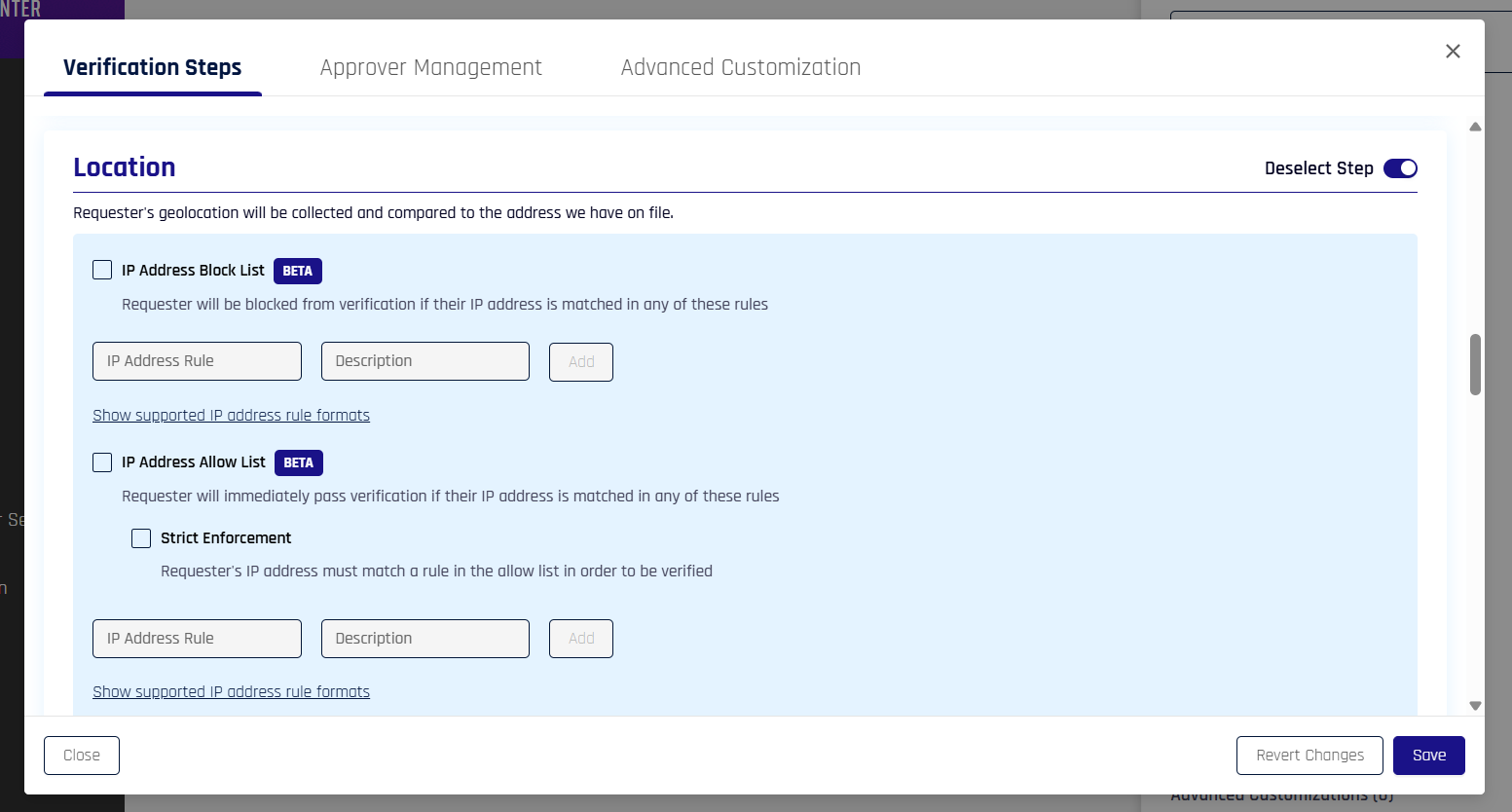
Network and Location-Based Policy Controls strengthen HYPR Affirm's identity verification workflows by enabling administrators to enforce security policies based on:
- IP Address: Block or allow specific IP addresses or IP ranges
- Geographic Location: Enforce distance thresholds from expected user locations
- Country: Block requesters from specific countries or sanctioned regions using managed country block lists
Default Behavior:
- With policy controls disabled, requesters can verify location through browser geolocation OR IP location
With Policy Controls Enabled:
- If an IP block list exists and the requester's IP address is on that list, they will fail verification
- If an IP allow list exists and the requester's IP address is on that list, they will pass verification regardless of current location
- If an IP allow list exists and the requester's IP address is NOT on that list and strict enforcement is enabled, they will fail verification
- If a distance threshold is set and the requester's current location from their expected location is outside that threshold (determined through either browser or IP location), they will fail verification
These controls help organizations mitigate security threats while maintaining a seamless user experience for legitimate users and satisfying audit and compliance requirements.
Prerequisites
- HYPR Control Center access with Affirm administration permissions
- HYPR 10.7.0 or later
- Understanding of your organization's network infrastructure and expected user locations
- Network and Location policy controls must be enabled on the tenant by HYPR — see Affirm Feature Availability
Only Control Center administrators can configure network and location-based policy controls.
This feature requires tenant-level enablement (see Affirm Feature Availability). When disabled:
- The UI to configure the policy is not visible
- Related policy control details are not visible in reports
- Activity log will still include cells for location policy-control verification but will be considered "not associated" unless that flow was run while the capability was enabled and the policy was configured
IP-Based Policy Controls
IP-based policy controls allow administrators to create block lists and allow lists for IP addresses, providing granular control over which network sources can access Affirm workflows.
IP Address Rule Formats
Administrators can configure IP address rules using the following supported formats:
IPv4 Formats:
- Single IPv4 Address:
203.94.178.56 - IPv4 Range with Dash:
203.94.1.40 - 203.94.50.255 - IPv4 Range with CIDR:
203.94.128.0/20 - IPv4 Wildcards:
203.94.*.*
IPv6 Formats:
- Single IPv6 Address:
2001:0db8:85a3:0000:0000:8a2e:0370:7334 - IPv6 Range:
2001:db8::ff00:41:0 - 2001:db8::ff00:41:12ff - IPv6 Range with CIDR:
2001:db8::/46 - IPv6 Wildcards:
2001:db8::ff00:41:*
IP Block List
The IP Block List contains IP addresses that should be denied access to Affirm workflows. When a user attempts to access a workflow from a blocked IP address, verification fails immediately.
Configuration:
- Open the verification flow you want to configure (click its row in the Verification Flows tab), use the left sidebar to jump to Verification Steps, and expand the Location step.
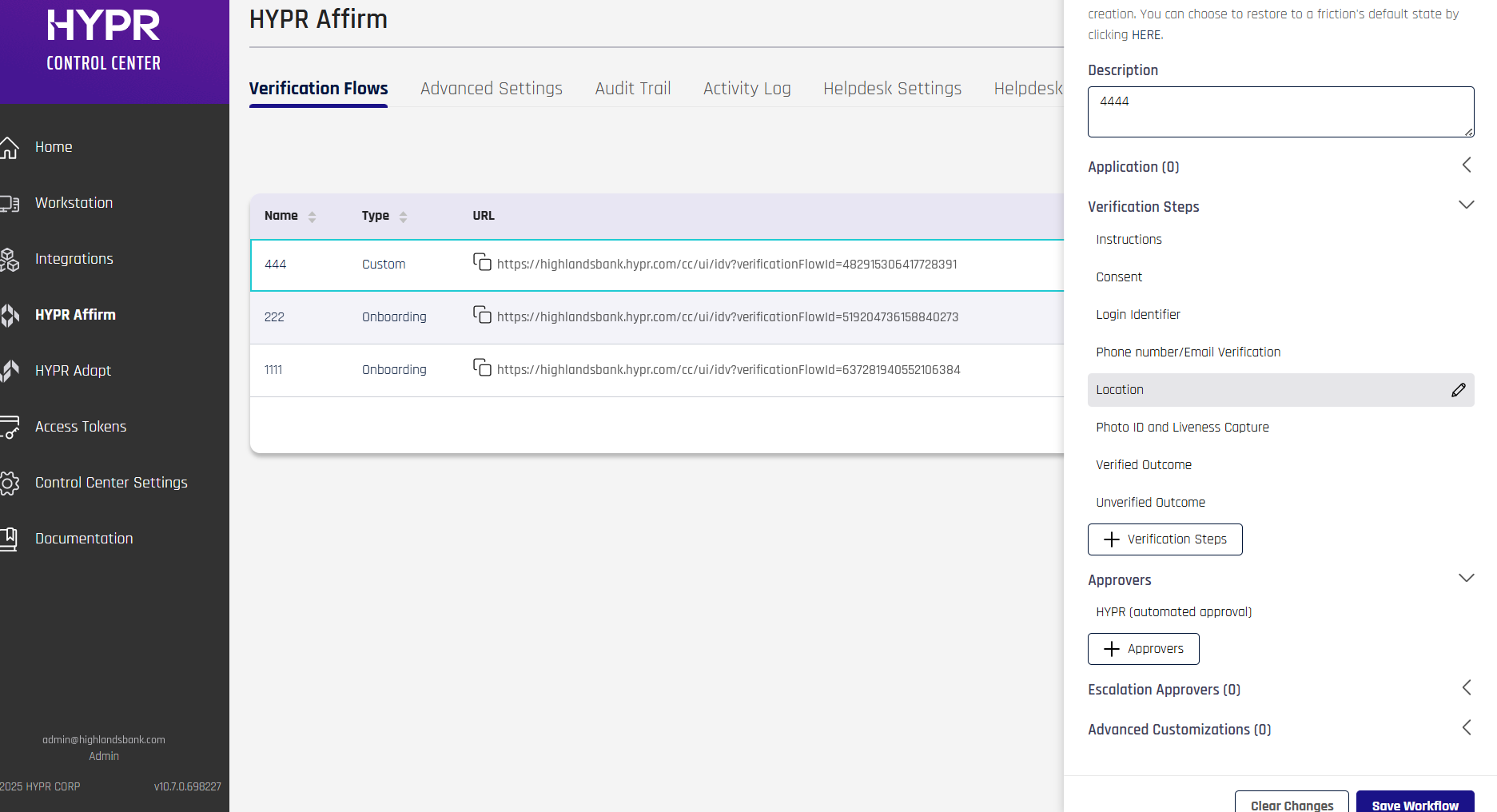
- Add IP addresses or IP ranges to the Block List using supported formats — you can also use ranges, i.e.
1.1.1.1-1.1.1.255) - Optionally, add a description for your rule
- Save your rule
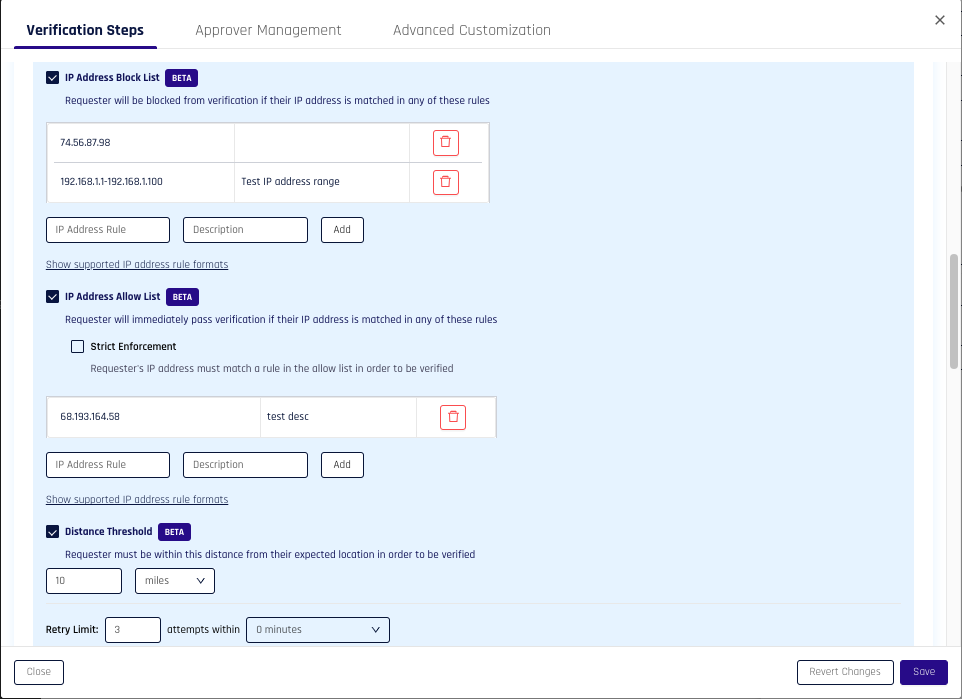
Behavior:
- If an IP block list exists and the requester's IP address is on that list, they will fail verification
- Block list checks are performed first in the policy enforcement order
IP Allow List
The IP Allow List contains IP addresses that should always be allowed access, regardless of location-based policy checks. This is useful for trusted network locations such as corporate offices or VPN endpoints.
Configuration:
- Navigate to the same section in the Verification Flows interface as for the IP Block List.
- Add IP addresses or IP ranges to the Allow List using supported formats — you can also use ranges, i.e.
1.1.1.1-1.1.1.255) - Optionally, add a description for your rule
- Save your rule
Behavior:
- If an IP allow list exists and the requester's IP address is on that list, they will pass verification regardless of current location
- Allow list checks are performed after block list checks in the policy enforcement order
Strict Enforcement Mode
When the Strict Enforcement option is enabled, only IP addresses on the allow list can pass verification. All other IP addresses are denied, even if they are not on the block list.
Behavior:
- If an IP allow list exists and the requester's IP address is NOT on that list and strict enforcement is enabled, they will fail verification
- When enabled, only allow-listed IPs can pass verification, even if they are not on the block list
- This provides the highest level of network-based security control
Location-Based Policy Controls
Location-based policy controls allow administrators to enforce geographic restrictions by setting a maximum allowed distance from an expected user location.
Distance Threshold
The Distance Threshold defines the maximum allowed distance from an expected location. If a user's current location exceeds this threshold, verification fails.
Configuration:
- Navigate to the Location verification step
- Set the Distance Threshold value
- Values are stored in meters but can be set using your preferred unit of measurement in the UI
- Maximum allowed value is 20,000,000 meters (maximum distance between any two points on Earth)
- Must be a positive number
- Save your configuration
Behavior:
- If a distance threshold is set and the requester's current location from their expected location is outside that threshold (determined through either browser or IP location), they will fail verification
- Distance threshold checks are performed after IP-based checks in the policy enforcement order
Blocked Countries
The Blocked Countries feature is currently in Beta status.
The Blocked Countries feature allows administrators to define lists of countries from which requesters are automatically blocked from passing the Location verification step. This provides country-level access control for sensitive workflows — for example, enforcing trade sanction compliance or restricting verification to approved regions.
Country block lists are managed centrally in Advanced Settings > Location Settings and then assigned individually to one or more verification flows.
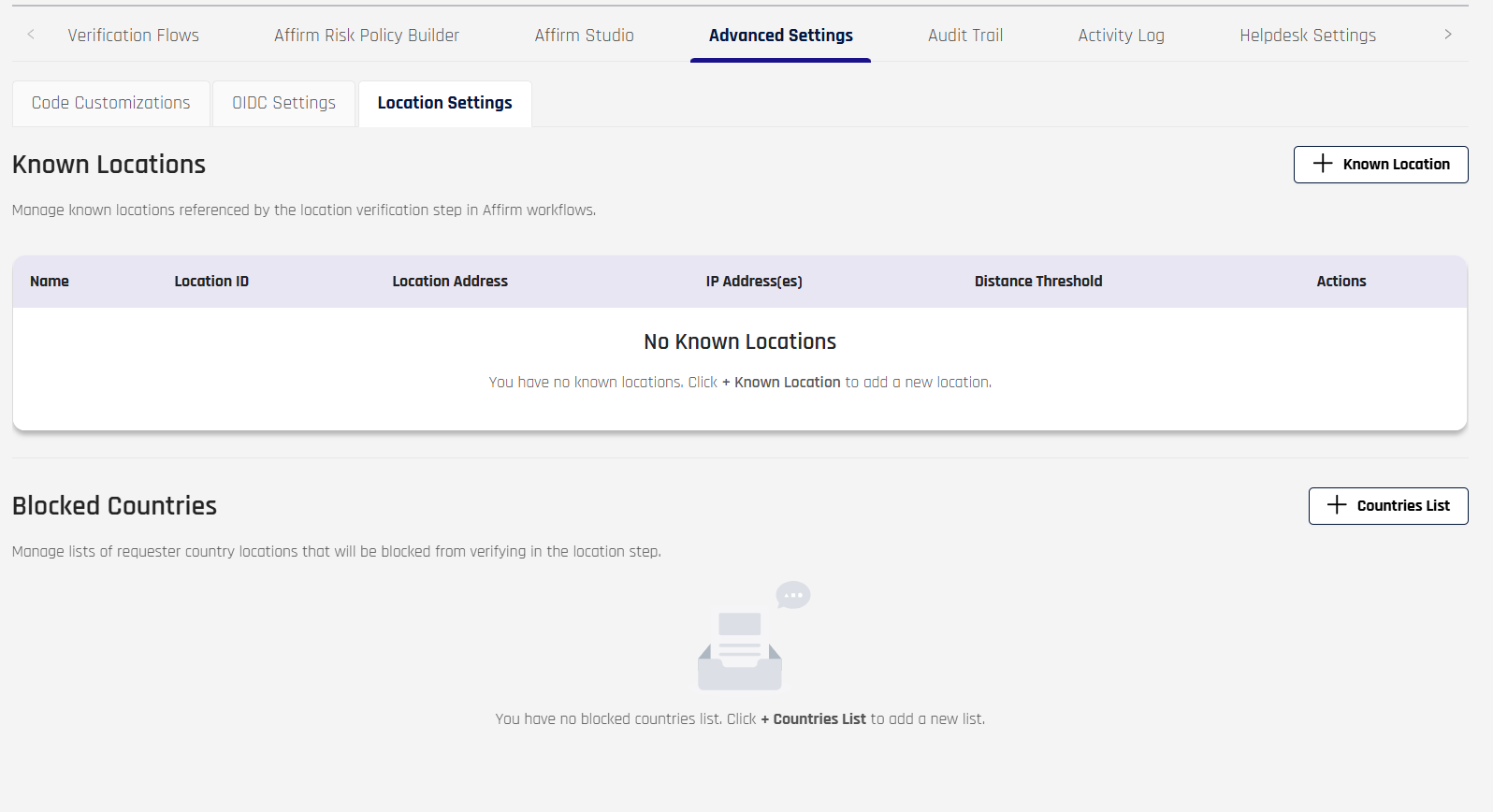
Creating a Country Block List
-
In the HYPR Affirm menu, navigate to Advanced Settings and select the Location Settings tab.
-
In the Blocked Countries section, click + Countries List.
-
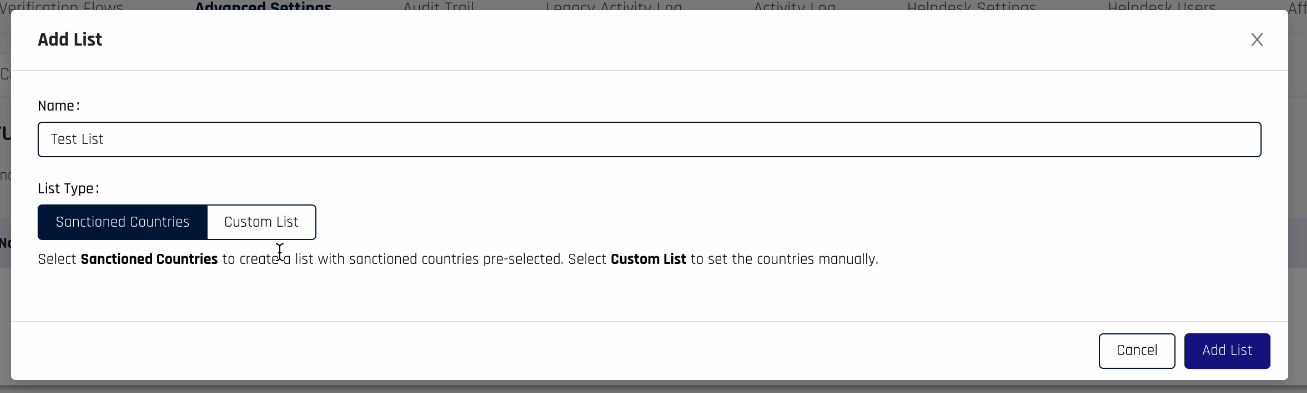
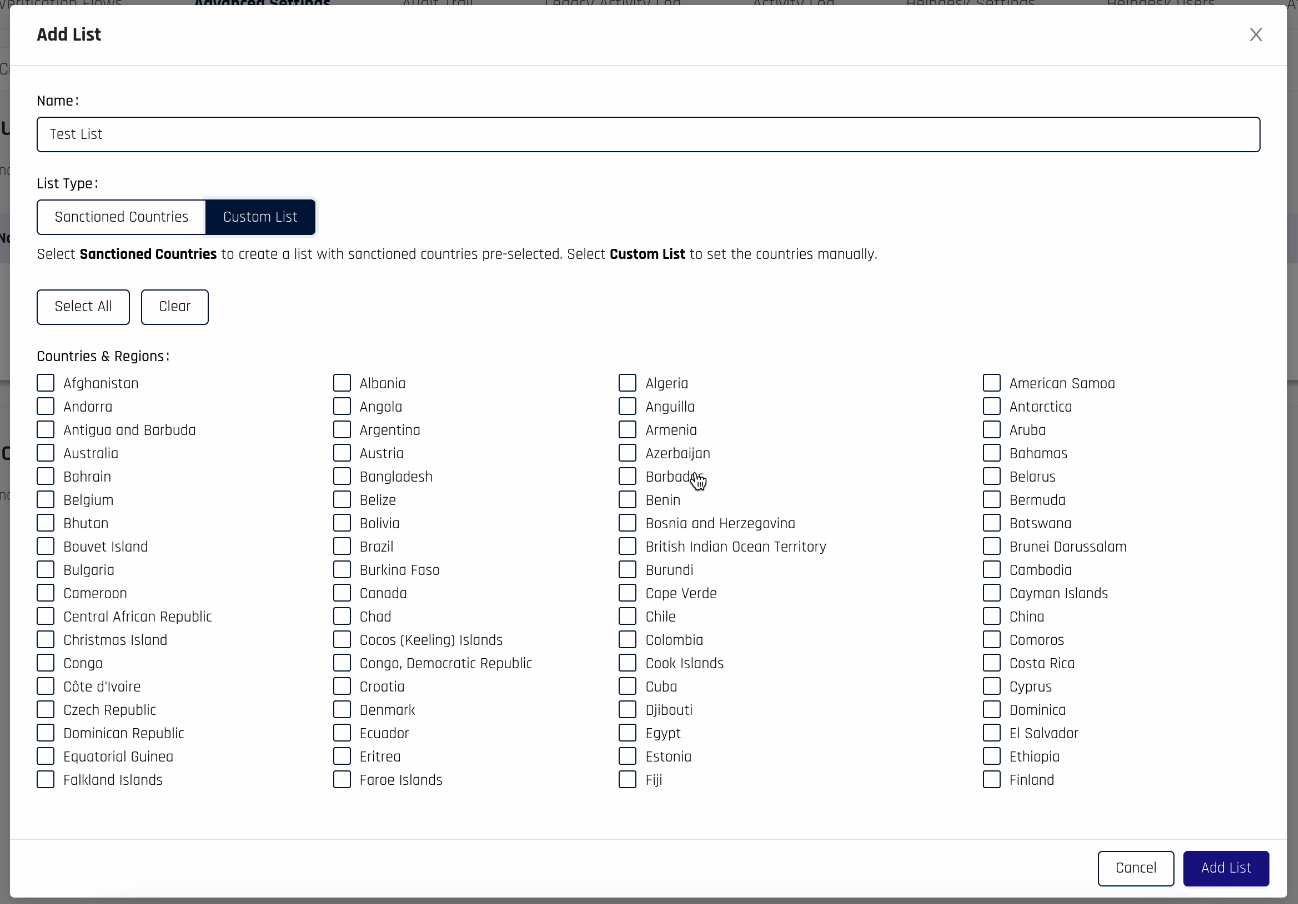
In the Add List dialog, enter a name for the list and select a list type:
-
Sanctioned Countries — Creates the list with internationally recognized sanctioned countries pre-selected.
-
Custom List — Opens a full country/region selector. Choose individual countries using the checkboxes, or use Select All / Clear to adjust the selection in bulk.
-
-
Click Add List to save. A confirmation toast appears when the list is created successfully.
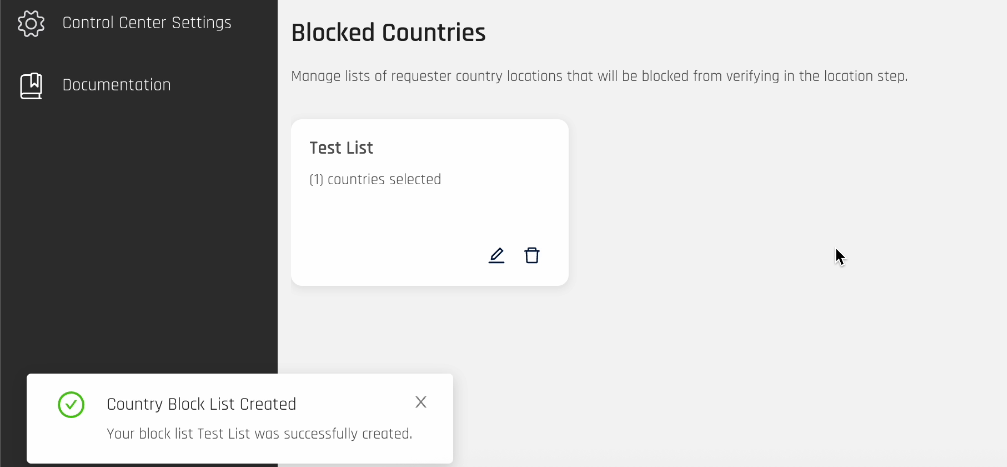
To edit or delete an existing list, use the edit (pencil) or delete (trash) icons on the list card.
Assigning a Country Block List to a Verification Flow
Once created, a country block list can be assigned to the Location step of any verification flow.
-
Open the verification flow you want to configure (click its row in the Verification Flows tab), use the left sidebar to jump to Verification Steps, and expand the Location step.
-
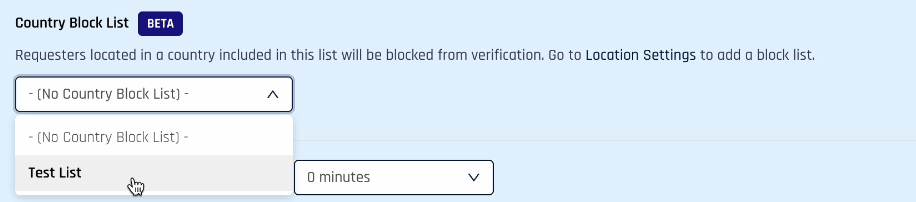
In the Country Block List field, open the dropdown and select the list to apply.
-
Click Save. A confirmation toast appears when the flow is updated successfully.
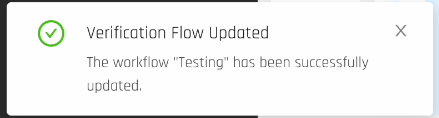
To remove a country block list from a flow, set the dropdown back to - (No Country Block List) - and save.
End-User and Approver Experience
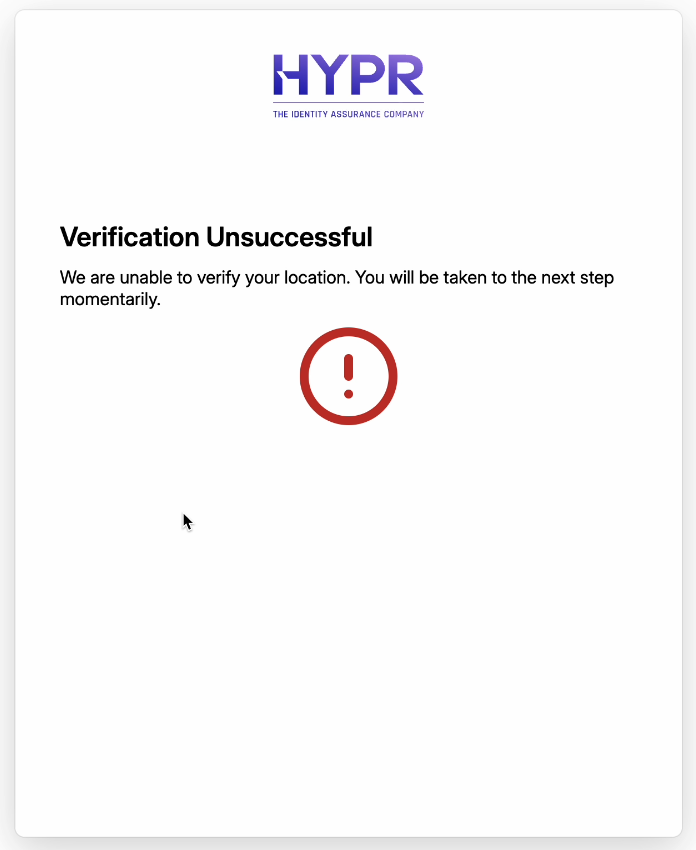
Requester (blocked user): When a requester attempts verification from a blocked country, they see a "Verification Unsuccessful" screen and are advanced to the next step in the flow.
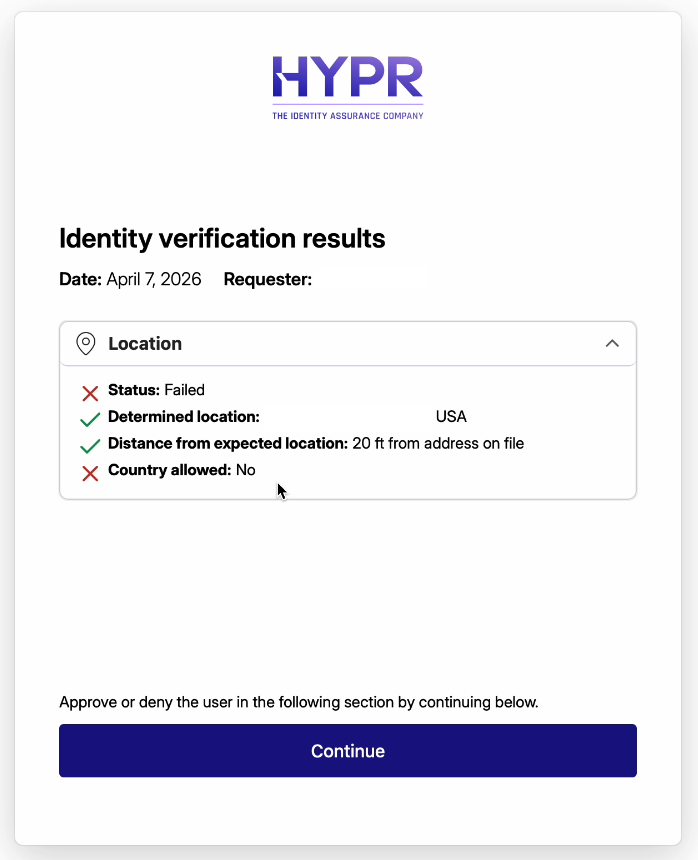
Approver: The verification results panel shows the Location step details. When a country block list is in effect and the requester's country is on it, the Country allowed field displays No alongside the overall step Status: Failed.
Multi-Headquarters Location Policy
Organizations with multiple physical locations can configure more than one headquarters address per tenant. A requester passes the location check if they are within the configured distance threshold of any configured headquarters.
Configuring multiple headquarters
In Control Center, open Affirm Settings → Location Settings and add a headquarters entry for each location. Each headquarters carries:
- Address — the street address used to derive coordinates for distance calculation
- Optional IP range association — bind a CIDR range or IP list to this headquarters, so requests that originate from this network are recognized as coming from this HQ without geocoding round-trip
- Per-HQ distance threshold — override the global distance threshold for this headquarters (useful when one HQ has a much smaller campus than another)
If no per-HQ threshold is set, the global threshold applies to all configured headquarters.
How location validation evaluates against multiple HQs
When a workflow with the Location step runs against a multi-HQ tenant, the requester's location is evaluated against each configured headquarters in turn. The check returns PASS if the requester is within the threshold of any configured HQ; FAIL if outside the threshold for every configured HQ.
The optional IP range association short-circuits geocoding: if the requester's IP matches a range associated with one of the configured headquarters, that HQ is treated as a match without further distance calculation.
Logging
Each location decision records the per-HQ evaluation in the Activity Log:
- Matched HQ — which configured headquarters returned the PASS (or the HQ that was the best near-miss if all failed)
- Distance per HQ evaluated — the calculated distance to each configured headquarters, useful for tuning thresholds and diagnosing borderline failures
- IP rule outcome — whether the IP allow/block lists matched, and which rule
- Final decision — the combined Location step outcome after all rules evaluate
Policy Enforcement
Order of Precedence
Policy controls are checked in the following order. If any check returns PASS or FAIL, subsequent checks are not evaluated:
- IP Block List (checked first)
- If the IP address matches a block list rule, verification fails immediately
- IP Allow List (checked second)
- If the IP address matches an allow list rule, verification passes (unless strict enforcement is enabled and the IP is not on the allow list)
- Distance Threshold (checked third)
- If the distance exceeds the configured threshold, verification fails
- Country Block List (checked last, if assigned)
- If a country block list is assigned to the flow and the requester's IP-detected country is on that list, verification fails
Workflow Integration
Network and Location-Based Policy Controls are integrated into Affirm identity verification workflows:
- Policy Check: When a user initiates a verification workflow, the system checks IP-based and location-based policies in order of precedence
- Enforcement: If a user fails any policy check (IP block, not on allow list with strict enforcement, or outside location threshold), verification fails
- Bypass: If policies are disabled, verification can proceed using standard Affirm workflow steps
Activity Logging
All policy-triggered events are logged in the Activity Log for audit and compliance purposes:
- Location IP Address Allowed: Shows pass/fail/not configured/not associated status for IP address checks
- Pass: Allow list exists and IP was either found in list or strict enforcement is disabled
- Fail: IP address either matched a rule in the block list or was not in an allow list with strict enforcement enabled
- Not Configured: the capability is enabled and allow list and block list are disabled
- Not Associated: the capability is not enabled
- Location Distance Threshold: Shows pass/fail/not configured/not associated status for location-based distance checks
- Pass: Threshold exists and calculated distance is within threshold
- Fail: Threshold exists and calculated distance is not within threshold
- Not Configured: the capability is enabled and distance threshold is disabled
- Not Associated: the capability is not enabled
- Location Country Allowed: Shows pass/fail/not configured status for country block list checks
- Pass: A country block list is assigned and the requester's detected country is not on it
- Fail: A country block list is assigned and the requester's detected country is on it
- Not Configured: No country block list is assigned to the flow
Administrators can review these logs to monitor policy effectiveness and investigate security events.
Troubleshooting
Verification Failures
If users are experiencing unexpected verification failures:
- Check Activity Log: Review the Activity Log to see which policy check failed
- Verify IP Lists: Confirm that user IPs are correctly configured in block/allow lists
- Review Location Data: Ensure user directory data contains accurate location information
- Test Policies: Temporarily disable policies to confirm they are causing the issue
Location Detection Issues
If location-based checks are not working as expected:
- Browser Permissions: Ensure users have granted browser geolocation permissions
- Directory Data: Confirm that user directory contains complete and accurate location information