HYPR Affirm Helpdesk Support
Overview
HYPR Affirm's Helpdesk Support capability brings secure, auditable identity verification to enterprise support teams. Purpose-built for real-time workforce assistance, this enhancement introduces a dedicated Helpdesk application (rpApp), refined user management workflows, and streamlined deployment controls.
Traditional helpdesk interactions often rely on manual, insecure methods to verify user identity, creating security gaps and compliance risks. With HYPR Affirm Helpdesk Support, enterprises can now equip their support teams with a secure, consistent way to verify users across password resets, access escalations, and support escalations, reducing friction while strengthening trust.
Key Benefits
- Strengthen security during human-assisted authentication workflows
- Enhance compliance with enterprise audit and data handling requirements
- Improve agent efficiency through fast, intuitive PIN-based workflows
- Streamline management of support verification policies at scale
Capabilities
HYPR Affirm Helpdesk Support provides comprehensive identity verification capabilities for enterprise support teams:
- Helpdesk Portal Access: Secure login through existing authentication methods (SSO, enterprise identity providers) with role-based access controls
- Verification Flow Management: View and initiate verification sessions with workflow initialization modal
- Dynamic Workflow Invocation: Input user attributes (login identifier, name, email, phone) to trigger verification sessions for users not yet in the system
- Multi-Channel Delivery: Send verification links via email, SMS, or copy-to-clipboard for custom channels (internal chat, ticketing platforms)
- Verification Results Management: Comprehensive visibility including results table, PIN-based search, detailed result views, and verification code validation
- Audit and Compliance: Complete logging of all helpdesk-initiated verification activities in HYPR Audit Trail for compliance and security reviews
- Real-time Identity Verification: Proactive workflow initiation for access issues, sensitive support requests, and remote user onboarding
Configuration Requirements
Tenant enablement
The Helpdesk application is enabled per tenant by HYPR:
- Confirm with your HYPR representative that Affirm Helpdesk is enabled on your tenant. See Affirm Feature Availability.
Integration Requirements
To use Helpdesk Support effectively, organizations should have:
- At least one Identity Provider (IdP) integration configured (Okta, Entra ID, etc.)
- Proper user attribute mapping for verification flows
- Network access for helpdesk agents to reach the HYPR platform
For step-by-step instructions on configuring Okta as the OIDC provider for the Helpdesk portal, see Okta: OIDC Integration for HYPR Affirm Helpdesk.
User Management
Helpdesk agents require appropriate permissions and access to:
- The dedicated Helpdesk portal
- Verification flow management capabilities
- Audit and activity log review functions
A user who authenticates through your Identity Provider but whose token carries no Affirm Helpdesk role — or a role other than Helpdesk viewer or editor — is denied access to the Helpdesk portal and sees an Access Not Allowed page. There is no default role. Grant access by placing the user in the group that carries the role they need, and remove access by taking them out of it. For the group and claim setup, see Okta: OIDC Integration for HYPR Affirm Helpdesk or Entra ID: OIDC Integration for HYPR Affirm Helpdesk.
How It Works
Helpdesk Portal Access
In HYPR 11.1 and later, the Helpdesk Settings and Helpdesk Users tabs in the HYPR Affirm menu in Control Center display a blue Helpdesk Link banner with a URL and a Copy control. Administrators and analysts can copy this link and share it with helpdesk agents.


Support agents access the dedicated Helpdesk portal through their organization's existing authentication methods, including SSO or enterprise identity providers. This ensures secure role-based access to the Affirm Helpdesk interface.
Verification Flow Management
Depending on the Helpdesk role assigned to the user, the Helpdesk app provides either read-focused access or additional operational capabilities.
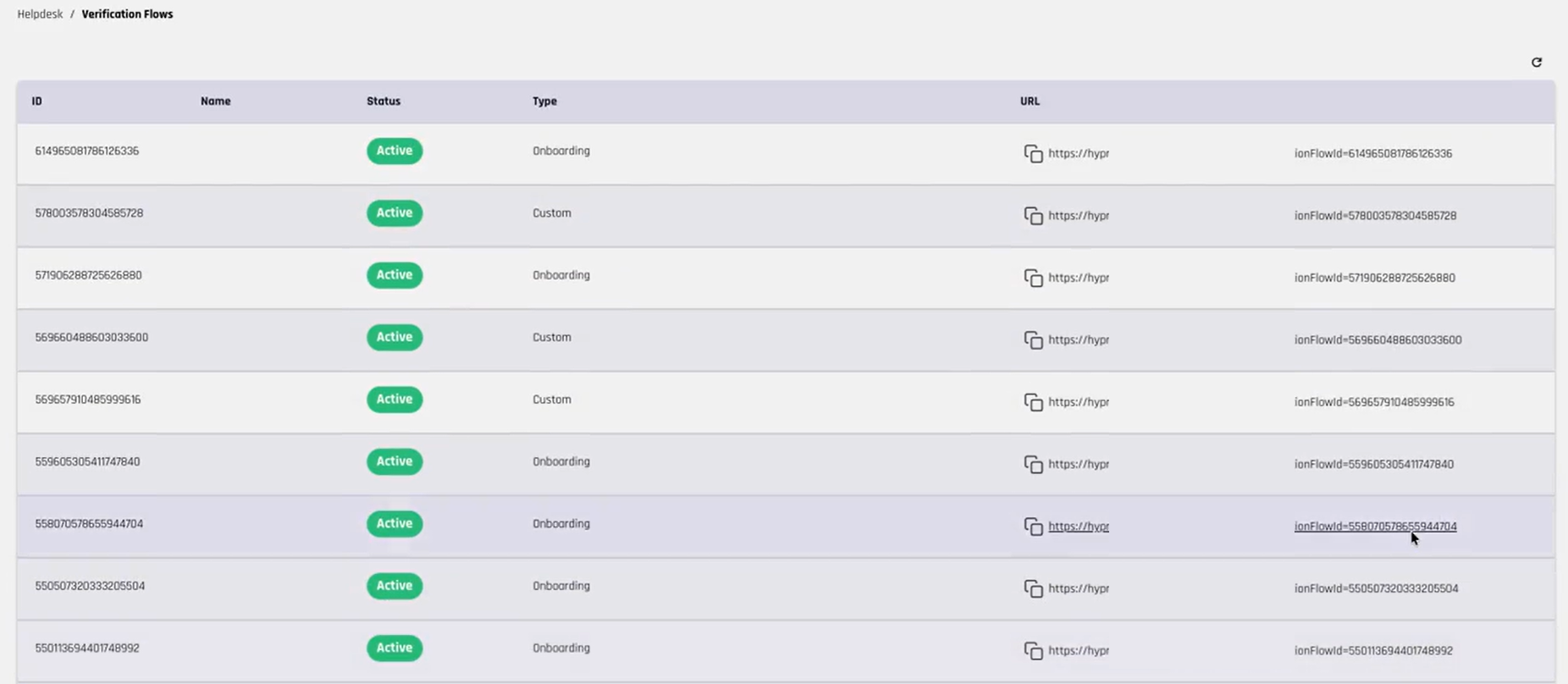
Helpdesk viewers can review the configured verification workflows and inspect workflow status/links, but they cannot initialize workflows (the Initialize control is not shown).
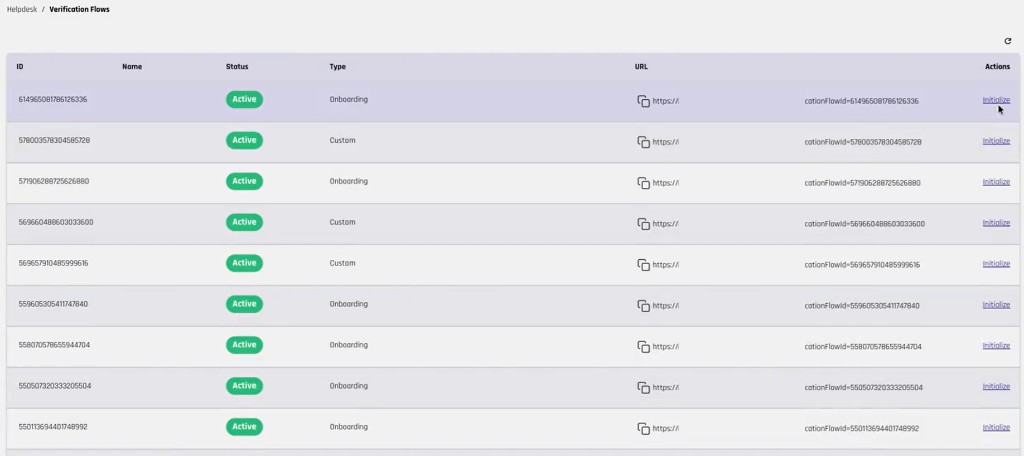
Helpdesk administrators can additionally initialize workflows by clicking the Initialize link next to the corresponding workflow in the Verification Flows view.
The Verification Flows view displays the workflows that are available in the Helpdesk app. This page provides a high-level list of configured workflows and their current status.
Currently, the list can include:
- Workflow identifier
- Workflow name
- Status, such as Active or Inactive
- Workflow type
- Workflow URL
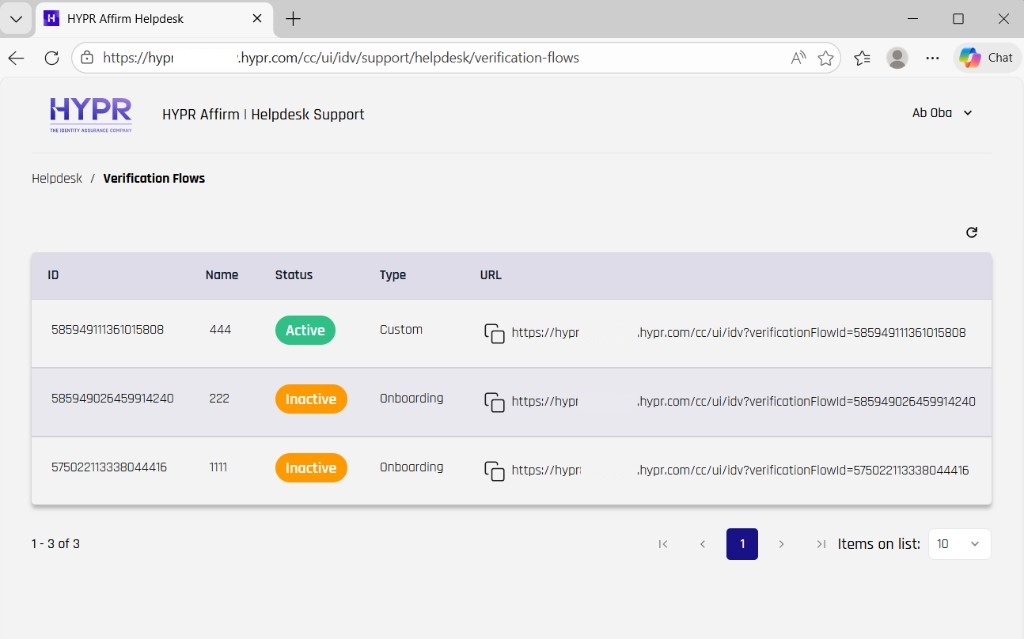
Helpdesk users can review the available workflows and, depending on role and configuration, use those workflows to begin a verification session.
For helpdesk administrators, the workflow list includes an Initialize link for each workflow row:
Viewer view screenshot: workflows/links and status are visible, but the Initialize control is not shown.
Workflow Activity and Details
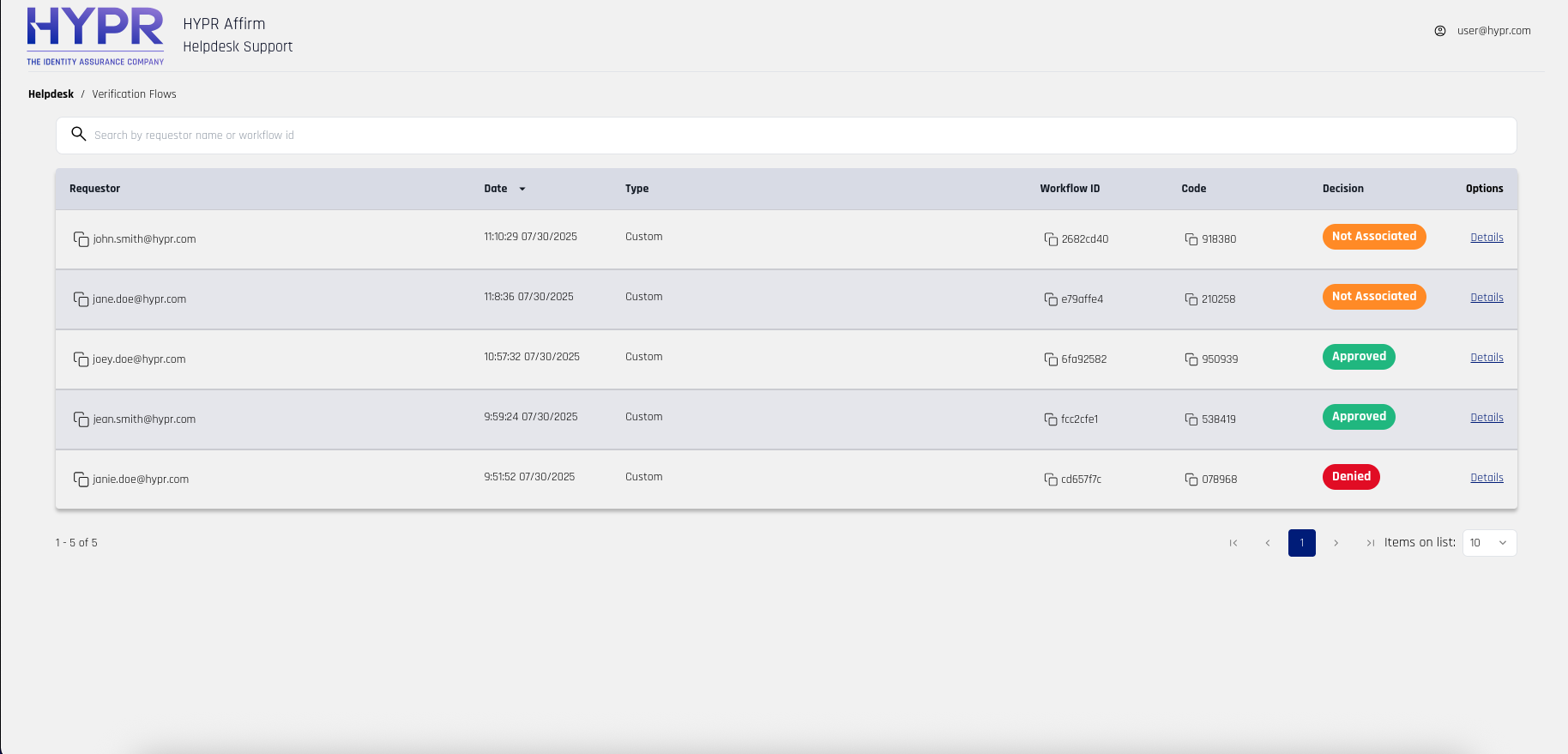
The Helpdesk app also provides an activity view for individual workflow instances. This view is used to review recent verification attempts and inspect their outcome.
The activity list shown below is representative of the information available in the Helpdesk app. Exact columns and filters may vary by deployment and release, but the current experience includes fields such as:
- Requester
- Date
- Workflow type
- Workflow ID
- Decision
- A Details action for opening the corresponding workflow instance
Selecting a specific workflow instance opens a detail view for that transaction. The exact fields shown depend on the workflow design and the verification steps enabled in that flow, but the detail page can include the final decision and step-related values captured during the verification.
Representative examples of fields visible in the detail view include:
- Date
- Type
- SMS Send Time
- Phone
- IP Location
- Browser Location
- Verification-step results and related values
Workflow Initialization
Where the assigned Helpdesk role allows workflow initialization (helpdesk administrator permissions), a Helpdesk user can click Initialize for the selected workflow, complete the available requester fields, and then initialize the workflow.
During initialization, the admin can choose whether to send the workflow link via email and/or SMS. After the workflow is successfully initialized, the workflow link becomes available to copy.
The initialization dialog includes fields such as:
-
Login Identifier (email or username)
-
Email, plus a
Send link via EMAILoption -
Phone number, plus a
Send link via SMSoption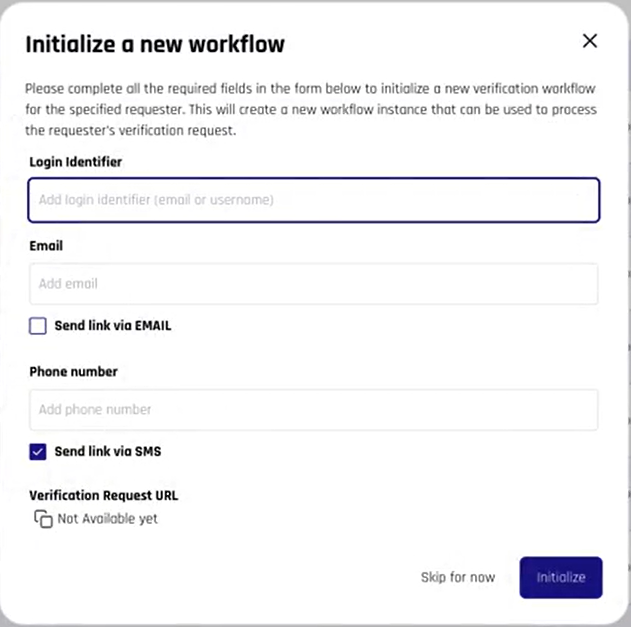
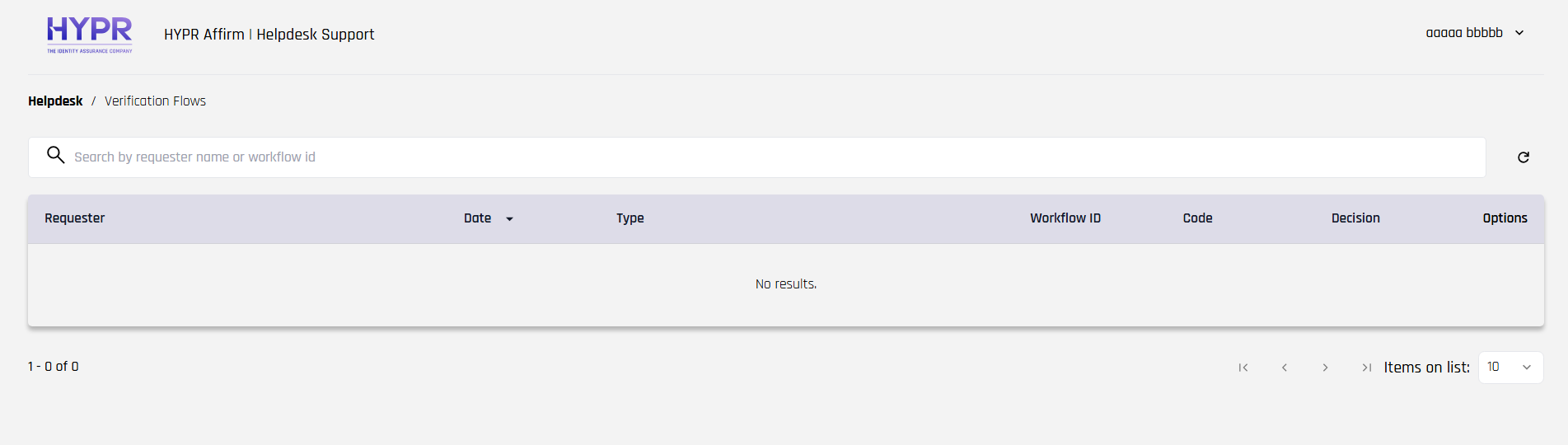
Viewer role UI with no Initialize link visible:
For more information about how verification flows work in Affirm, see What the Requester Sees and What the Approver Sees
Helpdesk Settings
Control Center administrators configure Helpdesk behavior from the Helpdesk Settings tab in the HYPR Affirm menu. Admin and App Manager users can change these settings; Viewer users can view them.
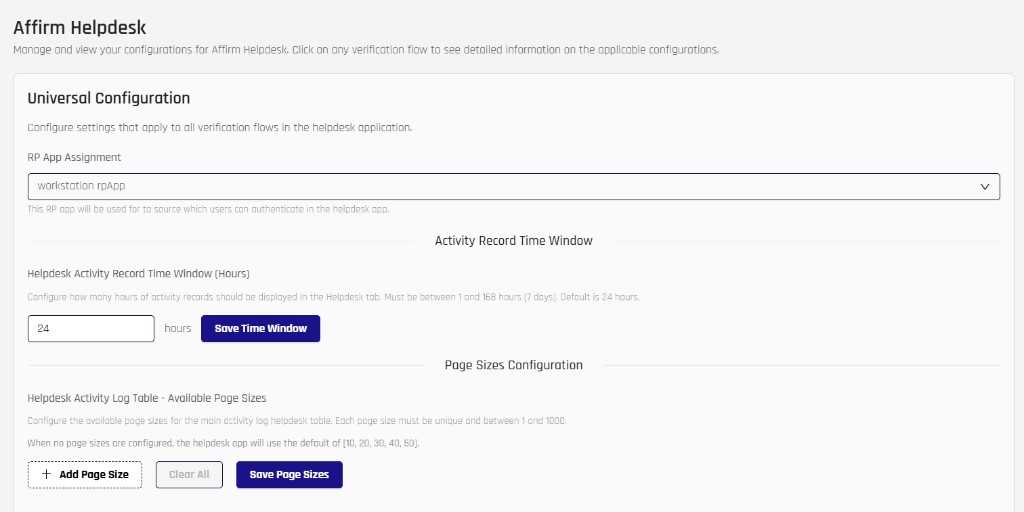
At the top of the page, the Universal Configuration section provides settings that apply across the Helpdesk experience:
- RP App Assignment: Selects the RP application used to determine which users can authenticate into the Helpdesk portal.
- Helpdesk Activity Record Time Window (Hours): Controls how many hours of activity records are shown in the Helpdesk tab. Enter a value from 1 to 168 hours (7 days).
- Helpdesk Activity Log Table - Available Page Sizes: Defines the selectable page sizes for the Helpdesk activity log table. Each page size must be from 1 to 1000, and the sizes must be unique and in ascending order.
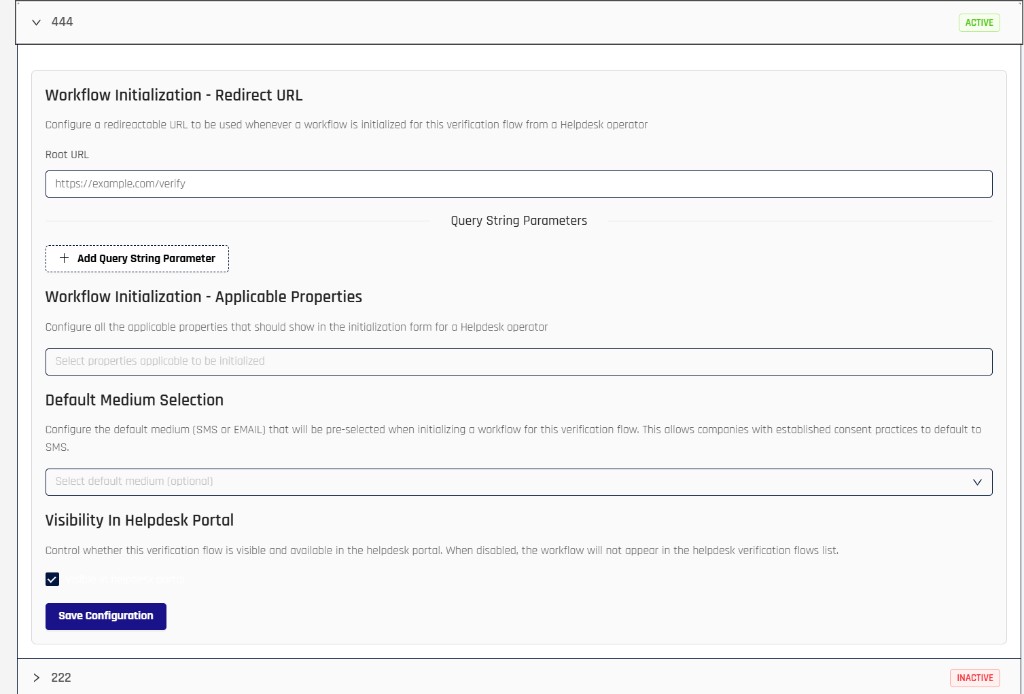
Below the universal settings, the page lists all verification flows. Each flow can be expanded so that administrators can configure Helpdesk behavior for that specific workflow.
Per-workflow settings include:
- Workflow Initialization - Redirect URL
- Query String Parameters
- Workflow Initialization - Applicable Properties
- Default Medium Selection
- Visibility In Helpdesk Portal
Control Center checks these settings when you save:
- The Root URL under Workflow Initialization - Redirect URL must be an absolute http(s) URL of up to 500 characters. It is required when query string parameters are set, and together with the parameters it must form a valid URL.
- Query string parameter keys must be unique and not blank, and cannot contain spaces or the characters
&,=,?or#.
Managing Helpdesk Users
Control Center administrators manage who can act as a Helpdesk agent from the Helpdesk Users tab in the HYPR Affirm menu.
- The Helpdesk Users tab lists all registered Helpdesk users and their assigned roles.
- Administrators can add new users, update roles, or remove existing Helpdesk users from this list. App Manager users can view Helpdesk users, resend invitations, send login recoveries, and create magic links, but cannot add or remove Helpdesk users. Viewer users can view the list. User Manager users have no access to Helpdesk users.
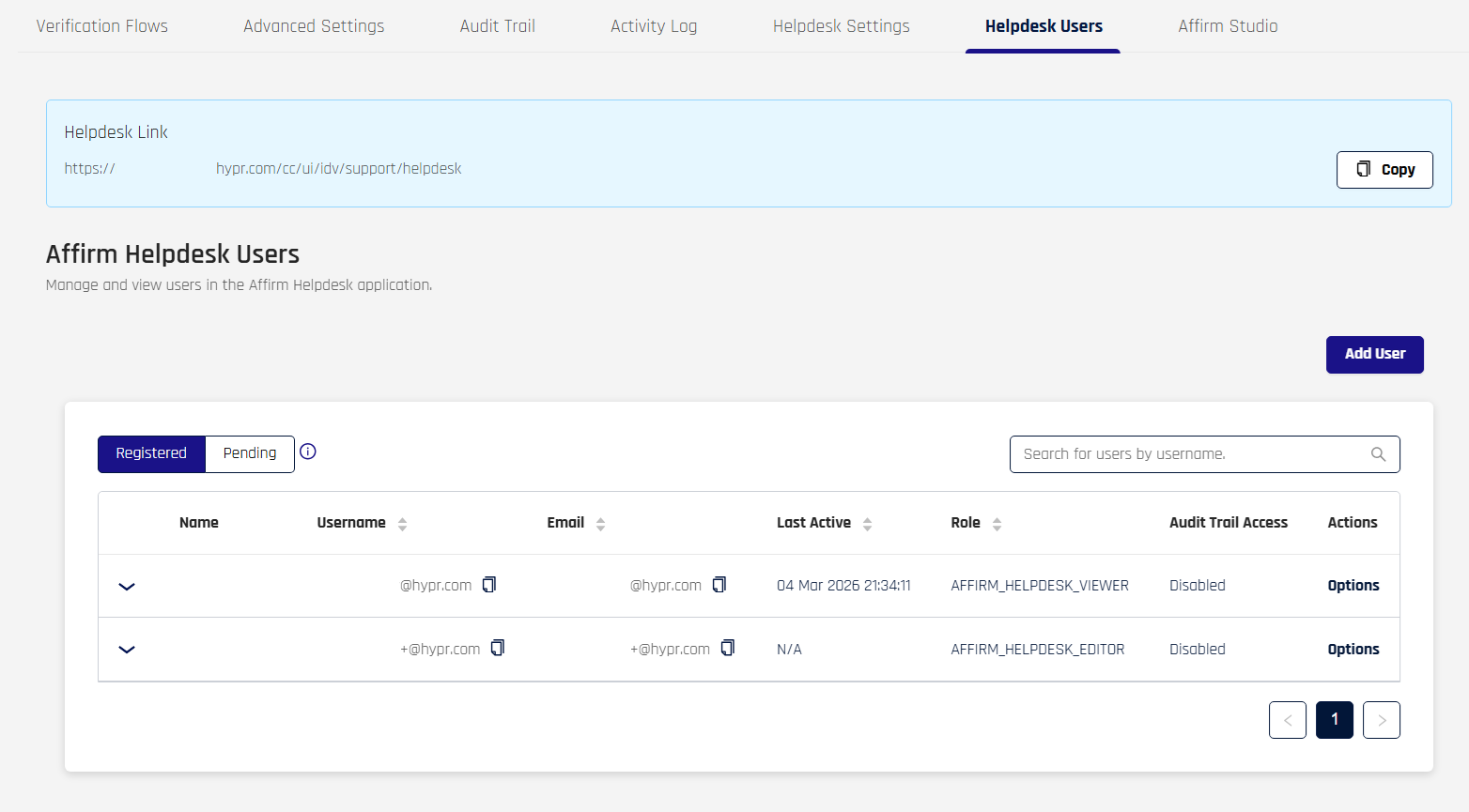
To add a new Helpdesk user:
- Navigate to HYPR Affirm → Helpdesk Users in Control Center.
- Click Add User to open the Add User to Affirm Helpdesk dialog.
- Enter the user's First Name, Last Name, and select the appropriate Helpdesk role.
- Confirm to send the invitation.
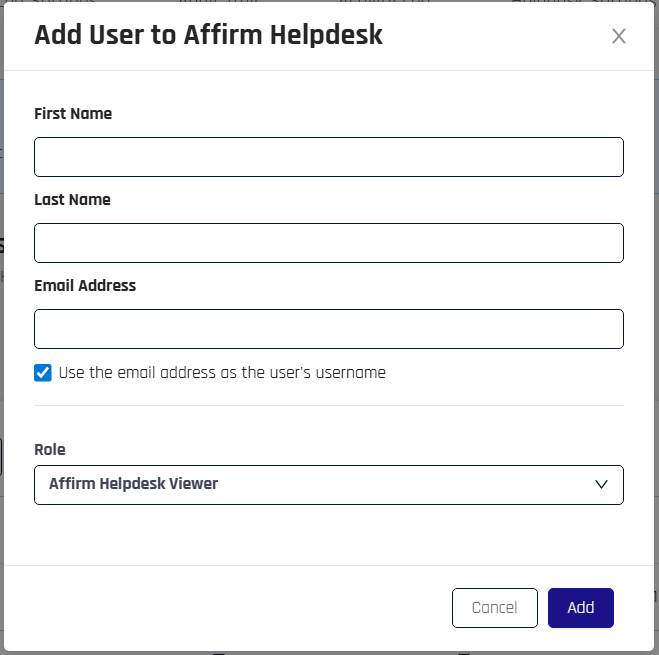
The invited user receives an email containing an enrollment link.
The link directs the recipient to a Device Manager page where they can enroll a device for access using the HYPR Mobile App or a passkey.
After completing enrollment, they can access the Helpdesk portal using the Helpdesk Link you copied from the Helpdesk Settings or Helpdesk Users tab.
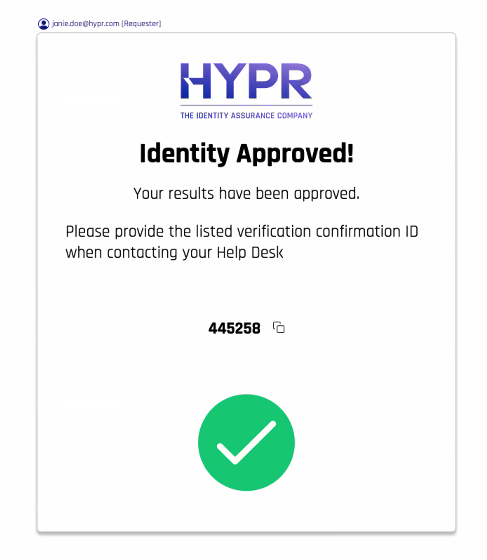
Verification Code Validation
Helpdesk agents can quickly search for and validate verification codes shown to users at the end of their workflow, enabling fast identification of specific transactions without requiring additional personal details.
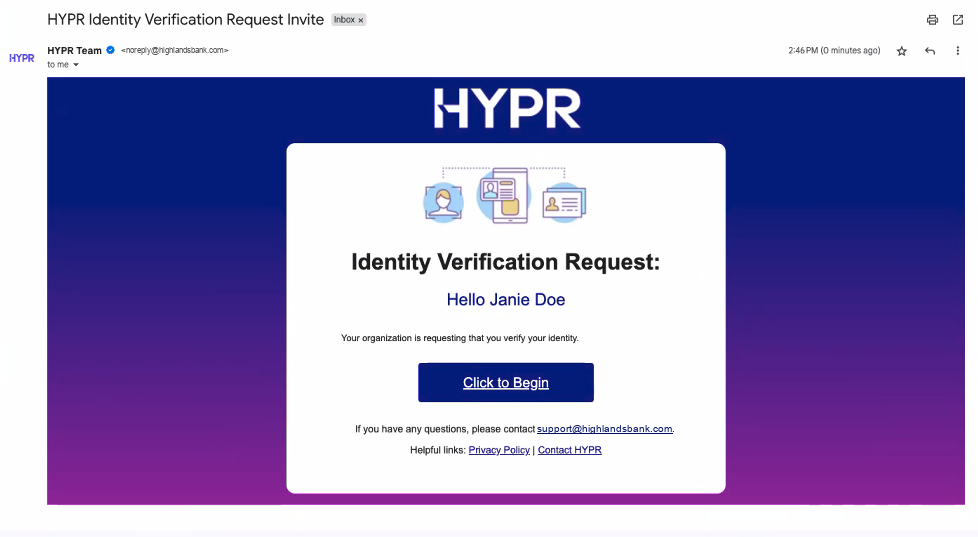
Multi-Channel Delivery
New identity verification workflows can be launched by sending URLs directly to users via email, SMS, or by sharing them via internal communication tools, eliminating delays and improving user experience.
Use Cases
HYPR Affirm Helpdesk Support addresses common enterprise support scenarios where secure identity verification is critical:
- Password Reset Assistance: Verify identity for users who have forgotten passwords, ensuring only legitimate users regain account access
- Access Escalation: Verify identity before granting elevated permissions or access to sensitive systems (temporary or permanent)
- Remote Onboarding: Establish credentials securely for new employees or contractors working remotely
- Account Recovery: Help users regain access through verified identity processes when they've lost authentication methods
- Support Ticket Verification: Verify requester identity before providing assistance or sharing confidential information for sensitive support requests
Security and Compliance
Audit Trail
All Helpdesk-initiated verification activities are logged in the HYPR Audit Trail, providing comprehensive audit records for compliance and security reviews.
Data Protection
Helpdesk Support maintains the same security standards as other HYPR Affirm features:
- End-to-end encryption of verification data
- Secure transmission of verification links
- Compliance with enterprise data handling requirements
- Integration with existing security frameworks
Access Controls
Helpdesk agents are subject to the same authentication and authorization controls as other HYPR users, ensuring that only authorized personnel can initiate verification workflows.
Best Practices
Workflow Design
- Design verification workflows appropriate for the sensitivity of each helpdesk scenario
- Consider the urgency and sensitivity of different support scenarios
- Test workflows thoroughly before deploying to production
Agent Training
- Train helpdesk agents on proper verification procedures
- Establish clear escalation paths for complex verification scenarios
- Provide ongoing support and guidance for agents
Monitoring and Review
- Regularly review helpdesk verification activities
- Monitor for unusual patterns or potential security issues
- Use audit logs to improve processes and identify training opportunities