End User Guide: Using AI Tools with HYPR AgentPass
Your organization now runs its AI tools through HYPR AgentPass™. This guide explains what that means for you, what to do, and what you see when AgentPass steps in. You do not need any technical knowledge to follow it.
- Your work Microsoft account, to sign in to the Agent Portal
- The Agent Portal link your administrator sends you
- Your work phone, only if you are asked to approve requests
What AgentPass Does
An AI tool is software you ask for help in plain words, such as Microsoft 365 Copilot. An agent is an AI tool that also takes actions for you, such as looking up a record or sending a message.
AgentPass sits between these tools and the services and company systems they reach. Requests pass through it on the way. As they pass, AgentPass does these things:
- Checks each request, and sometimes the answer, against your organization's rules
- Holds certain actions until a person approves them
- Keeps a record of what was asked and what happened
Your organization uses it so that people can work with AI while customer data and company systems stay protected. The tools you use through it act as you, with your own access.
What Changes for You
Most of the time, nothing looks different. You ask, and the answer comes back. The changes depend on how you use AI at work.
| How you use AI | What changes |
|---|---|
| Chatting with Copilot or your organization's own agents | You use them in the Agent Portal, a web page your administrator gives you. See Chat in the Agent Portal |
| Chatting with an agent in Slack | You ask the same way. Some replies are now notices from AgentPass. See Use an Agent in Slack |
| AI tools installed on your work computer | Your organization may set them up to go through AgentPass for you. See AI Tools on Your Work Computer |
| Agents you are responsible for | You may be asked to approve their requests on your phone. See Approve Requests on Your Phone |
Now and then, AgentPass stops a message, holds an action for approval, or reports that an agent is turned off. Each of these is covered in the following sections, with what to do next.
Chat in the Agent Portal
The Agent Portal is a web page where you chat with Microsoft 365 Copilot and your organization's own agents. Your organization may give it its own name, colors and logo. In these examples, the portal is called Highlands Assist.
Sign In
- Open the Agent Portal link your administrator sent you.
- On Sign in to the agent portal, click Continue with Microsoft.
- Sign in with your Microsoft work account in the window that opens.
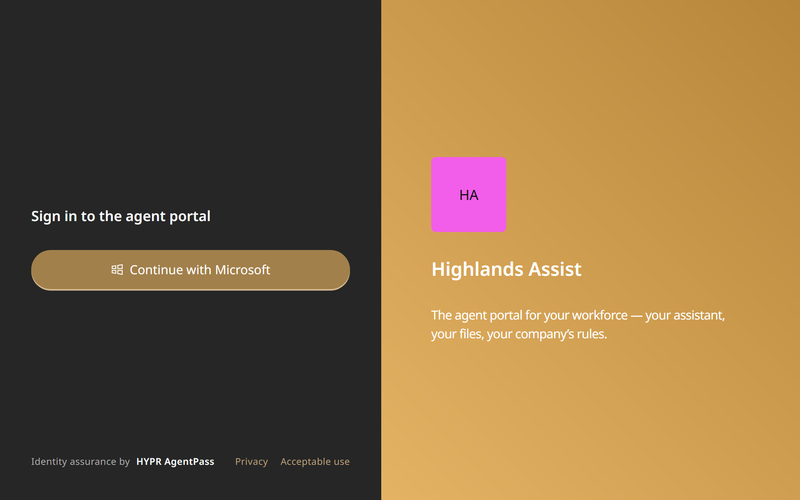
The portal keeps you signed in while the page stays open. If you reload or close the page, click Continue with Microsoft again. Microsoft may sign you straight back in without asking for your password.
Choose an Agent and Ask
After you sign in, the portal greets you by name. The sidebar lists your agents under AGENTS, with Copilot first, and your earlier Copilot chats under RECENT CHATS.
- In the sidebar, click the agent you want, or stay with Copilot.
- Type your question in the message box, or click one of the suggested prompts.
- Press Enter to send. To start a new line instead, press Shift+Enter.
The reply appears in the conversation as the agent writes it. To start over, click New chat.
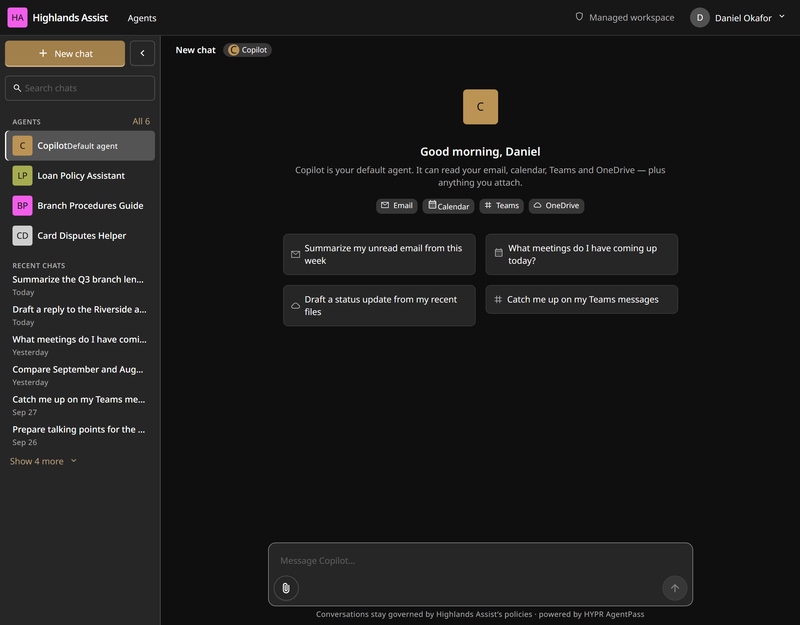
Managed workspace in the header, and the line under the message box, show that the conversation is covered by your organization's rules.
Answers in the portal are written by AI, and each one carries the reminder AI-generated content may be incorrect. Check anything important before you act on it.
Attach a File
You can give an agent a document to work from:
- In the message box, click the paperclip.
- Click Upload a file to pick one from your computer. In a Copilot chat, you can also click Attach from OneDrive to pick a file from your OneDrive. Your organization's own agents offer Upload a file only.
Each file appears above the message box. Your organization's rules apply to it, the same as to your message. An uploaded file must be 20 MB or smaller, in a common document format. For the formats accepted, see Upload a File from Your Computer.
Sign Out
Click your name in the top-right corner of the portal, and click Sign out. This ends only your portal session. Your other Microsoft 365 apps stay signed in.
For everything else the portal can do, such as picking up an earlier chat or checking an answer's sources, see Chatting in the Agent Portal.
Use an Agent in Slack
Your organization may also connect an agent to Slack. To ask it something, send the agent's Slack app a direct message, or mention the app in a channel. The agent answers in the thread of your message.
Each request runs as you, under the same rules as the rest of your AI use. When the agent cannot answer, its reply tells you why. See When a Message Is Blocked and the sections after it.
AI Tools on Your Work Computer
Your organization may install HYPR Endpoint Guard on your work computer. It recognizes the AI tools running there, and can set supported tools up to send their requests through AgentPass. You do not need to change anything yourself. Your administrator tells you if there is a step for you. If your IT team asks you to install it yourself, follow On Your Work Computer.
Endpoint Guard itself reports which AI tools are running, on which computer and under which signed-in account. It doesn't read your files. Requests a tool sends through AgentPass are recorded like any other request.
A tool set up this way may show you notices from AgentPass inside its own window. The following sections explain each one.
When a Message Is Blocked
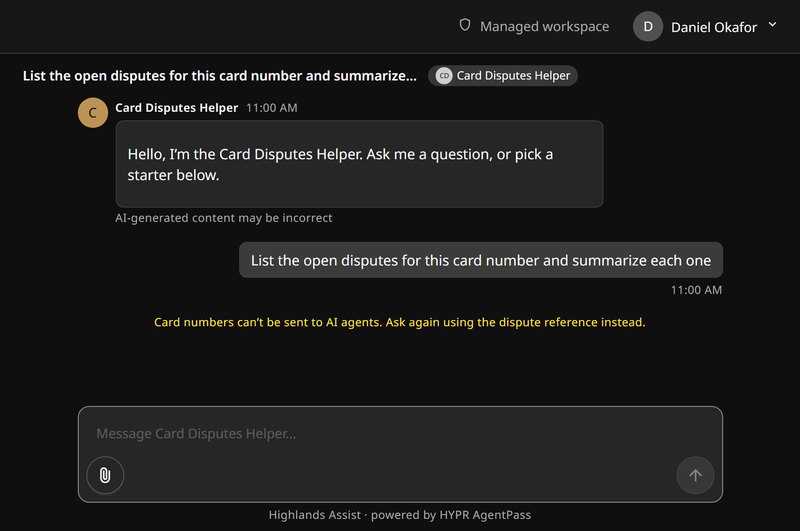
Your organization's rules can stop a message or a file before it reaches an agent. Nothing was sent, and nothing went wrong on your side.
In the Agent Portal
When a rule stops a message, a short notice appears where the agent's reply would be. In a chat with one of your organization's agents, the notice gives the reason your organization wrote for that rule.
When a rule stops a file, its label above the message box reads Blocked, and the file is not sent. Hover over the label to see the reason.
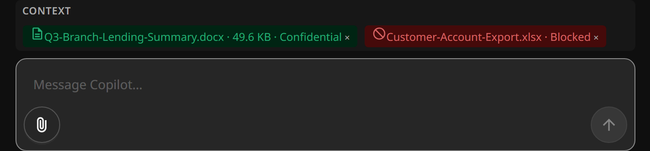
A file can also be turned away because of its format, not a rule. For example, a label reading Encrypted means the document is protected and cannot be read, so upload an unprotected copy instead. Each label is explained in Upload a File from Your Computer.
In Slack
The agent replies in the thread with a ⛔ notice. It gives the rule's reason, or reads A policy blocked this request.
In an AI Tool on Your Computer
The tool shows a notice that starts with ⛔ Blocked by policy, followed by the rule's name and its reason. The notice says your organization's gateway inserted it, so it was not written by the AI. The blocked step never ran. Sending the same request again is blocked again.
What to Do
- Read the reason, if there is one. It usually tells you what to change.
- Ask again without the part the rule is about, such as a customer's details.
- If your work needs what the rule stops, ask your administrator. Include the notice's exact wording.
When an Action Is Waiting for Approval
Some actions need a person to say yes first. AgentPass holds the action and asks that person, called the agent's supervisor. Sometimes the person asked is you.
While an action waits:
- Nothing happens until someone decides.
- If nobody answers in time, the request expires, and the action does not go ahead. An expired request is never treated as approved.
- If the answer is no, the action stops.
In the Agent Portal
The Agent Portal has no approval step. A rule that needs approval stops the message or file, the same way a block does.
In Slack
The agent replies This needs your approval first, followed by what needs approving. Approve it in the HYPR app on your phone, then ask the agent again. See Approve Requests on Your Phone.
In an AI Tool on Your Computer
The first time a tool connects through AgentPass, its supervisor may need to approve it. The tool tells you that AgentPass paused the request until a supervisor approves access, and waits. Once approved, it carries on.
If the tool cannot wait, it says it does not have access yet, and that an approval request has been raised. Once the request is approved, send your message again.
If the tool says it is not registered with the gateway yet, it cannot ask for approval itself. Ask your IT help desk to set it up, then try again.
A later action can be held the same way. The tool then tells you the action is waiting for a supervisor's approval, and that it has not failed.
Approval to use a tool lasts for a limited time, which your organization sets. When it ends, the tool asks again. That is expected, and does not mean anything went wrong.
When an Agent Is Turned Off
An agent's supervisor or your administrator can turn an agent off at any time, for example while they check what it has been doing. A turned-off agent refuses every request until someone turns it back on. Signing in again does not turn it back on.
You see one of these:
- In Slack, This agent has been turned off. Ask its owner or an administrator to turn it back on.
- In an AI tool on your computer, an error that reads This agent is turned off
To get it working again, ask the agent's owner or your administrator.
Approve Requests on Your Phone
You need this section only if you look after an agent, or your organization asks you to approve your own requests. Approvals reach you in the HYPR app, and you confirm each one with a passkey. A passkey is a sign-in key stored on your phone, and unlocked with your face, fingerprint or phone PIN. There is no password to type or steal.
Set Up Once
- Install the HYPR app with AgentPass turned on. Your administrator tells you how to get it. Follow the guide for iPhone or Android.
- Set up your approval passkey. Follow Setting Up Your Approval Passkey.
Answer a Request
- Open the notification on your phone. The request opens in the HYPR app. On iPhone, it is under Needs you.
- Read which agent is asking, and what it wants to do.
- Tap Allow on iPhone, or Approve on Android, if you recognize the request. Confirm with your face, fingerprint or PIN. If the request asks you to sign in to a service, sign in. On iPhone, tap Authenticate.
- Tap Deny if you do not recognize it, or it is not what you expected. On Android, confirm once more.
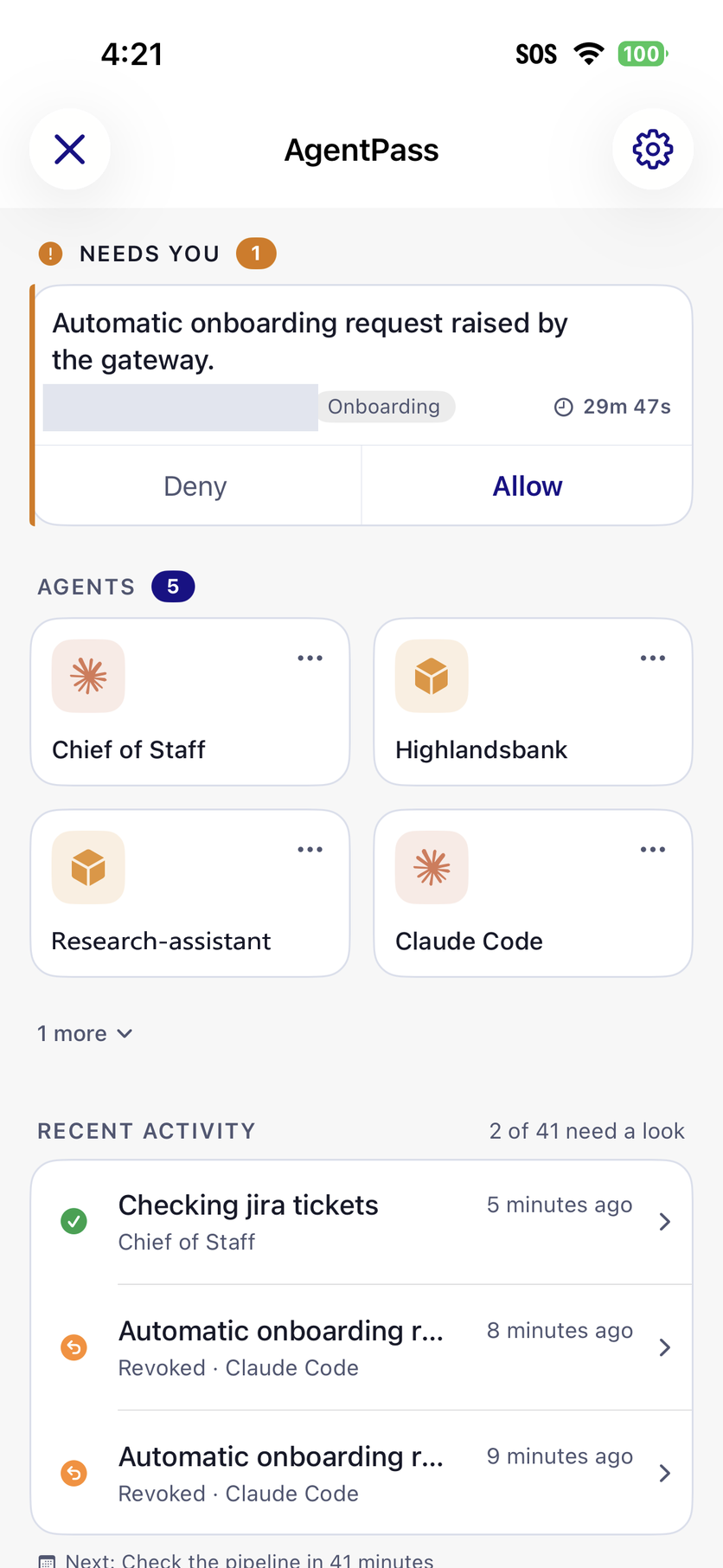
Your approval is signed with your passkey, so the record shows the decision was yours. If a request looks unfamiliar, deny it, and tell your administrator.
If one of your agents does something you did not intend, you can turn it off from the app straight away. See Turning an Agent Off.
What AgentPass Records
AgentPass keeps a record of each request that passes through it, so your organization can see what its AI tools did and who asked. The record can include what you asked and the answer you got. People your organization authorizes, such as administrators, can review it.
This is the same reason the tools act as you: every action can be traced to the person or agent behind it.
Common Questions
Do I need to install anything?
Not for the Agent Portal, which runs in your web browser. You need the HYPR app only if you approve requests. Your administrator tells you if your computer needs anything.
Why was my message blocked when it seemed harmless?
Rules can look for certain kinds of content, such as customer details, wherever it appears. Remove that part and ask again. If you still need it, ask your administrator.
Can the AI see more than I can?
No. The tools act with your own access. Copilot, for example, reads your email, calendar, Teams messages and OneDrive files, but only what your account can already open.
Why does a tool ask for approval again when it worked last week?
Approval to use a tool lasts for a limited time. When it ends, the tool asks again.
An agent I need is not in the Agent Portal
Your administrator decides which agents the portal lists, and everyone sees the same list. Ask them to add it.
Getting Help
Your administrator, or your organization's IT help desk, is your first contact for anything AgentPass shows you. When you ask, include the exact wording of any message you see.
| If you see | Ask |
|---|---|
| A blocked message or file that your work needs | Your administrator, to review the rule |
| A request that has been waiting a long time | The agent's supervisor, or your administrator |
| This agent has been turned off, or This agent is turned off | The agent's owner, or your administrator |
| An AI tool on your computer saying it is not registered with the gateway | Your IT help desk, to set it up |
| A message about a license, consent or registration in the Agent Portal | Your administrator. See If Something Goes Wrong |
| A request on your phone you do not recognize | Deny it, and tell your administrator |
Related
- Chatting in the Agent Portal — every Agent Portal feature, and each message it can show
- Being a Supervisor — for people responsible for agents
- Approving and Denying Agent Actions — what each answer does to the agent
- HYPR AgentPass: Overview — AgentPass for administrators and security teams