Quick Start: Using AI Tools with HYPR AgentPass
Your organization runs its AI tools through HYPR AgentPass™. You keep using them much as you do today, and this guide walks you through each place you use them.
How It Works for You
- You ask an AI tool for something, in your browser, in Slack or on your work computer.
- AgentPass checks the request against your organization's rules. The tool acts as you, with your own access.
- The answer comes back. Now and then, AgentPass stops a request or holds it for approval, and tells you what to do next.
Before You Begin
Have these ready:
- Your work Microsoft account
- The Agent Portal web address your administrator sends you
- Your work phone, only if you're asked to approve requests
Each place you use AI has its own section. Use the ones that apply to you.
| Where you use AI | Setup | Section |
|---|---|---|
| Your web browser | None | In Your Browser: The Agent Portal |
| Slack | None | In Slack |
| AI tools on your work computer (Mac or Windows) | Install once, if your IT team asks you to | On Your Work Computer |
| The HYPR app on your phone | Once, if you approve requests | On Your Phone |
In Your Browser: The Agent Portal
The Agent Portal is a web page where you chat with Microsoft 365 Copilot and your organization's own agents. Your organization may give it its own name and logo. These examples use Highlands Assist.
Sign In to the Portal
-
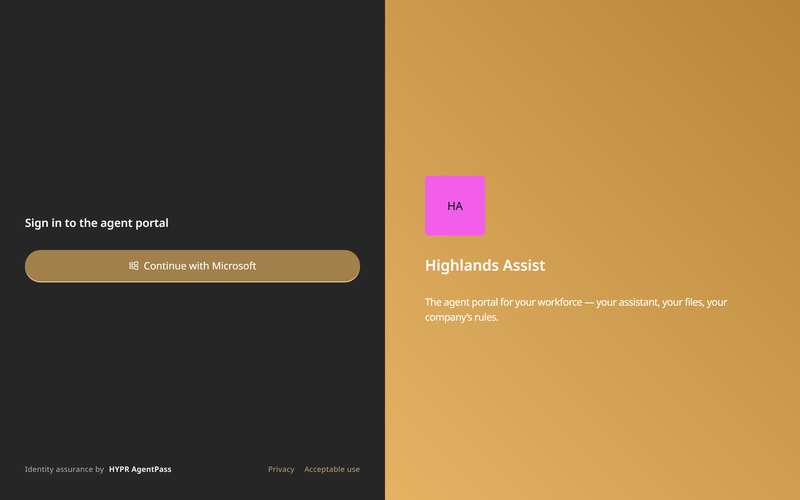
Open the Agent Portal web address your administrator sent you. The sign-in page opens.
-
Click Continue with Microsoft.
-
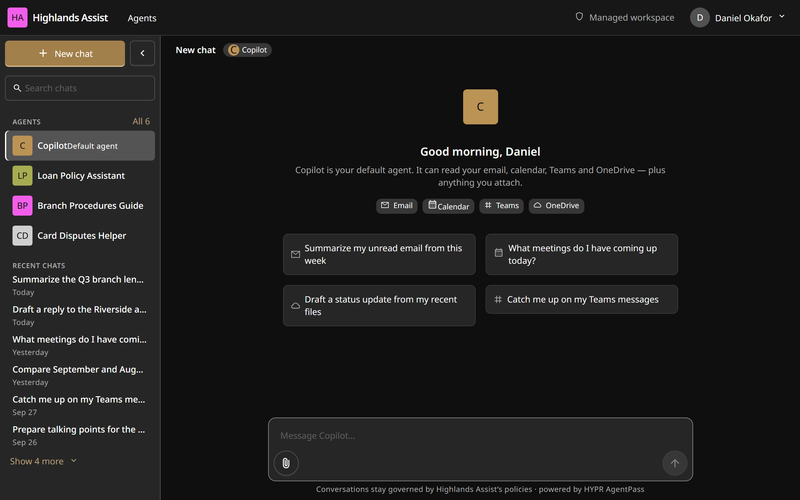
Sign in with your Microsoft work account. The portal greets you by name, with a new Copilot chat ready.
You stay signed in while the page is open. After you reload or close it, click Continue with Microsoft again. Microsoft may sign you straight back in.
Ask Copilot a Question
- In the message box, type your question, or click a suggested prompt.
- Press Enter to send. The answer appears as Copilot writes it.
For a new line in your message, press Shift+Enter. To start a fresh conversation, click New chat.
To reopen an earlier Copilot chat, click it under RECENT CHATS. For an older chat, type a few words in Search chats.
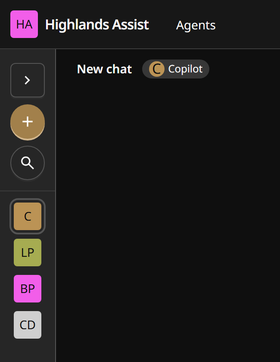
In a narrow window, the sidebar shows each agent's initials only. Click the arrow at the head of the sidebar to expand it.
Chat with One of Your Organization's Agents
-
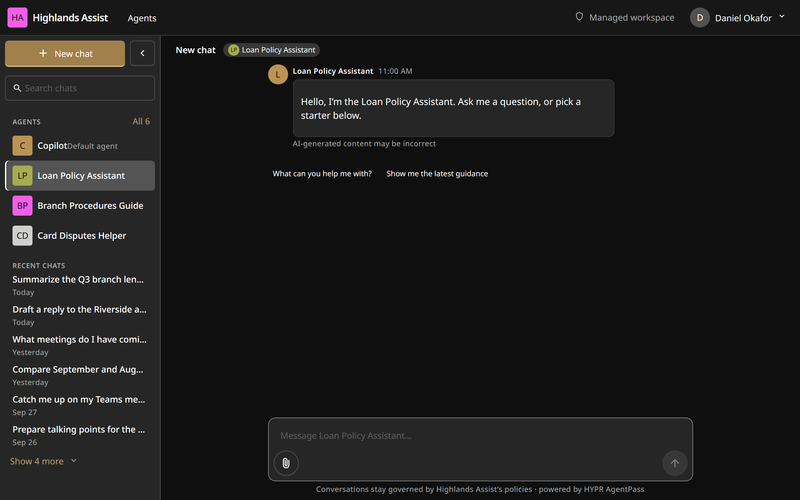
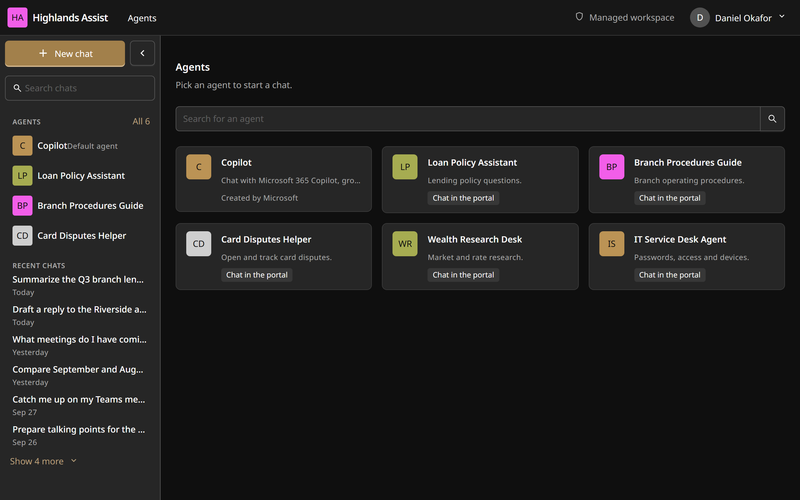
In the sidebar, under AGENTS, click the agent you want. The agent greets you, and offers questions to start with.
-
If the agent you want isn't in the sidebar, click Agents in the page header, and click the agent there.
-
Type your question, and press Enter. The answer appears in the conversation.
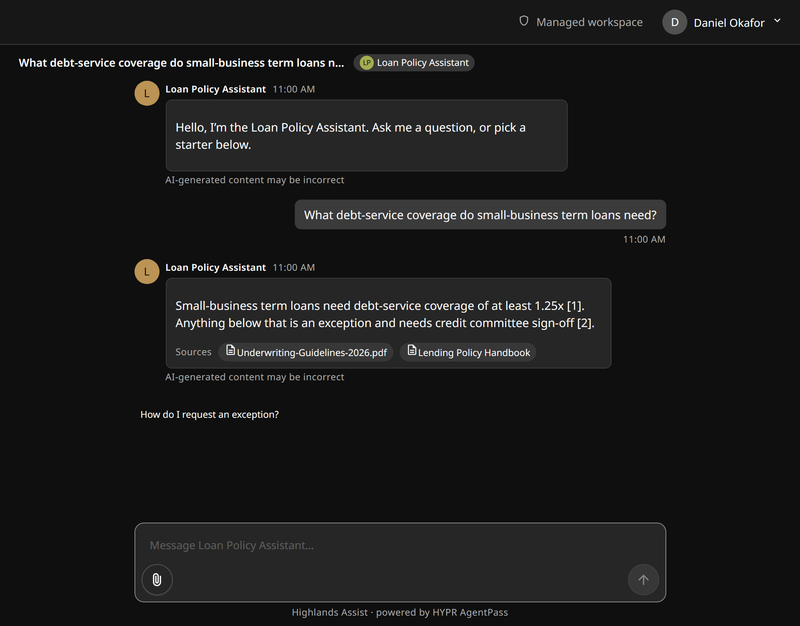
Numbers such as [1] point to the documents in the Sources row under the answer. Hover over a source to see its number. Click it to open the document, if it has a link.
Everyone in your organization sees the same list of agents. If one you need is missing, ask your administrator to add it.
Each answer carries the reminder AI-generated content may be incorrect. Check anything important before you act on it.
Attach a File
-
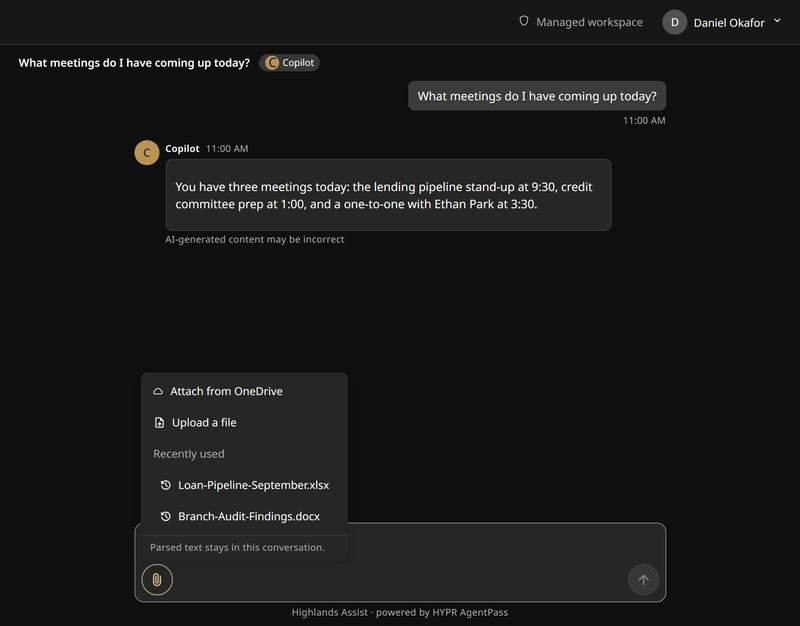
In the message box, click the paperclip.
-
Click Upload a file, and choose a file on your computer. In a Copilot chat, you can click Attach from OneDrive instead. Your organization's own agents offer Upload a file only.
-
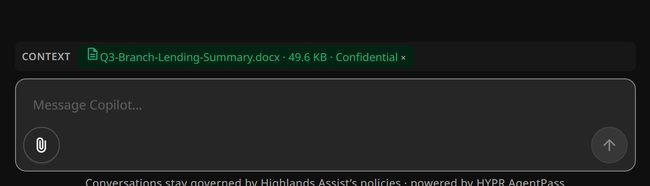
Wait for the file's label to appear above the message box. It shows the file's size and, for Office files, its sensitivity label.
-
Type your question about the file, and press Enter.
A file must be 20 MB or smaller, in a common document format. For an older .doc or .ppt file, a macro-enabled Office file or a PowerPoint slideshow, save a copy as .docx or .pptx, and upload that.
Sign Out
-
Click your name in the page header.
-
Click Sign out.
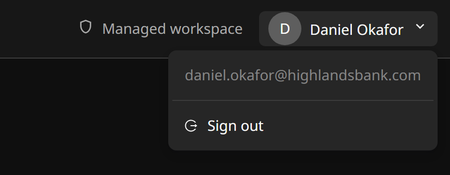
Sign out when you finish on a shared computer. Your other Microsoft 365 apps stay signed in.
In Slack
Your organization may connect an agent to Slack. There's nothing to set up. The agent recognizes you from your Slack account, and acts as you.
Ask the Agent in Slack
- In Slack, open a direct message with the agent's app, or mention the app in a channel.
- Type your question, and send it. The agent answers in the thread of your message.
- To follow up, reply in the same thread. In a channel, mention the app again in your reply.
When the agent needs an approval from you, it asks in the thread, and the request goes to the HYPR app on your phone. See On Your Phone for the setup.
On Your Work Computer
Your organization may install HYPR Endpoint Guard on your work computer. On a Mac, Endpoint Guard is an app called AgentPass. On Windows, it's a background service with no window. Either way, it can send your AI tools' requests through AgentPass, report which AI tools run on the computer, and block AI services your organization doesn't allow. On a Mac, it sends the requests of Claude Code, Claude Desktop and Codex through AgentPass, and applies your organization's rules to Cursor. You use the tools as usual.
Your IT team usually installs it for you. Follow the steps for your computer only if they ask you to.
Install AgentPass on a Mac
You need macOS 13 or later. Your IT team gives you the AgentPass disk image. If they installed AgentPass for you, go to Approve the AgentPass components.
-
Open the AgentPass disk image.
-
Drag AgentPass onto the Applications folder beside it.
-
Open AgentPass from your Applications folder. Don't open it from the disk image or your Downloads folder.
-
If your IT team gave you a gateway address and an enrollment token, connect your Mac:
-
Open Terminal.
-
Run these commands, with your gateway address and token in place of the parts in angle brackets:
mkdir -p ~/.hypr
printf '{"gatewayBaseURL": "https://<your-gateway-address>", "ssfEnrollmentToken": "<your-enrollment-token>"}' > ~/.hypr/config.json
chmod 600 ~/.hypr/config.json
AgentPass picks up the token within five minutes.
-
Treat the enrollment token like a password. Don't share it, and don't use it on another computer.
Approve the AgentPass Components
-
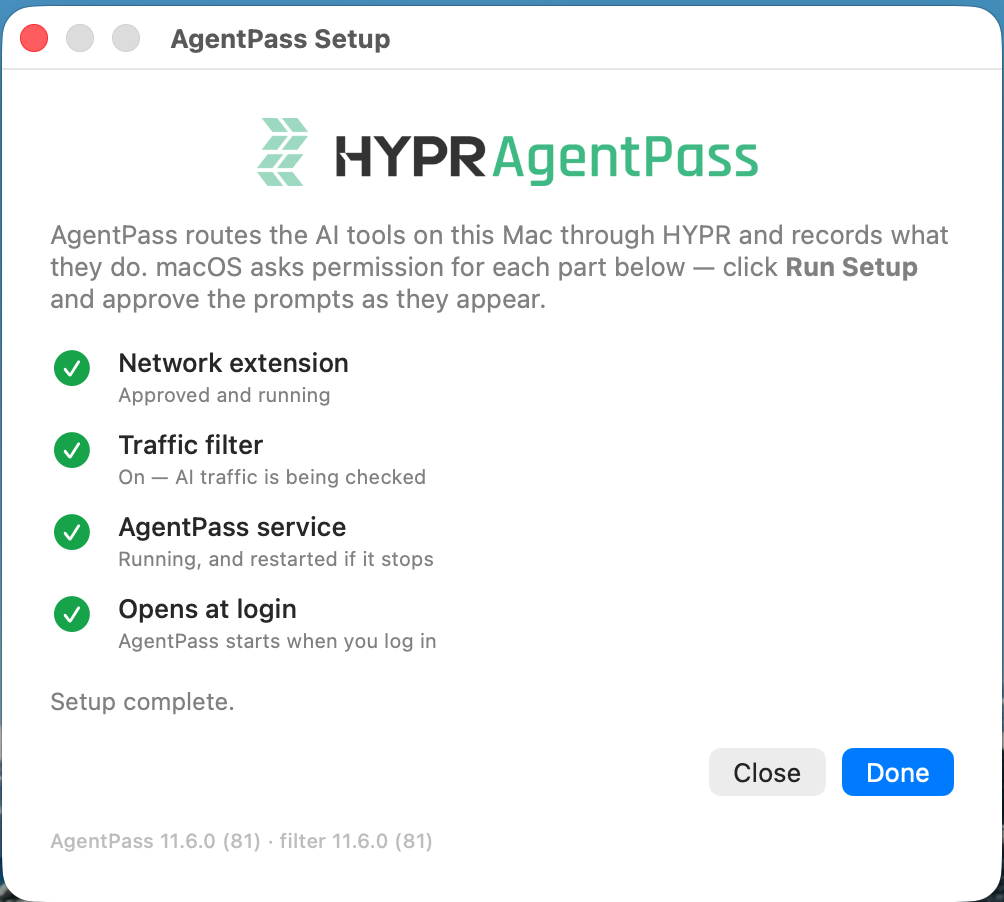
If the AgentPass Setup window isn't open, click the AgentPass icon in the menu bar, and click Run Setup….
-
Click Run Setup.
-
Approve each macOS prompt as it appears: allow the system extension, then allow AgentPass to filter network content. Each item in the window shows a check mark when it's ready.
-
Click Done.
To check it worked, look for the AgentPass icon in the menu bar. Its menu offers About AgentPass, Run Setup… and Share Diagnostics….

Quitting the AgentPass menu bar app doesn't turn AgentPass off. It keeps working in the background.
Install Endpoint Guard on Windows
Your IT team usually installs Endpoint Guard for you. If they did, there's nothing for you to enter. Restart your AI tools, and carry on working.
If they ask you to install it yourself, they give you three things: the installer, your organization's gateway address and an enrollment token. The token lets your computer join your organization's AgentPass. You don't sign in with it, but keep it private, as on a Mac. You also need Windows 11 version 24H2 or later, 64-bit, and administrator rights on the computer.
Before you install, sign in to Claude Code and your other AI tools. Once Endpoint Guard is in place, your organization may block their sign-in pages.
- Double-click the installer, and click Yes when Windows asks whether to allow it to make changes.
- In AgentPass server, enter the gateway address.
- In Enrollment token, paste the token.
- Leave Set up Claude Code to use AgentPass right away (recommended) selected. If Claude Desktop is on your computer, you also see Set up Claude Desktop to use AgentPass (recommended). Leave it selected too. Claude Desktop then uses your Claude Code sign-in, so stay signed in to Claude Code, and restart Claude Desktop after the installation.
- Select I agree to the End User License Agreement, and click Install.
Endpoint Guard runs in the background as a Windows service. Your IT team can see in the AgentPass console that your computer has joined.
If your IT team asks you to remove Endpoint Guard, open Settings > Apps, find HYPR AgentPass Endpoint Guard, and uninstall it.
Route Claude Code Through AgentPass
Endpoint Guard sets this up for you. On Windows, restart Claude Code after the installation. If Claude Code's option was cleared during the installation, sign out of Windows and back in first.
Set the address yourself only if your IT team asks you to. They give you the gateway address.
-
Set the
ANTHROPIC_BASE_URLenvironment variable to the gateway address.On Windows, in PowerShell:
setx ANTHROPIC_BASE_URL "https://<your-gateway-address>"On a Mac, in Terminal:
export ANTHROPIC_BASE_URL="https://<your-gateway-address>" -
Restart Claude Code, so it picks up the new address. On Windows, open a new PowerShell window first.
Keep your existing Anthropic API key in place. The first request from Claude Code needs its supervisor's approval. Claude Code either waits for it, or tells you it doesn't have access yet. In that case, send your message again once it's approved. When AgentPass Steps In explains each notice.
Sign In to Your AI Tools
Sign in to Claude Code or Codex once, the usual way. In a terminal, run claude for Claude Code, or codex login for Codex. AgentPass starts checking the tool's requests after you sign in.
Everyday Use
- Use the tool as you normally do.
- Restart the tool when your administrator says its setup has changed. A running tool keeps its old settings until it restarts.
AgentPass notices appear in the tool's own window. When AgentPass Steps In explains each one.
On Your Phone
You need this section only if you're asked to approve requests, such as the approvals a Slack agent asks for. Approvals reach you in the HYPR app, and you confirm each one with a passkey. A passkey is a sign-in key stored on your phone, and unlocked with your face, fingerprint or phone PIN.
Turn On AgentPass in the HYPR App
Install the HYPR app the way your administrator tells you. AgentPass needs iOS 17 or later, or Android 14 or later.
On iPhone:
-
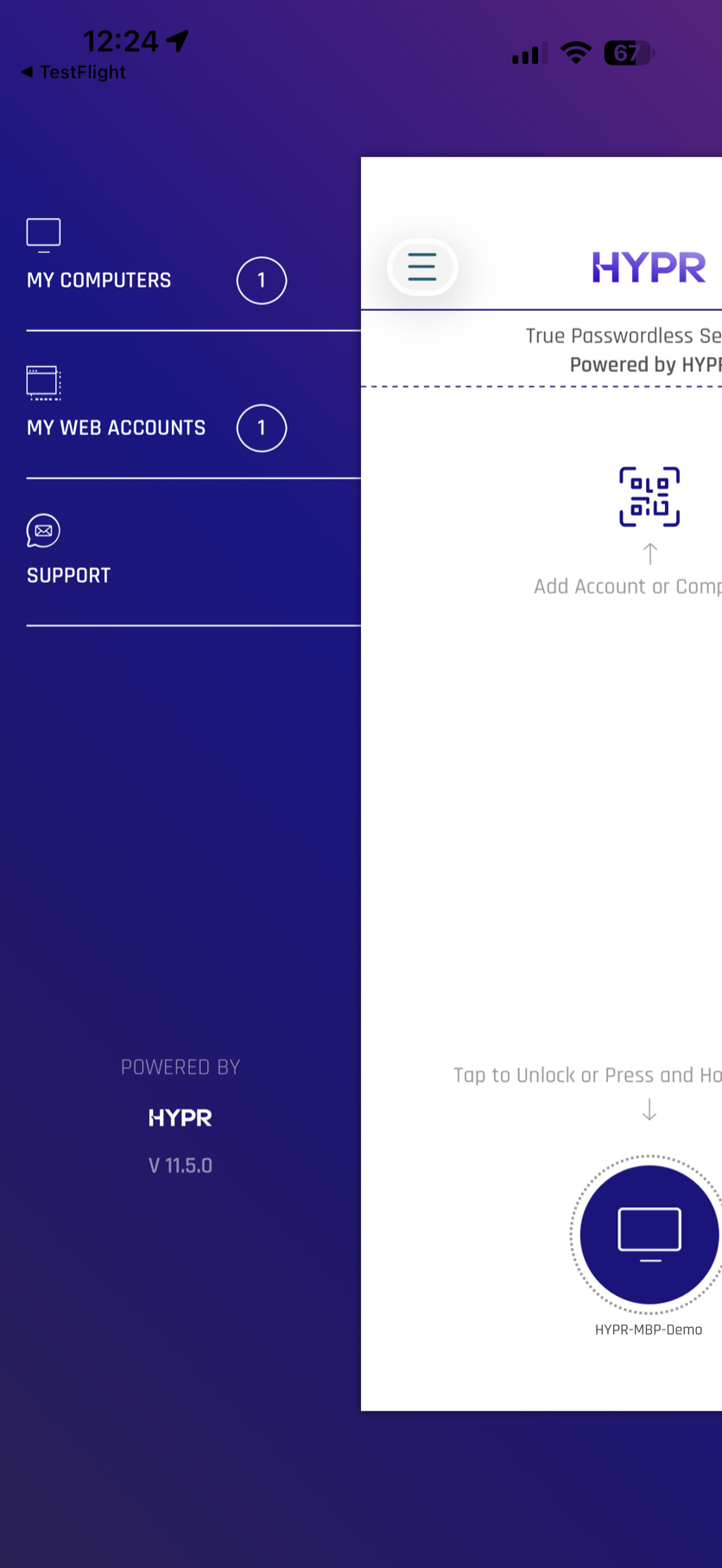
In the HYPR app, open the side menu.
-
Double-tap the version number at the bottom of the menu.
-
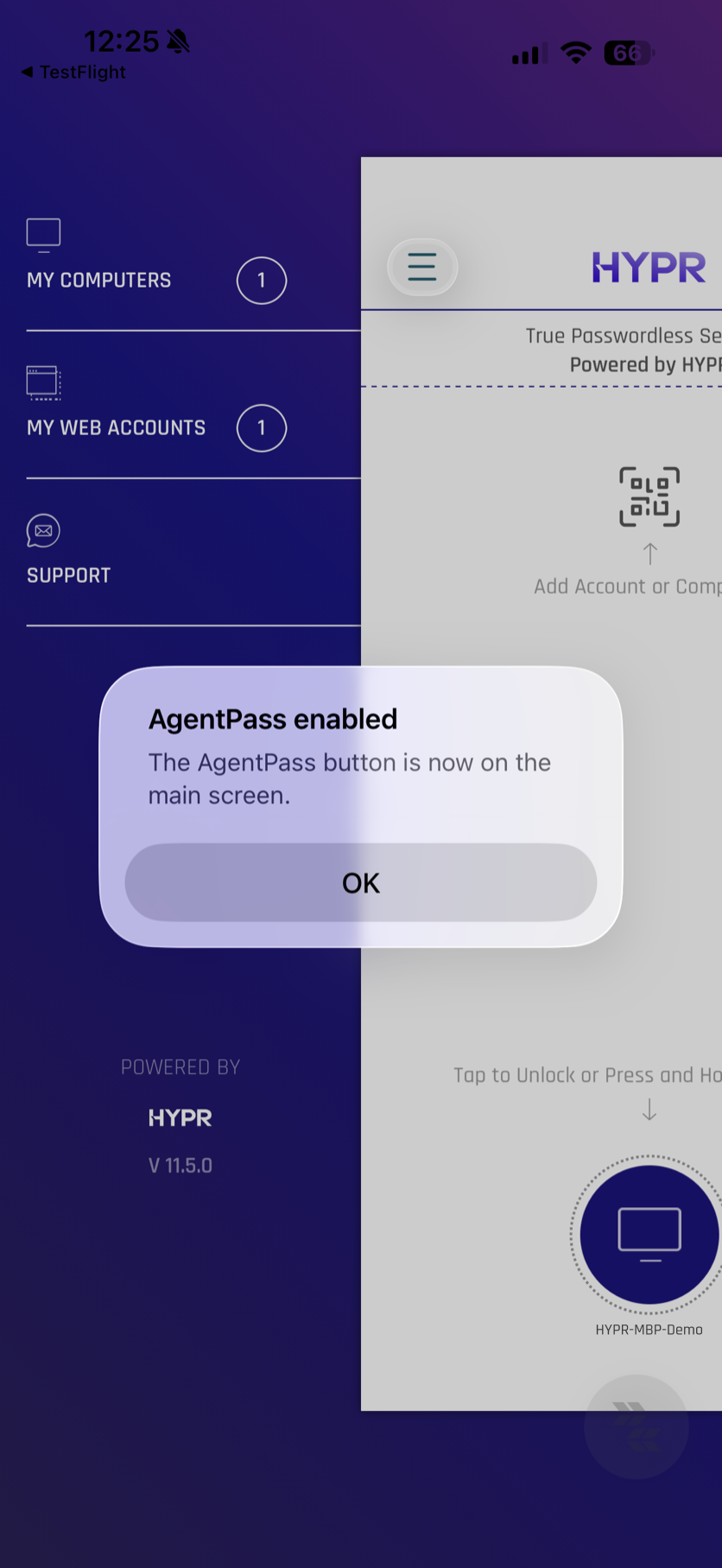
Tap OK in the AgentPass enabled alert. A round AgentPass button appears on the main screen.
On Android:
-
In the HYPR app, double-tap the HYPR logo. It's on the welcome screen, or at the bottom of the side menu.
-
In Try the new UI?, tap Continue.
-
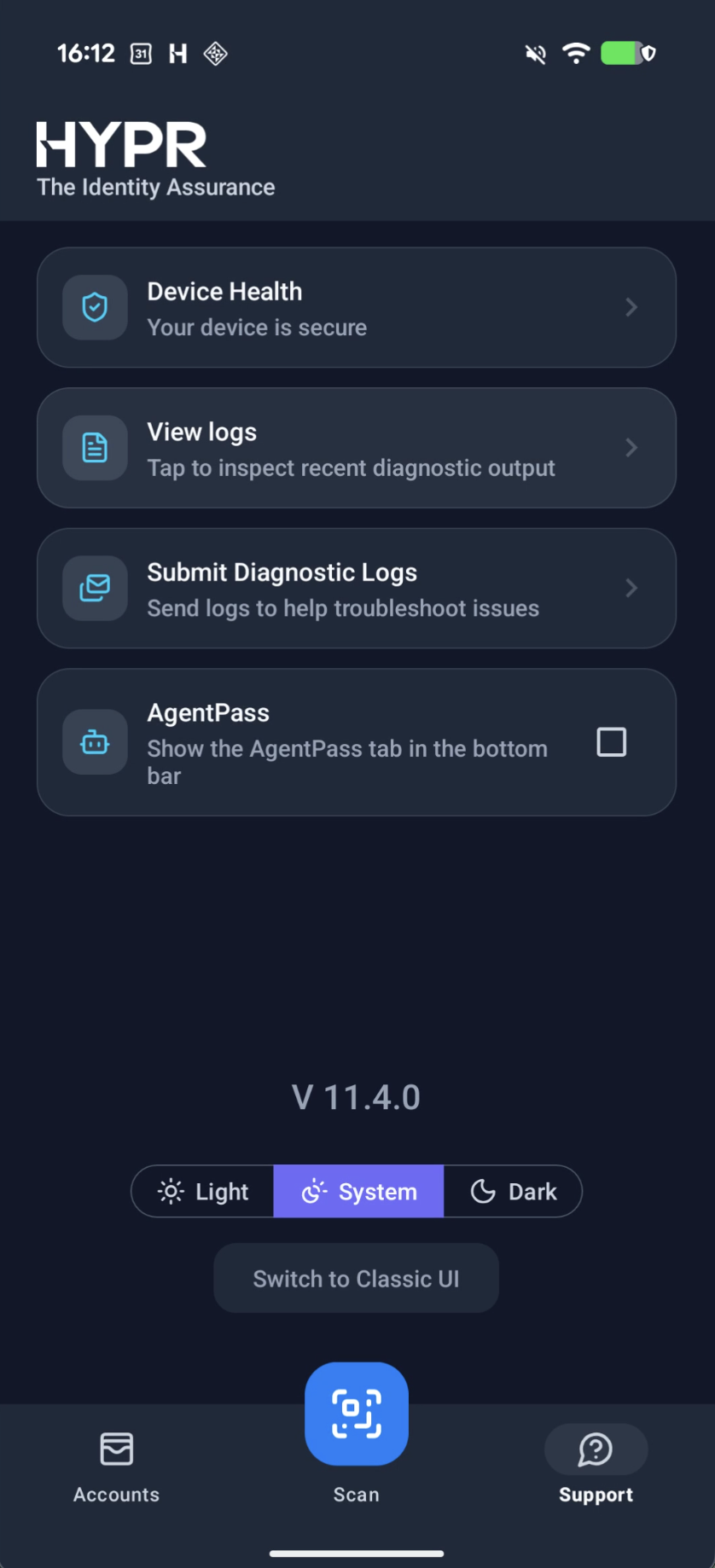
On the Support tab, select the AgentPass checkbox.
-
If Enable HYPR Credential Provider opens, tap Open Settings.
-
Tap Preferred service.
-
Choose HYPR Credential Provider.
-
Tap Change.
-
Go back to the HYPR app. The AgentPass tab is now the first tab.
Set Up Your Approval Passkey
- On your computer, open the AgentPass console at the address your administrator gives you, and sign in.
- Under Oversight, click My Passkeys.
- Click Add a passkey on my phone.
- In Label, enter a name you'll recognize, such as "work phone".
- Click Enroll. A QR code appears.
- Scan the QR code with the HYPR app, and complete the prompt on your phone.
Then connect the app:
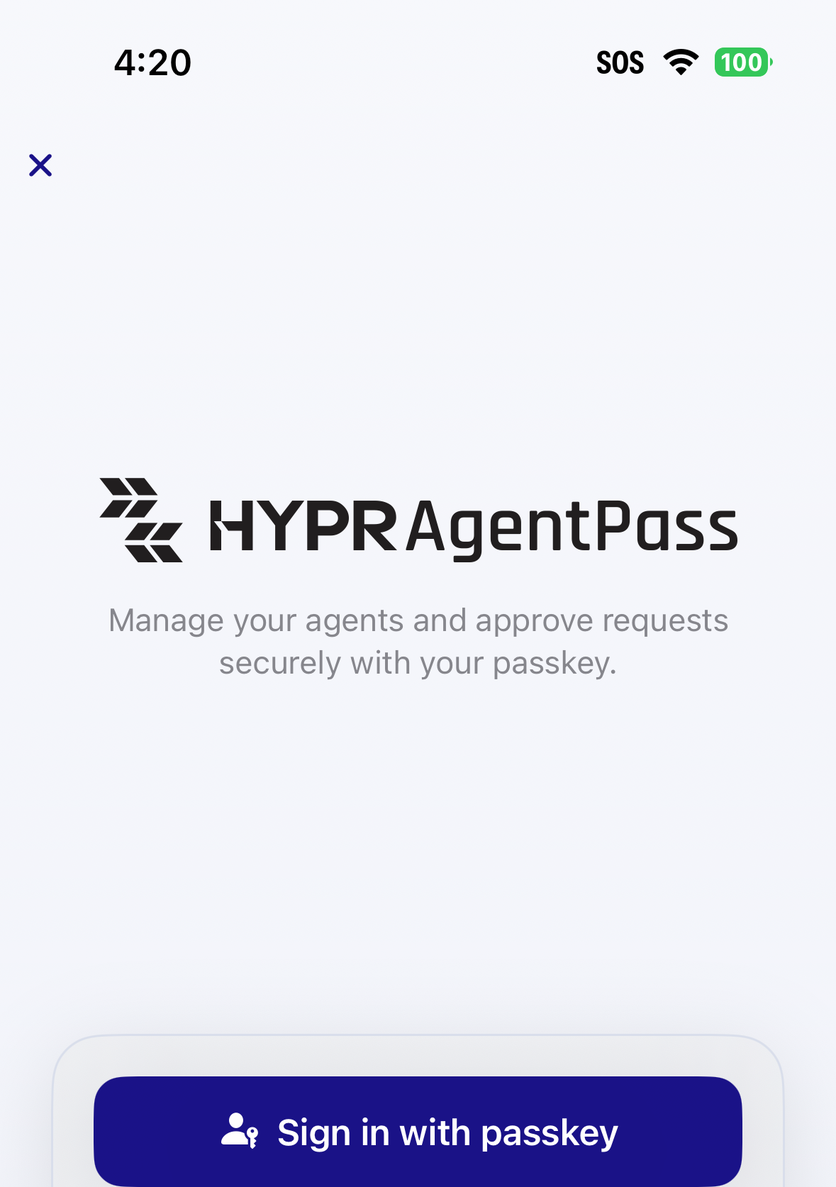
- iPhone: tap the AgentPass button, tap Sign in with passkey, and approve the prompt on your phone.
- Android: open the AgentPass tab, and tap Connect to AI Gateway.
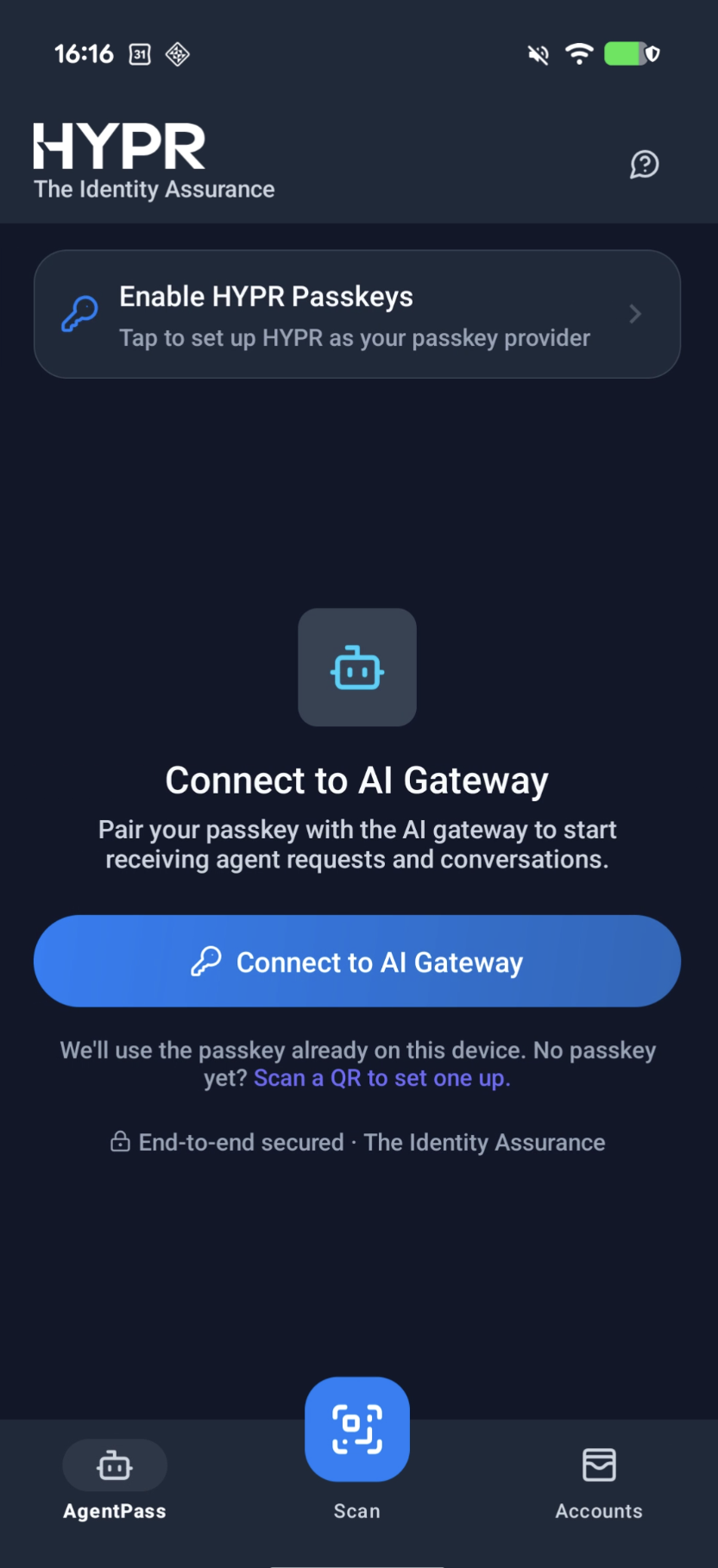
AgentPass opens with your agents, and any requests waiting for you. You're set up.
Approve or Deny a Request
- Tap the notification on your phone. The request opens in the HYPR app. On iPhone, it's under Needs you.
- Read which agent is asking, and what it wants to do.
- If you recognize the request, tap Allow on iPhone, or Approve on Android. If the request asks you to sign in to a service, sign in. On iPhone, tap Authenticate.
- Confirm with your face, fingerprint or PIN.
If you don't recognize the request, tap Deny instead. On Android, confirm once more.
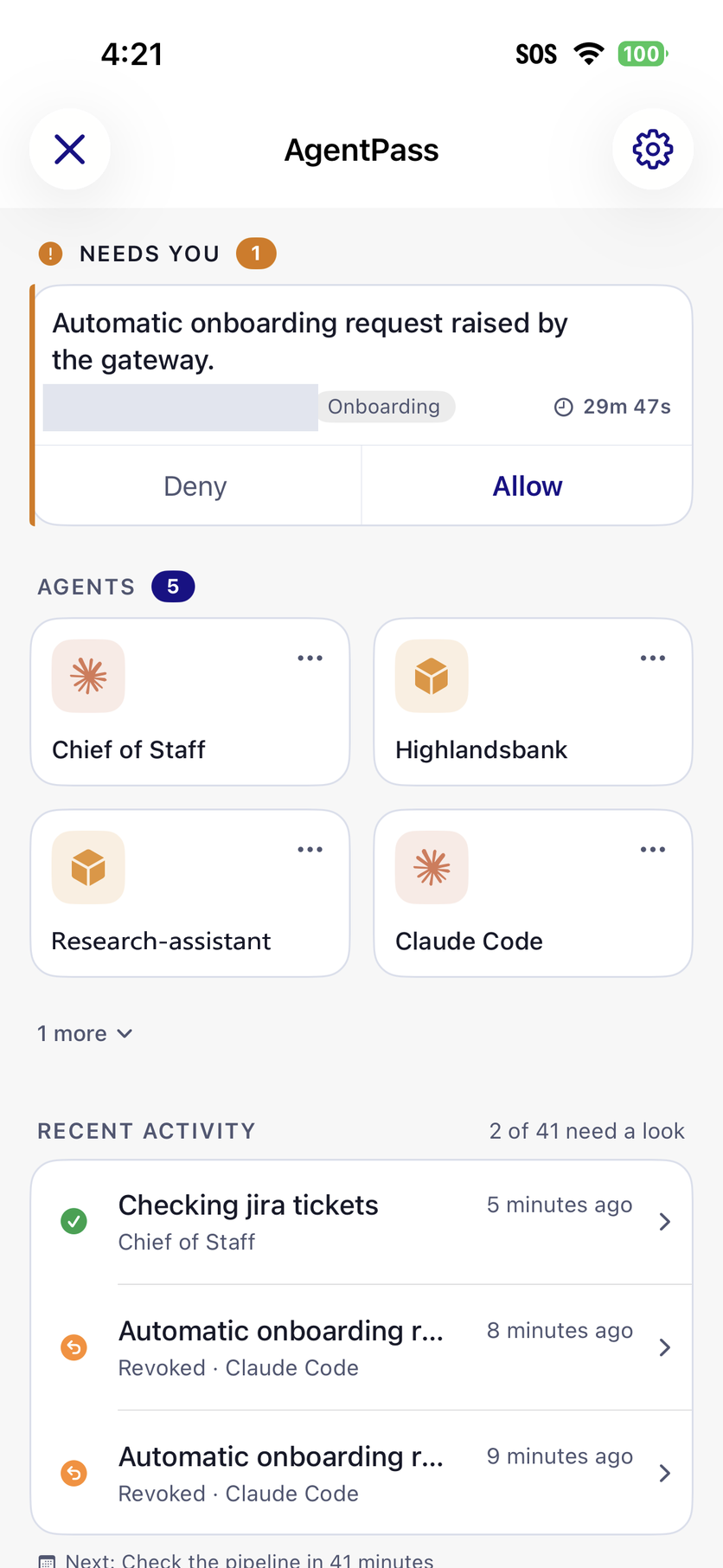
Your approval is signed with your passkey, so the record shows the decision was yours. If a request looks unfamiliar, deny it, and tell your administrator.
A request you don't answer in time expires, and the action doesn't go ahead. When you approve a request from Slack, ask the agent again in the same thread.
When AgentPass Steps In
When a rule stops or holds a request, the tool tells you. This table lists each notice by place, with what to do.
| Where | What you see | What to do |
|---|---|---|
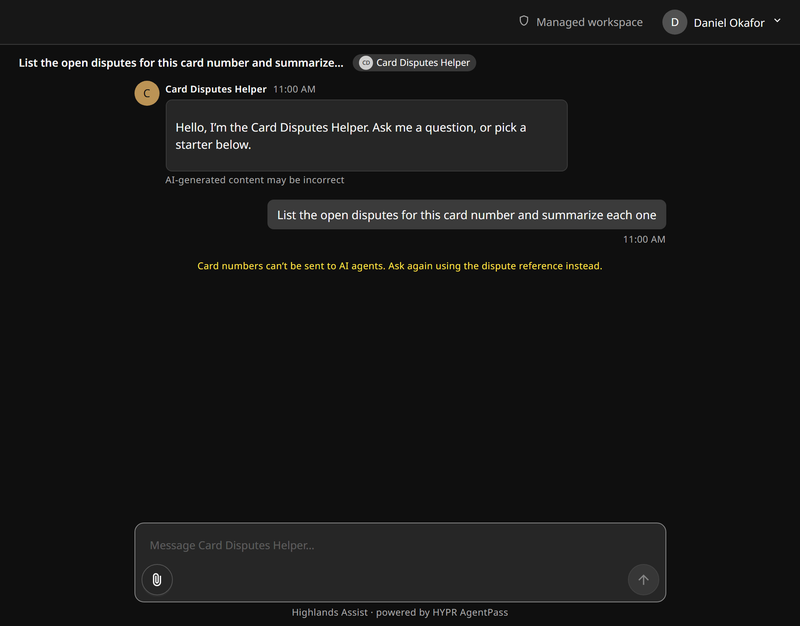
| Agent Portal, your organization's agent | A notice in place of the reply, with your organization's reason, or This request was blocked by a gateway policy. | Ask again without the part the rule is about, such as a customer's details |
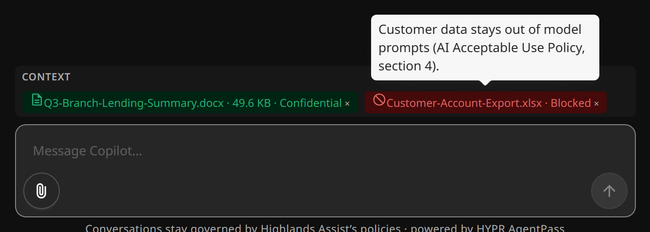
| Agent Portal | A file label reading Blocked. Hover over it to see the reason | Remove the file, and ask without it |
| Agent Portal | A file label reading Encrypted | Upload an unprotected copy of the file |
| Agent Portal | This agent isn’t configured for chat yet. Ask your administrator to register it. | Ask your administrator. The agent may be turned off |
| Agent Portal | Couldn’t reach this agent right now. Please try again. | Try again later |
| Slack | ⛔ with the rule's reason, or A policy blocked this request. | Ask again without the part the rule is about |
| Slack | This needs your approval first | Approve it in the HYPR app on your phone, then ask again |
| Slack | I need you to sign in to a named service | Open the request on your phone, and sign in to the service. On iPhone, tap Authenticate. Then ask again |
| Slack | The agent behind this channel is currently unavailable | Ask your administrator |
| Slack | Your Microsoft 365 sign-in has expired | Sign in to the Agent Portal, then ask again |
| Slack | This agent has been turned off. | Ask its owner or your administrator. Once it's back on, your next message starts a new conversation |
| Your work computer | ⛔ Blocked by policy, with the rule's name and reason | Try a different approach. The same request is blocked again |
| Your work computer | The request is paused until a supervisor approves access | Wait. The tool carries on once it's approved |
| Your work computer | I don't have access to this gateway yet | Once the request is approved, send your message again |
| Your work computer | I'm not registered with the gateway yet. | Ask your IT help desk to set the tool up, then try again |
| Your work computer | This agent is turned off | Ask its owner or your administrator |
This is a blocked message in the Agent Portal. The notice explains what to change.
This is a blocked file next to an accepted one, with the reason showing.
If your work needs what a rule stops, ask your administrator. Include the notice's exact wording.
Approval for a tool to use AgentPass lasts for a period your organization sets. When it ends, the tool asks again. That's expected.
Common Questions
Can the AI see more than I can?
No. The tools act with your own access. Copilot reads your email, calendar, Teams messages and OneDrive files, but only what your account can already open.
What does AgentPass record?
A record of each request, which can include what you asked, the answer and what the rules decided. People your organization authorizes, such as administrators, can review it.
On your work computer, Endpoint Guard itself reports which AI tools are running, on which computer and under which account. It doesn't read your files. Requests a tool sends through AgentPass are recorded like any other request.
Can I stop one of my agents?
Yes. If an agent you look after does something you didn't intend, turn it off from the HYPR app straight away. You can turn it back on only if you turned it off yourself.
Getting Help
Your administrator, or your IT help desk, is your first contact for anything AgentPass shows you. When you ask, include the exact wording of the message you see. For a request on your phone you don't recognize, deny it, and tell your administrator.