Quick Start: Administering HYPR AgentPass
This page takes you from your first sign-in to the HYPR AgentPass™ console to running it day to day. Work through the setup sections in order. The sections after them are for reference once agents are live.
- The gateway's public origin, reachable from outside your network
- An identity provider that supports OpenID Connect (OIDC), where you can register an application
- Your HYPR tenant, with Control Center admin access
- An account with each AI provider or service you plan to connect
What AgentPass Governs
AgentPass is a gateway between your organization's AI agents and the models, tools and systems they reach. It attributes each request to an agent and a person, and checks it against your policies. A policy can block the request or hold it for a person's approval. AgentPass also limits each agent to the MCP tools its supervisor's role allows, and records what happened.
It governs these kinds of agent.
| Kind of agent | Examples | How its traffic reaches the gateway |
|---|---|---|
| Local, on a person's workstation | Claude Code, Codex CLI, Cursor | The agent points at the gateway, or Endpoint Guard routes it there |
| Cloud, hosted by a provider | Microsoft 365 Copilot, Anthropic managed agents, AWS Bedrock AgentCore | A connector. People reach them in the Agent Portal or Slack |
| Service, with nobody at the keyboard | Automations and pipelines | A credential the gateway issues |
As the administrator, you connect the tools your organization uses, decide who can do what, and keep policies, approvals and records working.
Before You Start
Settle the gateway's public origin first, because your identity provider, connectors and agents are configured against it. The console is served from that origin at /admin/ui/, and the Agent Portal at /portal/.
For mobile approvals, create an application for the gateway in HYPR Control Center. Turn on FIDO2 for it, and generate an API access token scoped to it. Control Center shows the token only once.
Decide Who Gets Which Role
Every person who signs in holds a role. AgentPass provides three system roles.
| Role | What it can do | Give it to |
|---|---|---|
| AgentPassAdmin | Everything, including settings, connectors, roles, data management and offboarding. Locked, so it can't be edited | The people who set up and change AgentPass |
| AgentPassOperator | Reads everything. Turns any agent off and on, decides approvals, adds agents and writes its own policies. Can't change settings, connectors or roles | The people who run AgentPass day to day |
| AgentPassSupervisor | Manages the person's own agents, approvals, conversations and policies. The default for anyone with no mapped role | Each person who owns an agent |
Sign In and Connect Your Identity Provider
Your first sign-in uses the recovery administrator, a break-glass account held by the gateway. Its credentials come from the invitation that set up your tenant.
- Sign in to the console as the recovery administrator.
- Open Advanced → Gateway Settings, and click the Authentication tab.
- Under Console SSO (OIDC), copy the Redirect URI, and register it with your identity provider.
- Enter the Issuer / auth-server URL. AgentPass reads your provider's endpoints from it.
- Enter the Client ID. If your application has a client secret, enter it in Client secret, and click Save secret.
- Set the claims described in the following table.
- Click Save settings.
- Turn on Enable SSO. AgentPass checks your provider before it turns SSO on.
- Sign out, and sign back in with single sign-on (SSO) to confirm it works.
| Claim | Set it to |
|---|---|
| Principal claim | A unique, stable value per person, such as an employee ID or sub |
| Display name claims | The claims that make up the name shown in the console |
| Email claim | The claim that holds the email address |
| Role claim | The claim that carries each person's roles or groups, such as groups |
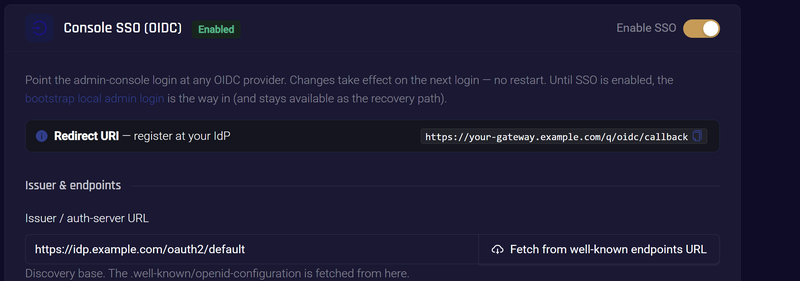
Once SSO works, keep the recovery administrator credentials in a protected break-glass location.
Changing the principal claim later strands the role assignments keyed to the old identifier.
Map Roles From Your Identity Provider
Grant roles from your directory groups, so AgentPass access follows your existing joiner, mover and leaver process.
- Open Oversight → People, and click the Roles tab.
- Click Edit on a role, or View on AgentPassAdmin.
- Under Identity provider, add each claim value that grants the role, such as a group name.
- Click Save in that section.
- Repeat for each role.
Matching is exact and case-sensitive. A person whose values map to no role gets AgentPassSupervisor.
For a one-off exception, open the person's actions menu (⋮) on the Humans tab, and choose Change role. That role replaces the roles from sign-in until you click Use identity provider roles in the person's details.
Connect the Tools Your Organization Uses
A connector brings one target under the gateway: an AI provider, an MCP server, a REST API, a cloud agent or a chat channel. Set up the target's side first, because the form asks for its values.
- In the console, click Add Connector.
- Click the kind of connector, then the target's card, such as Anthropic.
- Complete the form, and click Create Connector.
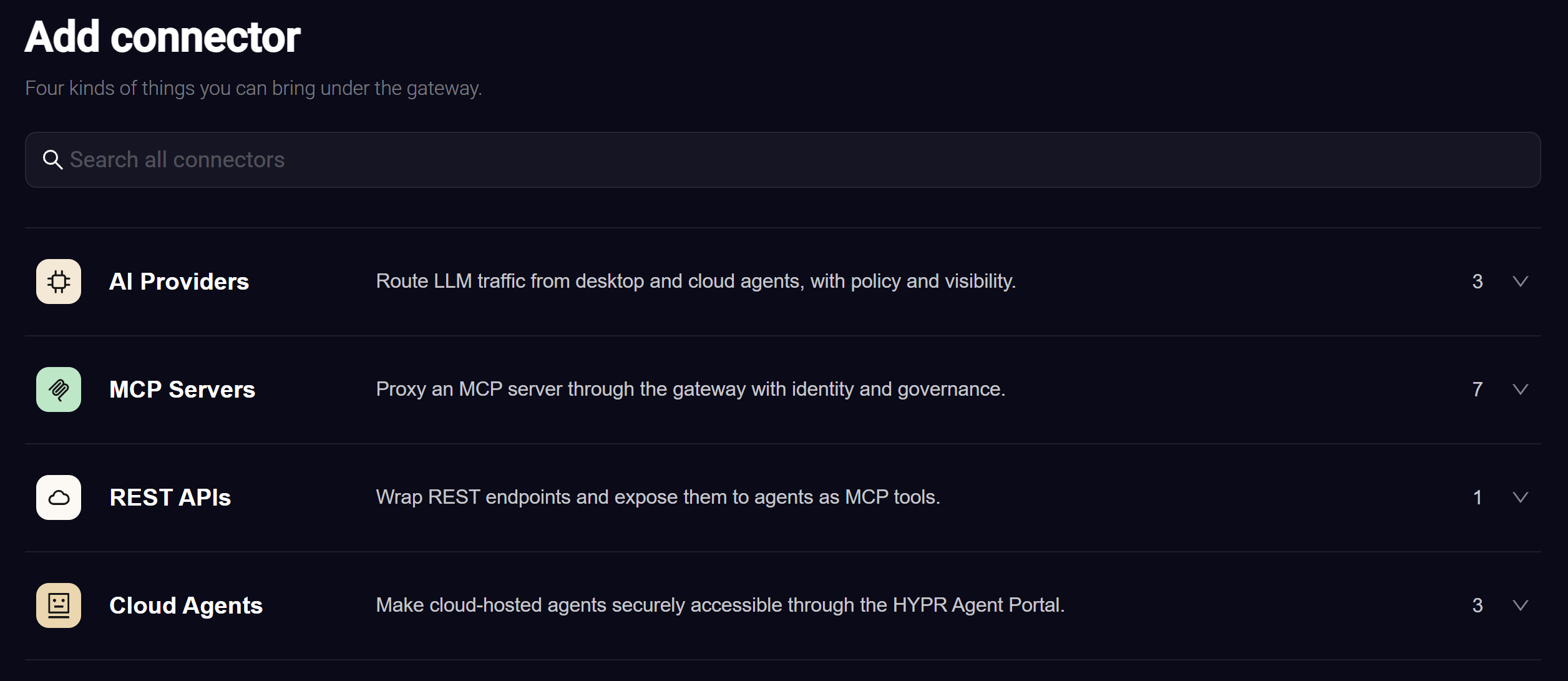
The following table lists what common targets ask for.
| Target | Have ready |
|---|---|
| Anthropic or OpenAI | A provider account. An admin API key lets the gateway sync agent identities. OpenAI also needs the project ID |
| AWS Bedrock | The AWS account and region, and two IAM policies in that account |
| MCP server | The server's URL and how it authenticates. The connector then gives agents a gateway address for the server |
| Microsoft 365 Copilot | An Entra tenant with Copilot licenses, and two Entra app registrations. Consent needs Global Administrator, or Application Administrator plus Cloud Application Administrator |
| Slack Agent | A Slack workspace where you can install an app, the app's signing secret and bot token, and a cloud agent to answer |
The Microsoft 365 Copilot connector also runs the Agent Portal, where employees chat with Copilot and your Copilot Studio agents. Once its portal sign-in details are set, its Overview tab shows the Portal URL to send your users.
Choose How New Agents Are Onboarded
An AI provider connector's onboarding mode decides what happens to a new agent's first request. You choose it on the form's last step, and can change it on the connector's Overview tab.
| Mode | What happens to a new agent's first request |
|---|---|
| Require Approval | Held until the agent's supervisor approves it |
| Observe only | Recorded and forwarded. Nothing is blocked or onboarded |
| Auto Approve | Held until the agent's supervisor approves it, as with Require Approval. Not available for AWS Bedrock or AWS Bedrock Mantle |
| Disabled | Not held or onboarded |
AWS Bedrock and AWS Bedrock Mantle offer only Observe only, Disabled and, with identity enrichment, Require Approval. Identity enrichment is an IAM role or an access key on the connector.
Start a workstation rollout in Observe only to see what's running, then move to Require Approval. How long a held request waits, and how long an approval lasts, are set under Advanced → Gateway Settings → Approvals.
Limit Which Tools Each Role Can Use
New MCP tools arrive with no access. An agent is offered only the tools its supervisor's role may call.
- On the Roles tab of Oversight → People, click Edit on the role.
- Go to Agent tools permission.
- Expand a connector, and select each tool the role needs.
- Click Save changes. The change applies on each agent's next request.
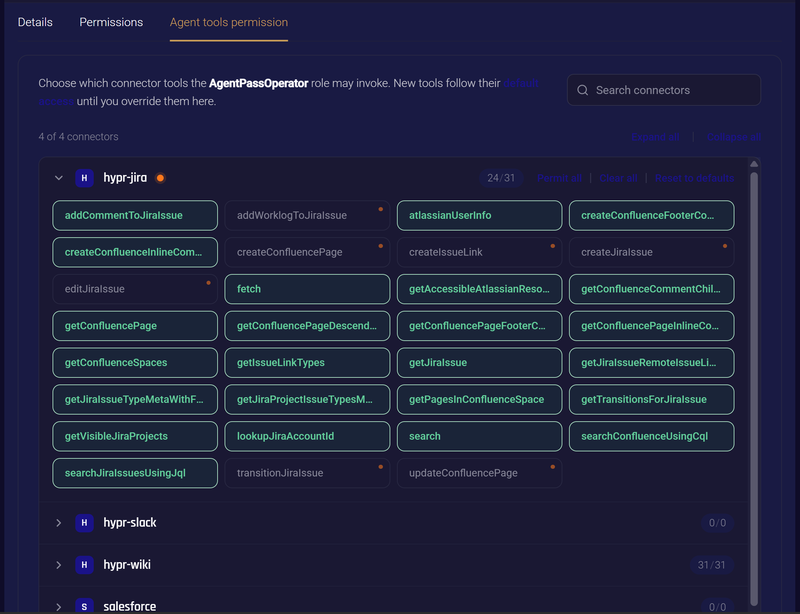
AgentPassAdmin always has every tool. Review this tab whenever you add a connector, or an MCP server gains tools.
Set Up Approvals on Phones
Supervisors approve held requests in the HYPR app, with a passkey. Connect the gateway to your HYPR tenant, then turn on push delivery.
- Open Advanced → Gateway Settings, and click the Passkeys (FIDO2) tab.
- Under HYPR FIDO2 Integration, enter your HYPR tenant base URL, the RP API access token, the RP Application ID and the gateway public origin. Click Save beside each.
- When all four are set, the card reads Ready. Click Check connection to confirm the gateway reaches your tenant.
- Under Mobile App Associations, enter the HYPR app identifiers your HYPR representative gives you.
- Under Passkey approval policy, enter the HYPR Mobile AAGUIDs your HYPR representative gives you in HYPR Mobile AAGUIDs.
- Open Advanced → Notifications.
- In the Firebase Cloud Messaging card, turn on Enable Firebase channel, enter the Project ID, and paste the Service Account JSON.
- Click Save FCM settings.
Then invite each supervisor to enroll a passkey. On the Humans tab of Oversight → People, open the person's actions menu (⋮), and choose Send invite (or Send reminder) or Copy invite link. The supervisor installs the HYPR app, signs in, and enrolls from My Passkeys. Under Test Push on Advanced → Notifications, send them a test, and confirm their phone receives it.
Decide When Approvals Must Be Signed
Require signed approvals, on the Passkeys (FIDO2) tab, decides whether each approval must carry the supervisor's passkey signature.
| Setting | Effect | Use it |
|---|---|---|
| Optional (soak) | An approval without a passkey is recorded, and flagged as unsigned | While supervisors enroll. A new organization starts here |
| Required (production) | Approve works only with an enrolled passkey | Once every supervisor is enrolled |
Passkey approval policy, on the same tab, decides which passkeys count. Strict (HYPR Mobile only) accepts only passkeys enrolled from the HYPR app. This is the default. Until HYPR Mobile AAGUIDs has an entry, no passkey can approve.
Bring Agents Under the Gateway
Each agent gets an identity with an owner, so every request is attributed to an agent and a person.
- Local agents. The agent's provider base URL is set to the gateway's public origin, such as
ANTHROPIC_BASE_URLfor Claude Code. To route workstations centrally, use Endpoint Guard. Under Oversight → Discovered → Agent Observability, create an enrollment token, turn on Enable agent observability, and deploy the endpoint client with the token. Then turn on managed mode, and select the tools, under Oversight → Desktop Tools. On Windows, Endpoint Guard routes tools, provisions MCP and blocks egress for the whole device. Hooks, channels and Claude Desktop are macOS-only. - Cloud agents. Anthropic and AWS Bedrock AgentCore agents appear under Oversight → Cloud Agents. On each agent's Assignments tab, choose who may use it. Copilot Studio agents are added on the Microsoft 365 Copilot connector's Copilot Studio agents tab.
- Provider keys. On Oversight → Agent identities, choose a connector under Import from, and click Sync Now. Each key becomes an identity, owned by the person it belongs to.
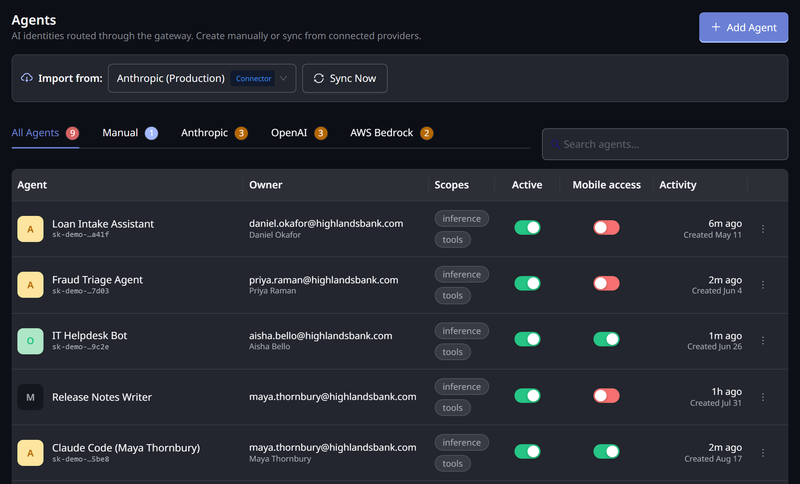
With Require Approval, a new agent's first request waits under Needs your attention on Oversight → Approvals, and on its supervisor's phone. Approving it onboards the agent.

Roll Out Policies the Safe Way
A policy pairs a condition with an action: allow, block, or require approval. A new policy starts in Observe mode by default. It records what it would have done, and changes nothing until you promote it.
To write a policy:
- Open Oversight → Policies.
- Click Add Policy to write the condition yourself. Author with AI drafts one from a plain-English goal, once a drafting model is set under Advanced → Gateway Settings → Policy Authoring.
- Choose the Action, and leave Mode at
OBSERVE. - Under Connectors, pick the connectors it applies to. Leave it empty for all.
- Click Create.
To check and promote it:
- Open the connector, and click its Policies tab.
- Filter the decisions to your policy, and read the Would block rows. Confirm it catches what you meant, and nothing else.
- On the policy's row, open the Mode dropdown, and choose
ENFORCE. - Click Set ENFORCE. The action applies from the next matching request.
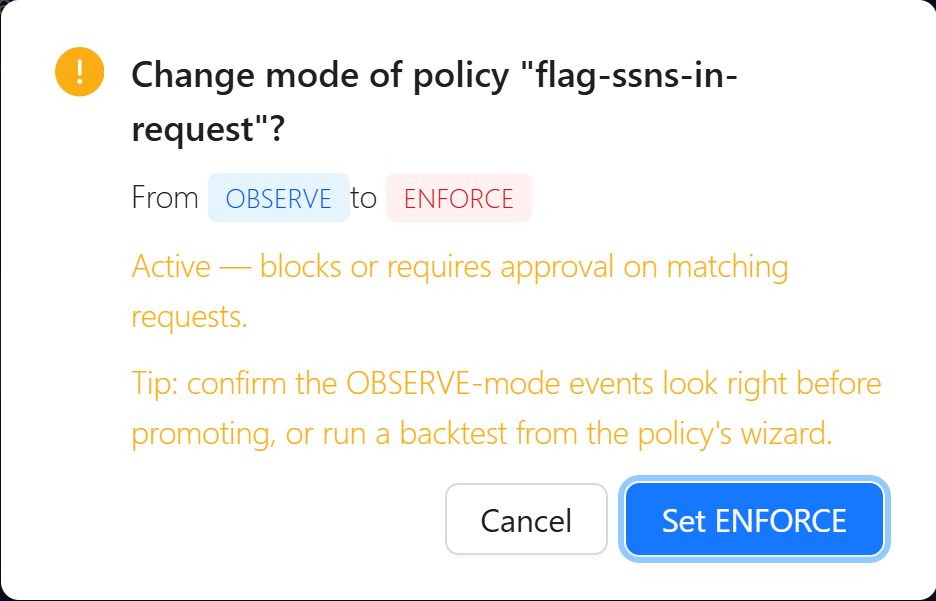
To roll back, choose OBSERVE in the same dropdown. Narrow the rule while it observes, then promote it again.
In the Agent Portal, chats and file uploads have no approval step. A matching Require approval rule blocks the message there, and shows the rule's message.
A Require approval policy needs a supervisor to answer. A request from a service agent has no supervisor, so it doesn't complete.
To find gaps, open the Coverage tab on Oversight → Policies. It shows which connector and tool pairs no rule reaches.
Run AgentPass Day to Day
These pages cover routine operation.
| Page | Use it to |
|---|---|
| Activity Dashboard | See connectors, cloud agents, policy blocks and approval outcomes at a glance |
| Oversight → Approvals | Answer, revoke and review approval requests |
| Oversight → Request Log | Find any request from the last seven days, filtered by supervisor or type |
| Oversight → Access reviews | Have named reviewers confirm each agent still needs its access |
| Advanced → Data Management | Decide where AgentPass's records go, and in what form |
Approvals
Supervisors answer requests for their own agents. AgentPassAdmin and AgentPassOperator can deny any request, and approve another supervisor's onboarding request. A request with no answer before its timeout expires, and an expired request isn't an approval.
To withdraw an agent's standing access, find its approved onboarding request under Resolved requests, and click Revoke. The agent must onboard again.
Access Reviews
Schedule reviews, so access is confirmed regularly.
- Open Oversight → Access reviews, click Manage reviews, and click Schedules.
- On the Production agents card, turn on Review automatically.
- Set how often reviews open, and how long reviewers have. The defaults are every 90 days, with 14 days to finish.
- Name the Reviewers, and optionally a Fallback reviewer.
- Click Save. The first review opens within the hour.
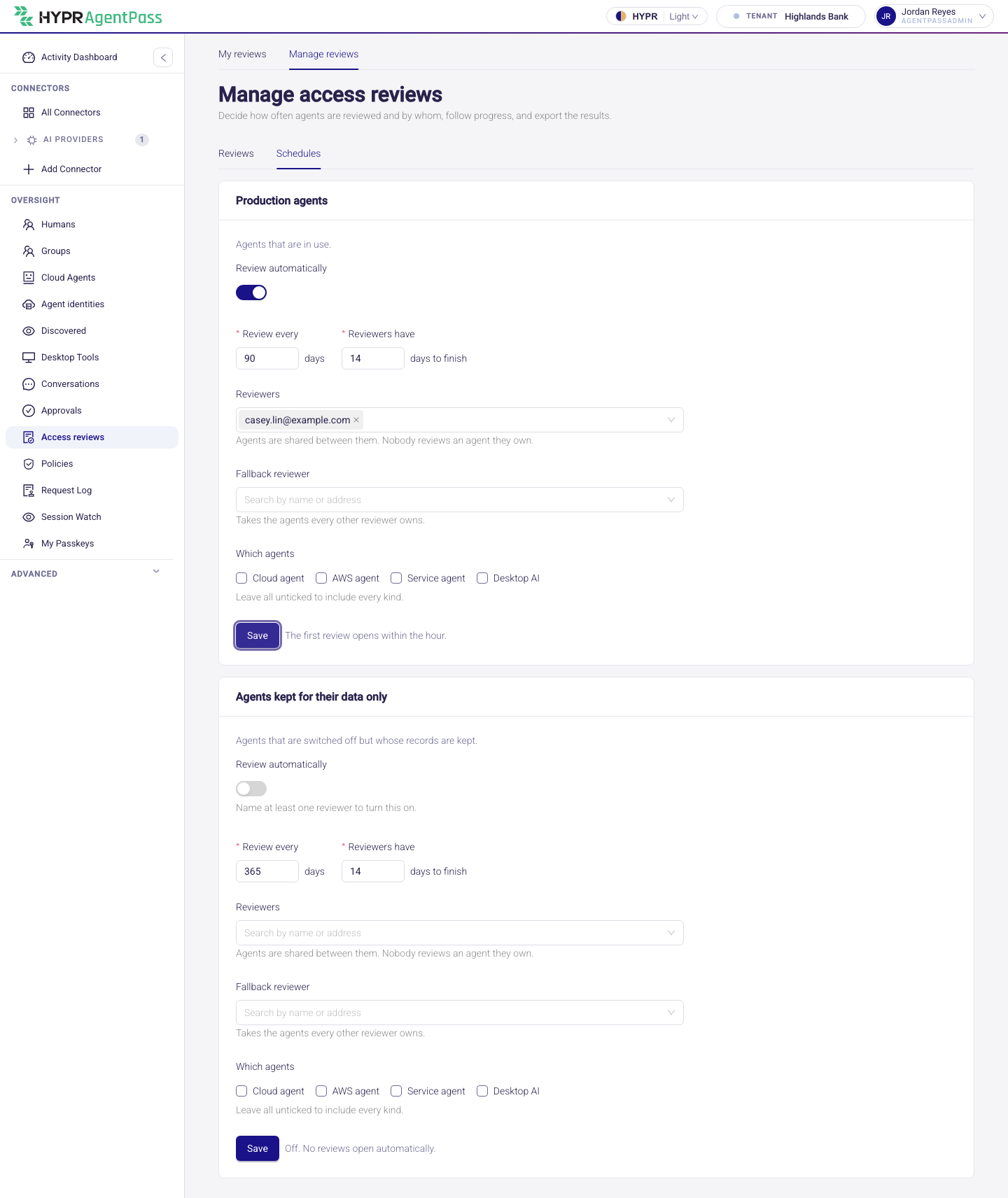
Nobody reviews an agent they own, and a reviewer's removal takes effect straight away. Before an audit, click Open a review now on the Reviews tab.
Records and the Forensics Store
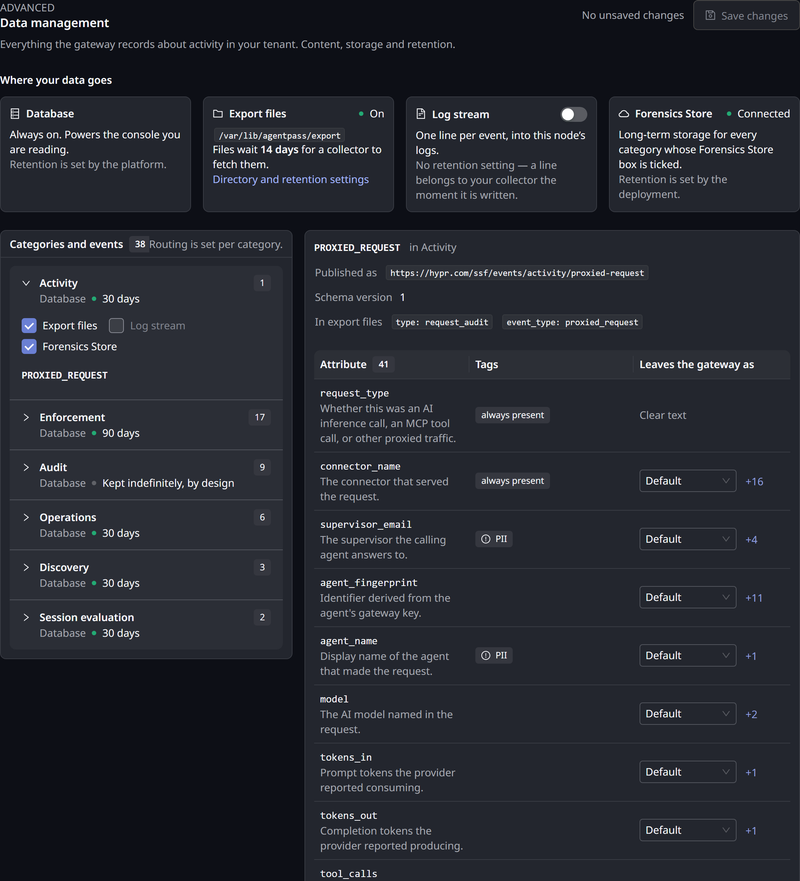
AgentPass records each request, each policy decision and each administrative change. Advanced → Data Management shows where those records go.
| Destination | What it is | By default |
|---|---|---|
| Database | The store behind the Request Log | Always on |
| Export files | Files on each gateway node, for your own compliance or analytics systems | Off |
| Log stream | One line per event in the gateway's logs | Off |
| Forensics Store | Long-term storage, when your deployment has one connected | Receives every category |
Export files and the log stream hash personal details, and leave out request and response content, unless you change that. The platform sets how long the database keeps records: 30 days for activity, 90 days for policy decisions, and indefinitely for the audit trail. By default, AgentPassOperator can read this page, and only AgentPassAdmin can change it.
Respond to an Incident
Turn an agent off when it must stop now. It's reversible, and AgentPass records who did it and when.
To turn off a cloud agent or service agent:
- Open Oversight → Cloud Agents.
- Turn off the agent's Enabled switch.
- Optional: Enter a Reason. AgentPass records it with your name.
- Click Turn off.
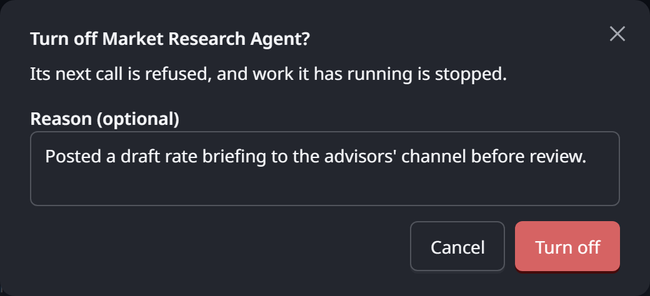
For a local agent, turn off its Active switch on Oversight → Agent identities. For a Copilot Studio agent, click Disable on its row in the Microsoft 365 Copilot connector's Copilot Studio agents tab.
The gateway refuses the agent's next request, and messages to it are refused. A cloud agent's running sessions at the provider end, and so do its automation runs in progress. To stop all traffic to one target, turn off the connector's switch on its Overview tab.
A request already in progress finishes. On a connector in Observe only mode, except AWS Bedrock, a turned-off local agent's traffic is still forwarded. To keep a workstation tool from reaching its provider directly, turn on the tool's switch in the Egress enforcement card under Oversight → Desktop Tools.
Who Can Turn an Agent Back On
One rule applies in the console and in the HYPR app.
| Your role reaches | You can turn off | You can turn back on |
|---|---|---|
| All agents, as AgentPassAdmin and AgentPassOperator do | Any agent | Any agent |
| Only your own agents, as AgentPassSupervisor does | An agent you own | Only an agent you turned off yourself |
So an agent an administrator turns off stays off until an administrator or operator turns it back on. Signing in again doesn't turn it on.
Offboard a Person
Offboard someone who leaves, or who must lose access now.
- Open Oversight → People, and click the Humans tab.
- Open the person's actions menu (⋮), and choose Offboard.
- Read what the dialog says will be affected.
- Click Offboard.
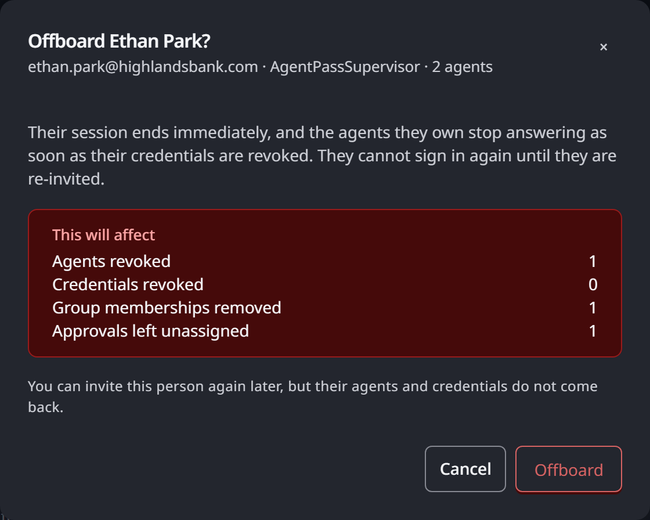
Their session ends, and their agent access, tool connections, roles and group memberships are removed. They can't sign in until someone invites them again, and their audit trail is kept. Deprovisioning them in your directory over SCIM has the same effect.
The dialog counts the pending approvals left unassigned. Deny any that no longer apply on Oversight → Approvals.
A service agent uses its own credential, so it keeps working after its owner is offboarded. Reassign or turn off each service agent the person owned.
To decommission an agent, open it under Oversight → Cloud Agents, click Change stage, choose Retired, enter a Reason, and click Change stage. A retired agent is switched off, and access reviews skip it.
What to Tell Your Users
Point your employees to the two guides written for them, End User Guide: Using AI Tools with HYPR AgentPass and Quick Start: Using AI Tools with HYPR AgentPass. Then send each group what it needs.
- Agent Portal users: the Portal URL. They sign in with their Microsoft work account, and need no console role.
- People running local agents: the gateway's public origin, unless Endpoint Guard routes their tools.
- Supervisors: a passkey invitation, and a note that approval requests arrive in the HYPR app.
- Everyone: who to contact when AgentPass blocks a message, holds a request or turns an agent off.
Troubleshooting
| Symptom | What to check |
|---|---|
| The identity provider refuses SSO sign-in | The registered redirect URI matches the console's Redirect URI exactly, and the provider permits the requested scopes |
| Someone gets AgentPassSupervisor instead of their mapped role | The claim value matches the mapping exactly, including capitalization, and Role claim names the right claim |
| A supervisor gets no approval on their phone | Push delivery is on, the test push reaches their device, and they haven't muted approval requests |
| Approve is unavailable | Signed approvals are Required (production), and the approver hasn't enrolled a passkey |
| An agent can't see an MCP tool | The tool is selected under Agent tools permission on the supervisor's role |
| A new agent's requests pass without approval | The connector's onboarding mode is Require Approval |
| Offboard is refused for your own account | Another administrator must offboard you |