Getting the HYPR App on iOS
The HYPR app for iOS gives supervisors AgentPass on their phone: assigned agents, approvals, conversations and managed-agent automations. You install the app through the AgentPass early access program, switch AgentPass on, and enroll an approval passkey. You then open AgentPass from the button on the main screen.
Install the app and switch AgentPass on here. Then enroll your passkey in Setting Up Your Approval Passkey, and return to Connect to AgentPass.
Before You Begin
You need these in place.
| You need | Detail |
|---|---|
| A supported iPhone | iOS 17 or later |
| The HYPR app | From the AgentPass early access program, on the phone that will receive approvals |
| Your organization's testing link | Provided by your HYPR representative |
| A supervisor account | Your AgentPass administrator assigns the supervisor role and the agents you oversee |
| Your gateway address | Your administrator provides the address used during passkey setup |
Install the HYPR App
AgentPass on iPhone is distributed through an early access program, using Apple's TestFlight. The version of HYPR in the public App Store does not include AgentPass.
- Install TestFlight from the App Store. It is free, and it is Apple's own app for early access builds.
- Ask your HYPR representative for your organization's AgentPass testing link.
- Open that link on the iPhone you will use. It opens TestFlight.
- Tap Accept, then Install. If you have installed a build before, the button reads Update.
- Open the app.
Anyone who opens your link is admitted, so keep it inside your organization, and do not forward it. To add more people, ask your HYPR representative.
Apple gives each build 90 days from when it was uploaded, and TestFlight shows the days remaining under the app name. An expired build stops opening, and you install the current one the same way. Installing the early access build also replaces the App Store version of HYPR on that phone. An orange dot beside the app name marks it as a beta.
Switch AgentPass On
AgentPass is switched off until you turn it on. The setting applies to that phone and survives app updates, so you do this once.
-
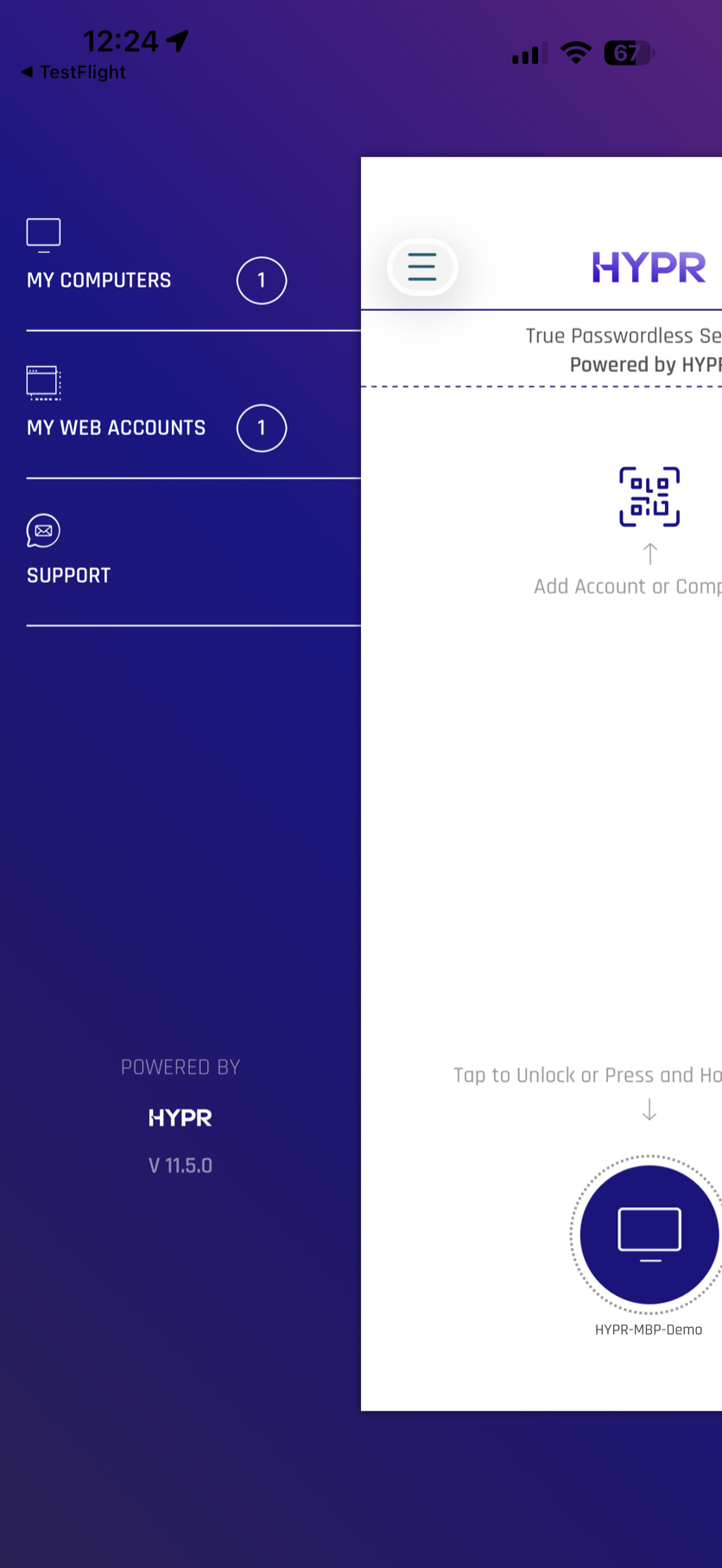
Open the side menu.
-
Double-tap the version number at the bottom of the menu.
-
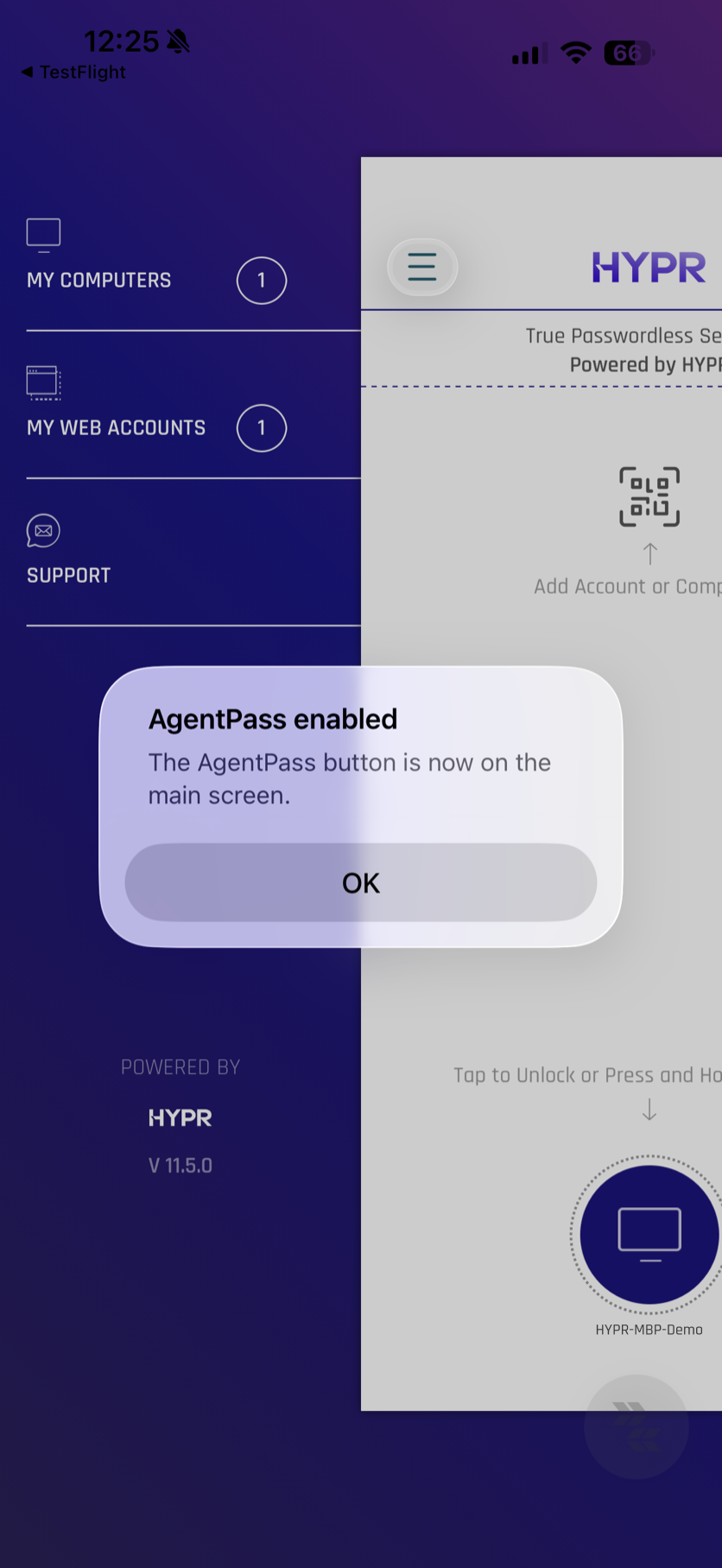
Tap OK in the AgentPass enabled alert.
-
Close the side menu. A round AgentPass button now sits at the bottom right of the main screen.
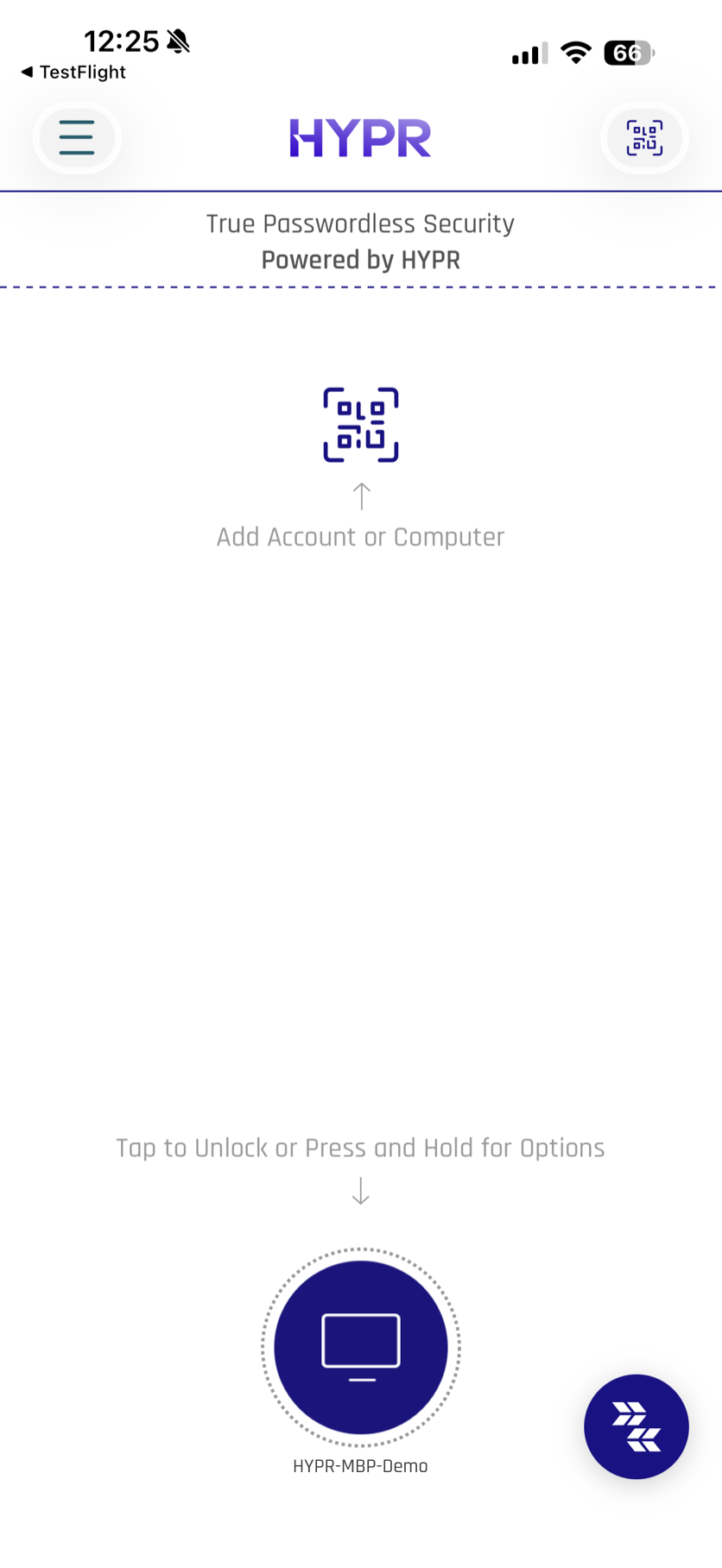
Double-tap the version number again to hide the button, and the app confirms with AgentPass hidden. Turning it back on does not ask you to sign in again.
Connect to AgentPass
-
On your computer, enroll an approval passkey from the gateway.
-
Return to the HYPR app.
-
Tap the AgentPass button at the bottom right of the main screen.
-
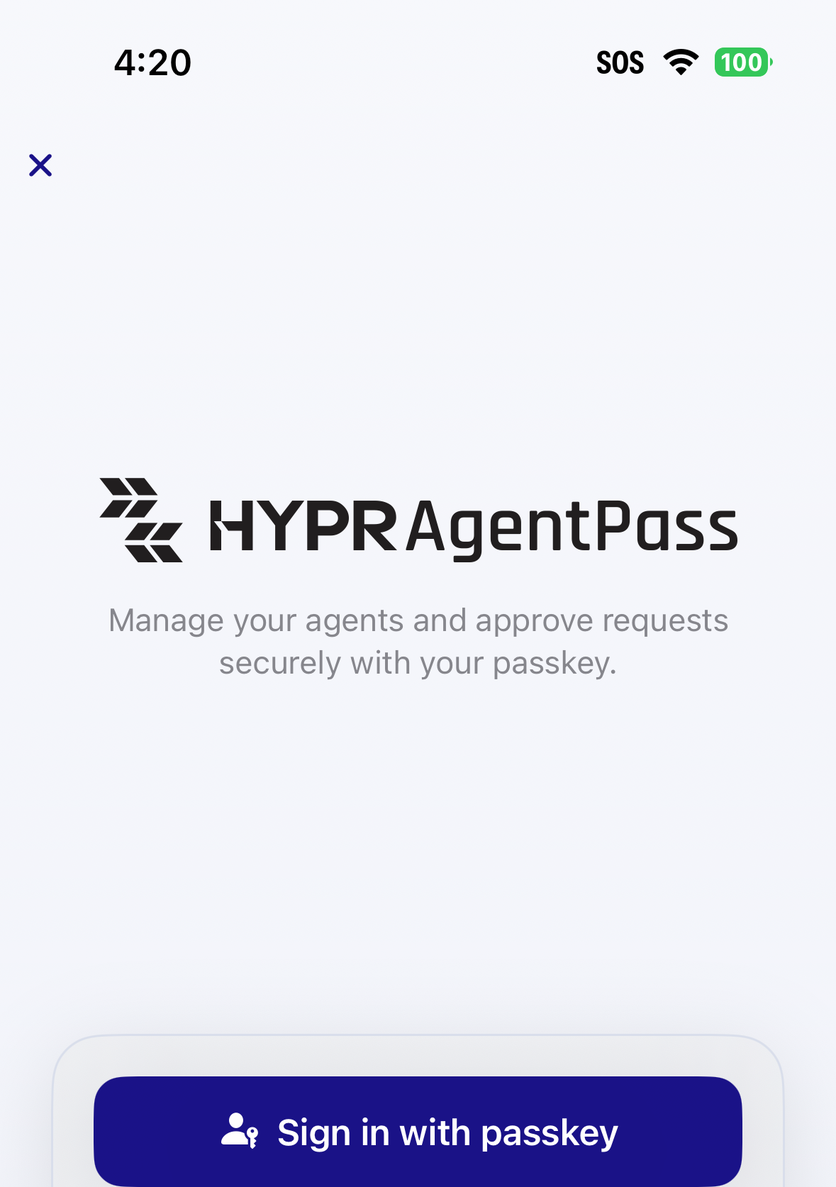
Tap Sign in with passkey.
-
Approve the device authentication prompt. AgentPass opens the list of agents assigned to you, and any requests that need your attention.
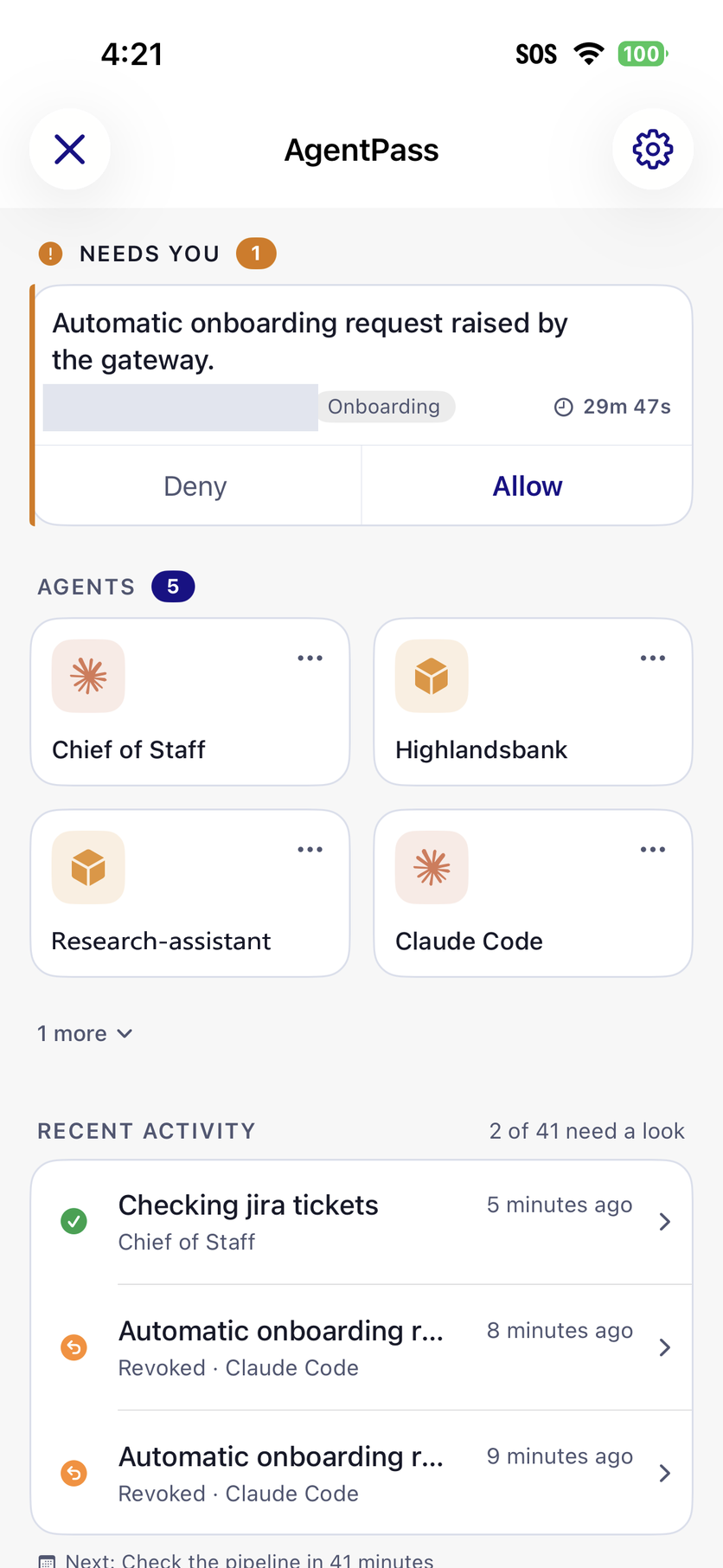
Later visits reuse the protected gateway session, until you need to sign in again.
Use AgentPass on iPhone
AgentPass on iPhone has these areas.
| Area | What you can do |
|---|---|
| Agents | Open an assigned agent, review its status, and see recent activity |
| Needs you | Review a request, then tap Allow to sign it with your approval passkey, or Deny to reject it. Deny needs no passkey. |
| Conversations | Continue a workstation conversation, or start a supported managed-agent chat |
| Approvals | Review the agent's recent approval history |
| Recent activity | Review the approvals you decided and recent scheduled runs |
| Automations | Review and manage supported managed-agent automations, their run history and transcripts |
Opening an AgentPass notification takes you to the related request or conversation. See Approving and Denying Agent Actions for the decision flow, and Having Conversations with Your Agent for messaging.
If Something Is Missing
Start with what you see:
- There is no AgentPass button. It is hidden until you switch AgentPass on. Follow Switch AgentPass On, and double-tap the version number itself. AgentPass also requires iOS 17 or later, so update iOS and install the current early access build if needed.
- The App Store version has none of this. The public App Store listing does not include AgentPass. You need the early access build.
- The testing link does not open TestFlight. Install TestFlight first, then open the link again on the same phone. Opening it on a computer installs nothing on your phone.
- Sign-in fails, or shows Sign-in failed. Try again. Enroll the phone through Setting Up Your Approval Passkey, then try again.
- No agents appear. Ask your administrator to confirm your supervisor role and agent assignments.
- The gateway cannot be reached. Confirm the iPhone has network access, and that your administrator provided the correct gateway address. If the problem continues, contact HYPR Support.
Related
- Setting Up Your Approval Passkey — connect this app to your gateway
- Approving and Denying Agent Actions — review and sign a decision
- Having Conversations with Your Agent — message agents from the app or console