Chatting in the Agent Portal
The Agent Portal is a web page where you chat with your organization's AI agents through HYPR AgentPass™. You sign in with your own Microsoft account, so everything an agent does runs with your identity and access. Every conversation passes through the gateway's policy and audit controls.
In the Agent Portal, you can:
- Chat with Microsoft 365 Copilot, and pick up your earlier Copilot conversations
- Attach your OneDrive files, or files from your computer, to a message
- Chat with the custom Microsoft Copilot Studio agents your organization has made available
The portal may carry your organization's own name, colors and logo, from the sign-in page onward, so it looks like an in-house tool. Everything on this page works the same way, whatever the portal is called where you work.
Answers in the Agent Portal are AI-generated. Each reply carries a reminder that AI-generated content may be incorrect. Verify anything important before you act on it.
Chatting with Copilot Studio agents in the Agent Portal is a preview capability. Confirm availability with your HYPR representative before you rely on it in production.
Sign In and Choose an Agent
- Open the Agent Portal link your administrator provides.
- On Sign in to the agent portal, click Continue with Microsoft.
- Sign in with your Microsoft work account in the window that opens.
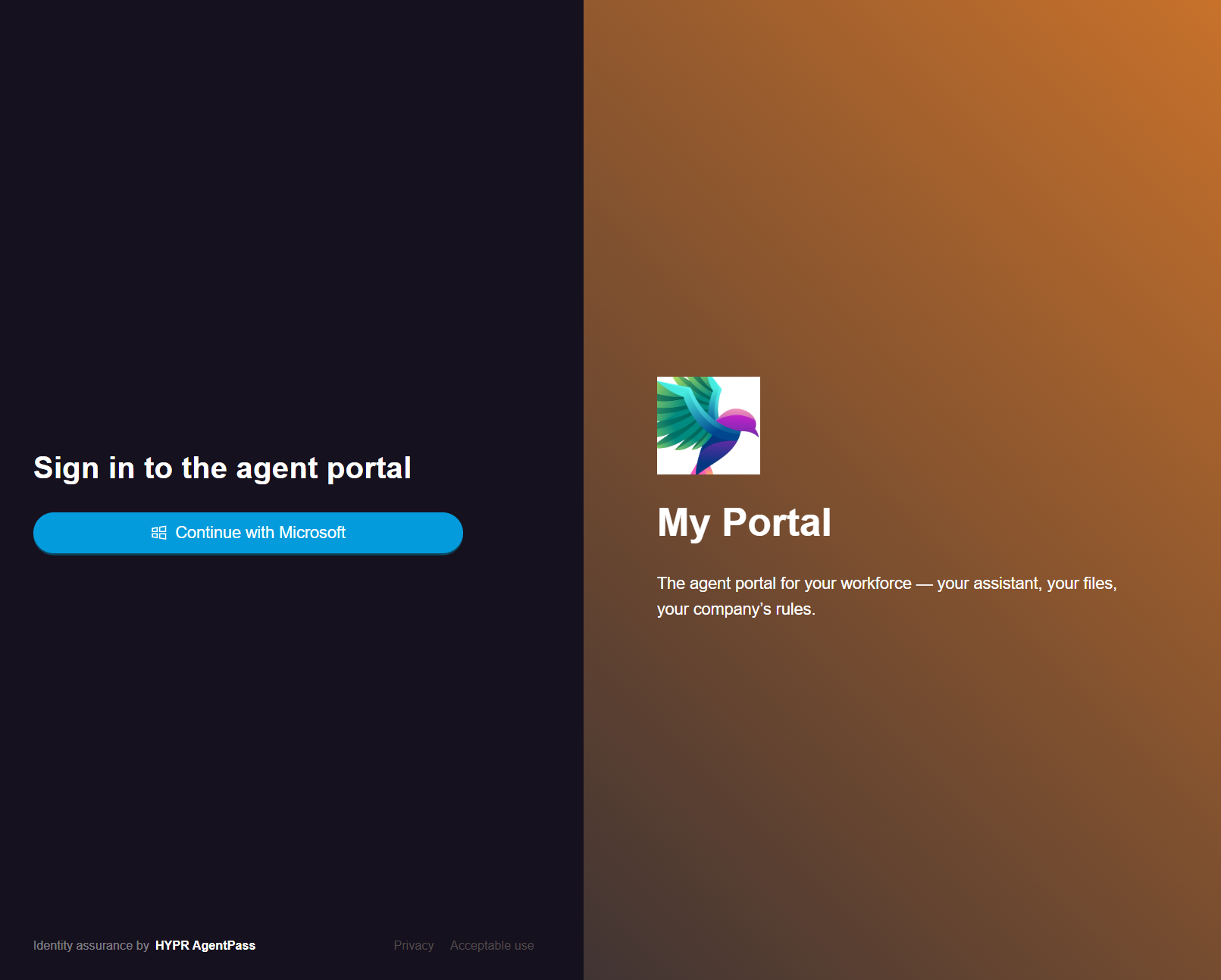
The portal keeps you signed in only while the page is open. If you reload or close the page, click Continue with Microsoft again. Microsoft may sign you straight back in without asking for your password.
After sign-in, the sidebar lists the agents available to you under AGENTS:
- Copilot, marked Default agent: the built-in Microsoft 365 Copilot, always first in the list.
- Copilot Studio agents, custom agents your organization has registered. Click one to chat with it in the portal.
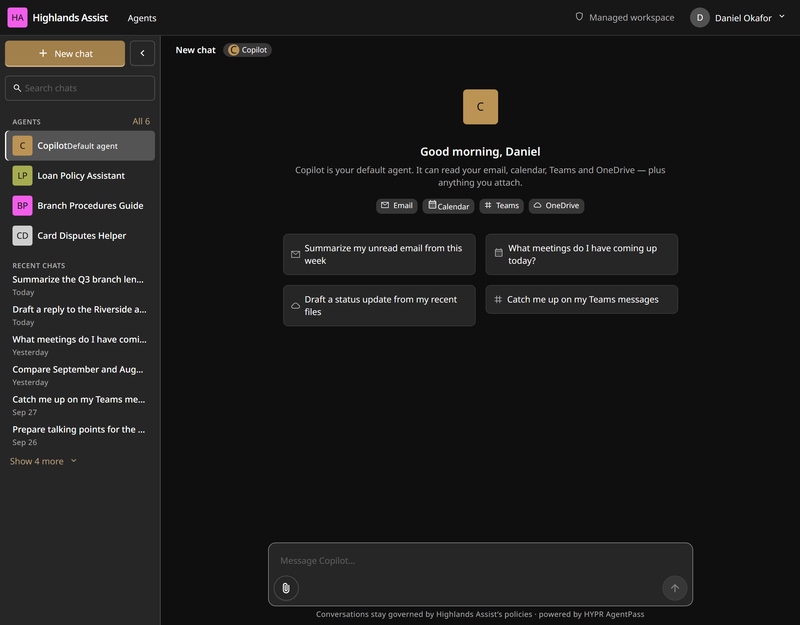
The sidebar shows your first four agents. To see them all, click All N beside AGENTS, where N is how many agents you have, or Agents in the portal header. The Agents page shows every agent with its description, and Search for an agent filters them by name or description.
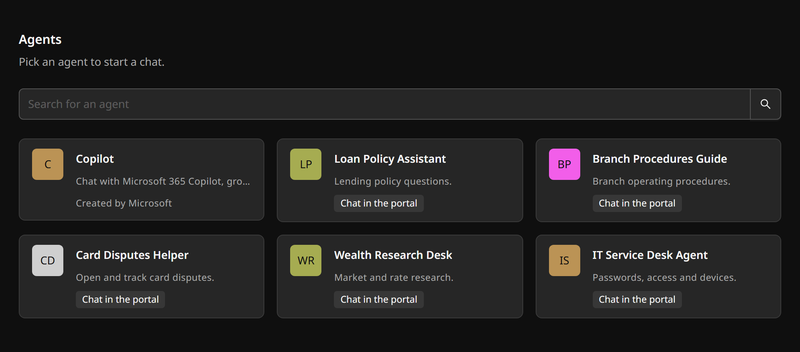
The list shows Copilot and every Copilot Studio agent your administrator has registered and enabled for the portal. Everyone who signs in sees the same list. If an agent you expect is missing, ask your administrator.
If Your Organization Uses Microsoft GCC High
The Agent Portal works the same way when your organization's Microsoft 365 tenant is in Microsoft GCC High. You sign in with your Microsoft work account, chat with Microsoft 365 Copilot, attach your OneDrive files, pick up earlier conversations, and chat with the Copilot Studio agents your organization registered.
The sidebar's AGENTS list shows Copilot and the Copilot Studio agents your organization registered, exactly as on the commercial cloud.
Start a Conversation
Every new chat opens with suggestions to get you going:
- Microsoft 365 Copilot greets you with a welcome and a few starter prompts. Click one to send it as your first message, or type your own.
- Copilot Studio agents greet you too. If the agent defines them, you see a welcome message introducing what it can help with, and a row of conversation starters under the greeting.
To start over at any time, click New chat at the top of the sidebar. It opens a fresh conversation with the agent you are chatting with.
Pick Up an Earlier Conversation
The sidebar's RECENT CHATS list shows your earlier Microsoft 365 Copilot conversations, each dated Today, Yesterday or with its date.
- In the sidebar, find the conversation. Type part of its title in Search chats to filter the list, or click Show N more to see older ones.
- Click the conversation. It opens with its earlier messages, and your next message continues it.
When the list is empty, it reads No past conversations.
Write and Send Messages
The conversation reads like a familiar chat. Your messages appear on the right, and the agent's replies on the left, each with a timestamp. The view follows the conversation as it grows.
The message box grows with what you write:
- Press Enter to send your message.
- Press Shift+Enter to start a new line, so you can write multi-line prompts, such as lists, code or a longer brief, before sending.
Attach Your OneDrive Files
You can attach files from your OneDrive to a message to Copilot, so it can work from a document you choose. In a chat with a Copilot Studio agent, upload the file from your computer instead.
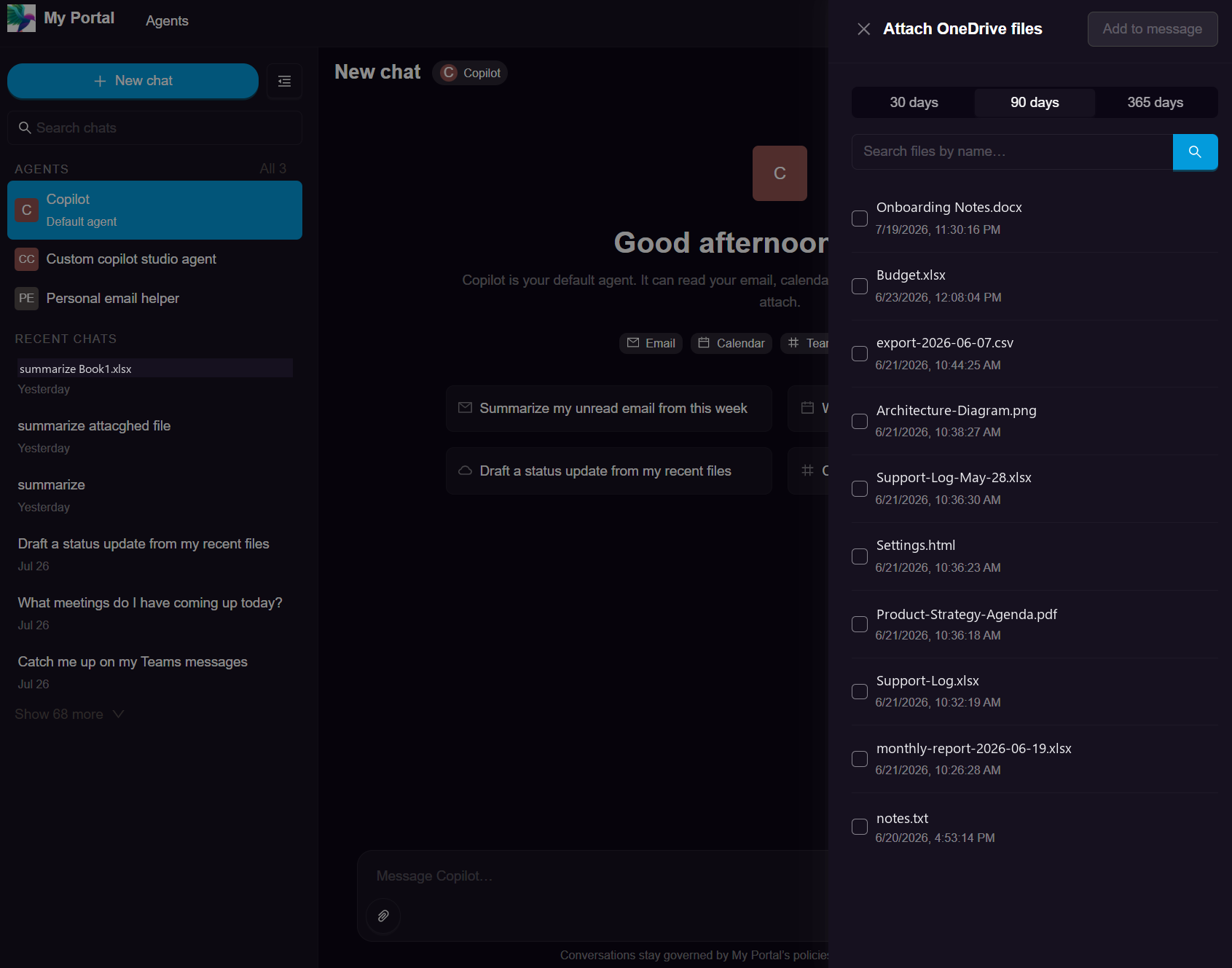
- In the message box, click the attach button (the paperclip), and click Attach from OneDrive.
- In Attach OneDrive files, find the files you need. Filter by when a file last changed, 30 days, 90 days or 365 days, or type a name in Search files by name… and press Enter.
- Select the check box for one or more files, and click Add to message.
The files appear as chips under CONTEXT above the message box, and go with your next message. To remove one before you send, click its ×.
The agent reads the files you attach with your identity and access, under the same policy and audit controls as the rest of the conversation.
Upload a File from Your Computer
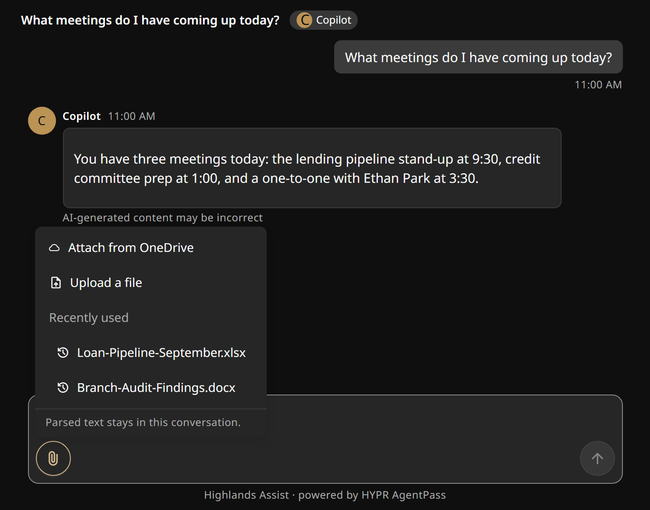
The attach menu also offers:
- Upload a file, for a document on your computer instead of your OneDrive
- Recently used, the two files you most recently attached in this browser. Click a OneDrive file to attach it again. Click an uploaded file to reopen the file chooser, and choose the file again
You can upload these file types.
| File type | Extensions |
|---|---|
| Plain text and Markdown | .txt, .md |
| Comma-separated values | .csv |
| JSON | .json |
| HTML | .html, .htm |
.pdf | |
| Microsoft Word | .docx |
| Microsoft Excel | .xls, .xlsx |
| Microsoft PowerPoint | .pptx |
Each file must be 20 MB or smaller. The portal does not accept macro-enabled Office documents (.docm, .xlsm, .pptm), PowerPoint slideshows (.ppsx), or the older Word and PowerPoint formats (.doc, .ppt). Save a copy as .docx or .pptx, and upload that.
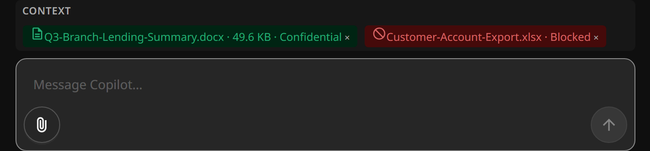
As each file uploads, its chip above the message box shows its progress:
- Scanning…, while your organization's controls check it
- The file's size, once it is ready to send, for example
report.docx · 12.4 KB - Blocked, if your organization's policies do not permit the document. The file is not sent. Hover over the chip for the reason
An Office document with a Microsoft Purview sensitivity label also shows the label's name beside the size, so you see how it is classified before you send it.
Hover over a chip for the full detail. It shows whether the file is available to the conversation, and whether a very large document had its text shortened, in which case the agent reads the beginning, not all of it. For an Office document, it also shows whether the file carries no sensitivity label, or is a format that cannot carry one.
Two messages mean the file needs a change, not another try:
- Encrypted. The document is encrypted by Microsoft Purview, which keeps its contents sealed, so nothing can be read from it for the agent. Upload an unencrypted copy instead. If the document is classified, the chip also names its sensitivity label, for example Encrypted · Confidential, and hovering gives the full explanation.
- Unsupported. The file is not one of the types listed. The type is read from the file's contents, not its name, so renaming a file does not change what it is.
Three other chip words tell you what went wrong: Too large for a file over 20 MB, Unreadable when no text could be taken from the file, and Upload failed when the upload did not finish. Try Upload failed again. To clear a chip, click its ×.
An uploaded file goes with the next message you send, and is not saved for later. To use the same document in a later message or a new conversation, upload it again, and it is checked again.
Watch Replies Stream In
When you send a message, the agent's reply appears progressively. The text streams in live as the agent writes it, so you start reading immediately.
While the agent works, a typing indicator, Thinking…, shows that a reply is on the way. A Copilot Studio agent also shows status updates, such as Searching… while it looks something up.
Depending on how your organization governs this connector, some Copilot Studio agent replies arrive all at once instead of streaming. The typing and status indicators still show while the agent works, and the complete reply appears when it is ready. If your organization's policies do not permit a reply, the portal shows a notice that the response was blocked.
Use Suggested Actions
Some replies from Copilot Studio agents end with suggested actions: a row of clickable follow-ups the agent offers, such as a next question or a related task. Click one to send it as your next message, exactly as if you typed it. You can always ignore the suggestions and type your own message.
Check a Reply's Sources
When a Copilot Studio agent bases its answer on documents or pages, the reply cites them. Numbered markers in the text point to the Sources row under the reply. Hover over a source for its number and a short excerpt, and click a source that has a link to open it, so you can verify an answer before you rely on it.
Replies in Your Language
When a conversation with a Copilot Studio agent starts, the Agent Portal tells the agent your browser's language, so agents that support it reply in your language automatically. To chat in a different language, change your browser's language setting, and start a new conversation.
Sign Out
Your account menu sits in the portal header, under your name, and shows who you are signed in as. Click Sign out to end your Agent Portal session, for example before handing over a shared machine.
Signing out ends only your portal session. Your Microsoft work account stays signed in for your other Microsoft 365 apps.
If Something Goes Wrong
The portal shows a short message in the conversation, the sidebar or the file picker when something needs attention. These messages tell you what to do next.
| Message | What to do |
|---|---|
| Your session expired — please sign in again. | The portal returns to its sign-in page. Click Continue with Microsoft |
| You do not have an active Microsoft 365 Copilot license. | Ask your administrator for a Microsoft 365 Copilot license |
| Admin/user consent is required for Copilot access. | Ask your administrator to grant consent for Copilot |
| This agent is unavailable — admin consent (CopilotStudio.Copilots.Invoke) is required. | Ask your administrator to grant consent for Copilot Studio agents |
| This agent isn’t configured for chat yet. Ask your administrator to register it. | Ask your administrator to register the agent |
| Couldn’t reach this agent right now. Please try again. | Send your message again. If it keeps happening, tell your administrator |
| This request was blocked by a gateway policy., or your organization's own wording | Your organization's policies do not permit the message. Rephrase it, or ask your administrator |
| OneDrive files are unavailable — admin consent required. | Ask your administrator to grant consent for OneDrive access. You can still upload a file from your computer |
| Copilot history is unavailable — admin consent required. | Ask your administrator to grant consent for Copilot history. New chats still work |
| The Agent Portal is not configured for followed by a name | The link is not set up for the portal. Ask your administrator for the correct link |
Related
- Agent Portal — what the portal intercepts and controls
- Agent Portal Attachments — the administrator's view of the file types accepted and what is checked
- Connecting Microsoft 365 Copilot — how administrators set up the connector and register Copilot Studio agents
- Viewing the Request Log — review activity as it flows through the gateway