Enabling Agent Observability
Overview
Agent Observability lets HYPR AgentPass™ see the AI tools running on your workstations. It works by receiving signed activity reports from the Endpoint Guard.
You manage the capability on the Agent Observability tab of the Discovered view. There you enable it, create the enrollment tokens workstations use to register, review and revoke enrolled devices, and read the log of incoming reports.
Managing Agent Observability is an administrator task. Opening the tab and reading enrolled devices and the ingest-activity log needs permission to view settings. Enabling observation, creating or removing enrollment tokens, revoking a device or editing the manifest needs permission to edit settings.
Open the Agent Observability Tab
- In the console, open Oversight → Discovered.
- Click the Agent Observability tab.
The tab shows whether observation is Enabled or Not enabled, and holds the observation controls. The agents that the gateway and endpoint clients have observed appear on the Discovered Agents tab beside it.
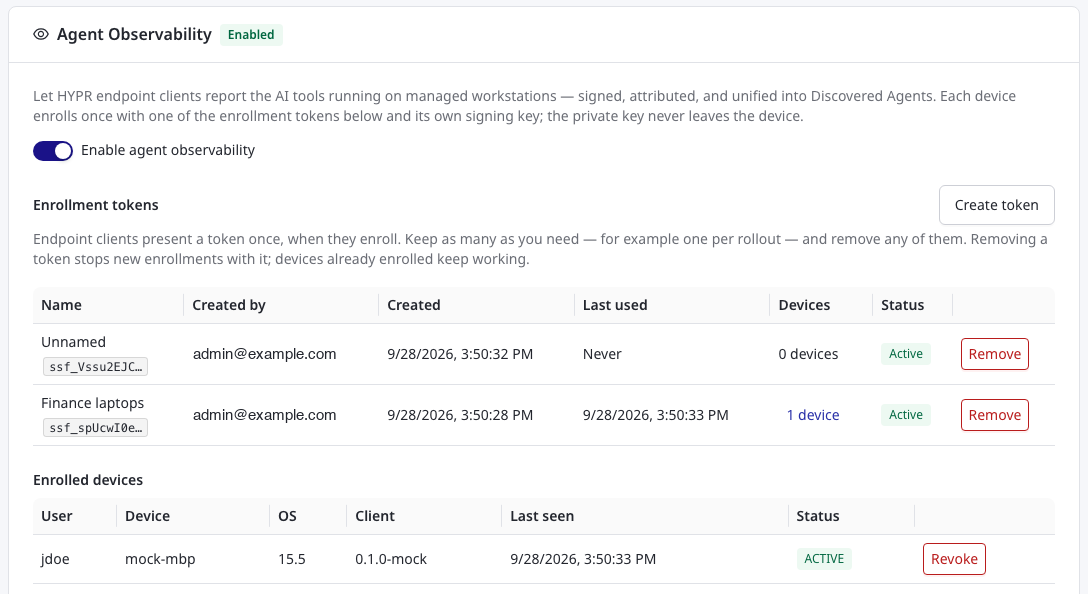
Enable Observation
While observation is off, the gateway accepts no enrollments or reports, and turns away endpoint clients that reach it.
- Create an enrollment token, if no active token exists. See Enrollment Tokens. The toggle prompts you if you skip this.
- When you are ready to enroll workstations and receive activity, turn on Enable agent observability.
Once observation is enabled, the Observation Manifest editor and the ingest-activity log appear beneath the enrolled devices.
Enrollment Tokens
Workstations register with your gateway using an enrollment token. A workstation presents a token once, when it enrolls. From then on, it reports under its own signed identity, and uses a token again only if it has to re-enroll. Your organization can keep up to 25 active enrollment tokens, so you can give each rollout its own.
The Enrollment tokens table lists every active token:
| Column | What it shows |
|---|---|
| Name | The name you gave the token, or Unnamed, with the token's first characters beneath, so you can match it to a deployment |
| Created by | The administrator who created the token |
| Created | When the token was created |
| Last used | When a workstation last enrolled with the token, or Never |
| Devices | How many workstations enrolled with the token |
| Status | Active, or Removed with who removed it |
Create one token per rollout, for example one per device-management group or office. Each token then shows how many workstations it enrolled. If a token is exposed, you can remove it and review its devices without touching any other rollout.
Create a Token
- Click Create token.
- Optionally enter a Name that helps you tell tokens apart, for example
Finance laptops. Names can be up to 80 characters. - Click Create.
- In the Copy your enrollment token now dialog, click Copy, and place the token in your workstation deployment. Then click Done.
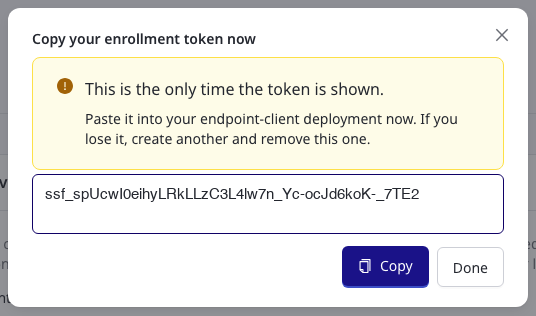
An enrollment token is shown in full only once, in the Copy your enrollment token now dialog. The gateway keeps only a one-way fingerprint of it, and can never display it again. If you lose a token, create another, and remove the one you lost.
Treat every enrollment token like a password. Anyone who holds an active token can enroll a device into your organization until you remove it.
Remove a Token
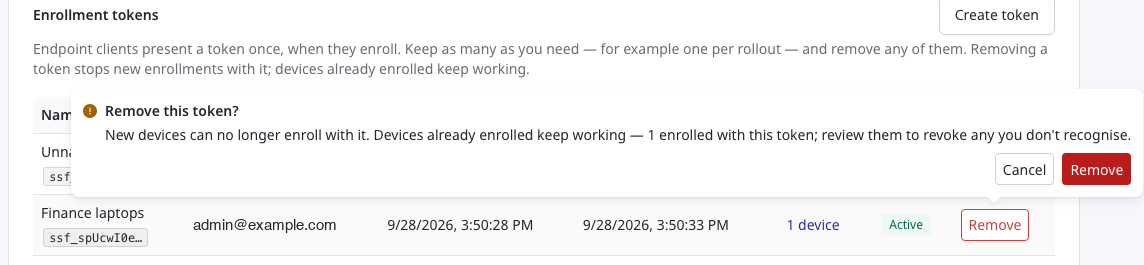
Click Remove on a token's row, and confirm. Removing a token has two effects:
- Stops new enrollments with it. A workstation that presents a removed token is refused, exactly as if the token had never existed. This takes effect immediately.
- Does not affect workstations that already enrolled with it. They keep reporting under their own signed identities. To stop a workstation from reporting, revoke the device instead. See Review and Revoke Enrolled Devices.
A workstation that later needs to re-enroll must present an active token. Before you remove a token, make sure the deployments that still rely on it have a replacement.
Removed tokens are hidden from the table. Turn on Show removed to see them, with who removed each one. They stay listed, so you can always see which tokens existed, who created them and who removed them.
Replace a Token
Replace a token on a routine schedule, or when you believe it is no longer trustworthy:
- Create a new token.
- Update your workstation deployment to use it.
- Remove the old token.
Each token is independent, so workstations keep enrolling with the old token until you remove it. There is no gap while you roll out the new one.
Find the Devices That Used a Token
Click the device count in a token's Devices column to show only the workstations that enrolled with that token. The confirmation for removing a token also tells you how many workstations enrolled with it.
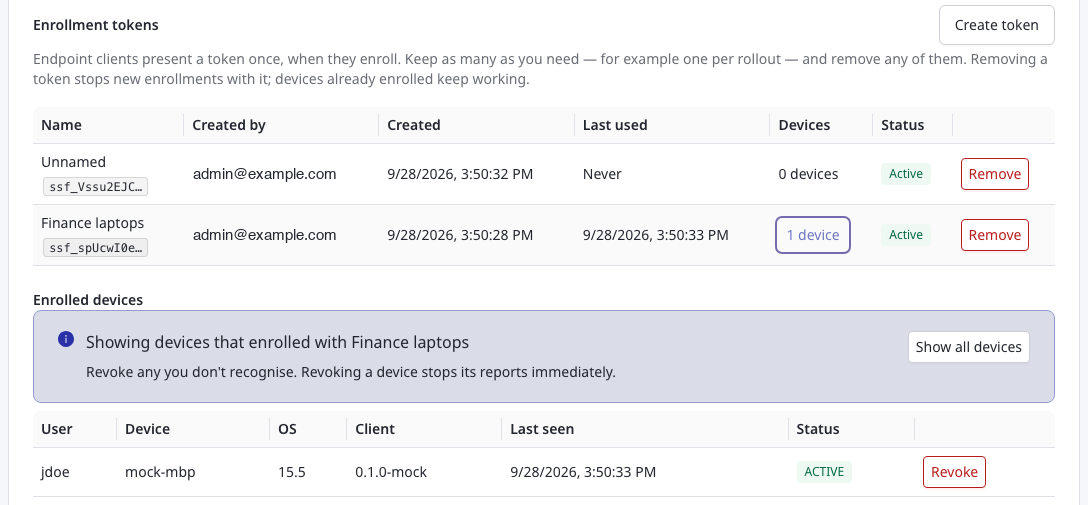
If a token was exposed, remove it, then review its devices, and click Revoke on any you do not recognize. Click Show all devices to return to the full list.
Tokens From Before Multiple Tokens Were Supported
If your organization enrolled workstations before it could keep several tokens, the token you already had keeps working with no action from you. It appears in the table as Original token, with the administrator who last set it and when. Workstations that enrolled before the change are counted under Original token, even if they originally enrolled with an earlier token that has since been replaced.
Review and Revoke Enrolled Devices
The Enrolled devices list shows every workstation that has enrolled, with the details captured at enrollment and the last time each one contacted the gateway.
| Column | What it shows |
|---|---|
| User | The workstation user the client enrolled under |
| Device | The workstation's computer name |
| OS | The workstation's operating system version |
| Client | The installed version of the HYPR endpoint client |
| Last seen | When the workstation last polled the gateway or reported activity |
| Status | ACTIVE while the device is trusted, or REVOKED |
To stop accepting a device's reports, for example when it is retired or reassigned, click Revoke on the device. The confirmation reminds you that the gateway will reject the device's next signed report and manifest poll.
A revoked device does not return to active. To report again, the workstation must enroll afresh with an active enrollment token, and it then appears as a new device. The gateway refuses to re-enroll the revoked identity, so the workstation enrolls with a fresh one. The gateway keeps activity the device reported before it was revoked.
Read the Ingest-Activity Log
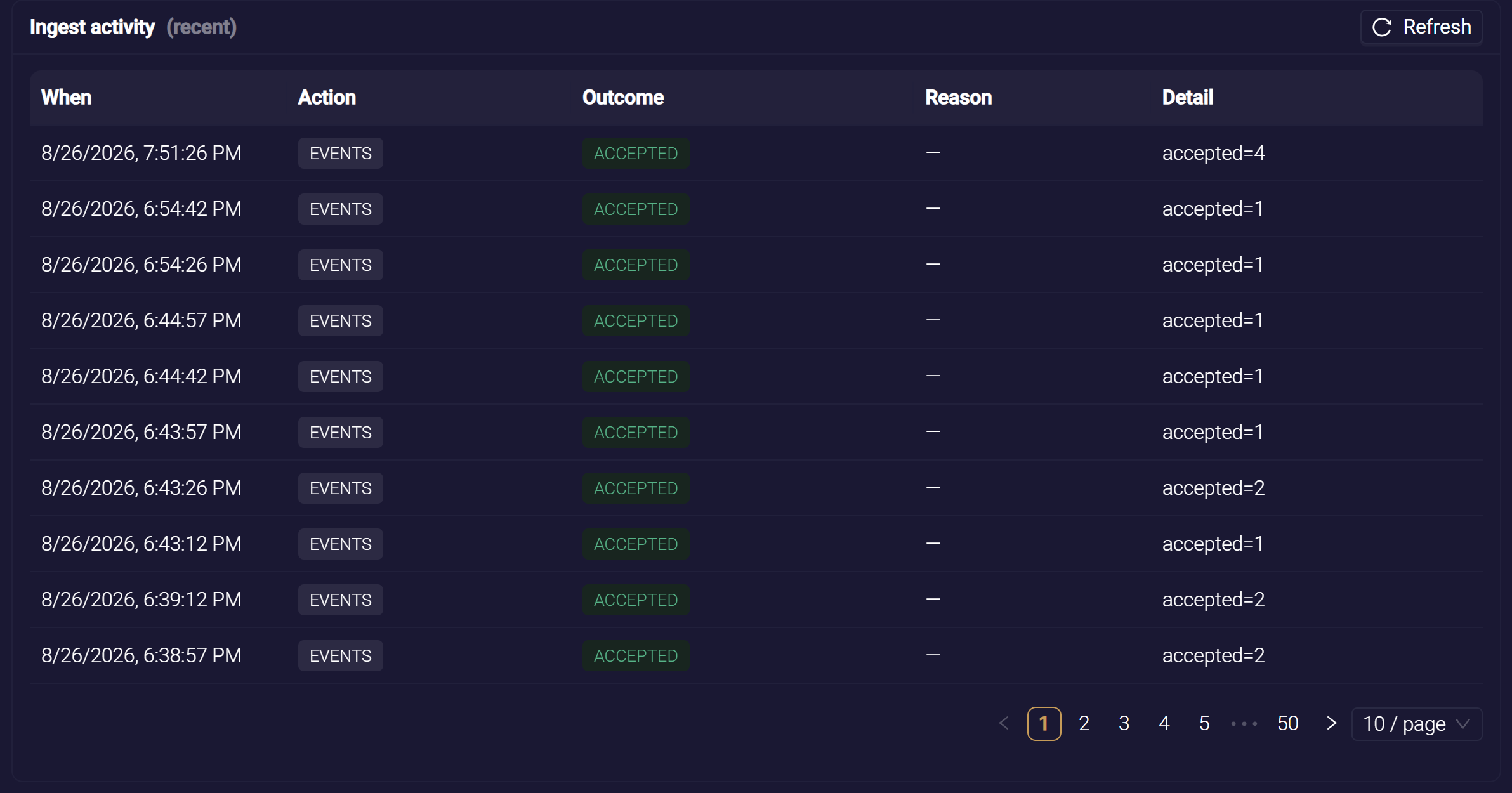
The Ingest activity log records what the gateway does with each enrollment and each batch of reports. Use it to confirm workstations are reporting, and to spot any the gateway turns away. Click Refresh to pull the latest entries.
| Column | What it shows |
|---|---|
| When | When the gateway handled the request |
| Action | What happened: ENROLL for an enrollment, EVENTS for a batch of activity reports, REVOKE for an administrator revoking a device, ENROLLMENT_TOKEN_CREATED and ENROLLMENT_TOKEN_REVOKED for an administrator creating or removing a token, MANAGED_MODE for an administrator turning managed mode on or off, or MANAGED_OVERRIDE for an administrator changing or resetting a workstation's controls |
| Outcome | ACCEPTED or REJECTED |
| Reason | Why a request was rejected. For example, an invalid enrollment token, too many failed enrollments from one network address, a report from a device that is no longer active, a report that was not fresh, or a device sending too many reports |
| Detail | For an accepted batch, how many activity records it contained. For a revocation, who performed it. For a token change, the token's name or first characters, and who made the change. For a managed-mode or workstation change, what changed and who made it |
Routine manifest polls are not logged. A healthy fleet therefore shows a steady stream of accepted EVENTS entries, not one line per check-in. Use the log to:
- Confirm reporting is healthy. Look for accepted batches from the workstations you expect.
- Investigate a quiet workstation. Check whether its enrollment succeeded and its reports are arriving.
- Notice rejected reports. See when reports are declined, and why.
The gateway retains observed activity and the ingest-activity log for 30 days.
Related
- Endpoint Guard — what reports the activity you receive, and how it discovers and routes agents
- Observation Manifest — choose which AI tools workstations watch
- Discovering Unmanaged Agents — review the observed activity