Managed Devices
Overview
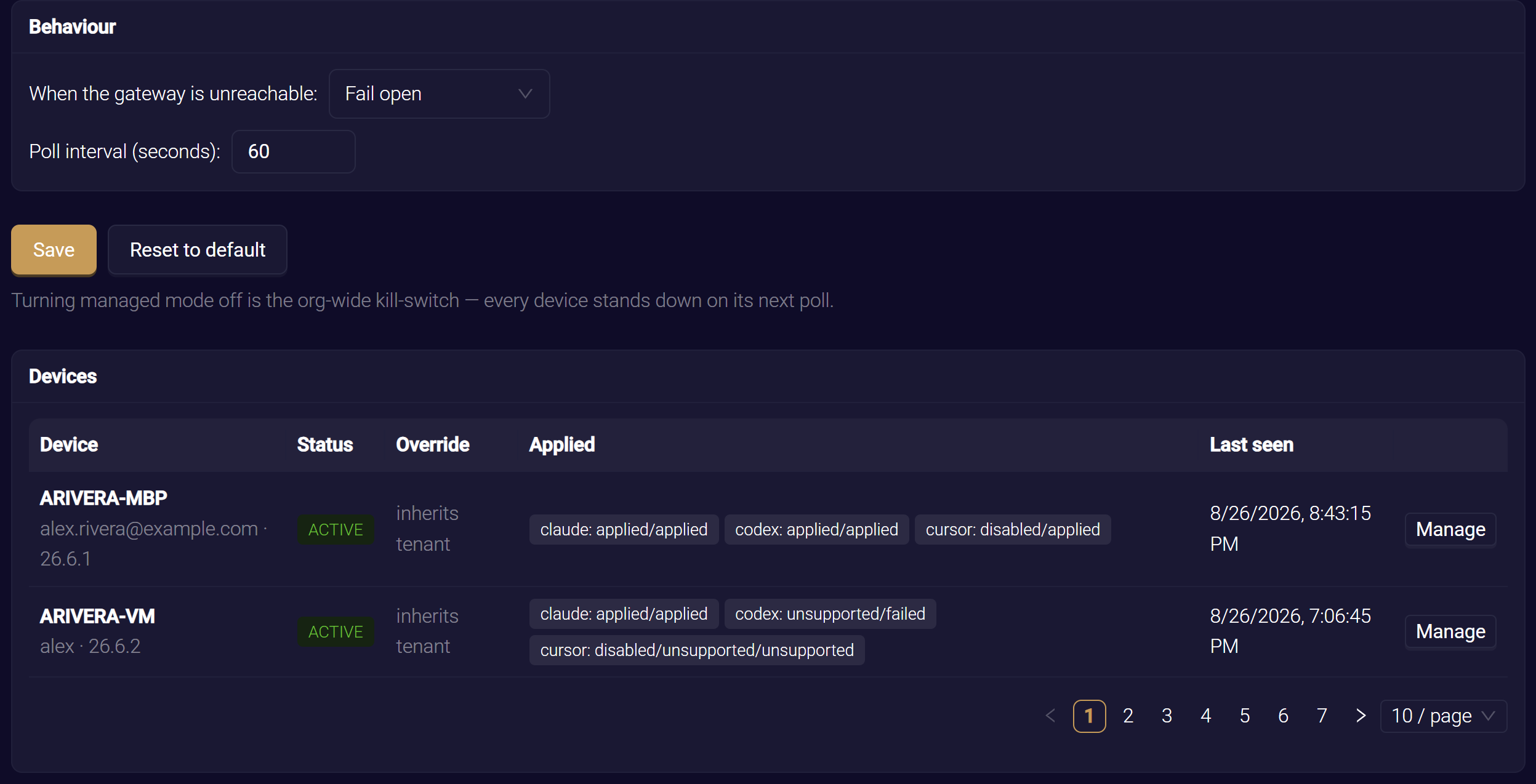
The Devices dashboard, at the bottom of the Desktop Tools view in HYPR AgentPass™, shows what each enrolled workstation has actually applied. You can also act on any single workstation there without changing your organization-wide settings. Use it to confirm the fleet is in the state you intend, and to troubleshoot one machine.
Viewing and controlling managed devices is an administrator task. Reading the dashboard needs permission to view settings. Changing a workstation's controls needs permission to edit settings.
Read the Fleet Dashboard
Each enrolled workstation reports what it applied, per tool and per capability. The dashboard therefore shows the real state on the machine, not only your intended configuration. It lists every workstation enrolled through Agent Observability, ten to a page.
| Column | What it shows |
|---|---|
| Device | The workstation's computer name, with the user it enrolled under and its operating system version beneath |
| Status | ACTIVE, or REVOKED for a workstation revoked on the Agent Observability tab |
| Override | Any per-workstation controls in effect: management off, enforcement off, outage: fail open, outage: fail closed or restore pending. inherits tenant means the workstation follows your organization-wide settings |
| Applied | One tag per managed tool, with the outcome of each capability the workstation reported, such as claude: applied/applied/effective. A dash means the workstation has not reported yet |
| Last seen | When the workstation last contacted the gateway |
A workstation reports one of these outcomes for each capability.
| Outcome | Meaning |
|---|---|
| applied | The workstation wrote the configuration for that capability |
| effective | For egress enforcement: the workstation's network filter holds the tool's block |
| unsupported | The tool or the workstation cannot perform that capability, such as routing on Cursor. This is expected, not a problem |
| disabled | Blocking is off for that tool, or enforcement is off for that workstation |
| failed | The workstation could not apply the capability. The reason is reported with it, such as a tool that is not installed, or one not yet signed in that is retried on the next check-in |
Focus troubleshooting on failed results. First check for a tool the developer has not signed in to yet. The endpoint client defers routing until the tool is authenticated, so pointing it at the gateway never breaks its sign-in. It applies the routing on a later check-in.
Control a Single Workstation
Per-workstation controls override your organization-wide settings for that one workstation. Use them to troubleshoot without relaxing anything for the rest of the fleet.
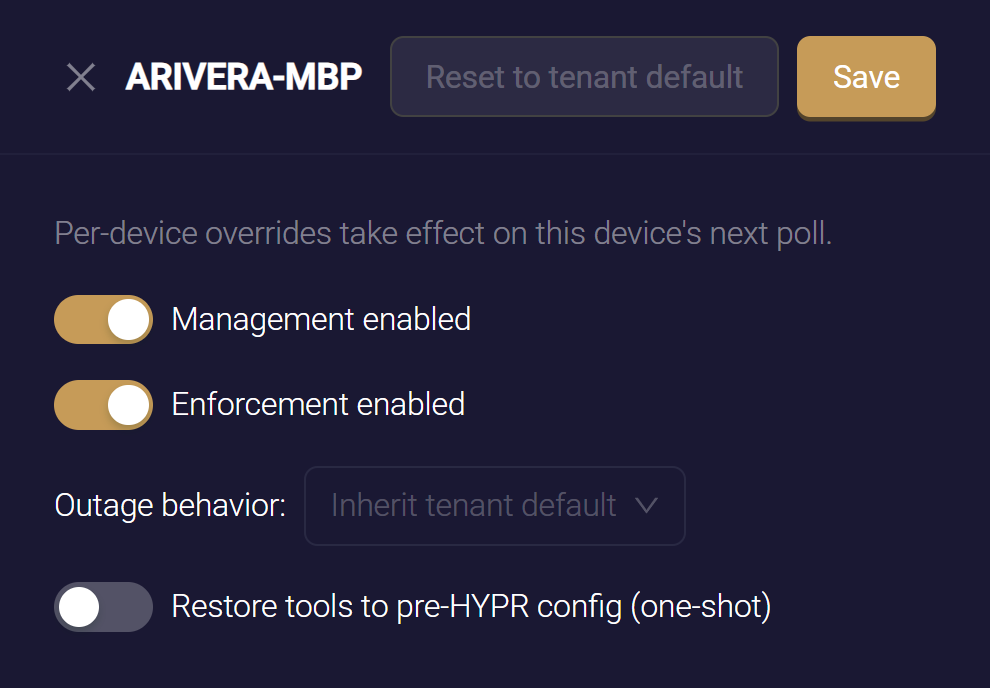
- On the dashboard, click Manage on the workstation.
- Set the controls described in the following list.
- Click Save. The changes take effect on the workstation's next check-in.
The controls are:
- Management enabled. Turn it off to return that workstation's managed tools to their previous state, without turning managed mode off for anyone else. The dashboard then shows management off for the workstation.
- Enforcement enabled. Turn it off to stop blocking the workstation's direct traffic, while its tools stay routed and provisioned. It is a quick way to rule enforcement out during troubleshooting.
- Outage behavior. Choose Fail open or Fail closed for this workstation alone, for example to relax a fail-closed workstation while you investigate. Leave it on Inherit tenant default to follow your organization-wide setting.
- Restore tools to pre-HYPR config (one-shot). Returns the workstation's managed tools to the exact files they had before HYPR managed them. The workstation backed up each tool's original settings before its first change, so restore works even when the current configuration is the problem. After the workstation restores its tools, turn the switch back off. Until you do, the request stays in effect and is sent again on every check-in.
Reset to tenant default clears every override on the workstation, so it follows your organization-wide settings again.
Reset to tenant default clears the workstation's overrides as soon as you click it, with no confirmation step.
Turning off Management enabled removes only what HYPR added: the routing settings, the provisioned MCP servers and the hooks. The developer's own changes stay in place. Restore tools to pre-HYPR config puts back the original files in full, including reverting edits the developer made after the tool became managed. Use restore when a tool's configuration is broken and you want it exactly as it was.
Turn Managed Mode Off for Everyone
To stop managing desktop tools across your whole organization at once, turn Managed mode off in the Desktop Tools view. Every workstation stands down on its next check-in. It removes its egress blocks and returns its managed tools to their previous state. To act on one machine instead of the whole fleet, use the per-workstation controls.
Audit Trail
The ingest-activity log on the Agent Observability tab of the Discovered view records these changes, with the administrator who made them:
- Turning managed mode on or off
- Changing a workstation's controls
See Read the Ingest-Activity Log.
Related
- Enabling Managed Desktop Tools — the organization-wide managed mode switch
- Egress Enforcement — the organization-wide enforcement and outage defaults these controls override
- Enabling Agent Observability — enroll and revoke the workstations that appear here