Endpoint Guard for Windows
Endpoint Guard for Windows enrolls the workstation, discovers supported AI tools and sends signed activity reports to AgentPass. On Windows, it works with Claude Code, the Codex CLI and Cursor. The Windows client supports Agent Observability and Managed Desktop Tools: routing, MCP provisioning, Cursor hooks and egress enforcement. Claude and Codex channels require the macOS client.
On Windows, an egress block applies to every process on the workstation, browsers included.
Endpoint Guard for Windows is in early access and in active development. Its capabilities, installer options and behavior can change between versions. Confirm the version to deploy, and what it supports, with your HYPR representative.
Complete support for Claude Desktop on Windows is planned for a future version. Today, the installer can set Claude Desktop to use your gateway, and a Claude Desktop egress block set in the console applies to the whole workstation. Managing Claude Desktop's routing and MCP servers from the console requires the macOS client.
Who Provides What
A workstation needs three things before it can enroll: the installer, your gateway address and an enrollment token. Each comes from a different place.
| Who | What they provide | Where it comes from |
|---|---|---|
| HYPR | The installer | Your HYPR representative |
| An AgentPass administrator | The gateway address and an enrollment token, with Agent Observability turned on | The AgentPass console |
| Whoever installs Endpoint Guard: your IT team, or a user with local administrator rights | The installation, with the gateway address and token | A deployment tool, or the installer on the workstation |
| The end user | Nothing to enter. They restart their AI tools afterwards | — |
The enrollment token is not a user's password, and nobody signs in with it. An administrator creates it in the console, and it reaches the workstation through the installation: in a deployment tool's command line, or pasted into the installer. The workstation presents it once, when it enrolls.
Before You Begin
Prepare the AgentPass Console
An AgentPass administrator with permission to edit settings does this once, before the first installation:
-
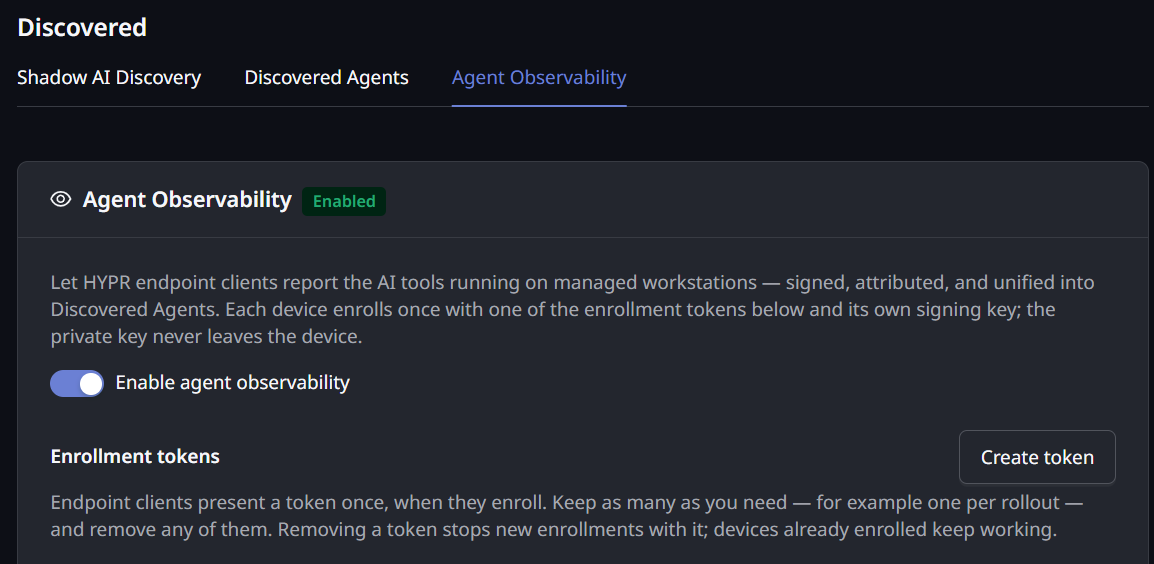
In the console, open Oversight → Discovered, and click the Agent Observability tab.
-
Click Create token, optionally give it a name, such as
Windows rollout, and click Create. Copy the token from the dialog, and keep it for the installation. The console shows it only once. See Create a Token. -
Turn on Enable agent observability, if it is off. Until it is on, the gateway refuses enrollments, so installed workstations cannot enroll. See Enable Observation.
-
Note your gateway address. It is the address your AgentPass console opens at, without
/admin/ui/. If the console is athttps://agentpass.example.com/admin/ui/, the gateway address ishttps://agentpass.example.com.
To route, provision or block AI tools on the workstations, also set up Managed Desktop Tools. You can do that before or after the installation. Enrolled workstations pick up the configuration on their next poll.
Endpoint Guard for Windows does not use the When the gateway is unreachable setting. While a workstation cannot reach the gateway, it keeps applying the last configuration it received, even after a restart. Egress blocks stay in place, and tools routed through the gateway stop working until it answers again. This is the same as Fail closed, whatever you choose in the console or override on Managed Devices.
Check the Workstation
- Windows 11 version 24H2 or later, 64-bit (x64)
- Local administrator rights for whoever runs the installer
- Outbound HTTPS from the workstation to your gateway address
A workstation with a Trusted Platform Module (TPM) protects its signing key there. Other workstations use the Windows Software Key Storage Provider.
Install Endpoint Guard
Get the installer from your HYPR representative. It is a single file, named for its version and build date, such as EndpointGuard-X64-0.4.0.2254-20261013-Setup.exe.
The installer puts Endpoint Guard in C:\Program Files\HYPR AgentPass, starts the HYPR AgentPass Endpoint Guard Service, and adds HYPR AgentPass Endpoint Guard to Settings > Apps.
On a new installation, the installer checks that your gateway answers and that the token is in the right format. It stops if either check fails. It does not check whether the token is still active, or whether Agent Observability is on. A workstation with a removed or mistyped token can install normally, then keep trying to enroll and never appear in the console. Confirm every workstation afterwards. See Confirm Enrollment.
Install From a Deployment Tool
To install on many workstations at once, run the installer from a deployment tool, such as Microsoft Intune or Configuration Manager, with /quiet and the enrollment details:
EndpointGuard-X64-<version>-<date>-Setup.exe /quiet /server=https://<your-gateway-address> /token=<enrollment-token>
| Switch | Effect |
|---|---|
/quiet | Installs with no user interface. On a workstation where Endpoint Guard is installed, updates it instead |
/server=<url> | The gateway address, over HTTPS |
/token=<token> | The enrollment token. Required for a new installation |
/noclaudecode | Leaves out the Claude Code setup on a new installation |
/noclaudedesktop | Leaves out the Claude Desktop setup on a new installation |
/uninstall | Removes Endpoint Guard. Add /quiet to remove it with no user interface |
/log=<path> | Writes the setup log to this file. By default, the log is HYPR-AgentPass-Setup-<date>-<time>.log in the temporary folder |
The installer returns Windows Installer exit codes, which deployment tools read directly:
| Exit code | Meaning |
|---|---|
0 | Success |
87 | A switch is missing or not valid |
1602 | Canceled |
1603 | The installation, update or removal failed. The setup log has the reason |
1633 | The installer's architecture does not match the workstation |
1638 | A newer version is already installed. Remove it first to install an older one |
The token is in the deployment's command line, so treat the deployment like a credential. Limit who can read it and its logs, and do not reuse a token outside the intended organization. If a token is exposed, remove it in the console and create a new one. Workstations that already enrolled keep reporting.
Install on One Workstation
Whoever installs needs local administrator rights, the gateway address and the enrollment token.
-
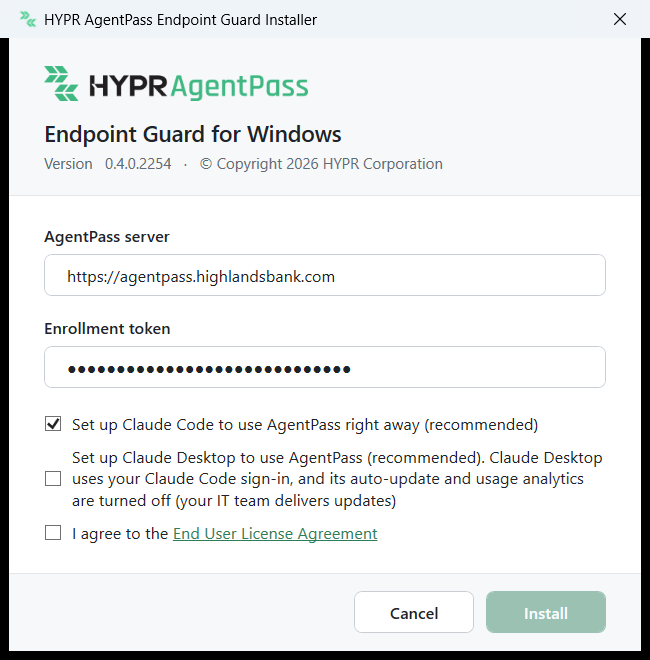
Double-click the installer, and allow it to make changes to the workstation.
-
In AgentPass server, enter the gateway address.
-
In Enrollment token, paste the token. It starts with
ssf_. -
Choose the options. The Claude Code option appears on every workstation. The Claude Desktop option appears only where Claude Desktop is installed, so a workstation without it shows one option, not two.
- Set up Claude Code to use AgentPass right away (recommended) applies Claude Code's settings at once, instead of after the user's next Windows sign-in.
- Set up Claude Desktop to use AgentPass (recommended) sets Claude Desktop to send its requests to your gateway with the user's Claude Code sign-in, and turns off its automatic updates and usage analytics, so your IT team delivers its updates. Claude Code must be installed and signed in, and the user restarts Claude Desktop afterwards. The installer leaves any Claude Desktop policy your organization already set under
HKLM\SOFTWARE\Policies\Claude.
-
Select I agree to the End User License Agreement, and click Install.
Update Endpoint Guard
Run the newer installer. On a workstation where Endpoint Guard is installed, it offers Update, or Reinstall for the same version, in place of the installation form. /quiet updates without asking. The workstation keeps its enrollment, so an update needs no token.
The installer also updates a workstation set up with an earlier version from the command line. It moves Endpoint Guard to C:\Program Files\HYPR AgentPass, and the workstation keeps its enrollment. If you unzipped the earlier version into another folder, delete that folder afterwards.
An update keeps the Claude Desktop choice made at installation, and ignores /noclaudedesktop. A workstation set up from the command line has no recorded choice, so the update sets up Claude Desktop on it, if Claude Desktop is installed. To leave Claude Desktop unchanged on such a workstation, remove Endpoint Guard, then install it again with /noclaudedesktop.
Confirm Enrollment
The console is where you see that a workstation enrolled. In the console, open Oversight → Discovered, click the Agent Observability tab, and find the workstation in Enrolled devices. Its status is ACTIVE. See Review and Revoke Enrolled Devices.
If a workstation does not appear, check that:
- Agent Observability is on
- The token it was installed with is still active, not removed
- The gateway address is the one your console opens at
The service records a failed attempt as Enrollment failed in its log, and tries again. To enroll a workstation with a different token, uninstall Endpoint Guard, then install it again with the new token.
To check that the service is running, open a command prompt in C:\Program Files\HYPR AgentPass, and run:
.\Hypr.AgentPass.Cli.exe status
It reports whether the service is running, not whether the workstation enrolled.
Once the workstation has enrolled, matching tool activity appears in Discovered with the Endpoint source. The service subscribes to Windows process start and stop events, matches them against your published observation manifest, and reports the signed-in user with each activity. Programs that do not match the manifest are discarded on the workstation.
What Users Notice
Endpoint Guard runs in the background as a Windows service, and users keep working in their AI tools as before. Tell them about these changes before you install:
- Restart AI tools after the installation. A tool picks up its new configuration when it starts. When managed mode routes a tool through an environment variable, the setting applies to programs started after the user's next Windows sign-in. Ask users to sign out and back in, then restart the tool.
- Install and sign in to AI tools first. On Windows, an egress block applies to the provider's network addresses, for every process. Hosts that share an address are blocked together, so blocking
api.anthropic.comfor Claude Code also blocksclaude.ai, in the browser too. Ask users to install Claude Code and their other AI tools, and sign in to them, before you turn on enforcement for those tools. A blocked provider's website is blocked too, so it can't be used to download its tool. To let one user sign in again later, turn off enforcement for that workstation on Managed Devices, then turn it back on. Alternatively, an administrator on the workstation stops the HYPR AgentPass Endpoint Guard Service, the user signs in, and the administrator starts the service again. The blocks are lifted while the service is stopped. - A blocked connection appears in the tool. When Endpoint Guard blocks a connection, the tool reports a connection error or stops responding. Endpoint Guard shows no message of its own. If a tool stops working after you turn on enforcement, check that it is set up to use the gateway.
For a user's own step-by-step view, share AgentPass Quick Start for End Users.
Logs and Service Events
Endpoint Guard writes diagnostic logs to:
C:\ProgramData\HYPR AgentPass\Logs\
Only members of the local Administrators group can access the log files.
Enrollment tokens and signing keys are not written to the logs.
Service start, stop and failure events also appear in the Windows Application event log.
Remove Endpoint Guard
Open Settings > Apps, find HYPR AgentPass Endpoint Guard, and uninstall it. You can also run the installer again and click Uninstall, or run it with /uninstall /quiet from a deployment tool.
Uninstalling reverts the routing, MCP and hooks settings the service added to each tool, removes the Claude Desktop settings the installer wrote, and deletes the installation folder.
Then revoke the workstation from the Agent Observability tab so that the gateway rejects its former identity.
Related
- Endpoint Guard — how workstation discovery and reporting fit together
- Endpoint Platform Support — compare macOS and Windows capabilities
- Observation Manifest — choose which tools and signals Endpoint Guard reports