Session Watch: Evaluator Agents
Agent session forensics lets you read what an agent did. Session Watch has an AI agent read it for you.
You tag one of your existing cloud agents as an evaluator, and attach it to a session. While the session runs, HYPR AgentPass™ sends the evaluator batched summaries of its activity, called digests. The evaluator reviews each digest, and returns findings: short observations, each pointing at the request it concerns. It never blocks the session, and never interacts with the person running it.
Use Session Watch when reading every session yourself does not scale. Fifty people running coding agents produce more activity than any reviewer can follow. Session Watch has something look at all of it, and tells you what is worth your attention.
Attaching an evaluator begins continuous, unannounced review of a named colleague's activity. AgentPass does not notify the person running the session. Whether that is appropriate is your organization's decision. Consult whoever owns your acceptable-use and employee-monitoring policies before you enable it broadly.
How Session Watch Works
- Tag an agent as an evaluator. Any Anthropic cloud agent or AWS Bedrock AgentCore agent can be one. See What an Evaluator Is.
- Choose which sessions it reviews — one session by hand, or every session that matches a rule. See Attaching an Evaluator to a Session and Watching Sessions Automatically.
- AgentPass sends digests. While the session runs, AgentPass batches its activity into digests and sends one to the evaluator at a regular interval.
- The evaluator replies with findings. AgentPass reads each reply on the next delivery and records the findings it contains.
- You triage. Findings appear on the Session Watch page and on the session itself. You open the request a finding cites, act on it, and dismiss it.
How often, how much and for how long are all governed by Session Watch Settings.
What an Evaluator Is
An evaluator is an existing cloud agent that you have tagged, not a special kind of agent. It keeps its own model, system prompt and connector tools.
Those tools are how a finding reaches a person. AgentPass sends no notifications of its own. An evaluator that can post to Slack, open a Jira ticket or send mail is what turns "a finding was recorded" into "somebody was told."
Tagging changes one thing, and only for Anthropic cloud agents: the agent no longer receives the provider's built-in sandbox tools (bash, file operations and web fetch). Those run inside the provider, where AgentPass cannot see or govern them, and an evaluator reads content that a repository or a fetched web page can influence. Its MCP connector tools are unaffected, because they route back through the gateway, where your policies apply.
An agent tagged as both an evaluator and a policy author loses its connector tools as well. It keeps reviewing sessions, but can no longer post to Slack, open a ticket or send mail.
Tagging an Agent
- Open Oversight → Cloud Agents, and open the agent you want to use.
- In the page header, beside Policy author and Enabled, turn on the Evaluator switch.
- Read the confirmation, and confirm.
The confirmation differs by provider, because the consequence does.
| Agent type | What changes |
|---|---|
| Anthropic cloud agent | Loses the provider's sandbox tools. Connector tools are unaffected |
| AWS Bedrock AgentCore agent | Nothing changes at AWS. But AgentCore enforces no spend limit of its own, so the gateway's limits are the only ceiling |
A tagged agent shows an Evaluator badge. The Agents list has a filterable Role column, so you can find evaluators in a long list. You can reverse tagging at any time. Removing the tag does not stop reviews already running.
The Session Watch Page
Oversight → Session Watch lists every coding-agent session in the window you choose, whether each one is being reviewed, and every finding evaluators have reported.
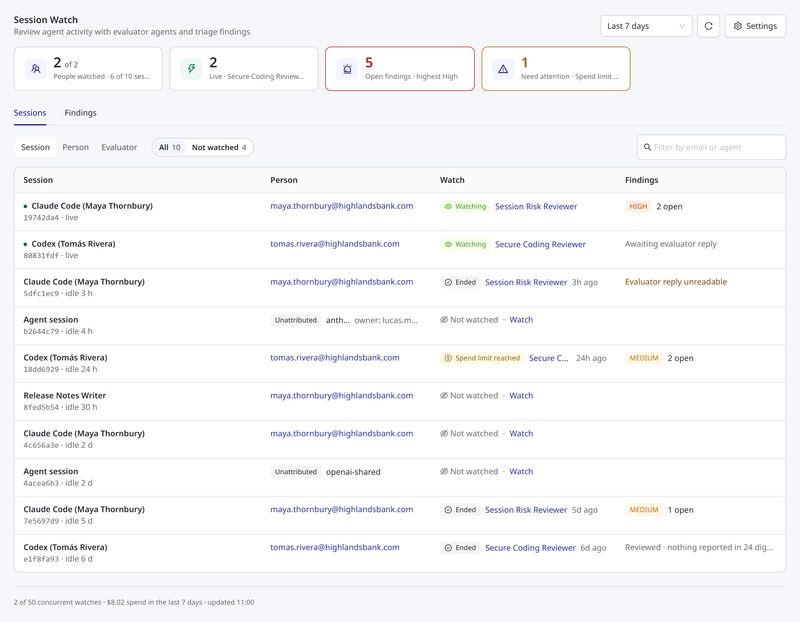
The header holds three controls:
- Window — Last 24 hours, Last 7 days or Last 30 days. It applies to the tiles and to both tabs.
- Refresh — reloads the tiles and the list you are looking at.
- Settings — opens Session Watch Settings. Shown only to roles that manage Session Watch.
The page keeps the tiles and their counts current while it is open, but it never rearranges the list you are reading. Select Refresh to bring the list up to date.
Tiles
Four tiles summarize the window. Selecting a tile opens the rows behind it; selecting it again clears it.
| Tile | Shows | Selecting it |
|---|---|---|
| People watched | How many people have at least one watched session, out of everyone with sessions, and how many sessions are watched | Groups the Sessions list by person |
| Live watched sessions | How many watched sessions were active in the last five minutes, and which evaluators are watching them | Shows live watched sessions only |
| Open findings | How many findings nobody has dismissed, and the highest severity among them. The tile takes that severity's color | Opens the Findings tab |
| Watches needing attention | How many watches stopped for a reason an administrator should act on, and which reasons | Shows those sessions only |
Sessions
The Sessions tab is the default. It lists every coding-agent session in the window — watched or not — so you can see what is reviewed and what is not.
Use Group by to choose the shape of the list:
- Session — one row per session (the default).
- Person — one row per person. See Grouped by Person.
- Evaluator — one row per evaluator. See Grouped by Evaluator.
Two pills narrow the list, each with its count: All and Not watched. The tiles cover live sessions and watches that need attention. The Open findings tile opens the Findings tab. To find one person's or one agent's sessions, type an email address or agent name in Filter by email or agent and press Enter.
When grouped by session, each row shows:
| Column | Shows |
|---|---|
| Session | The agent's session name, with a green dot when it was active in the last five minutes. Beneath it, a short session identifier and how long ago it was active |
| Person | The person who ran the session. Select the address to list only that person's sessions. For traffic with no identifiable person, Unattributed and the connector's owner |
| Watch | The watch's status and the evaluator, with +1, +2 and so on when more than one is watching. Hover the status for why it is in that state. An unwatched session shows Not watched, and roles that manage Session Watch also see a Watch link that opens the session's Evaluators tab |
| Findings | The highest open severity and the number of open findings. When there are none, which of the four states in If No Findings Arrive the session is in |
Watched sessions with open findings come first, then live sessions, then the most recent. Select Load more at the bottom to see more.
The Session Drawer
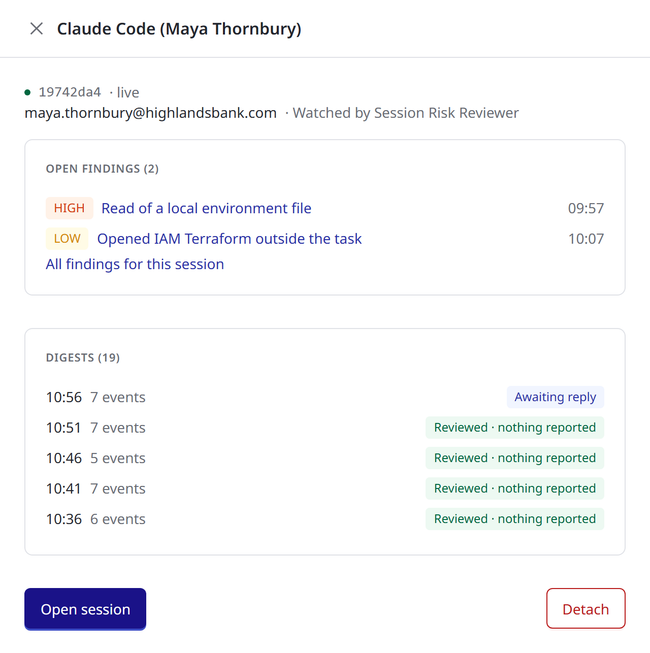
Select a session row to open a summary of it in a drawer beside the list:
- the session identifier, how long ago it was active, the person, and who is watching it;
- Open findings, highest severity first, each linking to the session's Evaluators tab;
- Digests, the most recent ones sent, each with its time, how many events it carried and what came back;
- Open session, which opens the full session page.
Roles that manage Session Watch also see Watch on an unwatched session, and Detach on a watched one. Detaching asks you to confirm, stops the evaluator reviewing the session, and keeps the findings it has already reported.
Watch Statuses
Each evaluator on a session shows one of these statuses. Only Watching is live. Every other status is final, and says why the watch stopped.
| Status | Meaning |
|---|---|
| Watching | Receiving the session's activity. |
| Detached | An administrator stopped the watch. Activity already sent cannot be recalled. |
| Ended | The session went quiet for long enough that the watch closed, and its final activity was sent. See Close after quiet in Limits. |
| Timed out | The watch reached its age, digest or event limit. See Limits. |
| Not started | A tenant limit was already reached, so no evaluator was attached. It is recorded so an unwatched session does not look like one with nothing to report. |
| Failed | Delivery failed repeatedly and the watch stopped. The evaluator's row on the session shows the recorded error. Needs attention. |
| Halted | Two people's activity appeared under the same session identifier, so watching stopped rather than risk reporting one person's work to another. Needs attention. |
| Spend limit reached | The evaluator reached its spend cap. It is not raised automatically. Needs attention. |
| Agent disabled | The evaluator agent was disabled or archived while it was watching. Needs attention. |
Grouped by Person
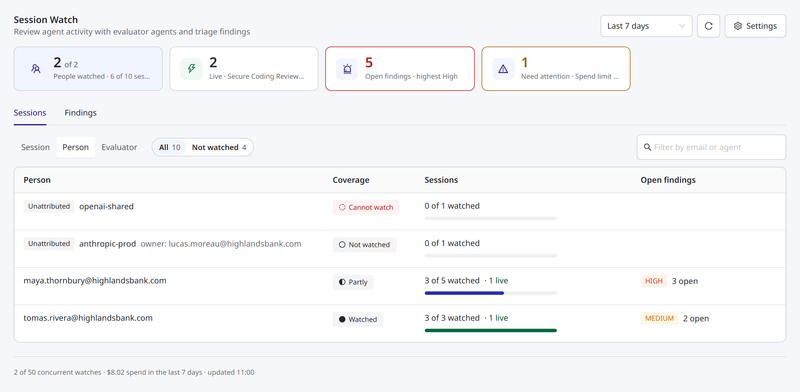
One row per person, answering is my organization's agent activity actually being reviewed? Each row shows the person, their coverage, how many of their sessions are watched (and how many are live), and their open findings. Select a row to list that person's sessions.
| Coverage | Meaning |
|---|---|
| Watched | Every session in the window has an evaluator. |
| Partly | Some do, some do not — for example, a rule created after earlier sessions had started. |
| Not watched | No session has an evaluator. |
| Cannot watch | These sessions cannot be reviewed as things stand. Hover for why; the reason often names the setting that would change it. |
People with sessions nobody is watching are listed first. Traffic with no identifiable person appears as its own row per connector, labeled Unattributed with its owner. Such a row is not an individual, and nothing on it should be read as one person's activity.
Grouped by Evaluator
One row per evaluator that watched a session in the window. Select a row to list the sessions it watched.
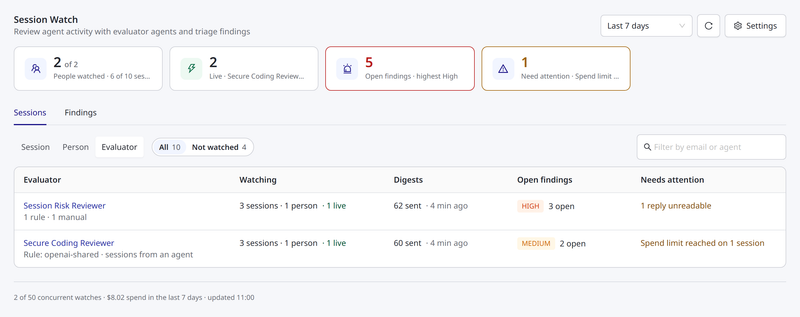
| Column | Shows |
|---|---|
| Evaluator | The evaluator's name, linked to the agent, and how its watches started — by rule, by hand, or both. If your role cannot view that kind of agent, or the agent no longer exists, a short identifier appears instead |
| Watching | How many sessions and people it is watching, and how many of those sessions are live |
| Digests | How many digests it was sent, and when the last one went |
| Open findings | The highest open severity and the number of open findings |
| Needs attention | Any of its watches that stopped for a reason you should act on, or replies it sent that were not in the expected format |
Findings
The Findings tab lists every finding from every watched session. See Reviewing Findings Across Sessions.
The Page Footer
Beneath both tabs, a line shows how many watches are running against the concurrent limit, the evaluator spend for the window, and when the page last updated. If the session list is running behind recent activity, the footer says by how much.
Attaching an Evaluator to a Session
- Open a session from the Sessions list on the Session Watch page. For the other ways to reach one, see Overview.
- Click the session page's Evaluators tab.
- Under Watching this session, choose an evaluator.
- Click Attach, and confirm.
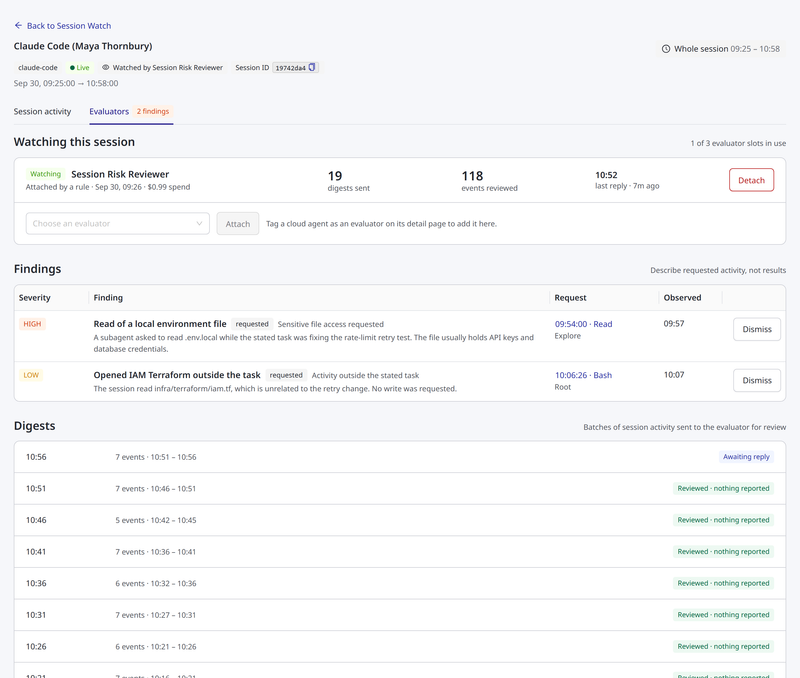
Watching this session lists every evaluator on the session with its state, who attached it and when, its spend, the digests it was sent, the events it reviewed, and when it last replied. The state is Watching while the evaluator is live. Once it stops, the state says why, such as Detached or Spend limit reached, and a failed watch shows its recorded error. See Watch Statuses. To stop an evaluator that is still watching, click Detach.
A session can have up to three evaluators at once, so you can pair a general reviewer with a specialist. The panel shows how many of those slots are in use. To allow fewer, lower Evaluators per session in the limits.
The session header shows Watched by and the evaluator's name, or Not watched. You can tell whether anyone is reviewing a session without opening the tab.
Agents that cannot be attached are shown in the list with the reason, not hidden. An agent that is not tagged, is already watching this session or is not active appears grayed out, and says why. When no agent is tagged as an evaluator, the panel tells you where to tag one.
What the Confirmation Tells You
The confirmation states four things:
- The person is not told. No notification is sent to them.
- The evaluator acts as you. The audit log attributes anything it does with its own tools, such as a Slack post or a ticket, to the administrator who attached it, not the person being reviewed.
- It reports what was requested. See What a Finding Proves.
- Activity sent cannot be recalled. Detaching stops future digests. It does not retrieve what has already gone to the AI provider.
Sessions That Cannot Be Watched
Attaching is refused when:
- More than one agent or person has sent activity under the session identifier, which would risk reporting one person's work to another.
- The session belongs to a managed agent, not a person.
- The session identifier was recovered from stored request context, not observed on the request.
- No person can be identified for the session, and no owner is named for its connector. See Unattributable Traffic.
- The evaluator is not tagged, is disabled or archived, or is already watching the session.
- The session has reached its evaluator limit, or your organization has reached its concurrent-watch limit. These can pass later, as watches end. See Limits.
Each refusal states its reason when you try.
Findings
A finding is also called an observation. You meet findings in four places:
- The Findings tab on the Session Watch page, which lists every finding from every watched session
- The Findings list on a session's Evaluators tab
- The Finding column and the tool-call drawer on the session's activity, described in Reviewing a Session
- Each digest's reply, described in Reading a Digest
Each finding carries:
- A severity and a category, both from a fixed set. An evaluator cannot invent new ones. See Severities and Categories.
- A short rationale.
- A link to the exact request it concerns, which opens the same detail view as the Request Log. A finding about the session as a whole cites no single request.
AgentPass does not record a finding that cites a request it never sent to that evaluator.
A finding may also carry a short title written by the evaluator: a one-line headline, such as Request to post credentials to an external URL. When it has one, the title heads the finding, and the category appears beside it. When it has none, the category heads it. A title is the evaluator's own wording. Like the rationale, it describes what was requested.
To mark a finding as handled, click Dismiss. Dismissing does not delete it. It stays with a dismissed tag, so "an administrator reviewed this and decided it was nothing" stays distinct from "nothing was ever reported."
Severities and Categories
There are five severities. From highest to lowest, they are Critical, High, Medium, Low and Info. A severity an evaluator returns outside this set is recorded as Info.
Each category is worded as a request.
| Category | What it reports |
|---|---|
| Credential access requested | The agent asked to read or use credentials |
| Sensitive file access requested | The agent asked to open a sensitive file |
| Destructive command requested | The agent asked to run a destructive command |
| Network fetch requested | The agent asked to fetch from the network |
| Activity outside the stated task | The activity strayed from the task the session was given |
| Repeated failures | Repeated failures in the session |
| Session summary | A summary of the session |
| Other | Anything else. A category an evaluator returns outside this set is recorded as Other |
What a Finding Proves
AgentPass records the calls an agent asked to make, not their results. A command the person denied in their own client looks identical to one that ran. A URL the agent asked to fetch is not proof that any request left the machine.
For this reason, findings are worded as requests, and every row carries a requested tag. The tag survives when you screenshot a finding into a ticket or a chat, where the surrounding explanation would otherwise be lost.
Two more limits apply:
- An empty list is not an all-clear. "Nothing reported" means no evaluator has raised anything from the digests sent so far. It does not say the session was clean, and the list says so.
- An evaluator sees a window, not the whole session. It reviews digests as they arrive. If a session ends between digests, the last of its activity may never be reviewed.
If No Findings Arrive
A watched session with no open findings never just says "none." Its Findings column on the Sessions list states which of four situations it is in. Hover over the label for an explanation. The session's Digests list shows the same situation for each digest.
| Findings column | On the Digests list | What it means |
|---|---|---|
| No digest sent yet | No digests listed | The evaluator has not been sent any of this session's activity yet. Nothing has been reviewed |
| Awaiting evaluator reply | Awaiting reply | Activity was sent, and the evaluator's answer has not been read yet. It is read on the next delivery |
| Reviewed - nothing found | Reviewed · nothing reported | The evaluator replied and reported nothing. This covers what it was sent, not the whole session |
| Evaluator reply not in the expected format | Reply not in the expected format | The evaluator answered, but not in a form AgentPass can record |
Only Reviewed - nothing found means that an evaluator looked and found nothing. Even then, it covers only the activity the evaluator was sent.
Give a new watch two delivery cycles before you expect findings, roughly ten minutes on the default cadence. AgentPass reads an evaluator's answers on the delivery after it sends, so the first digest of a new watch has nothing to read back yet. Minutes between digests sets how long a cycle takes. See Limits.
A session can show Evaluator reply not in the expected format. Or the watch can show digests delivered and no errors, while no findings arrive after several cycles. In either case, check the evaluator's own instructions. AgentPass asks the evaluator to end each reply with a short structured list of findings, and adds that instruction ahead of the agent's own prompt. An agent whose own prompt tells it to answer in a particular style, such as always summarizing or replying in prose, can override that. It then replies in a form AgentPass cannot record.
If you see either:
- Open the digest to read what the evaluator actually said. See Reading a Digest.
- Review the agent's own system prompt for instructions that conflict with returning a structured list, and change them.
- Detach the evaluator, and attach it again. An evaluator's instructions are set when its review starts, so an existing watch keeps running under the old ones.
Reviewing a Session
A session page is headed by the agent's name. Beside it are the session's client, whether it is Live, who is watching it, and its Session ID, which you can select to copy. Beneath the header is the session's time span. The page covers the whole session, from its first recorded request to its latest. On a very long session, it shows the most recent activity, and says so.
Back to Session Watch returns you to the Session Watch page, with the tab and filters you had set. A session opened from the Request Log returns you there instead.
The page has two tabs:
- Session activity: what the agent did. It holds the statement of what the record proves, the Threads bar, the activity filters and totals, and the five representations. See Reading a Session.
- Evaluators: who is reviewing the session and what they reported. It holds Watching this session, the session's Findings and its Digests. When the session has open findings, the tab's label shows how many, colored by the highest severity. This tab appears only to roles that can view Session Watch. See Who Can Do What.
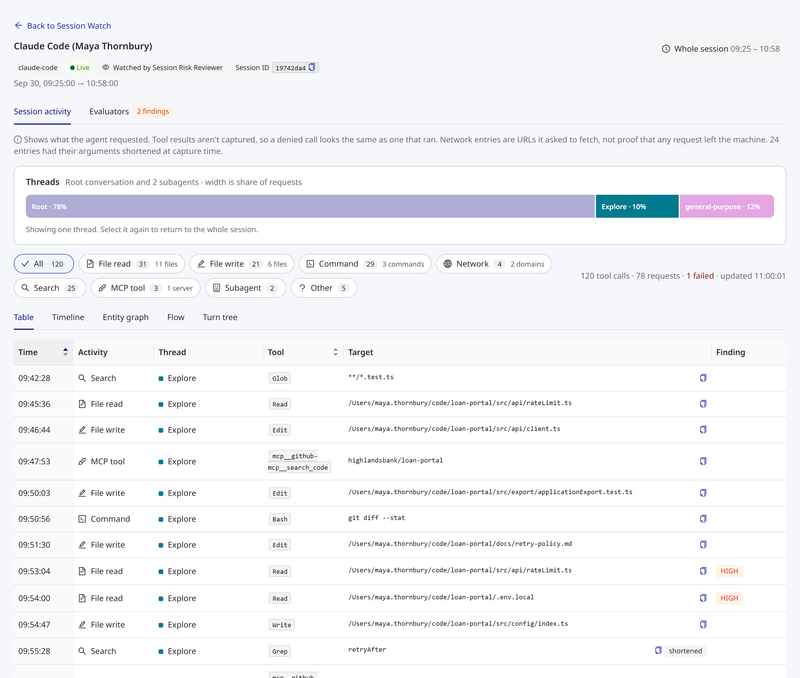
Findings on the Activity Table
On the Session activity tab, the table's Finding column shows the highest open evaluator finding on each request. It adds +1, +2 and so on when there is more than one. It is empty when nothing open was reported about the request.
The same column shows Failed when the request itself failed. That is the request's own outcome, reported by the gateway, not by an evaluator. A request that both failed and was flagged shows both.
A failed request is not a finding, and a finding is not a failure. An evaluator may flag a request that succeeded.
The Tool-Call Drawer
Select a row in the table to open that tool call in a drawer beside the page. The drawer shows:
- The call's category, tool name and time, and Request failed when it failed
- The thread it belongs to, when the session has more than one, and the connector it went through
- Every finding on that call, each with its severity, title or category, the
requestedtag, its rationale, the evaluator that reported it and when, and Dismiss for roles that manage Session Watch - The Target the call named, with a copy control
- What the call Touched
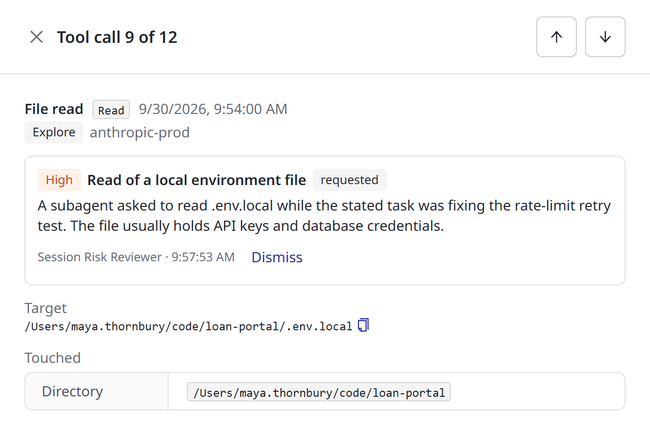
The drawer's title says which call you are on, such as Tool call 10 of 12. To step through the calls in the table's current order and filter, use the up and down arrow buttons, or the arrow keys. Open request detail closes the drawer, and opens the full request in the same view as the Request Log. Show only this thread narrows the session to the call's thread. See Subagent Attribution.
The Evaluators Tab
Attaching an Evaluator to a Session describes Watching this session.
Findings lists every finding on the session, highest severity first. Each shows its title or category, the requested tag, its rationale, when it was observed, and the request it cites. The cited request shows its time and tool, and the subagent when the session has more than one thread. Select the request to open it. Roles that manage Session Watch see Dismiss on each open finding.
Digests lists, for each evaluator on the session, every digest it was sent. Each shows when it was sent, how many events it carried, the span of activity it covered, and what came back.
| Outcome | Meaning |
|---|---|
| Reported n findings | The evaluator's reply contained findings |
| Reviewed · nothing reported | The evaluator replied and reported nothing about this digest |
| Reply not in the expected format | The evaluator replied without a findings list AgentPass could read |
| Awaiting reply | The newest digest, whose reply has not been read yet |
| No reply read | An older digest whose reply was never read, for example because the watch ended first |
A digest marked capped was cut short by a size limit, and the rest of its activity followed in the next one. Select a digest to read it.
Reading a Digest
Selecting a digest opens it in a drawer, so you can read exactly what the evaluator said about it.
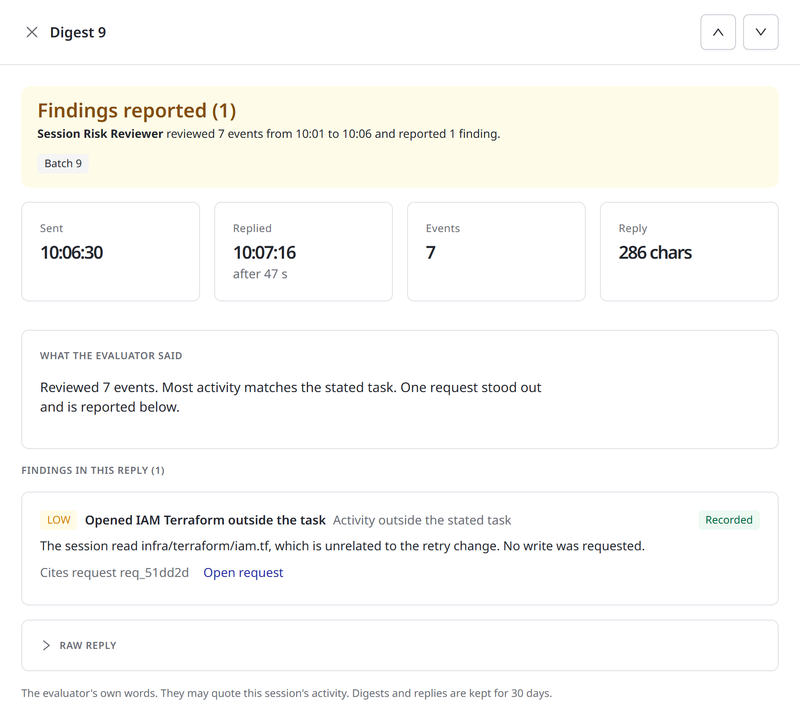
At the top, a banner states the outcome: Findings reported, Nothing reported, Reply unreadable or Awaiting reply. It summarizes the outcome in one line: which evaluator reviewed how many events, over what span, and what it reported. A capped tag appears when a size limit cut the digest short.
Beneath the banner are four figures.
| Figure | Shows |
|---|---|
| Sent | When AgentPass sent the digest |
| Replied | When the evaluator replied, and how long after the digest it was |
| Events | How many events the digest carried |
| Reply | How long the reply was. shortened appears when a very long reply was cut for storage |
Then comes the evaluator's reply:
- What the evaluator said: its reasoning, as it wrote it. When the reply had no findings list AgentPass could read, the heading says so, and the reply is shown here.
- Findings in this reply: each finding the evaluator wrote, with its severity, title or category, rationale and the request it cites. Each one is marked Recorded when AgentPass recorded it as a finding. It is marked Not recorded when AgentPass did not, for example because it cites a request that was not in this digest. Hover over Not recorded for the reason.
- Raw reply: collapsed by default. Expand it to see the reply exactly as it arrived.
To step to the newer and older digests, use the up and down arrow buttons in the drawer's header.
A reply is the evaluator's own words, and it may quote the session's activity. Digests and replies are kept for 30 days. The digest itself, the activity AgentPass sent, is never shown.
Watching Sessions Automatically
Attaching by hand suits investigations. For ongoing oversight, create a rule on the Session watch tab of an inference connector: an Anthropic, OpenAI or AWS Bedrock connector.
- Open Connectors, open the connector, and click the Session watch tab.
- Under Add a rule, choose what to watch. For a group or an agent rule, choose the group or the agent.
- Choose an evaluator.
- To cover every inference connector, turn off the Only sessions on switch.
- Click Create rule.
A rule chooses which sessions get an evaluator.
| Rule | Watches |
|---|---|
| Every session | All sessions in scope. The widest setting, so it asks you to confirm |
| Sessions for a group | Sessions started by members of one group. Membership stays current through your existing directory sync |
| Sessions from an agent | Sessions produced by one agent, whoever runs it |
"Sessions from an agent" and "sessions for a group" answer different questions. One agent may be shared by several people, and one person may run several agents. Choose by whether you are reviewing a tool or a team.
Each rule can apply to one connector, or to any inference connector. Choose any connector unless you have a reason not to. Otherwise, someone who uses two AI providers in a day matches two rules, and is reviewed twice, at twice the cost.
Rules apply to sessions that start afterward. Enabling a rule does not reach back over sessions that have already run.
Before you create a rule, the tab shows what it would cover: how many sessions and people used that connector in the last seven days, how many of those sessions cannot be watched at all, and how many watches are running against the concurrent limit.
A rule respects every limit in Session Watch Settings. When your organization is already running as many watches as it allows, a session that matches a rule is recorded as Not started, not watched. To stop every rule at once, use Pause Automatic Attachment.
Rules Table
The Rules table lists each rule that covers the connector. To pause a rule for this connector, turn off its Enabled switch. To remove it, click Delete. Deleting a rule stops it watching new sessions. Watches it already started keep running until they end.
A rule that covers any inference connector is listed on every connector's tab, but cannot be switched off or deleted there.
The table has these columns.
| Column | Shows |
|---|---|
| Applies to | The rule type, and the group or agent it selects |
| Connector | This connector, or any connector for a rule that covers every inference connector |
| Evaluator | The evaluator the rule attaches |
| Created by | The administrator who created the rule. Watches it starts, and the evaluator's own tool actions, are attributed to this person |
| Enabled | Whether the rule attaches evaluators to new sessions |
Reviewing Findings Across Sessions
The Findings tab on Oversight → Session Watch lists every finding from every watched session in one place, newest first, so you can review what evaluators reported without opening sessions one at a time. It shows open findings by default, from the window chosen in the page header.
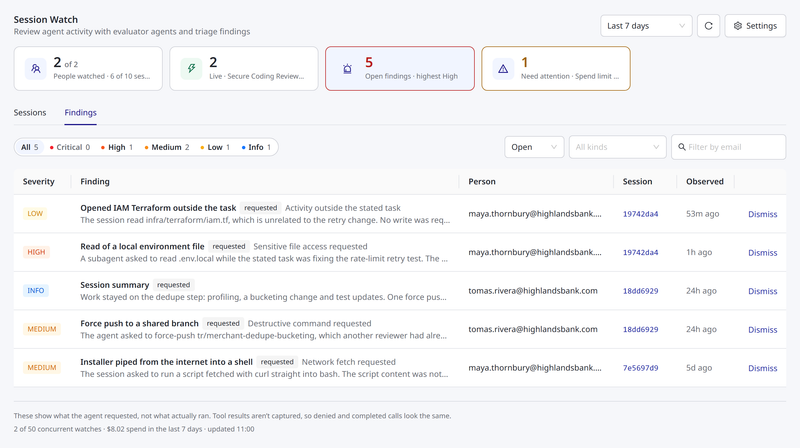
Every row carries the requested tag, and a line beneath the list repeats the caveat that matters most: these findings describe activity the agent requested, not activity that is confirmed to have happened (see What a Finding Proves).
Narrowing the List
- Severity chips. One chip per severity, Critical first, each with its count. Select a chip to show only that severity; select several to combine them, and select a chip again to remove it. The counts reflect your other filters but not your severity selection, so every chip always shows its number.
- Status. Open (the default), Dismissed, or All.
- Kinds. One or more categories, such as Credential access requested or Destructive command requested. Leave it empty for all kinds.
- Filter by email. Enter a person's email address, for example
jane.smith@example.com, to see only the findings from their sessions. - Window. Set in the page header, and shared with the Sessions tab.
Your filters are part of the page's address. Copy the address from your browser to share exactly the view you are looking at — for example, open Critical findings — with a colleague who has access, or bookmark it for your own daily review.
Reading a Finding
| Column | Shows |
|---|---|
| Severity | Critical, High, Medium, Low or Info. |
| Finding | The evaluator's title, or the category when there is no title; the requested tag; the category beside a title; and the rationale. Hover the rationale to read it in full. |
| Person | The person whose session it was. For traffic with no identifiable person, Unattributed and the connector's owner. |
| Session | The session, as a short identifier. Select it to open the session page; Back to Session Watch returns you to this list with your filters intact. |
| Observed | How long ago the evaluator reported it. Hover for the exact time. |
Select a row to open the finding in a drawer. It shows the finding's severity, category, requested tag and rationale; the person, session, evaluator and who attached it; when it was observed and, if it was dismissed, by whom; the Cited request with its time, type, tool and arguments; and the Digest it came from.
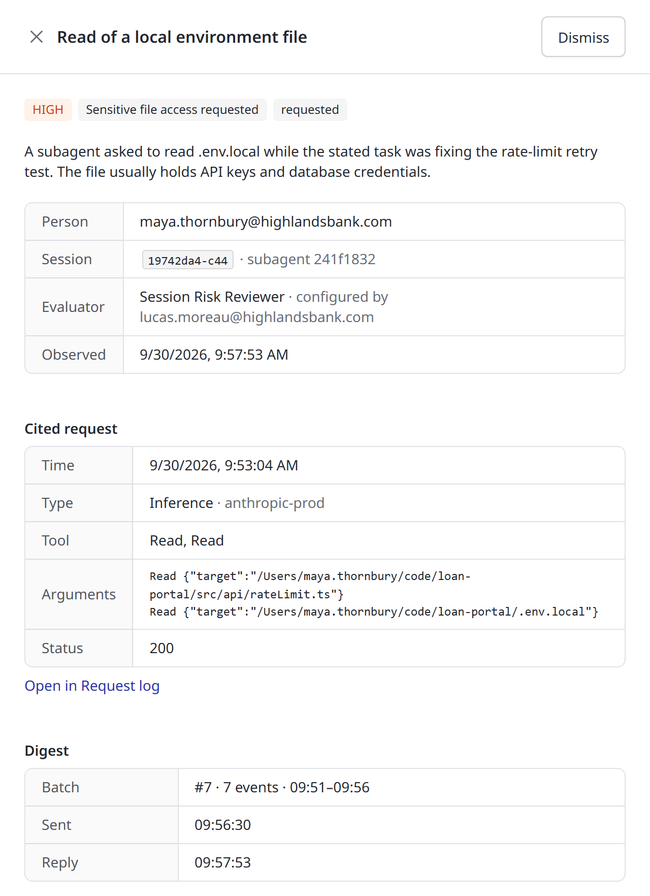
Select Load more at the bottom of the list to see older findings. The list does not rearrange itself while you read it. When new findings arrive, a notice says so and offers Refresh.
Dismissing a Finding
Roles that manage Session Watch can select Dismiss on a finding they have dealt with. It leaves the Open list and the counts drop. The finding is kept, not deleted: switch Status to Dismissed or All to see it again, marked dismissed, with who dismissed it.
When the List Is Empty
An empty list says: No findings match these filters. That is not an all-clear. Only sessions an evaluator is watching are reviewed, and an evaluator reviews only what it has been sent. To see who is not being watched at all, select the Not watched pill on the Sessions tab, or group it by person.
If your role cannot read request content, the tab tells you which permission is missing instead of showing an empty list (see Who Can Do What).
Session Watch Settings
Settings on the Session Watch page opens the controls that apply to your whole organization. Only roles that manage Session Watch see it.
The drawer has three sections:
| Section | What it controls |
|---|---|
| Limits | How often digests are sent, how large they are, how much a review may spend, how long a watch may run, and how many watches may run at once. |
| Unattributable Traffic | Which connectors' anonymous sessions can be watched, and who answers for them. |
| Pause Automatic Attachment | A single control that disables every rule at once. |
Change what you need and select Save. If a value is refused, the drawer stays open and lists what to correct.
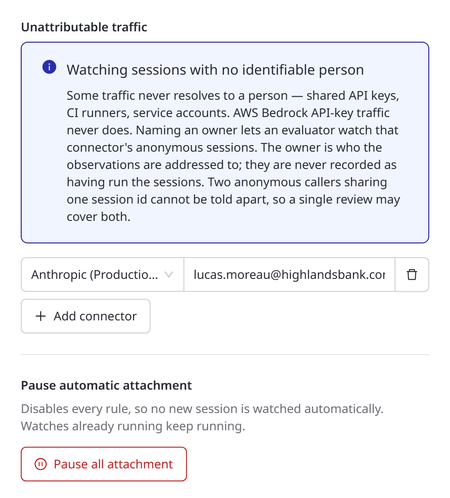
Limits
Limits bound what Session Watch costs and how far an automatic rule can reach. They apply to every connector and every evaluator.
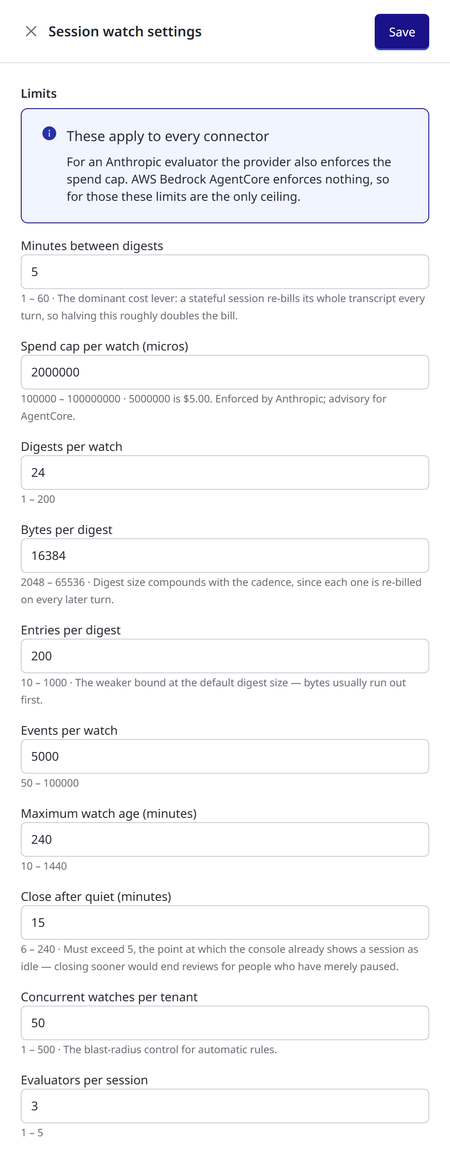
Each limit shows its permitted range beneath the field. AgentPass refuses a value outside that range rather than quietly adjusting it.
| Limit | What it controls | When it is reached |
|---|---|---|
| Minutes between digests | How often a watched session's activity is sent to its evaluator. The shorter the interval, the sooner findings arrive — and the higher the cost (see Controlling Cost). | Not a cap: it sets the pace of every watch. |
| Spend cap per watch | The most one watch may spend at the AI provider. Entered in millionths of a US dollar, so 5000000 is $5.00. | The watch stops with Spend limit reached. For Anthropic evaluators the provider enforces the cap; for AWS Bedrock AgentCore evaluators it is advisory, because AgentCore enforces no spend limit. |
| Digests per watch | How many digests one watch may send. | The watch stops with Timed out. |
| Bytes per digest | The largest one digest may be. | The digest is sent capped, and the rest of its activity follows in the next digest. Nothing is dropped. |
| Entries per digest | The most events one digest may carry. Usually the size limit is reached first. | As for Bytes per digest. |
| Events per watch | How many events one watch may send in total. | The watch stops with Timed out. |
| Maximum watch age | How long one watch may run, however active the session. | The watch stops with Timed out. |
| Close after quiet | How long a session may go without activity before its watch closes. It must be longer than the point at which the console already shows a session as idle, so a person who has merely paused is not dropped. | The watch closes with Ended. This is the normal way a watch ends. |
| Concurrent watches per tenant | How many watches may run at once across your organization — the control that bounds how far a broad rule can reach. | New watches are not started. A manual attach is refused with the reason; a session that matches a rule is recorded as Not started. |
| Evaluators per session | How many evaluators may watch one session at once. | Attaching another evaluator to that session is refused. |
The following table lists each field's label, permitted range and default.
| Field | Range | Default |
|---|---|---|
| Minutes between digests | 1–60 | 5 |
| Spend cap per watch (micros) | 100000–100000000 ($0.10–$100) | 5000000 ($5.00) |
| Digests per watch | 1–200 | 24 |
| Bytes per digest | 2048–65536 | 16384 |
| Entries per digest | 10–1000 | 200 |
| Events per watch | 50–100000 | 5000 |
| Maximum watch age (minutes) | 10–1440 | 240 |
| Close after quiet (minutes) | 6–240. It must be more than 5, the point at which the console shows a session as idle | 15 |
| Concurrent watches per tenant | 1–500 | 50 |
| Evaluators per session | 1–5. The console attaches at most 3 | 3 |
When Changes Take Effect
- New watches use the limits in force when they start.
- Minutes between digests applies to a running watch from its next digest onward. A watch waiting on a long interval sends its next digest on the old schedule, then follows the new one.
- Spend cap per watch applies to watches that start after the change. Watches already running keep the cap they started with.
- Digests per watch, Events per watch, Maximum watch age and Close after quiet are checked periodically against running watches, so a watch may run briefly past a limit before it is stopped.
- Concurrent watches per tenant and Evaluators per session are checked each time an evaluator is attached. Lowering them does not stop watches already running.
How Quickly Findings Arrive
A finding reaches the console no sooner than two intervals of Minutes between digests after the activity it concerns: one for the activity to be sent in a digest, and one for the evaluator's reply to be read on the next delivery. To get findings sooner — for a demonstration or a focused investigation — shorten Minutes between digests, and consider shortening Close after quiet so that a test session's watch ends soon after the session does.
Remember to restore the interval afterwards. It is the setting with the largest effect on cost.
Unattributable Traffic
Some sessions never resolve to an individual. Shared API keys, CI runners and service accounts all look the same to the gateway, and AWS Bedrock API-key traffic can never be traced to a person.
These may be the sessions you most want reviewed, so AgentPass can watch them once somebody agrees to answer for them:
- Open Oversight → Session Watch, and click Settings.
- Under Unattributable traffic, click Add connector.
- Choose the connector. Only connectors that record sessions appear in the list. Each shows its display name, with its internal name in parentheses.
- Enter the owner's email address.
- Click Save.
The internal name is what session records carry, and what the Unattributed rows of the Sessions list show.
Sessions on that connector then become watchable, and their findings are addressed to that owner. To stop watching a connector's anonymous sessions, remove its row, and click Save. If a row names a connector that no longer exists, the drawer flags it, because it matches nothing.
The owner is accountable, not responsible. AgentPass records them as the person to tell, never as the person who ran the session. No finding, export or Sessions row says they did. Until an owner is named, these sessions show as Cannot watch, and the refusal tells you which setting changes that.
Two anonymous callers that share a session identifier cannot be told apart, because the traffic carries no identity to distinguish them. A single review may therefore cover both. No named individual is ever involved.
Pause Automatic Attachment
Pause all attachment disables every rule at once, so no new session is watched automatically. Use it when you need to stop automatic reviewing quickly — during a cost concern, for example.
- Open Oversight → Session Watch, and click Settings.
- Under Pause automatic attachment, click Pause all attachment, and confirm.
Two things stay as they are:
- Your rules are kept, not deleted. A rule that covers a single connector can be turned back on from that connector's Session watch tab.
- Watches already running keep running. If you need them ended now, detach them individually from their sessions, or from the session drawer on the Session Watch page.
The confirmation states both. After you confirm, AgentPass reports how many rules were disabled.
Controlling Cost
An evaluator is an AI agent, and reviewing a session costs money at your AI provider. Two things make the cost larger than it first appears:
- An evaluator's conversation is cumulative, so every digest is charged along with everything sent before it.
- A rule can start many reviews at once.
The Limits govern all of it. To open them, click Settings on the Session Watch page.
- Minutes between digests has the largest effect. Because each digest is charged along with every earlier one, halving the interval roughly doubles the cost of a review.
- Bytes per digest compounds with it: a larger digest is charged again on every later turn.
- Spend cap per watch bounds any single review.
- Concurrent watches per tenant bounds how many reviews a broad rule can start at once.
- Maximum watch age and Close after quiet bound how long a review runs.
Evaluator spend does not appear in any other cost view in AgentPass. An evaluator's AI usage goes directly to your provider, without passing through the gateway, so the gateway cannot see it. The Session Watch page footer and each session's Watching this session panel are the only places it is reported.
To stop all automatic reviewing at once, use Pause Automatic Attachment.
Who Can Do What
Session Watch capabilities follow three permissions.
| Capability | Who |
|---|---|
| See sessions, findings and digests | Roles that can view Session Watch and the Request Log, at the same or wider scope |
| Attach, detach, dismiss findings, create rules and change settings, including owners and limits | Roles that manage Session Watch |
| Tag an agent as an evaluator | Roles that can edit agents |
The built-in roles have this access.
| Built-in role | Session Watch |
|---|---|
| AgentPassAdmin | Sees every session and finding, and manages Session Watch |
| AgentPassOperator | Sees every session and finding. Cannot attach, detach, dismiss or change settings |
| AgentPassSupervisor | No access |
Reading findings needs both the Session Watch and the Request Log permission, because a finding describes request content. If you hold only one, AgentPass tells you which is missing, instead of showing an empty list. See Permissions by Role.
Supervisors hold neither permission. A supervisor's own sessions may be under review, and showing them the review attached to their work would defeat its purpose.
A custom role can be given Session Watch at own scope. Such a role sees every session, but only the watches it attached itself and the findings those watches reported. The Open findings and Needs attention views count only its own watches.
Related
- Agent Session Forensics: Overview — what a session is and how to reach one
- Data Management — what AgentPass records and how long it is kept
- Provider-Managed Cloud Agents — the agents you can tag as evaluators