Writing Policies from Reference Material
You can upload the documents your policies are written against, such as your own acceptable-use standard, or an extract from a framework you are held to. HYPR AgentPass™ turns the obligations in them into candidate rules, and quotes each passage beside the rules it informed.
Nothing on this page attests that your organization meets DORA, NIST, ISO or any other framework. AgentPass produces no compliance score, percentage or coverage rating against one. It helps an administrator write gateway rules, and shows which passage was in view when a rule was written. Assessing compliance remains the work of the people and auditors who do that work today.
Managing reference material is an administrator task. Uploading and deleting documents are separate permissions from viewing them.
Upload a Document
- Open Oversight → Policies, and click the Reference material tab.
- Click Upload a document, and choose a file that meets the following requirements.
| Requirement | What is supported |
|---|---|
| Formats | Markdown, plain text, and PDFs that contain real text |
| Size | Up to 10 MB per file |
| Content | Text AgentPass can extract. The file type is detected from the file itself, not its name |
After the upload, AgentPass splits the document along its own headings and numbering. The unit you cite later, such as §4.2 Data egress, an article or a control ID, is something a reader can find in their own copy.
Your configured policy author then reviews the split, and picks out and names the passages worth citing. It selects from the document's own words instead of writing its own, so a stored passage is always text that appears in your file.
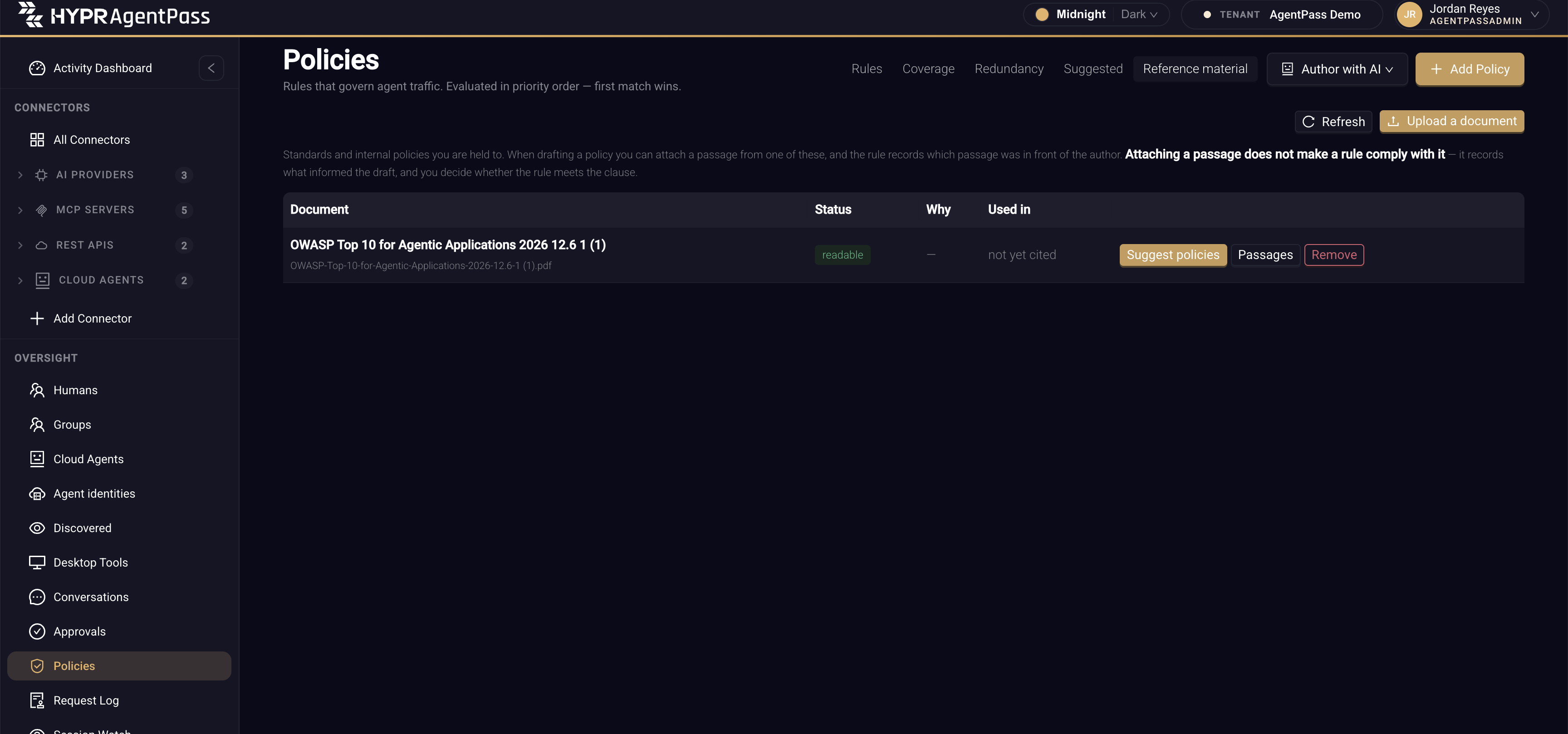
When the upload finishes, a message states how many passages the document produced. The library lists each document with the following columns.
| Column | What it shows |
|---|---|
| Document | The document's title, with its file name beneath |
| Status | readable once the document is indexed, or could not be read. While it is processed, the status reads uploaded or indexing |
| Why | The reason a document could not be read |
| Used in | The policies that cite a passage from the document, or not yet cited |
A readable document's row offers Suggest policies and Passages. Passages lists the passages the drafting wizard can attach, each with its heading path and the start of its text. Click Refresh to reload the list.
Upload an Extract, Not the Whole Standard
Upload the chapter you are held to, not the whole standard:
- The part you are held to is smaller than the document. Much of a standard governs procurement, training, board reporting and incident process. None of that becomes a rule about a tool call, so it adds passages to review without adding candidates.
- Review is per passage. Turning a document into candidate rules walks its passages in order. A 400-page standard is a long walk through material you already know is out of scope.
- A citation is only useful if a person can check it. Extracts keep the quoted passage close to the clause you cited.
If a whole standard is over the size limit, AgentPass says so, and suggests uploading the chapter you are held to instead.
Scanned PDFs Are Not Supported
A PDF has to contain extractable text. A scanned document is a picture of a page, and AgentPass does not run optical character recognition (OCR) over it.
A scan is accepted at upload, then fails to index. The document records the reason: the file has almost no extractable text. Replace it with a text-based PDF, or with the source in Markdown or plain text. A corrupt or password-protected file also fails to index, with a reason that says the file could not be read.
Turn a Document Into a Work List
Click Suggest policies on a document. AgentPass reads through its passages. For each obligation, it asks a question the document cannot answer alone: is there a gateway rule that would carry this?
To answer it, the request carries your real inventory:
- Your connectors and tools, and how much traffic each carried
- Which of them are already governed
- Whether a connector can carry an enforceable approval at all
That context separates advice from a rule. "Restrict egress of customer data" is a sentence in a standard. "Require approval on a specific tool of a specific connector" is a policy AgentPass can draft.
Anything it can carry becomes a suggestion in your Suggested policies queue, with the passage attached. From there, it goes through the wizard like any other suggestion. You see the expression, the impact preview and the duplicate check, and it saves in Observe mode.
"Not Applicable" Is a Normal Answer
Every passage that cannot become a gateway rule is reported by name, with the reason. Expect many passages to land here.
Read the reasons. A passage may need a process, a contract, a training record or a board report, which a gateway has no view of. It may also name an obligation the gateway cannot enforce in that place.
For example, an approval cannot pause a model response that is already streaming. An obligation to hold that response for a human is therefore reported as not applicable, instead of quietly rewritten into a block. Blocking and asking a human are different decisions, and substituting one for the other silently would be worse than saying the gateway cannot help.
48 of 121 passages reviewed so far tells you how far through the document you are. It says nothing about how compliant you are, and neither does the number of suggestions produced.
A run reviews a batch of passages and remembers where it stopped. Clicking Suggest policies again continues through the document, instead of starting from its title page. Repeat until the unreviewed count reaches zero.
Each run ends in a What … implies for this gateway dialog. It states how many obligations produced a suggestion and how many passages are reviewed so far. It also lists the passages that need a process instead of a rule. When nothing could be reviewed, it reads Nothing was filed, with the reason.
What a Citation Means
When a passage was attached to a draft, the policy records that fact, and shows the quoted text beside the rule.
A citation is a claim about provenance. It says this passage was in context when this rule was drafted. That is checkable. The passage is quoted in full next to the expression, and you can open the document it came from.
A citation is not a claim about compliance. It does not say the rule satisfies the clause, implements the control or discharges the obligation. Only you can judge that. That is why the passage and the expression are shown together, instead of hiding the passage behind a reference ID.
A passage reaches a draft only because a person put it there, by accepting a suggestion raised from it or by attaching it in the wizard. AgentPass does not search your library and decide for itself what is relevant. A policy author cannot invent a citation. Only a passage actually offered to it can be recorded.
If the passage behind a citation is later removed, because you deleted or replaced the document, the citation is dropped from the policy. It is not left pointing at nothing.
Read the "Used In" Column
Used in lists the policies that cite a passage from that document, by name. A document no policy cites reads not yet cited. It shows whether a document earns its place in your library. A standard cited by nothing, months after you uploaded it, is one nobody needed.
Read it as a signal about the document, not as coverage of the framework. A long list means passages from that document informed several rules. It does not mean the document's obligations are met. A document that is not yet cited does not mean you are exposed, either. The obligations in it may be carried by process instead of by the gateway.
Remove a Document
Removing a document needs the Delete permission on Policies.
- On the Reference material tab, click Remove on the document's row.
- Read the Remove …? confirmation. When policies cite the document, it states how many, and that those citations will disappear.
- Click OK.
The document's passages are no longer available to attach to a draft.
Related
- Suggested Policies — where document-derived candidates arrive for review
- Choosing Who Drafts Your Policies — the author that reads your documents, and where it runs
- Understanding Your Policies — the impact preview and the Observe-mode default