Authoring a Policy with AI
Instead of writing a condition, you can tell HYPR AgentPass™ what a policy should do, and let the gateway draft it. For example: "Stop the agent from writing to files outside the project directory."
The wizard turns your goal into a rule, and explains the rule back to you in plain language. It checks the rule compiles, and lets you replay it against the last seven days of traffic on that connector. It then saves the rule in Observe mode, so you can watch it before it enforces anything.
The wizard adapts to two kinds of connector:
- A tool connector, such as an MCP server or a REST API. The AI reads the connector's tool catalog, and writes a rule about which tools are called and with what arguments.
- An inference connector, such as Anthropic, OpenAI or AWS Bedrock. The AI reads the shape of recent conversations, and writes a rule about what is sent to the model or what the model proposes.
Using the wizard needs permission to add policies. It also needs a drafting model configured under Advanced → Gateway Settings → Policy Authoring. See Setting Up AI Authoring. If none is configured, the wizard opens but reports Draft failed when you ask it to author.
Open the Wizard
Open the wizard in either of two ways:
- On the Policies page, click Author with AI, and pick the connector from the list. You can choose any enabled connector.
- On a connector's detail page, open the Policies tab, and click Author policy with AI. The wizard opens already pointed at that connector.
The wizard has three steps, shown across the top of the drawer: Compose, Review and Done.
Compose: Describe the Goal
The Compose step shows the connector you chose. What comes next depends on its kind.
On an Inference Connector
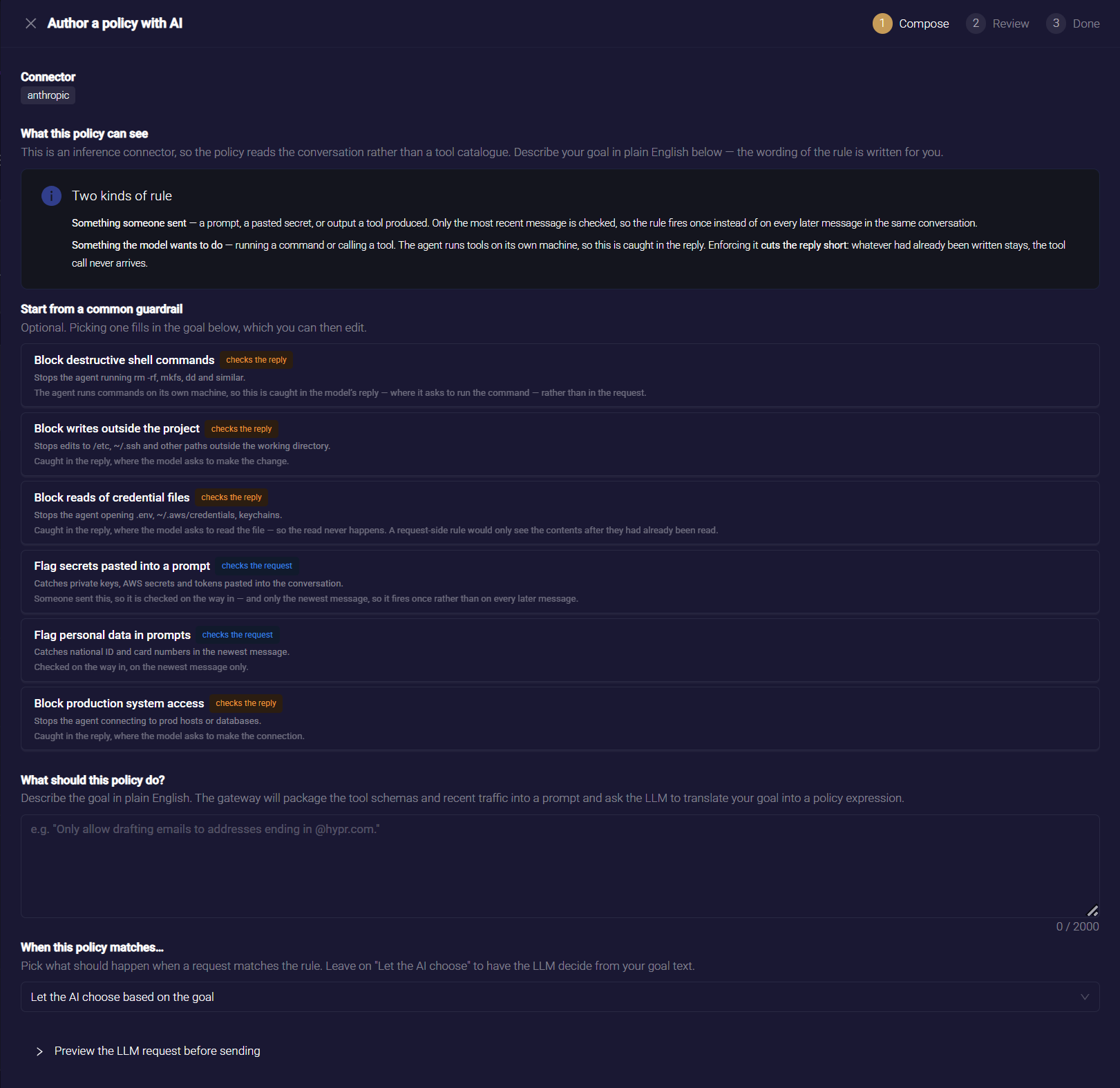
What this policy can see explains that the rule reads the conversation, not a tool catalog. The Two kinds of rule panel names the choice that matters most:
- Something someone sent, such as a prompt, a pasted secret, or output a tool produced. The rule checks the request, and only the newest message, so it fires once instead of on every later message in the same conversation.
- Something the model wants to do, such as running a command or calling a tool. The agent runs tools on its own machine, so this can be caught only in the model's reply. Enforcing such a rule cuts the reply short.
Under Start from a common guardrail, you can pick one of six starting points. Each fills the goal box with plain English you can edit, sets the action to block, and pins the rule to the side of the exchange it belongs on. A tag on each says checks the reply or checks the request, and a line beneath says why.
| Guardrail | What it catches | Checks |
|---|---|---|
| Block destructive shell commands | rm -rf, mkfs, dd writing to a device, fork bombs | The reply |
| Block writes outside the project | Edits under /etc, ~/.ssh and other paths outside the working directory | The reply |
| Block reads of credential files | Opening .env, ~/.aws/credentials, SSH keys, keychains | The reply |
| Flag secrets pasted into a prompt | Private keys, AWS secret keys and bearer tokens in the newest message | The request |
| Flag personal data in prompts | National ID and payment card numbers in the newest message | The request |
| Block production system access | Connecting to production hosts, databases or a production kubeconfig context | The reply |
After you pick one, a line confirms which side is being checked. If your edited goal no longer fits that side, click Let the AI decide instead to remove the pin.
On a Tool Connector
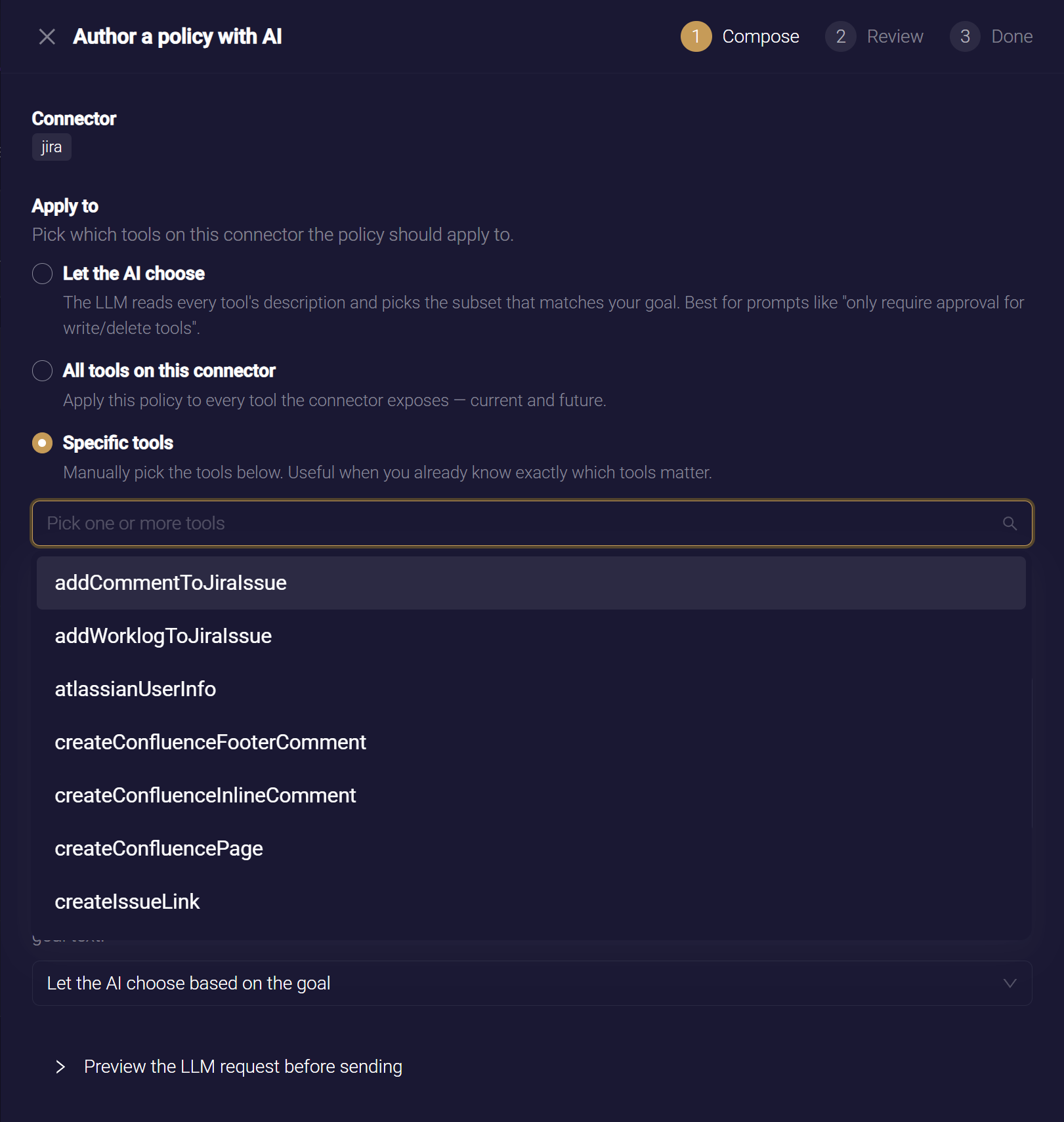
Apply to asks which of the connector's tools the policy should cover.
| Option | Meaning |
|---|---|
| Let the AI choose | The AI reads every tool's description and picks the subset that matches your goal. The right choice for a goal such as "require approval for anything that writes or deletes" |
| All tools on this connector | Every tool the connector exposes, now and in future |
| Specific tools | Tools you pick from the catalog |
Then, on Either Kind
- Type your goal in What should this policy do? Use one or two sentences, in your own words, naming what should and should not happen. The box holds up to 2,000 characters, and counts as you type.
- Optional: Under What kind of policy is this?, choose the policy type. The selector appears only when your administrator has routed some kinds of drafting to a different author. See Route by Policy Type.
- Optional: Under Reference material, choose one or more passages from your uploaded standards. The picker appears only when your library holds a readable document. When empty, it reads None — draft from gateway configuration and traffic only. See Writing Policies from Reference Material.
- Under When this policy matches…, choose what should happen, or leave it on Let the AI choose based on the goal. The choices are
ALLOW – Let traffic through,DENY – Block the requestandREQUIRE_APPROVAL – Route to my supervisor for approval. When you chooseREQUIRE_APPROVAL, a note explains that approvals are routed to you, from the Approvals page or your mobile device. - Optional: Expand Preview the LLM request before sending, to read exactly what the gateway will send to the drafting model: the system prompt, and the user message with its context. After editing the goal, click Refresh preview. The preview also shows the estimated token count and the prompt version.
- Click Author with AI. The wizard shows Asking the LLM… while the model drafts.
What Comes Back
The wizard returns one of three results:
- A draft. The wizard moves to the Review step.
- A clarifying question. If the goal has more than one reading, the wizard shows The LLM needs a clarification and asks it. Add the answer to your goal, and click Author again with the clarification.
- Draft failed. The model could not produce a rule, or the drafting model could not be used. The message says which.
The Draft failed message begins in one of these ways.
| Message | What to do |
|---|---|
| The LLM couldn't produce a working policy after N attempts. | Refine the goal with more specifics, and author again. The message quotes the last error |
| A named policy author agent did not reply | Nothing was drafted, and the built-in author was not used instead. Ask an administrator to raise the route's deadline under Who drafts your policies. See Timeouts and Fallback |
| A named policy author agent could not be used | Ask an administrator to correct the route under Who drafts your policies |
| The LLM provider is unavailable | Ask an administrator to check the drafting model's API key. See Setting Up AI Authoring |
| You've hit the per-supervisor draft rate limit. | Wait for the number of seconds the message gives, then author again |
Every draft is compiled and checked before you see it. A draft that fails the checks goes back to the model with the error, and is redrafted. You only ever see a rule that compiles.
The checks also refuse rules the gateway cannot evaluate reliably. Examples are a rule about the time of day, or, on an inference connector, a rule that reads the raw transcript instead of the newest message.
Review: Read the Draft, Then Backtest It
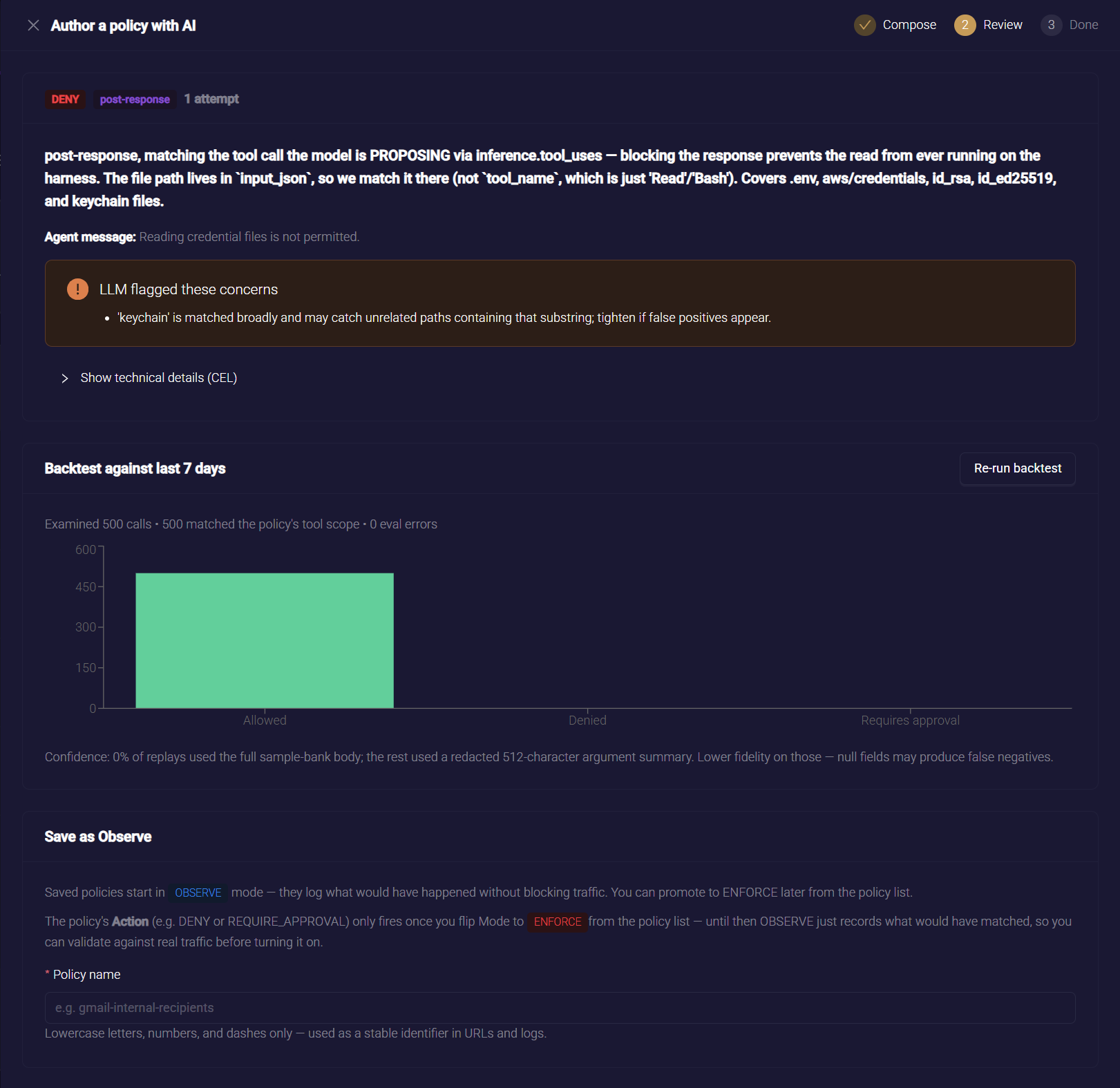
The Review step shows the draft as a card, headed by its action, its phase and how many attempts it took. The card holds:
- The rationale: what the rule does, in plain language. Below it, Agent message is the text the agent receives when the rule acts, if the model wrote one distinct from the rationale.
- LLM flagged these concerns, when the model noticed something you should know, such as an ambiguity in the goal or a case the rule cannot cover.
- Tools the AI picked, on a tool connector where you left the scope to the AI.
- Show technical details (CEL): the expression itself, collapsed. You do not need to read it, but it is there.
Check for Rules You Already Have
When the Review step opens, the wizard compares the draft with your existing rules once. The result sits above the draft card. It never blocks Save as Observe.
- No overlap. The step reads No existing rule covers this traffic. When the check could not reach every rule, it reads No overlap found among the N most similar rules. M were not compared.
- Overlap found. A card titled This looks like rules you already have lists each related rule, such as block-deletes is narrower than this draft. A finding from replayed traffic adds (N shared requests in the last 7 days). A Would conflict if enforced tag marks a rule that would disagree with the draft once both are enforced.
A finding can also carry a warning about priority:
- Saved at this priority, this rule would never run. An existing rule with a higher priority already stops everything the draft would catch.
- Saving this would stop … running. The draft would catch everything an existing lower-priority rule does.
Click Update that rule instead on a finding to close the wizard and open that rule on the policy form. Nothing from your draft is carried over. Redundant and Conflicting Rules explains each relationship.
Backtest against last 7 days
Click Run backtest to replay the draft against the traffic recorded on this connector over the last seven days. The result shows:
- How many calls were examined, how many were in the policy's scope and how many produced an evaluation error
- A chart of what the rule would have done: Allowed, Denied or Requires approval
- A confidence line beneath the chart
Read the result as evidence, not a verdict:
- No matches in the last 7 days can mean the rule is too narrow, or that nothing on this connector did what the rule is about. Both are normal. Spot-check a few recent requests before you decide.
- Some recorded calls carry only a summary of their arguments, not the full body. The confidence line says what share of the replay used the full body. Rules that depend on argument detail are less certain on the rest.
- The backtest reads the request examples the gateway retains. Once those examples age past the Activity retention window set in Data Management, nothing is left to replay.
If the draft is not what you meant, click Re-prompt. You return to Compose with your goal intact, to adjust it and author again.
Save as Observe
- Enter a Policy name of lowercase letters, numbers and dashes, up to 128 characters. Capitals and spaces are converted as you type.
- Click Save as Observe. Every policy from the wizard is saved in Observe mode. See Observe First, Then Enforce.
If the name is in use, the wizard reports A policy with that name already exists. Pick a different name. A draft is kept for 15 minutes. After that, Save as Observe reports that the draft is no longer available. Return to Compose and author it again.
The Done step confirms the name, and reminds you where to promote the policy.
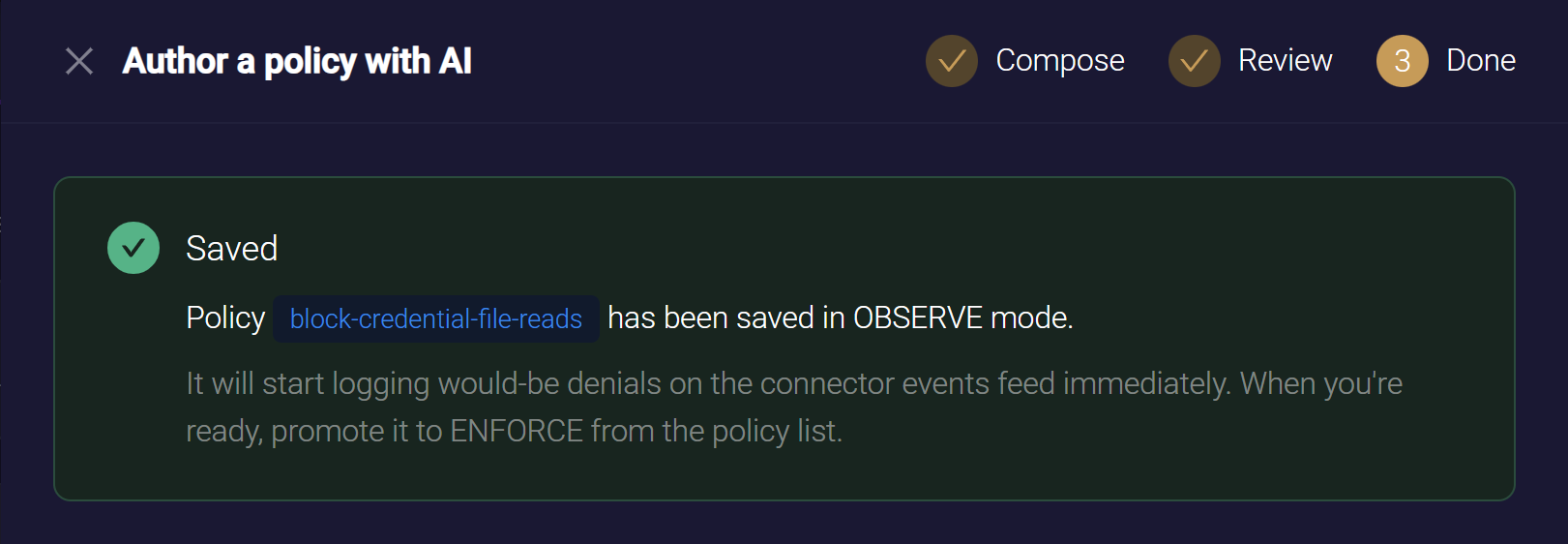
The saved policy is a normal policy. It appears in the list with an AI chip in the Authored column, and opens on the form for editing. You promote it to Enforce from the Mode dropdown, like any other.
The wizard saves the policy with these settings. Change any of them on the policy form.
| Setting | Value |
|---|---|
| Enabled | On |
| Mode | OBSERVE |
| Priority | 1000 |
| Connectors | The one connector you drafted on |
| Tool scope | On a tool connector, the tools you chose or the AI picked. All tools on this connector saves no tool scope |
| Description | Empty |
| Supervisor Email | Your own address, which also makes you the policy's owner |
What the AI Does Not Write
The drafting model works from the request and response bodies and, on inference connectors, from the conversation. You write some rules on the policy form instead.
| Rule about | Write it on the form using |
|---|---|
| Which connector, or what kind of connector, a request came through | connector.name, connector.template |
| The signed-in person behind a request | request.user |
| Files attached to a request: their name, type, size or text | request.file_count, request.files |
| The AWS developer behind a Bedrock request | connector.aws.bedrock.*. See Bedrock Caller Policies |
| The Copilot surface, a Copilot Studio agent, or a Copilot reply | connector.m365.copilot.*, inference.completion.text. See Microsoft 365 Copilot Policies |
Writing a Policy by Hand covers the form. Policy Examples has a ready expression for each of these.
Related
- Setting Up AI Authoring — configure the drafting model, and what data leaves the gateway
- Governing Inference Traffic — why some rules belong on the reply, and what enforcing one does
- How Policies Are Evaluated — modes, actions and promoting to Enforce