Slack Agent
A Slack Agent connector lets people in your Slack workspace chat with one of your agents. Direct messages to the Slack app, and messages that mention it, reach the agent you bind to the connector. The agent answers in the thread, as the Slack app. Each turn runs as the person who wrote, under the same policy, approval and audit controls as the rest of your agent traffic in HYPR AgentPass™.
This connector carries chat from Slack to an agent. To give an agent Slack as tools instead, such as reading channels or posting messages, use the Slack preset. See One-Click MCP Servers.
The Agents That Can Answer
Each Slack Agent connector binds one Slack app to one agent. The agent can come from any of these runtimes.
| Agent runtime | Agents you can choose |
|---|---|
| AWS Bedrock AgentCore | Active agents imported through an AgentCore connector. See AWS Bedrock AgentCore Agents |
| Anthropic Cloud | Anthropic cloud agents that can chat. See Anthropic Cloud Agents |
| Microsoft 365 Copilot | The enabled Copilot Studio agents of a Microsoft 365 Copilot connector you choose. See Connecting Microsoft 365 Copilot |
Before You Begin
You need:
- The agent that answers, already added to AgentPass
- Permission to create and install apps in your Slack workspace
- Permission to edit connectors in AgentPass
- Your gateway reachable from Slack over HTTPS
Create the Slack App and the Connector
- In Slack, create an app for your workspace.
- Install the app to the workspace.
- Copy the app's Signing Secret from its Basic Information page.
- Copy the app's bot token, which starts with
xoxb-, from its OAuth & Permissions page. - In AgentPass, open Add Connector.
- Expand Channels.
- Click Slack Agent. The Add Slack Agent Connector form opens.
- Complete the fields described in the following table.
- Click Create Connector. The connector opens.
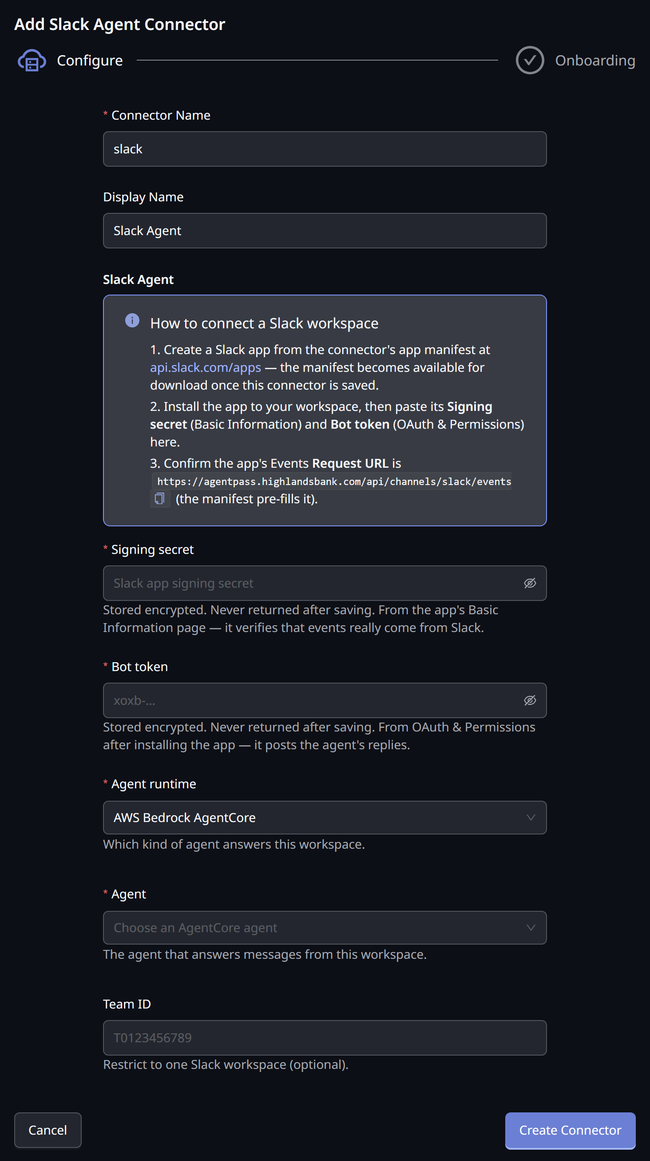
The form has these fields.
| Field | What to enter |
|---|---|
| Connector Name | An identifier, such as slack. Lowercase letters, digits, dashes and underscores |
| Display Name | The name shown in the console. The app manifest also names the Slack app and its bot after it |
| Signing secret | The app's Signing Secret. It verifies that events really come from Slack. Stored encrypted, and never returned after saving |
| Bot token | The app's xoxb- bot token. It posts the agent's replies. Stored encrypted, and never returned after saving |
| Agent runtime | AWS Bedrock AgentCore, Anthropic Cloud or Microsoft 365 Copilot. Changing it clears the agent you chose |
| M365 Copilot connector | Shown for Microsoft 365 Copilot only. The connector that holds the Copilot Studio agents |
| Agent | The agent that answers messages from this workspace |
| Team ID | Optional. Restricts the connector to one Slack workspace, such as T0123456789. Leave it blank to accept any workspace |
Apply the App Manifest
The connector's app manifest sets up the Slack app for it: the scopes, the event subscriptions and the Request URL Slack sends events to.
- On the connector, click Edit.
- Under Slack app manifest, click Download app manifest.
- In Slack, apply the manifest to your app.
- If Slack asks you to, reinstall the app.
- Confirm that the app's Events Request URL is
https://<your-gateway-host>/api/channels/slack/events. The manifest fills it in, and the create form shows it with a copy control.
You can also create a new Slack app from the manifest.
Test the Connection
- On the connector, click Edit.
- Under Connection, click Test connection.
The test uses the saved connector, so save your changes first if you just edited the secrets. It returns one of these results.
| Result | What to do |
|---|---|
| Connected to Slack workspace and the workspace ID | Nothing. The bot token works |
| The bot token belongs to workspace …, not the pinned workspace … | Correct Team ID, or use the bot token of the app in that workspace |
| Slack rejected the bot token | Copy the xoxb- token again from the app's OAuth & Permissions page |
| Connector … has no bot token. | Enter the bot token, and save |
In the Edit drawer, leave a secret blank to keep its stored value.
What the Agent Answers
The agent answers plain-text messages of two kinds:
- Direct messages to the Slack app
- Messages that mention the app. The leading mention is removed before the agent reads the message
It ignores messages from bots, edited messages, joins, file shares and channel messages that do not mention the app.
The reply goes in the thread of the message. Each person keeps one conversation with the agent in each thread. When a second person mentions the app in the same thread, they get a conversation of their own, under their own identity.
If you set Team ID, the connector refuses events from any other workspace. A disabled connector does not answer.
Identity and Approvals
AgentPass looks up each Slack user's email address in Slack, and runs the turn as that person. Policies govern the turn like any other traffic from that person. When an approval is needed, it goes to that person's AgentPass mobile app. If Slack returns no email address, the turn runs under an identity made from the workspace and user IDs.
Replies People See
When the agent cannot answer, people see one of these replies in the thread.
| Situation | Reply |
|---|---|
| A policy blocked the request | The policy's reason, or "A policy blocked this request." |
| A tool needs the person to sign in | "I need you to sign in to [connector name] before I can finish. I've sent a request to your phone (AgentPass app) — approve it there, then ask me again." |
| The request needs the person's approval | "This needs your approval first: [what needs approval] — approve it in the AgentPass app on your phone, then ask me again." |
| The Microsoft 365 agent needs admin consent | "The connected Microsoft 365 agent needs admin consent before it can act for you — ask your admin to grant it, then try again." |
| The person's Microsoft 365 sign-in expired | "Your Microsoft 365 sign-in has expired — sign in again in the AgentPass portal, then ask me again." |
| The agent is unavailable | "The agent behind this channel is currently unavailable — ask your admin to check the connector." |
| The agent is turned off | "This agent has been turned off. Ask its owner or an administrator to turn it back on." |
| Anything else | "Something went wrong handling that." |
Turning the agent off ends the conversations it had running. Once it is turned back on, the next message in a thread starts a new conversation.
The Connector's Tabs
A Slack Agent connector has the shared Overview, Policies, Connections and Recent Requests tabs. Its Overview tab shows the connector's name and the Enabled switch. See Reading a Connector.
Deleting the connector also removes the Slack threads it was carrying, so a connector created later under the same name starts every conversation fresh.
Related
- Connectors — the kinds of connector, and managing one
- One-Click MCP Servers — Slack as tools for your agents
- Approving and Denying Agent Actions — what arrives on the phone