Microsoft Entra Setup for Microsoft 365 Copilot
Overview
The Microsoft 365 Copilot connector authenticates to Microsoft with the OAuth2 On-Behalf-Of (OBO) flow. Each end user's own delegated permissions drive the Copilot call, and the Agent Portal never holds a Microsoft Graph token. This guide walks through the Microsoft Entra app registrations that make that possible.
Complete this setup before you create the connector. When you finish, you have the values the connector form asks for. See Connecting Microsoft 365 Copilot.
This is an administrator task. You need access to the Azure portal, with permission to create app registrations and grant tenant-wide admin consent. You work in the same Microsoft Entra tenant as your Microsoft 365 Copilot licenses. Plan for 30 to 45 minutes.
This guide is written for a commercial Microsoft 365 tenant. For a Microsoft GCC High tenant, the registrations are the same, with three differences. You create them in the Azure Government portal at https://portal.azure.us. You use Microsoft Entra ID for Government identities. You grant admin consent in the GCC High tenant. See Microsoft 365 Copilot on GCC High for the full list of differences.
Why Two App Registrations
The connector uses a backend-for-frontend (BFF) pattern. The Agent Portal signs the user in, and the gateway, never the browser, exchanges that sign-in for a per-user Microsoft Graph token. That requires two applications in Entra.
| Registration | Type | Role |
|---|---|---|
| Connector app (middle-tier) | Confidential | Holds the client secret, exposes the sign-in scope, performs the On-Behalf-Of exchange, and carries the Copilot Graph permissions |
| Agent Portal app | Public (single-page application) | The web portal. Signs the user in against the connector app's exposed scope. It is listed as an authorized client application of the connector app, so no second consent prompt appears |
Both live in the same tenant, and use single-tenant (My organization only) accounts.
The Microsoft Graph Copilot Chat API requires delegated permissions. Copilot answers as the signed-in user, on that user's own license, so the grounding permissions must be added as Delegated. A smaller set of Application permissions covers the tenant-wide reads the Agent Portal makes outside a user session. Both sets go on the connector app. See Grant the Microsoft Graph Permissions.
Prerequisites
- A Microsoft Entra tenant with Microsoft 365 Copilot licenses assigned to your test users
- Global Administrator, or Application Administrator plus Cloud Application Administrator, to grant tenant-wide admin consent
- Your gateway's public origin, its public base URL. The Agent Portal redirect URI is that origin plus
/portal/, for examplehttps://<your-gateway-host>/portal/ - Access to the gateway administration console, to create the connector afterward
Register the Connector App (Middle-Tier)
- In the Azure portal, go to Microsoft Entra ID → App registrations → + New registration.
- Name the app, for example
AgentPass Copilot Connector. - For Supported account types, choose Accounts in this organizational directory only. Leave the redirect URI blank.
- Click Register.
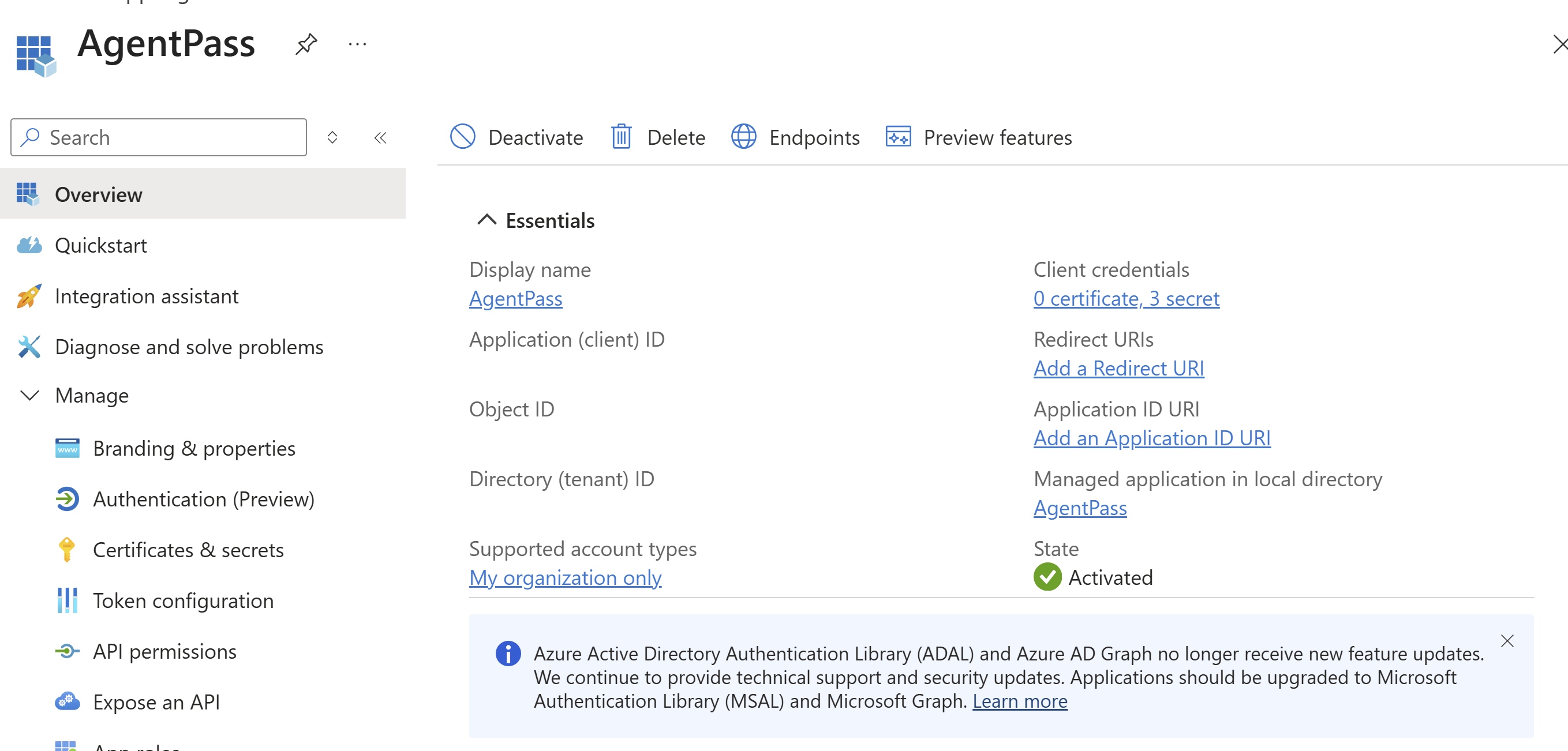
- On the Overview blade, copy the identifiers listed in the following table. You need them for the connector and for the Agent Portal app.
| Field | Used as |
|---|---|
| Directory (tenant) ID | The connector's Tenant ID |
| Application (client) ID | The connector's Client ID (middle-tier) |
| Object ID | Reference only |
Grant the Microsoft Graph Permissions
- Under the connector app, go to API permissions → + Add a permission → Microsoft Graph.
- Add the delegated and application permissions your deployment requires, listed in the following tables.
- Click Grant admin consent for your tenant. Every permission here requires admin consent.
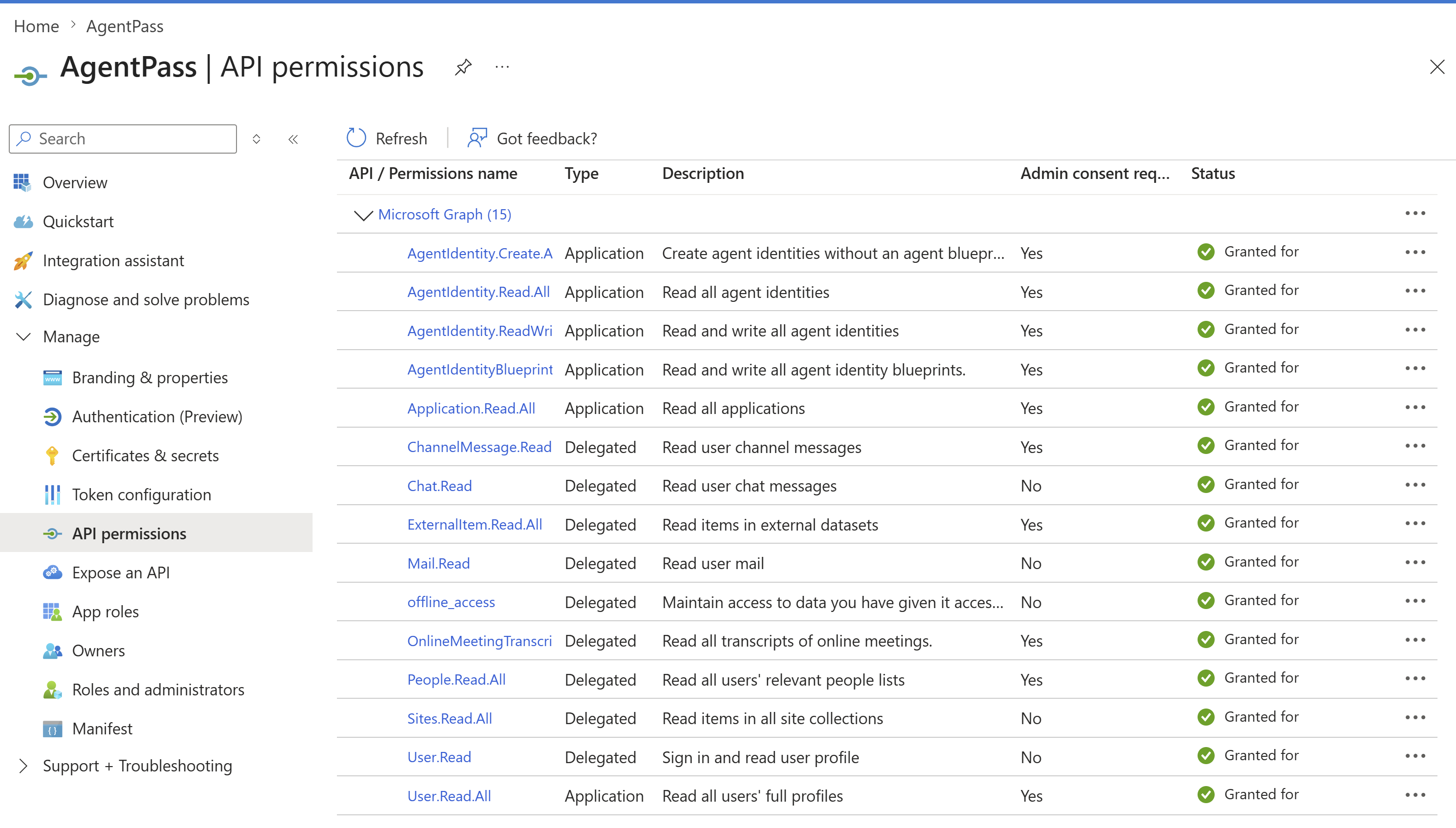
Most of the set is delegated. The Copilot chat call is made on behalf of the signed-in user, so that user's own license and access apply. A smaller application set covers the tenant-wide reads the gateway performs outside any one user's session.
Delegated Permissions
| Permission | Purpose |
|---|---|
User.Read | Sign in and read the user profile (base scope) |
offline_access | Refresh tokens, to keep the On-Behalf-Of chain alive |
Mail.Read | Copilot grounding: user mail |
Chat.Read | Copilot grounding: user chat messages |
ChannelMessage.Read.All | Copilot grounding: channel messages |
People.Read.All | Copilot grounding: people and the org graph |
OnlineMeetingTranscript.Read.All | Copilot grounding: meeting transcripts |
AppCatalog.Read.All | Read the tenant app catalog |
TeamsAppInstallation.ReadForUser | Discover the declarative agents installed for the signed-in user |
TeamsAppInstallation.ReadSelectedForUser | Read the user's selected installed Teams apps |
TeamsAppInstallation.ReadWriteSelfForUser | Allow the Teams app to manage itself for a user |
TeamsAppInstallation.ReadWriteAndConsentSelfForUser | Allow the Teams app to manage itself and its permission grants for a user |
Application Permissions
| Permission | Purpose |
|---|---|
AiEnterpriseInteraction.Read.All | Read Copilot interaction history, for the conversation list in the Agent Portal |
User.Read.All | Resolve users' full profiles for that history lookup |
Application.Read.All | Read application registrations in the tenant |
AgentIdentity.Read.All | Read all agent identities |
AgentIdentity.ReadWrite.All | Read and write all agent identities |
AgentIdentity.Create.All | Create agent identities without an agent blueprint |
AgentIdentityBlueprint.ReadWrite.All | Read and write all agent identity blueprints |
After consent, review the granted set under Microsoft Entra ID → Enterprise applications → <your connector app> → Permissions. Each row should show its type, and that admin consent was granted.
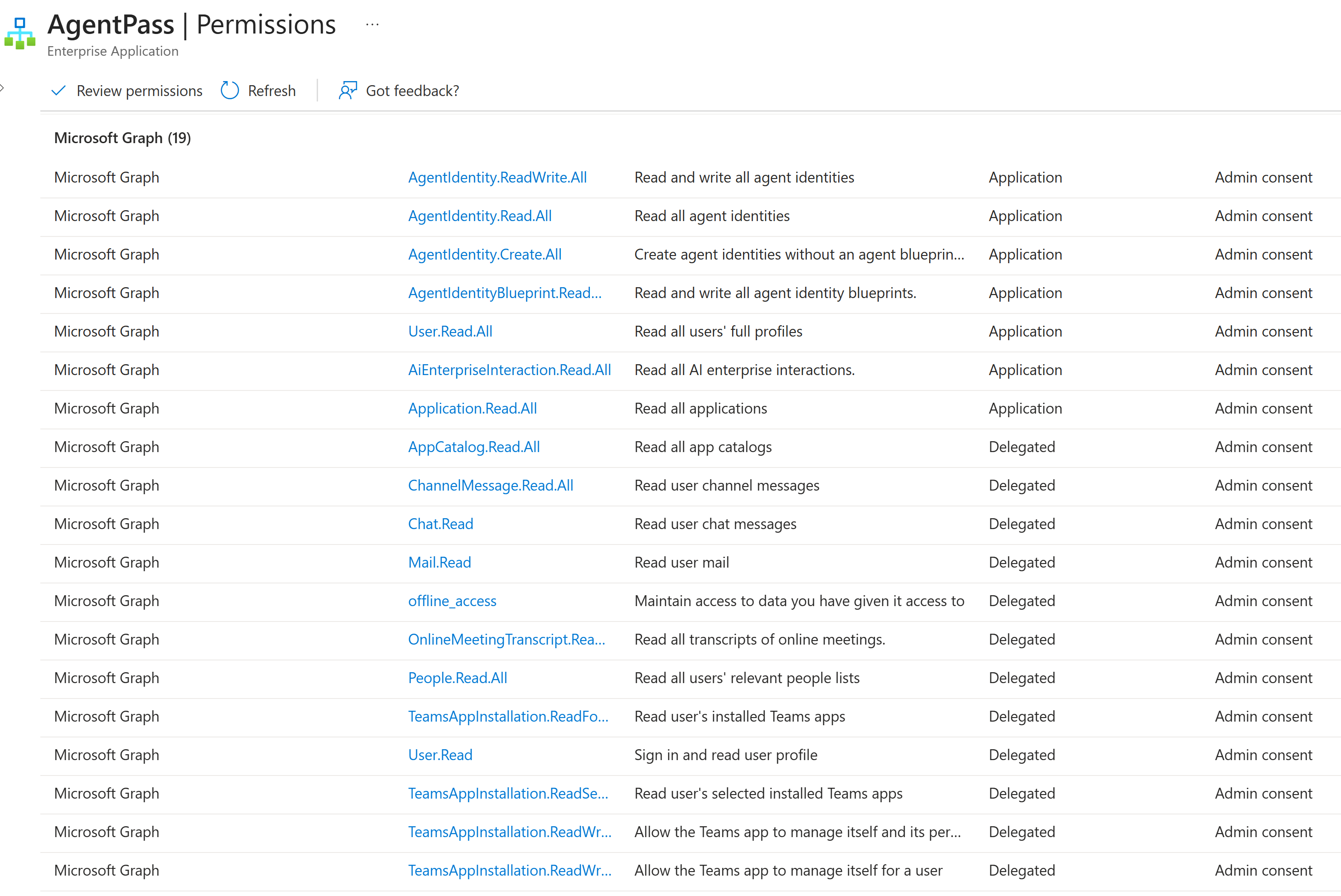
Copilot grounds its answers in the user's own Microsoft 365 content. Microsoft rejects the chat call with a 403 when a grounding scope the request needs has not been consented. If you trim this set, keep the grounding permissions. Also add Sites.Read.All (SharePoint sites) and ExternalItem.Read.All (Graph connectors and external items) if your users ground answers in that content.
The gateway reports a missing scope as Consent required, not as a license problem. It reads the tenant's permissions again on the next request after consent is granted, so no restart is needed.
The chat call itself always uses the delegated token. The application permissions serve only the tenant-wide reads the Agent Portal performs outside a user session, such as the Copilot conversation history list.
Expose the API Scope
The sign-in token the gateway exchanges On-Behalf-Of must be issued for this app, not directly for Microsoft Graph. The connector app therefore exposes a scope that the Agent Portal requests at sign-in.
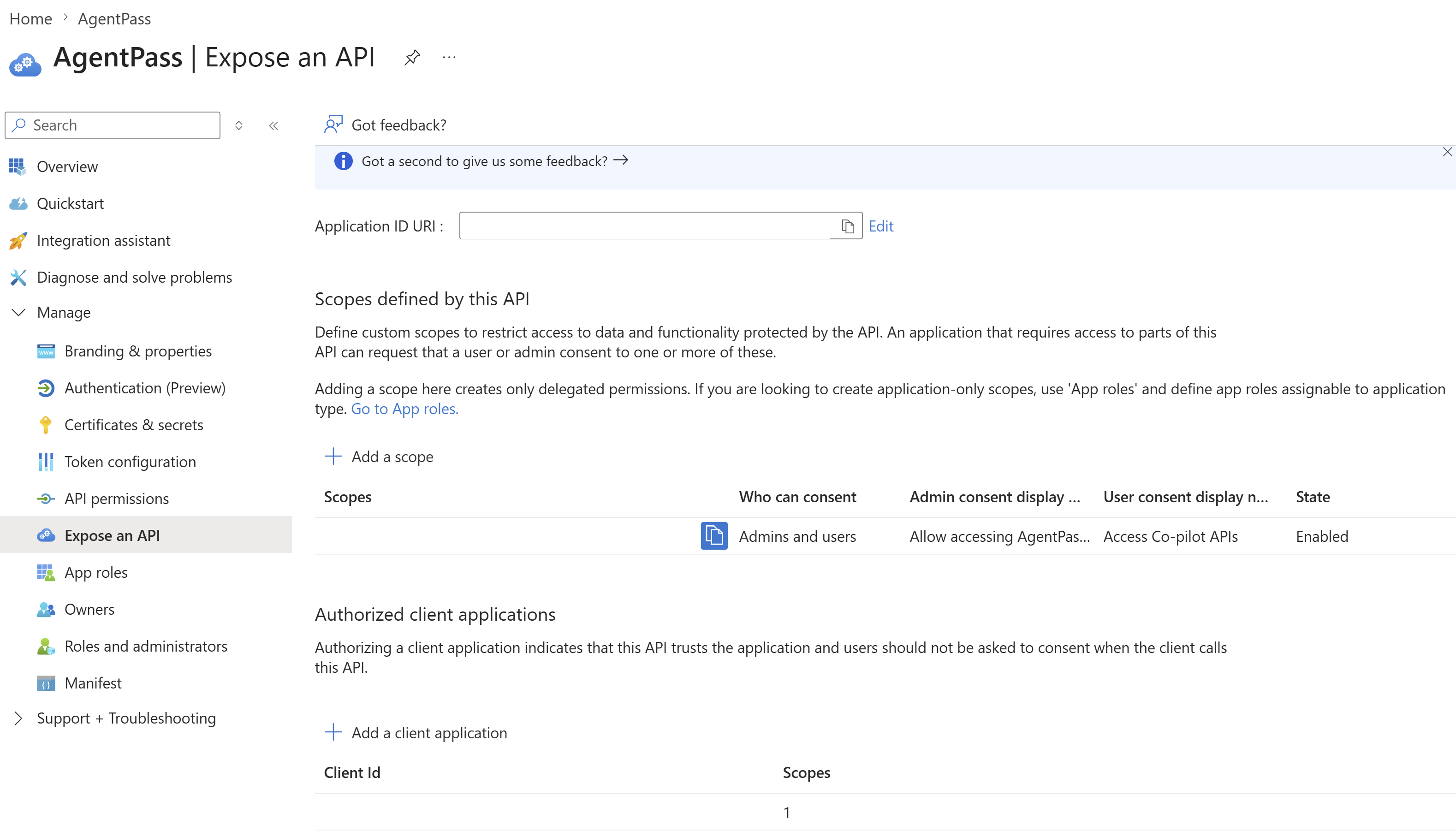
- Under the connector app, go to Expose an API.
- For Application ID URI, accept the default
api://<middle-tier-client-id>. - Click + Add a scope, and enter the values in the following table. The full scope value becomes
api://<middle-tier-client-id>/access_as_user. - Under Authorized client applications, click + Add a client application.
- Add the Agent Portal app's client ID, and select the
access_as_userscope. This preauthorizes the portal, so users are not prompted to consent a second time.
| Field | Value |
|---|---|
| Scope name | access_as_user |
| Who can consent | Admins and users |
| Admin consent display name | Allow accessing Copilot APIs |
| State | Enabled |
Adding the authorized client needs the Agent Portal app's client ID, which you create in Register the Agent Portal app. Register the portal app first, or return to this step afterward. Either order works.
Create the Client Secret
- Under the connector app, go to Certificates & secrets → Client secrets → + New client secret.
- Add a description, and choose an expiry that follows your organization's policy.
- Copy the secret's Value immediately. Entra shows it only once.
Keep the secret in your password manager, never in a ticket or chat. Enter the Value, not the Secret ID, directly in the connector's secret field in the gateway console, where it is stored encrypted.
Register the Agent Portal App (AgentPassPortal)
-
Go to App registrations → + New registration.
-
Name the app, for example
AgentPass Copilot Portal, choose the same single-tenant account type, and click Register. -
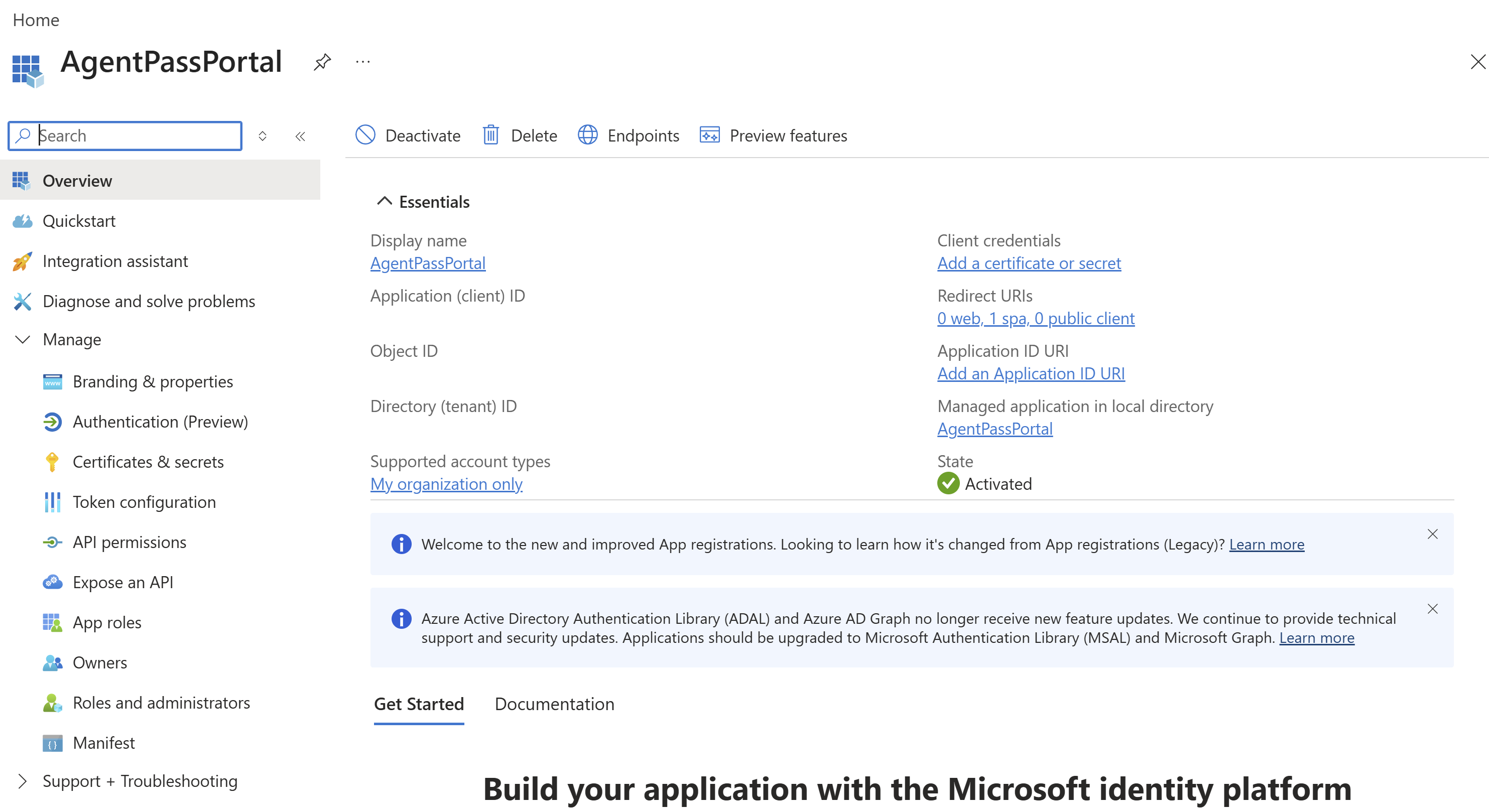
On the Overview blade, copy the identifiers listed in the following table.
-
Go to Authentication → Add a platform → Single-page application.
-
Add the redirect URI: your gateway's public origin plus
/portal/, such ashttps://<your-gateway-host>/portal/.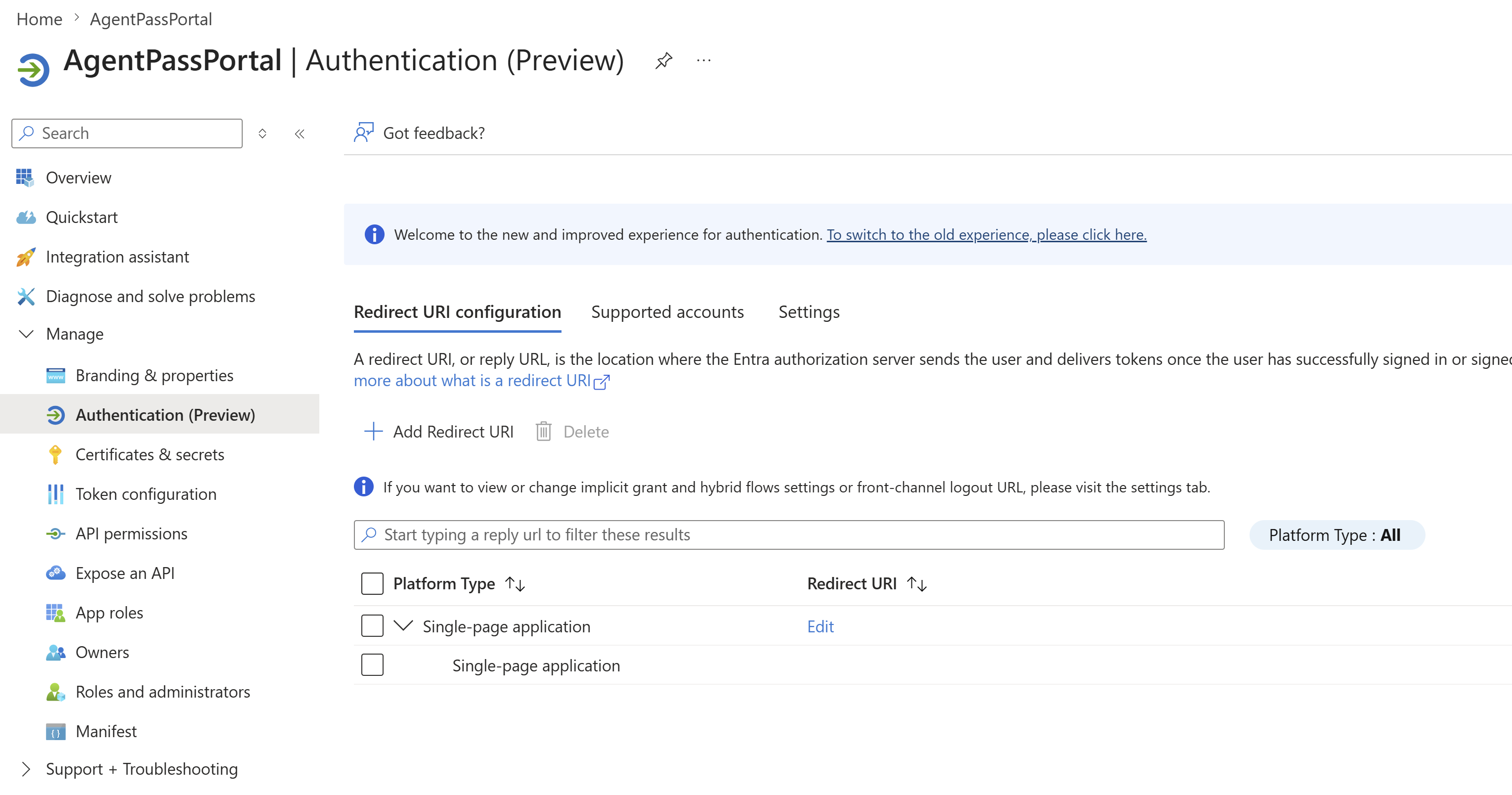
-
Go to API permissions → + Add a permission → My APIs, select the connector app, select
access_as_user, and click Add. The portal app is one of the connector app's authorized client applications, so it needs no extra admin consent.
The portal app's Overview blade gives you these values.
| Field | Used as |
|---|---|
| Application (client) ID | The connector's Portal app (client) ID |
| Directory (tenant) ID | The same tenant as the connector app |
Register the redirect URI under Single-page application, which uses PKCE and CORS, not under Web. The trailing slash must match exactly what the portal sends.
Values to Carry Into the Connector
When you create the Microsoft 365 Copilot connector in the gateway console, you need these values.
| Connector field | Where it comes from |
|---|---|
| Tenant ID | Connector app Overview → Directory (tenant) ID |
| Client ID | Connector app Overview → Application (client) ID |
| Client Secret | The secret Value from Certificates & secrets. Enter it in the console only |
| Portal app (client) ID | Agent Portal app Overview → Application (client) ID |
| Exposed API scope | access_as_user, the scope name only. The gateway adds the api://<middle-tier-client-id>/ prefix |
| Agent Portal redirect URI | Your gateway origin plus /portal/, registered on the Agent Portal app |
Continue at Create the Connector.
Grant the Power Platform Permission (Copilot Studio Agents)
Complete this section only if Portal users will chat with Microsoft Copilot Studio agents. It uses a separate delegated permission from the Power Platform API, on the same connector (middle-tier) app.
-
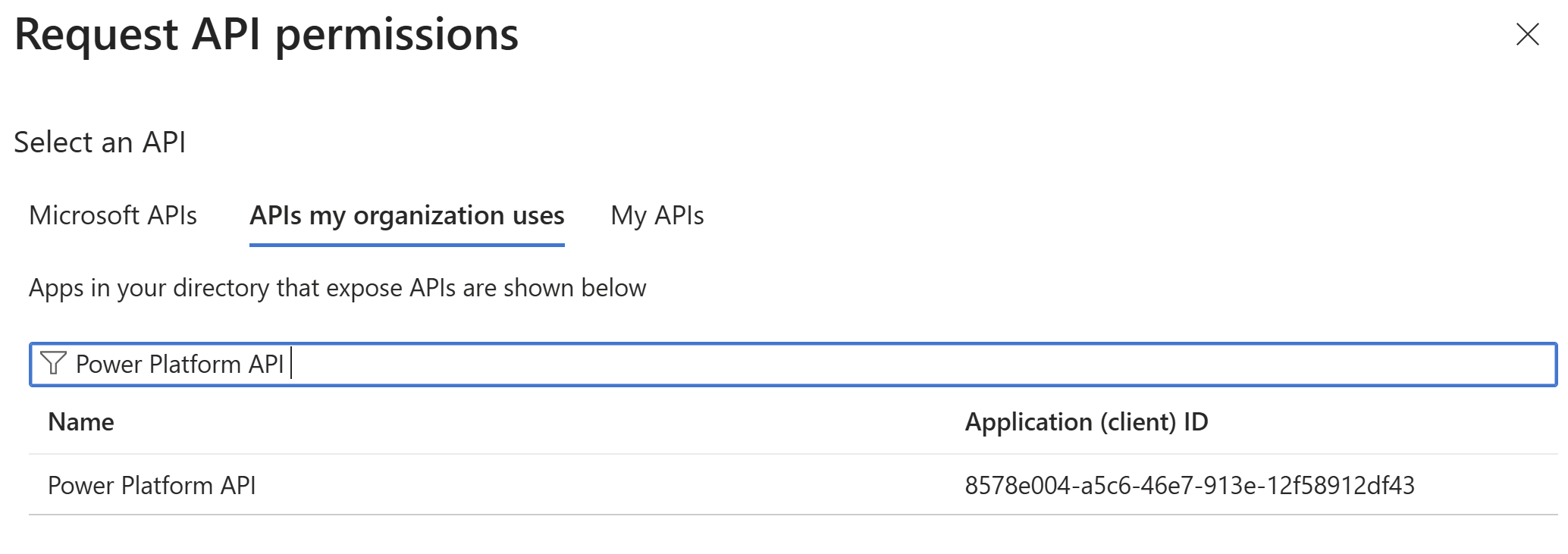
Under the connector app, go to API permissions → + Add a permission → APIs my organization uses.
-
Search for Power Platform API. If it is missing, register it first, as the following note describes.
-
Choose Delegated permissions. Under CopilotStudio, select
CopilotStudio.Copilots.Invoke, and click Add.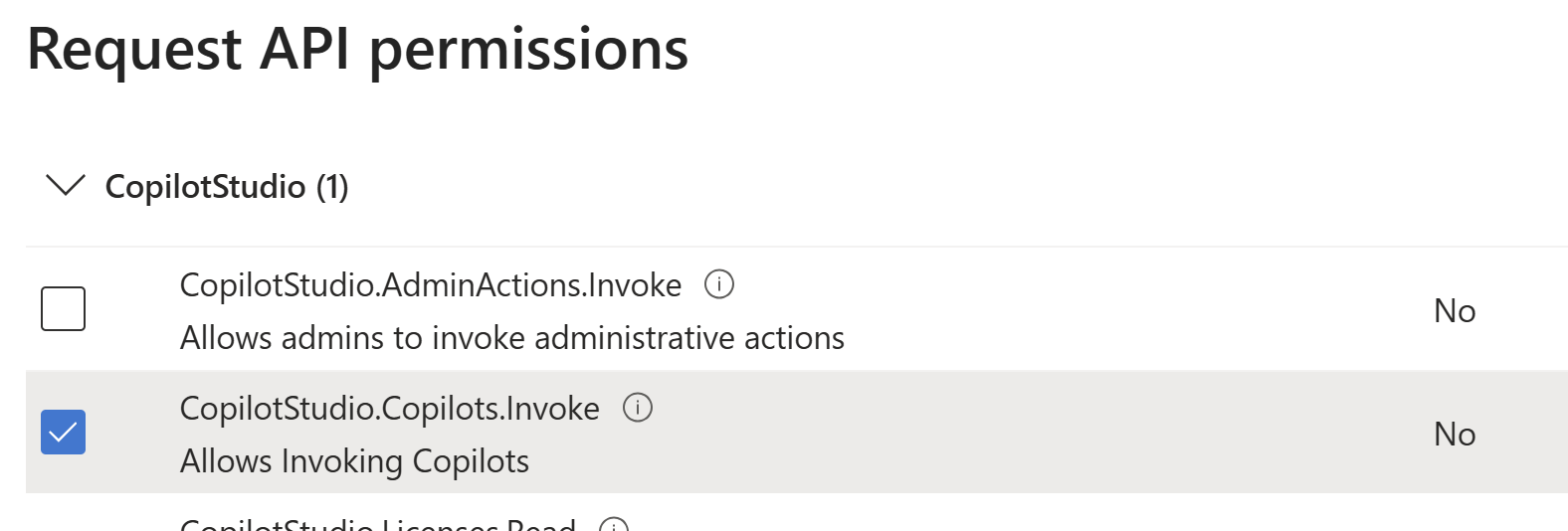
-
Grant admin consent for your tenant. On-Behalf-Of cannot do interactive consent, so admin consent is required. Without it, the exchange fails, and the Agent Portal shows a consent notice.
Its service principal is not in your tenant yet. Register it once, then reopen the dialog:
az ad sp create --id 8578e004-a5c6-46e7-913e-12f58912df43
A 409 … service principal name … already in use response means it already exists. Skip creation, and search again.
Once the permission is consented, register your agents on the connector. See Registering Copilot Studio Agents for the Agent Portal.
Verify
Check each of these before you hand the portal to users:
- The connector app's Microsoft Graph permissions all show Granted for your tenant, with no warning.
- The connector app's Expose an API blade lists
access_as_useras enabled, and the Agent Portal app under Authorized client applications. - The Agent Portal app's Authentication blade shows the redirect URI as a single-page application.
- A Copilot-licensed test user can sign in to the Agent Portal, and the chat returns a reply.
- An unlicensed user receives the Microsoft 365 Copilot license required message. See Troubleshooting.
Related
- Connecting Microsoft 365 Copilot — create the connector once this setup is complete
- Microsoft 365 Copilot on GCC High — registering these apps in the Azure Government portal instead
- Chatting in the Agent Portal — the user experience this connector powers
- Configuring Connectors — how connectors fit into AgentPass