Controlling MCP Client Registration
An MCP client registers itself with the HYPR AgentPass™ gateway, to obtain a client ID, before it can sign anyone in. That includes Claude Code, Cursor, Codex CLI and any other OAuth-capable client. Registration is open and unauthenticated by design, so registration itself does not decide whether a client is trusted. The list of redirect targets you approve on Advanced → Gateway Settings → OAuth / DCR decides it.
A redirect target is where a client asks the gateway to send a person once they have signed in. It is the one part of registration with real consequences, because whoever controls the destination receives the result of the sign-in.
How the Gateway Judges a Redirect Address
Every address a client offers must pass two checks, in this order.
| Check | What it asks |
|---|---|
| Form | Is the address unambiguous? The gateway reads the address's real destination, not how it looks. It refuses an address that disguises its destination, carries a fragment, or names a malformed or wildcard host, whatever it points at |
| Destination | Is the destination one your organization has approved? A remote https:// address must match a listed redirect host. A custom-scheme address must match a listed scheme |
Both lists work the same way: nothing is accepted unless it is listed.
Redirects to localhost and the loopback addresses are always allowed, and are not configurable. Desktop and command-line clients need them to receive a sign-in on the machine the person is already using. The PKCE proof the gateway requires on every authorization already protects them.
The gateway applies both checks again each time someone signs in, not only at registration. Once you remove the entry a client depends on, that client can no longer sign anyone in, even if it registered earlier.
Open the OAuth / DCR Tab
- Open Advanced → Gateway Settings.
- Click the OAuth / DCR tab.
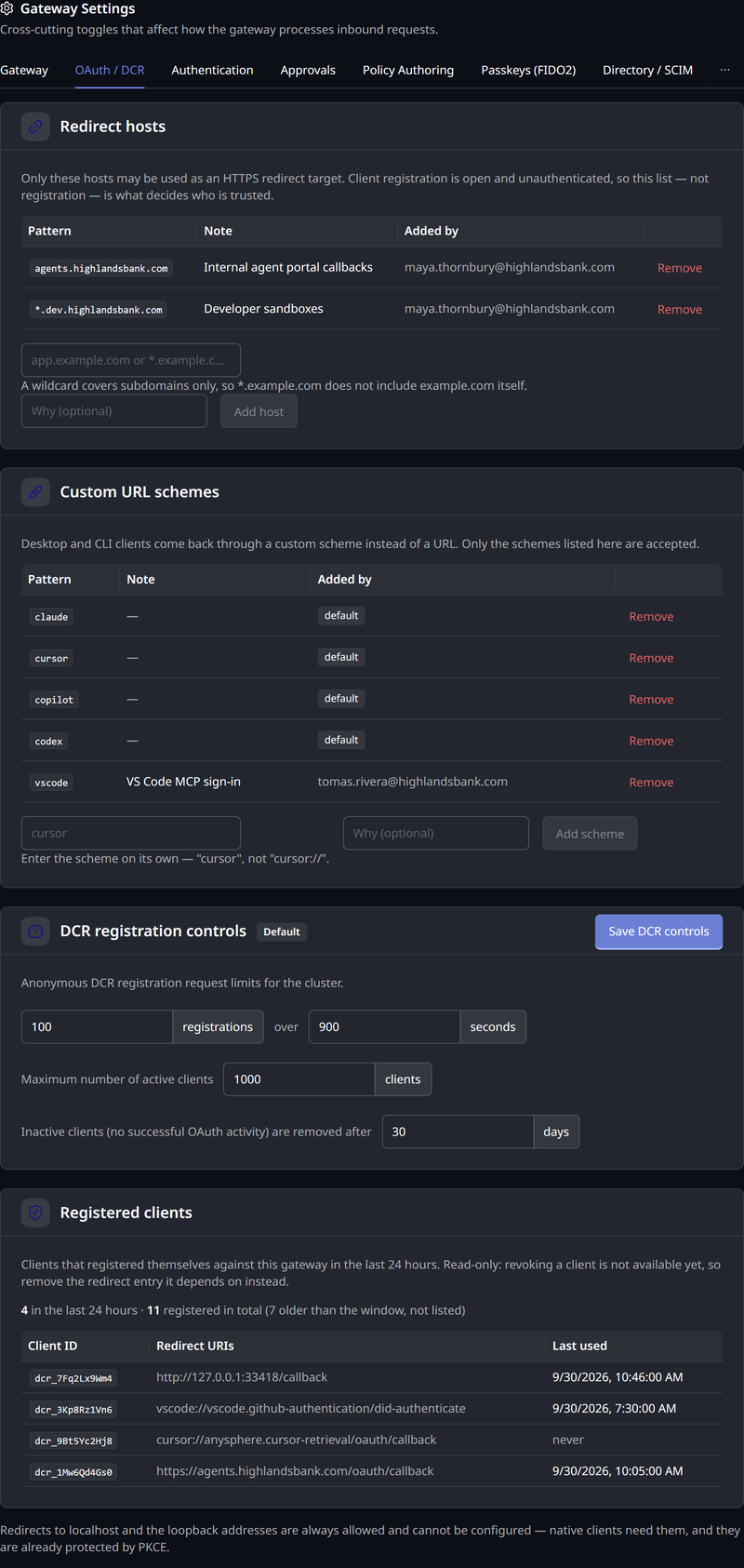
The tab holds four cards: Redirect hosts, Custom URL schemes, DCR registration controls and Registered clients.
Redirect Hosts
Redirect hosts governs https:// redirect addresses, the form a web-hosted or remotely hosted client uses. Only a host on this list may be an HTTPS redirect target. Every other remote HTTPS address is refused.
An entry is either an exact host, such as app.example.com, or a wildcard covering subdomains, such as *.example.com.
Entries match on the host alone. The port and path of the redirect address are not matched, so one entry covers every path a client on that host uses.
Add a Redirect Host
- On the OAuth / DCR tab, find the Redirect hosts card.
- In the Redirect host field, enter the host, such as
app.example.comor*.example.com. Enter the host on its own, with no scheme, port or path. - Optional: In the Why field, record why you added it. The table shows the note alongside the entry and the administrator who added it.
- Click Add host.
The entry takes effect immediately, across every gateway node.
How Wildcards Match
A wildcard covers subdomains only.
*.example.com does not include example.com itself. If clients return to both the apex domain and its subdomains, add two entries, one for each. This is deliberate. Approving a domain's subdomains should not silently approve the domain.
The following examples show how entries match.
| Entry | Matches | Does not match |
|---|---|---|
example.com | example.com | app.example.com |
*.example.com | app.example.com, eu.app.example.com | example.com, notexample.com, example.com.other.test |
Two more rules keep an entry from accidentally allowing everything:
- The wildcard is accepted only as the leftmost label.
app.*.example.comanda*.example.comare refused. - A wildcard must sit at least one level below a top-level domain. A bare
*, and a wildcard directly on a top-level domain such as*.com, are refused.
Keep each entry as narrow as the client needs. An entry approves every host it matches, so prefer an exact host. Use a wildcard only when a client genuinely returns to more than one subdomain.
Custom URL Schemes
Desktop and command-line clients do not return to a web address. They return through a custom URL scheme registered with the operating system, such as cursor://, which hands the sign-in back to the application that started it. Custom URL schemes governs those, and accepts only the schemes listed.
Enter the scheme on its own: cursor, not cursor://.
Schemes Included by Default
The list arrives with the schemes of widely used desktop clients already approved, so those clients work without setup.
| Scheme | Client |
|---|---|
claude | Claude Desktop and Claude Code |
cursor | Cursor |
copilot | GitHub Copilot |
codex | Codex |
The table shows these with a default tag, instead of an administrator's name.
Removing a scheme locks out every client that returns through it. Remove one only when you intend that client to stop signing people in. People already using it are signed out at their next authorization.
Add a scheme the same way you add a host: enter it in the Custom URL scheme field, and click Add scheme. Removing an entry asks you to confirm, and names the entry being removed.
DCR Registration Controls
Because registration is open, DCR registration controls limits how much of it your organization accepts. The card reads as three sentences, each with a number you can change:
- The number of registrations the gateway accepts over a number of seconds
- The maximum number of active clients
- The number of days after which an inactive client is removed. A client is inactive when it has had no successful OAuth activity for that long
The card shows a Default tag while every value is the one AgentPass ships with.
To change the controls:
- On the OAuth / DCR tab, find the DCR registration controls card.
- Change the values.
- Click Save DCR controls.
A client that registers again with the same redirect addresses gets back the client ID it already has, so it adds no new client. Registering again does not count as activity. A removed inactive client must register again before it can sign anyone in.
Registered Clients
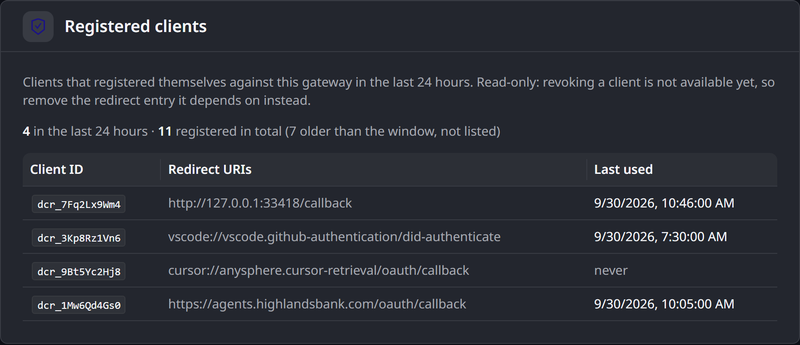
Registered clients lists the clients that registered themselves against this gateway in the last 24 hours, so you can see what open registration has produced. For each one, it shows the client ID, the redirect addresses it registered and when it was last used, or never if it registered but has not signed anyone in.
The card also counts the clients registered in the last 24 hours and in total. When many clients registered in the window, the list shows the newest of them.
The list is read-only, and the console does not revoke clients directly. To stop a client, remove the redirect host or scheme entry it depends on. It stops at its next sign-in.
Clients are expected to keep and reuse the client ID they were issued. A client that registers again with the same redirect addresses appears in this list once.
Permissions
The tab follows the same permissions as the rest of Gateway Settings.
| To | You need |
|---|---|
| View the lists and the registered clients | Permission to view gateway settings |
| Add or remove an entry | Permission to manage gateway settings |
| Change the registration controls | Permission to manage gateway settings |
Of the roles that ship with AgentPass, AgentPassAdmin can manage entries, AgentPassOperator can view them, and AgentPassSupervisor has no access. See Permissions by Role.
Troubleshooting
When a client cannot register, it reports the reason the gateway gave. The reason names the rule the address broke. It tells you which of the two checks refused it, and whether the fix is yours or the client's. A few reasons concern the registration itself, not an address.
| What the client reports | What it means | What to do |
|---|---|---|
NOT_ALLOWLISTED | The address is well formed, but its destination is not approved for this tenant. Expect this one after an upgrade | Add the host to Redirect hosts, or the scheme to Custom URL schemes, then have the client register again |
USERINFO_PRESENT | The address carries credentials before the host, so the destination it appears to name is not the one it resolves to | Do not add an entry for it. Have the client offer the plain address of the host it genuinely returns to |
INVALID_HOST | The host is malformed, or is a wildcard. A client's redirect address must name one host. Wildcards belong in your allowlist entries, never in a client's address | Have the client offer a single, valid host |
FRAGMENT_PRESENT | The address carries a # fragment, which a redirect address may not | Have the client remove the fragment |
OPAQUE_URI | The address is not in the https://host/path form | Have the client offer a complete address, including // after the scheme |
NON_LOOPBACK_HTTP | The address uses plain http to somewhere other than the local machine | Have the client use https, or a loopback address if it runs locally |
DISALLOWED_SCHEME | The scheme is not one a redirect address may use | Have the client use https, or a custom scheme you have listed |
INVALID_PORT | The port is outside the valid range | Have the client correct the port |
MISSING_SCHEME or UNPARSEABLE | The address is not a valid absolute address | Have the client correct the address |
TOO_LONG | The address is longer than the gateway accepts | Have the client shorten it |
slow_down | Your organization has accepted as many registrations as its controls allow for now, or has reached its maximum number of active clients | Wait, and have the client register again. If it keeps happening, review DCR registration controls |
temporarily_unavailable | The gateway could not accept registrations at that moment | Have the client register again later |
| A message that too many redirect addresses were offered | The client offered more redirect addresses than the gateway accepts in one registration | Have the client register with fewer addresses |
| A message that the request is too large | The registration request is larger than the gateway accepts | Have the client send a smaller registration request |
Two more situations come up:
- A client that used to work now fails at sign-in. The entry it depended on has been removed, or it registered before its destination was approved. Confirm the host or scheme is still listed.
- A desktop client stopped working after someone edited the lists. Check that its scheme is still in Custom URL schemes. The four schemes that ship listed can be removed like any other.
The Registered clients card shows which addresses a client actually registered. Compare that against your entries to see which one is missing.
Related
- Gateway Settings — every Gateway Settings tab, card by card
- Requiring a HYPR Identity on an MCP Connector — what the gateway requires of a caller once it is signed in
- Local Agents — the desktop clients that return through a custom scheme
- Connecting an MCP Connector — the sign-in a person sees when a client authorizes
- Permissions by Role — which roles can manage gateway settings