Managed Cloud Agents: Overview
Overview
A managed cloud agent is an AI agent that runs on a provider's infrastructure instead of on somebody's workstation. Examples are Anthropic's Managed Agents platform and AWS Bedrock AgentCore in your own AWS account.
HYPR AgentPass™ governs these agents like the rest of your agent traffic. Every tool call the agent makes routes back through the gateway. There, your policies decide the call, approvals gate it and the audit trail records it.
The result is an agent your organization can chat with, schedule and govern. The agent holds no standing credentials of its own, and its tool access stays inside your controls.
AgentPass supports three providers, and each reaches AgentPass differently.
| Provider | Where the agent runs | How it gets into AgentPass |
|---|---|---|
| Anthropic | Anthropic's Managed Agents platform | You create it in AgentPass from a template, a model, a prompt and tools. AgentPass provisions it on Anthropic. See Anthropic Cloud Agents |
| AWS Bedrock AgentCore | AgentCore in your own AWS account | Your team builds it in AWS. AgentPass imports it through a connector, then invokes and governs it. See AWS Bedrock AgentCore Agents |
| Microsoft 365 Copilot | Microsoft's cloud | You connect it by registering Copilot Studio agents on the connector. People reach them through the Agent Portal. See Microsoft 365 Copilot Agents |
For Anthropic and AWS Bedrock agents, that is the only difference you notice. Once an agent exists, everything is uniform: the same chat, automations, assignments, enable switch and governance. Microsoft 365 Copilot agents are managed on their connector, and people reach them through the Agent Portal, so they do not appear in the Cloud Agents list.
Where They Live in the Console
Open Oversight → Cloud Agents in the administration console. Anthropic and AWS Bedrock agents appear together in one list.
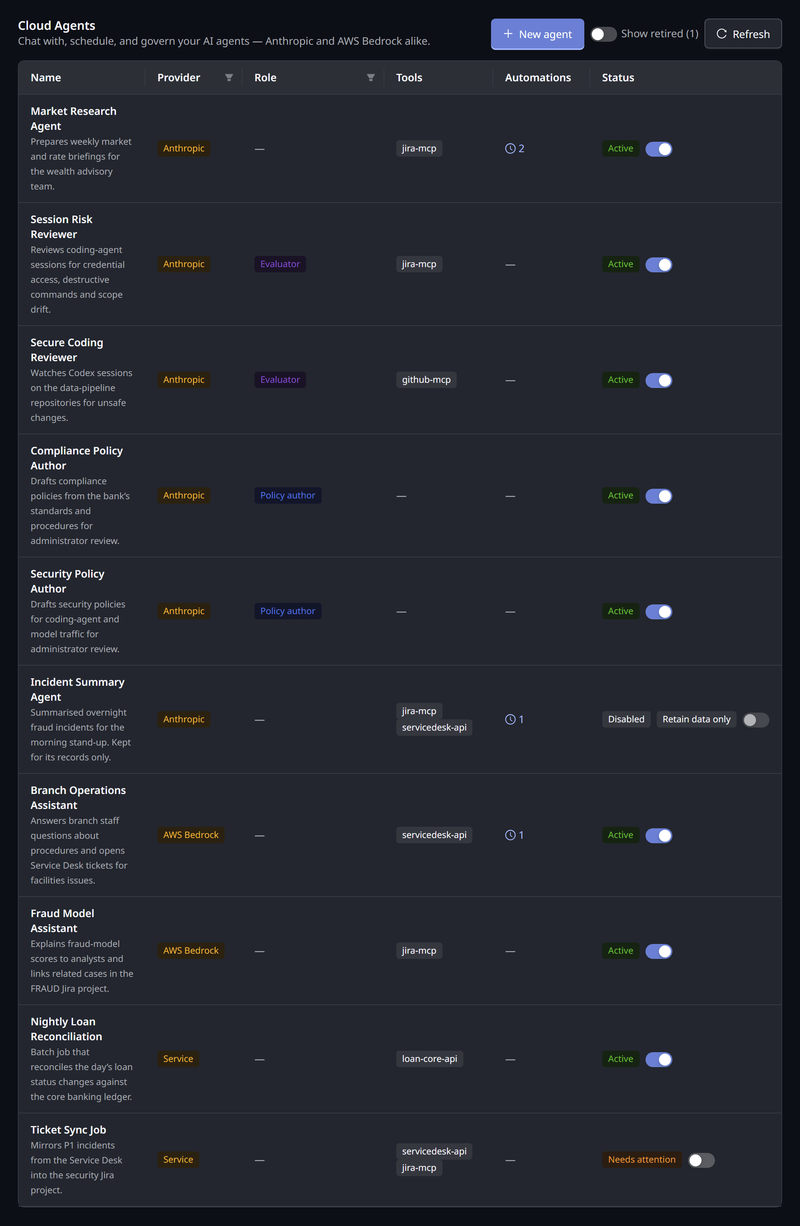
The list has these columns.
| Column | What it shows |
|---|---|
| Name | The agent's name and description. Click it to open the agent |
| Provider | Anthropic or AWS Bedrock, or Service for a service agent. You can filter by Anthropic or AWS Bedrock |
| Role | Whether the agent is tagged as a Session Watch evaluator, a policy author or both. You can filter by Evaluator, Policy author or No role |
| Tools | The connectors the agent may call |
| Automations | How many schedules and triggers the agent has |
| Status | Active, Disabled or Needs attention, with a toggle. An agent outside Production also shows its stage |
Needs attention marks a service agent whose credential has expired, or an AWS Bedrock agent whose import has a conflict to resolve.
The New agent menu is where the providers differ. You create an Anthropic cloud agent or a service agent directly from it. AWS Bedrock agents arrive by import from a connector, so for those the menu points you to Connectors.
The Cloud Agents page also lists your service agents. These are machine callers that hold a gateway credential but are not conversational, so they have no chat or automations. See Service Agents.
The Agent Detail Page
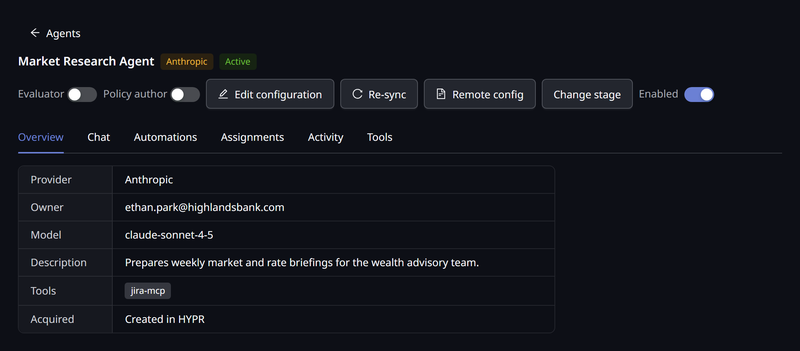
Click an agent to open its detail page. The tabs depend on what the agent supports.
| Tab | What it holds |
|---|---|
| Overview | Provider, owner, model or AWS account, description, tools, and how the agent was acquired: Created in HYPR or Synced from provider |
| Chat | A direct conversation with the agent. Use it to test a new agent before anyone else does. Anthropic and AWS Bedrock agents only |
| Automations | Runs on a schedule or from a webhook. Anthropic and AWS Bedrock agents only. See Automating Cloud Agents |
| Assignments | Which users and groups may use the agent. Not shown for service agents |
| Activity | The agent's recent tool calls. See The Activity Tab |
| Credential | The service agent's gateway credential. Service agents only. See Managing Service Agents |
| Tools | The connectors the agent may call. For AWS Bedrock agents, also the credential that lets it call them. Anthropic and AWS Bedrock agents only |
The page header carries three switches:
- Enabled turns the agent on and off. See Enabling and Disabling.
- Evaluator lets the agent review coding sessions. See Session Watch.
- Policy author lets it draft policies for you. See Choosing Who Drafts Your Policies.
Turning on Policy author asks you to confirm, because a policy author loses every tool: the provider sandbox, its connector tools and the gateway's own tools. Turning it off restores them. When the agent is also an evaluator, the confirmation warns This agent is also an evaluator. The agent keeps reviewing sessions, but it can no longer raise alerts through its connector tools, such as posting to chat, opening a ticket or sending mail.
The Activity Tab
The Activity tab lists every tool call the agent made, across all its connectors. Use it to see what an agent did, and how the gateway decided each call.
- Time range. Choose 1h, 24h, 7d or 30d. The tab opens on 24h, and shows up to 100 calls.
- Protocol calls. Select it to include the handshake calls an agent makes before it can call a tool.
- Refresh. Click Refresh to load the latest calls.
Each row shows these columns.
| Column | What it shows |
|---|---|
| Time | When the call was made |
| Tool / method | The tool called, or the protocol method for a handshake call |
| Connector | The connector the call went to |
| Decision | Allowed, Denied, Approval or Error with its status code |
| Owner | The person the call is attributed to |
Click a row to open the call's details: its decision, status code and duration, the agent, the owner and a summary of its arguments.
The owner of an agent, and anyone whose role reaches all agents, sees everyone's calls. A person assigned to an agent they do not own, whose role reaches only their own agents, sees only their own calls.
Enabling and Disabling
Every managed agent has an Enabled switch, in the Cloud Agents list and in the agent's page header. Turning an agent off is reversible, and takes effect at the gateway.
To turn an agent off:
- Turn off the agent's Enabled switch. A dialog asks you to confirm.
- Optional: Enter a Reason, up to 480 characters. AgentPass records it with your name.
- Click Turn off.
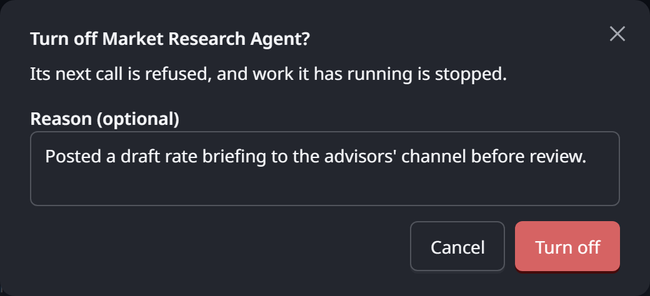
Turning an agent back on takes one click, with no dialog.
When an agent is turned off:
- The gateway refuses the agent's next call, so it can no longer reach any connector.
- Its running work at the provider ends. Anthropic sessions are interrupted and archived, and AWS Bedrock AgentCore runtime sessions are stopped in AWS.
- Messages to the agent are refused, both in its existing conversations and in a new chat.
- An automation run in progress ends. See How Runs Behave.
- The agent's page shows who turned it off and when, beside the switch.
The agent's definition at the provider is untouched. When you turn it back on, people start new conversations with it. A conversation that was running when it was turned off cannot be continued.
Turn an agent off when it must stop now but should not be destroyed. To stop an agent that runs on a person's workstation, see Switch a Local Agent Off.
Who Can Turn an Agent Off and On
One rule decides who can turn an agent off and back on. It applies to every agent switch: the Cloud Agents list and agent page, Agent identities, the Copilot Studio agents on a Microsoft 365 Copilot connector, and the HYPR mobile app.
| Your role reaches | You can turn off | You can turn back on |
|---|---|---|
| All agents, as AgentPassAdmin and AgentPassOperator do | Any agent | Any agent |
| Only your own agents, as AgentPassSupervisor does | An agent you own | Only an agent you turned off yourself |
Being assigned to an agent does not let you turn it off. A switch you cannot use is unavailable. Hover over it to see why.
Lifecycle Stages
Every agent in the Cloud Agents list also has a lifecycle stage, separate from whether it is switched on. That includes cloud agents, AWS Bedrock agents and service agents. The stage records where the agent is in its life, and decides whether access reviews include it.
| Stage | What it means | Reviewed |
|---|---|---|
| Production | In use. Every new agent starts here | Yes, on the Production agents schedule |
| Retain data only | Switched off. Its records are kept | Yes, on its own schedule |
| Retired | Switched off and out of use | No |
To move an agent to another stage:
- On the agent's detail page, click Change stage.
- Choose the stage. Each option describes its effect.
- Enter a Reason, up to 500 characters. A reason is required, and AgentPass records it with your name.
- Click Change stage. When the agent is leaving Production, the dialog first warns This switches the agent off on its next request.
Changing the stage needs permission to edit the agent. Stage changes interact with the Enabled switch:
- Leaving Production switches the agent off. Its next request is refused.
- Only a Production agent can be switched on. For an agent in another stage, the Enabled switch is unavailable until you move it back to Production.
- Returning to Production does not switch the agent on. Turn it on separately when you are ready.
An agent outside Production carries a stage tag in the list and on its page. The page also shows who moved it and when, for example Retired by the person's address and 3h ago. Retired agents are hidden from the list. Turn on Show retired to see them. The audit trail records every stage change with the old stage, the new stage and the reason.
An access review's Remove all access switches an agent off, but never changes its stage.
Assigning an Agent to People
An agent is used by the people and groups assigned to it. Assignment controls who can start sessions with the agent and whose automations may run it. The agent's audit trail records every grant and revocation.
When an assignment is a person's last path to the agent, removing them on the Assignments tab revokes their credentials for that agent and interrupts their sessions on it. A person who still belongs to an assigned group keeps access.
An AWS Bedrock agent without per-user credential isolation runs its tool calls as one shared identity, whoever is chatting with it. When you assign such an agent to a group, or to more than one person, AgentPass asks you to acknowledge that. The audit trail records the acknowledgement.
Governance: What the Gateway Sees
A managed cloud agent's tools are gateway MCP connectors. When the agent calls one, the call reaches AgentPass with a gateway-issued credential that identifies the agent. It then goes through the same pipeline as every other request:
- Policies allow the call, block it, or require approval. See Policies.
- Approvals follow the standard human-in-the-loop flow. A blocked agent learns how to request approval, and continues once it is granted.
- The Request Log and audit trail record every call, attributed to the agent.
The agent's list of connectors bounds which credentials it is issued. An agent never receives a credential for a connector outside its list.
An Anthropic cloud agent can also carry the provider's built-in sandbox tools: shell, file operations and web fetch. Those run inside Anthropic's environment and never pass through the gateway, so no policy applies to them and no audit row is written. The gateway's guarantees cover the agent's connector tools. See Anthropic Cloud Agents for what this means in practice.
Who Can Do What
Access to managed cloud agents follows AgentPass roles. See Roles and Permissions.
- AgentPassAdmin sees and manages every agent.
- AgentPassOperator sees every agent. It can switch any agent on or off, change its stage, tag it and assign it. It edits the configuration of, and re-syncs, only the agents it created.
- AgentPassSupervisor sees the agents they own or are assigned to, can chat with them, and can manage their automations. They can turn off the agents they own. See Who Can Turn an Agent Off and On. Workspace-wide actions, such as importing and re-syncing agents from a provider, are administrator tasks.
Related
- Anthropic Cloud Agents — create, configure and run an agent on Anthropic
- AWS Bedrock AgentCore Agents — import, govern and equip agents built in your AWS account
- Automating Cloud Agents — schedules, webhooks and run history
- Running Agent Access Reviews — confirm on a schedule that each agent still needs its access