Automating Cloud Agents
Overview
An automation runs a cloud agent hands-free. You store a prompt and a trigger. Each time the trigger fires, HYPR AgentPass™ starts a fresh session with that prompt and lets the agent work. The agent runs with its full tool access, and your policies, such as deny and require approval, still apply to everything it does.
Automations turn a cloud agent into a standing service that nobody has to remember to ask. Typical uses are a morning briefing, an hourly queue sweep, or a report that runs when another system calls in.
Creating an Automation
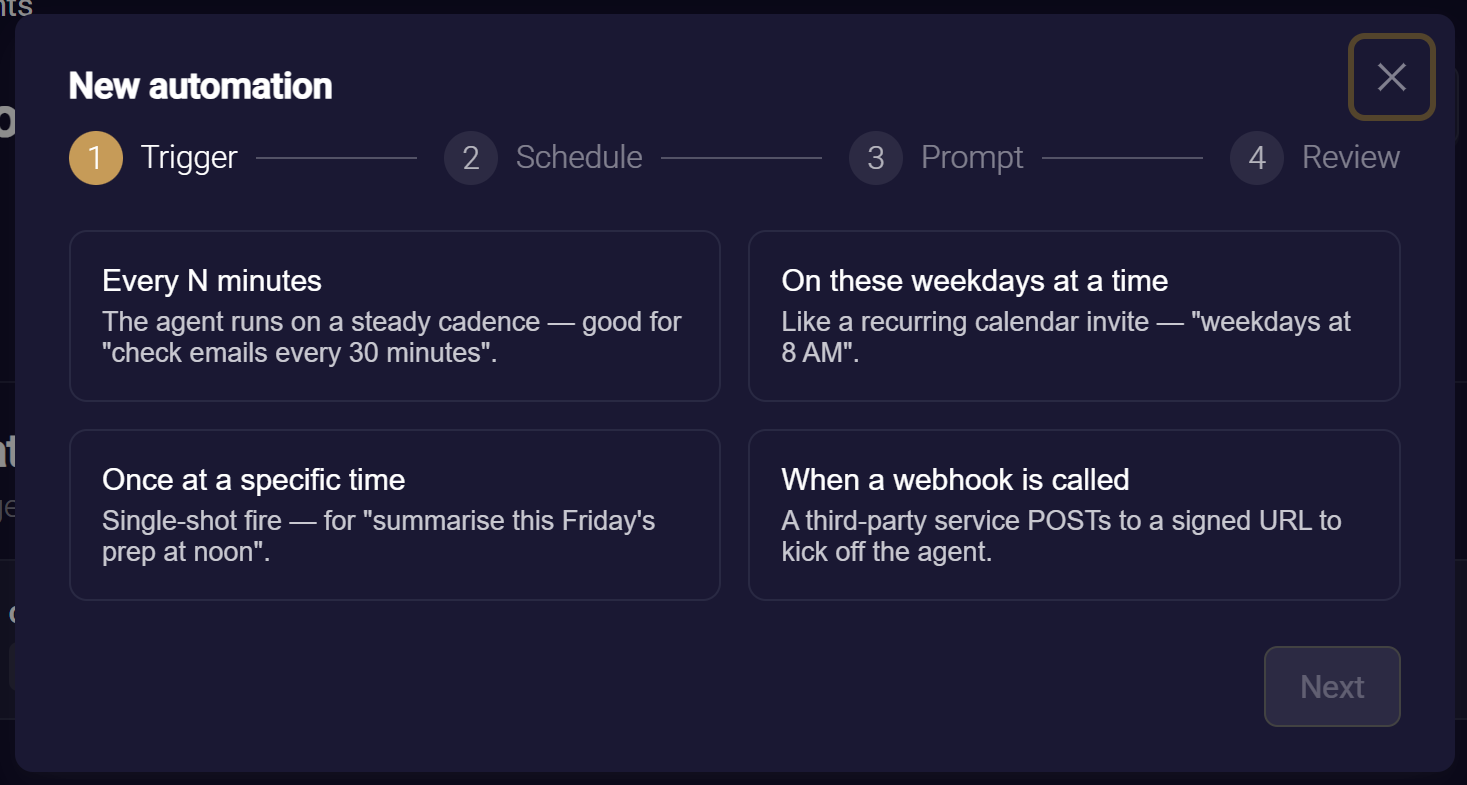
The automation wizard has four stages: trigger, schedule, prompt and review.
-
Open the agent's Automations tab, and create a new automation.
-
Pick a trigger. See Triggers.
-
Set the schedule. See Schedules.
-
Write the prompt. AgentPass sends it to a fresh session each time the trigger fires. The agent has no memory of previous runs, so write the prompt to stand alone, as you would brief a person on a recurring task.
-
Review, and save. The automation is active immediately.
Triggers
Pick the trigger that matches how the work arrives.
| Trigger | Good for |
|---|---|
| Every N minutes | A steady cadence, such as checking email every 30 minutes |
| On these weekdays at a time | A recurring slot, like a calendar invite, such as weekdays at 8 a.m. |
| Once at a specific time | A single run, such as summarizing Friday's prep at noon |
Schedules
Each scheduled trigger takes its own settings:
- Interval runs range from every 5 minutes to once a day.
- Weekday schedules take the days, a time and a time zone. AgentPass handles daylight saving changes. The default is weekdays at 08:00 in your own time zone.
- Once takes a single future date and time.
How Runs Behave
The automation's run history records every fire. Open it from the automation's row.
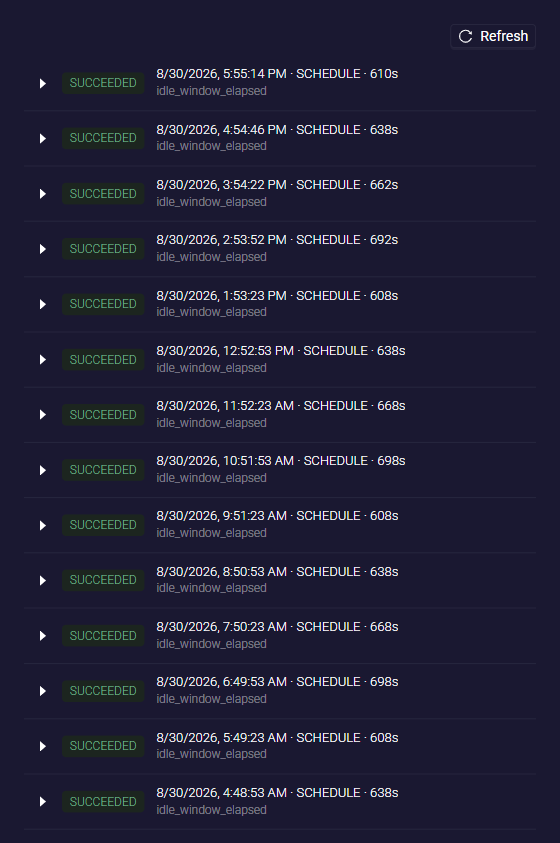
- One run at a time. If a scheduled fire arrives while the previous run is still working, AgentPass skips it and records the skip, so sessions never pile up. Run now is a deliberate human action, so it bypasses this check.
- Runs finish on their own. A run completes when the agent's session does. A run that never completes times out, and the timeout is recorded. Failures are recorded on the run and raise notifications, without disturbing the schedule.
- Runs act as the automation's creator. The creator must be assigned to the agent. The agent runs with that person's tool connections.
- Disabled agents do not run. A fire against a disabled agent is recorded and skipped.
- Turning an agent off ends its runs. A run in progress when the agent is turned off ends, with the status AGENT_DISABLED.
To pause or resume an automation, use its switch. The automation keeps its configuration. When it is no longer wanted, open its menu, and click Delete. Future fires stop immediately, and the run history is kept.
Everyone assigned to an agent sees all its automations. Only an automation's creator can change it, unless your role can manage every agent's automations. AgentPassAdmin and AgentPassOperator can change any automation.
Example: A Weekday Briefing
This example schedules the Chief of Staff agent.
- On the agent's Automations tab, create an automation named Weekday briefing.
- Choose the On these weekdays at a time trigger: Monday to Friday, 08:00, in your time zone.
- Enter the prompt "Summarize my unread mail and today's meetings, and post the briefing to #ops."
- Save.
- Click Run now to see it work without waiting for tomorrow. The run appears in the history, and the session it started is visible like any other, including its tool calls.
Related
- Managed Cloud Agents: Overview — the shared console, assignments and governance
- Anthropic Cloud Agents — the agents that run automations
- AWS Bedrock AgentCore Agents — scheduling agents that run in your AWS account