Codex CLI
Codex CLI reaches HYPR AgentPass™ through an OpenAI connector. You can configure it in two ways:
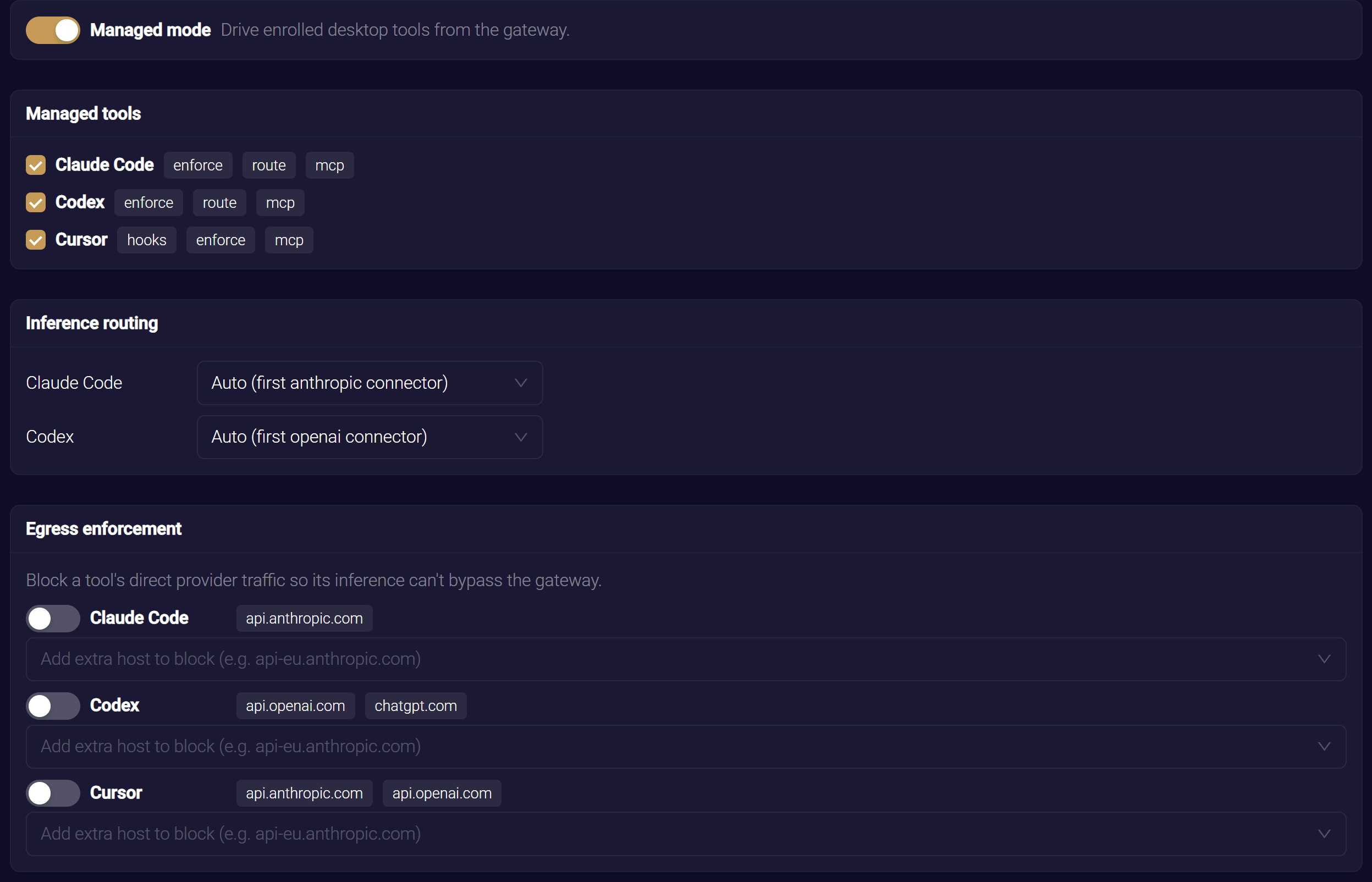
- From Managed Desktop Tools, on workstations the Endpoint Guard manages. The Endpoint Guard routes inference to your OpenAI connector and provisions your MCP connectors. It can also block Codex's direct provider hosts, so its traffic cannot bypass the gateway.
- With the connector script, on workstations the Endpoint Guard does not manage.
Before You Begin
- Your administrator has created an OpenAI connector.
- Codex CLI is installed on the workstation.
- For managed configuration, the macOS workstation is enrolled, and your administrator has enabled Codex in Managed Desktop Tools.
- If the connector requires approval, your supervisor is available to approve the first connection.
Configure Codex from Managed Desktop Tools
- In the console, open Oversight → Desktop Tools.
- Turn on Managed mode, and select Codex under Managed tools.
- Under Inference routing, select the OpenAI connector for Codex, or leave Auto (first OpenAI connector).
- MCP connectors are provisioned automatically. To keep a connector from Codex, turn off Publish to endpoint catalog on that connector.
- Optional: After the workstation reports routing as applied, turn on egress enforcement under Egress enforcement.
- Click Save.
- After the workstation applies the configuration, restart Codex CLI.
The Endpoint Guard merges the managed settings into the existing Codex configuration and keeps settings it does not own. See Routing and Observation, Provisioning MCP Tools and Egress Enforcement.
Configure Codex with the Connector Script
- Open the OpenAI connector, and find Codex CLI Setup.
- Download the Bash or PowerShell script for the workstation.
- Give the script to the Codex user through your approved software-delivery process.
- On the workstation, run the script.
- Restart Codex CLI.
The script sets the AgentPass openai_base_url and adds the built-in hyprmcp MCP server to the Codex configuration. It keeps other settings. If the connector address changes, run it again.
Approve and Verify the Connection
- Start Codex, and send a prompt.
- If the connector uses Require Approval, the supervisor approves the first connection with their passkey. See Onboarding Your Agent.
- If the client asks you to retry after approval, send another prompt.
- Confirm the request appears in the supervisor's Request Log.