General UI Overrides
Overrides File
The overrides.xml file contains all overridable configuration values for the SDK. Create your own overrides.xml file located in res/values/ directory to replace the default SDK values.
resources
<!-- Common -->
<string name="hypr_facet_id_override" translatable="false">NO</string>
<string name="hypr_common_screenshot_override" translatable="false">FALSE</string>
<string name="hypr_show_progress_spinner_override" translatable="false">FALSE</string>

<!-- Fido Client -->
<string name="hypr_fido_multi_auth_screen_enabled_override" translatable="false">TRUE</string>
<string name="hypr_fido_client_choose_aaid_enabled_override" translatable="false">FALSE</string>
facetId
Obtain the application facetId by enabling hypr_facet_id_override with a YES value:
Example
<string name=\"hypr_facet_id_override\" translatable=\"false\">YES</string>
Screenshots
Enable screenshots of the HYPR SDK UI screens by using TRUE for hypr_common_screenshot_override.
Example
<string name="hypr_common_screenshot_override" translatable="false">TRUE</string>
Progress Spinner
Include a progress spinner for the HYPR SDK UI screens with a TRUE value for hypr_show_progress_spinner_override.
Example
<string name="hypr_show_progress_spinner_override" translatable="false">TRUE</string>
Multi-authenticator Notice Screen
Disable the multi-authenticator notice screen with a FALSE value for hypr_fido_multi_auth_screen_enabled_override.
Example
<string name="hypr_fido_multi_auth_screen_enabled_override" translatable="false">FALSE</string>
Registration AAID Chooser Screen
You can enable the multi-authenticator notice screen during registration by enabling hypr_fido_client_choose_aaid_enabled_override with a TRUE value:
Example
<string name="hypr_fido_client_choose_aaid_enabled_override" translatable="false">TRUE</string>
Authentication AAID Chooser Screen
By default the Authentication AAID Chooser Screen is enabled. For it to display, the Registration AAID Chooser Screen override must be enabled. Disable the multi-authenticator notice screen during authentication with a FALSE value for hypr_fido_client_choose_aaid_authenticate_shown_override.
Example
<string name="hypr_fido_client_choose_aaid_authenticate_shown_override" translatable="false">FALSE</string>
QR Scanner Screen
Screen Title
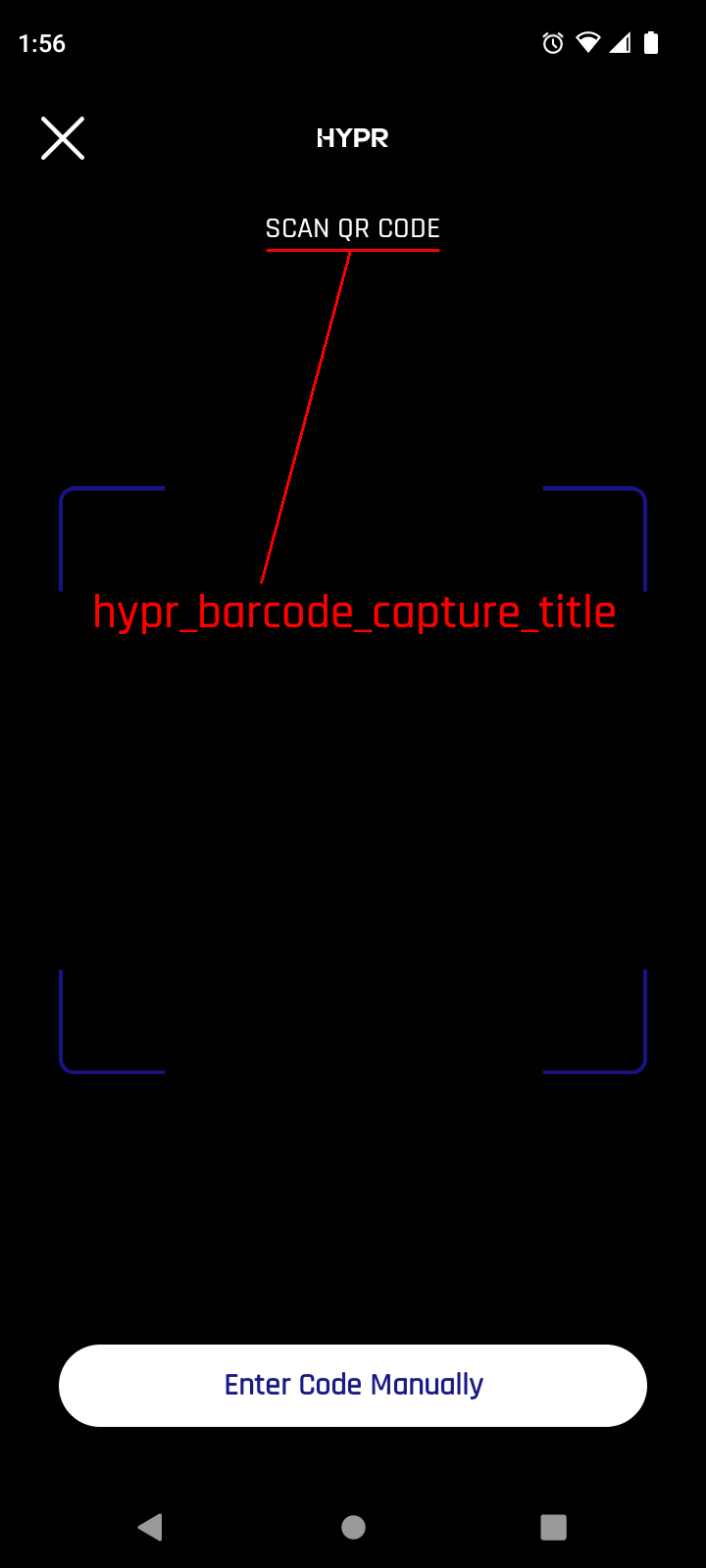
You can change the text that is shown to your own custom text by overriding the hypr_barcode_capture_title string in the res/values/strings.xml file.
<string name="hypr_barcode_capture_title">Scan QR Code</string>
Screen Logo
Change the logo at the top of the screen to your own logo with a custom hypr_common_icon_logo.xml file located in the res/drawable/ directory and replace the default logo that is shown.
Customize This Screen
Override the entire XML file to have complete control over the look and feel of the QR Scanner. Create a file with the name hypr_common_barcode_activity_capture.xml in your res/layouts/ directory. The XML code for the QR Scanner in the HYPR SDK for Android is included below.
The camera preview layout must be included in your override. Make sure that the layout with ID @+id/camera_barcode from the code below is included.
The cancel button in your override must be a RelativeLayout with the id @+id/button_cancel. You can either copy the cancel button from the code below or create your own. Because this is a required view, the cancel button cannot be removed completely. However, it you do not want to include a cancel button, you can simply set the visibility to INVISIBLE or GONE
<?xml version="1.0" encoding="utf-8"?>
<RelativeLayout xmlns:android="http://schemas.android.com/apk/res/android"
    xmlns:app="http://schemas.android.com/apk/res-auto"
    xmlns:tools="http://schemas.android.com/tools"
    android:id="@+id/layout_barcode_activity"
    android:layout_width="match_parent"
    android:layout_height="match_parent"
    android:background="@color/hyprColorBlack"
    android:fitsSystemWindows="true"
    android:keepScreenOn="true"
    tools:ignore="Overdraw">
    .....
</RelativeLayout>