Upgrading HYPR Passwordless
Passwordless for Windows
Application Upgrade
To upgrade from an older version of the HYPR Passwordless client to the latest without removing the current device registration, use the msiexec.exe command.
msiexec.exe /q /i WorkforceAccess.msi
The above command will replace all necessary binaries and update the product version without removing existing device registration.
Either a command-line prompt or Windows PowerShell must be open as an administrator to perform all silent operations (install, upgrade, remove). Otherwise, a silent operation will not change the target machine.
By default, silent install will reboot the target machine. If reboot is unnecessary at installation time, the /norestart option may be used in addition to the standard upgrade command such as:
C:\download directory\msiexec.exe /q /norestart /i WorkforceAccess.msi
Running the installation wizard is the same as a fresh install. Upgrading should be done via command line using the optional /q option for a silent install.
Passwordless for macOS
Steps to upgrade the application are the same as for the installation, but there's no need to update the info.plist file - all configurations, such as RP URL, RP APP, etc., will be overwritten during the upgrade.
Install via User Interface
-
Download the
WorkforceAccess-<VERSION>.dmgdisk image (.dmg) file. -
Open the
Downloadsfolder and locate the.dmgfile. -
Double-click
WorkforceAccess-<VERSION>-installer.dmgto begin installation.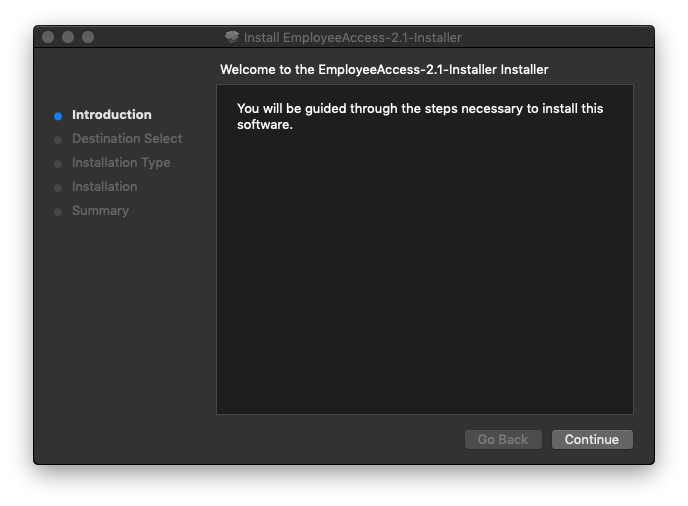
-
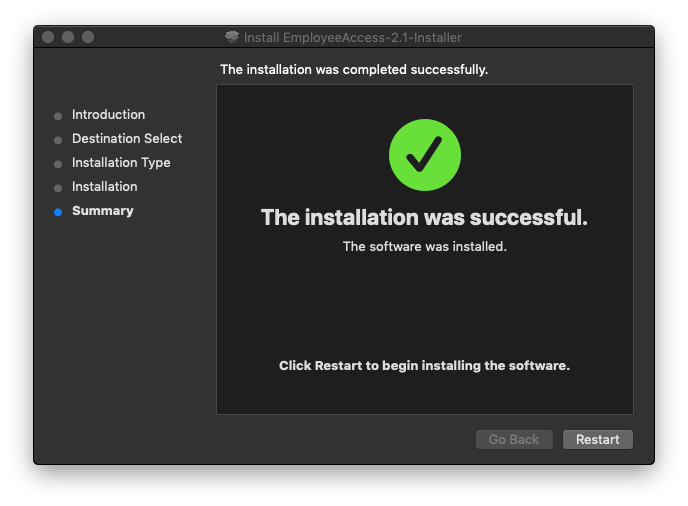
Complete installation.
-
Restart the computer.
Install via Terminal
-
Open a terminal window.
-
Execute the code shown here:
installer -pkg ~/Downloads/EmployeeAccess-<VERSION>-installer.pkg -target / -
Restart the computer.